You have a 30-second clip, a script sitting in your notes app, and zero interest in recording your own voice at 11 p.m. while the neighbor's dog barks through the wall. That is the exact situation AI voiceover free tools were built for. Paste the text, pick a voice, press generate, and a narration track comes back in seconds, ready to sit under a TikTok, a CapCut project or a YouTube Short.
The catch is that "free" comes in very different shapes. Some generators give you a flat, robotic read. Others hand over a clean MP3 with no strings attached. This article sorts the real options for video, TikTok and CapCut, shows which ones sound human, and walks through a full workflow from script to published clip.

💡 Quick answer: TikTok and CapCut both include built-in voices at no cost. For more natural narration with control over emotion, speed and pitch, a browser generator like Speech 2.8 HD exports a clean MP3 or WAV you can import into either app.
Why Free AI Voiceover Works Now
Two years ago a free voice meant a metallic reader that stressed the wrong syllable and ran every sentence at the same speed. Modern text-to-speech models predict rhythm, breath and emphasis from the sentence itself. The output holds up on a phone speaker, which is where most short-form viewers actually hear it.
What You Get for Zero Dollars
A good free setup gives you more than a voice:
- Natural narration in English and often dozens of other languages
- Speed and pitch control, so a 45-second script can fit a 30-second slot
- Emotion settings that change the delivery without a second recording
- Instant retakes, because regenerating a line costs seconds, not a studio booking
- No microphone, no room treatment, no background hum to fix in editing
Where Free Tiers Draw the Line
Free rarely means unlimited. Before building a channel around one tool, check these limits:
- Monthly character or minute caps
- Voices locked behind a paid plan
- Personal-use-only licenses that rule out monetized channels or client work
- Queues during busy hours
- Export formats limited to low-bitrate MP3
None of these limits is a dealbreaker for a hobby channel. They become a problem the day a clip earns money, so decide early which side of that line you are on.
💡 Read the license first. A voice that is fine for a private clip can be off limits for ads, sponsored posts or a client's product video. Five minutes with the terms page saves a takedown later.
Free Options for TikTok and CapCut
You do not need a separate app for a basic voiceover. You also should not expect built-in voices to carry a serious project.
TikTok's Built-In Text to Speech
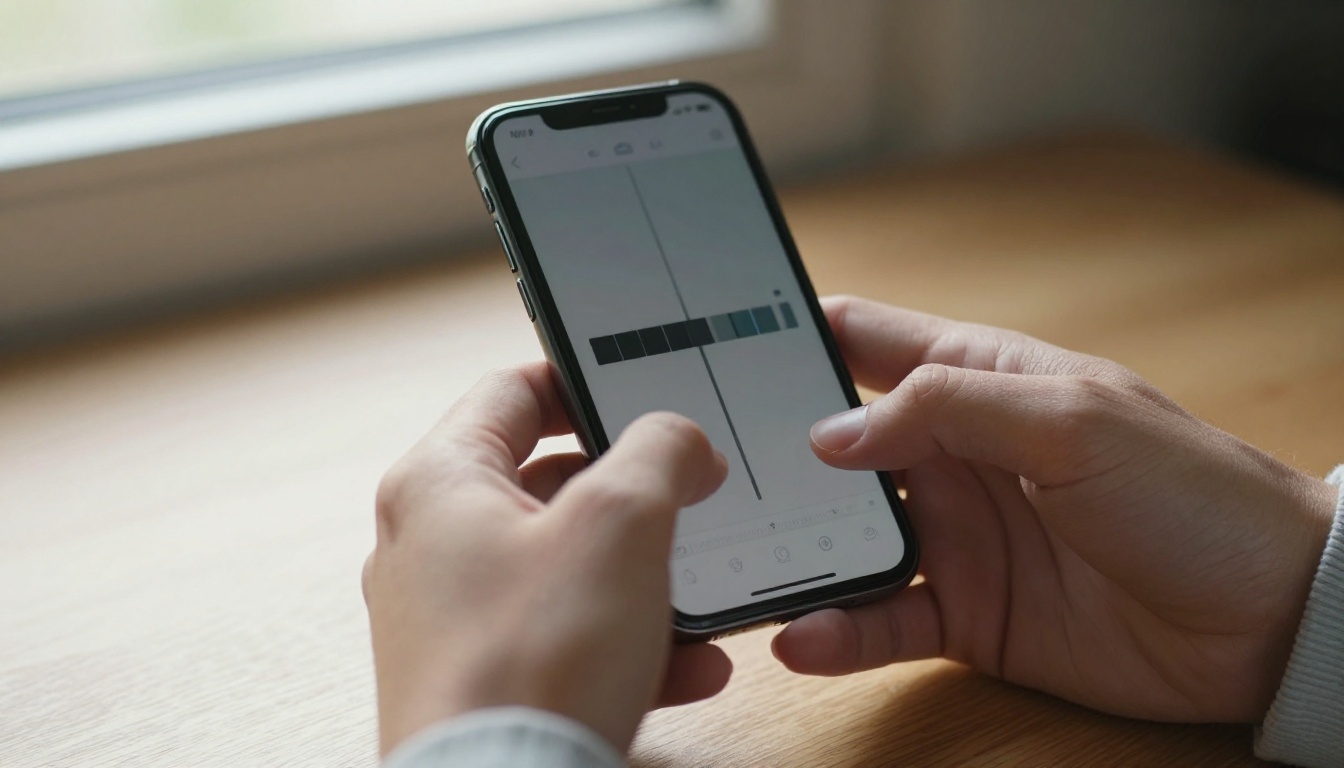
TikTok includes a text-to-speech effect inside its own editor. You add on-screen text, tap it, and choose the text-to-speech option to turn the words into a spoken voice. It is the fastest route for jokes, reaction clips and short captions where a slightly synthetic tone is part of the humor.
The trade-off is variety. The voice list is short, viewers recognize those voices instantly, and you get almost no control over emotion or pacing.
CapCut Text to Speech
CapCut offers a text-to-speech tool on desktop and mobile. You add a text layer, open the speech panel, choose a voice, and the audio lands on the timeline as its own clip. That matters: you can trim it, change its volume and line it up with your cuts like any other track.
Some voices and effects sit behind a paid plan, so test the exact voice you plan to use before committing a whole project to it.

Browser Generators for Better Voices
When built-in voices feel too familiar, generate the audio in a browser, download the file, and import it into CapCut or TikTok as a sound. You keep the editing workflow you already know and swap only the voice.
| Option | Voice Quality | Control | Best For |
|---|
| TikTok built-in voice | Basic, easy to recognize | Very low | Jokes, short captions |
| CapCut built-in voice | Decent, some variety | Low to medium | Edits you already make in the app |
| Speech 2.8 HD | High, natural | Emotion, speed, pitch, pauses | Narration, explainers, ads |
| Chatterbox | High, expressive | Voice cloning with emotion control | Characters, recurring hosts |
A simple rule helps here: use the built-in voice when the voice is part of the joke, and use a generated voice when the viewer needs to trust what is being said. A product demo, a tutorial or a news-style recap all fall into the second group.
Best Free AI Voice Models Compared
PicassoIA lists 24 text-to-speech models, and they do not all fit the same job. This shortlist names the ones worth testing first.
Narration Picks
Start with Speech 2.8 HD when you need a voice to talk over footage for 30 seconds or more. It is the model with the most dials: ten delivery styles, pitch in semitones, speed from half to double, and pause markers typed straight into the script.
ElevenLabs v3 is the second one to test, especially for story-driven videos where the delivery should feel relaxed. If you only need a quick read to check timing, Speech 2.8 Turbo and ElevenLabs Flash v2.5 return audio faster, which helps when you are trying ten versions of one hook.
Cloning and Custom Voices
A recurring character or a branded channel voice calls for cloning. Chatterbox clones voices with emotion control, MiniMax Voice Cloning builds custom voices from a sample, and Qwen3 TTS can either clone a voice or design a new one.
💡 Only clone a voice you have permission to use. Your own voice, a voice actor who signed off, or a voice you designed from scratch are safe starting points. A stranger's voice is not.
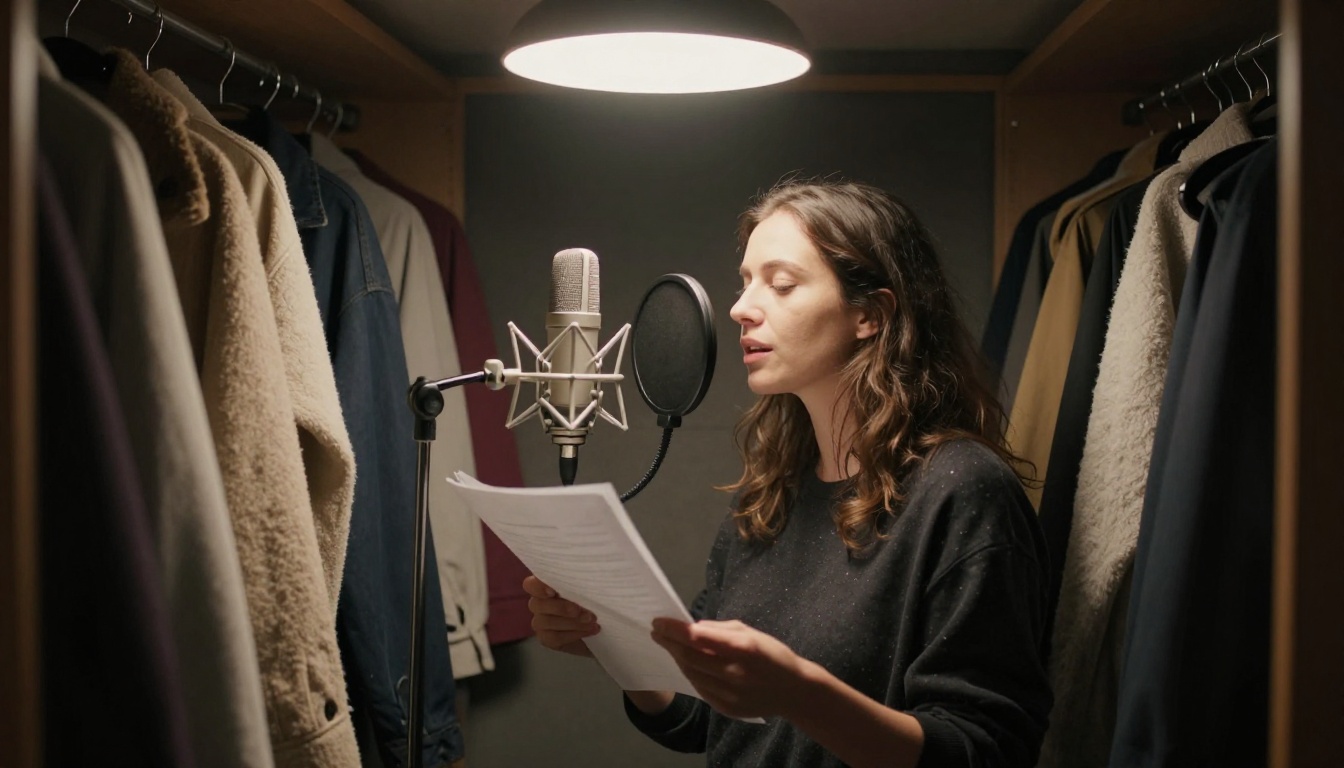
Recording yourself in a closet full of coats still works, and plenty of creators prefer it. But when you need twenty clips in a week, a cloned or designed voice saves hours and keeps every video sounding the same.
How to Use Speech 2.8 HD on PicassoIA
Speech 2.8 HD is presented as a free online tool, takes up to 10,000 characters per generation and handles more than 40 languages. Here is the whole run, one setting at a time.
Write the Script for Speech
- Open the model page and find the Text field.
- Write short sentences, around 12 to 15 words each. Read them aloud before pasting.
- Add a pause with
<#0.5#>, which inserts half a second of silence. Use <#1#> for a full second before a punchline.
- Spell out names the voice might mispronounce, the way you would say them.
A sample line that works well:
Three free voices. One minute each. <#0.5#> Which one sounds like a real person?
Read it back with a stopwatch. A comfortable pace is roughly 150 words per minute at speed 1.0, so a 30-second clip holds about 75 words.
Set Voice, Emotion and Speed
Choose a voice in voice_id. The default is Wise_Woman, which is a calm, even reader and a safe base for tutorials. Then adjust the rest:
| Setting | Range | Starting Point for Video |
|---|
| speed | 0.5 to 2.0 | 1.0 for explainers, 1.1 to 1.2 for TikTok |
| pitch | -12 to +12 semitones | 0 for neutral, +2 for a livelier tone |
| emotion | auto, happy, sad, angry, fearful, disgusted, surprised, calm, fluent, neutral | calm for tutorials, happy for ads |
| language_boost | Automatic or a specific language | Set it whenever the script mixes languages |
| english_normalization | on or off | On when the script has numbers and dates |
| audio_format | mp3, wav, flac, pcm | mp3 for upload, wav for editing |
| bitrate | 32k to 256k | 128k for most clips, 256k when quality matters |
Change one setting per take. If you alter speed, pitch and emotion at once, you will not know which change fixed the problem.
Export and Check the Take
Generate, then listen twice: once with headphones for clicks and odd stresses, and once through your phone speaker, because that is what your audience will hear. If a word lands badly, rewrite the sentence rather than fighting the voice. Different wording usually fixes it faster than any setting.
Turn on subtitle_enable if you want sentence-level timestamps to go with the audio. They make captioning faster later.
Put the Voice on Your Video
A voice file alone is not a video. Three more steps turn it into something you can publish.
Merge Audio with Video Audio Merge
Video Audio Merge joins a video file and an audio file into one export. Upload both, then check these settings:
- Replace Audio: on when the clip is silent or the original sound is noise, off when you want the narration mixed over the existing track
- Audio Volume: a multiplier where 1.0 is the original level; set a music file to 0.5 before merging so the voice stays on top
- Duration Mode: choose video so the export stops when the picture does
- Output Format: MP4 with H264 plays nearly everywhere
If you already edit in CapCut, skip this step and drag the MP3 straight onto the timeline instead.
Captions That Match the Voice
Many viewers watch with the sound off, so captions are not optional. Autocaption reads the audio and burns styled subtitles into the footage.
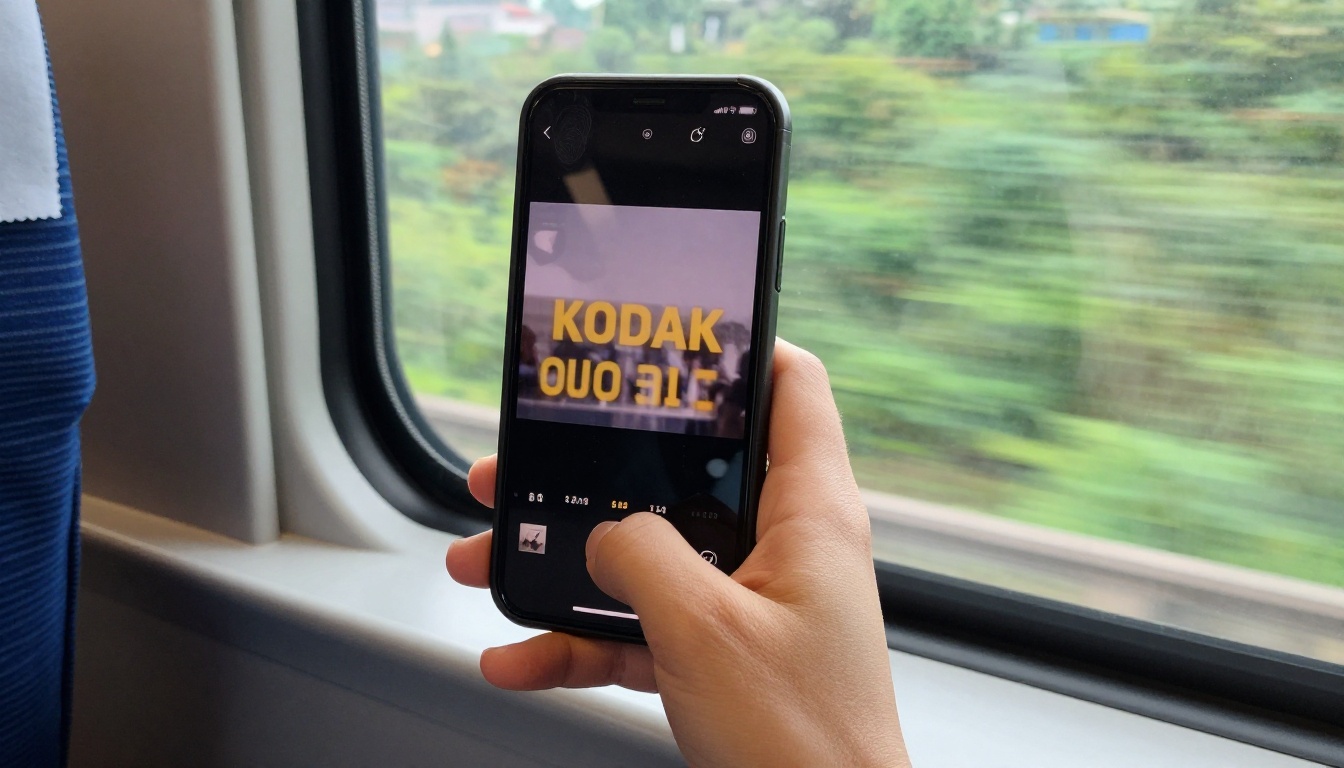
The model page suggests MaxChars 20 and font size 7 for standard videos, and MaxChars 10 and font size 4 for vertical reels. Keep the default position, add a yellow word highlight, and download the JSON transcript. If a brand name was misheard, correct it in the transcript and run the video again with the fixed file. Clean synthetic audio tends to transcribe well, so edits are usually few.
Pair the Voice with AI Video Clips
No footage? Generate it. Seedance 2.5 Lite is listed as a free, unlimited generator for clips up to 10 seconds, and Veo 3.1 Lite creates videos with native audio. Then finish the edit with three small tools:
- Trim Video cuts a clip to the exact length of your narration
- Video Merge joins several clips into one timeline
- Reframe Video changes the aspect ratio, which is how a 16:9 clip becomes a 9:16 TikTok
Voiceovers for Different Creators
The same workflow bends to different jobs. These are the setups that work in practice.
Shops and Course Makers
A small shop needs ten short product clips, not one long film. Write three sentences per product, use the happy or calm emotion, and keep the same voice_id across every clip so the brand sounds consistent.

Teachers and course makers have the opposite problem: long scripts and frequent corrections. Generate narration one slide or one lesson step at a time, set speed to 0.9 or 1.0, and add a <#1#> pause after every new term. When one definition changes, you regenerate a single clip instead of the entire lesson.

Travelers and Multilingual Channels
A travel channel can publish one edit in several languages. Gemini 3.1 Flash TTS offers 30 voices across 70+ languages, and Dubbing translates a finished video into 90+ languages. In Speech 2.8 HD, set language_boost to the target language so pronunciation stays natural.

Keep sentences short and avoid idioms, since they rarely survive translation. For anything important, ask a native speaker to listen once before you publish.
Five Mistakes That Make AI Sound Fake
- Writing for the eye. Long, comma-heavy sentences read well on a page and sound awkward aloud. Cut every sentence that needs a breath in the middle.
- Letting numbers trip the voice. Dates, prices and abbreviations are the usual culprits. Turn on English normalization or write them out the way you would say them.
- Skipping pauses. A voice that never stops sounds like a machine. Insert
<#0.5#> markers after hooks and before big numbers.
- Burying the voice under music. Keep the music track at about half volume, or lower, so every word stays clear on a phone speaker.
- Using the default voice for everything. Viewers notice when ten channels share one voice. Test three voices on the same paragraph and pick the one that fits your topic.
Fix these five and a free voice stops sounding free.
Try Your Own Voiceover Today
Pick one script you already have: a 30-second product line, a lesson intro, a travel recap. Paste it into Speech 2.8 HD, generate three takes with different emotions, and keep the one that sounds like a person talking. Then add a clip, merge the audio, caption it, and post.
Head to Picasso IA to experiment with voices, images and video models in one place, and see how fast a rough script becomes a finished video. Your first free voiceover is one paste away.


