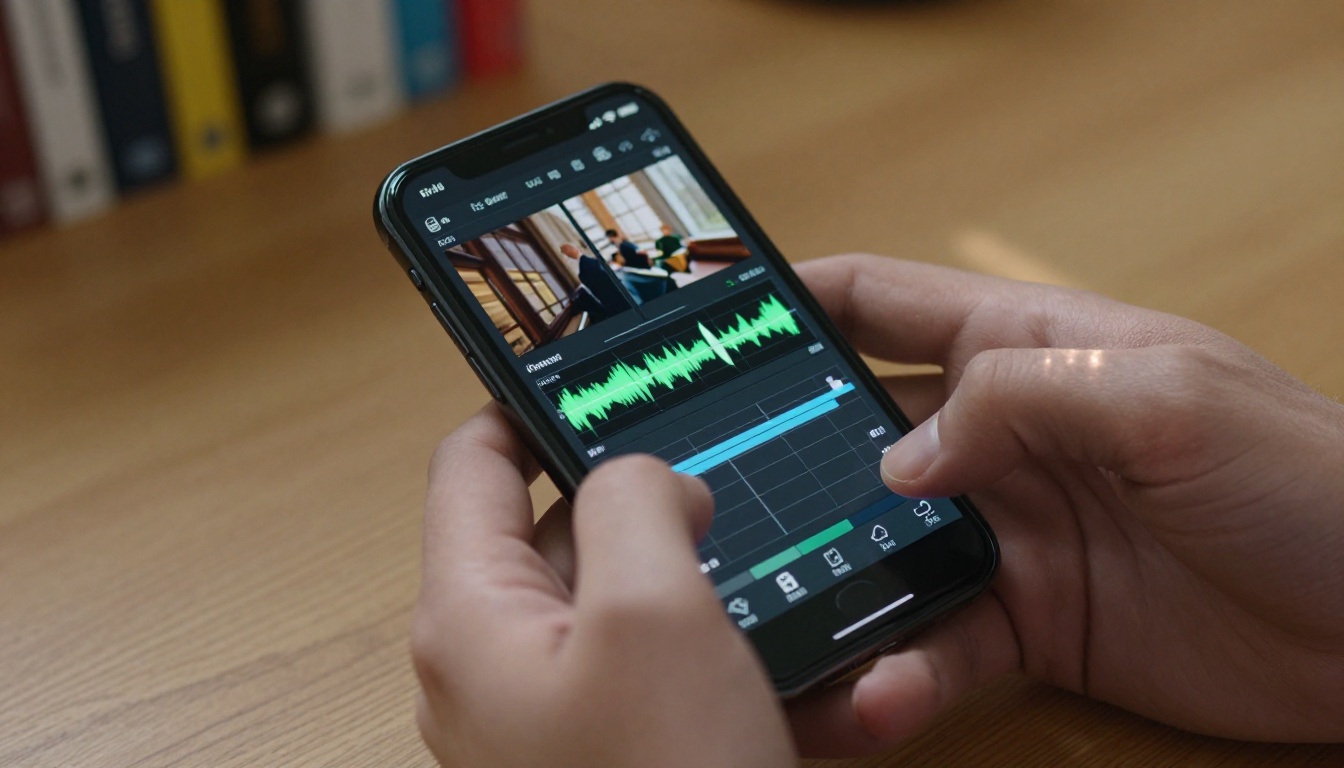
Your phone records everything. The footage piles up in your camera roll: birthday parties, travel clips, workout sessions, product demos, casual vlogs. Getting from raw clips to something actually worth watching used to require a desktop, expensive software, and hours of frustration. AI changed that equation completely.
The best AI video editor for your phone works from a browser tab. You upload your clip, pick the tool you need, and the model handles everything from automatic captions to background removal to 4K upscaling. No timeline scrubbing. No render queue. No software installs.
This is what that actually looks like in practice, which tools do which jobs well, and how to string them together for a finished video worth posting.
Why AI Is Taking Over Mobile Editing
Mobile video quality has never been better. Modern flagship phones shoot 4K Log footage with dynamic range that used to require a cinema camera. The hardware got there first. The software took longer.
Traditional phone editing apps built timelines, layers, and presets that mimicked desktop software but never worked as naturally on a small screen. AI skips that model entirely. It does not ask you to edit. It handles the editing.
What Actually Changed
The real shift is that AI video processing runs server-side. Your phone does not need a GPU to upscale footage, remove a background, or generate captions. The model does the heavy lifting remotely. Your phone just needs a browser and an upload connection.
This matters because:
- Any phone works: You are not limited to flagship hardware
- No storage drain: Processed videos download only when finished
- Faster iteration: Redo an edit in seconds, no render queue
AI models also understand video content in ways older software did not. They recognize subjects, read audio, detect motion patterns, and make contextually smart decisions. Auto-reframing that follows a moving subject. Captions that break at natural speech pauses. Background removal that handles hair and fabric edges without manual masking.
Who's Actually Using It
The audience for phone AI editors is wide. Fitness creators who shoot their own workouts and need clean backgrounds without a studio. Real estate agents who want captions on their walkthrough tours. Travel creators turning 4K vacation clips into polished Reels from a hotel room. Small business owners who need product videos that look professional without hiring a videographer.
What they share: limited time, footage shot on a phone, and a need for output that looks intentional rather than casual.
5 AI Edits That Save Real Time
These are the tasks that used to eat up an afternoon on desktop software. With AI models, they run in seconds. Each one addresses a specific friction point that stops most phone editors before they finish.
Auto Captions That Actually Work
Most phones have built-in transcription. Most of it is mediocre. The issue is not always speech recognition accuracy. It is timing, formatting, and how text integrates with the video frame.
Autocaption processes your video's audio and produces accurately timed subtitle tracks with style controls. The model reads speaker rhythm rather than just converting speech to text. Captions appear at natural phrase boundaries instead of cutting awkwardly mid-sentence.
Why this matters:
- 85% of social video is watched with sound off on mobile. Captions are not optional for reach.
- Accessibility opens your content to deaf and hard-of-hearing viewers automatically
- Search indexing on platforms like YouTube reads caption text as a content signal
💡 Tip: Add captions before you trim your clip. It is faster to delete caption blocks after cutting than to re-run the model from scratch.
Background Removal Without a Green Screen
A green screen costs money. Setting it up takes space. Getting even lighting takes skill. Removing it in post requires software and patience.
Video Remove Background skips all of that. The model processes your video frame by frame, isolating the subject and removing everything behind them. It handles loose hair, layered clothing, and minor subject movement cleanly. Edge quality is substantially better than what chroma key tools produce on difficult textures like hair or semi-transparent fabric.
After removing the background, you can:
- Add a static image or solid color as a replacement backdrop
- Layer the clip over b-roll
- Pair with Video Audio Merge to add music before your final export
Upscaling Low-Res Footage to 4K
Old clips have a shelf life that most people accept too quickly. A video from three years ago. A screen recording. Footage from a budget phone. These do not have to stay blurry.
AI upscaling synthesizes new detail rather than simply enlarging existing pixels. The model predicts what higher-resolution data would look like based on learned patterns of how real surfaces, faces, and environments appear at scale.
Two strong options:
- Real ESRGAN Video: Reliable for general footage. Strong on textures, edges, and natural surfaces. Works well for most use cases.
- Video Upscale by Topaz Labs: Better for motion-heavy clips. Handles 120fps output and produces sharper results on high-action footage.
For portrait and product footage, Video Increase Resolution targets an 8K output with strong detail recovery.

💡 Tip: Upscaling works best on stable footage. If your source clip has significant camera shake, run stabilization first. Shaky footage loses more from upscaling than stable footage gains.
Reframing for Any Platform
You shot 16:9 landscape. You need 9:16 vertical for Reels. Manual cropping cuts your subject's head off or removes critical context from the edges.
Reframe Video uses AI tracking to identify the focal subject in every frame and adjusts the crop dynamically as they move. The result looks intentionally shot for the target format, not mechanically cropped.
| Original Format | Target Format | Platform |
|---|
| 16:9 Landscape | 9:16 Portrait | TikTok, Reels, Shorts |
| 9:16 Portrait | 16:9 Landscape | YouTube, Website |
| 16:9 Landscape | 1:1 Square | Feed Posts |
| 4:3 | 16:9 | Modern Widescreen |
This is especially valuable for creators who shoot one primary format and need to repurpose content across platforms without reshooting.
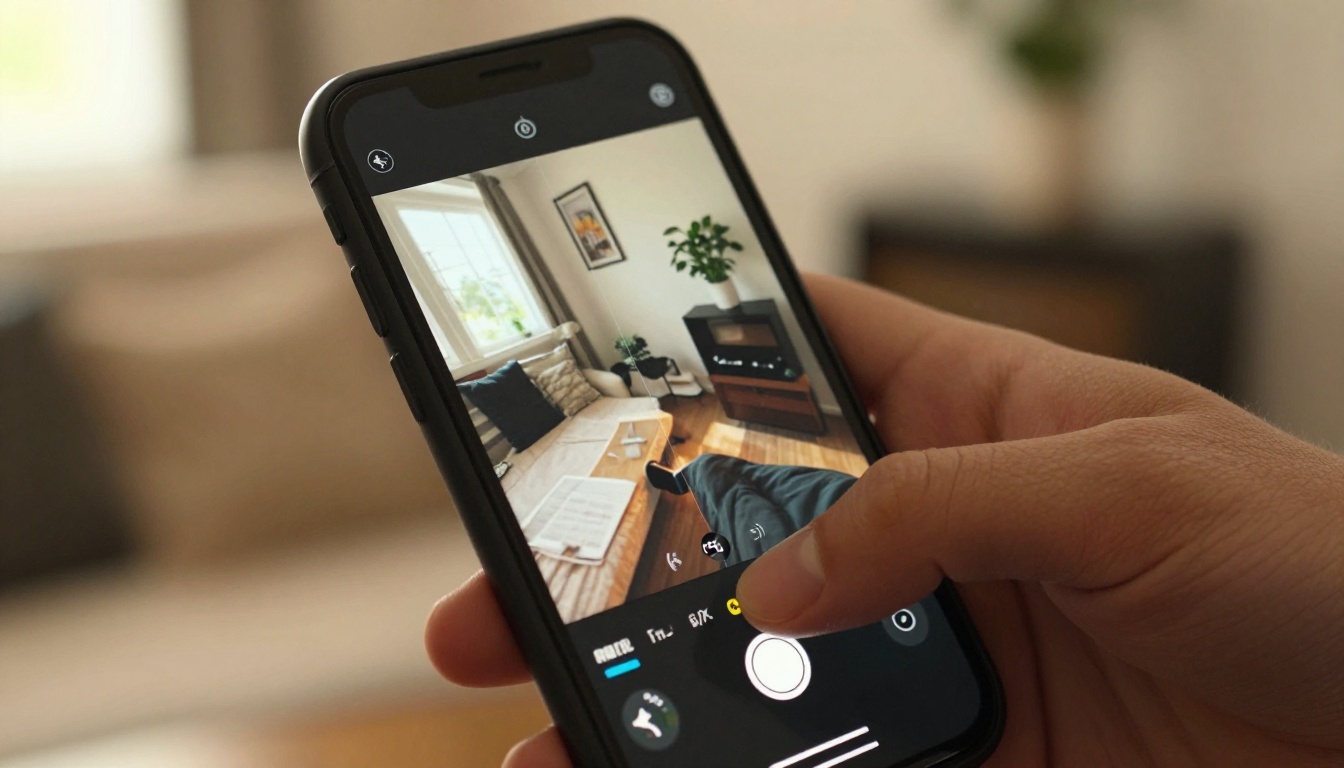
AI Audio and Sound FX
Viewers tolerate shaky footage. They click off bad audio. The audio layer communicates production quality, mood, and professionalism faster than anything visual. Most phone editors skip it entirely.
Three tools that address different audio problems:
Thinksound reads your video content and generates contextually appropriate ambient audio. A street scene gets city noise. A nature clip gets wind and birds. A cafe scene gets low crowd murmur. The model decides based on what it sees, not what you type.
MMAudio generates original AI sound design from scratch. More creative than ambient sound generation, better for content where you want a specific audio mood rather than realistic ambience.
Video Audio Merge handles the practical case: you have a track ready, you need it merged to your video with correct timing. Clean, fast, and reliable.
To strip the existing audio track before replacing it, Extract Audio separates it cleanly first.
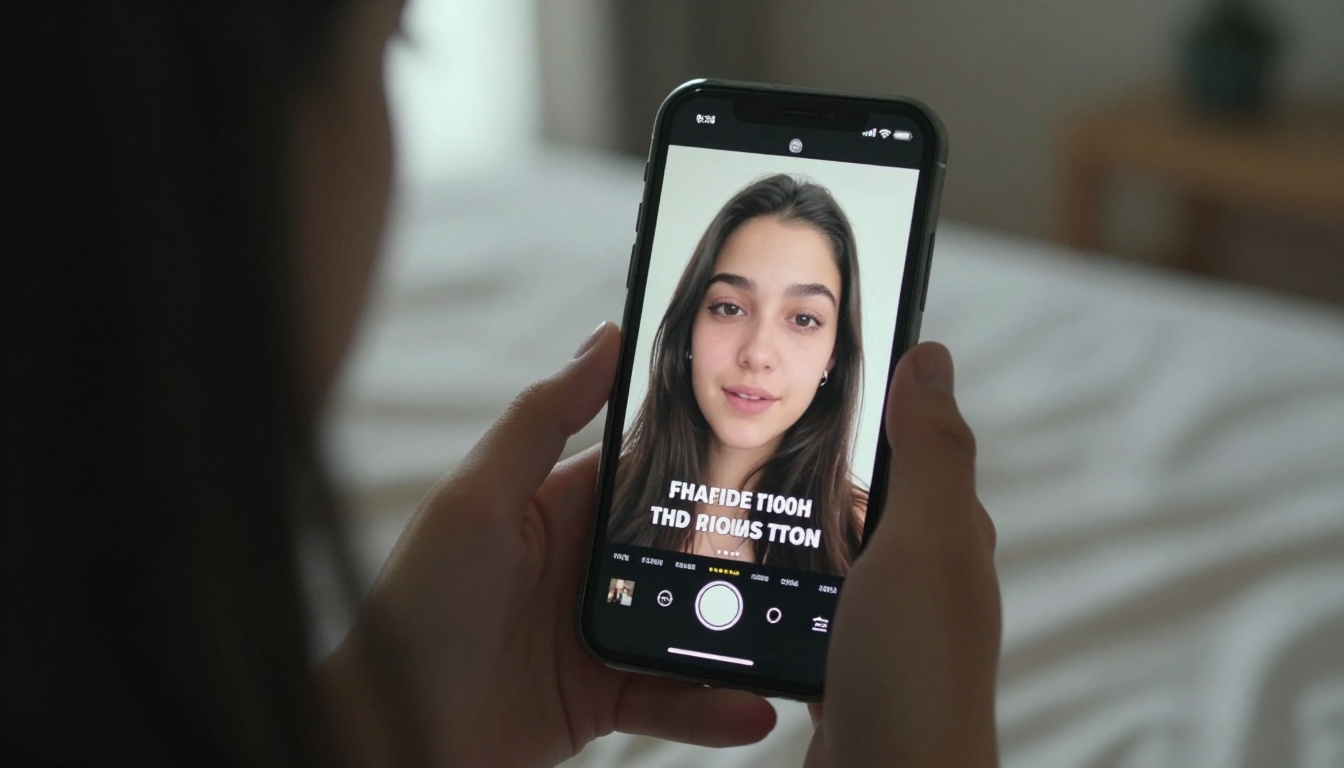
PicassoIA runs in a browser. No software to install. No learning curve before you can do something useful. Here is the workflow for any video editing task.
Upload Your Clip
Go to the tool page for whatever you need. Each model has a dedicated upload interface. Most accept MP4, MOV, and WebM. File size limits vary by model, but most handle clips of several minutes without issue.
For longer recordings, Video Split breaks your footage into timed segments first. Process each segment through your chosen tools, then reassemble with Video Merge at the end.
Pick the Right Tool
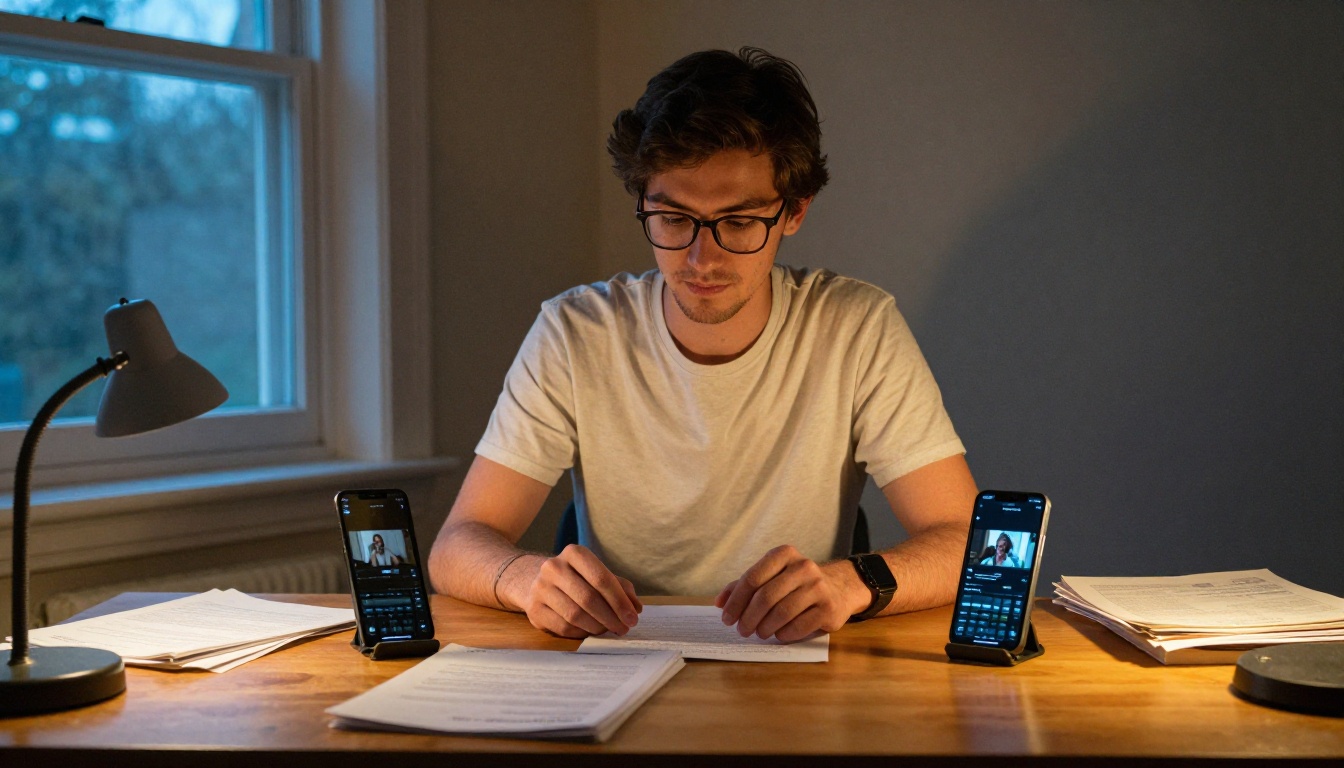
With dozens of video models available, here is a direct decision path:
Download and Post
When processing completes, you get a direct download link. Most video tools output MP4. From there, the file is ready to upload to any platform immediately.
If you need animated WebP format for web use, Vid2WebP converts the video after editing is done.
3 Mistakes Most Phone Editors Make
Shooting the Wrong Ratio First
The easiest edit is the one you never have to make. Deciding your primary platform before you shoot removes every reframing headache that comes after. If it is TikTok or Instagram Reels, shoot vertical from the start. If it is YouTube, shoot landscape.
When you are working with footage that does not match your format, Reframe Video handles it well. The AI tracking performs better when the original shot had a clear, centered subject to follow.
Ignoring the Audio Layer
Most creators spend 90% of editing time on visuals and post with whatever raw audio the clip captured. That is the decision that makes polished-looking videos feel amateur the moment they play.
Even 30 seconds of ambient sound added via Thinksound changes the feel of a clip substantially. A background track merged with Video Audio Merge adds professionalism with minimal effort. Audio is the edit most people skip and the one viewers notice first.
Over-Editing Short Clips
Short-form content rewards restraint. The instinct is to add captions, a filter, a transition, text overlays, background music, and a reframe all in one 15-second clip. The result feels frantic and tiring to watch.
Pick two or three edits per clip. Captions plus a reframe is often enough. Background removal plus a music track is a solid pairing. Three edits applied cleanly outperform six competing edits on clips under 60 seconds, every time.
TikTok and Reels
Both platforms reward the same behaviors:
- Captions from frame one: Most users scroll with sound off. A clip that opens with readable text gets more time to hook a viewer before they scroll past.
- Vertical format: 9:16 is non-negotiable. Landscape clips are displayed smaller within a vertical feed.
- Action in the first two seconds: The opening frames decide whether someone stops or keeps scrolling. Start with something visual, not an introduction.
The workflow that works: shoot vertical, trim dead air from the opening with Trim Video, add captions with Autocaption, add ambient sound or music if needed. That covers a standard short-form edit in minutes.
For clips that need a distinct visual look, Modify Video lets you restyle the visual tone from a text prompt without reshooting.
YouTube Shorts
Shorts reward slightly more polish than TikTok because the YouTube audience skews toward viewers who want information alongside entertainment. Captions matter. Audio quality matters. Visual sharpness matters.
Upscaling tools carry more weight here. YouTube applies its own compression on upload, and lower-resolution source footage loses more to that process. Running your clip through Video Upscale or Real ESRGAN Video before uploading preserves more detail through that compression layer.
💡 Tip: Before-and-after comparisons perform well on Shorts. Split Screen Video creates side-by-side layouts for results-focused content without any extra shooting.

Start Editing on Your Phone Right Now
The tools in this article are live and ready to use. No tutorial playlist needed. No editing background required. No powerful device necessary. You need your footage and a browser tab.
Start with one clip and one tool. Use Autocaption on a talking-head video. Try Reframe Video on a landscape clip that needs to go vertical. Run Video Remove Background on anything that needs a cleaner backdrop.
Once you see the first result, what becomes possible from your phone is obvious. Picasso IA has over 18 dedicated video editing tools and more than 89 text-to-video models available from the same browser interface. No configuration, no commitment, and no desktop required.
Your footage is already on your phone. The tools are already ready. That edit you have been putting off takes about three minutes now.


