Your AI assistant can already write a decent landing page. What it cannot do on its own is open your Figma file, check your Canva brand kit, or look at the button you just shipped and tell you the padding is off. Model Context Protocol (MCP) servers close that gap. Each one is a small connector that hands an AI agent one specific ability: read this frame, edit that slide, build this 3D scene, click through that page.
This ranking picks the MCP servers that earn a place in a designer's setup. It starts with the Figma options, moves out to the tools around them, and ends with the missing piece most lists skip: the images and video that fill the layouts. Every entry says what the server does, where it falls short, and who should install it.

What MCP Changes for Designers
MCP in Plain Terms
MCP is an open protocol that lets an AI client (Claude, Cursor, VS Code, ChatGPT and others) talk to outside tools through one standard interface. A server publishes a list of tools, such as "read this Figma frame" or "generate an image," and the client decides when to call them. You install a server once, and every MCP-capable client can use it.
Servers come in two flavors:
- Local servers run on your machine, usually started with
npx or uvx, and talk to an app you have open, like Blender.
- Remote servers live at a URL, like Figma's hosted endpoint at
mcp.figma.com/mcp, and you sign in through your browser the first time.
What You Gain
- Fewer screenshots. The agent reads real layout data, variables and component names instead of guessing from a flattened PNG.
- Fewer round trips. Design, code and QA happen in one conversation instead of three apps.
- Repeatable work. A prompt that worked on one frame works on the next fifty.
- Honest limits. An agent only sees what the server exposes, so the quality of its output depends on how tidy your files are.
💡 Tip: Clean one file before you connect anything. Name your layers, turn repeated shapes into components and put colors into variables. Agents read structure, and a page full of "Frame 1042" layers gives them nothing to work with.
The Figma Servers
Figma is where most product design lives, so it is where MCP has moved fastest. Two servers deserve a look, and they solve different problems.
Official Figma MCP Server
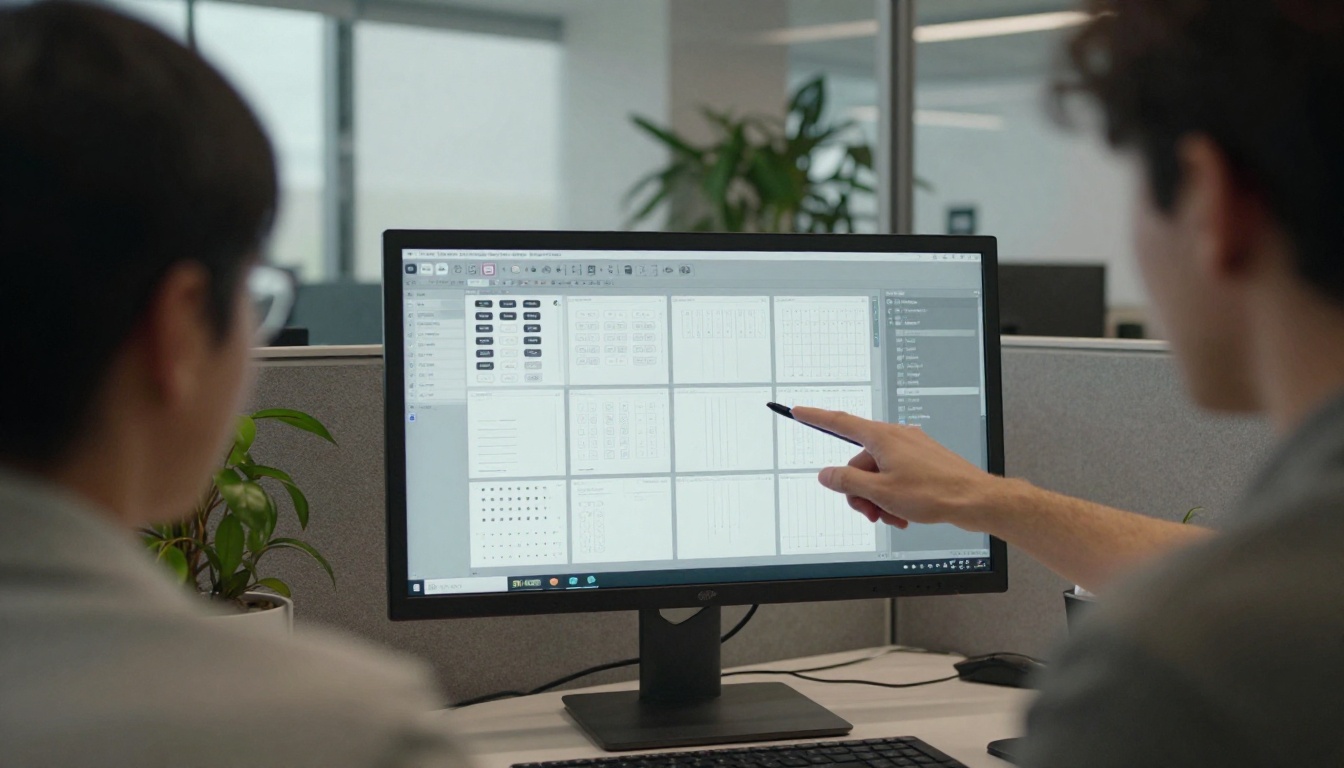
Figma runs its own remote MCP server at https://mcp.figma.com/mcp. You connect it from a client such as Claude Code, Cursor, VS Code or Windsurf, sign in with your Figma account, and the agent can pull live design context from your files: layout, components, variables and styles. Figma also lists Android Studio, Replit and Warp among its partners.
It goes beyond reading. The server can create and modify native content in Figma Design and FigJam, including frames, components, variables, auto layout, stickies, connectors and shapes. It reads Figma Make files too, so an agent can see the code behind a prototype instead of a rendered picture. It also works with Code Connect, the feature that maps Figma components to the real components in your codebase, so generated code reuses what your team already ships.
Best for: product designers who hand off to developers and want generated code to use the team's actual components.
Watch out for: Figma flagged these features as beta when it announced the remote server, so tool behavior can change. Check your plan and seat type in Figma's help center before you roll it out to a whole team.
Framelink Figma Context MCP

Framelink's server (the Figma-Context-MCP project on GitHub) takes a different route. It runs locally and calls the Figma API with a personal access token you create in your Figma account settings. Before the agent sees anything, the server simplifies the API response so only the most relevant layout and styling information reaches the model. Less noise in the context means tighter answers and fewer wasted tokens.
Best for: developers who want one frame turned into front end code with the right spacing and styles, inside Cursor or another coding agent.
Watch out for: it focuses on reading designs and fetching assets, so do not expect it to edit your canvas. Treat the token like a password.
Which One to Pick
Choose the official server if your team lives in Figma and wants write access, Code Connect and Make support. Choose Framelink if you prefer a lightweight, token-based setup that stays in your own tooling. Install one first. Running both gives the agent two overlapping tools for the same job and makes its choices harder to predict.
Beyond Figma: Canva, Penpot, Blender
Canva MCP Server

Canva offers an MCP server that lets AI assistants reach your workspace: your designs, brand assets and templates. Canva launched it alongside a ChatGPT connector, with the idea that you can ask for a design, get one and keep editing in the same conversation. Reported actions include creating and editing designs, searching the template library, managing brand assets and exporting in several formats. Check Canva's AI connector page for the current list of supported assistants and actions.
Best for: marketers and small teams that already work in Canva and want an agent to draft ten variations of a social post from one brief.
Watch out for: the agent works with Canva's own building blocks. Heavy custom illustration or photographic work still needs a dedicated tool.
Penpot MCP for Open Source Teams
Penpot is the open source design tool, and its team has been experimenting with an MCP server. The approach is unusual. Instead of a long menu of narrow tools, the agent gets a handful, and the main one runs JavaScript inside Penpot's plugin environment with access to the full Plugin API. Community servers also exist for self-hosted instances, letting an agent read, create, modify and export design elements.
Best for: teams that need self-hosting and full ownership of their design data.
Watch out for: experimental status. Test on a throwaway file first, because an agent that can run code can also break a layout.
Blender MCP for 3D Scenes
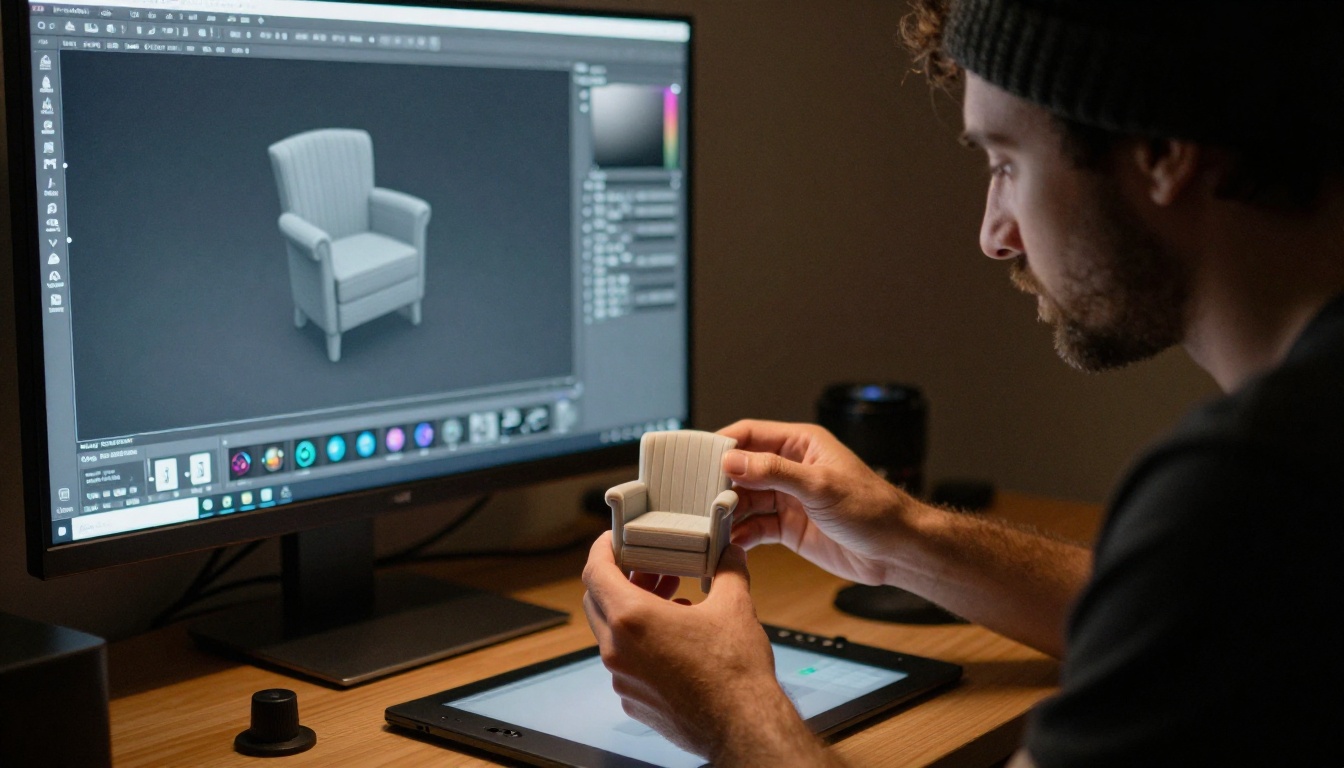
The community blender-mcp project by ahujasid pairs a Blender add-on with a Python MCP server. Claude or another client can create, change and delete objects, set materials, grab viewport screenshots and run Python inside Blender. It can also pull assets from Poly Haven, Sketchfab, Hyper3D and Hunyuan3D. It needs Blender 3.0 or newer and Python 3.10 or newer.
Best for: product visualization and fast scene blocking, where the agent sets up a floor, lights and a camera while you art-direct.
Watch out for: the code execution tool runs arbitrary Python in your scene. Save your file first and work on a copy.
Servers That Guard Your Design System
Design drifts the moment it reaches code. These three servers pull the shipped interface back toward the design.
Storybook MCP

Storybook MCP gives an agent project-specific context about your components: what exists, what props they take and how they are documented. It also exposes Storybook's testing tools, so the agent can check and fix its own output. The practical result is generated UI that reuses your existing Button instead of inventing a new one.
Best for: teams with a mature component library.
Watch out for: thin documentation. If your stories are empty, the context is empty too.
shadcn/ui MCP
The official shadcn MCP server lets an assistant browse, search and install components from registries, including the public one, private company libraries and third-party sources. Run npx shadcn@latest mcp init --client claude in your project, restart your client, and ask for "a pricing table using the card and badge components." For designers who prototype in code, it is the fastest way to get real, accessible components on screen.
Best for: React and Next.js teams that build on shadcn components.
Playwright MCP Checks the Result

Microsoft's Playwright MCP gives an agent a real browser. It works from structured accessibility snapshots rather than raw pixels, so clicking and typing are fast and predictable, and it can take screenshots when you want visual proof. Ask it to open your staging page, resize to a phone width and report anything that overflows or lacks a label.
Best for: checking responsive behavior and accessibility labels before design review.
Watch out for: a snapshot shows structure, not taste. A human still has to judge spacing, color and rhythm.
Connect PicassoIA to Your Agent
Everything above handles layout, components and code. None of it produces the photograph that sits inside the hero section or the short clip behind the headline. That is the job of PicassoIA's MCP connector, and it is the one server on this list built for creating assets rather than moving them around.
What the Connector Exposes

The connector gives an agent tools to generate images, edit images and generate videos, plus tools to check a job's status, list your past generations, list the available models and read your account. Jobs are asynchronous: the agent submits a request, receives a prediction ID, then checks back until the status reads succeeded or failed.
Four models sit behind the connector:
Plan around the limits: five concurrent predictions per account, shared across API access and MCP connections, and prompts up to 4,000 characters. If you would rather write code, the REST API at api.picassoia.com/v1 uses Bearer tokens and the same create, poll and fetch flow.
On the platform itself, other models fit narrower jobs:
Step by Step Setup
- Create an account and check the pricing page to see which plan includes MCP connections.
- Open the MCP connections page in your account (
picassoia.com/en/mcp/accounts) and create a new connection.
- Add it to your client. Copy the connection details into your client's connector settings and approve access.
- Ask the agent to list models first. It then knows exactly what it can call.
- Prompt for one image. Name the subject, setting, light and lens, then wait for the job to finish and review the URL it returns.
- Edit instead of regenerating. Hand the agent an existing image URL and ask PicassoIA Image Editor Pro for one specific change.
💡 Prompt pattern: "Photorealistic photo of a ceramic studio at 7 a.m., soft window light from the left, 35mm lens, shallow depth of field, 16:9." Subject, setting, light, lens. Four details beat a paragraph of adjectives.
Pick the Right Server per Job
| Server | Type | Main job | Best for | Setup effort |
|---|
| Figma (official) | Remote | Read and write Figma files | Product teams | Low |
| Framelink Figma Context | Local | Frames as simplified data | Front end developers | Low |
| Canva | Remote | Create and edit Canva designs | Marketing teams | Low |
| Penpot | Self-hosted | Script Penpot through plugins | Open source teams | Medium |
| Blender MCP | Local add-on | Control Blender scenes | 3D and product visuals | Medium |
| Storybook | Project | Component docs and tests | Design system teams | Medium |
| shadcn/ui | Local | Browse and install components | React teams | Low |
| Playwright | Local | Real browser checks | QA and responsive work | Low |
| PicassoIA | Remote | Generate images and video | Anyone who needs assets | Low |
Stacks that work well together:
- Solo freelancer: Canva or the official Figma server, PicassoIA for imagery, Playwright for a final check.
- Product team: official Figma server, Storybook, shadcn/ui and Playwright, so design, components and browser agree.
- 3D and motion work: Blender MCP for scenes, PicassoIA with Seedance 2.5 Lite for short clips with audio.
- Open source shop: Penpot, Storybook and Playwright, all self-hostable.
Mistakes That Burn Time
- Installing everything on day one. Each server adds tool descriptions to the agent's context. That costs tokens and blurs its choices. Start with two servers and add a third only when you hit a real gap.
- Skipping file hygiene. Unnamed layers and detached colors produce unnamed, detached code.
- Trusting the first output. Servers give an agent hands, not taste. Review every result before it reaches a client.
- Prompting without constraints. "Make it nicer" fails. "Increase contrast on the secondary button and keep the 8 pixel grid" works.
Security Before You Install
An MCP server is either code that runs with your permissions or an account connection with access to your files. Treat it that way.
- Prefer official or actively maintained servers, and read the repository before you run anything.
- Give tokens the narrowest scope that works, such as read-only access to Figma files.
- Never paste tokens into prompts or commit them to a repository.
- Work on a copy whenever a server can run code, as Blender and Penpot can.
- Review what the agent changed before you share a file with anyone.
Make Your First Image With Picasso IA
Reading about connectors helps, but the quickest way to see the idea work is to make something. Open Picasso IA, pick PicassoIA Image, and write one prompt for the hero photograph your current project needs: subject, setting, light, lens. Then run the result through PicassoIA Image Editor Pro to adjust one detail at a time.
Once that feels natural, connect the MCP connector to your agent and let it handle the repetitive part. Ask for five hero variations in one brief, then pick the best and turn it into a short clip with PicassoIA Video. Your layouts stay in Figma or Canva, your components stay in Storybook, and your imagery arrives from one prompt. Start with one image today and see how much of your design workflow an agent can carry.


