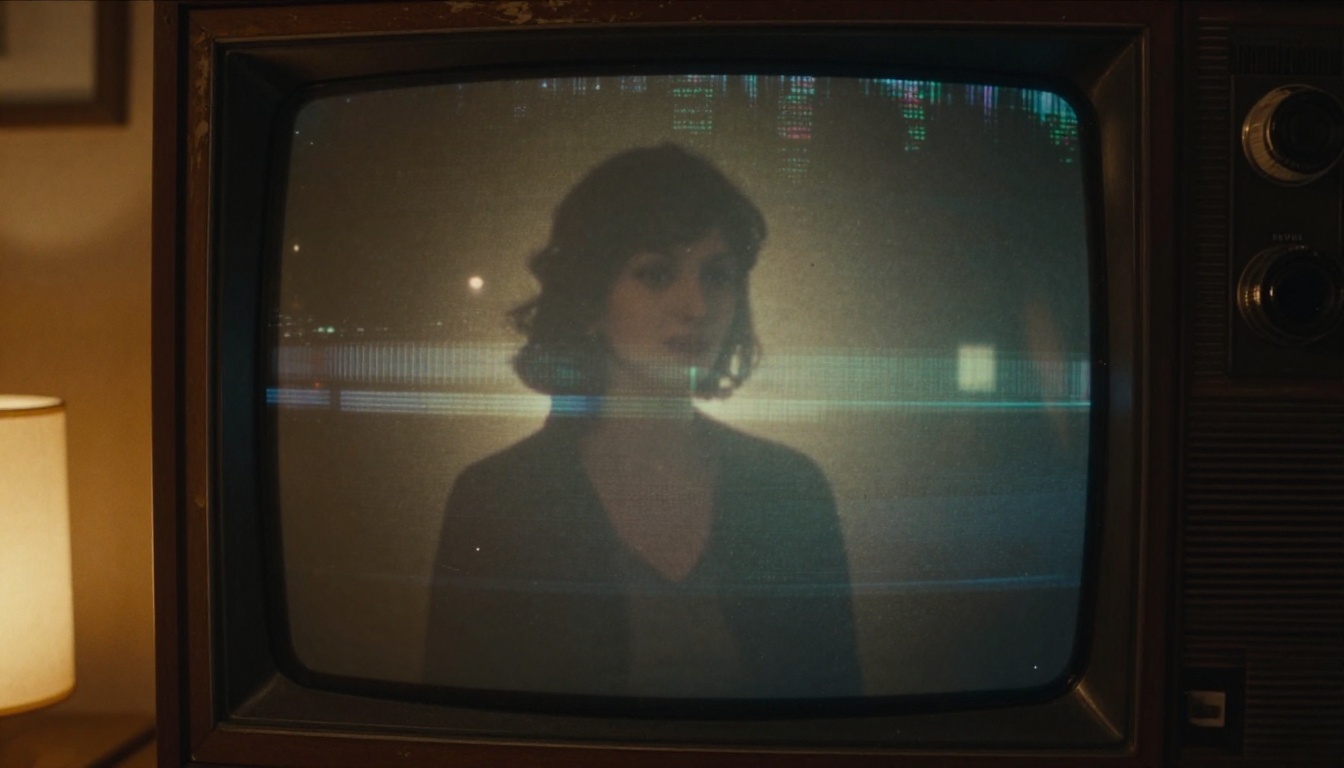
You have probably seen them: clips from the early 2000s, shot on a cheap camcorder, saved as a 240p AVI file that got compressed three times before landing on an old hard drive. The footage is washed out, grainy, blurry. Faces are unrecognizable. Details are completely lost. If the content happens to be adult material, the chances of finding a clean version online are essentially zero.
That is exactly the problem free AI video restoration tools are solving right now.
This article breaks down the specific tools that work, why they work, and how to run them on adult content without hitting content filters or paywalls. By the end, you will know exactly where to go and what to click.
Why Old Clips Look So Bad
The degradation of old footage is not random. It follows predictable patterns that AI can specifically target and reverse.
What Actually Degrades Over Time
When analog video gets digitized, a chain of quality loss begins immediately. Here is what happens at each stage:
- Tape deterioration: Magnetic particles on VHS tape literally fall off over time. Every playback session causes micro-damage. Tapes stored in humid or hot environments degrade in months, not decades.
- Compression artifacts: Converting from analog to digital almost always meant using early MPEG or MJPEG codecs. These create blocky "mosquito noise" around high-contrast edges, visible banding in gradients, and color smearing.
- Low original resolution: Most consumer camcorders in the 1990s shot at 240p or 480i interlaced. After digitization, that footage often gets stretched to fill a 4:3 frame, causing further interpolation blur.
- Multiple generation copies: A tape copied from a tape already has double the degradation. Three or four generations in, and you are watching a visual artifact soup.
The result is footage where the human brain can tell something is happening but cannot resolve the specific details the original camera captured.
The Formats That Age the Worst
Not all old formats are equally damaged. Here is a quick ranking of what survives and what does not:
| Format | Resolution | Typical Age | Quality Today |
|---|
| VHS | 240-333 lines | 1977-2008 | Poor |
| Betacam SP | 750 lines | 1982-2000s | Moderate |
| Hi8 / Video8 | 400 lines | 1989-2002 | Moderate |
| DV/MiniDV | 480p-720p | 1995-2010 | Good |
| DVD-ripped | 480p | 1996-2010 | Moderate |
| Early web video | 144-360p | 2000-2012 | Poor |
VHS and early web video are the hardest cases. MiniDV footage holds up surprisingly well. If your clips fall into the top three rows, AI upscaling will have the most dramatic visible effect.
The short answer: it does not "fix" the original data. It generates what should be there based on patterns learned from millions of high-resolution videos.
What the Algorithms Actually Do
Modern AI video upscalers use convolutional neural networks trained on paired datasets: low-quality and high-quality versions of the same footage. The model learns spatial relationships between pixels, texture patterns, and motion coherence.
When it processes your old clip, it is doing several things simultaneously:
- Super-resolution: Taking each frame from 240p to 1080p or 4K by generating plausible high-frequency details
- Denoising: Identifying random noise patterns such as grain, chroma noise, and compression artifacts, then separating them from actual image information
- Deblurring: Sharpening soft edges caused by lens blur, motion blur, or compression
- Deinterlacing: Converting interlaced video fields into clean progressive frames
- Color correction: Restoring accurate colors degraded by tape aging or codec compression
💡 The AI does not "see" the original scene. It generates statistically likely details based on the surrounding pixels. This means the results are photorealistic but not literally accurate to what was filmed.
Before vs After: Real Numbers
Here is what typical AI video restoration actually delivers in measurable terms:
| Metric | Before AI | After AI |
|---|
| Resolution | 240-480p | 1080p-4K |
| PSNR (sharpness) | 22-26 dB | 32-38 dB |
| Noise reduction | Heavy grain visible | Clean, smooth |
| Compression artifacts | Visible blocks | Removed |
| Processing time (1 min clip) | N/A | 2-15 minutes |
The jump from 22 dB PSNR to 35+ dB is visually significant. That is the difference between "hard to watch" and "looks like it was shot yesterday."
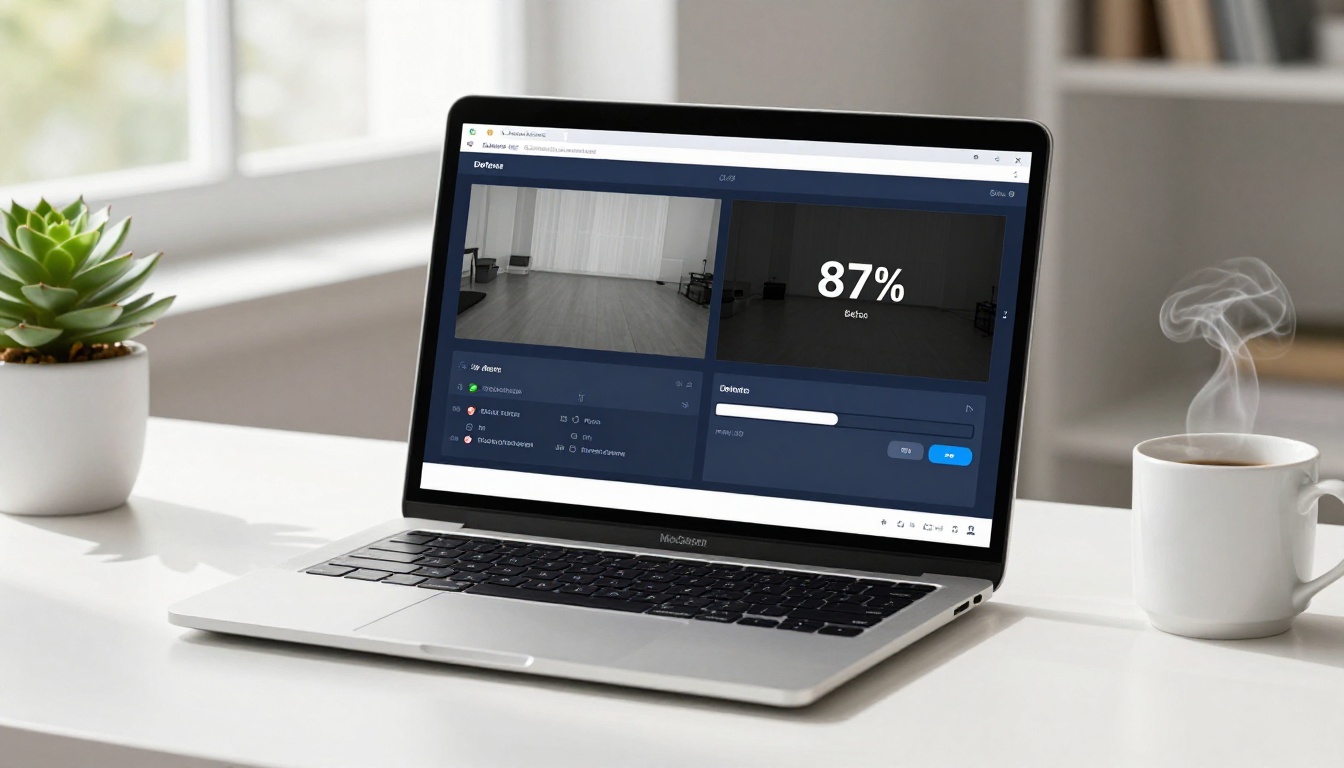
There are dozens of video upscalers out there, and most of them are mediocre. Two models consistently deliver professional-grade results, and both are available for free on PicassoIA.
Topaz Video Upscale: 4K at 120fps
Video Upscale by Topaz Labs is the industry benchmark for AI video restoration. It combines four specialized neural networks:
- Artemis: Denoising and detail recovery for heavily degraded footage
- Gaia: High-resolution upscaling optimized for natural scenes
- Proteus: The manual-control model where you dial in sharpness, noise reduction, and detail independently
- Dione: Purpose-built for interlaced video from VHS and broadcast sources
For old adult clips, Dione handles the deinterlacing first, then Proteus does the detail work. The output can reach 4K resolution at up to 120fps through AI frame interpolation. This is not theoretical, it is what the tool actually outputs when you run it.
💡 For VHS footage specifically, run Dione at a conservative setting first, then chain it into Proteus for final upscaling. Over-sharpening creates a plastic, unnatural look on skin tones.
Runway ML Upscale v1: Fast and Clean
Upscale v1 by Runway ML takes a different approach. Where Topaz is surgical and manual, Runway is fast and automated. You upload the clip, it runs the upscale, you download the result.
It is particularly effective on:
- Web video from the mid-2000s: The compression artifact removal is noticeably better than older tools
- Short clips under 5 minutes: Processing is significantly faster at this length
- Portrait-oriented content: It handles vertical framing from older mobile recordings well
The main trade-off is that you have less control over individual parameters. If the automated output looks too smooth or loses character, Topaz gives you more levers to pull.
Best NSFW AI Models on PicassoIA
Video restoration solves the quality problem. But what if you want to go further — generating new content from restored frames, or producing new scenes at a quality the original camera never captured?
PicassoIA runs models that accept adult content without restriction. Here are the ones worth using, in order of what actually performs:
-
Seedream 4.5 — The top pick for NSFW image generation. Accepts adult prompts, delivers highly realistic results, and generates in under 3 seconds. Also supports image editing, so you can use a restored still frame as a starting point and improve it further. (Its successor, Seedream 5 Lite, blocks adult content, so stick with 4.5.)
-
PicassoIA Image Editor Pro — An img2img model with unlimited generations included in Elite and Infinite plans. Need 1,000 images? Those 1,000 images cost nothing extra. On models like Nano Banana 2, the same volume would run around $100. It accepts NSFW, delivers results in under a second, and offers a 3-generation free trial without a credit card.
-
Qwen Image 2 — Open-source, no content filters, exceptional realism. Edit an existing image or create from scratch with very detailed prompts.
-
Grok Imagine Image — Particularly strong for image-to-image work. Converts a clothed reference photo into a bikini or swimwear version in a highly photorealistic way.
-
Recraft V4 — Text-to-image only, but delivers very realistic output. Good for generating new scenes when you have a clear text description of what you want.
-
P-Image — NSFW text-to-image in under 1 second. If speed is the priority, this is the pick.
For video generation from your restored images:
-
PicassoIA Video — Generate videos from text prompts at up to 720p, 5 seconds per clip. Unlimited video generation on Elite and Infinite plans.
-
P-Video — Text, image, or audio to video at up to 1080p. Safety filter is off by default, duration runs from 1 to 10 seconds, and draft mode delivers an instant low-res preview before the final render.
-
Grok Imagine Video — Clips up to 15 seconds from text or a reference image. No watermarks, eight aspect ratios, 720p output.
-
LTX 2.3 Pro — The highest-fidelity option. Up to 4K at 50fps, with retake and extend editing modes for precise control over specific segments.
💡 Unlike most mainstream AI platforms, PicassoIA does not censor your prompts or flag your account for adult content. The models above are built for creators who need unrestricted access.
👉 See the full catalog at picassoia.com/en/all-models.
How to Upscale Your Video Step by Step
The process is simpler than most people expect. Here is exactly what to do on PicassoIA.
Step 1: Prepare Your Source File
Before uploading anything, do a few things to your clip:
- Convert the container format: If your file is an AVI, MOV, or WMV from an old system, convert it to MP4 with H.264 encoding first. Use HandBrake (free) at constant quality 18-20 for a clean source.
- Do not re-compress: Avoid saving the file multiple times before uploading. Every compression pass removes data the AI needs.
- Trim to the useful segment: If you have a 45-minute tape and you only want 3 minutes upscaled, trim first. AI processing costs scale with duration.
- Check for deinterlacing issues: If you see a "comb teeth" effect on moving objects, your footage is interlaced. Note this so you can select the right model settings.
Step 2: Select Your Model
Go to Video Upscale by Topaz Labs for maximum quality control, or Upscale v1 by Runway ML if you want a faster automated result.
Settings by source type:
| Setting | VHS Footage | Early Web Video | MiniDV |
|---|
| Model | Dione + Proteus | Artemis | Gaia or Proteus |
| Output scale | 4x | 2-4x | 2x |
| Noise reduction | High (0.6-0.8) | Medium (0.4-0.6) | Low (0.2-0.3) |
| Sharpness | Low to Medium | Medium | Medium to High |
| Deinterlace | Yes | No | No |
Step 3: Download and Review
Once processing completes, download the output and review it before deleting the source. Check specifically:
- Face detail: Is skin texture natural or does it look plastic?
- Edge sharpness: Are outlines clean without halos?
- Motion smoothness: Does motion blur look natural or smeared?
- Background: Is grain removed without losing background texture?
If the result looks over-processed, reduce the sharpness and noise reduction settings and re-run. Finding the right balance for your specific footage usually takes one or two iterations.

Restoring Still Frames Too
Video upscaling handles motion. But if you want to work with individual frames, screenshots, or photos from old camera rolls, the super-resolution tools on PicassoIA are a separate category worth knowing.
Super Resolution for Images
These models take a single image and upscale it with photorealistic detail reconstruction:
- Clarity Pro Upscaler — Photorealistic upscaling for portraits and natural scenes. Exceptional at skin texture recovery.
- Real ESRGAN — The open-source standard. 4x upscaling that handles noise removal and sharpening simultaneously. Free and reliable.
- Google Upscaler — Enlarges photos up to 4x without visible quality loss. Strong on faces specifically.
- P-Image Upscale — Fast 1-second upscaling for quick results.
- Crystal Upscaler — Specifically optimized for portraits. 4x upscaling with strong face detail preservation.
- Topaz Image Upscale — Up to 6x enlargement, the largest scale factor available.
Fix Faces, Grain, and Color
After running super resolution, you may want to do a second pass for specific issues:
- Grainy skin tones: Run Clarity Pro Upscaler with a lower sharpness setting to smooth without losing structure
- Face restoration: Use Crystal Upscaler specifically on cropped face regions, then composite back
- Color degradation: If colors are faded or shifted, a quick pass through Recraft Creative Upscale adds depth and color saturation back
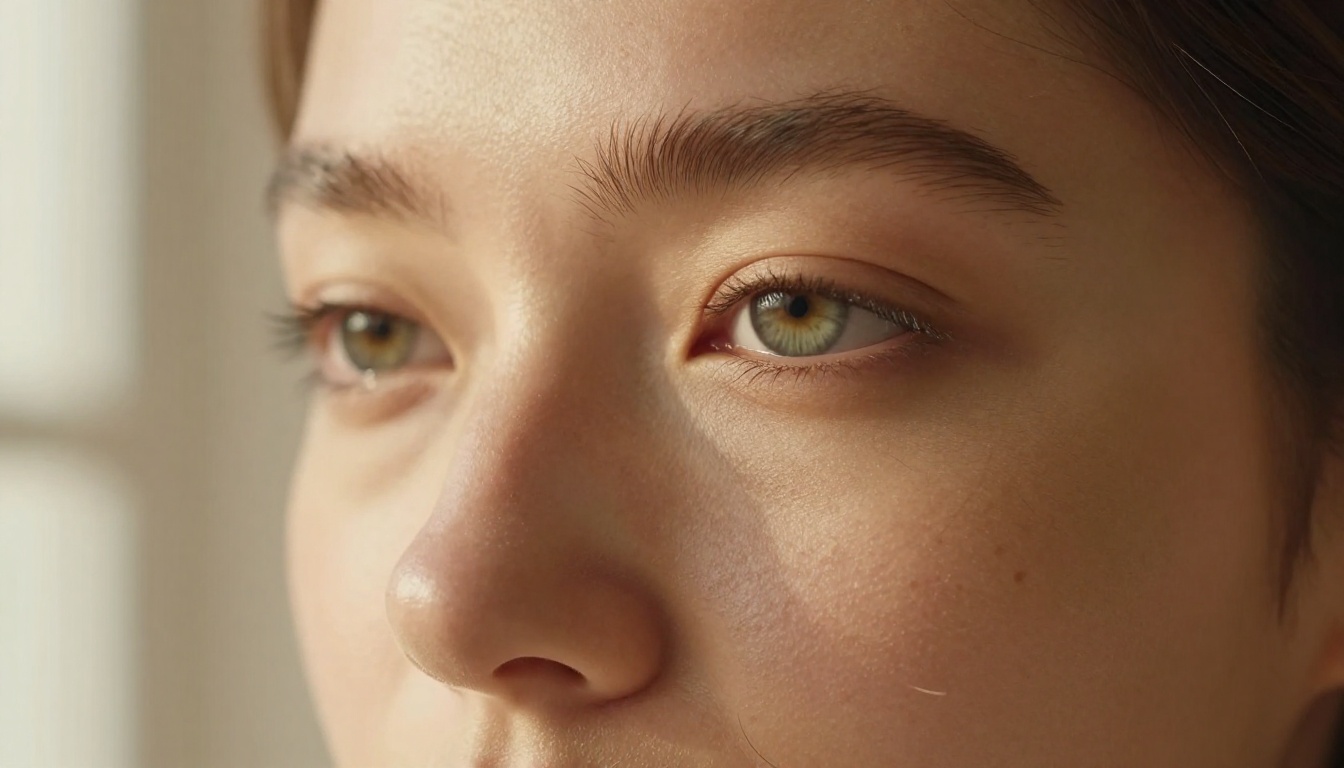
💡 For best results on faces: crop the face region to 512x512 minimum, run the upscaler at 4x, then downscale the result back to fit the original frame. This focuses the model's processing power on facial detail specifically.
What About Generating New Scenes?
Once you have sharp restored frames, there is a second use case that many people do not consider: using those frames as a starting point for AI image or video generation.
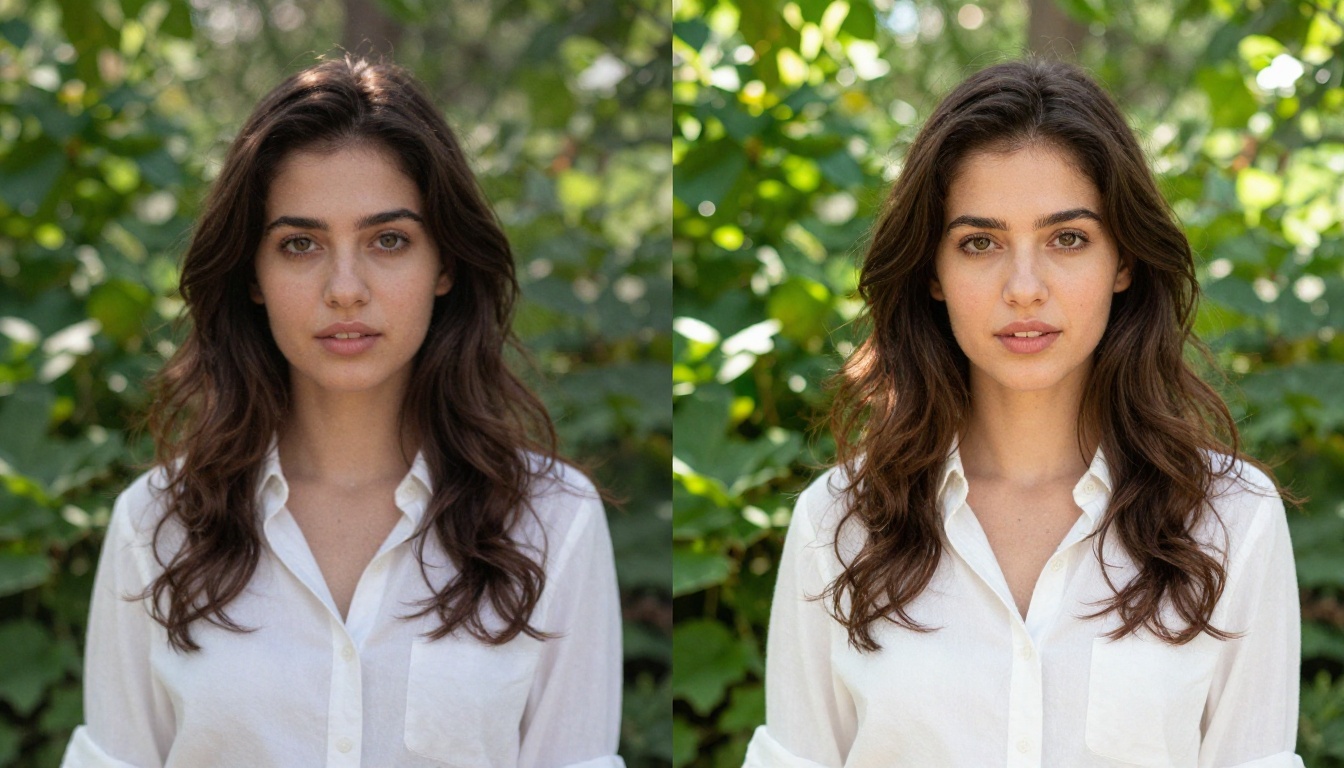
A blurry original gave you a 240p frame of someone's face. After running Crystal Upscaler, you have a sharp 1920x1080 portrait. Load that into Seedream 4.5 as an image editing reference, write a prompt describing the scene you want, and generate.
Or take that same sharp frame into PicassoIA Image Editor Pro for unlimited img2img generations. You can iterate dozens of times at no cost to dial in exactly the result you want.
For video, feed the restored frame into P-Video with a motion prompt to create a new 5 to 10 second clip at 1080p, with the safety filter off by default.
This workflow takes old, barely-watchable footage and produces new, high-quality content that looks nothing like the source material.
Common Mistakes That Ruin Results
A few things that reliably produce bad output, even with a good model:
- Over-sharpening: Setting sharpness too high creates halos around edges and makes skin look like plastic. Start conservative, go up in 0.1 increments.
- Skipping the source prep: Uploading a file that was already compressed twice is the single biggest mistake. The AI cannot restore data that was never digitized.
- Using the wrong model for interlaced footage: Running a progressive-frame model on interlaced footage creates artifacts worse than the original. Always deinterlace first.
- Expecting the AI to invent data: If a face was completely out of frame or hidden by a tracking error, the AI will generate plausible but inaccurate detail.
- Processing at too high a scale: Going from 240p directly to 4K in one pass sometimes over-generates detail. Try 2x first, review, then run a second 2x pass.
Try It Now on PicassoIA
If you have old footage sitting on a hard drive that has never been worth watching properly, now is the time to run it through the process described above.
Start with Video Upscale by Topaz Labs for your videos. Use Real ESRGAN or Clarity Pro Upscaler for still images. And if you want to generate new content from your restored frames, Seedream 4.5 and PicassoIA Image Editor Pro are the tools that accept adult content without filters or account penalties.
The entire workflow runs in a browser. No software to install, no watermarks on the output, no content filters blocking your prompts.
👉 See every model available at picassoia.com/en/all-models and start creating without limits.