Getting a face to move in perfect sync with a voice is the single thing that separates an AI companion video that feels real from one that feels like a science project. The lips drift. The phonemes don't land. The viewer's brain flags it as fake immediately, and the emotional connection collapses. Whether you're making content for a virtual companion app, an AI avatar channel, or just want your synthetic persona to speak convincingly, lipsync is where the magic happens. And the good news: you don't need to spend money to get it right.
Why Lipsync Breaks AI Companion Videos
Most people who struggle with lipsync blame the model. But the model is rarely the first problem. Poor audio preparation, bad source image choices, and wrong tool selection account for the majority of failures before the AI even gets involved.
The Mouth Delay Problem
The most common lipsync complaint is a mouth that's slightly behind the audio. This happens because most lipsync models process video frame-by-frame and don't compensate well for audio onset times. When someone says a word starting with a hard consonant like "P" or "B," the lips need to close before the sound plays, not after. If your audio has leading silence or a soft fade-in, the model can't predict that movement correctly.
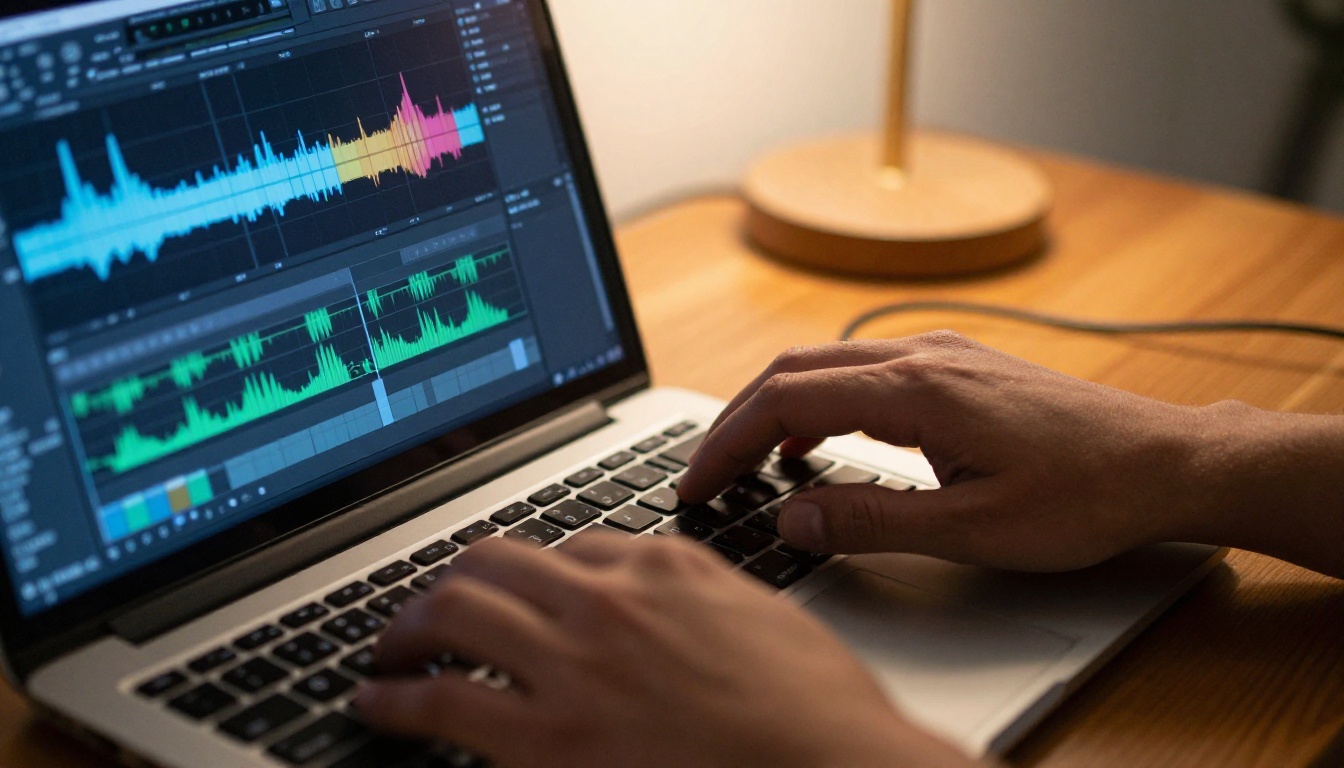
The fix is simple: trim all leading silence from your audio file before uploading it. Even 200 milliseconds of dead air before the voice starts will throw off the sync on most free-tier models. Tools like Audacity (free, desktop) or online silence removers can strip this out in seconds.
Audio Quality Matters More Than the Face
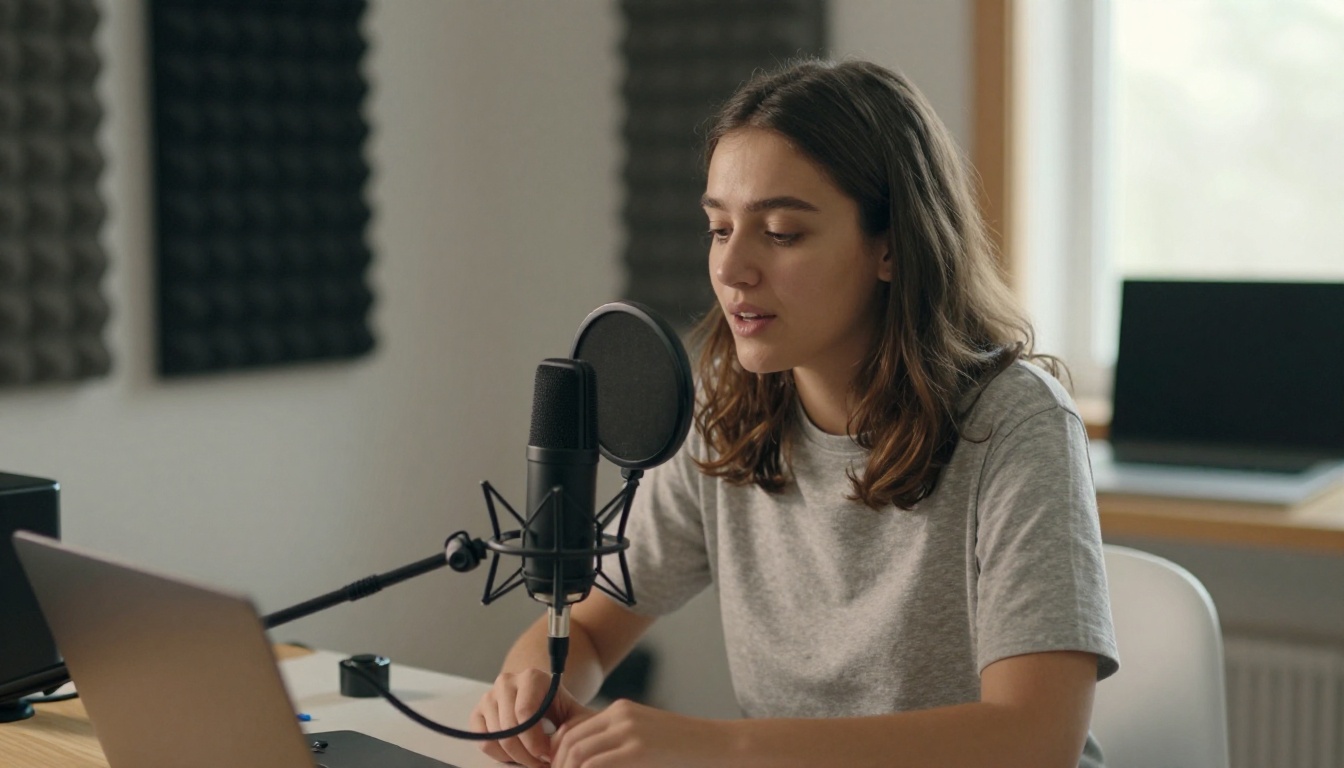
A 4K portrait photo paired with compressed 96kbps audio will produce worse results than a decent 720p selfie paired with clean 192kbps WAV. The lipsync model is primarily decoding phonemes from the audio signal. When that signal is muddy, phoneme boundaries blur, and mouth movements get averaged and smeared instead of crisp.
💡 Pro tip: Record or generate your voice audio at 44.1kHz, 192kbps minimum. Avoid anything that's been through multiple compression rounds, such as files downloaded from social media or converted between formats multiple times.
The Best Free Lipsync Models Right Now
PicassoIA hosts 12 lipsync models across different technologies and speeds. Not all of them are worth your time for companion video work. Here's what actually performs.
Lipsync 2 and Lipsync 2 Pro
Lipsync 2 from Sync is the backbone of most free lipsync workflows. It handles both video-source and image-source inputs, produces smooth mouth movements on natural human faces, and runs fast enough to iterate. The default output quality is solid for companion videos up to 60 seconds.
Lipsync 2 Pro takes this further with better phoneme accuracy on tricky consonant clusters and improved handling of non-English audio. If your companion video uses a voice with any accent or non-standard cadence, Pro handles it noticeably better than the base model. The model also tolerates slight audio compression artifacts without losing lip-tracking accuracy, which matters a lot when you're working with free-tier TTS output.
Omni Human 1.5 for Photo-to-Video
Omni Human 1.5 from ByteDance is the standout choice when you're starting from a still photo rather than a video clip. It animates the entire upper body with natural head movement and shoulder sway in addition to the lipsync, which is what makes companion videos feel alive rather than just technically correct.
The original Omni Human is still available for shorter clips where you want tighter control over the motion range. Both models perform best with portrait photos that have clean front or 3/4 angle framing.
Kling Lip Sync for Speed
Kling Lip Sync from KwaiVGI generates faster than most alternatives on the platform, which makes it ideal when testing multiple audio takes on the same face. The tradeoff is that it performs best on shorter clips (under 30 seconds) and can lose sync accuracy on longer audio segments. Use it for rapid iteration on your source photo and audio combination before committing credits to a higher-quality model.
Fabric 1.0 for Talking Photos
Fabric 1.0 by VEED is purpose-built for the "make a photo talk" use case. It's a strong option for companion videos because companion content often starts from a single portrait image rather than video footage. Fabric produces smooth transitions from neutral expression into speech and handles teeth visibility naturally, which is a detail many cheaper models get wrong.
Preparing Your Audio for Perfect Sync
The audio you feed into a lipsync model determines roughly 70% of the final quality. Here's how to maximize what the model receives.
Cleaning Audio Before Lipsync
These steps take under five minutes and consistently improve results:
- Normalize loudness to -14 LUFS. Lipsync models trained on typical speech data perform best when the voice isn't too hot or too quiet.
- Remove background noise using free tools like Auphonic or Krisp. A clean voice signal dramatically sharpens phoneme detection.
- Cut leading and trailing silence. Start and end your audio file precisely where speech starts and stops.
- Avoid heavy reverb or echo. Reverb smears the audio onset times that the model uses to time mouth movements.
- Check for clipping. Distorted peaks at the top of the waveform cause irregular phoneme boundaries that confuse tracking algorithms.
Voice Generation That Pairs Best
If you're generating AI speech for your companion videos rather than recording it, the choice of TTS model affects lipsync quality significantly. Expressive, naturally-paced voices with subtle pitch variation produce better sync than monotone robotic output because the model can more clearly identify word and phoneme boundaries.
React 1 from Sync pairs particularly well with synthesized speech because it was trained on a diverse mix of voice types including synthetic ones. The model also adds natural reactive head movements that make the audio feel embodied in the character.
For the TTS step itself, PicassoIA's text-to-speech category offers several options that produce clean, expressive output at audio quality levels lipsync models respond to best. The MiniMax-based speech models on the platform are especially well-suited for companion personas due to their natural cadence and breath patterning.

Choosing the Right Source Image
The face you're syncing to is the second most important variable. Poor source material produces poor lipsync regardless of which model you use.
Face Angles That Work
Lipsync models are trained primarily on frontal and slight 3/4 angle faces. This means:
- 0° to 30° from center: Excellent results across all models
- 30° to 50°: Good results with Omni Human 1.5, moderate with others
- Over 50° profile angle: Avoid. Almost all free models struggle here.
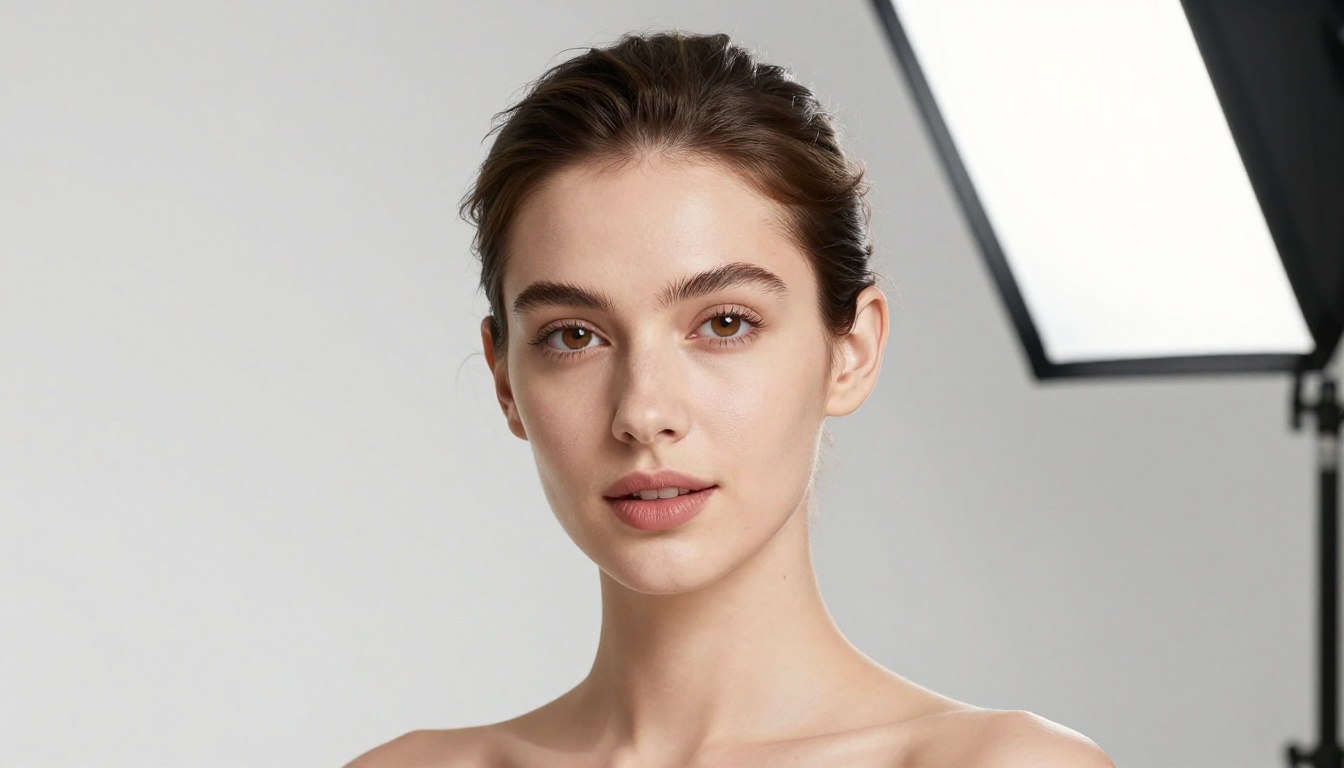
The face also needs to be large enough in the frame. If the face occupies less than 20% of the frame area, the model's mouth-detection accuracy drops. Crop your source image so the face fills at least the center third of the frame before uploading. A tight head-and-shoulders crop is almost always better than a full-body or wide environmental shot for lipsync purposes.
Lighting and Background Choices
Even front lighting with no harsh shadows across the lower face gives the best results. When one side of the face is significantly darker than the other, some models can't accurately track the lip edges and produce blurry or smeared mouth movements.
The background doesn't affect the lipsync algorithm directly, but for the final video quality, a clean simple background makes any motion artifacts in the mouth area far less noticeable. Busy patterned backgrounds draw attention to any imperfections in the generated mouth movement.
Step-by-Step: Using Lipsync 2 Pro on PicassoIA
Lipsync 2 Pro is the recommended starting point for most companion video projects. Here's the exact workflow.
Setting Up Your Job
- Navigate to Lipsync 2 Pro on PicassoIA
- Upload your source image or short video clip (MP4, JPG, or PNG)
- Upload your audio file (WAV or MP3, cleaned and normalized as described above)
- Set the output resolution. For companion videos, 720p is the sweet spot between quality and processing time
- Leave "smooth" mode enabled. This applies temporal consistency between frames to reduce jitter
- Hit generate. Typical processing time is 30 to 90 seconds for a 15-second clip
The first run on a new source photo will often show you exactly what needs adjustment. Pay attention to the consonant moments ("B," "P," "M" sounds) first since those are the highest-visibility sync points and the easiest to diagnose.
Fixing Sync Drift After Generation
If your output starts in sync but drifts by the end of the clip, the issue is usually a pacing mismatch between the audio and the model's expectations. Solutions in order of effectiveness:
- Split long clips: Anything over 45 seconds performs better when split into segments and rejoined after generation
- Re-check audio normalization: A voice that fades quieter toward the end will cause the model to lose tracking confidence
- Try Lipsync Precision from HeyGen as an alternative. It uses a different tracking approach that handles longer clips with more consistent accuracy throughout the duration
Model Comparison for Companion Videos
Free Tier Limits Explained
Most lipsync models on PicassoIA operate on a credit-based system where free users receive a monthly allocation. Here's what that actually means in practice for companion video production.
What You Get for Free
- Enough credits to generate roughly 10 to 20 companion video clips per month at standard quality and under 30 seconds each
- Access to all model categories including Lipsync 2, Kling Lip Sync, and Fabric 1.0
- No watermarks on many models at base output resolution
- Queue access during standard hours with reasonable wait times
💡 Credit-saving strategy: Use Lipsync Speed for your first draft to check audio sync and timing, then switch to Lipsync 2 Pro only for final renders. This approach typically cuts credit consumption by 40 to 60% per project while still giving you high-quality final output.
When a Paid Plan Makes Sense
If you're producing more than 20 clips per month, creating content for a commercial AI companion product, or need consistent 1080p output without queue delays, a paid plan removes those friction points. The free tier is genuinely capable for personal projects and small-scale companion channel content, so there's no pressure to upgrade until the volume demands it.

5 Tricks for Better Results
These are the approaches that consistently move results from acceptable to convincing without spending anything extra.
1. Add a warm-up frame
Add 0.5 seconds of silence before your actual audio starts. This gives the model a baseline neutral mouth position to calibrate from before speech begins. The output sync is consistently tighter than feeding in audio that starts immediately at the first phoneme.
2. Use audio with natural breath patterns
Completely robotic TTS voices without breath sounds produce worse lipsync than voices with natural breath intakes between sentences. The pauses give the model sync anchoring points throughout the clip. If your TTS output lacks breath sounds, add a very short quiet noise at natural breath points in a free audio editor before uploading.
3. Match expression to audio energy
If your source image shows a neutral face but your audio is high-energy enthusiastic speech, the result looks strained. The face isn't expressive enough to carry the audio's energy. Start with an expression that matches the tone of the speech: a slight smile for warm conversational tone, neutral for informational content, slightly open mouth for high-energy delivery.
4. Generate at 480p, upscale after
Generate your lipsync at 480p using Lipsync 2, then run the output through a super-resolution model to reach 720p or 1080p. The total credit cost is often lower than generating directly at high resolution, and the upscaled output quality is frequently indistinguishable from native high-resolution generation. PicassoIA has super-resolution models built specifically for this workflow at picassoia.com/en/all-models.
5. Use Video Translate for multilingual personas
If your companion persona needs to speak multiple languages, Video Translate from HeyGen handles the lipsync retiming for translated audio automatically. Instead of generating separate videos for each language, generate once in your primary language and translate from that master. The lip movements adapt to the new audio timing, which saves significant credits on multilingual companion content.
Beyond Lipsync: The Full Companion Video Stack
Lipsync is one layer of a full AI companion video pipeline. Once sync is working, these additions close the gap between "AI-generated" and "genuinely real":
- Voice generation first: Use a high-quality TTS model before lipsync to get consistent voice character across multiple clips. Inconsistent voices across sessions make companions feel disconnected.
- Background depth: A subtle animated background, such as soft bokeh particles or slow camera parallax, adds spatial presence that makes the companion feel situated in a real environment.
- Micro-expressions and blinks: P Video Avatar adds natural eye blinks and facial micro-movements that go beyond what basic lipsync models produce, making the character feel attentive and responsive rather than frozen.
- Super-resolution pass: After generation, run through a super-res model to sharpen any motion blur introduced during lipsync processing. This is especially valuable when you generated at 480p for credit savings.
💡 The full stack: Clean TTS audio, well-lit source portrait, Lipsync 2 Pro for generation, super-resolution upscale, and light color grading. These five steps produce companion videos that consistently hold up at normal playback speed.
Start Generating Your Own Companion Videos
The gap between a companion video that feels real and one that feels like a tech demo is mostly about preparation and process, not budget. The free tools available right now on PicassoIA, including Lipsync 2 Pro, Omni Human 1.5, and Kling Lip Sync, are capable of producing polished results when you apply the right source material and audio prep.
Start with a clean portrait, generate or record quality audio at 192kbps, trim the silence, and run it through Lipsync 2 Pro. That first result will show you exactly what needs tuning in your specific setup. The tricks in this article address the most common issues with targeted, actionable fixes, so you're never stuck guessing.
Head to picassoia.com/en/all-models to browse the full set of lipsync tools, voice generators, and video processing models available. Every free-tier credit you have is a chance to iterate, test a different model, and get closer to companion video quality that actually works.


