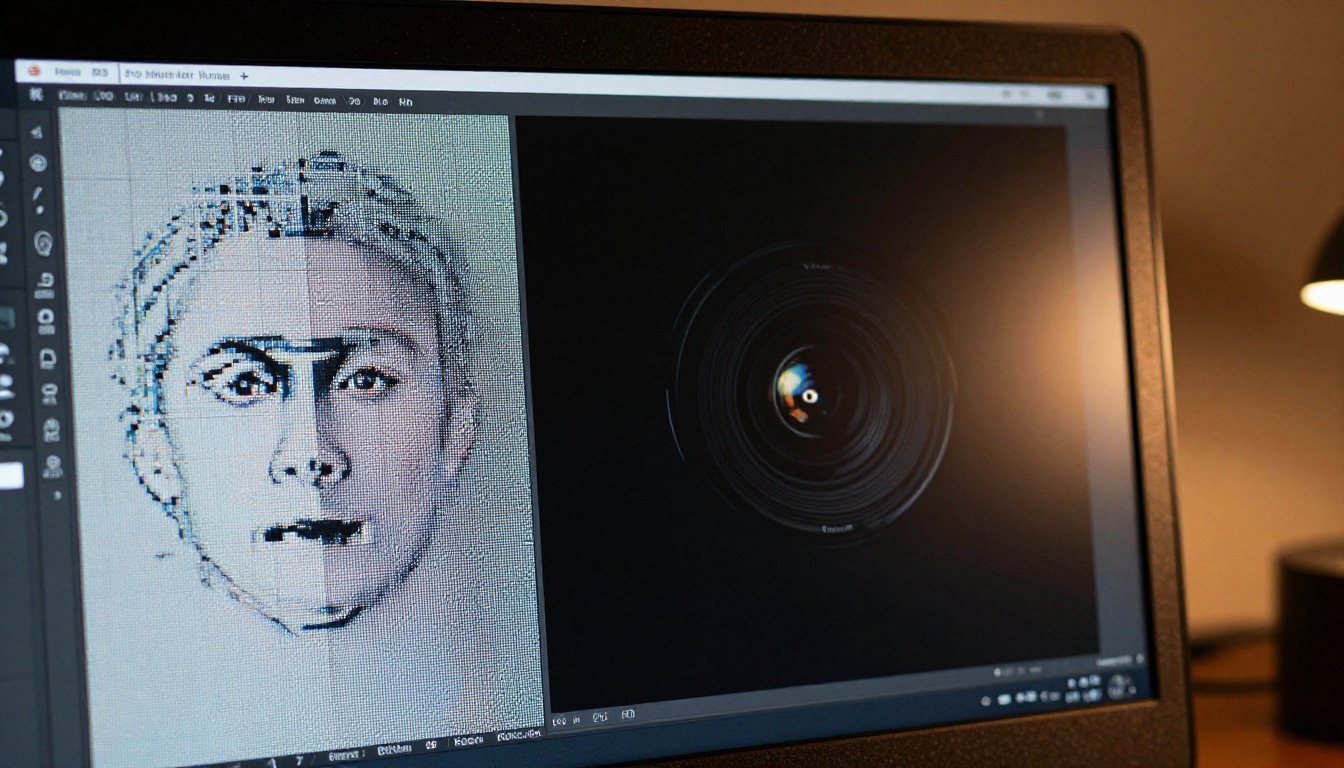
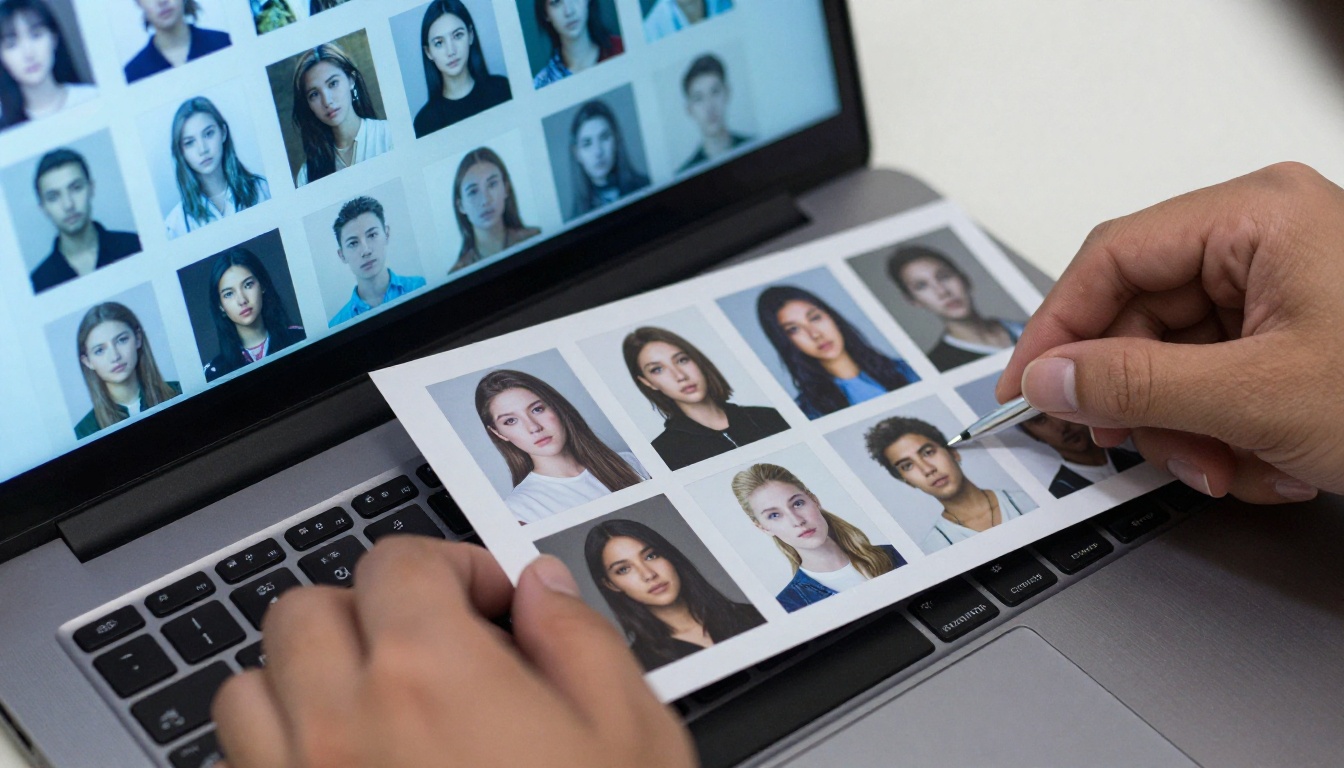
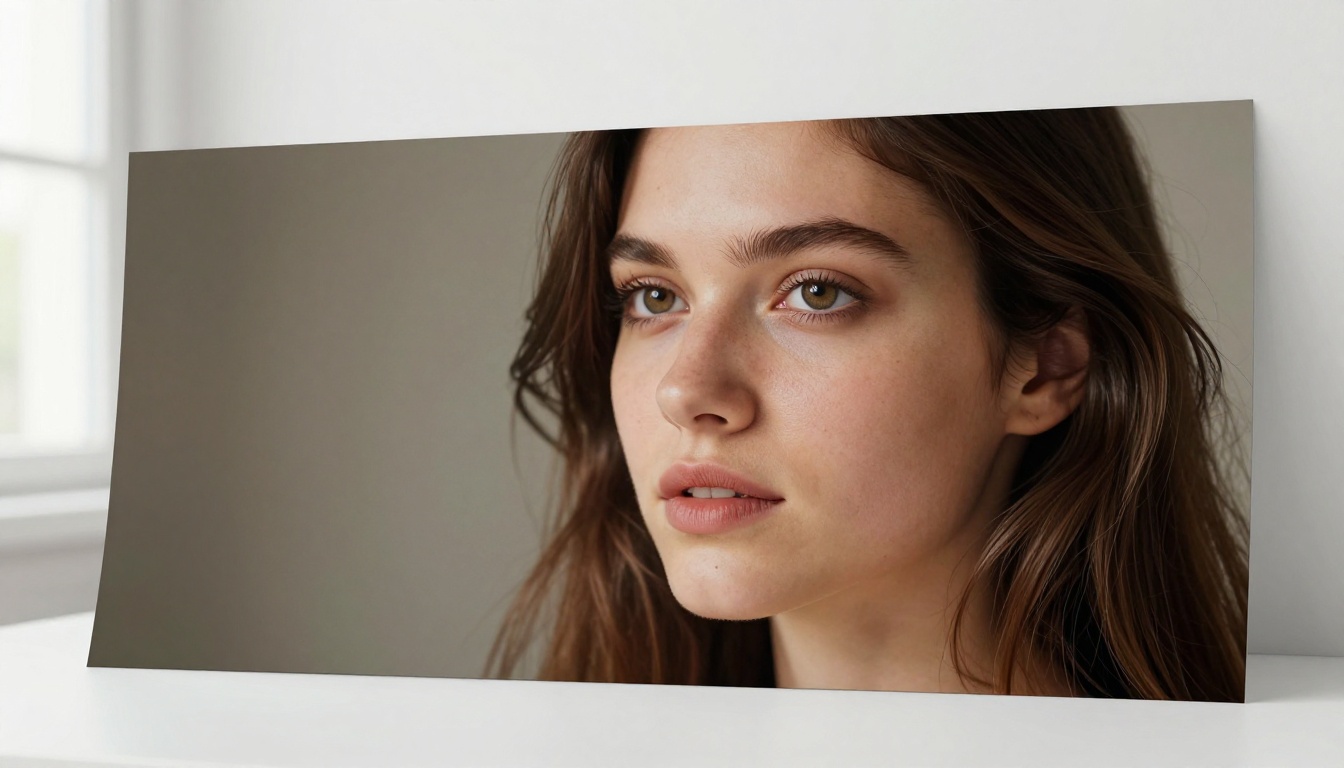
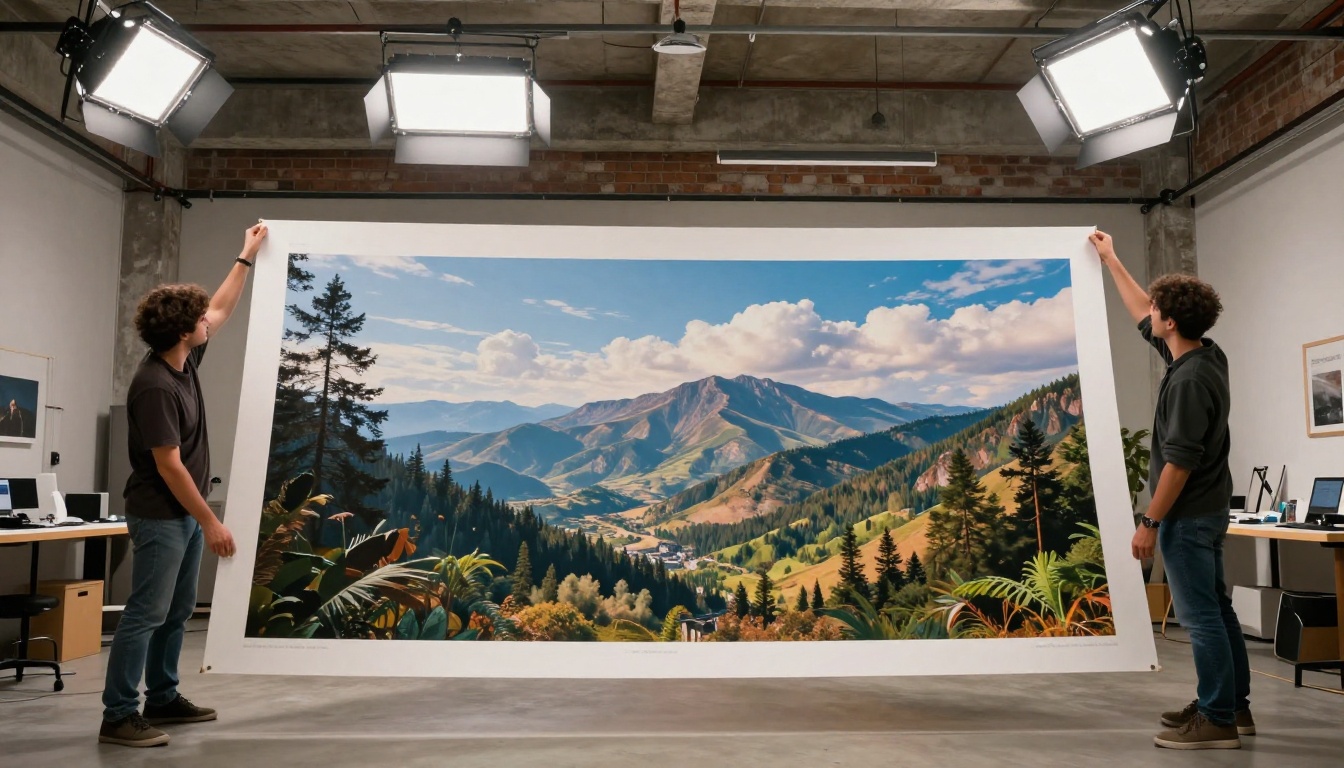
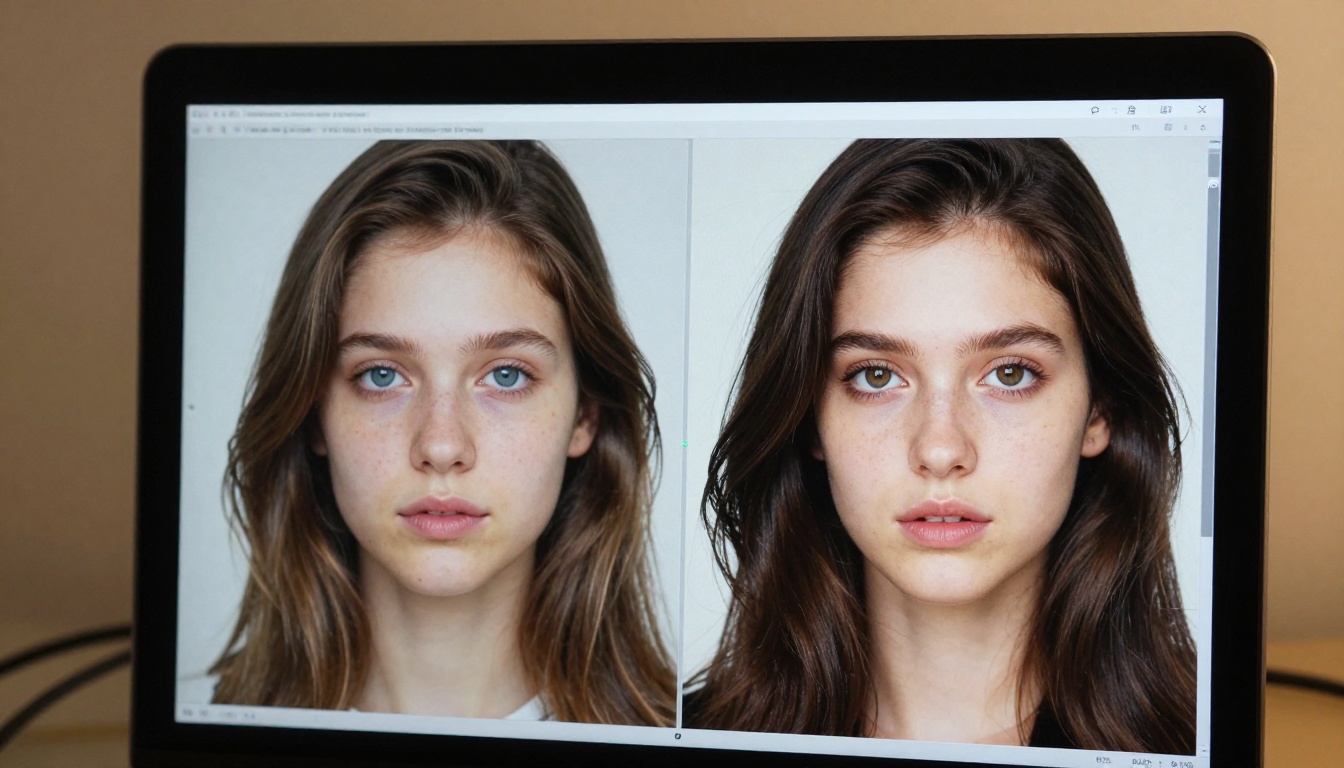
Not all AI-generated images come out at print resolution. This article covers the top free tools and AI models to batch upscale AI art in bulk, from Upscayl and Real ESRGAN scripts to PicassoIA's nine super-resolution models, with a comparison table, scale factor advice, and the four most common mistakes that destroy upscale quality.
You spent hours generating a collection of AI art. The compositions are perfect, the subjects are exactly right, and then you zoom in: muddy textures, soft edges, artifacts crawling across skin and fabric. The images are only 512px or 768px wide, far too small for print, social media headers, or any serious commercial use. Now imagine you have 80 of them to fix. Doing each one manually is not a workflow; it is a punishment.
This article covers the best free tools to batch upscale AI art in bulk, from open-source desktop apps to web platforms and the super-resolution models available on PicassoIA that turn a folder of low-res outputs into print-ready files in minutes.
Why Batch Upscaling Changes Everything
The Resolution Problem With AI Art
Most AI image generators produce outputs between 512x512 and 1024x1024 pixels. For on-screen viewing, that is fine. For a 24-inch print or a full-bleed website hero, it is a disaster. A 512px image at 300 DPI produces a print barely 1.7 inches wide. Even at 72 DPI for screen, a 512px image falls apart the moment it is stretched past thumbnail size.
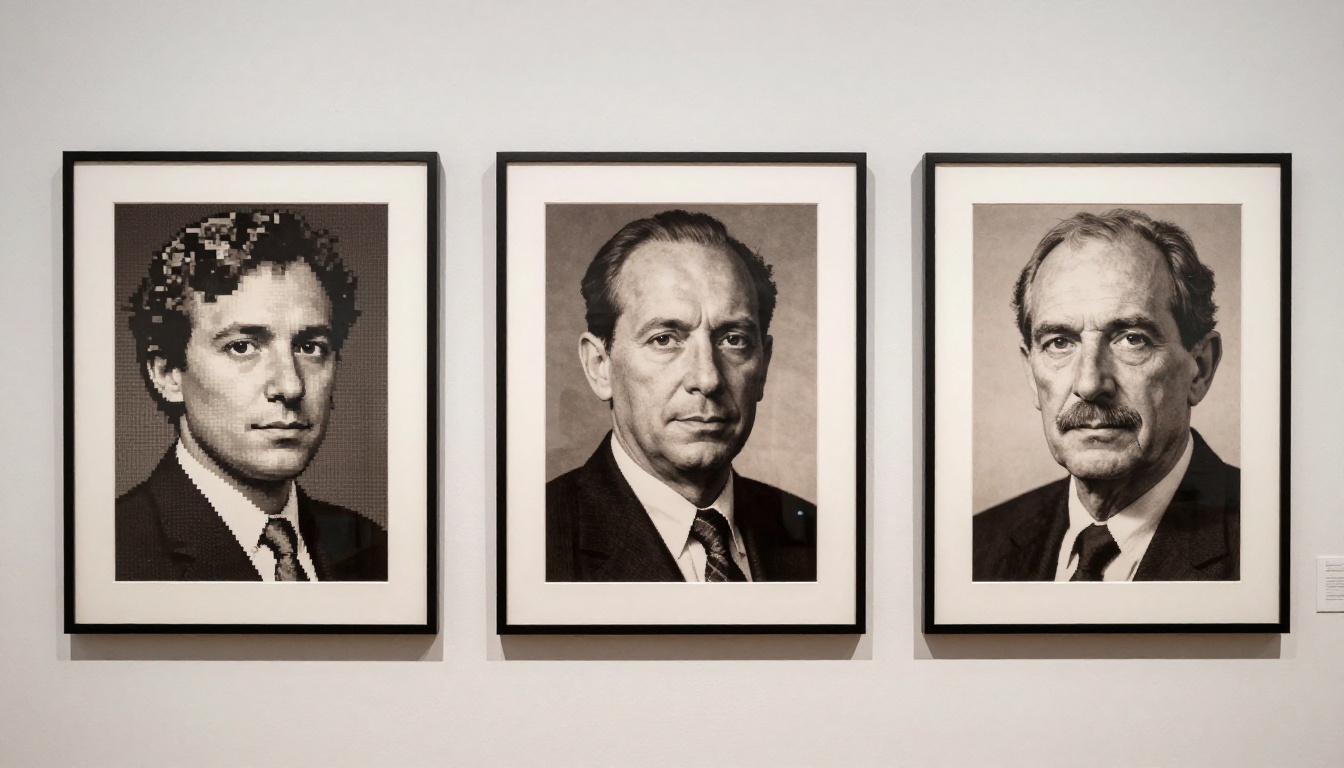
AI upscaling solves this by using neural networks trained to predict and fill in missing pixel data rather than simply interpolating. The result is a 4x upscale that does not just "blow up" the image; it reconstructs plausible detail, sharpens edges, and recovers texture that was never truly there but now looks entirely real.
The question is not whether to upscale. It is how to do it fast when you have dozens or hundreds of images waiting.
Processing 50 Images vs. One at a Time
Upscaling a single image takes 5 to 30 seconds depending on the model and hardware. Doing 50 images one by one costs you 25 minutes of babysitting a UI. A batch workflow cuts that to a single queued job you walk away from. For creators running production pipelines, content agencies, or anyone generating article imagery at scale, batch processing is the difference between an afternoon wasted and a coffee break.
Best Free Desktop Tools for Bulk Upscaling
Upscayl: Zero-Setup Batch Processing
Upscayl is a free, open-source desktop application for Windows, macOS, and Linux that wraps Real ESRGAN in a clean graphical interface. It supports batch mode natively: drop a folder, pick a scale factor (2x, 3x, 4x), choose an upscaling model, and let it run.
The app ships with several models:
Real ESRGAN — general photography and realistic images
Real ESRGAN Anime — stylized and illustrated content
Remacri — a community model targeting fine portrait detail
UltraMix Balanced — sharpness with reduced artifacting
For most AI art workflows, Real ESRGAN or UltraMix Balanced gives the best results. The batch folder feature makes it genuinely practical: point it at 100 images, walk away, come back to a processed output folder.
What it costs: Entirely free. Upscayl processes everything locally on your GPU, whether NVIDIA, AMD, or Apple Silicon.
Real ESRGAN With Batch Scripts
If you are comfortable with a terminal, running Real ESRGAN directly via Python gives you more control. The official Real ESRGAN repository on GitHub includes a command-line tool that accepts batch input:
This processes every image in input_folder/ at 4x and deposits results in output_folder/. You can swap -n RealESRGAN_x4plus for RealESRGAN_x4plus_anime_6B for stylized content, or pass --outscale 2 for a 2x pass.
Requirements: Python 3.7+, PyTorch, and a GPU with at least 4GB VRAM for comfortable batch processing. CPU mode is available but significantly slower on large batches.
waifu2x-caffe for Stylized Art
waifu2x was originally built for anime-style art and performs exceptionally well on any image with clean lines, flat colors, and stylized aesthetics. waifu2x-caffe is the Windows implementation with a full batch folder mode.
It is less effective than Real ESRGAN on photorealistic AI art, but for character illustrations, concept art with strong line work, or stylized portraits, it often outperforms the alternatives. Free, local, no usage limits.
Free Online Tools Worth Trying
Upscale.media Batch Mode
Upscale.media offers a web-based interface with a free tier that allows a set number of images per day. It uses a proprietary super-resolution model and supports batch uploads: select multiple files, choose 2x or 4x, and download a ZIP of results.
The free tier limits output resolution in some cases, but for quick 2x passes on social media imagery it is a practical option requiring zero software installation.
Icons8 Smart Upscaler
Icons8 Smart Upscaler provides free upscaling with results that are competitive with lower-tier Real ESRGAN outputs. It does not offer true drag-and-drop folder queuing, but it does support uploading multiple files in a single session.
Best used for quick web previews, social thumbnails, or when you are away from your primary workstation.
Limitations You Should Know
Free online tools all share common constraints worth being honest about:
Limitation
Typical free tier restriction
Output resolution cap
Often limited to 4K or below
Daily credits
5 to 25 images per day
File size limit
Usually 5MB per image
Watermarks
Some tools add them on free plans
Queue wait time
Peak-hour delays of 1 to 5 minutes
If you are processing any volume beyond casual hobby use, a locally-run tool or a platform like PicassoIA will quickly outperform free online tools on both throughput and output quality.
PicassoIA Super-Resolution Models
PicassoIA provides nine dedicated super-resolution models, all accessible through the platform's collection, with no per-image watermarking. These models range from instant one-second upscalers to photorealistic detail-reconstruction engines that rival Topaz Gigapixel at a fraction of the cost.
Clarity Pro Upscaler: Sharpest Results
Clarity Pro Upscaler by philz1337x is the highest-quality model available on PicassoIA for photorealistic AI art. It runs a multi-pass sharpening process that recovers micro-detail in faces, fabric, and foliage. The outputs hold up under extreme zoom, making it the go-to choice for print production.
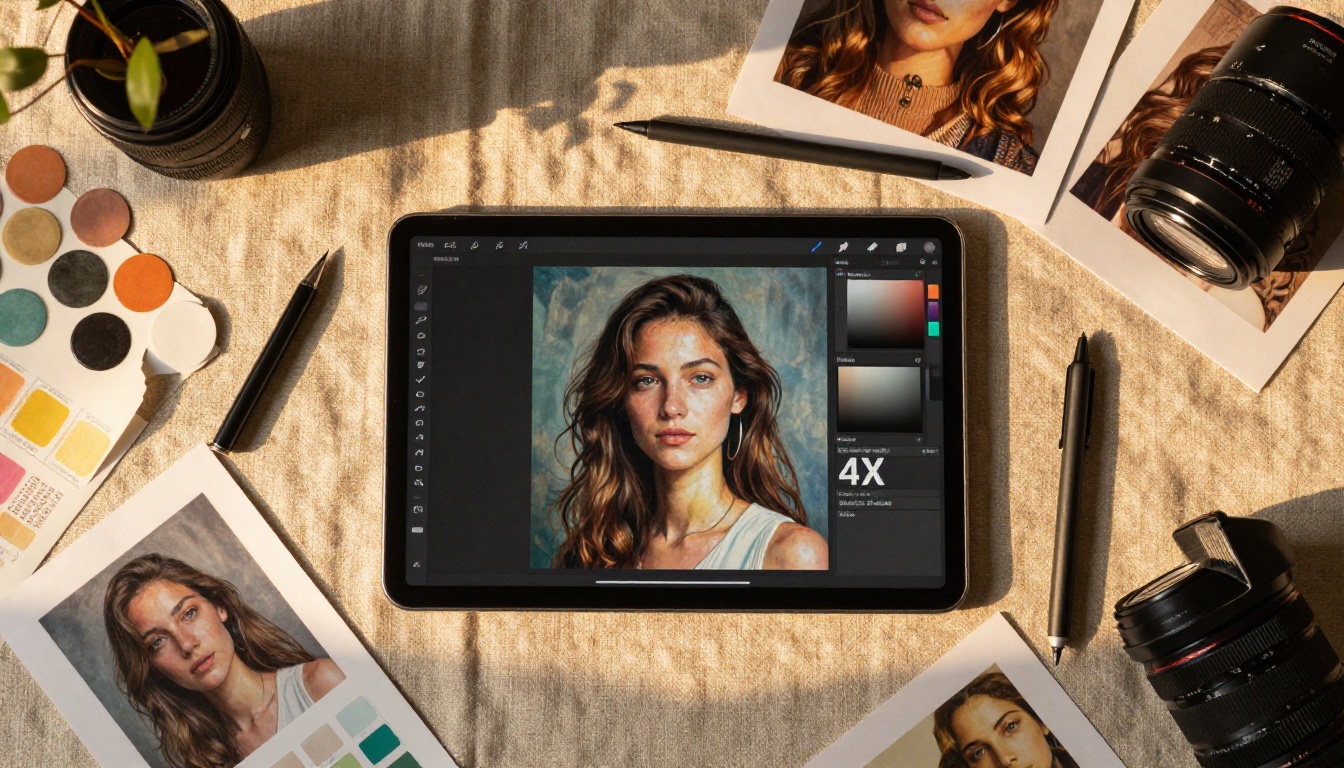
Its companion model, Crystal Upscaler, is specifically tuned for portrait photography and excels at skin texture reconstruction. If your batch contains faces, Crystal Upscaler will noticeably outperform general-purpose alternatives on those specific shots.
Real ESRGAN on PicassoIA
Real ESRGAN on PicassoIA brings the open-source standard to a no-setup web environment. You get the same 4x upscaling quality you would get locally, without installing Python or managing GPU drivers. For creators who prefer to skip the technical setup entirely, this is the direct path.
💡 Tip: Real ESRGAN handles photorealistic AI portraits and landscapes extremely well. For cartoon-style or heavily illustrated AI art, try a model with a different training profile for better line-work preservation.
Topaz Image Upscale: Up to 6x Scale
Topaz Image Upscale from Topaz Labs is the only model on PicassoIA that reaches 6x upscaling. The desktop version of Topaz Gigapixel AI runs around $199 per year. On PicassoIA, you access the same underlying quality without the subscription.
For anyone needing poster-scale outputs, think 24x36 inches at 300 DPI from a 768px source, 6x upscaling is the only practical option in this lineup.
P Image Upscale: One-Second Speed
P Image Upscale by prunaai is the fastest model on the platform. Where Clarity Pro or Topaz might take 15 to 30 seconds per image, P Image Upscale delivers results in roughly one second. Quality is excellent for standard 2x upscaling and very good at 4x for content where micro-detail is less critical.
For large batch jobs where speed matters more than maximum sharpness, P Image Upscale is the practical choice.
Additional Models Worth Noting
PicassoIA rounds out its super-resolution lineup with:
Recraft Crisp Upscale: Strong edge definition, excellent for logos and illustrations embedded in AI art compositions
Recraft Creative Upscale: Adds creative hallucinated detail, useful when you want to push artistic quality rather than strict fidelity
Bria Increase Resolution: Commercial-grade 4x upscaling from Bria AI, strong on fashion and product photography styles
Google Upscaler: Clean, neutral enlargement up to 4x, reliable across diverse image types
How to Upscale a Batch on PicassoIA
PicassoIA's workflow for processing multiple images is fast and straightforward, even for large batches.
Step 1: Pick Your Model
Go to PicassoIA's super-resolution collection and select the model that fits your content type. Use Clarity Pro for portraits, Real ESRGAN for general realistic images, Topaz for maximum scale, or P Image Upscale when speed is the priority.
Step 2: Set Your Parameters
Each model offers a scale factor selector. For most AI art going to web use, 2x is sufficient and produces the fastest output. For print, select 4x or 6x (Topaz only).
Step 3: Process and Download
Upload your first image, run the upscale, download the result, then move to the next image in your batch. With P Image Upscale running at roughly one second per image, 20 images takes under 10 minutes total including upload and download time.
💡 Pro workflow: Run free desktop tools (Upscayl, Real ESRGAN CLI) for high-volume initial passes, then bring your most important images to PicassoIA's Clarity Pro or Topaz for the final quality polish before publication.
Picking the Right Scale Factor
Not every image needs a 4x upscale. Applying the wrong scale wastes processing time and can degrade quality by over-sharpening smooth areas or generating artifacts in sky gradients.
Original Resolution
Target Use
Recommended Scale
512x512
Web thumbnail (400px wide)
2x
512x512
Social media post (1080px)
4x
768x768
Website hero (1920px wide)
4x
1024x1024
Print at 8x8 inches 300 DPI
4x
512x512
Large print 24x24 inches 300 DPI
6x (Topaz)
2x vs 4x Quality Differences
At 2x, upscaling is a refinement operation: smoothing compression artifacts, sharpening edges, recovering soft detail. The neural network has a reasonable amount of original information to work from, so hallucinated detail is minimal and results are consistent.
At 4x, the model makes substantially more assumptions. It fills in 15 pixels of information for every 1 pixel of input. Results are still impressive, but you will occasionally see patterns emerge in smooth areas, sometimes called "texture hallucination," and some models over-sharpen facial features at this scale. Testing your specific image type before committing to a full batch at 4x is worth the extra two minutes.
Model Selection by Art Style
Art Style
Best Free Tool
Best PicassoIA Model
Photorealistic portrait
Upscayl (Real ESRGAN)
Clarity Pro Upscaler
Photorealistic landscape
Real ESRGAN CLI
Real ESRGAN
Stylized character art
waifu2x-caffe
Recraft Creative Upscale
Fashion and product
Upscayl (UltraMix)
Bria Increase Resolution
Print production at max scale
Real ESRGAN CLI
Topaz Image Upscale
Speed priority, large batch
Upscayl folder mode
P Image Upscale
4 Mistakes That Ruin Upscaled Art
Upscaling an Already-Compressed JPEG
JPEG compression introduces blocking artifacts and color banding before you ever run an upscaler. The upscaler then magnifies those artifacts, making the output look worse than the original. Always work from PNG source files wherever possible. If you only have JPEGs, run a noise-reduction pass first.
Using the Wrong Model for the Content
Anime-tuned models applied to photorealistic portraits produce waxy, over-smoothed skin. Photo-tuned models applied to stylized art flatten the line work and introduce unwanted texture. Matching the model to the content type matters. Both Upscayl and PicassoIA give you multiple model options for exactly this reason.
Over-Upscaling Beyond Display Needs
A 512px image upscaled 6x to 3072px for use as a 500px website thumbnail is pure wasted processing. The browser resamples it back down anyway, and the original 2x pass would have looked identical on screen. Set your target output resolution before choosing your scale factor.
Skipping a Test Image
Running a full batch of 80 images only to find the model produced soft outputs or introduced artifacts is a frustrating waste of time. Always process one representative image first, zoom to 100%, and check the results before committing the full batch to a lengthy queue.
What Happens After You Upscale
Upscaling is rarely the last step. A 4x upscale from a 512px source produces a technically sharp image, but it often benefits from a light sharpening pass and occasionally a contrast boost before it looks its absolute best.
If your AI art contains faces, running a dedicated face restoration pass before the general upscale produces significantly better facial detail. Face-restoration models operate at the original resolution where they can precisely fix facial structure, and then the upscaler scales the corrected output rather than magnifying already-damaged facial features.
For video content, the same principle applies. PicassoIA's AI video enhancement tools can upscale, stabilize, and restore AI-generated video clips in a single workflow without needing third-party software.
PicassoIA also offers a full Image Generation collection with over 91 text-to-image models. If your source images are still not meeting quality standards even after upscaling, regenerating with a higher-resolution model, such as SDXL or Flux, is sometimes the right call before putting images through an upscaling pipeline.
Start Creating at Full Resolution
The tools above range from zero-install online options to full local pipelines running on your own GPU. For casual use, Upscayl is the fastest path to a working batch workflow with no configuration required. For the best possible output quality, PicassoIA's Clarity Pro Upscaler and Topaz Image Upscale produce results that hold up under professional scrutiny.
The next time your generator produces a folder full of 512px images, you have a clear set of options. Batch them through Upscayl locally for speed, bring the best ones to PicassoIA's super-resolution collection for print-quality finishing, and ship work that looks as good at 100% zoom as it does in a thumbnail preview.
PicassoIA's full super-resolution model collection, along with the rest of the platform's image generation, editing, and video tools, is available at picassoia.com/en/all-models. Upload your first image and see what a properly tuned 4x upscale actually looks like on your own art.