You open the Gemini app, type a prompt for a ten second beach sunrise, and tap the video option. Sometimes a clip appears a minute later. Other times you get a polite message about reaching a limit, or the option is simply not there. So what is the real Gemini video generation free limit, and how many videos per day can a free account make? The honest answer changes with the week, the plan and the product you are using, and Google does not publish one clean number. This article sets out what has been reported, plan by plan, then shows how to keep producing clips once your allowance runs dry.
💡 A note on the numbers: Google's help page for Gemini Apps usage limits says video generation exists across plans but lists no exact daily or monthly counts. The figures below come from reports on Google's announcements and plan pages as of early October 2026. Treat them as a snapshot, and check the usage message inside your own account before you plan a project around them.
The Short Answer
For a standard free Gemini account, there is no standing daily video quota you can count on. For most of the product's history, video generation has been a paid feature, and free users have mostly met it in short promotions or in side products. That explains why search results for this question contradict each other: someone who tried during a promotion got ten videos a day, and someone who tried a month later got none.

What Free Accounts Get Today
Here is the realistic picture for a free personal Google account right now:
- Gemini app: no published daily video allowance on the free tier.
- Google Vids: since late September 2026, personal accounts have reportedly been able to use Gemini Omni 1.1 Flash for a small monthly allowance, reported as six generations per month shared between AI clips and AI avatars.
- Promotions: limited-time offers that can change the answer for a week at a time.
If you only need a handful of clips a month, the free route can work. If you need a clip every day, it will not.
Why Google Keeps Changing It
Video is expensive to run. One clip takes far more compute than a chat answer or a still image, and the cost grows with length, resolution and audio. That is the simplest explanation for tight caps, and for why Google adjusts them by plan, model and demand. Expect the numbers in this article to drift, and expect the best deals to arrive as promotions rather than permanent rules.
The practical lesson is to avoid building a content calendar on a promotion. A free week of ten daily clips is a great chance to stock up on footage, but it can disappear without notice. If a free window opens, generate the shots you need for the next month while it lasts, and download them right away.
Daily Limits by Plan
Paid plans are where a daily count actually shows up. Reports on Google's plan pages describe the following.

| Plan | Video in the Gemini app (reported) | Notes |
|---|
| Free | No standing daily quota | Occasional promotions, plus a small monthly allowance in Google Vids |
| Google AI Plus | Video included, count not published | Reported to add 200 Flow credits |
| Google AI Pro | About 3 videos per day with Veo 3.1 Fast | Also reported: 1,000 Flow credits per month |
| Google AI Ultra | About 5 videos per day with Veo 3.1 Fast | Larger monthly Flow allowance |
Free vs Paid at a Glance
The gap between free and paid is wide. Even the smallest paid daily allowance, three clips, is more than a free account can rely on. Yet three clips a day is still a small number when each prompt needs a few attempts. A single usable shot often takes two or three tries, so the real output on a Pro plan is closer to one or two good clips a day.
Flow, Google's video studio, works differently. It uses credits instead of a clip count. Reports say people without a subscription receive 50 credits per day, which stretches to roughly two Veo 3.1 Fast generations or five Veo 3.1 Lite generations. An AI Pro plan carries 1,000 credits a month, roughly 100 Lite, 50 Fast or 10 Quality videos.
So when does a paid plan make sense? If you need two or three clips every day, week after week, a paid plan is the straightforward answer. If you need a burst of footage once a month, a free window plus an unlimited model elsewhere costs you nothing. The worst fit is a paid plan used for occasional experiments, because the daily allowance expires unused at the end of each day.
💡 Quick math: credits and clip counts are two different currencies. A "3 per day" cap in the Gemini app and a "50 credits per day" allowance in Flow can both appear on the same account, so check which one applies to the tool you are using.
Veo and Omni Are Not the Same
Google now runs two video families. Veo is the established line: Veo 3.1 for top quality, Veo 3.1 Fast for speed, and Veo 3.1 Lite for cheaper drafts. Gemini Omni is the newer model behind the "Create video" tool in the Gemini app during the recent promotion and behind the free clips in Vids.
Which model answers your prompt depends on your plan and the day, so look for the model name shown in the app. It matters because a lighter model costs less allowance. If a Fast or Flash tier counts the same as a top tier against your daily cap, use the better one. If lighter tiers count for less, draft with them and save the heavy model for the final take.
Promotions are the only time free users have seen a real daily video count, so they deserve their own section.
The 10 Videos per Day Week
From July 29 to August 4, 2026 (ending at 11:59 PM Pacific), Google reportedly let free Gemini app users create up to 10 videos per day with Gemini Omni. The entry point was the "Create video" option in the tools menu, and the offer was described as a way to create, edit and remix clips.
A headline about an extension also appeared afterward, so a promotion may or may not be live when you read this. A banner inside the app is the only reliable signal. If you do not see one, assume the free daily count is zero.

Google Vids Monthly Allowance
On September 23, 2026, Gemini Omni 1.1 Flash reportedly arrived in Google Vids for personal Google accounts at no charge. The reported limits:
| Detail | Reported value |
|---|
| Allowance | 6 generations per month |
| Shared with | AI clips and AI avatars combined |
| Clip length | 3 to 10 seconds |
| Resolution | 720p or 1080p |
Do the arithmetic and the ceiling is clear: six clips of up to ten seconds each is at most 60 seconds of footage per month. That is enough for a short social post or a test, not for a weekly video series. Some reports earlier in 2026 cited a larger monthly pool in Vids, which is one more sign that this number moves.
How to Check Your Own Limit
Reports tell you what the average account sees. Your account tells you what you actually have.
Where the Counter Shows Up
- Open the Gemini app and pick the video option from the tools menu. If the option is missing, your plan or region does not include it right now.
- Write a short test prompt and send it.
- Read any message shown under the prompt box. A missing counter does not mean there is no cap.
- Compare it with Google's help page for Gemini Apps usage limits, the only official source, even though it lists no exact counts.

What Happens at the Limit
When you reach the cap, you will see a limit message instead of a clip. Read it for a reset time rather than assuming midnight, because resets can follow a rolling window. Rapid retries with the same text rarely help, so change the prompt and send it once.
While you wait, keep working:
- Switch to stills: generate the reference images for tomorrow's clips.
- Write the next prompts: queue three or four in a notes file so you do not burn the next allowance on improvising.
- Move a draft elsewhere: test the idea on an unlimited model, described in the next sections.
Stretching a Small Quota
If you get three clips a day or six a month, every generation has to earn its place. These habits cut the waste.
Write Better Prompts First
Vague prompts produce vague clips, and vague clips get regenerated. Describe one shot per prompt, in order, with the camera and light stated up front.
- Subject and action: who or what moves, and how.
- Camera: slow dolly in, handheld, static wide.
- Light and setting: morning window light, overcast street, warm lamp.
- Sound: room tone, footsteps, distant traffic.
A prompt that works well looks like this:
A woman sits at an oak desk in soft morning window light. Steam rises from a coffee mug. The camera slowly pushes in over her shoulder as she lifts her eyes to the laptop. Quiet room tone, a distant street sound.
Plan Shots Before Generating
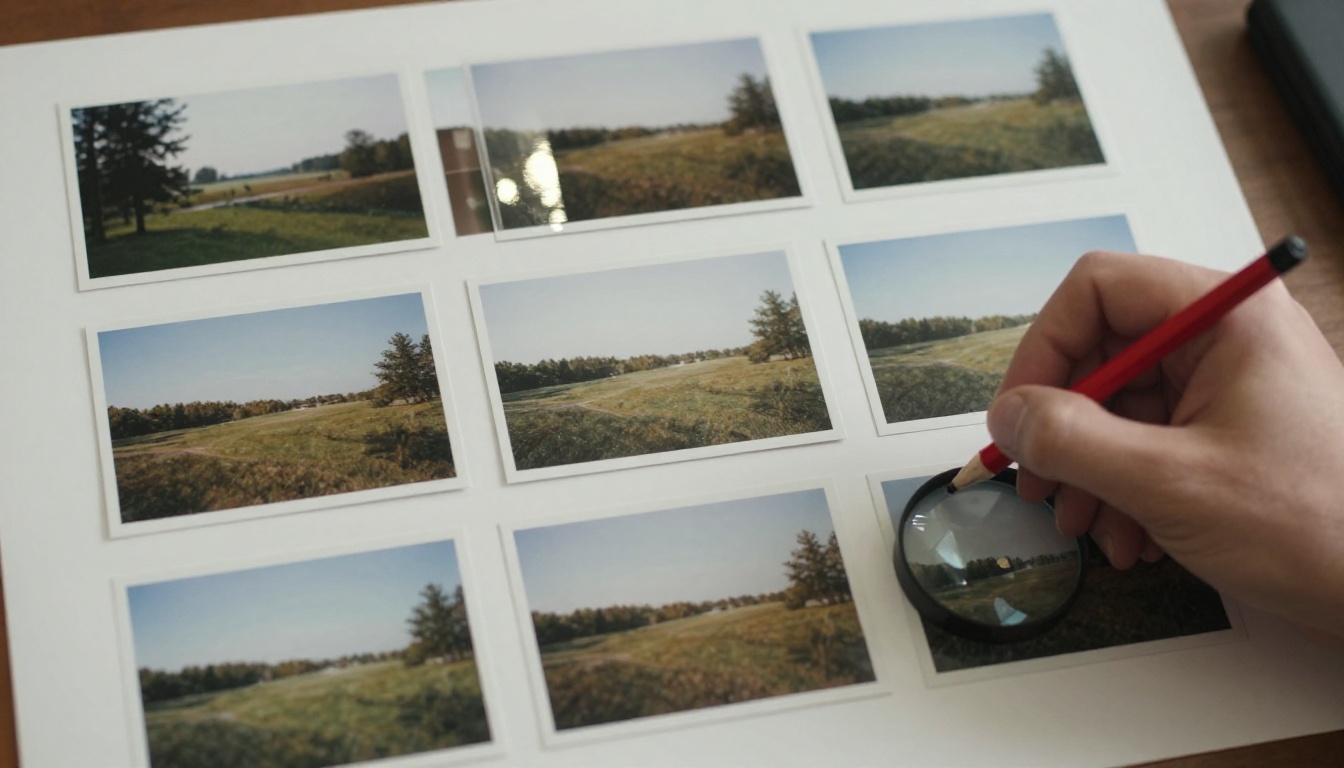
Sketch the sequence on paper first. Six rough frames, each with a camera note, tell you which two or three shots deserve a real generation. The rest can be still images, text cards or stock footage.

| Without a plan | With a plan |
|---|
| 6 prompts, 4 rejected | 3 prompts, 2 usable |
| Same idea repeated with small edits | One idea per shot |
| Allowance gone by noon | Allowance left for a retake |
Start From a Still Image
Image-to-video gives you control over the first frame, so there are fewer surprises. Generate or choose a still you like, then ask the model only for motion. This is where images and video work well together: a still costs far less to iterate on than a clip, so you can settle the composition, lighting and subject before spending a single video generation.
Three habits make still-to-video work better:
- Leave room to move: a subject with space around it gives the camera something to do.
- Match the aspect ratio: pick the still in the ratio you plan to publish, since many models follow the input image.
- Keep the still simple: one subject, one light source and a clear background produce cleaner motion than a crowded scene.
Free Alternatives on PicassoIA
When the counter hits zero, you do not have to stop. PicassoIA hosts dozens of video models, so you can keep the same workflow going somewhere else.
Unlimited Drafts for Wonder Members
Seedance 2.5 Lite is built for people who generate every day. Wonder members run it without a per-clip cost or a daily counter. It produces clips of 5 or 10 seconds at 480p or 720p, with synchronized audio, and it accepts a starting image if you want to animate a still. Because it is unlimited for Wonder members, it suits the "ten prompt variations" style of work that a Gemini cap makes painful.
A Free Generator for Quick Tests
PicassoIA Video is listed as a free unlimited AI video generator from text or image. Use it for fast tests of a concept, then move the winning prompt to a higher quality model for the final render.
Veo Models in One Place
You can also reach Google's own Veo family on PicassoIA instead of tracking a separate allowance in each Google product: Veo 3.1, Veo 3.1 Fast, Veo 3.1 Lite and Gemini Omni 1.1. Here is how the options compare.
| Model | Best for | Length | Resolution |
|---|
| Seedance 2.5 Lite | Unlimited drafts for Wonder members | 5 or 10 s | 480p or 720p |
| Veo 3.1 Fast | Polished clips with matching audio | 4, 6 or 8 s | 720p or 1080p |
| Veo 3.1 Lite | Lighter Veo clips with native audio | See model page | See model page |

Since Veo 3.1 Fast is the model reported behind the daily Pro allowance in the Gemini app, it is a natural one to try on PicassoIA. The steps:
- Open the model page and select text-to-video, or add an image to start from a still.
- Write your prompt. One shot, camera first, then light and sound.
- Add an image (optional). Ideal sizes are 1280x720 for landscape or 720x1280 for vertical.
- Pick the duration: 4, 6 or 8 seconds. The default is 8.
- Choose the resolution: 720p or 1080p. The default is 1080p.
- Set the aspect ratio: 16:9 for landscape or 9:16 for vertical.
- Keep audio on if you want sound that matches the scene.
- Generate, review the clip, and adjust the prompt only if you need to.

Parameter Tips
- Draft short and small: try 4 seconds at 720p to check the idea, then render the final at 8 seconds and 1080p.
- Use the negative prompt: list what to exclude, such as text overlays or extra people.
- Lock a seed: when a clip is close, reuse the seed and change one word in the prompt to see a controlled difference.
- Try a last frame: supply a start and end image and the model builds a transition between them.
Make Your First Clips Today
The Gemini video limit for free accounts is small, shifting and sometimes zero, and the paid daily counts are modest. That is a fair reason to build a workflow that does not depend on any single allowance. Sketch your shots, test your idea on a free or unlimited model, settle the look with stills, and save the premium generations for the takes that matter.
PicassoIA gives you the tools for every step. Generate photorealistic images to lock your look, animate them with a video model, and compare Veo 3.1 Fast, Seedance 2.5 Lite and Gemini Omni 1.1 side by side without watching a counter. Open PicassoIA, pick a model, and make your first image or video today. Write one prompt, run it, and see how far a good idea goes when nothing is rationing your attempts.