You typed a clear prompt, waited a few seconds, and the picture looks great until you notice the hand. Six fingers. Or a cheek that looks like poured wax. Or a shop sign that reads like a keyboard fell asleep on it. Seedream 4.0 artifacts are rarely random. Most of them come from a handful of predictable causes, and almost all of them can be avoided with better wording, smarter settings and a quick fix pass afterward.
This article walks through the flaws people hit most often, the exact prompt rewrites that reduce them, the size and aspect ratio choices that matter, and the free tools you can use to repair an image that is 90% there. Everything here can be tested on Seedream 4 directly, so you can follow along and compare results yourself.
What Seedream 4.0 Artifacts Look Like
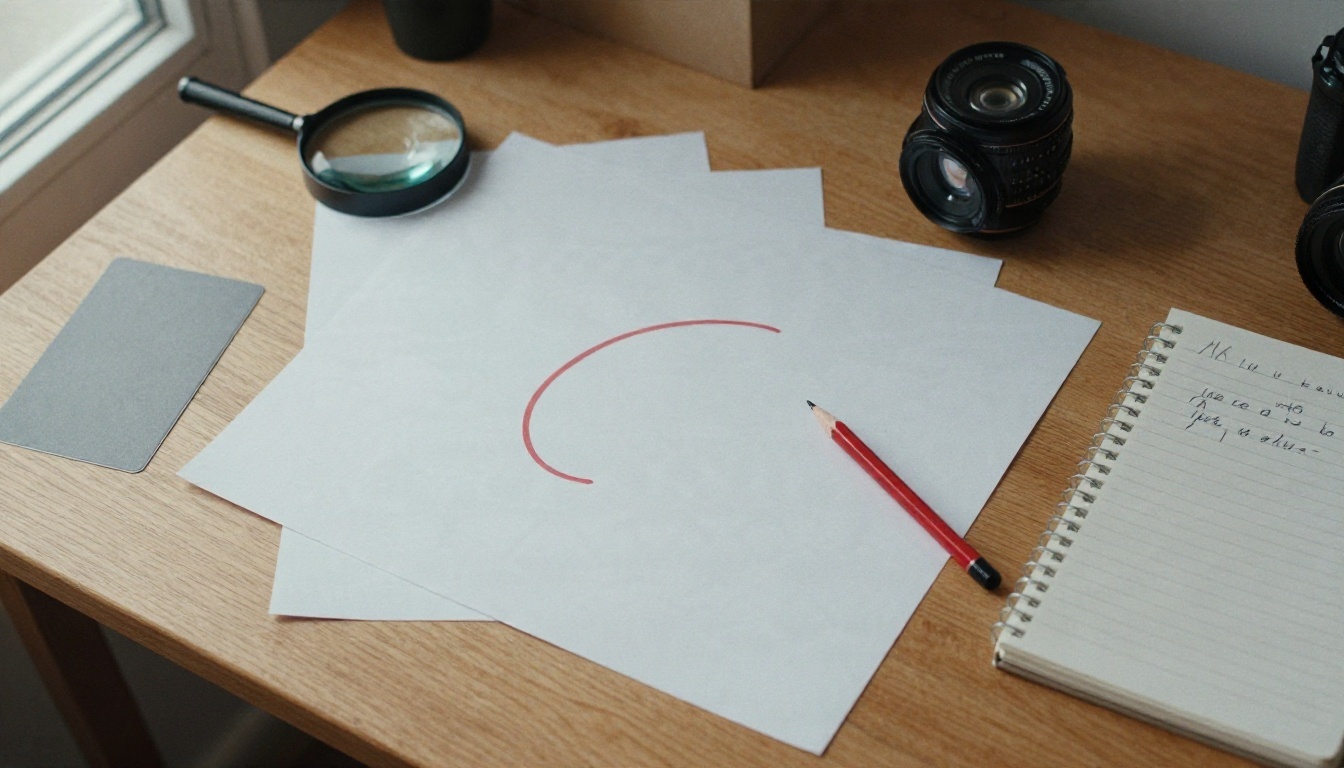
An artifact is any detail that breaks the illusion of a real photograph. The model is capable of 2K and 4K output, so when something goes wrong it is easy to see. Soft edges, odd anatomy and warped letters stand out far more at high resolution than they do in a thumbnail.
The Usual Suspects
Here are the problems that show up again and again:
- Hands and fingers: extra digits, fused fingers, or a thumb on the wrong side.
- Plastic skin: faces that look airbrushed, with no pores and an even shine.
- Garbled text: signs, labels and book spines with letters that almost, but not quite, spell something.
- Merged subjects: two people sharing an arm, or a sleeve that turns into a background object.
- Soft or smeared detail: hair, foliage and fabric that look painted instead of photographed.
- Edit drift: when you edit an existing photo, the face or background changes even though you only asked for a small tweak.
- Stretched proportions: heads that are slightly too large, or limbs that run long at unusual aspect ratios.
Why They Happen
Image models build a picture by predicting detail across the whole frame at once. Hands have many small parts that overlap in countless poses, so they are statistically hard. Text needs exact letter shapes, while the model thinks in textures and shapes. Crowded prompts split the model's attention. And a vague prompt leaves the model to fill gaps with its own average guess, which is usually a smooth, generic result.
💡 Quick rule: every artifact is a gap. Either your prompt left it open, your settings starved it of pixels, or the subject is simply a hard one. The fixes below close each gap in turn.
Write Prompts That Prevent Flaws

Prompt wording is your cheapest and fastest control. A few small changes to structure do more than any slider.
Describe, Don't Stack Adjectives
A common mistake is piling on style words: "ultra detailed, hyper realistic, masterful, stunning, 8K, award winning". These words give the model almost nothing concrete to draw. A short, precise description of what is in the frame works better than a long list of hype.
Use this order instead:
- Subject and action: who or what, doing what.
- Setting: where, with two or three concrete objects.
- Light: direction and quality, such as "soft window light from the left".
- Camera: lens and distance, such as "85mm, close-up, shallow depth of field".
- Texture cues: "visible skin pores", "linen weave", "wet cobblestones".
Prompt Rewrites That Work
Seedream 4 on PicassoIA has no separate negative prompt field, so the fix is to say what you want in positive terms. Instead of banning a flaw, describe its opposite.
| Weak prompt | Problem | Stronger rewrite |
|---|
| "A beautiful woman, perfect, flawless" | Plastic, over-smoothed skin | "A woman in her thirties, natural skin with visible pores and fine freckles, soft window light from the left" |
| "A person holding a cup, no bad hands" | Negation is ignored or confuses the model | "A hand wrapped around a ceramic mug, five fingers visible, thumb resting on the rim" |
| "A busy street with lots of people and signs" | Merged figures, garbled signs | "Two pedestrians in the foreground, a plain wall behind them, shallow depth of field" |
| "Epic cinematic masterpiece, ultra detailed" | Generic, vague result | "A fisherman mending a net on a wooden pier at dawn, 35mm, overcast light, rope fibers visible" |
| "A shop sign that says WELCOME TO OUR STORE OPEN 24 HOURS" | Letters melt | "A shop sign reading "OPEN", large block letters, centered, flat front view" |
💡 Tip: keep each prompt to one main subject. If you need a crowd, a sign and a detailed hand in one frame, generate the hard parts separately and combine them later with an edit pass.
Handling Hands and Fingers
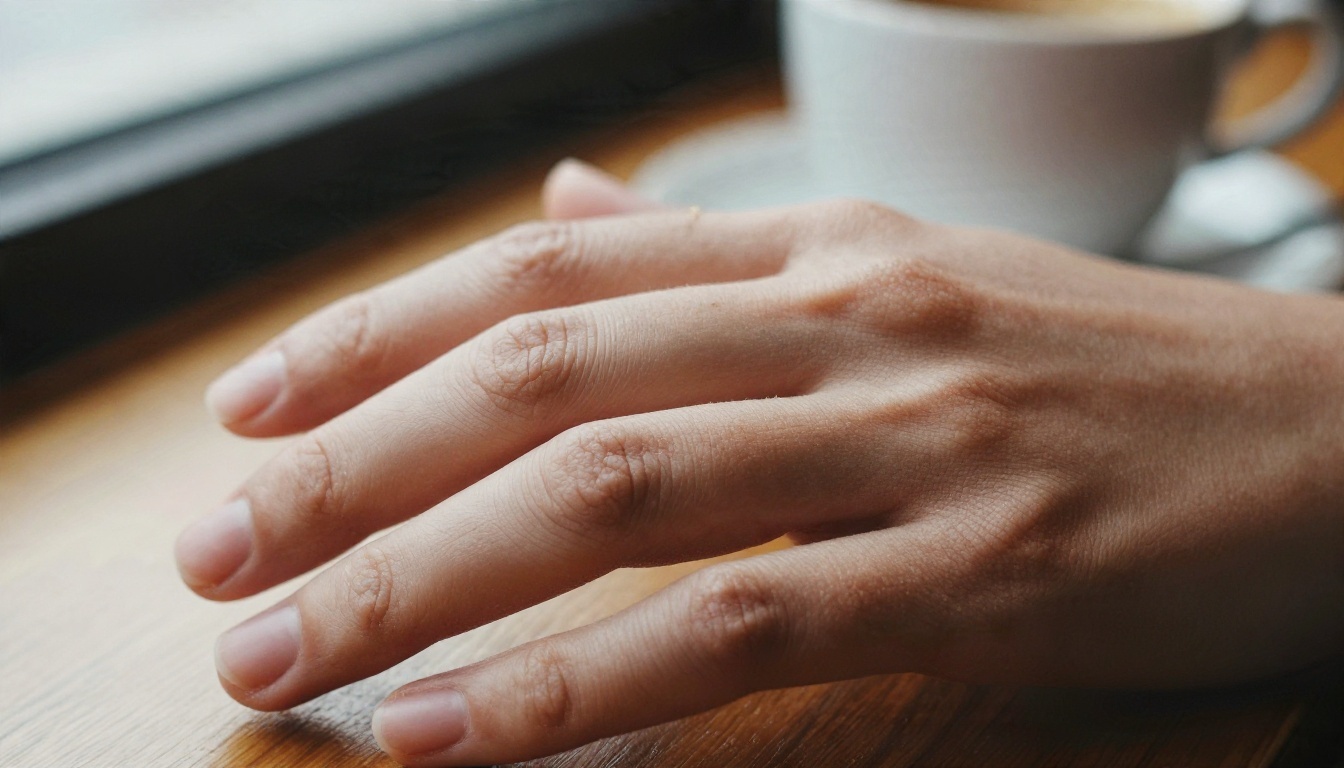
Hands are the number one complaint, and the answer is mostly composition. Try these in order:
- Describe the grip. "Fingers wrapped around a mug handle" is easier than "holding a cup".
- Count the fingers in your prompt. "Five fingers visible" gives the model a concrete target.
- Use simple poses. An open palm, a hand resting on a table, or a hand in a pocket all have fewer ways to go wrong than a hand mid-gesture.
- Hide the hard part. Crop at the wrist, put the hands behind an object, or choose a framing where they are small.
- Shoot a close-up on purpose. A single hand filling the frame gets the model's full attention, so it often looks better than a hand lost in a wide scene.
Fix Faces and Skin
Faces fail in a different way. They rarely look broken. They look too perfect.
Cure Plastic Skin
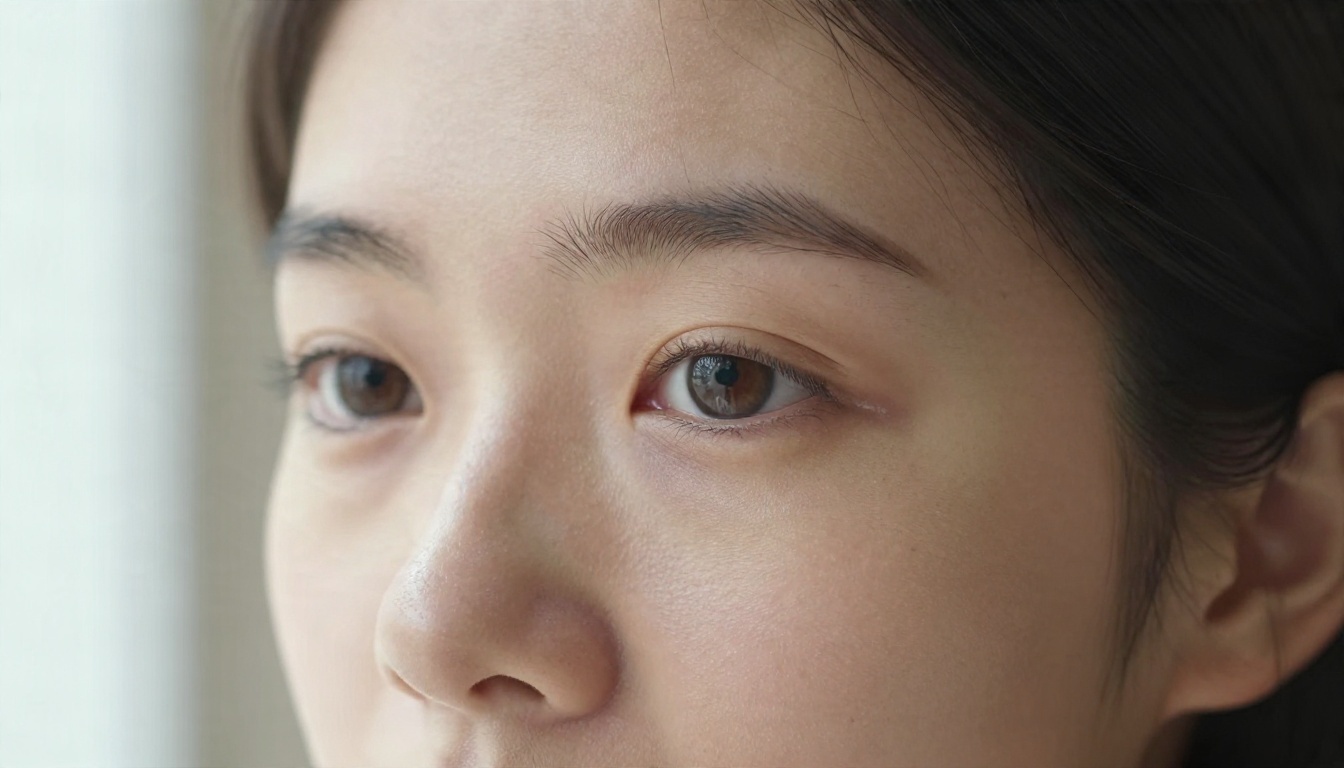
When you ask for "flawless" or "perfect" skin, you get exactly that: no texture at all. Flip the wording. Ask for specifics that real skin has:
- "visible pores on the cheek and nose"
- "fine peach fuzz catching the light"
- "light freckles across the nose"
- "natural skin sheen, not airbrushed"
- "a few loose hair strands across the forehead"
Lighting helps as well. Hard, even front light flattens a face and hides texture. Side light from a window rakes across the skin and makes pores readable. Say which side the light comes from, and the result usually gains depth.
Crowded Scenes and Merged Subjects
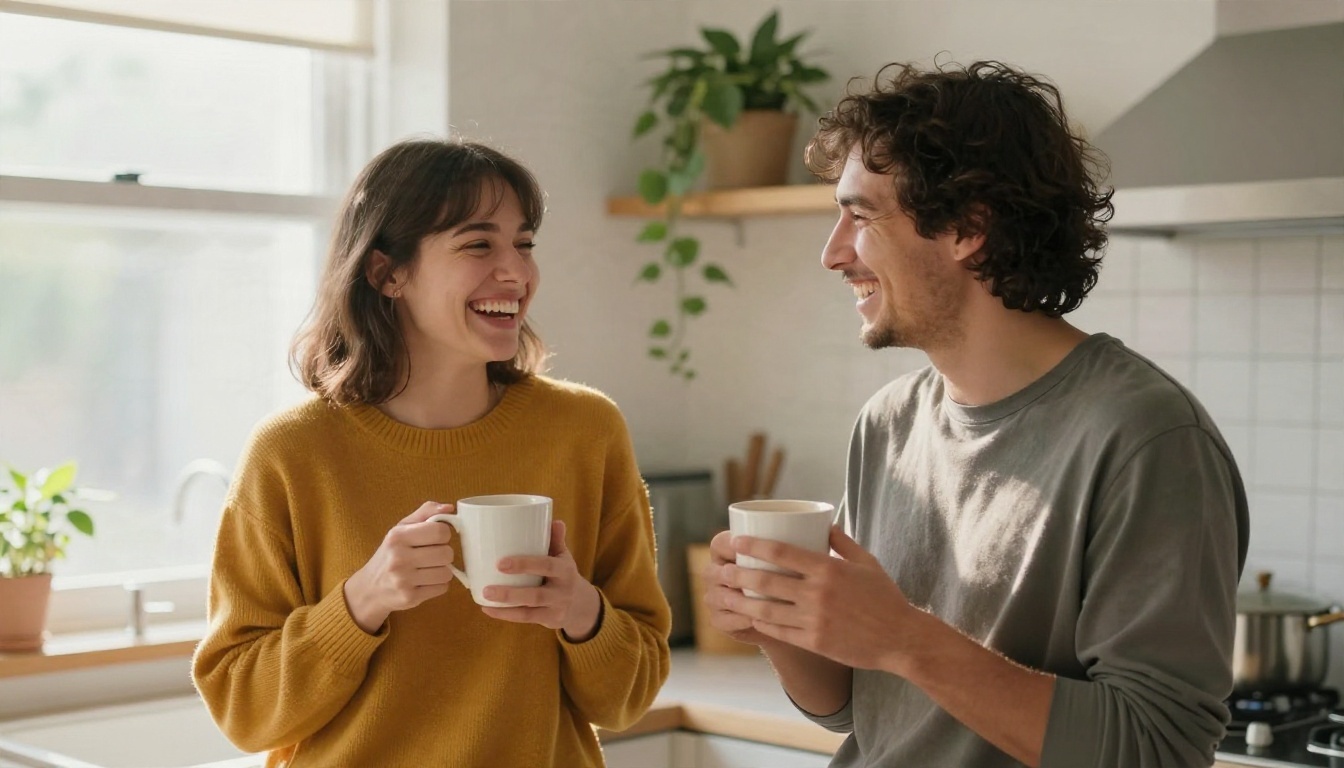
Whenever two or more people are close together, limbs can merge. Prevent it by giving each person a distinct identity in the prompt:
"A woman in a mustard sweater on the left and a man in a navy shirt on the right, standing a hand's width apart, each holding their own mug."
Different clothing colors, clear left and right positions and a small physical gap all give the model separate anchors. If a group shot still glitches, generate the people one at a time and compose them with an edit pass.
Text and Signs Gone Wrong
Garbled lettering is a classic sign of an image model working at its limits. You can reduce it but not always remove it. These habits help:
- Quote the exact words. Put the text you want inside quotation marks in the prompt.
- Keep it short. One to three words survive far better than a sentence.
- Say where it sits. "Large block letters, centered, flat front view" is much safer than text on a curved or angled surface.
- Avoid fine print. Small labels, book spines and background posters are the first things to turn into nonsense. Ask for plain surfaces instead.
- Add real text later. For logos, posters and anything that must be spelled right, generate the image with a blank area and add type in a design tool.
💡 Rule of thumb: if the exact spelling matters, do not rely on the model alone. Treat generated text as a draft.
Settings That Reduce Artifacts
Seedream 4 on PicassoIA exposes a short list of controls. Each one affects how many pixels the model has to work with and how it frames the picture.
| Setting | Options | Default | When to change it |
|---|
| size | 1K, 2K, 4K, custom | 2K | Go 4K for print and fine detail, 1K for quick drafts |
| width / height | 1024 to 4096 px | 2048 | Only with size set to custom |
| aspect_ratio | 1:1, 4:3, 3:4, 16:9, 9:16, 3:2, 2:3, 21:9, match_input_image | match_input_image | Match your final use, not a random default |
| image_input | 1 to 10 reference images | none | For style, subject or edit consistency |
| sequential_image_generation | disabled, auto | disabled | For related sets, such as scenes or product variants |
| max_images | 1 to 15 | 1 | Only with sequential generation on |
Pick the Right Size
Small canvases starve detail. Hair, foliage and fabric need pixels, and a 1K image gives them fewer than a 2K or 4K one. The practical routine is simple: draft at 1K to test the prompt quickly, then re-run the winning prompt at 2K or 4K for the final.
A caution: a larger size does not fix a bad prompt. It just shows the flaws more clearly. Fix the wording first, then raise the size.
Aspect Ratio and Seed Habits
Extreme ratios can stretch proportions. If a face or body looks slightly off, switch from a very wide frame such as 21:9 to a more natural one like 3:2 or 4:3 and compare. Choose the ratio for the portrait, product or landscape you actually need:
- Portraits: 3:4 or 2:3
- Products and social squares: 1:1 or 4:3
- Landscapes and banners: 16:9 or 3:2
- Phone wallpapers and stories: 9:16
When you find a version you like, change only one thing at a time. If you change the prompt, the ratio and the size at once, you will never know which one helped.
Sequential and Reference Inputs
Two options reduce a different kind of artifact: inconsistency. If you need the same character or product across several images, supply up to ten reference images through image_input, or let sequential_image_generation produce a related set in one run. This keeps faces, clothing and colors stable between frames, which is hard to do with separate prompts.
For editing, be explicit about what stays and what changes. "Change only the jacket color to dark green, keep the face, hair and background exactly the same" prevents most edit drift.
How to Use Seedream 4 on PicassoIA
Here is a repeatable workflow that puts all of the above into practice.
Step by Step
- Open the Seedream 4 model page.
- Write your prompt in the order: subject, setting, light, camera, texture. Keep it to one main subject.
- Set size to 1K for a fast test.
- Choose an aspect_ratio that matches the final use.
- Generate, then zoom in on hands, eyes, edges and any text.
- Rewrite only the part of the prompt that caused the flaw.
- Once the composition is right, raise size to 2K or 4K and generate the final.
- If a small flaw remains, move on to the free fixes in the next section.
Parameter Tips
- Use custom size only when you need an exact pixel count, and stay inside the 1024 to 4096 range.
- Use match_input_image for the aspect ratio when you are editing, so the frame does not change shape.
- Turn sequential_image_generation on only when you really want a set, because a single polished image is easier to inspect.
- Keep a short log of prompt versions. Small wording changes are the best clue to what fixed a flaw.
Free Fixes After You Generate
Not every flaw needs a full re-roll. Sort your results into two piles: keepers and fixables. Fixables go through one of the routes below.
Upscale Soft Images
When an image has the right composition but looks slightly soft, an upscaler can restore crispness without changing the content. PicassoIA has several in the super resolution category:
Try a couple on the same image. They treat texture differently, and one often suits your subject better than the others.
Repair With Image Editing
For a single bad region, such as an odd finger or a stray object, use an editing model with a short, specific instruction. P Image Edit is built for quick photo edits, and Nano Banana can edit and generate images from a plain sentence. P Image Edit LoRA is another route if you want a styled edit.
A reliable edit prompt names the target, the change and the things to protect:
"Fix the right hand so it has five natural fingers. Keep the face, clothing, lighting and background exactly as they are."
Make one edit at a time. Stacked edits tend to drift further from the original.
Switch Models When Needed
Sometimes a subject is simply hard for one model. Running the same prompt through a sibling can solve it in one go:
Prompts written for one model usually carry over well to the others, so you do not need to start from scratch.
Quick Troubleshooting Table
Use this when you see a problem and want the shortest path to a fix.
| What you see | Most likely cause | Fastest fix |
|---|
| Extra or fused fingers | Complex pose, wide framing | Simplify the pose, count fingers in the prompt, or crop |
| Waxy, smooth skin | "Flawless" or "perfect" in the prompt | Ask for pores, freckles and side light |
| Garbled sign text | Long text, small or angled surface | Quote 1 to 3 words, flat front view, or add text later |
| Two people merging | No separate identities in the prompt | Different clothing colors, left and right positions |
| Soft hair and foliage | Low size setting | Re-run at 2K or 4K, or upscale |
| Face changed after edit | Vague preservation instruction | State exactly what must stay the same |
| Stretched proportions | Very wide aspect ratio | Switch to 3:2 or 4:3 |
| Inconsistent character across set | Separate unrelated prompts | Use reference images or sequential generation |
Run Your Next Test on PicassoIA
Clean results come from a loop, not a single lucky prompt: write precisely, test small, inspect closely, change one thing, then raise the size and polish. Most artifacts will fade once you build that habit, and the ones that remain are usually quick to repair with an upscaler or an edit.
The best way to see the difference is to try it side by side. Open Seedream 4, take a prompt that gave you a bad hand or waxy face, and rewrite it using the patterns above. Run it at 1K, compare, then lock in the winner at 2K or 4K. When you want a wider choice of engines, browse every available model at picassoia.com/en/all-models and run the same prompt through two or three of them. You will quickly learn which model suits which subject, and your keeper rate will climb with every round.


