Stop sending the same five stickers everyone uses. If your WhatsApp chats still rely on the default packs that came with the app, you are missing out on one of the easiest ways to personalize your conversations right now. AI image generators have completely changed what is possible for everyday users, and creating your own custom sticker pack takes less than five minutes once you know the process.
This article walks you through everything: the tools, the technique, the exact steps to add your AI stickers to WhatsApp, and the most common pitfalls that trip people up on their first try.
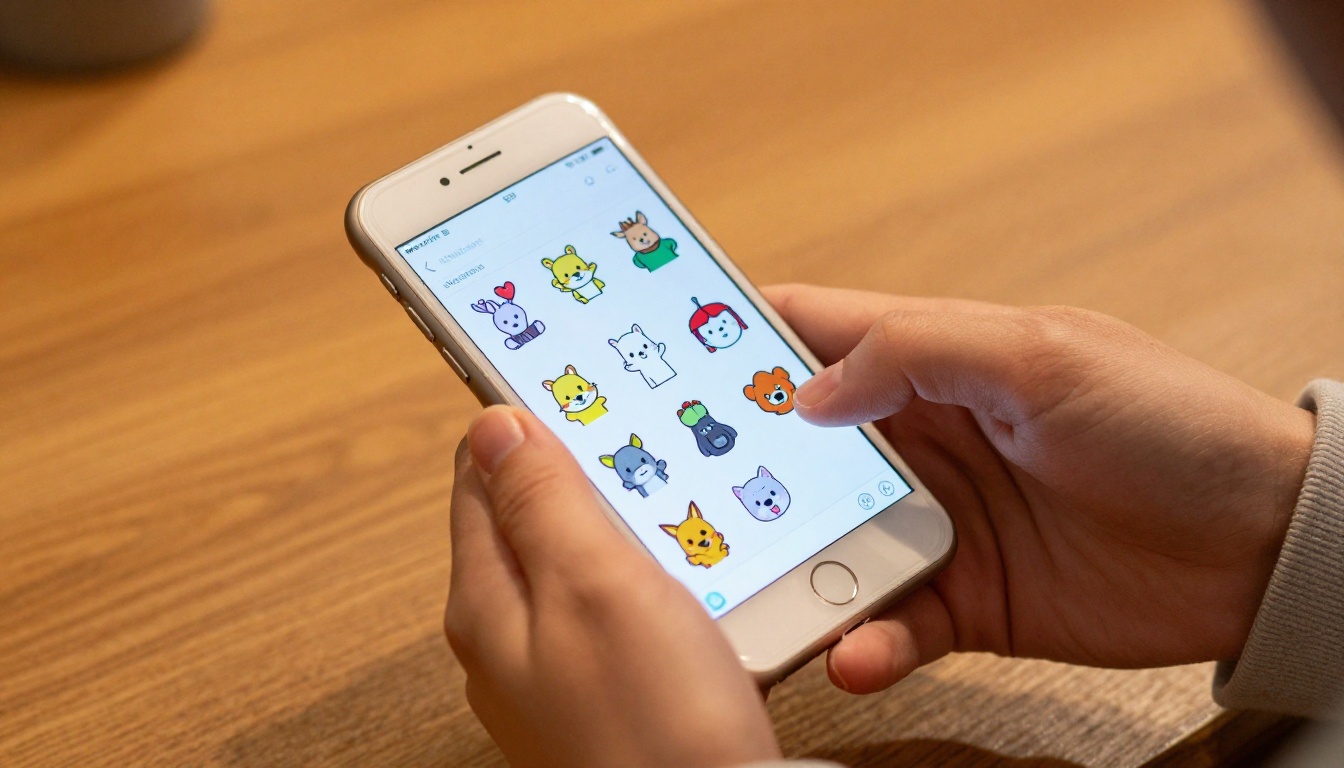
Why WhatsApp Stickers Are Worth Customizing
Stickers are not just decoration. They carry tone, personality, and cultural context in a single image. A well-placed sticker does something that text alone cannot: it communicates exactly how you feel without needing to explain it. That is why sticker packs with personality get shared constantly, while generic ones get ignored after the first week.
The Shift from Emoji to Stickers
Emoji were designed to be universal. Stickers work best when they feel specific. Inside jokes, personal references, a meme that only three people in your group chat will understand: that specificity is what makes stickers stick. The problem has always been that creating custom images required design skills most people do not have. AI changed that completely.
What Makes a Sticker Pack Actually Get Used
Not every sticker pack earns a permanent spot on the tray. The ones that do share a few traits:
- Instant recognition: The image reads clearly at a small size
- Emotional accuracy: It captures a specific feeling, not a generic one
- Versatility: It works in multiple conversations, not just one moment
- Visual consistency: The pack feels like it belongs together
Keep these in mind as you start generating. They will shape the prompts you write.
How AI Image Generation Changed Sticker Creation
Before AI generators, making a custom sticker meant hiring a designer, learning Illustrator, or spending hours in Procreate. Now you type a description and get a result in under a minute. The technology has matured fast. Current models produce transparent backgrounds, clean character illustrations, and consistent visual styles that translate perfectly to the sticker format.
From Text Prompt to Downloadable PNG
The core workflow is simple. You describe what you want, the AI generates an image, you download it, and you add it to WhatsApp. Each step takes less than a minute. The quality of your result depends almost entirely on how well you write the prompt, which is a skill worth spending ten minutes on before you start generating.
Models specialized for sticker creation, like Sticker Maker by fofr on PicassoIA, are built specifically to output images with clean edges and transparent backgrounds: the two things that matter most for WhatsApp compatibility.
Transparent Backgrounds: Why They Matter
WhatsApp stickers require a transparent background (PNG format with an alpha channel). If your sticker has a white or solid background, it will look like a rectangular photo dropped into the chat instead of a proper sticker. Every tool you use needs to handle this. Models designed specifically for sticker output handle it automatically.
For general image generators that produce solid backgrounds, you will need a background removal step afterward. PicassoIA has dedicated remove-backgrounds models that cover this without needing a separate app.
Not every AI image generator is equally suited for sticker creation. Some are built for photorealistic renders, others for artistic styles. For stickers, you want models that handle character clarity, transparent output, and small-size readability. Here is how the top options compare:
| Model | Best For | Transparent BG | Speed |
|---|
| Sticker Maker | WhatsApp stickers specifically | Yes, automatic | Fast |
| SDXL Emoji | Emoji-style characters | Yes | Fast |
| Flux Pro | High-detail character art | No (needs removal) | Medium |
| Ideogram v3 Turbo | Stickers with text overlays | No (needs removal) | Fast |
| GPT Image 1.5 | Versatile styles with transparency | Yes, built-in | Medium |
| Recraft v4 | Vector-style clean stickers | Yes | Medium |
💡 For beginners: Start with Sticker Maker. It removes the background removal step entirely and is purpose-built for this exact use case.
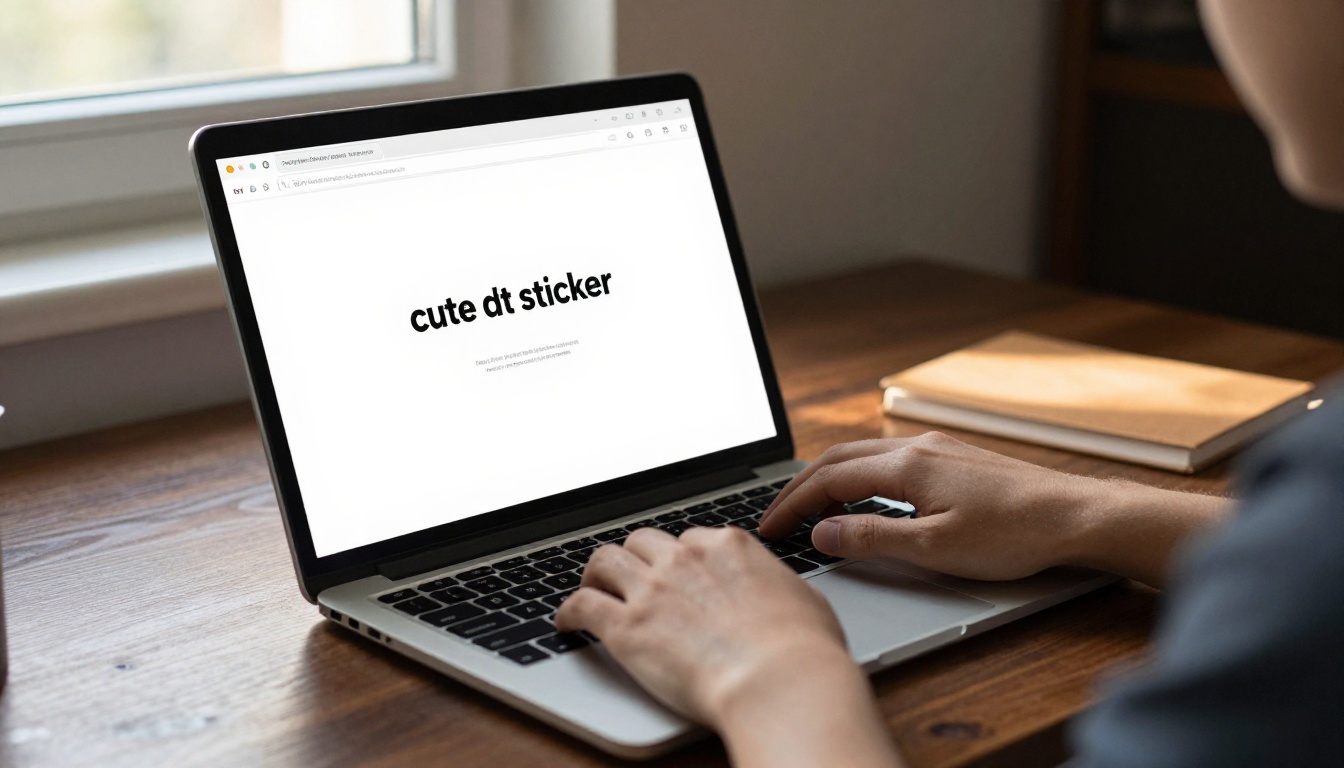
How to Use Sticker Maker on PicassoIA
PicassoIA hosts the Sticker Maker model, which is specifically designed for creating stickers with transparent backgrounds. Here is the exact process, step by step.
Step 1: Open the Model and Write Your Prompt
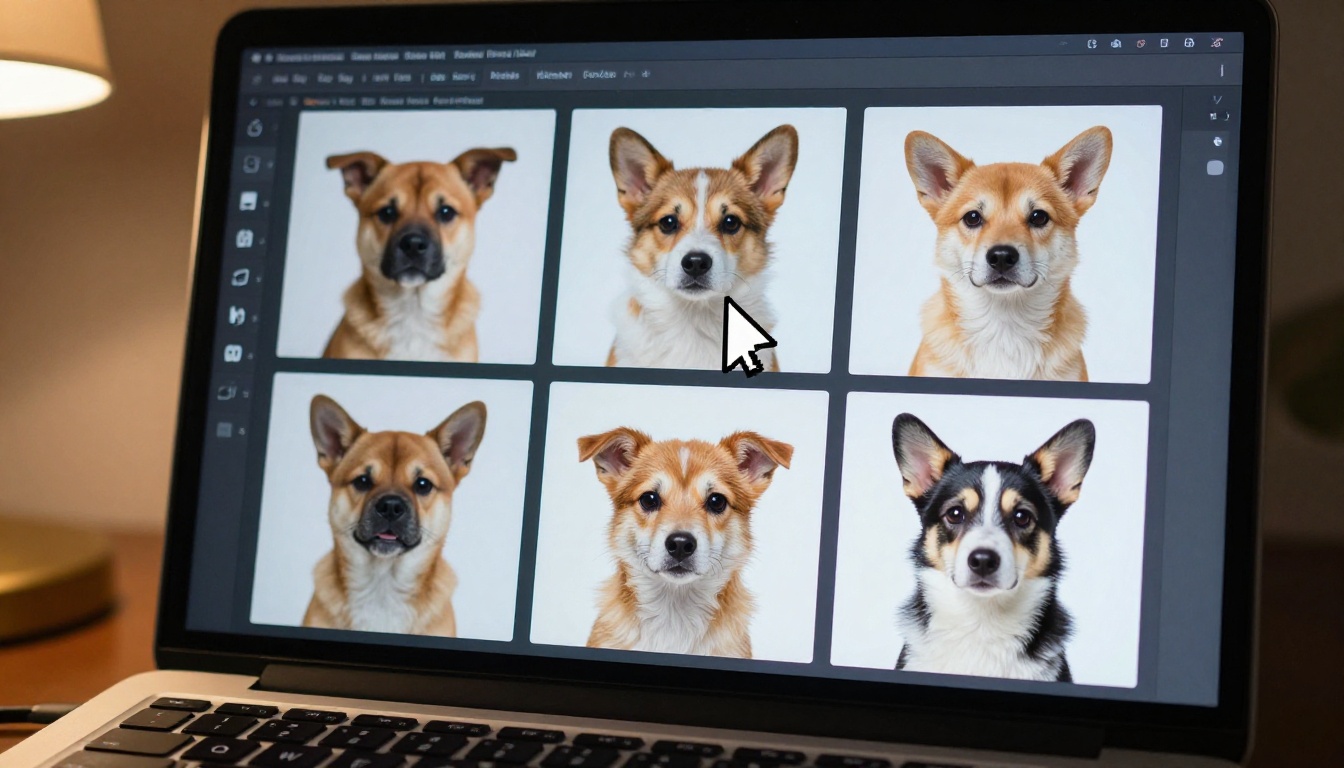
Go to Sticker Maker on PicassoIA. You will see a prompt input field. This is where the quality of your result gets determined.
Write a description of your sticker subject. The model responds well to:
- Character type: "a chubby orange cat", "a small frog wearing a beret", "a sleepy bear"
- Emotional state: "looking surprised", "with big sad eyes", "laughing hard"
- Style cues: "cartoon style", "cute chibi", "simple flat illustration"
A complete prompt example: chubby orange cat with big green eyes looking surprised, cute sticker style, white outline, transparent background
The white outline instruction is particularly useful. It creates a border around the character that makes stickers pop against any chat background color.
Step 2: Generate and Review the Result
Hit generate and wait. The model produces output in seconds. Review it for:
- Readable at small size: Zoom out mentally and ask if the main character reads clearly
- Clean edges: No stray pixels or rough cutouts around the subject
- Transparent background confirmed: The checkerboard pattern behind the character confirms transparency is active
If the result is close but not quite right, refine your prompt. Add more detail about the expression, adjust the style description, or specify the outline thickness. Regenerating is free and instant.
Step 3: Download the PNG
Once you are happy with the result, download the file. Make sure it saves as a PNG, not a JPG. JPG format does not support transparency and will give your sticker a white background in WhatsApp. The Sticker Maker model exports PNG by default.
Step 4: Transfer to Your Phone
If you generated on desktop, you need to get the PNG onto your phone. Options:
- WhatsApp Web: Send it to yourself in a chat, then save from mobile
- Cloud storage: Drop it in Google Drive or iCloud and access on mobile
- Email to yourself: Quick and reliable on any device
Step 5: Import Into a Sticker App
WhatsApp does not let you add individual PNG files directly from your camera roll. You need a sticker maker app as a bridge. More on this in the section below.
Writing Prompts That Actually Work
The gap between a mediocre AI sticker and a great one is almost always in the prompt. Most people write too little. More detail equals more control over the output.
The Anatomy of a Strong Sticker Prompt
A well-structured sticker prompt has four components:
- Subject: What is in the sticker (character, object, scene)
- Emotion or action: What the subject is doing or feeling
- Visual style: How it should look (cute, minimalist, bold, chibi, etc.)
- Technical specs: Transparent background, white outline, sticker format
Put them together: [Subject] + [Emotion/Action] + [Style] + [Technical specs]
Example: small golden retriever puppy, jumping with excitement, cute kawaii illustration style, thick white outline, transparent background, sticker
10 Prompt Ideas to Start With
These prompts work well with the Sticker Maker and SDXL Emoji models:
sleepy panda holding a coffee cup, cute sticker, white outline, transparent backgroundsmall frog wearing sunglasses, thumbs up pose, flat cartoon style, stickerangry cat with narrowed eyes, arms crossed, chibi style, sticker formattiny bear eating ramen, happy expression, kawaii style, transparent backgrounda cactus with a smiley face, waving, simple illustration, stickerchubby corgi rolling on its back, playful, cute sticker stylea ghost with heart eyes floating, cartoon, bold outline, stickerdramatic anime girl pointing finger, crying tears, chibi stickersmall astronaut floating in space, thumbs up, cute character, stickervintage robot doing a happy dance, retro cartoon style, sticker
💡 Pack consistency tip: If you want a sticker pack that feels cohesive, keep the style description identical across all prompts. Using "kawaii style, thick white outline, transparent background" as a consistent suffix will tie all your stickers together visually.

Adding Your AI Stickers to WhatsApp
WhatsApp handles stickers differently depending on your operating system. The process is slightly different on iPhone versus Android, but both are straightforward.
On Android
Android has the most direct path. Sticker.ly and Personal Stickers for WhatsApp are the most reliable bridge apps. Here is the flow:
- Open your sticker app of choice
- Create a new sticker pack and give it a name
- Import your PNG files from your gallery
- The app verifies the format (512x512px minimum, under 100KB, PNG with transparency)
- Hit "Add to WhatsApp" and confirm in the WhatsApp prompt that appears
The whole process takes about two minutes per pack.
On iPhone
iOS is slightly more restricted. The best option is the Sticker Maker Studio app from the App Store. The process:
- Download Sticker Maker Studio
- Create a new pack and name it
- Import your PNG files
- Crop and adjust if needed within the app
- Tap "Add to WhatsApp" to push the pack to the app
💡 Size requirements: WhatsApp stickers must be exactly 512x512 pixels, under 100KB in file size, and in PNG format with a transparent background. Most AI sticker generators that target this use case output at the correct size automatically.
| Platform | Recommended App | Direct Add to WhatsApp | Time Required |
|---|
| Android | Sticker.ly | Yes | 2 min |
| Android | Personal Stickers for WhatsApp | Yes | 2 min |
| iPhone | Sticker Maker Studio | Yes | 3 min |
Building a Full Pack From Scratch
WhatsApp requires a minimum of 3 stickers to create a pack and supports up to 30 stickers per pack. For a pack that actually gets used, aim for 8 to 12 stickers with a consistent theme and style.
Pack ideas that tend to get shared:
- Reaction pack: Happy, sad, angry, confused, laughing, crying, shocked
- Monday moods: Coffee-dependent, tired, barely surviving, weekend countdown
- Pet characters: Turn your actual pet description into a cartoon sticker pack
- Inside joke pack: Specific to a group chat with references only they will understand
3 Common Mistakes That Ruin Stickers
Most failed sticker attempts come down to the same three issues. Knowing them in advance saves a lot of frustration.
Wrong File Format
Saving as JPG instead of PNG is the most common error. JPG does not support transparency. The result is a sticker with a white box around the character. Always verify the file extension before importing. If you accidentally generated a JPG, run it through a background removal tool before converting.
Ignoring Resolution Requirements
WhatsApp is strict about the 512x512 pixel requirement. If your image is smaller, it will be rejected or appear pixelated. If it is larger, you will need to resize it first. Most dedicated sticker AI tools handle this automatically. If you are using a general image generator like Flux Pro or Imagen 4, check the output dimensions before adding to your pack.
Generating Complex Scenes Instead of Simple Characters
Stickers work at thumbnail size. A detailed landscape or a group scene will compress into an unreadable blur at sticker dimensions. The subject needs to fill most of the frame. One character, one object, one clear focal point. Keep backgrounds minimal or non-existent. This is where the transparent background approach wins: there is no background competing for attention at small sizes.

What Else You Can Build With These Skills
Once you have made stickers, you have a workflow that applies to far more than WhatsApp. The same AI generation skills transfer directly to creating profile pictures, social media assets, printable art, and reaction images for other platforms.
Other Models Worth Trying
For stickers that push into more detailed character art, Flux Dev produces highly detailed results that pair well with a background removal step. For stickers that need text integrated into the image, such as a character holding a sign, Ideogram v3 Quality handles legible text rendering in AI images better than most models.
If you want to create an entire sticker pack faster, Flux Schnell generates images in seconds, making it practical to iterate through 12 variations of a character without waiting between each attempt. For a bold, print-ready aesthetic, Recraft v4 produces clean vector-like results that scale perfectly.
Personalizing Stickers With Your Own Photo
One of the more interesting use cases is turning a real photo into a sticker character. You provide a reference image, the AI stylizes it into a cartoon or illustration, and you have a personalized sticker based on your own face or your pet. Models like Flux Kontext Pro handle image-to-image work, letting you feed in a photo and get a sticker-ready character back.
For a faster approach to the same result, Qwen Image 2 Pro accepts reference photos and outputs stylized versions with high fidelity to the original subject.
Your First Sticker Is One Prompt Away
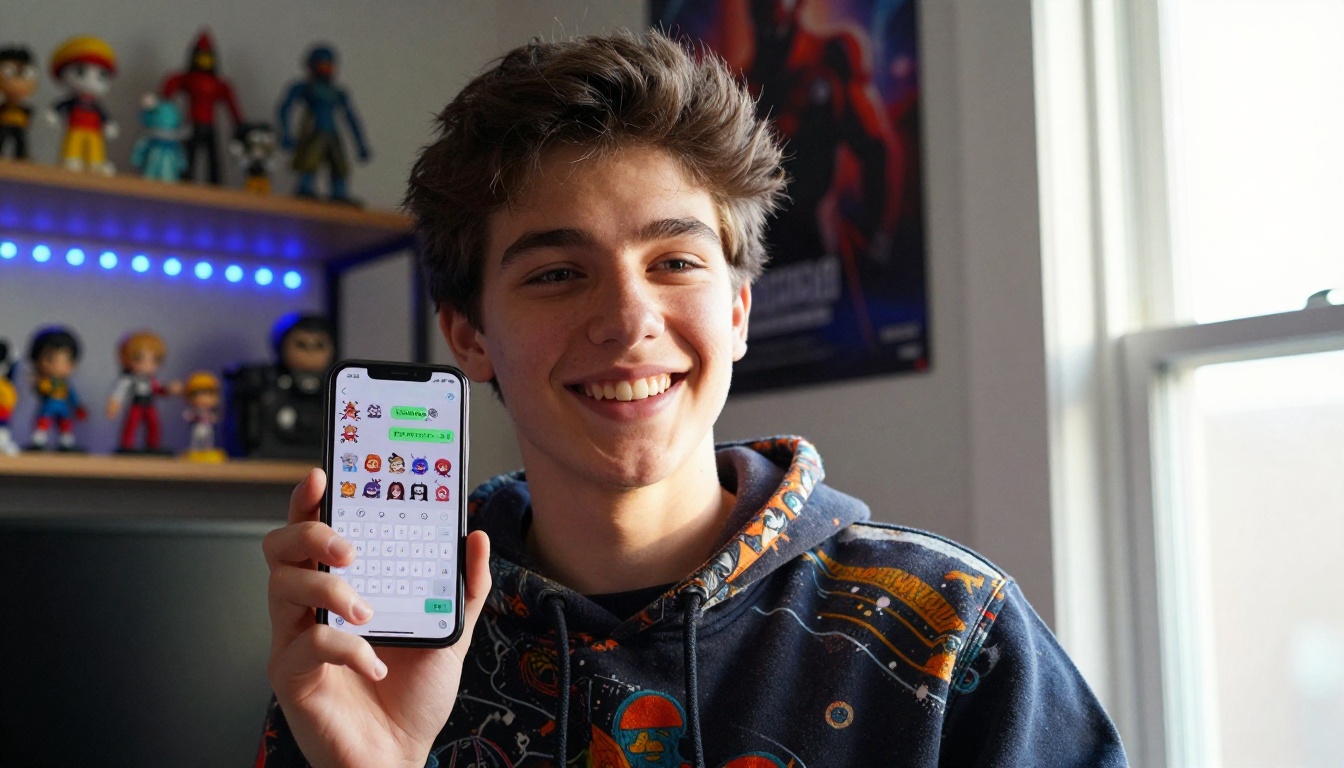
There is no design experience required, no software to install, and no subscription needed to get started. Open Sticker Maker on PicassoIA, type a description of the character you want, download the PNG, and follow the WhatsApp import steps above. The entire process from prompt to sticker in chat takes under five minutes on your first try and about two minutes once you have done it once.
The more specific your prompts, the more personality your stickers carry. Start simple, iterate fast, and build out a pack that actually represents how you communicate. When your sticker makes someone laugh or perfectly captures what you were trying to say, you will understand exactly why this is worth doing.
PicassoIA has over 90 text-to-image models available, each with different strengths. Experiment with SDXL Emoji for a more emoji-like aesthetic, Recraft v4 for clean vector-style results, or GPT Image 1.5 for highly detailed characters with natural transparency support. The platform makes it easy to try different models on the same prompt and pick the result that fits your style best.
Your next great sticker pack is already in your head. Now you have the tools to get it into the chat.


