You shot the video. You thought you nailed it. Then you opened it on your laptop and saw the truth: pixelated faces, motion blur that makes everything look like a watercolor painting, and compression artifacts that turn smooth backgrounds into a mosaic of squares. Sound familiar?
The good news is that AI has completely changed what is possible with low-quality footage. Tools that used to cost thousands of dollars in specialized software now run in a browser. Neural networks trained on millions of video frames can add detail that was never there to begin with, fix noise without destroying fine texture, and push 480p clips to watchable 4K.
This article breaks down exactly how these tools work, which ones to use for different types of footage, and how to get the best possible results from video that you thought was beyond saving.
Why Your Videos Look Bad
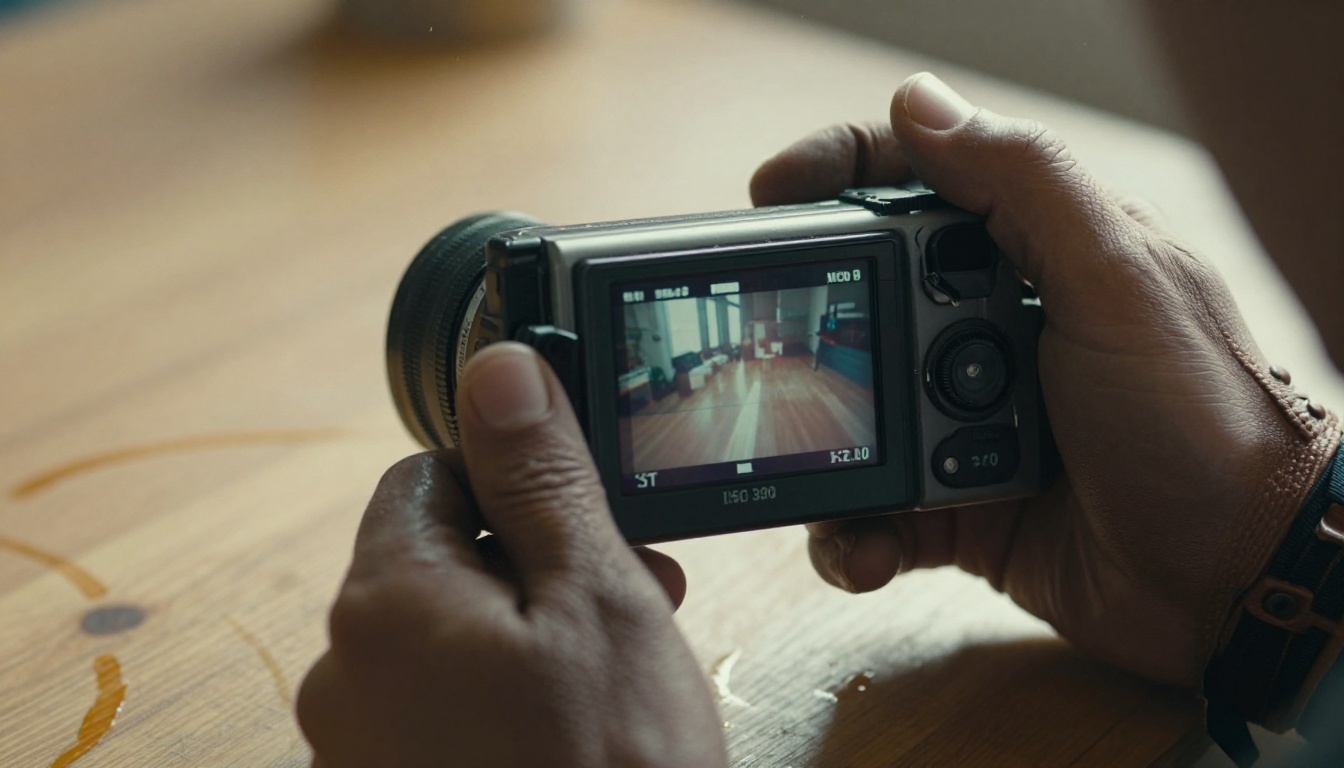
Before throwing any AI at your footage, it helps to know what you are actually dealing with. Not all video degradation is the same, and different problems respond better to different tools.
The Usual Suspects
1. Low Resolution
If the source footage was shot at 480p or 720p, every pixel is doing more work than it should. Scaling it up with traditional interpolation just makes blurry things bigger and blurrier. The information simply is not there without AI reconstruction.
2. Compression Artifacts
Video platforms like YouTube, WhatsApp, and TikTok compress footage aggressively. The result is blocky, banded images where smooth gradients turn into visible steps and faces lose all their texture detail.
3. Motion Blur
Fast-moving subjects or a shaky hand produce frames where important details smear across the sensor. AI deblurring can reverse this by analyzing adjacent frames to reconstruct what should be there.
4. Digital Noise
Low-light shooting on smartphones and older cameras introduces random pixel variation that looks like static. Temporal noise in video is especially difficult to handle because it changes every single frame.
5. Interlacing Issues
Older broadcast footage and VHS captures often contain interlacing artifacts, creating a comb effect on moving edges. Proper deinterlacing is the critical first step before any quality restoration.
💡 Pro tip: Identifying which type of degradation you have first will save you hours of trial and error. A noisy clip needs a different approach than a compressed clip, and a blurry clip needs a different approach than both.
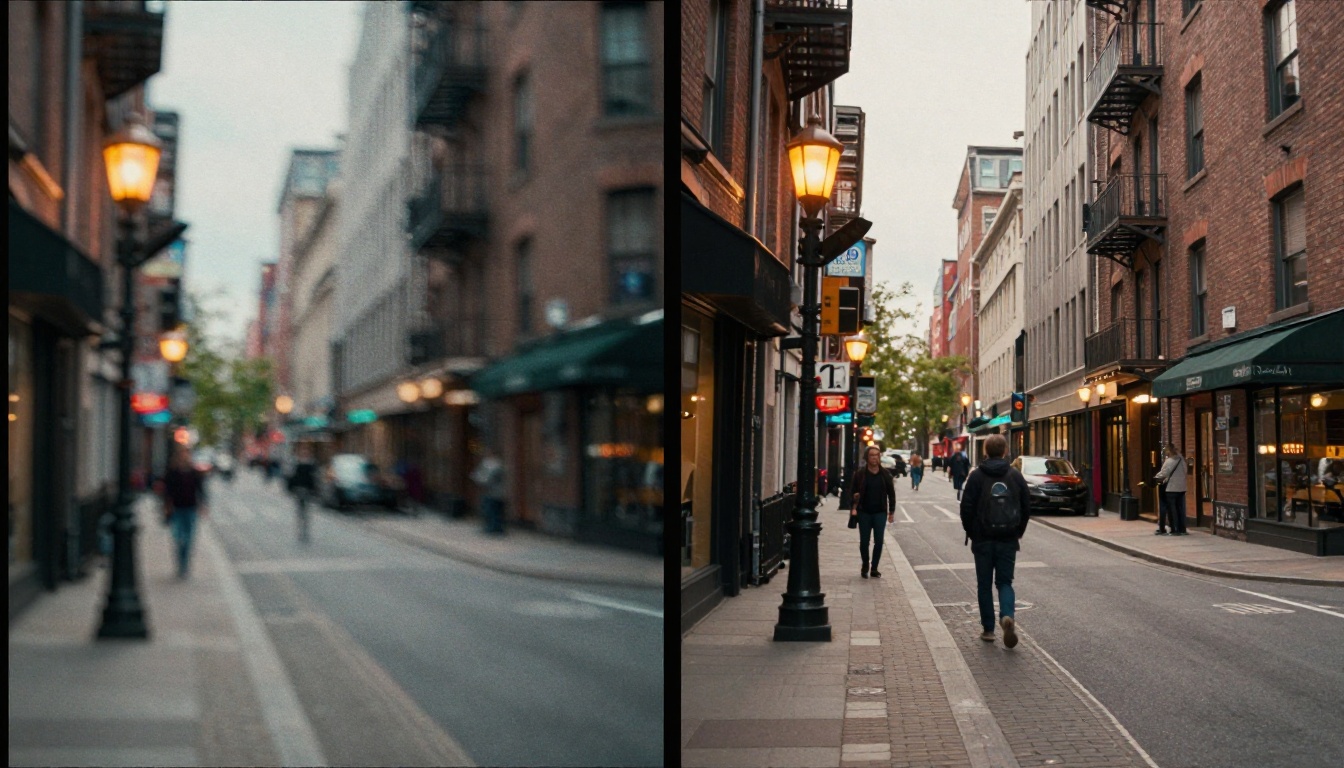
Traditional upscaling algorithms look at existing pixels and average them out to fill in the gaps. The result is always soft, always generic, always visibly artificial. AI works completely differently.
Modern neural networks for video restoration are trained on paired datasets: millions of examples of high-quality footage deliberately degraded in controlled ways. The network learns to recognize the pattern behind degradation, not just its surface appearance. When it processes your footage, it is not guessing at random pixels. It is reconstructing plausible texture based on everything it has learned from training.
Super Resolution vs. Simple Upscaling
| Method | How It Works | Sharpness | Artifact Handling | Speed |
|---|
| Bicubic Upscaling | Math-based averaging | Low | Poor | Instant |
| Traditional Sharpening | Edge detection filters | Medium | Creates halos | Fast |
| AI Super Resolution | Neural reconstruction | High | Excellent | Minutes |
| AI Temporal Processing | Per-frame plus inter-frame analysis | Very High | Best | Slower |
AI super resolution adds detail that was genuinely missing from the original. It infers what a window pane should look like, what the grain of a wooden table should feel like, what the individual strands of hair looked like before compression ate them. This is not just making things bigger. It is making things sharper, cleaner, and more accurate.
Noise Reduction That Works
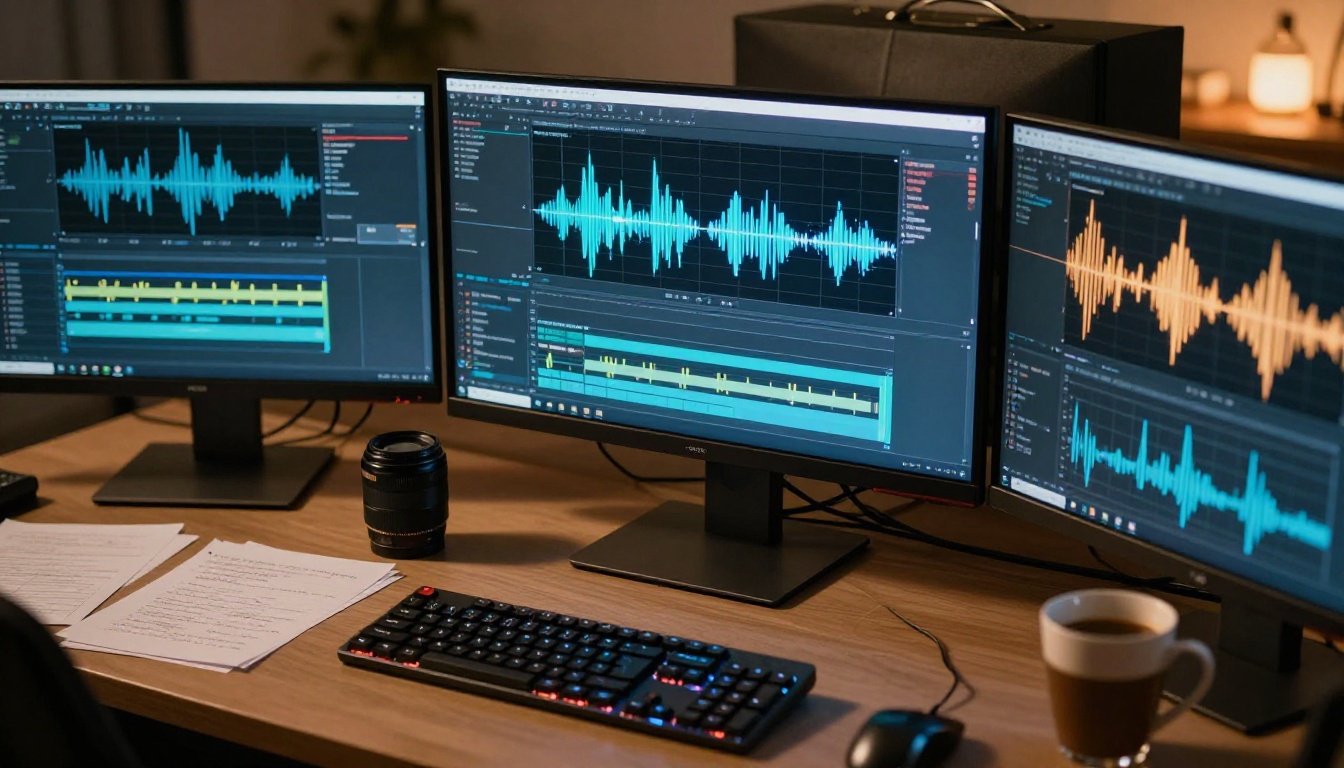
Temporal noise reduction in AI video tools is particularly impressive. Instead of processing each frame in isolation (which can create smooth, plastic-looking "soap opera" results), the best models analyze motion between frames and apply noise reduction only where the underlying content is actually static.
The result is footage that looks clean without looking fake. Natural film grain is preserved where it belongs. Moving subjects stay sharp while background noise is eliminated. This level of control was previously only available in high-end post-production suites costing tens of thousands of dollars.
Not all AI video tools are built the same. Here is a breakdown of the most effective options available on PicassoIA, organized by what they are best at.
Topaz Video Upscale: The Industry Benchmark
Topaz Video Upscale from Topaz Labs is arguably the most well-regarded AI video upscaling tool available today. It handles 4K upscaling and frame rate interpolation up to 120fps, making it powerful for two distinct use cases: restoring old footage and smoothing out action video.
Best for:
- Old home videos and archival footage
- Sports and action clips where motion blur is severe
- Any source footage below 1080p that needs to reach 4K output
The model uses Topaz's proprietary neural network architecture trained specifically on video content (not repurposed from image AI), which gives it a major advantage in handling temporal consistency across frames. Objects do not flicker. Faces do not change between frames. The restoration stays stable throughout the entire clip.
Real ESRGAN Video: Open-Source Power
Real ESRGAN Video is built on the same architecture that made Real ESRGAN the gold standard for image upscaling, now applied frame-by-frame to video. It is exceptional at:
- Compression artifact removal: ESRGAN has a specific training mode for JPEG and video compression that makes it surgically precise at removing blocky artifacts.
- Anime and illustration upscaling: While this article focuses on photorealistic footage, ESRGAN is also the go-to for animated content.
- High-volume batch processing: Run an entire folder of clips in sequence without manual intervention.
The 4x upscale mode takes 720p footage to native 4K output that holds up even on large screens.
Bria Video Increase Resolution: 8K Without a Studio Budget
Bria Video Increase Resolution pushes the ceiling further than almost any other tool. The capability to output at 8K resolution sounds extreme until you consider the practical use case: 8K footage that gets compressed down to 4K for delivery still looks dramatically better than footage that was natively shot in 4K.
Content creators producing for large LED displays, cinema screens, or planning ahead for next-generation display technology will find this tool genuinely worth testing. The difference in perceived sharpness is real, even when the final delivery format is 4K.
RunwayML Upscale v1: Fast and Consistent
RunwayML Upscale v1 prioritizes speed and workflow integration. If you need to process a large volume of clips quickly without obsessing over every pixel, Runway's approach to video upscaling is impressive for turnaround time.
It excels at:
- Social media batch work where volume matters
- Quick client previews before committing to a full render
- Clips where noise is the main issue rather than lost resolution
How to Use Topaz Video Upscale on PicassoIA
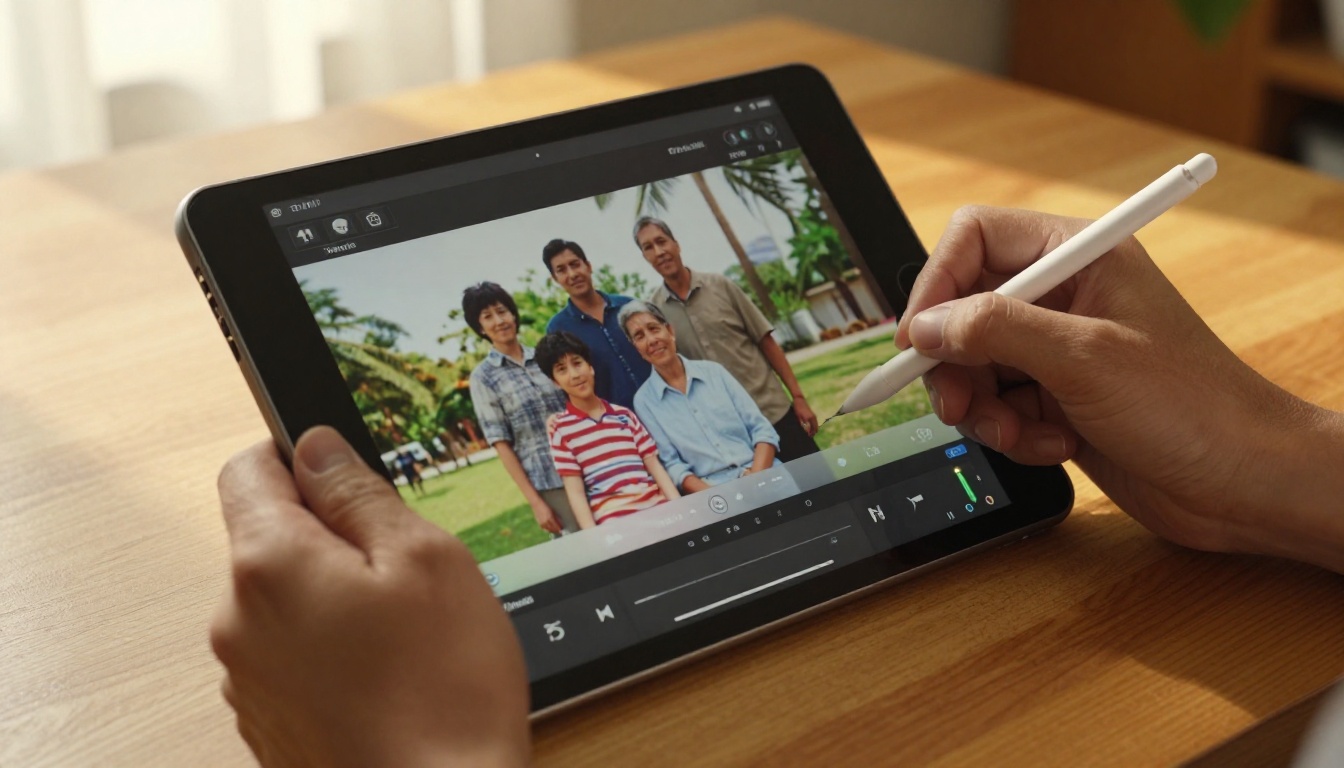
PicassoIA offers direct access to Topaz Video Upscale with no software installation required. Here is the full workflow.
Step 1: Prepare Your Source File
Before uploading, do a quick check: is your footage interlaced? If so, run a deinterlace pass first using any basic video editor (VLC, HandBrake, or DaVinci Resolve all do this for free). AI upscalers work dramatically better on clean progressive footage than on interlaced source material.
Step 2: Open the Model Page
Head to picassoia.com/en/collection/ai-enhance-videos/topazlabs-video-upscale. You will see the model card with all parameter controls ready.
Step 3: Upload Your Clip
Drag and drop your video file. Topaz Video Upscale accepts MP4, MOV, and AVI formats. For best results, keep clips under 5 minutes per job to avoid timeout issues. Longer projects should be split into segments first.
Step 4: Set Your Output Parameters
- Scale Factor: For 480p source, use 4x to reach 1080p or 8x to hit 4K. For 720p source, 2x or 4x is usually optimal.
- Frame Rate: If the original footage is 24fps and feels choppy, enabling frame interpolation to 60fps makes it look significantly smoother on modern displays.
- Noise Reduction: Set to "Strong" for smartphone footage shot in low light. Use "Light" for footage that already looks relatively clean but is just low resolution.
Step 5: Process and Download
Click "Generate." Processing time varies with clip length and chosen resolution. A 30-second 480p clip typically finishes in 3 to 5 minutes.
💡 Output check tip: Always preview the first 5 seconds of output before downloading the full file. If you see haloing around edges, reduce the sharpening slider before re-running the job.
Step 6: Stack It with Other Tools
One AI tool rarely covers everything. After running Topaz Video Upscale, consider passing the result through Real ESRGAN Video for an additional texture pass, or use Bria Video Increase Resolution if you need to push the resolution ceiling even further.

The tool you pick should match the problem you have, not just what sounds most impressive on paper.
The table above is a starting point. For particularly complex footage, the best results often come from running multiple tools in sequence: deinterlace first, then upscale, then a final noise pass as the finishing step.

AI video restoration goes far beyond just resolution. Once you have sharper footage, you might notice other problems that were hidden by the original blurriness. PicassoIA offers a full suite of video tools that work together for a complete post-production workflow.
Stabilization: Shaky handheld footage becomes unwatchable at high resolution. The PicassoIA video editing suite includes tools for post-production stabilization that smooth out camera shake without the cropping artifacts of older software approaches.
Color Correction: Old footage that has faded or color-shifted over decades benefits from AI-assisted color restoration. Pushing washed-out footage back to vibrant, natural tones is one of the most impactful changes you can make to perceived video quality.
Frame Rate Conversion: If source footage feels choppy at 24fps, frame interpolation creates new in-between frames using motion estimation. The result looks smoother, particularly on high-refresh displays and modern televisions with motion processing enabled.
Background Removal: Bria Video Remove Background works even on restored footage for compositing workflows. No green screen required, and it handles complex edges like hair with impressive accuracy.
Audio Recovery: Restored video often has audio issues that become more noticeable once the picture quality improves. PicassoIA's audio tools include noise removal and voice clarity processing to match the improved visual quality of your output.
💡 Stacking order matters: Always run video stabilization before upscaling, and noise reduction before sharpening. Sharpening amplifies any noise present in the signal, so removing noise first gives you a much cleaner final result.
Results You Can Actually Expect
It is worth being honest about what AI video restoration can and cannot do. Setting realistic expectations will save you frustration and help you choose the right tool for the right job.
Where AI Restoration Shines
Old Home Videos (VHS to DVD era): This is where AI restoration produces the most dramatic, emotional results. Footage that was unwatchable on a modern TV can be brought to 1080p with clean, stable output. Faces become recognizable. Background detail that was invisible in the original becomes sharp enough to read street signs and expressions.
Social Media Clips: Heavily compressed Instagram Stories and TikTok downloads respond extremely well to AI artifact removal. The blocky compression patterns that platforms apply are exactly what models like Real ESRGAN Video were trained to reverse.
Old Broadcast Footage: News archives, documentary footage, and old TV shows often exist only in low-resolution formats. Upscaling these for modern streaming or preservation projects is a legitimate professional use case, and AI handles it with a level of quality that would have been impossible five years ago.
What Has Limits
Extreme Motion Blur: If the original footage has severe blur due to very long exposure or very fast motion, even the best AI tools can only partially recover what was lost. Some blur simply cannot be reversed when the original information was never captured.
Very Fast-Motion Clips: High-speed footage with minimal similarity between adjacent frames is harder for temporal processing models to handle well. Results may show flickering or instability in edge cases.
Intentionally Degraded Footage: If someone shot grainy, low-fi footage deliberately for a creative aesthetic, AI restoration will fight against the original creative intent. Not every low-quality video needs to be fixed.
Realistic Quality Benchmarks
| Source Resolution | Target | Expected Result |
|---|
| 480p | 1080p | Excellent in most cases |
| 480p | 4K | Good for static scenes; some softness in fast action |
| 720p | 4K | Very good with correct settings |
| 1080p | 4K | Excellent, often indistinguishable from native 4K |
| Noisy low-light | Cleaned | Near-perfect in well-lit footage; strong in low-light |
Upscaling Still Frames from Video
Sometimes the goal is not to restore the entire video but to pull specific frames as high-quality still images, perhaps for a thumbnail, a print, or an archival record. For this use case, the image super resolution tools on PicassoIA offer even more precise control than video-specific tools.
Clarity Pro Upscaler from Philz1337x is built specifically for photorealistic upscaling of still frames. Extract the frame you want from your video using Frame Extractor, then run it through Clarity Pro for a result that holds up even at print resolution.
For portraits and close-up faces specifically, Crystal Upscaler is trained to handle portrait detail with particular care, recovering skin texture and eye clarity that other models tend to smooth over.
If you need fast batch results rather than maximum quality, P Image Upscale from PrunaAI processes images in under a second and still delivers solid results for web and social media use.
For the most demanding archival or print work, Topaz Image Upscale offers up to 6x magnification with Topaz's signature detail recovery engine, producing print-ready stills from video frames that were shot at modest resolutions.
That blurry wedding video from ten years ago, the drone footage that came out too dark, the childhood home movie living on a dusty USB drive — all of it is worth running through AI restoration before writing it off as lost quality.
PicassoIA brings professional-grade tools into a browser interface that requires no technical background, no software installation, and no prior video editing experience. Head to Topaz Video Upscale and upload your first clip. Start with something short, check the output, adjust the settings if needed, and scale up from there.
The difference between what you uploaded and what comes back will likely surprise you. And when you are ready to see everything else that is possible with your video and image assets, the full model library is waiting at picassoia.com/en/all-models.


