Lip-syncing an AI companion video used to mean expensive software, hours of frame-by-frame adjustment, and a background in motion capture. None of that applies anymore. The new generation of audio-driven facial animation models can sync any audio track to any AI character in seconds, with results that hold up on social media, in short-form content, and even in interactive companion apps. This article walks through the entire process, from choosing the right source audio to picking the best model for your specific use case, so you can produce a talking AI companion video without a single technical barrier.
What Audio-Driven Lip Sync Actually Does
Most people picture lip sync as matching mouth movements to words in post-production, frame by frame. The AI version works differently. You provide two inputs: a video clip or portrait image of your AI companion, and an audio file. The model analyzes the phonemes in the audio, then generates matching mouth shapes on the character, rendered in sync with the original audio timing.
The result is not an overlay or a sticker. The model actually rewrites the pixels around the mouth area, blending the animated region seamlessly with the rest of the face. High-quality models handle natural teeth exposure, subtle jaw movement, cheek tension, and even tongue position.
💡 What matters most: The cleaner your audio, the better the sync. Background noise, reverb, or clipping all reduce phoneme detection accuracy.
The three components that define lipsync output quality are:
- Phoneme accuracy: How precisely the model reads the audio signal
- Spatial consistency: Whether the face stays stable across frames during the animation
- Temporal smoothness: Whether lip transitions look natural at normal playback speed
Cheaper models often nail the first but fail on the second and third. The models available on PicassoIA prioritize all three.
The Models Worth Using
Not all lipsync models are equal. Some are optimized for speed, some for accuracy, and some for specific video types like talking head clips vs. full-body video. Here is a breakdown of the best options available on PicassoIA.
Speed vs. Precision: Picking the Right Model
When to Use Omni Human
Omni Human 1.5 by ByteDance is a different category of model entirely. While most lipsync tools require an existing video clip of your AI companion, Omni Human 1.5 can generate a full talking avatar video from a single portrait image. You upload one photo and provide an audio track, and the model creates the full talking head video including natural blinking, subtle head movement, and synchronized mouth animation.
This makes it ideal for AI companion creators who have:
- A character design but no reference video footage
- A static image from an AI image generator
- A product character that has never been animated
Omni Human (the previous version) works similarly and is faster for shorter clips.
The Talking Photo Approach: Fabric 1.0
Fabric 1.0 by VEED specializes in making still photos talk. If your AI companion exists only as a portrait, Fabric brings it to life with voice-driven animation. The output is a video where the still image appears to speak with realistic facial motion.
💡 Tip: For best results with photo-based models, use a portrait with the face clearly visible, front-facing, with neutral expression. Extreme angles reduce animation quality.
Generating Voice for Your AI Companion
Before you can lip-sync, you need audio. Most creators working on AI companion videos fall into one of three situations:
Option 1: Record your own voice and use it directly. Works well when you want the companion to feel personal and immediate.
Option 2: Generate speech with a TTS model. This is the most common workflow for AI companion content. You write the script, pick a voice, and export the audio.
Option 3: Use an existing audio track, like a podcast clip, interview excerpt, or dialogue from another source.
For Option 2, the best text-to-speech models on PicassoIA for companion character voice generation are:
- ElevenLabs V3: The top choice for emotional, expressive voices. Handles long-form narration and dialogue equally well.
- Speech 2.8 HD: Studio-quality output from Minimax. Excellent for companion characters that need a warm, natural tone.
- Qwen3 TTS: Lets you clone a voice or design a custom one from scratch, useful when you want a consistent voice identity for your companion across many videos.
- Chatterbox Pro: Resemble AI's flagship voice model, with fine control over pacing and emotion.
- Gemini 3.1 Flash TTS: 30 distinct voices across 70+ languages, ideal for multilingual AI companion content.
The general rule: if the voice needs to feel emotionally connected, use ElevenLabs V3. If you need speed and volume (producing many clips), Speech 2.8 HD or Flash v2.5 are more cost-efficient.
How to Lip-Sync on PicassoIA: Step by Step
This workflow covers the full process from audio generation to final synced video using PicassoIA tools.
Step 1: Generate or Prepare Your Audio
If you don't already have an audio file, start with a TTS model. Navigate to the Text to Speech section on PicassoIA, choose your preferred voice model, paste your script, and export the audio as an MP3 or WAV file. WAV is generally better for lipsync because it has no compression artifacts.
Keep scripts focused. Shorter clips (15 to 60 seconds) produce cleaner results than long monologues in a single generation pass.
Step 2: Prepare Your AI Companion Video or Image
You have two paths here:
Path A: You have a video of your AI companion (even a few seconds of neutral footage works). The video should show the face clearly, ideally front-facing or at a slight angle. Avoid heavy motion blur or extreme head turns.
Path B: You only have a portrait image. Use Omni Human 1.5 or Fabric 1.0, both of which accept a single static image as input and generate all the video motion from scratch.
Step 3: Choose Your Lipsync Model
For high-quality companion content where precision matters, start with Lipsync 2 Pro. It produces the most accurate phoneme matching with smooth temporal transitions. If you need faster turnaround, Lipsync Speed handles most use cases well with noticeably shorter generation times.
Step 4: Upload and Run
On PicassoIA, open the model's page, upload your video or image, upload your audio file, and run generation. Most models process a 30-second clip in under two minutes. The platform handles everything server-side, no local GPU or software installation required.
Step 5: Review and Iterate
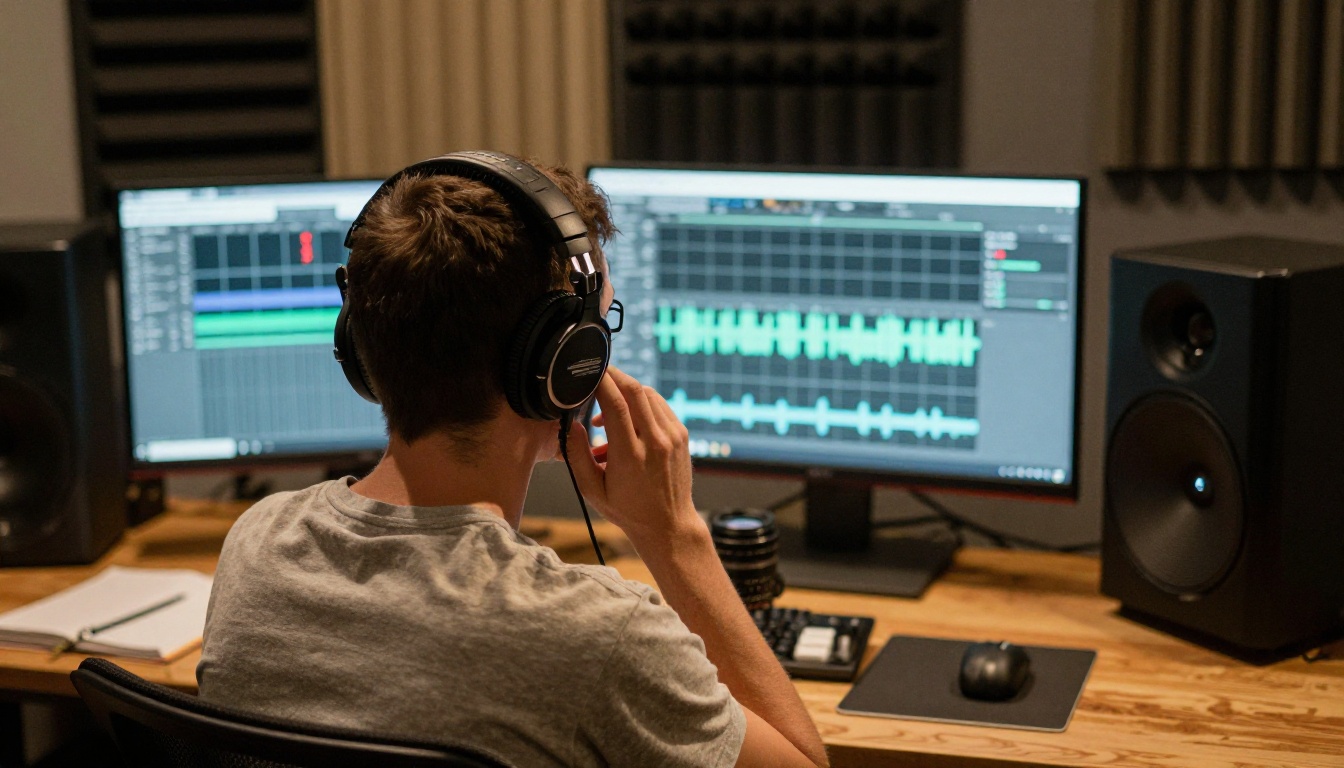
Watch the output at normal speed first, then slow it down to 50% to check for frame-level issues. The things to look for:
- Teeth rendering: Does the model show teeth naturally when the character opens their mouth wide?
- Frame consistency: Does the face stay stable, or is there flickering around the mouth edges?
- Audio drift: Are the lips even one syllable behind or ahead of the audio?
If any of these are off, try a different model or clean up the audio before rerunning.
Dubbing AI Companion Videos in Other Languages
This is one of the more powerful use cases for creators with a global audience. Once you have a lip-synced companion video in English (or any source language), you can dub it into another language using Video Translate, which supports 150+ languages with full lip-sync regeneration tuned to the translated audio.
The process is straightforward:
- Upload your synced companion video
- Select the target language
- Video Translate re-dubs the audio and re-syncs the lip movement to match the new pronunciation patterns
For maximum voice quality in the dubbed version, pair ElevenLabs Dubbing with a lipsync model. ElevenLabs Dubbing handles translation and voice preservation across 90+ languages, then you re-apply lipsync on the resulting audio.
💡 Multilingual workflow: Generate your TTS in the source language. Run lipsync. Then use Video Translate to create 3 to 5 language versions in one pipeline without re-recording anything.
P Video Avatar: The All-in-One Talking Avatar
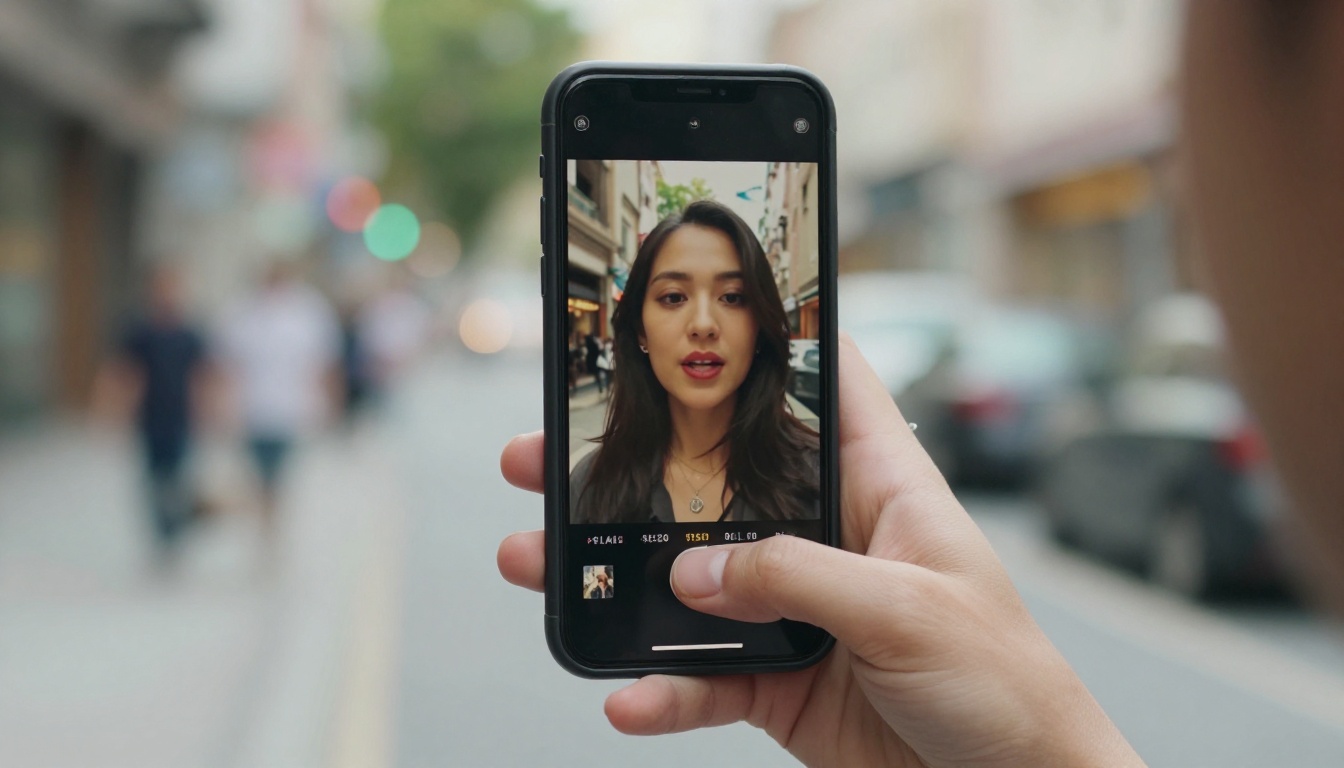
P Video Avatar by PrunaAI deserves its own section because it combines talking avatar generation and lip sync in a single workflow. Rather than requiring a separate TTS step and a separate lipsync step, P Video Avatar lets you input text directly, select a voice, and receive a fully animated talking avatar video as output.
For AI companion creators who want a fast, low-friction pipeline, this is the most streamlined option currently on the platform.
When P Video Avatar makes sense:
- You want to produce companion videos quickly without assembling a multi-step pipeline
- You need consistent output across many videos (same character, different scripts)
- You're testing different scripts or voice styles before committing to a full production run
- You want to prototype a companion's visual identity before investing in dedicated character footage
The model handles voice synthesis and facial animation together, so you never need to match audio to video manually. Input the text, run generation, and the output is already synced.
Common Problems and How to Fix Them
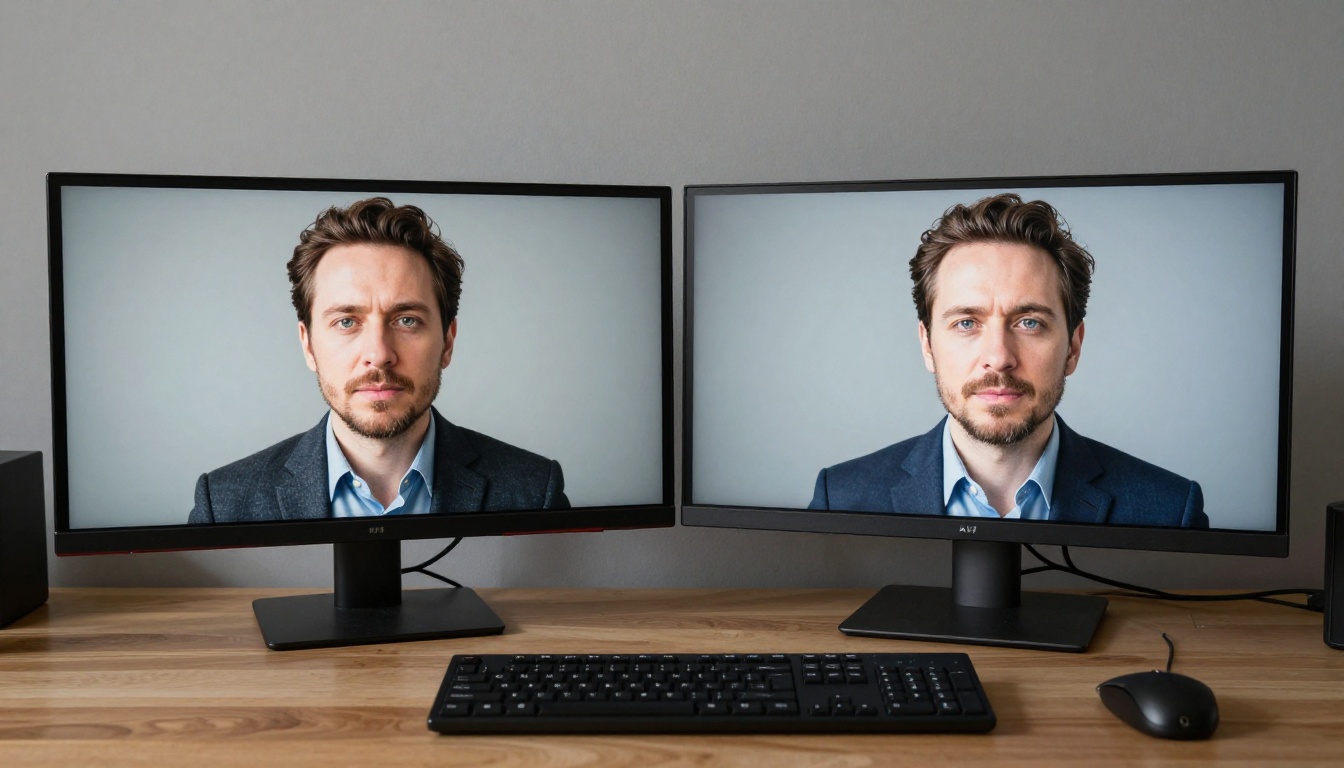
Even with good tools, output can look off in specific situations. Here are the most frequent issues and their fixes.
The Mouth Shape Looks Wrong on Certain Sounds
This usually happens with fricatives (f, v, th sounds) and sibilants (s, sh). These phonemes are phonetically complex and many models handle them inconsistently.
Fix: Use a model with higher phoneme precision, specifically Lipsync 2 Pro or Lipsync Precision. Also check that your audio has no background noise masking these sounds, since noise suppresses the phoneme signal the model relies on.
The Face Flickers Around the Mouth
This is a spatial consistency problem, often caused by low-resolution source material or heavy head motion in the original clip.
Fix: Use source footage with at least 720p resolution. Minimize head movement in the base video. If you're working from a still image, Omni Human 1.5 handles this better than most, because it generates all motion from scratch rather than trying to modify existing frames.
The Lip Movement Feels Robotic
Robotic movement usually means the temporal smoothing is low, causing abrupt transitions between phoneme shapes.
Fix: Try React 1 or Lipsync 2 Pro. Both have smoother temporal interpolation between mouth positions. If the problem persists, slightly slow down the TTS audio output (most TTS models have a speed parameter) as faster speech compresses phoneme transitions and makes robotic movement more visible.
Audio and Lips Are Out of Sync
A small but consistent offset usually means the model calibrated sync from a point that doesn't match your clip's actual audio start.
Fix: Trim your audio so it starts with speech, not silence. Most lipsync models detect sync from the first phoneme, so leading silence can throw the timing off by several frames.
Realistic Expectations: What Lipsync AI Can and Can't Do
Being clear about current limitations saves time and prevents frustration on production runs.
What it does well:
- Syncing clean speech audio (0 to 60 seconds) to front-facing or near-front-facing faces
- Animating still portrait images into full talking head videos
- Dubbing existing video into new languages with matched mouth movement
- Producing social media-ready clips with minimal setup
Where it still struggles:
- Extreme profile angles (90 degrees to camera)
- Very fast speech (over 180 words per minute)
- Heavy makeup, face paint, or masks that obscure lip geometry
- Audio with multiple simultaneous speakers
For most AI companion content workflows, none of these edge cases apply. A well-lit portrait image and a clean TTS audio file will give you solid results with any of the recommended models.
What to Do With Your Synced Videos
Once you have a lip-synced AI companion clip, the natural next steps depend on your platform and use case.
For social media content, shorter clips (15 to 30 seconds) perform best. Run your companion through Kling Lip Sync for fast turnaround on vertical-format content, or use Pixverse Lipsync for a solid balance of quality and speed.
For companion apps and chatbots, batch-produce response videos using Lipsync Speed and store them in your app's media library. Pair with Speech 2.8 Turbo for consistent voice output at scale.
For multilingual distribution, build a base video in your strongest language, then use Video Translate to create versions for every target market simultaneously. One production pass, five or more language outputs.
For high-quality productions where every frame matters, Lipsync 2 Pro is the right tool. Slower, but the output quality justifies it for anything intended for a wide or paying audience.
Try It on PicassoIA
The full toolkit described in this article, from voice generation to lipsync to multilingual dubbing, is available at PicassoIA. No software to install, no API keys to manage, no local GPU required. Pick a model, upload your files, and run generation directly in the browser.
The fastest way to start: open P Video Avatar, type a short script for your AI companion, select a voice, and see what a talking avatar looks like when it actually works. From there, branch into dedicated TTS models and precision lipsync tools as your workflow scales and your character's identity solidifies.
AI companion videos that move, speak, and feel present are no longer out of reach. The tools are here, the quality is there, and the only step left is yours.


