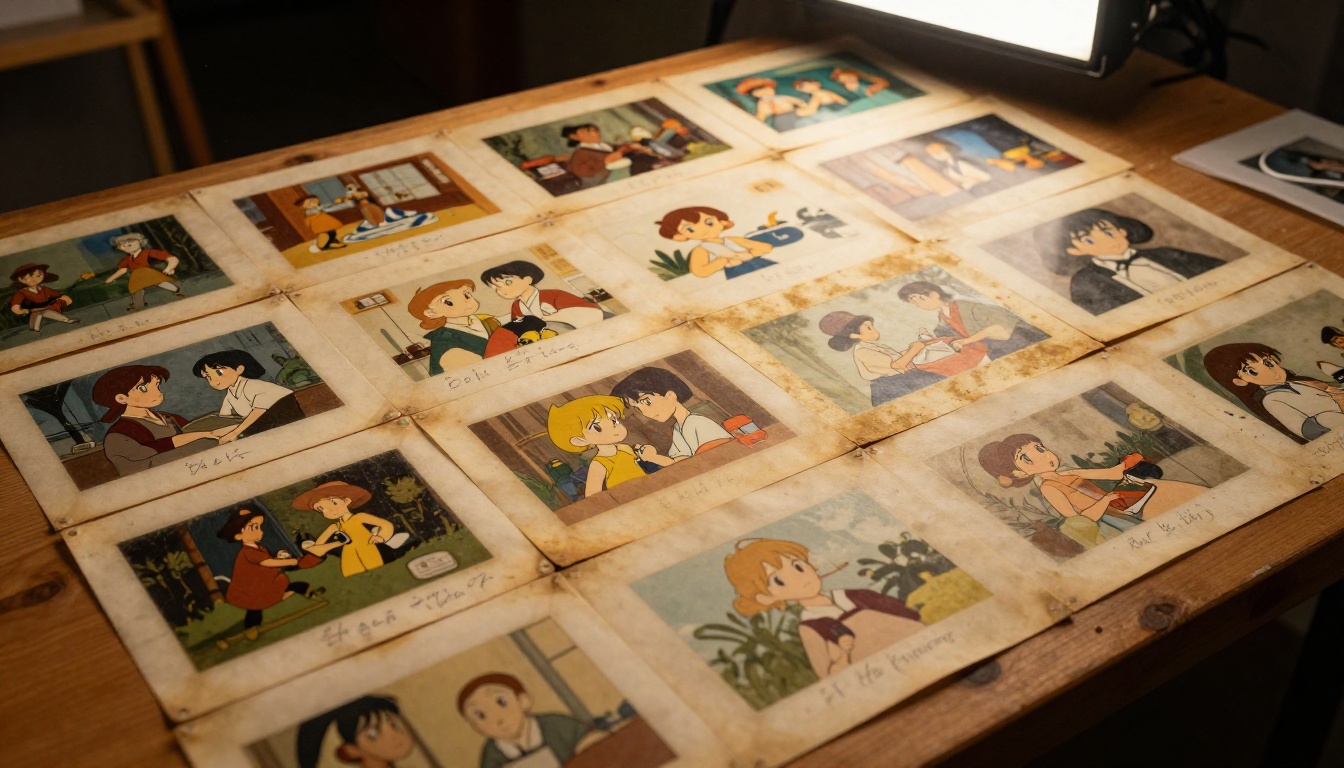
Old anime AI art often suffers from blurry linework, compression artifacts, washed-out colors, and missing micro-details that reduce visual quality significantly. Whether you generated a piece last year or you are working with classic-era AI outputs, the degradation is real and it shows. The good news: modern AI restoration tools have become precise enough to pull back those fine lines, recover texture depth, and sharpen edges without overprocessing. This article walks through exactly how that works, which tools perform best for anime-specific imagery, and how you can run the process yourself using PicassoIA's dedicated upscaling models.
Why Old Anime Art Loses Detail
Compression and Format Damage
Every time an anime AI image gets saved as a JPEG, compressed for web delivery, or passed through a messaging app, it loses data. JPEG compression throws away high-frequency detail first, which means thin ink lines, subtle gradient transitions, and fine hair strands disappear before you even notice. After two or three round trips through different platforms, a piece that started at 1024x1024 with clean edges can end up looking like it was rendered at a quarter of that resolution.
PNG files are lossless, but they are rarely what gets shared. Most anime AI images circulate as JPEGs, and the artifacts pile up fast. Block patterns appear in flat color regions, fine details merge into blobs, and the original sharpness is gone.
Resolution Limits of Early AI Models
Early text-to-image models for anime ran at fixed resolutions, often 512x512 or 768x768. Those dimensions simply do not contain enough pixels to represent fine detail. Lines that should be one pixel thick end up as blurry gradients. Eye highlights, fabric weave patterns, and hair strand separation all collapse at low resolutions.
Even when modern AI models generate at 1024x1024 or higher, running them at lower settings to save compute time creates the same problem. The detail was never there to begin with, and no amount of sharpening can invent data that does not exist in the original.
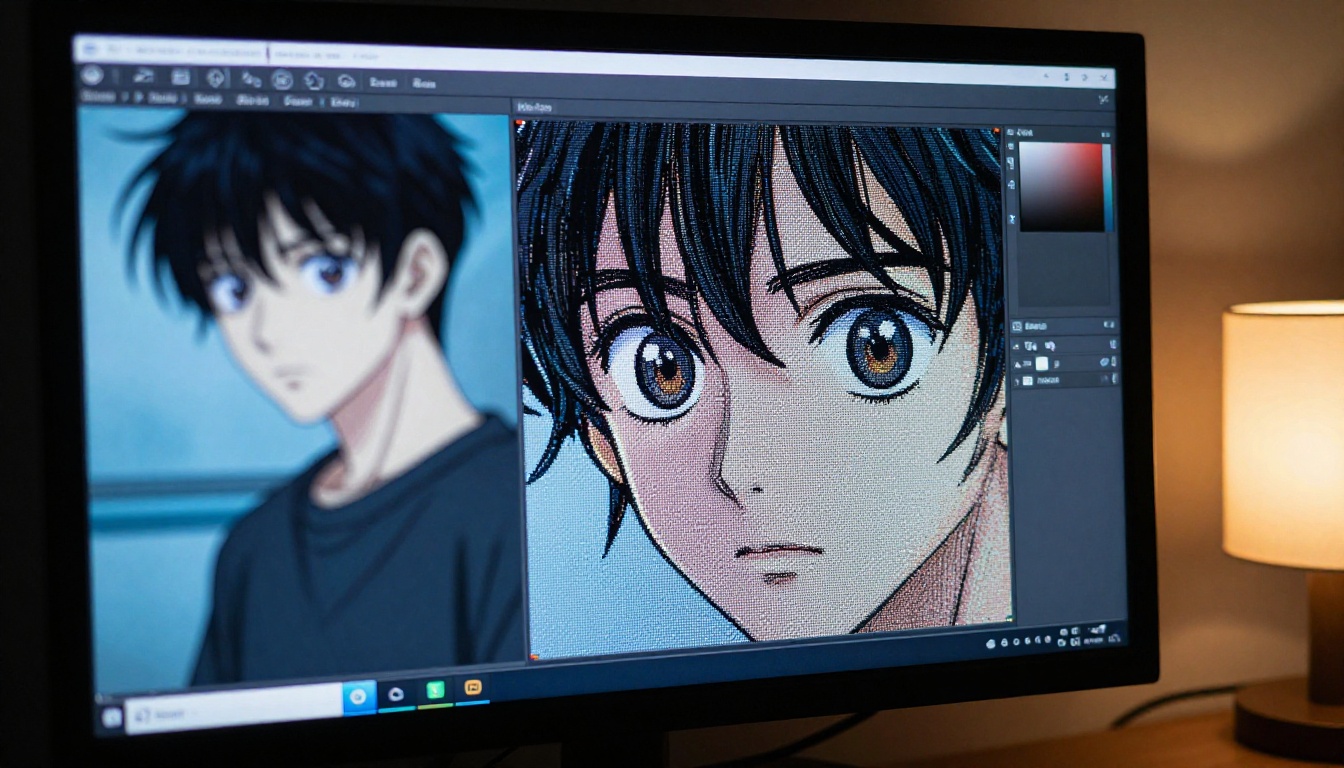
What AI Restoration Actually Does
Super Resolution vs. Upscaling
Naive upscaling, bicubic or bilinear, just stretches pixels and applies a blur to hide the seams. The output is larger but not sharper. Every pixel is a mathematical average of its neighbors, which makes the image softer, not more detailed.
AI super resolution works differently. The model was trained on millions of high-resolution and low-resolution image pairs. It learned what fine detail looks like statistically, so when it sees a blurry edge it can predict what the sharp version should contain. This is called inference-based hallucination, and for anime specifically it works very well because anime art follows consistent visual conventions: smooth color fills, hard ink outlines, specific shading patterns.
💡 The distinction: Super resolution adds new pixels with predicted detail. Upscaling just makes existing pixels bigger. The results are visually very different.
Artifact Removal and Sharpening
Beyond resolution, old anime AI art often carries JPEG block artifacts, color banding in gradients, and noise introduced by the original generation process. A restoration workflow needs to handle all three:
- Block artifact removal: Smooths the blocky patterns from JPEG compression without blurring edges
- Color banding correction: Reconstructs smooth gradient transitions where the original quantized to visible steps
- Denoising: Removes random pixel noise while keeping intentional texture
The best AI restoration models handle all three in a single pass. They do not apply each operation sequentially, which would create compound artifacts. Instead they process the whole image holistically.
Best Models for Anime Detail Recovery
Real ESRGAN for Line Clarity
Real ESRGAN is one of the most proven tools for anime upscaling. The original ESRGAN (Enhanced Super-Resolution Generative Adversarial Network) was specifically fine-tuned for anime-style images and released as "Real ESRGAN x4plus anime" by the research team. It produces sharp ink lines, clean color boundaries, and minimal hallucination artifacts.
On PicassoIA, Real ESRGAN runs at up to 4x upscale factor. It is the top choice for:
- Restoring fine hair detail and strand separation
- Sharpening ink outlines that have gone soft from compression
- Cleaning up blocky gradient backgrounds typical of early AI anime generation
Clarity Pro Upscaler for Textures
Clarity Pro Upscaler takes a different approach. Rather than focusing purely on line sharpness, it prioritizes texture coherence. For anime art with fabric, skin shading, or environmental textures, this model tends to produce more natural-looking restored detail.
Where Real ESRGAN can occasionally over-sharpen flat color regions, Clarity Pro Upscaler preserves the softness of intended gradients while still recovering edge definition. It works best on art that already has decent base quality but needs a 2x or 4x resolution boost.
Crystal Upscaler for Portraits
When the focus of the piece is a character face or upper body portrait, Crystal Upscaler delivers the most consistent results. It was specifically designed for faces and portraits, which makes it ideal for anime character art where the face carries the emotional weight of the piece.
Eye detail recovery is particularly impressive with Crystal Upscaler. Iris texture, highlight dots, eyelash definition, and the subtle shading around the orbital region all come through with more fidelity than general-purpose upscalers produce.
Image Upscale by Topaz Labs
Image Upscale from Topaz Labs supports up to 6x magnification, making it the right choice when you need maximum output size. For printing anime art at large format, or for bringing a small 512x512 generation up to display-quality dimensions, the extra scale headroom matters.
Image Upscale also has strong denoising built in, so it handles noisy base images well without needing a separate preprocessing step.
P Image Upscale for Speed
P Image Upscale by Prunaai is the fastest option on PicassoIA, designed for rapid iteration. If you are processing multiple images in a workflow and need quick previews before committing to a final high-quality pass, P Image Upscale gives you useful results in roughly one second per image.
How to Use PicassoIA for Anime Restoration
Step 1: Upload Your Image
Navigate to the super-resolution section on PicassoIA and select your restoration model. Click the upload area or drag your anime image directly. Supported formats include JPEG, PNG, and WebP. For best results, start with the highest-quality version of the source image you have available, even if that version still looks degraded.
💡 Tip: If your source image is a JPEG, avoid re-saving it before upload. Every additional save cycle adds more compression damage. Work directly with the original file.
Step 2: Choose Your Model
Match the model to your specific restoration need:
Step 3: Adjust Settings
Most upscalers on PicassoIA offer scale factor controls. For anime art specifically:
- 2x scale: Use when the original is already 768px or larger. Produces clean results without excessive hallucination.
- 4x scale: Best for 512x512 originals. The model has enough context to predict fine detail accurately.
- 6x scale (Topaz only): Reserve for very small source images or large-format output requirements.
Some models also offer a "creativity" or "denoise" slider. For anime, keep denoise moderate. Aggressive denoising removes intentional texture and flattens the artwork.
Step 4: Download and Compare
After the model finishes, download the result and compare it against the original at 100% zoom. Look specifically at:
- Line edges: Are they sharp and clean or do they show halation artifacts?
- Gradient regions: Smooth transitions without banding or noise?
- Fine details: Hair strands, fabric texture, background detail, eye highlights
- Color accuracy: Has the model shifted hues or introduced color noise?
If any of these fall short, try a different model. The visual quality differences between models are significant enough that it is worth running two or three passes to find the best fit for a specific image.
Common Problems and How to Fix Them
Over-smoothing Linework
This is the most common failure mode for general-purpose upscalers applied to anime. The model was not trained specifically on anime-style images, so it treats ink outlines as noise and softens them. The result looks watercolor-like rather than crisp.
Fix: Switch to Real ESRGAN, which was explicitly fine-tuned on anime data and preserves line quality.
💡 Quick test: Zoom into a diagonal line in the result. If it shows staircase aliasing, the upscaler preserved the line but did not smooth the pixel steps. If it is blurry, the model over-smoothed. Real ESRGAN should produce diagonal lines with smooth anti-aliasing but clear edge definition.
Color Shift After Upscaling
Some models alter color balance during the upscaling process, introducing a yellow or blue cast, or increasing saturation. This is particularly visible in skin tones and sky gradients.
Fix: If color shift is mild, correct it in any image editor by adjusting the white balance or adding a desaturation layer. If it is severe, try Recraft Crisp Upscale or Google Upscaler, both of which tend to preserve the original color profile more faithfully.
Hallucinated Details
Super resolution models sometimes invent detail that was not in the original. In anime this often manifests as extra wrinkles in fabric, false highlights in hair, or phantom geometry in backgrounds.
Fix: Reduce the scale factor. Hallucination increases with scale magnitude. A 2x pass followed by a second 2x pass often produces less hallucination than a single 4x pass, because the model has more real data to work with in the second pass.
Comparing Results Across Models
Running the same anime image through multiple models reveals consistent patterns:
For most anime restoration work, Real ESRGAN and Clarity Pro Upscaler handle the majority of use cases. Run Real ESRGAN first for line-heavy pieces and switch to Clarity Pro for pieces with complex shading or environmental detail.
Tips for Best Results
Prepare Your Source Image
A clean source image produces a far better restoration than a heavily damaged one. Before uploading to any upscaler:
- Remove metadata: Strip EXIF data. Some platforms embed color profiles that confuse upscaling models.
- Convert to PNG first: If you have the original generation output, export it as PNG before upscaling. This removes one layer of JPEG compression from the pipeline.
- Crop aggressively: Upscalers process the full image. If your target is a character portrait, crop to that region before upscaling. The model will allocate more capacity to the area that matters.
- Check orientation: Some models produce color shifts on rotated images. Ensure correct orientation before upload.
Batch Processing Workflows
When working with a series of related images, consistency matters. Running different images through different models at different settings produces a jarring mix of styles.
For batch work, establish a baseline: pick one model and one scale factor, then run all images through the same settings. Review the batch as a set rather than individually. This reveals which images need additional passes and which are complete after the first run.
💡 Pro workflow: Run a 2x pass first on all images. Review the set. Apply a second 2x pass only to images that still show visible artifacts. This gives you finer control over the quality vs. processing time tradeoff.
When to Use Creative vs. Crisp Upscalers
PicassoIA has both crisp upscalers and creative upscalers available. The distinction matters for anime restoration:
Crisp upscalers like Recraft Crisp Upscale and Real ESRGAN prioritize fidelity to the original. Lines stay where they are, colors remain accurate, and no new details are invented beyond edge sharpening.
Creative upscalers like Recraft Creative Upscale and Clarity Pro Upscaler allow the model more freedom to invent plausible detail. Better for artistic improvement but riskier if you want faithful restoration.
For archival restoration of a specific piece, use crisp upscalers. For artistic improvement where some creative license is acceptable, creative upscalers often produce more visually striking results.
Start Restoring Your Anime Art Today
Every piece of old anime AI art sitting in your files at low resolution or with compression damage is worth revisiting. The tools available today on PicassoIA are fundamentally different from what existed even two years ago. Real ESRGAN sharpens lines with surgical precision. Crystal Upscaler recovers facial and portrait detail that previous models destroyed. Image Upscale by Topaz Labs can push a tiny 512px image to wall-quality print resolution in a single pass.
The process is straightforward: pick the right model for your image type, set the scale factor, and run it. Compare the result at 100% zoom. If the output falls short, try a different model. Most images need only one or two passes.
If you have never used PicassoIA's super-resolution tools before, start with Real ESRGAN and run one of your older anime AI pieces through it. The difference in line quality and overall sharpness is visible immediately, and it sets a new baseline for what "finished" looks like for AI anime art. Browse the full catalog of upscaling and image restoration models at picassoia.com/en/all-models and try restoring a piece today.