If you have a camera roll full of photos and zero video content for TikTok, Veo 3.1 is the fastest fix available right now. Google's latest video model does not just animate your images. It reads the scene, generates plausible motion, and adds synchronized audio that matches what is happening in the frame. The result is a short clip that looks and sounds like it was filmed, not rendered. This article breaks down the exact process: which photos work, how to write prompts that produce usable results, what settings to configure, and where common workflows fall apart.
What Veo 3.1 Does to Your Photos
The Animation Engine Behind It
Veo 3.1 is Google's most capable video generation model available on PicassoIA. When you feed it a still image and a motion prompt, it does several things at once: it analyzes scene depth and subject positioning, simulates physically plausible movement, and renders the output in up to 1080p resolution at 24fps.
What separates Veo 3.1 from earlier image-to-video tools is the quality of its motion physics. Hair moves like hair. Water behaves like water. When a person in your photo is meant to breathe or shift their weight, the model handles the subtle micro-movements that make the result look real rather than uncanny.
For faster iterations when testing prompts, Veo 3.1 Fast cuts generation time significantly while preserving most of the quality. When you want to run high volumes at lower cost, Veo 3.1 Lite is the efficient option. All three models are accessible directly on PicassoIA.
Native Audio: The Real Differentiator
Most image-to-video models produce silent output. You then spend time in an editor adding music, ambient sound, or voiceover. Veo 3.1 generates audio natively. It synthesizes sound that matches the visual content of the scene.
If your photo becomes a forest clip, you get wind through leaves. A city skyline clip gets distant traffic and ambient urban hum. A beach photo produces wave sound. This is not added in post. The audio is generated alongside the video frames, synchronized from the first frame.
For TikTok specifically, this matters because clips without audio get a substantial watch time drop. Most users scroll with sound on, and a video that opens with dead silence loses attention before the first second is done.
💡 Tip: Even if Veo 3.1's generated audio is not perfect, it gives you a strong baseline to layer your own music over. The ambient sound fills the mix naturally without competing with the primary audio track.
Photos That Convert Best
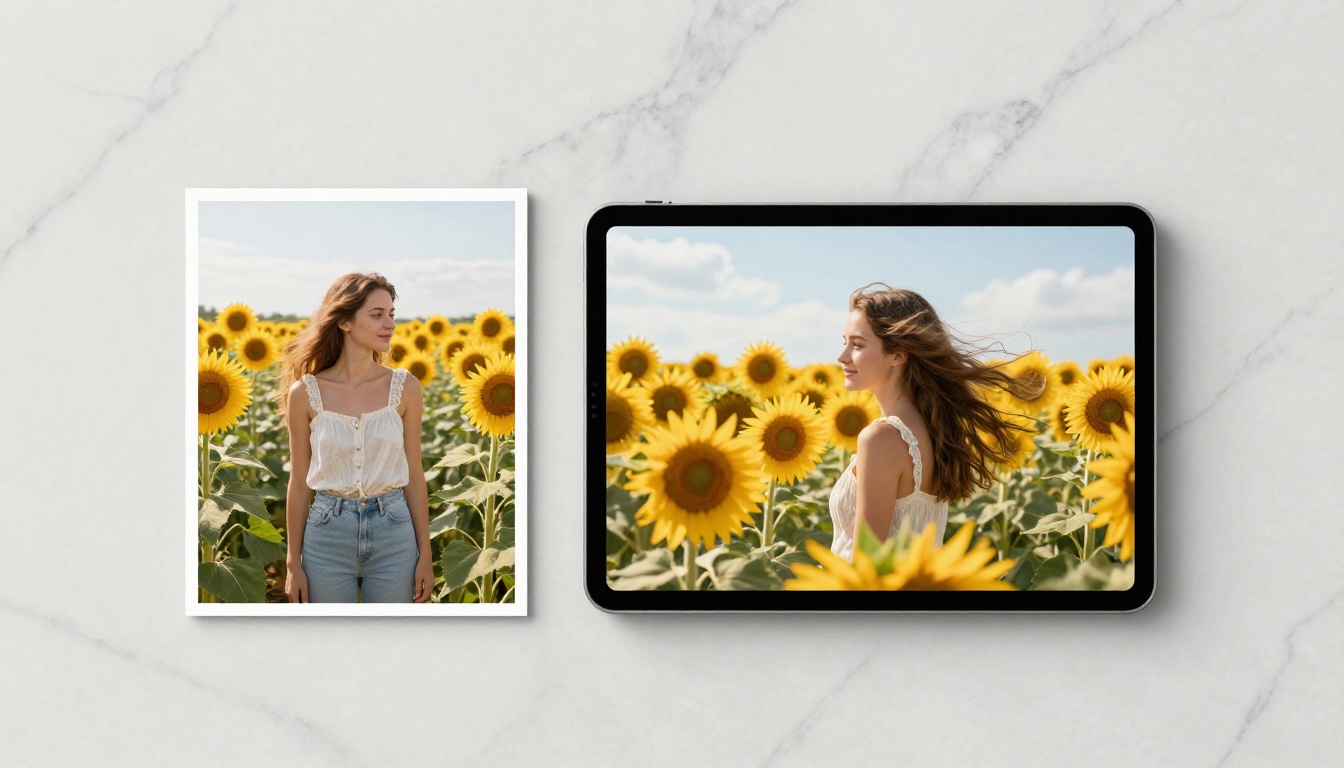
Not every photo makes a good starting frame. Veo 3.1 needs enough scene information to simulate believable motion. Certain types of photos consistently produce better clips than others.
Portrait and People Shots
Portraits convert well because the model has clear subject-background separation. It knows what should move (hair, fabric, eyelashes) and what should stay relatively still (the face structure). A portrait shot outdoors with visible background elements gives the model environmental motion to work with.
Best approach for portraits: use medium motion intensity, keep facial features stable in your prompt, and describe subtle ambient motion such as "gentle breeze in the hair from the left side."
Avoid close-cropped studio portraits with flat backgrounds. The model needs spatial depth to generate convincing motion. A white backdrop gives it nothing to animate beyond the subject, which often produces awkward micro-jitter on the face.
Landscapes and Travel
Landscape photos are where Veo 3.1 performs most impressively. A mountain shot becomes a slow cinematic push-in with clouds drifting across peaks. A beach photo gets realistic wave motion and foam patterns. A sunset over a city adds subtle atmospheric haze and light shift.
The motion looks natural because landscapes contain elements with predictable physics: water, clouds, trees, grass. The model has strong priors for how these elements move.

For travel content, the workflow is direct: take your best landscape photos from a trip, run them through Veo 3.1, and you have cinematic clips from photos that took seconds to shoot. A two-week trip with 300 photos can produce a week's worth of TikTok content in an afternoon.
Product Photos
Product shots require a different approach. Clean product photography on simple backgrounds gives the model limited motion information. The best strategy is to describe camera motion in your prompt rather than object motion. "Slow dolly push-in toward the product, shallow depth of field" produces a professional-looking clip without requiring the model to animate the product itself.
| Photo Type | Motion Strategy | Expected Quality |
|---|
| Portrait (outdoor) | Ambient motion, hair and fabric movement | High |
| Landscape | Environmental physics simulation | Very High |
| Travel and architecture | Camera movement plus atmosphere | High |
| Product (clean background) | Camera motion only | Medium |
| Food close-up | Subtle steam, ambient light shift | Medium |
| Indoor studio | Camera push or tilt | Low-Medium |
How to Use Veo 3.1 on PicassoIA
Step 1 — Pick the Right Photo
Open PicassoIA and navigate to Veo 3.1. Before uploading, assess your photo against four quick criteria:
- Is the subject clearly separated from the background?
- Does the scene contain elements that can move naturally (sky, water, foliage, fabric)?
- Is the resolution at least 1024px on the short side?
- Is the composition stable, with no heavy lens distortion?
If your photo passes these four checks, it is a strong candidate. If it fails two or more, pick a different photo first.
Step 2 — Write a Motion Prompt
The motion prompt is the most critical variable in the output quality. It does not describe the image (the model can already see the image). It describes what should happen over the duration of the clip.
A prompt that says "beautiful landscape" tells the model nothing actionable. A prompt that says "slow cinematic push-in toward the mountains, clouds drifting left to right, morning light strengthening gradually" gives the model a specific motion choreography to follow.
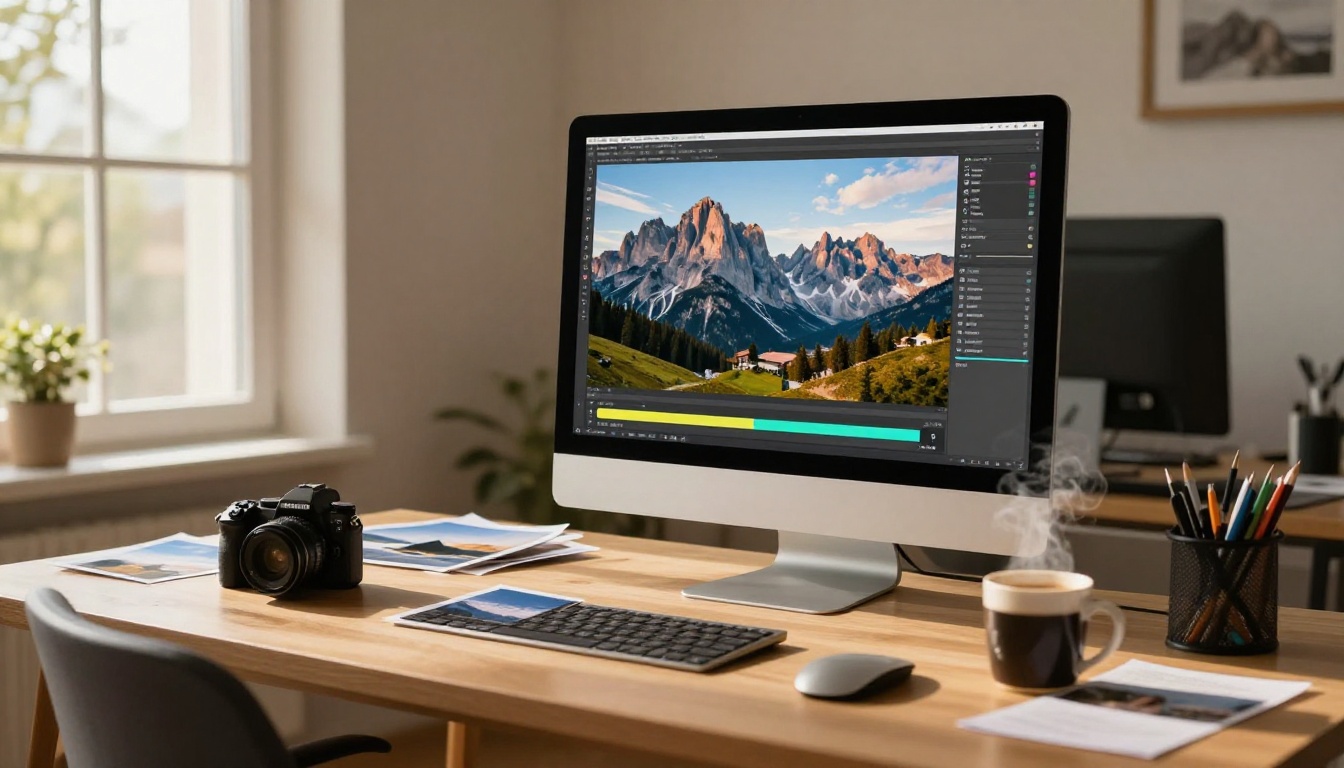
Structure that works consistently:
- Camera movement: What does the virtual camera do? Slow push-in, gentle pan, subtle tilt, static with handheld breathing motion.
- Subject motion: What moves in the scene? Hair lifts in breeze, water ripples outward, leaves flutter gently.
- Atmosphere: What changes over time? Morning mist dissipates, warm light shifts, distant clouds drift.
- Mood note: Peaceful, tense, melancholic, energetic. One word is enough.
Write these as a single flowing sentence. The model interprets natural language better than structured bullet point lists.
Step 3 — Set Your Output Parameters
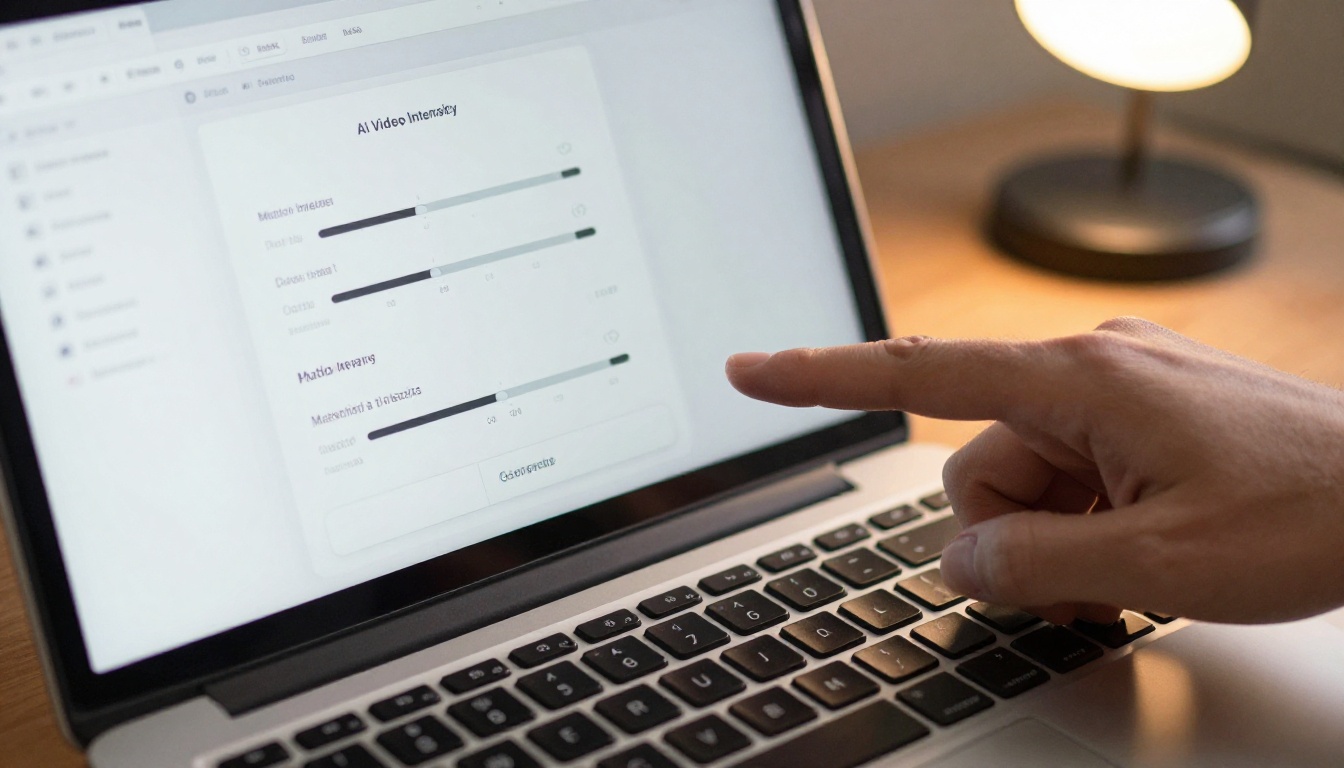
Veo 3.1 on PicassoIA gives you control over several output settings:
- Resolution: 1080p for TikTok publishing, always.
- Duration: 5-second clips loop well on TikTok. Use this as your default.
- Audio generation: Keep this enabled. Even imperfect ambient audio is better than silence.
- Aspect ratio: For TikTok, 9:16 fills the screen. Shoot or crop your source photos vertically before uploading.
💡 Tip: If your best photo is horizontal, run it through Veo 3.1 in 16:9 first, check the motion quality, then crop to 9:16 in your phone editor after downloading. You lose some frame but keep the best motion result.
Step 4 — Download and Post to TikTok
Download the MP4 at full resolution. Do not add filters or re-encode the file through a compression app before uploading. Veo 3.1 outputs H.264 encoded video at high bitrate. Running it through a phone filter app before uploading typically reduces perceived sharpness.
Add text overlays and captions using TikTok's native editor after uploading. The platform's editor overlays graphics without re-encoding the base video, which preserves your clip quality end-to-end.
Motion Prompts That Actually Work
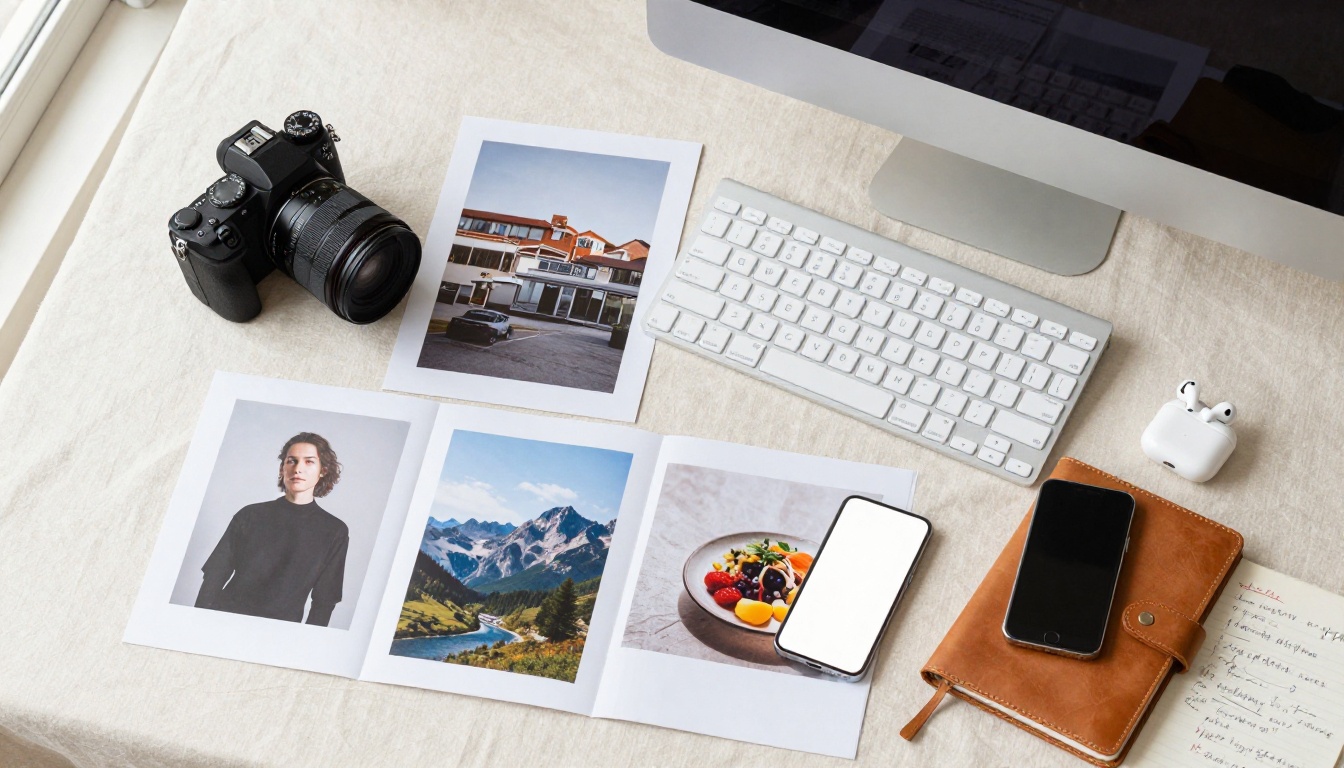
The Anatomy of a Good Prompt
The structure that produces the most consistent results across photo types:
[Camera action] + [primary subject motion] + [environmental detail] + [light or mood note]
Each element adds specificity that constrains the model toward the output you want. Vague prompts produce random motion that may or may not look good. Specific prompts produce predictable, directable results you can iterate on.
Prompt Examples by Content Type
Portrait (woman outdoors):
"Camera holds steady with subtle handheld breathing motion, loose hair lifts gently in breeze from the right, background bokeh shifts softly, warm afternoon light stays consistent throughout"
Mountain landscape:
"Slow cinematic push-in toward distant peaks, foreground pine trees sway gently left, thin cloud layer drifts right across sky, golden morning light strengthens slightly from upper left"
Beach or ocean:
"Static camera with subtle handheld motion, waves roll in from right and break on shore with realistic foam patterns, distant water surface ripples, warm midday light"
Urban street:
"Slow tilt up from street level to building facades, pedestrians blurred in foreground move left, distant traffic visible, overcast diffuse daylight, slight atmospheric haze in background"
Product shot:
"Slow dolly push-in toward product surface, depth-of-field shift from background to product, soft studio light from upper left, no subject motion, clean and deliberate"
💡 Tip: If the first output looks wrong, do not rewrite the whole prompt. Change one specific element (usually the camera action) and generate again. Iterating on one variable at a time produces better results than starting from scratch each time.
3 Mistakes That Kill Your Results
1. Uploading low-resolution photos
Veo 3.1 reads pixel information to understand scene depth and surface texture. A heavily compressed JPEG from a social media re-download gives the model poor spatial data. The output motion often looks flat and unconvincing. Always use your highest-resolution original files, straight from your camera or phone storage.
2. Writing description prompts instead of motion prompts
"A beautiful sunset over the ocean with orange sky" describes the photo, not the motion. The model already knows what the image looks like. What it needs from your prompt is what should change over the 5 to 8 seconds of the clip. If your prompt does not describe movement, you get random or minimal motion that the model fills in arbitrarily.
3. Using 16:9 photos for TikTok without cropping first
Horizontal photos produce horizontal clips. TikTok plays these with black bars top and bottom, which reduces the perceived quality of the content and hurts watch time. If you cannot reshoot vertically, crop your photo to 9:16 before uploading to the model. The quality hit from cropping is smaller than the quality hit from black bars on a mobile screen.
Other Models Worth Trying
Veo 3.1 Fast vs. Veo 3.1 Lite
PicassoIA offers three versions of Google's Veo 3.1 family, each with a different performance profile:
| Model | Speed | Quality | Best For |
|---|
| Veo 3.1 | Standard | Maximum | Final published output |
| Veo 3.1 Fast | 2-3x faster | High | Prompt iteration and testing |
| Veo 3.1 Lite | Fastest | Good | High-volume batch runs |
The practical workflow: use Veo 3.1 Fast to iterate on your prompt until the motion feels right, then run the final version through full Veo 3.1 for maximum output quality before publishing.
Wan 2.7 I2V for Heavy Motion
When you need more dramatic motion than Veo 3.1 produces (fast camera movement, action sequences, dynamic subject motion), Wan 2.7 I2V handles this territory well. It accepts image input and produces HD output with stronger motion intensity than the Veo family on fast-action content.
The tradeoff: Wan 2.7 I2V does not generate native audio. For energetic TikTok content where you plan to drop a trending audio track over the clip, this is often a better choice anyway since you are replacing the original sound regardless.
Kling v2.6 for Cinematic Look
Kling v2.6 produces clips with a distinctly filmic quality. The motion carries slightly more physical weight and the rendering has a subtle cinematic grade built in. For travel content that should feel premium rather than casual, comparing Kling v2.6 against Veo 3.1 on the same source image is worth the extra generation time.
For portrait animation specifically, P Video Animate is built specifically for making portrait photos come alive with natural human micro-movements. It is a dedicated tool for that single use case and often outperforms general models on close-up portrait shots where subtle facial animation matters most.
Also worth knowing: Veo 3 (the previous generation) is still available and produces solid results on simpler motion requests where the 3.1 quality ceiling is not needed.
TikTok Posting: Format Matters
Getting the clip right is half the work. The other half is posting it in a way that does not degrade the quality through bad file handling.
File handling checklist before posting:
- Download the MP4 at full resolution from PicassoIA
- Do not re-compress through a phone filter app before uploading
- Upload directly from your device camera roll, not from a cloud re-download
- Add captions and text overlays natively in TikTok after uploading, not before
Audio strategy:
If Veo 3.1 generated natural ambient audio, you have two solid choices: keep it as the base audio and let it run, or mute it and drop a trending sound over the clip. Both approaches work depending on your content category.
The ambient audio from Veo 3.1 is particularly effective for calming content: travel, nature, and lifestyle clips where the sound design reinforces the mood. For entertainment and trend-driven content, swap in whatever audio is performing in your niche that week.
Caption strategy:
For AI-generated video clips from photos, short captions consistently outperform long ones. The visual is doing the heavy lifting. A three-to-five word caption that creates curiosity works better than a paragraph explaining what the clip is or how it was made. Do not explain the technology. Let the clip speak for itself.
Start Posting Today
The barrier to producing TikTok video content has dropped substantially. If you have a photo, you have a clip. The workflow through Veo 3.1 on PicassoIA takes less than five minutes per clip, and the output quality is high enough to publish without additional post-production for most content categories.
Start with your three best landscape or portrait photos. Run each through Veo 3.1 with a specific motion prompt built on the [camera action + subject motion + atmosphere + mood] structure above. Compare the outputs, refine the prompts on whatever falls short, and publish the strongest clip first.
PicassoIA has over 87 video models beyond the Veo family, including Wan 2.7 I2V, Kling v2.6, Seedance 2.5, and Wan 2.5 I2V, each with a distinct look and motion character. Browse the full collection at picassoia.com/en/all-models and pick the model that fits your content style. The best way to find your preferred output is to run the same source image through three different models and compare side by side.


