GPT Image 2.0 dropped quietly but it changed what people expect from AI image generation. If you have been getting blurry, inconsistent outputs from older tools, this model is the reason people are switching workflows overnight. The leap in photorealism, text rendering, and instruction-following is real, and this article walks you through every step from opening the interface to pulling a professional-quality output.
What GPT Image 2.0 Actually Is
GPT Image 2.0 is OpenAI's native image generation model, built directly into GPT-4o. Unlike its predecessors, it does not hand off to a separate backend. The generation happens inside the same multimodal model that reads your text, sees your uploads, and remembers your conversation context. That matters because the model actually understands what you want, not just the literal words you typed.
The result is a system that handles nuanced requests, fixes mistakes when you describe them in plain language, and produces images that do not look like they came from a filter preset. People using it for the first time consistently report the same reaction: it just does what you meant.
How It Differs from DALL-E 3
DALL-E 3 was a separate model. GPT Image 2.0 is integrated. The practical difference: with DALL-E 3, you wrote a prompt and got back an image with no real edit loop. With GPT Image 2.0, you can say "the lighting is too harsh, soften it and move the subject left" and it actually does that. The conversation is the interface.
Text rendering is also dramatically better. DALL-E 3 struggled with signs, labels, and readable words in images. GPT Image 2.0 handles text in images far more reliably, which makes it genuinely useful for mockups, posters, and social content where words need to be legible.
What You Can Actually Create
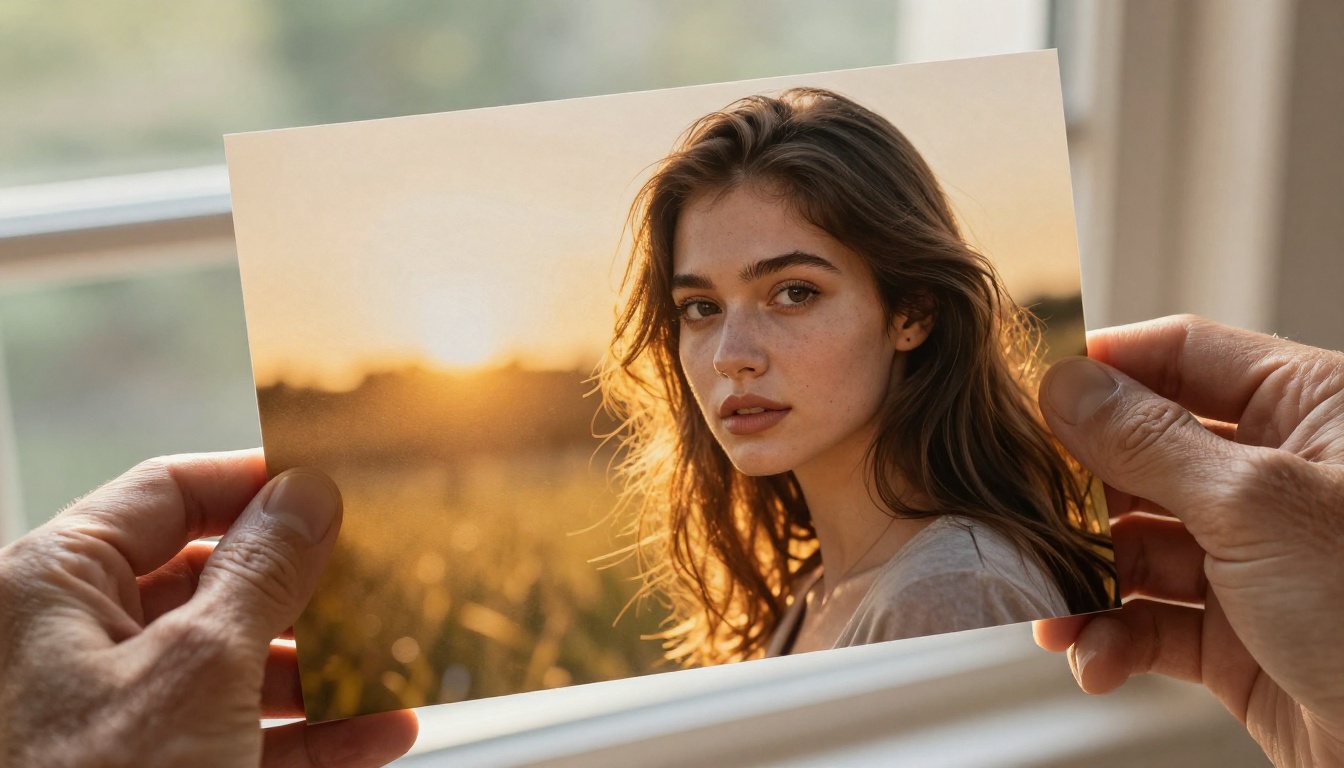
- Photorealistic portraits with accurate skin, lighting, and depth of field
- Product photography with clean backgrounds and studio-quality light
- Concept art that follows specific style references from your uploads
- Architectural renders from rough sketches or descriptions
- Edited versions of your own photos with targeted object removal or replacement
- Text-in-image content like posters, labels, and signs with readable typography
Getting Access in 3 Steps
You do not need to install anything. GPT Image 2.0 runs inside ChatGPT and via the OpenAI API. Here is what you need to know before you generate your first image.
ChatGPT Plus vs API Access
| Access Type | What You Get | Cost |
|---|
| ChatGPT Plus | Image generation inside chat | $20/month |
| ChatGPT Free | Limited access, rate-capped | Free |
| OpenAI API | Programmatic generation | Per-image pricing |
| Enterprise | Full access and bulk output | Custom |
For most users, ChatGPT Plus is the fastest path. You get a clean interface, conversation memory, and the ability to upload reference images without touching any code. The generation limit is higher than the free tier and the queue priority is better during peak hours.
API access is for developers who need to automate image production, embed it in apps, or generate at scale. The model identifier is gpt-image-alpha in the API (check OpenAI's current documentation as this naming updates frequently).
Which Plan Lets You Generate
ChatGPT Free users do get access to image generation, but it is rate-limited. If you hit the limit mid-project, you will be blocked until the next window resets. Plus users have higher generation limits and priority access during peak demand.
💡 Tip: If you need consistent access without hitting walls, the OpenAI API with a pay-per-generation model often costs less than a Plus subscription if your volume stays under 50 images per month.
Starting Your First Session
Once you have access, open a new chat and make sure you are on GPT-4o. You do not need to select an image mode or enable a plugin. The image capability is built into the standard chat interface. Type a generation request the same way you would type any message.
Your First Image in 60 Seconds
Open a new chat in ChatGPT on GPT-4o and type a generation request. That is it. There is no mode switch, no dedicated tool section, and no setup step. The generation is baked into the regular conversation flow.
The Prompt Box
There is no dedicated prompt box. You just type naturally. "Generate a photo of a red-roofed farmhouse in Tuscany at sunset, cinematic lighting, 35mm film grain" will work exactly as written. The model parses your intent, not just your keywords.
What makes this powerful: the conversation is iterative. Ask for the farmhouse, see the result, then say "make the sky more dramatic and add a lone cypress tree in the foreground." It adjusts. It does not start over from scratch and lose the established visual language of the scene.
Picking the Right Size
GPT Image 2.0 supports multiple aspect ratios. At the time of writing, the primary options through ChatGPT are:
- 1024x1024 (square, best for profile images and social posts)
- 1792x1024 (landscape, suits banners, headers, and cinematic compositions)
- 1024x1792 (portrait, suited for phone wallpapers and vertical social formats)
You can request a size in your prompt using natural language. "Generate in landscape format" or "square format" works as an instruction. For social media, specify the platform directly: "Instagram story vertical format" or "Twitter header ratio" both work as sizing guides.
Reading the Output
After generation (typically 10-30 seconds), the image appears inline. Check three things immediately:
- Main subject accuracy: Is the focal subject what you asked for?
- Text rendering: If you requested text in the image, is it spelled correctly and readable?
- Background coherence: Are the edges clean where foreground meets background?
If any of these are off, describe the problem in your next message. Do not re-prompt from scratch. The model works better with corrections than with complete restarts.
Writing Prompts That Work
The biggest skill gap between beginner and advanced users is prompt structure. Bad prompts waste time and generate generic output. Good prompts get you to a usable result in one or two iterations.
The 4-Part Prompt Formula
Structure every generation prompt with these four elements:
- Subject and Action: What is in the image and what is it doing? ("a barista pouring latte art")
- Environment: Where is it and what surrounds the subject? ("in a sunlit Copenhagen coffee shop with exposed brick walls")
- Lighting and Atmosphere: Mood and light source. ("warm afternoon backlight, steam rising, soft bokeh background")
- Technical Specs: Camera, lens, and style notes. ("shot with 50mm f/1.4, film grain, Kodak Portra 400 look")
A combined example: "A barista pouring latte art in a sunlit Copenhagen coffee shop with exposed brick walls, warm afternoon backlight, steam rising, soft bokeh background, shot with 50mm f/1.4, film grain, Kodak Portra 400 look."
That single prompt produces a result that would have taken three or four revision cycles using a simpler approach. The specificity is the shortcut.
What to Avoid in Your Prompt
- Vague adjectives without context: "beautiful," "amazing," and "perfect" communicate nothing specific to the model
- Conflicting styles: Requesting both "photorealistic" and "watercolor" in the same prompt produces muddy hybrids
- Too many competing subjects: One focal point per image. Multiple subjects dilute the quality of each
- Negative framing: Describe what you want, not what to avoid. "Clear sky" is stronger than "no clouds"
- Overloading with modifiers: Five lighting descriptions cancel each other out. Pick the one that matters most
Chaining Prompts for Better Results
Once you have a strong base image, use follow-up prompts to refine rather than regenerate completely. Examples that work:
- "Same composition but shift the light source to the right side and cool down the color temperature"
- "Remove the person on the left, fill with matching background texture"
- "Add a subtle lens flare coming from the upper right corner, keep everything else the same"
Each chain builds on the established scene. The model maintains context from the previous image in the conversation, so you are sculpting rather than starting over.
Editing Photos You Already Have
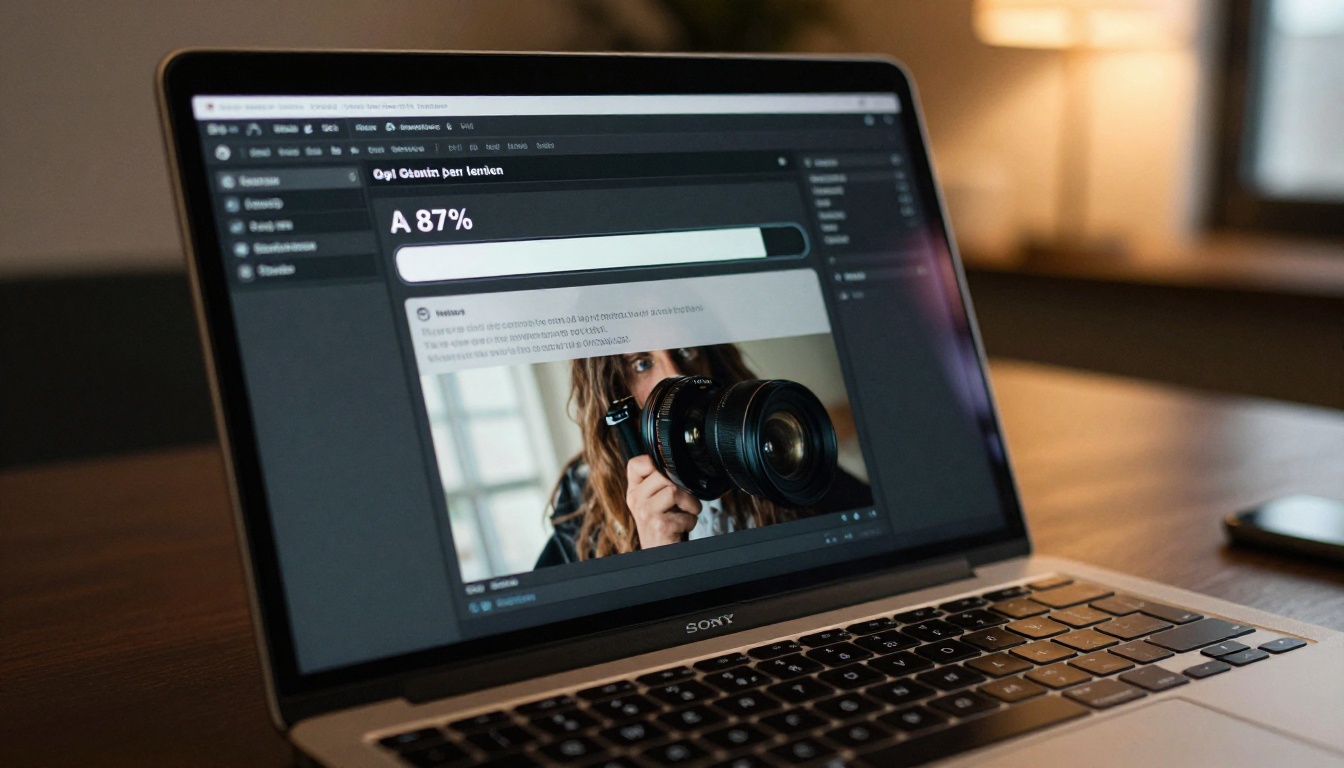
One of GPT Image 2.0's strongest capabilities is editing uploaded photos. You do not need Photoshop for straightforward edits. Upload an image, describe the change, and the model modifies it while preserving the surrounding context.
Inpainting with GPT Image 2.0
Upload your photo and describe what you want changed. The model identifies the relevant region and replaces or modifies it while keeping the rest of the image intact.
Practical use cases that work well:
- Replacing a bland sky with dramatic cloud formations
- Removing an unwanted object from a product photograph
- Changing the color of clothing without affecting anything else
- Adding readable text to a sign or storefront in an existing photo
- Swapping facial expressions in portrait photography
💡 Tip: Be specific about what you want in the replaced region, not just what to remove. "Replace the background with a blurred city street at night, wet pavement, warm streetlight reflections" gives far better results than "remove the background."
Background Replacement
For product photography and portraits, background replacement is where GPT Image 2.0 saves significant time over manual Photoshop masking. Upload your subject photo, describe the desired background, and the model handles the separation automatically.
Edge quality on complex subjects (detailed hair, transparent objects, fine fabric) varies and may need a dedicated pass for pixel-perfect results. For production-quality cutouts, specialized background removal tools on PicassoIA handle this more precisely than a generalist model.
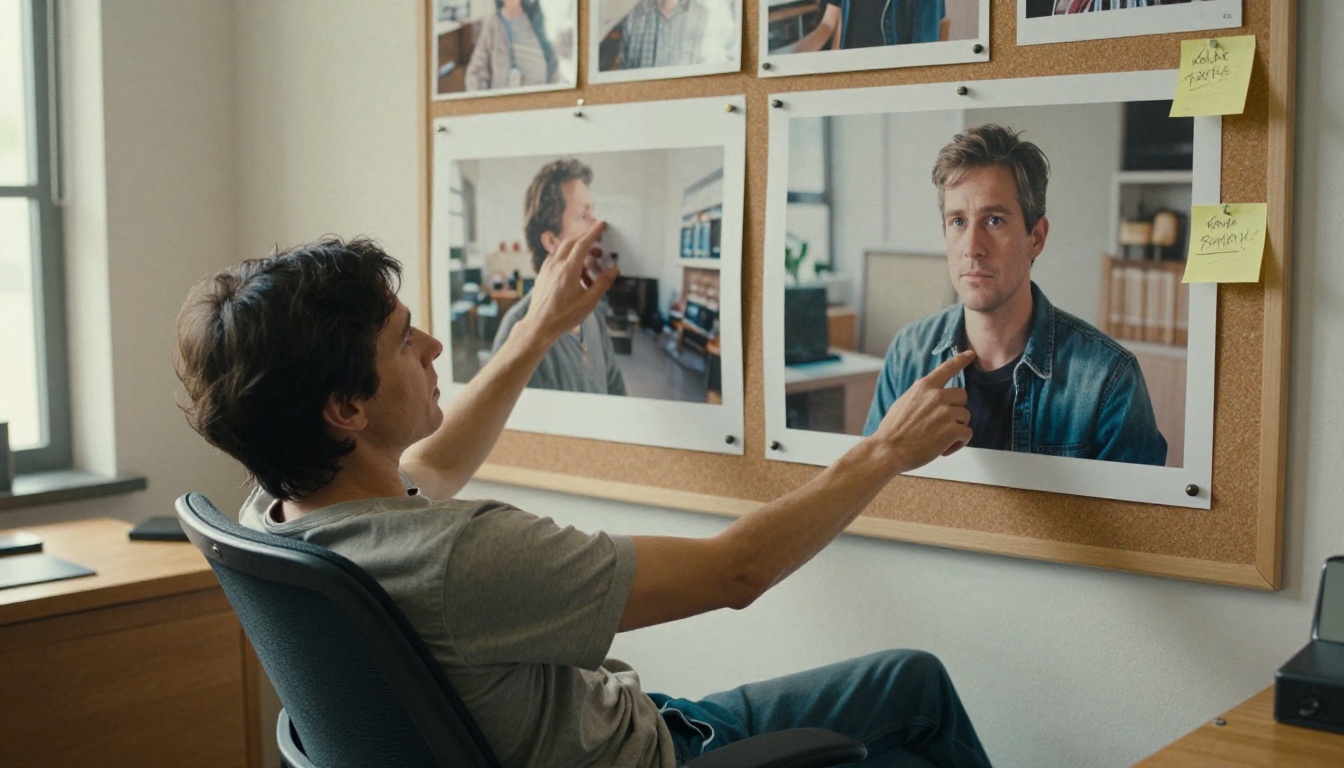
GPT Image 2.0 outputs at up to 1792x1024 pixels natively. That resolution is solid for digital use and social media, but it hits a ceiling for print work, large format display, or high-resolution commercial use. At 100% zoom, you will see model artifacts that are invisible at typical viewing sizes.
Resolution and Export Options
The model exports PNG by default. There is no built-in RAW or TIFF output option. For print or commercial work, upscaling after generation is almost always required.
Upscaling AI-generated images requires a model that understands the characteristics of synthetic content. Standard photo upscaling algorithms apply generic interpolation that blurs AI-generated textures and introduces haloing around edges. Purpose-built AI upscaling models handle these artifacts correctly.
On PicassoIA, dedicated upscaling models restore and enhance AI-generated images to print-ready resolution:
- Clarity Pro Upscaler: Photorealistic upscaling up to 4x with active detail restoration
- Topaz Image Upscale: Up to 6x enlargement with preserved sharpness for commercial print
- Google Upscaler: Clean 4x enlargement built for visual clarity and color accuracy
- Real ESRGAN: Fast 4x upscale optimized for speed, strong for web and social output
- Crystal Upscaler: Portrait-optimized upscaling with dedicated face detail enhancement
| Upscaler | Max Scale | Best For |
|---|
| Clarity Pro Upscaler | 4x | Photorealistic photos |
| Topaz Image Upscale | 6x | Commercial print |
| Real ESRGAN | 4x | Web content, speed |
| Crystal Upscaler | 4x | Portraits, faces |
| Google Upscaler | 4x | General clarity boost |
Where It Falls Short
GPT Image 2.0 has real limitations worth knowing before committing a workflow to it:
- No native high-resolution output: Adequate for digital, insufficient for large-format print without upscaling
- Limited style consistency across sessions: Getting identical character or style across multiple separate images is difficult
- No ControlNet support: You cannot constrain composition using pose maps, depth maps, or edge detection
- Rate limits on free and Plus tiers: High-volume use cases hit generation ceilings quickly
These are not reasons to avoid it. They are reasons to know when to bring in a different tool for specific parts of your workflow.
Free Alternatives Worth Trying
GPT Image 2.0 is strong but it is not the only option. Depending on volume needs, budget, or specific use cases, other platforms deliver comparable or superior results in targeted scenarios.
PicassoIA's Image Models
PicassoIA runs over 91 text-to-image models in a single platform, accessible without switching tools or managing separate API keys for each. The catalog spans photorealistic generators, stylized models, face-specific tools, and production-ready image editors.
The advantage for high-volume users: no per-generation cost ceilings that interrupt mid-project work, no rate-limit windows that block momentum, and the ability to mix models within the same workflow when different models perform better for specific subject types.
For upscaling specifically, PicassoIA's resolution models cover every use case from fast web-ready output to 6x commercial print quality:
Upscaling Your Results
Whether you generate on GPT Image 2.0 or any other platform, upscaling is almost always part of a professional delivery workflow. The native output from any text-to-image model benefits from a dedicated upscaling pass before client-facing or print use.
💡 Workflow: Generate on GPT Image 2.0, download the PNG, upload to PicassoIA's Topaz Image Upscale for commercial print output or Real ESRGAN for fast web delivery. Two-step process, professional result.
Visual Effects That Push Your Images Further
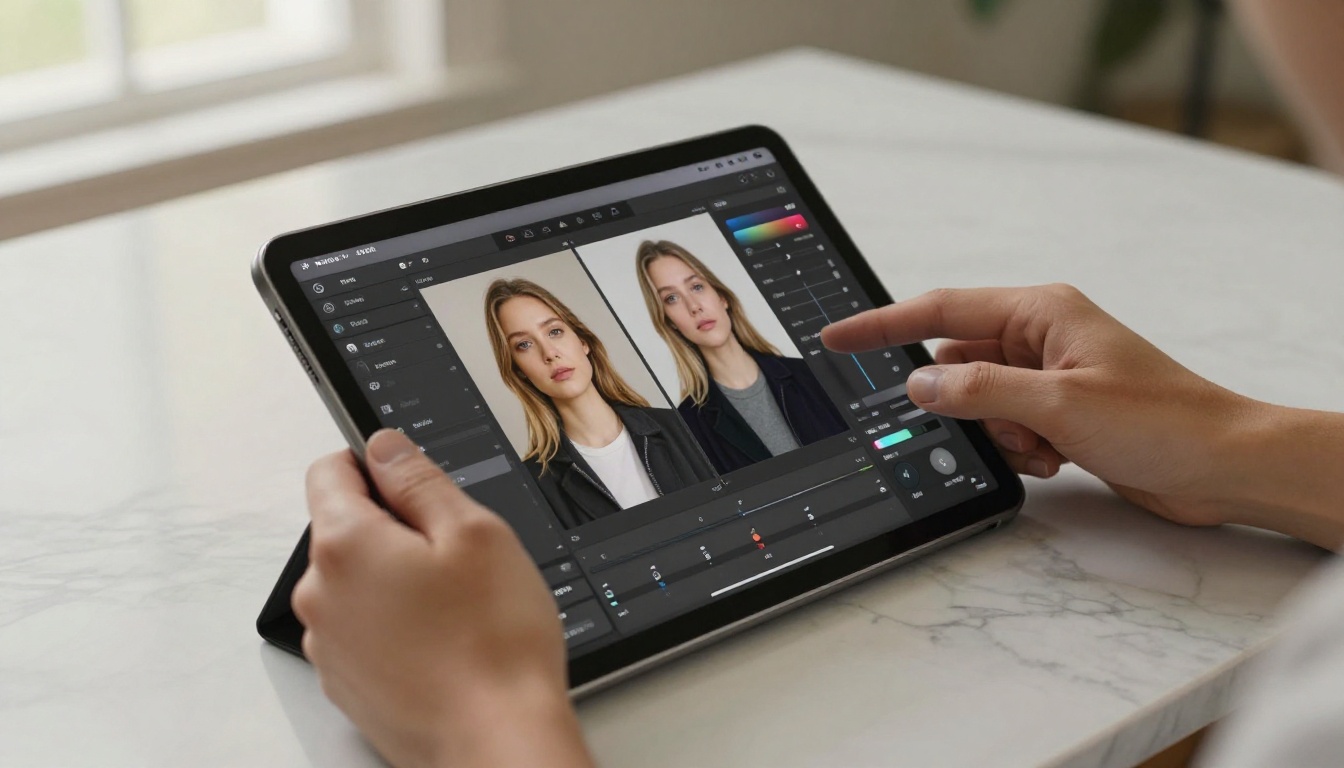
Once you have a strong base image, visual effects and enhancement tools let you stylize or sharpen the result in ways that flat text-to-image generation cannot achieve. This is where a platform with deep model coverage pays off compared to a single-model tool.
PicassoIA's catalog includes tools for:
- Stylizing static images with targeted effects pipelines
- Face enhancement and restoration on portrait outputs from any generator
- Image-to-video conversion for content that needs motion for social or marketing use
- AI video enhancement to upscale, stabilize, and restore visual quality frame by frame
These capabilities sit on the same platform as the image upscalers, eliminating the file export and re-import loop between separate specialized tools. Generate, enhance, upscale, and stylize within one interface without managing multiple accounts or file conversions.
What to Do Right Now
GPT Image 2.0 makes professional-quality image generation accessible to anyone who can describe what they want in plain language. The conversation-based editing loop alone cuts iteration time significantly compared to older single-shot tools.
The honest version: it works best for single images with iterative refinement in a live session. For volume work, consistent style across dozens of images, or production-ready resolution without a post-generation upscaling step, you need to extend the workflow.
That is where PicassoIA's 91-model image library fills the gaps. Upscale a GPT Image 2.0 output to 6x resolution with Topaz Image Upscale. Refine portrait outputs with Crystal Upscaler. Run high-volume generation without hitting rate-limit walls. The platform is built for workflows, not just one-off experiments.
Start with a prompt on GPT Image 2.0. See what comes back. Then bring the best result into PicassoIA, upscale it, enhance it, and push the output to the quality level your project actually needs. The tools exist. The workflow is straightforward.
See everything available at picassoia.com/en/all-models and pick the models that fit what you are actually building.


