You have one strong portrait and one clip of someone moving exactly the way you want. Kling motion control joins them: the photo supplies the face, outfit and background, and the video supplies every step, gesture and head turn. The catch is cost. Tracking 30 seconds of body motion is heavy work for a GPU, so most searches for Kling motion control free end at a paywall. This article sorts out what you can try without paying, hands you ten prompts to copy, lists free alternatives like Wan 2.2 Animate Animation and DreamActor M2.0, and shares the settings that decide quality in Kling v3 Motion Control, the 3.0 release.
What Kling Motion Control Does
Motion control is motion transfer, not text-to-video. You give the model two files, and it renders a new clip where your character performs the reference performance. The image decides who appears and where. The video decides how they move. A short text prompt sits on top and can add props, weather or a camera feel.
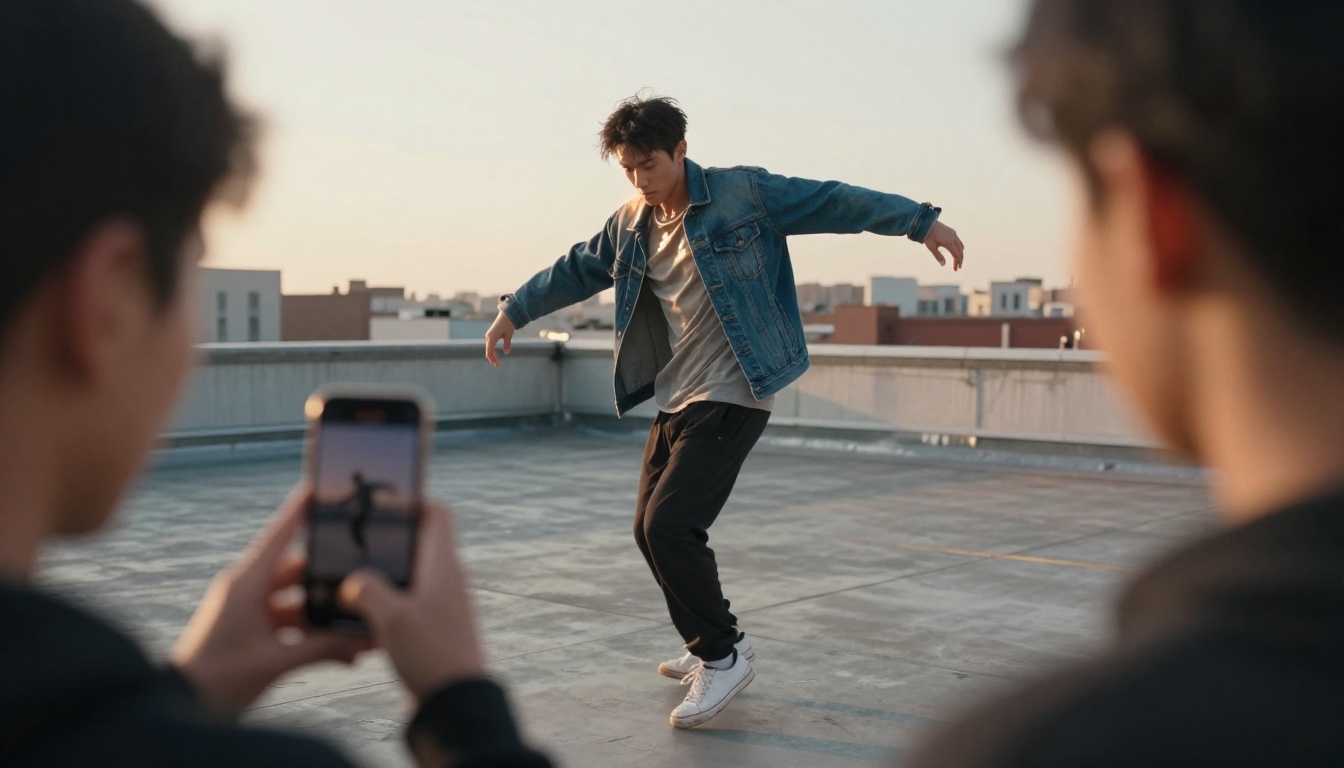
That split is why the tool suits character animation, mascots, social clips and product demos. You skip rigging, frame-by-frame work and 3D software. You film (or find) the move once, then reuse it on as many characters as you like. Typical jobs for it:
- Social clips: a brand character that dances, waves or points on cue.
- Product demos: a mascot or spokesperson that walks through a feature.
- Storyboards: a rough animated take of a scene before you film it.
- Old photos: a relative or a historical figure who finally turns and smiles.
- Game prototypes: a character sheet that moves before an animator touches it.
Still image plus reference video
The inputs, as listed on the Kling v3 Motion Control page:
- Image: JPG or PNG, up to 10 MB, 340 to 3850 pixels, aspect ratio between 1:2.5 and 2.5:1.
- Video: MP4 or MOV, up to 100 MB, 3 to 30 seconds long.
- Prompt: optional, used for scene elements and motion effects.
- Output: Standard at 720p or Pro at 1080p.
What changed in 3.0
| Feature | Kling v3 Motion Control | Kling v2.6 Motion Control |
|---|
| Quality modes | Standard 720p, Pro 1080p | Standard (cost-effective), Pro (finer detail) |
| Default mode in the form | Pro | Standard |
| Max length | 10 s (image orientation), 30 s (video orientation) | 10 s (image orientation), 30 s (video orientation) |
| Binding elements | Video orientation only | Not listed |
| Original sound toggle | Yes | Yes |
💡 The two pages read almost the same, so the real gap shows up in your own footage. Run one image and one video through both versions, then compare faces, hands and clothing side by side.
Is Kling Motion Control Really Free?
Kling's motion models are heavy to run, which is why they usually sit behind credits. "Free" is also a moving target. Platforms change daily allowances without notice, so any number you read online, including in this article, is stale until you see it on the sign-up screen.
What free means here
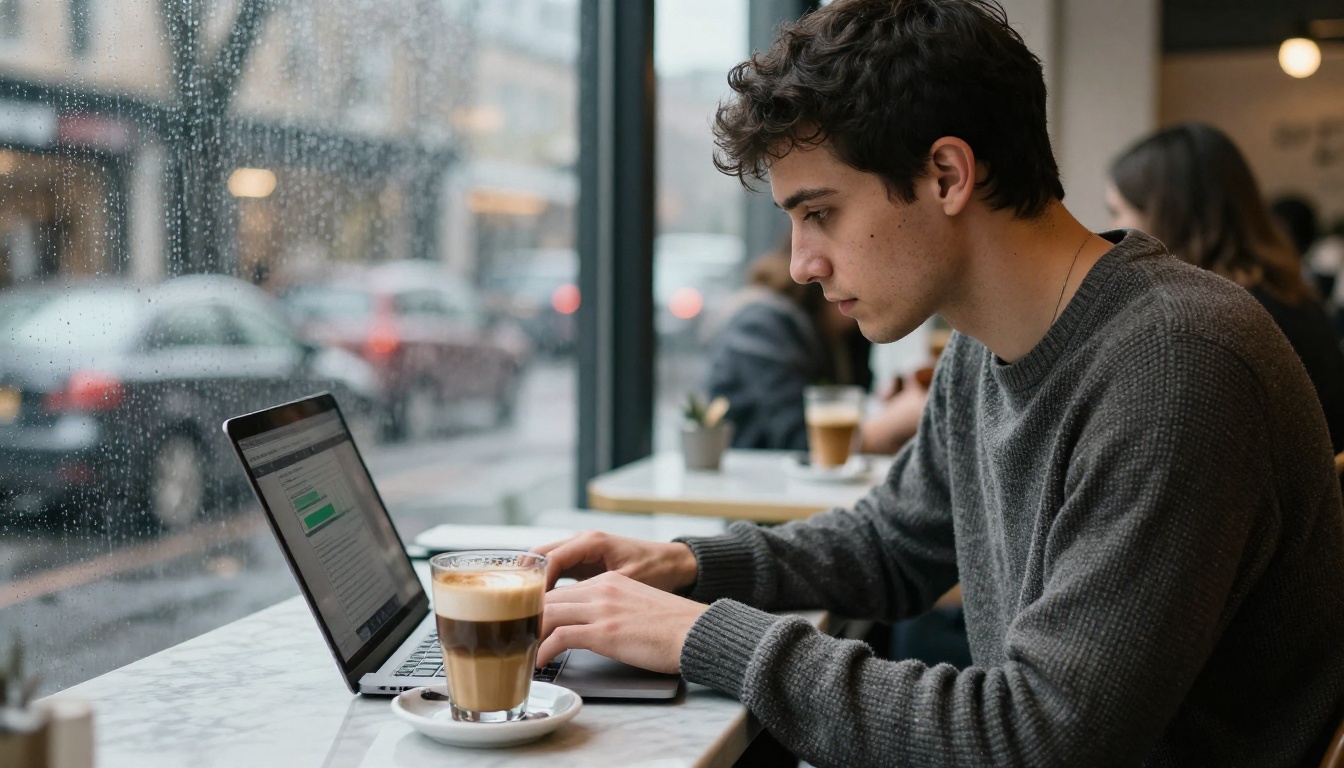
The model pages for Kling v3 Motion Control and Kling v2.6 Motion Control on PicassoIA both describe the model as free to run online, and the page shows the current terms before you submit. Check that page for the limits on your plan instead of trusting a screenshot from a forum thread.
Ways to test without paying
- Draft in Standard mode. The model page calls it the cost-effective option, and it is enough to judge whether the motion lands.
- Keep reference clips short. Three to five seconds show you the face, the hands and the body proportions. Save the 30-second run for a take you already trust.
- Start with image orientation. It caps the clip at 10 seconds, so a bad run wastes less.
- Switch to a free alternative for rough takes. Wan 2.2 Animate Animation is listed as free and online, and Seedance 2.5 Lite offers unlimited generation to Wonder members.
- Change one thing per run. If you swap the image, the video and the prompt together, you will never know which one fixed (or broke) the result.
Most failed runs are input problems, not model problems. Ten minutes of preparation saves a lot of re-runs.
The character image
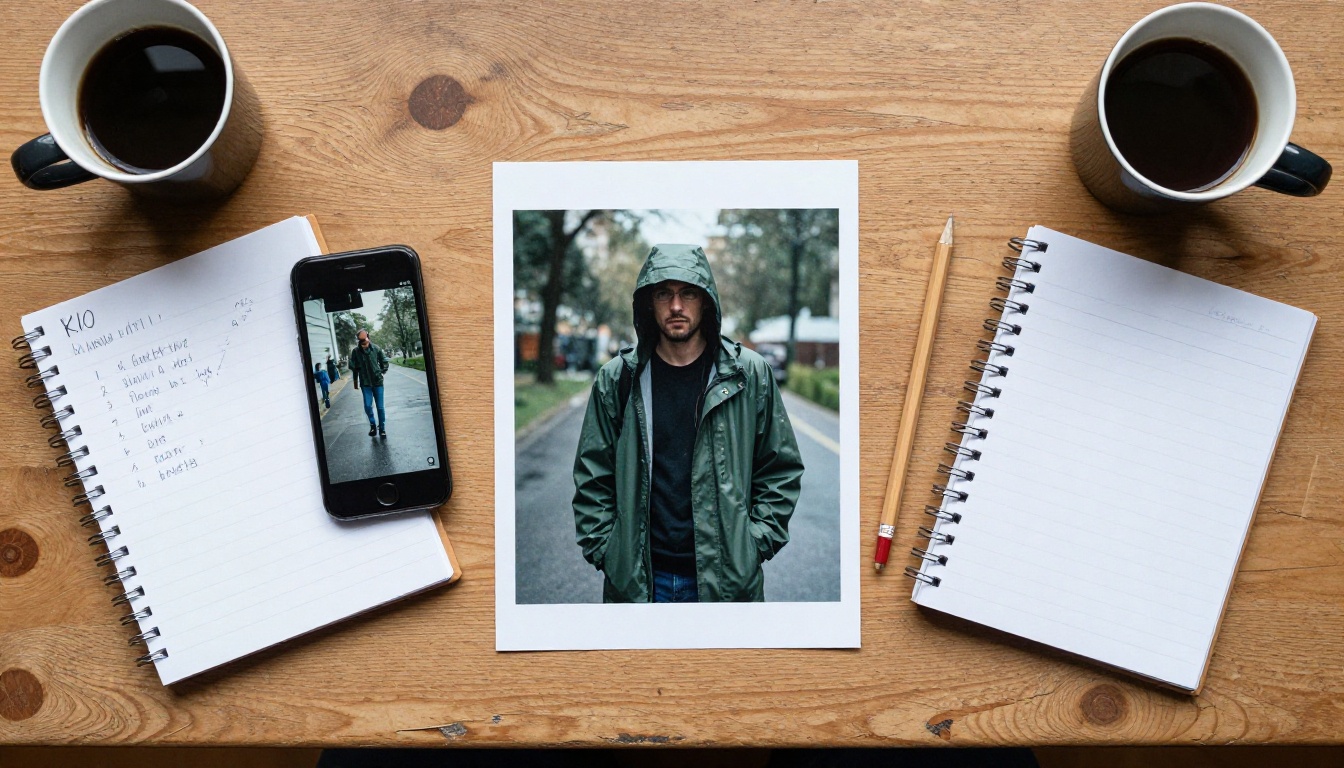
- One subject, clear face. Crowds and overlapping people confuse the tracking.
- Frame it like the video. A full-body walk needs a full-body picture. A talking clip needs head and shoulders. If the framings differ, the model has to invent the missing body.
- Match the starting pose. Arms down in the video means arms down in the photo.
- Sharp and evenly lit. Heavy filters, motion blur and hidden hands all show up in the result.
- No portrait yet? Generate one with Seedream 4.5 and tidy it with PicassoIA Image Editor Pro before you upload.
The reference video
- One person, one continuous take. Cuts break the motion thread.
- Static camera. A locked tripod beats handheld shake.
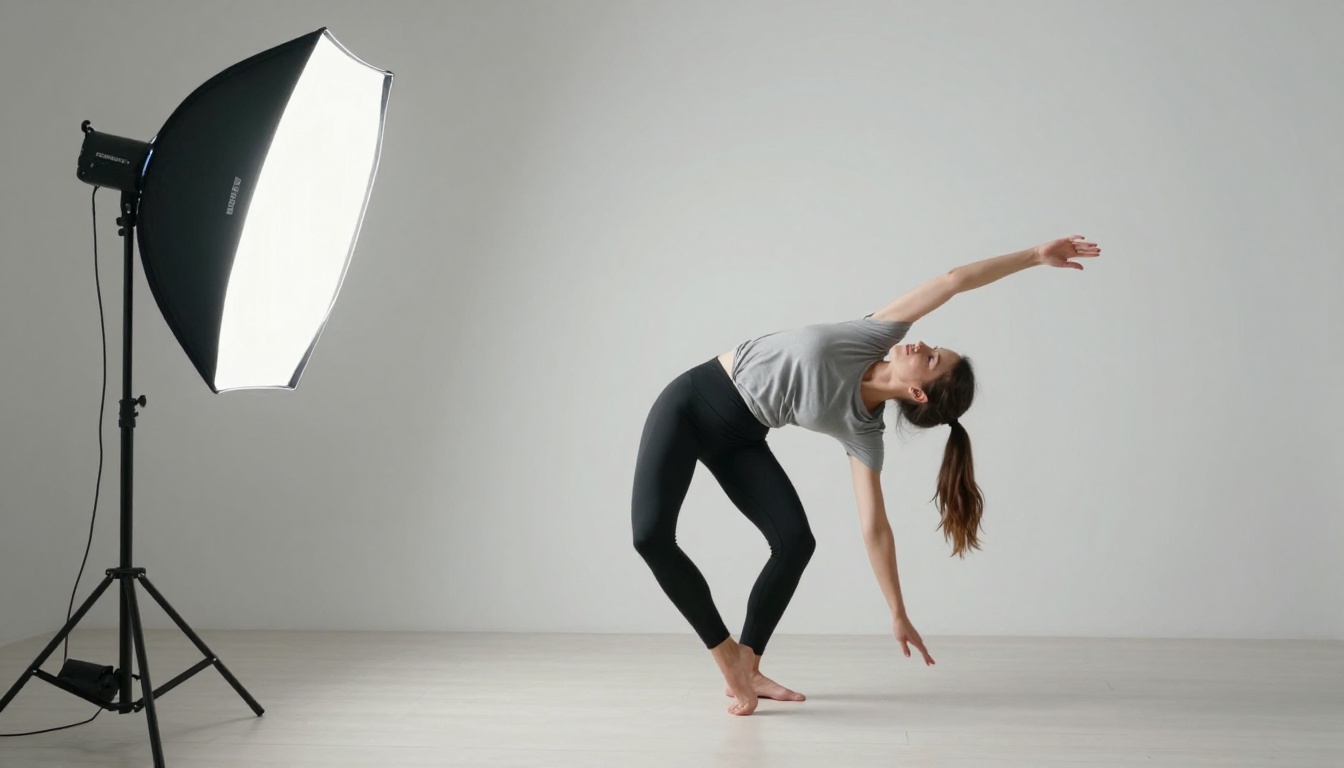
- Plain background and even light. A white wall and a softbox are plenty.
- Whole body in frame the entire time if you want a full-body result.
- Start with 3 to 10 seconds. The shortest clip allowed is 3 seconds.
Prompts to Copy
The video already carries the movement, so the prompt should describe the world around it: light, place, props, weather and camera feel. The official example on the model page uses a prompt as short as "a woman boxing", which tells you that two or three words can be enough.
Rules for the prompt field
- Describe the scene, not the choreography. Leave the motion to the reference clip.
- One or two sentences. Long prompts start to fight the image.
- Add one new element at a time. A prop, a weather effect or a camera feel, not all three.
- Name the light. "Soft window light" or "golden hour" gives a steadier look than "cinematic".
- Do not contradict the image. The background comes from the photo, so asking for a beach on an office portrait wastes the run.
Compare "make her dance beautifully, cinematic, amazing" with "a woman in a yellow raincoat on a wet city street at dusk, soft street light, steady camera". The first repeats what the reference video already does and gives the model nothing new. The second supplies a place, a light and a camera, which is exactly what a text prompt is for.
Ten prompts to copy
| Goal | Prompt |
|---|
| Street dancer | A young man in a denim jacket on a sunlit rooftop, warm golden hour light, city skyline softly blurred, handheld documentary feel. |
| Brand mascot | A friendly fox mascot in a knitted red scarf in a bright product studio, soft shadows on a white sweep, slow camera push-in. |
| Walking portrait | A woman in a mustard coat on a rainy European street, overcast light, shallow depth of field, steady tracking camera at chest height. |
| Fitness clip | A trainer in a grey tank top in a bright gym, tall windows, rubber floor, even soft light, static wide camera. |
| Old photograph | A black and white street scene from the 1930s, natural daylight, fine film grain, a little dust drifting in the air. |
| Game character | A fantasy ranger in green leather armor in a misty forest clearing, soft morning light through the trees, wide cinematic frame. |
| Add a prop | A red umbrella in her right hand, light rain falling in the background, wet pavement reflecting the sky. |
| Change the weather | Heavy snowfall, visible breath in the cold air, muted blue-grey light, quiet street. |
| Kitchen scene | A chef in a white apron in a warm restaurant kitchen, steam rising from the pans, copper pots on the wall. |
| Presenter | A presenter in a navy blazer in a bright office, soft window light from the left, calm static frame. |
💡 Swap the subject and keep the structure. Who + where + light + one extra detail works for almost every motion control prompt.
Kling 3.0 Tips That Matter
Draft in Standard, finish in Pro
The 3.0 form defaults to Pro (1080p), so switch it to Standard (720p) while you test. Once the motion, face and clothing look right, run the same inputs again in Pro for the final file. Example runs on the model page took between roughly 7 and 13 minutes, so queue a run and do something else while it renders.
Pick orientation and sound
- Image orientation: the character faces the way the photo does. Clips top out at 10 seconds.
- Video orientation: the character follows the facing direction of the reference video. Clips can reach 30 seconds, and this is the only mode that works when you bind elements.
- Keep original sound: on by default. Turn it off when the reference audio is room noise or someone else's voice.
Rule of thumb: choose image orientation for stills that already look the way you want, and video orientation for long, travelling moves.
3 common mistakes
- Blocked or cropped faces. A hand over the jaw, a cap pulled low or a tight crop in either file gives the model little to track. Use clear, open framing.
- Mismatched proportions. A close-up portrait driven by a full-body dance forces the model to invent legs. Match the shot size.
- Judging the first run. Motion transfer is sensitive to small changes in the inputs. Plan on three or four attempts and change one variable each time.
Quick fixes for bad results
| Symptom | Likely cause | Fix |
|---|
| Face flickers or melts | Face is small or partly hidden | Use a larger, front-facing image |
| Arms or legs look wrong | Shot size differs between image and video | Show the full body in both files |
| Character slides instead of walking | The reference camera moves | Re-shoot with a locked camera |
| Clothes change color | The prompt fights the image | Remove clothing words from the prompt |
| Clip ends too early | Image orientation caps at 10 seconds | Switch to video orientation |
Free Alternatives Worth Trying
Kling is not the only way to copy motion onto a still. These models run on PicassoIA and take a similar image plus video input, apart from the last one.
| Model | Input | Best for | Notable settings |
|---|
| Wan 2.2 Animate Animation | Character image + reference video | Quick motion copies, mascots | 720p or 480p, 24 fps, fast mode, seed, optional audio merge |
| DreamActor M2.0 | Image + template video (up to 30 s) | Expressions and lip sync | Optional trim of the first second |
| Kling v2.6 Motion Control | Image + reference video | Cheaper Kling runs | Standard or Pro, image or video orientation |
| Seedance 2.5 Lite | Text prompt or first frame | Prompt-driven clips | 480p or 720p, 5 or 10 s, synced audio |
The open motion option
Wan 2.2 Animate Animation is the closest match to Kling's workflow. Upload a character image and a reference clip, pick 720p or 480p, and keep fast mode on while you iterate. The page flags the audio merge as experimental, so expect drift between sound and picture.
The expression and lip sync option
DreamActor M2.0 focuses on faces. It carries head movement, expressions and mouth shapes from a template video to your image, which makes a still headshot look like it delivers a voiceover. Keep the image under 4.7 MB and the template under 30 seconds.
The prompt-only option
Seedance 2.5 Lite does not copy a reference performance. You describe the shot, or hand it a first frame, and it returns a 5 or 10 second clip with synchronized audio. It is the right pick when you need ideas and volume, not a specific move.
How to Run It on PicassoIA
- Open the Kling v3 Motion Control page.
- Upload your character image (JPG or PNG, up to 10 MB).
- Upload your reference video (MP4 or MOV, 3 to 30 seconds).
- Set mode to
std for a draft or pro for the final.
- Set character_orientation to
image for up to 10 seconds or video for up to 30.
- Type a short prompt if you want to add props, weather or a camera feel.
- Choose whether to keep the original sound.
- Submit, wait for the render, and review the face, hands and clothing before you change anything.
💡 Keep a small log: file names, mode, orientation and prompt for every run. When a result looks great, you will know exactly how to repeat it.
Try Your Own Motion Clips
Pick the photo you never managed to bring to life and a 5 second clip of the move you want. Run them through Kling v3 Motion Control in Standard mode, then try the same pair in Wan 2.2 Animate Animation and compare. If the face needs help, DreamActor M2.0 is one click away. Whatever you pick, change one setting per run and keep the best take.
Because the move comes from a video, one good reference turns into a whole cast: the same walk on a mascot, a founder portrait and a game character. Build a small library of clean reference clips, label them by movement, and reuse them across projects.
Ready to see your first character move? Open PicassoIA, upload your two files and start experimenting. The full model list is at picassoia.com/en/all-models.


