Multi-input video editing is not a minor feature update. It is the difference between a tool that generates clips and a tool that actually understands what you are trying to build. Kling v3 Omni Video is the first model in the Kling lineup to handle multiple reference inputs simultaneously, combining text prompts, subject images, and style references into a single coherent output. The result is a video generation workflow that feels less like guessing and more like directing.
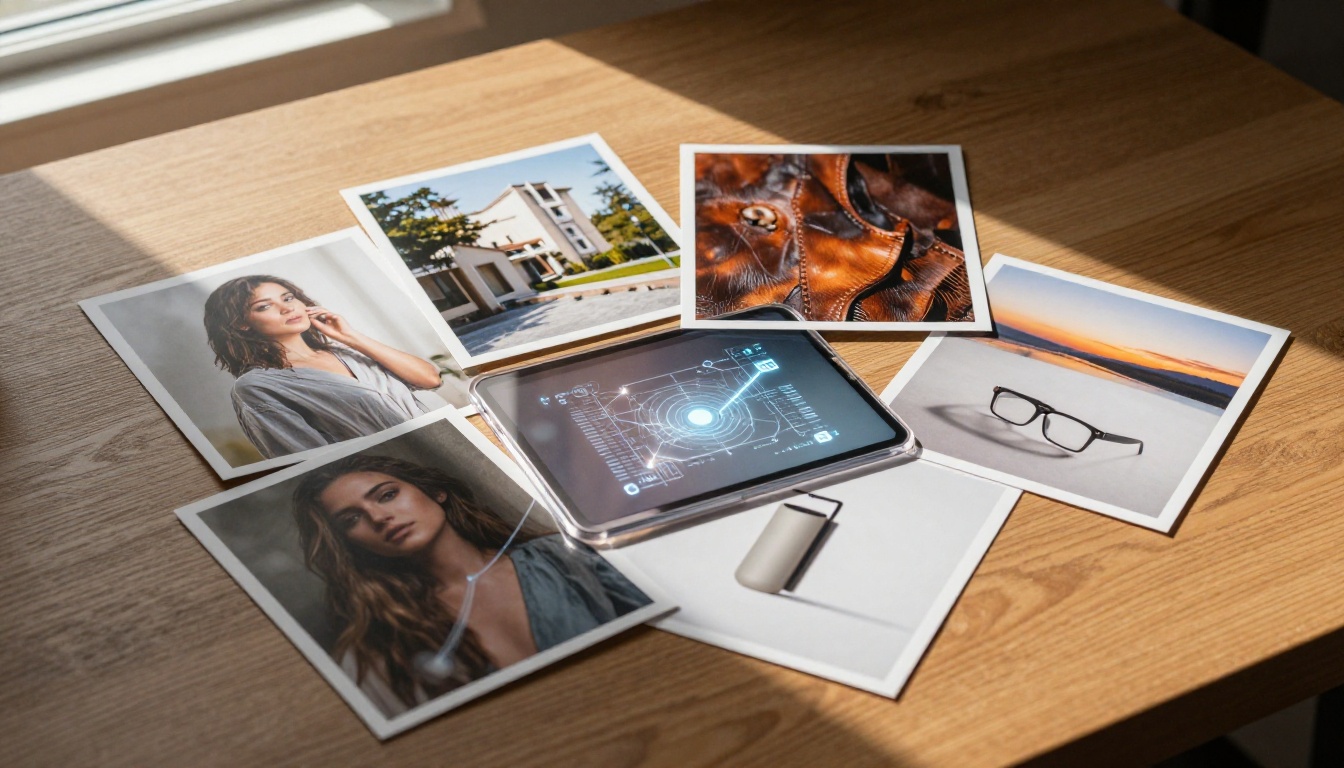
Most video generation models work from a single source: either a text prompt or a reference image. You write what you want, or you show what you want, and the model does its best to interpret that one signal. The limitation becomes obvious fast. Text-only prompts struggle with visual specificity. Single-image inputs lose detail when the motion extends beyond the first frame.
Multi-input editing solves this by letting the model triangulate from multiple sources at once. Instead of inferring your intent from one signal, it reads several simultaneously and synthesizes them into output that honors all of them.
Text Plus Image References at Once
Kling v3 Omni Video accepts a text motion prompt alongside one or more reference images. Those images can serve different roles. One image might define the main subject, another might define the background environment, and a third might anchor the lighting style. The model reads each input for what it contributes and weighs them together during generation.
This is fundamentally different from earlier Kling versions. Kling v2.6 and Kling v2.1 Master were strong image-to-video tools, but they operated on a single primary image with text guiding motion only. The Omni architecture extends this to accept structural inputs that shape the entire output, not just the starting frame.
How the Model Processes Stacked Inputs
Internally, the model processes reference inputs through a cross-attention mechanism that weights each input's contribution based on its role in the prompt. If your text prompt says "the woman walks through the city street," the model uses the subject reference image to define the woman's appearance, the environment reference to define the street, and the text to define the motion arc.
💡 Tip: When using multiple image references, make sure each image contributes something distinct. Feeding two similar images of the same subject from nearly the same angle adds noise rather than information.
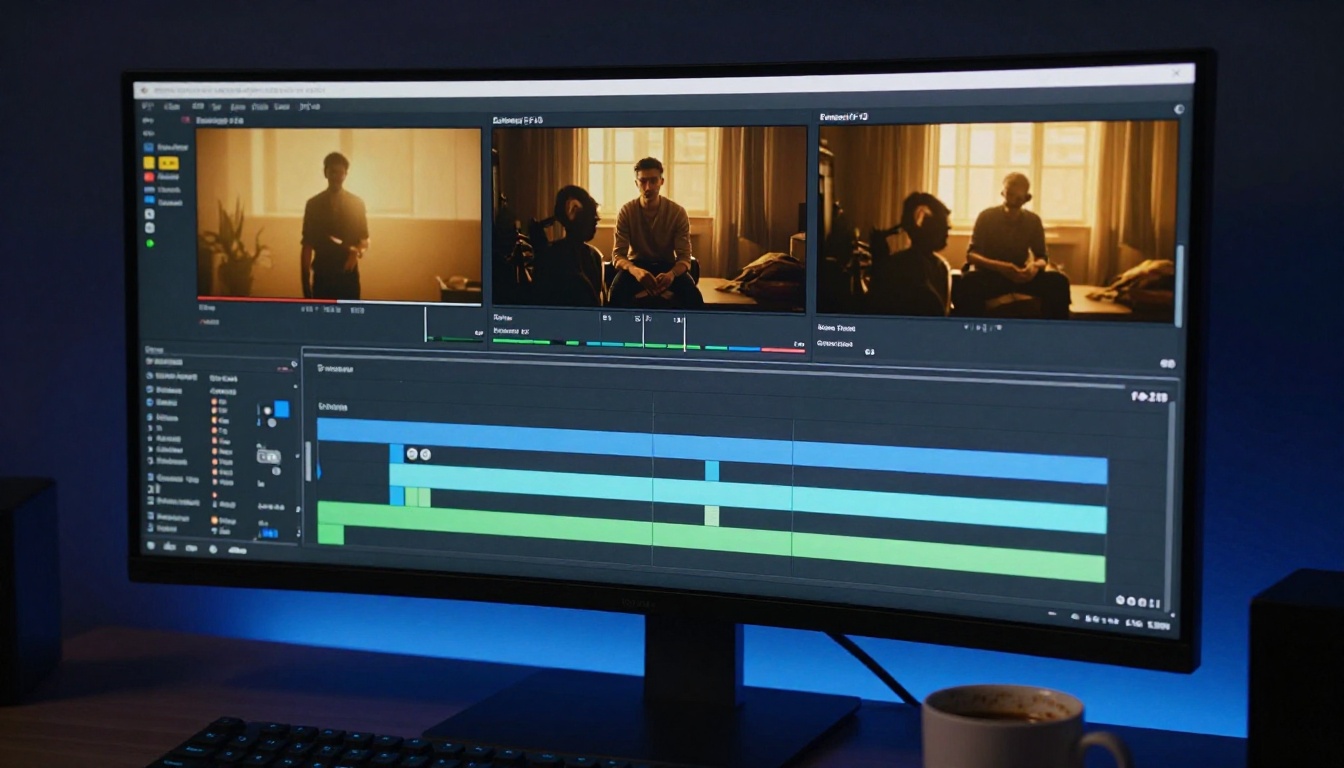
The 3 Modes Kling v3 Omni Handles
The multi-input system in Kling v3 Omni Video covers three distinct use cases. Each one serves a different type of creator.
Image-to-Video with Subject Reference
This is the most direct mode. You supply a high-quality photograph of your subject, write a motion prompt, and the model animates the subject while preserving their appearance across every frame. Hair color, clothing details, facial structure, even specific textures all remain consistent throughout the clip.
For character work, this replaces the need to describe your character entirely in text. Instead of writing "a woman with dark wavy hair wearing a red jacket," you show the model exactly who you mean. The specificity is instant, and the results are far more consistent.
The Kling v3 Motion Control variant takes this further by adding direct body motion control, but the core Omni model handles freeform character animation without those constraints.
Style and Scene Blending
The second mode uses reference images not to define a subject but to define a visual style or environment. You might supply a photograph of a specific alley in Barcelona, then use a text prompt to place a character moving through it without actually filming there.
This works because the model separates semantic content (what is in the image) from style and spatial information (how it is lit, what the surfaces look like, how space is arranged). A reference image of a location becomes a visual blueprint rather than a strict "animate this" instruction.
💡 Tip: For location references, architectural photographs with consistent lighting conditions work better than smartphone snapshots. The model reads the light direction and shadow quality directly from the reference image.
Motion Prompt Layering
The third mode involves stacking motion descriptions with reference images that show the motion's context. You might supply an image of a dancer mid-pose and a text prompt describing the movement arc, and the model interpolates between the static reference and the described motion.
This is particularly effective for the kind of work that used to require frame-by-frame animation: specific gestures, precise camera movements, controlled product reveals where the motion path matters as much as the visual identity of the object.
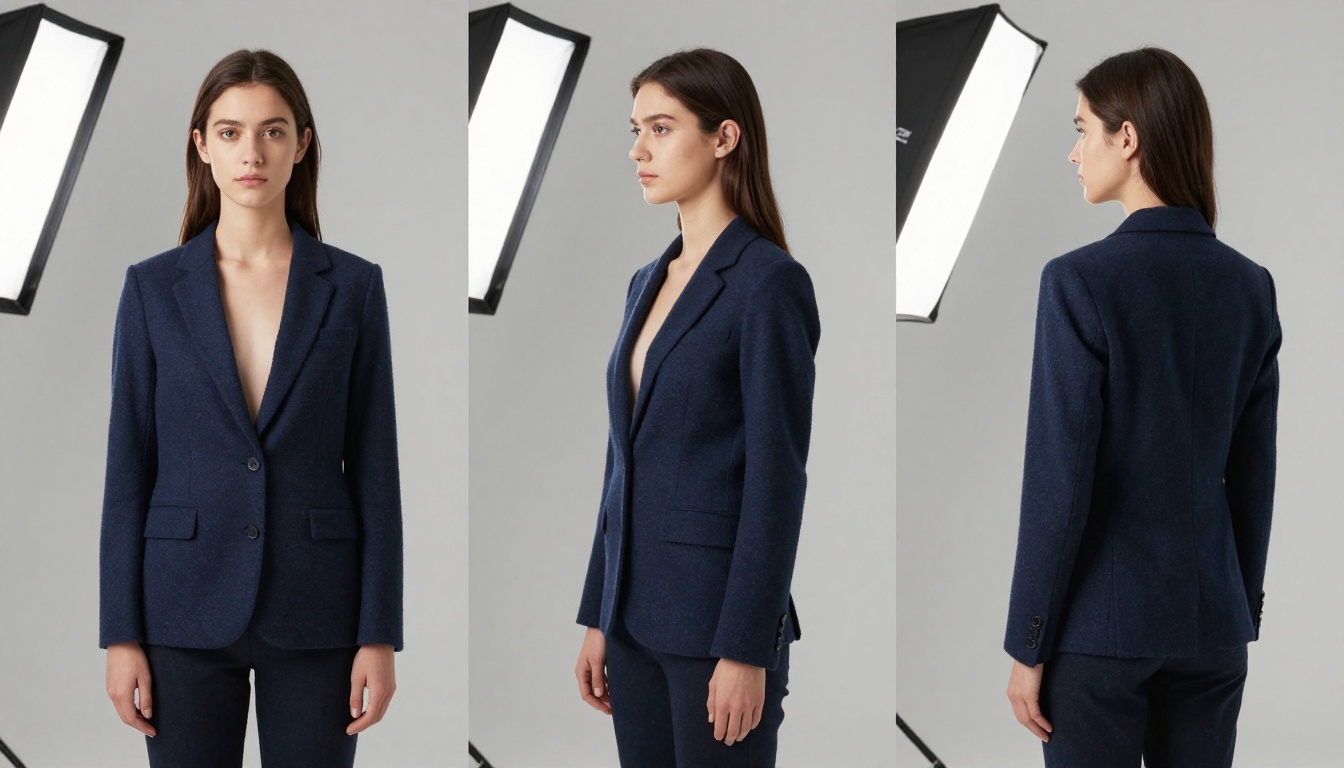
Understanding what Kling v3 Omni Video gets right requires understanding what single-input models get wrong. These are not flaws unique to competitors. They were limitations of earlier Kling versions too.
The Consistency Problem
When a text-only model generates a video, it has to invent visual details from scratch. Every frame is a fresh interpretation of your description. The result: a character who looks subtly different in frame 12 versus frame 48, or a background that shifts color tone midway through a clip.
Single-image input models improve on this but still struggle as motion moves the subject further from its starting pose. Once a character turns 90 degrees from their reference angle, the model is essentially extrapolating, and that is where identity drift begins.
Multi-input gives the model multiple anchor points. It can triangulate appearance from different angles supplied as references, which dramatically reduces drift even through complex motion sequences.
Stylistic Drift Over Time
Even models with strong single-image coherence often let style drift across longer clips. The warm lighting from a reference image fades toward the middle of a clip and comes back inconsistently at the end. The color grading shifts slightly. These are artifacts of the model losing track of the reference as attention shifts toward generating plausible motion.
The Omni architecture keeps style references active throughout generation rather than using them only to condition the starting frame. This is what makes it genuinely different from models like Veo 3 or Hailuo 02, which excel at cinematic text-to-video but do not offer the same multi-reference subject anchoring.
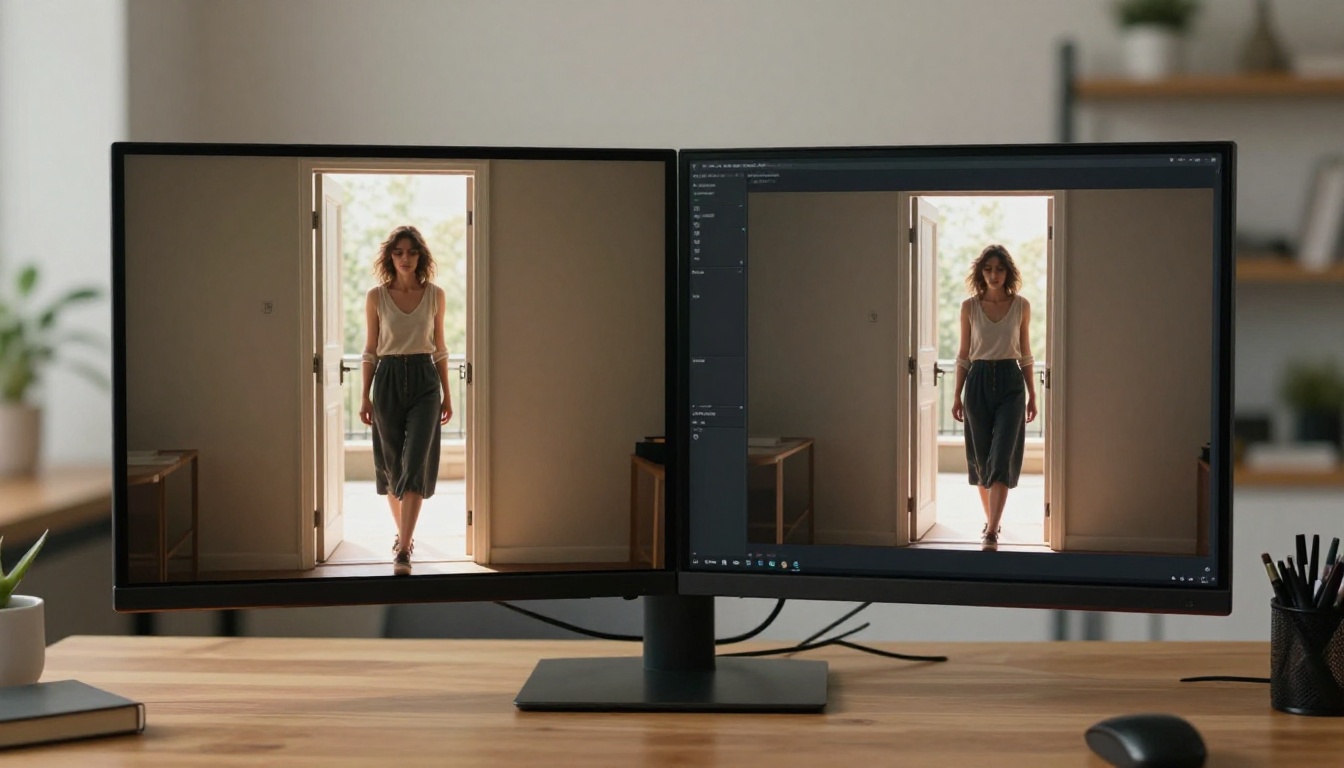
How Kling v3 Omni Keeps Visuals Consistent
Consistency is the thing that separates clips you can actually use from clips that look impressive for three seconds and then fall apart.
Subject Fidelity Across Frames
Kling v3 Omni Video achieves subject fidelity through reference binding: the subject reference image is not just a conditioning input at frame zero, it remains a persistent constraint throughout the diffusion process. The model continuously checks generated frames against the reference during sampling.
In practice, this means clothing texture stays accurate. A striped shirt stays striped with the correct stripe width rather than dissolving into a vague pattern. Jewelry details persist. Facial features remain recognizable through motion rather than softening into a generic approximation.
| Feature | Single-Image Models | Kling v3 Omni Video |
|---|
| Subject consistency across 5s | Moderate (80-90%) | High (95%+) |
| Style preservation mid-clip | Degrades | Maintained |
| Multi-angle reference support | No | Yes |
| Background and subject separation | Limited | Strong |
| Motion fidelity to prompt | Good | Excellent |
Temporal Coherence
Temporal coherence refers to how smoothly one frame connects to the next across the entire clip. Incoherent video looks like a slideshow: each frame is plausible individually but the transitions between them feel jumpy or physically impossible.
The multi-input architecture helps temporal coherence because the model has more constraints to respect. With only a text prompt, the model has enormous freedom in how to interpret each frame. With a subject reference and a style reference locked in, the solution space narrows, and the remaining decisions around motion trajectories and lighting transitions become more controlled.
💡 Tip: For maximum temporal coherence, keep your motion prompt specific but not overcrowded. One clear action per clip works better than three simultaneous actions crammed into a single prompt.
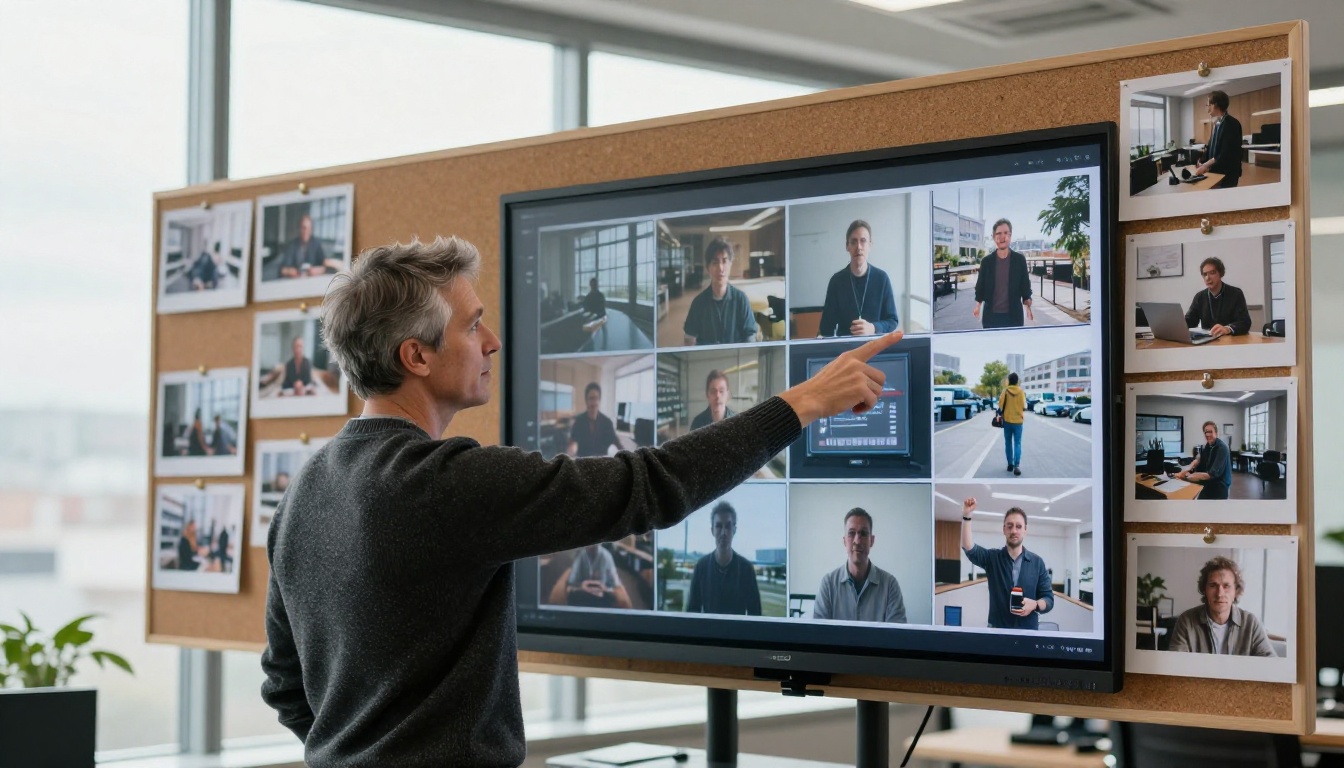
Workflows That Benefit Most
Not every video project needs multi-input editing. For abstract motion graphics or stylized text-to-video clips, a model like Seedance 2.5 or Ray 3.2 will produce results just as strong with less setup. Multi-input editing earns its value in specific workflows.
Character Animation Workflows
If you are animating a specific person or character across multiple clips, multi-input editing saves enormous time. Without it, you write the same detailed character description in every prompt and hope the model interprets it consistently. With it, you supply the reference once and the model handles the rest.
This matters especially for series content: YouTube channels building recurring character-driven videos, marketing campaigns featuring a brand spokesperson, or storytelling projects that follow the same protagonist across scenes. Each clip can have different motion, different environments, and different mood, but the character stays visually identical.
Product Showcase Videos
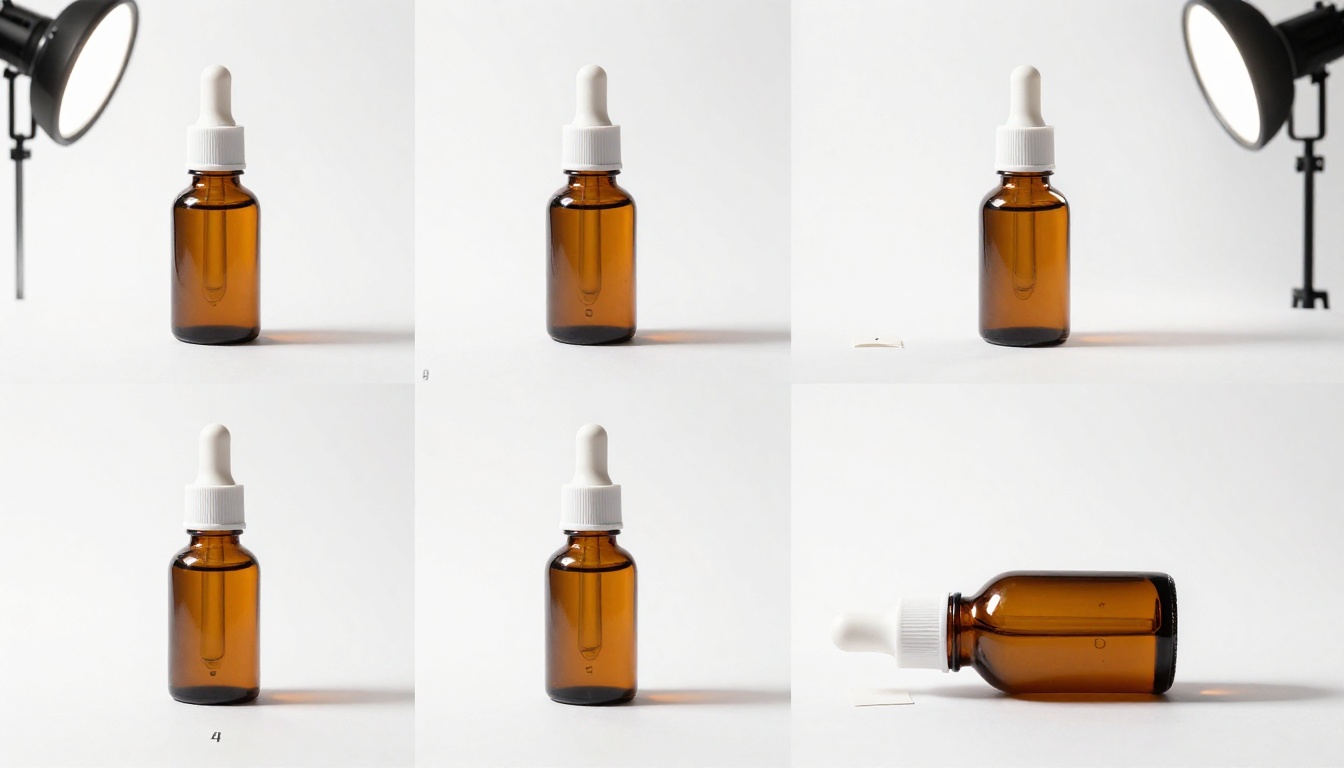
Product marketing sits in a perfect spot for multi-input workflows. You have high-quality product photography from your existing library. You want that specific product, with its exact colors and finishes, shown in motion in a variety of settings.
Multi-input lets you feed the product photography as a subject reference, describe the setting and motion in text, and generate consistent product video without re-shooting. The model reads the exact surface finish of the product from your reference photo rather than from your description of it.
For e-commerce brands, this compresses what would normally be a full-day video shoot into a prompt and a few reference images.
Scene Transitions with Matched Style
Documentary and narrative filmmakers working with AI video face a particular problem: each generated clip looks slightly different, making cuts jarring. Multi-input editing solves this by letting you use a frame from a previous clip as a style or environment reference for the next clip, chaining visual consistency across a sequence.
This is close to what traditional VFX pipelines call "look development." Once you lock the look of a scene, every shot in that scene is graded to match. Multi-input editing lets you do the same thing at generation time, not in post.
Strong Alternatives on PicassoIA
Kling v3 Omni Video is not the only model on PicassoIA worth knowing for reference-guided or multi-input work. Depending on your specific needs, these alternatives may suit you better.
Wan 2.7 R2V for Reference-Based Work
Wan 2.7 R2V (Reference-to-Video) is built specifically around the concept of animating from reference images. It excels at character animation from a single strong reference and produces very consistent results for portrait-oriented content. If your workflow is primarily character-focused with limited environmental needs, Wan 2.7 R2V may be faster to iterate with.
The tradeoff: Wan 2.7 R2V is less flexible for blending multiple distinct reference types. It is optimized for subject references, not the combined subject-plus-environment-plus-style workflow that the Omni model handles.
You can also pair it with Wan 2.7 I2V for image-to-video animation when the subject reference approach fits your project better than the full Omni pipeline.
Seedance 2.5 for Long-Form Content
Seedance 2.5 supports up to 30 seconds per generation, making it the right choice when length matters more than multi-reference consistency. For social media content where a single long clip with natural AI variation is acceptable, Seedance 2.5 delivers cinematic quality with native audio at scale.
The free version, Seedance 2.5 Lite, handles shorter clips up to 10 seconds and is worth testing before committing to the Pro tier.
Kling o1 for Editing Existing Footage
If you already have video footage and want to restyle it rather than generate from scratch, Kling o1 is the editing-specific Kling model. It rewrites video content based on text instructions while preserving the underlying motion and structure. Combined with Wan 2.7 Videoedit or Lucy Edit 2, you have a full post-production pipeline entirely within PicassoIA.
For upscaling generated footage afterward, Real ESRGAN Video handles 4K upscaling and Video Increase Resolution pushes output to 8K when maximum deliverable quality matters.

How to Use Kling v3 Omni on PicassoIA
Kling v3 Omni Video is available directly on PicassoIA. The workflow is straightforward once you understand how the input fields map to the model's architecture.
Step-by-Step
Step 1: Prepare your reference images.
Collect the images you want to use as references. For character work, use a clean portrait with good lighting and a clear view of the subject's face and specific clothing details. For environment references, use images with consistent, directional lighting rather than flat overcast shots.
Step 2: Open the model page.
Navigate to Kling v3 Omni Video on PicassoIA. You will see the input panel with fields for the primary image, optional secondary references, and the text motion prompt.
Step 3: Upload your primary reference.
The primary image slot is the most important. This is the image that defines your main subject or scene. Upload the highest quality version you have. The model reads at the full uploaded resolution, so a crisp 4K reference will produce sharper output than a compressed 720p crop.
Step 4: Write a specific motion prompt.
Describe the movement in chronological terms. "The woman stands, then turns slightly left as her hair moves in the breeze" is better than "beautiful woman in natural setting." The motion prompt should add information the references cannot provide on their own.
Step 5: Set duration and resolution.
The model supports outputs from 5 to 10 seconds. For testing, 5 seconds is fast and covers most social content needs. Resolution options include 720p and 1080p.
Step 6: Generate and review.
Generation time varies by resolution and server load, typically 60 to 90 seconds. Review the output for consistency issues, particularly around the mid-clip frames where drift is most common.
💡 Tip: If your first output has subject drift in the second half of the clip, try shortening the motion prompt. Over-described motion forces the model to deviate further from the reference constraints.
Parameter Tips for Best Results
| Parameter | Recommended Setting | Why |
|---|
| Negative prompt | "blurry, low quality, distorted face, inconsistent" | Reduces artifacts |
| Duration | 5s for tests, 10s for finals | Speed vs. quality tradeoff |
| Resolution | 1080p for deliverables | Maximum output fidelity |
| CFG Scale | 7-9 | Balances prompt adherence and naturalness |
| Reference strength | 0.8+ for character work | Prioritizes visual fidelity |
If you want motion control over body pose rather than freeform animation, switch to Kling v3 Motion Control for skeleton-guided animation of your uploaded subject.
Also worth noting: Gen 4 Aleph and Aleph 2 from Runway offer a complementary approach where you edit one frame and the model restyles the full video to match. For certain workflows, pairing Omni-generated clips with Aleph-based restyling gives you both generation consistency and post-generation control.
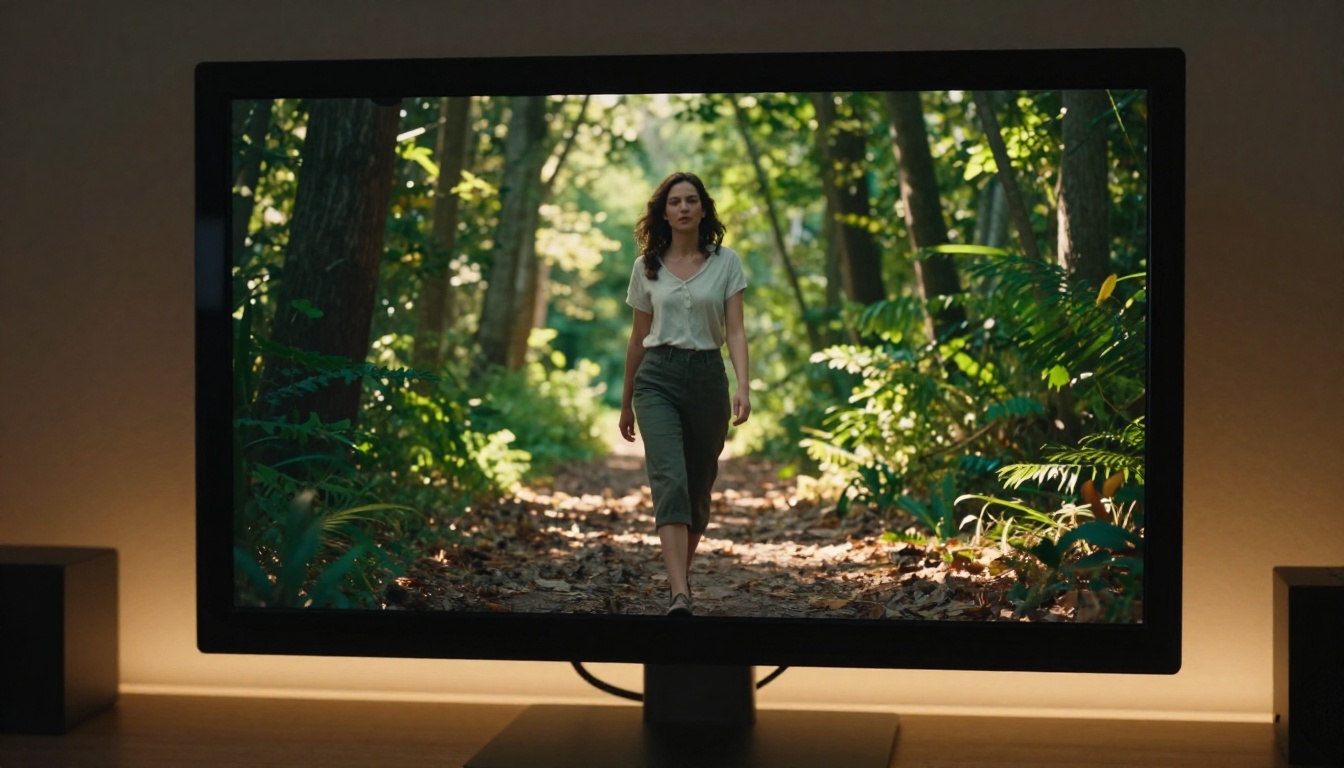
Multi-input video generation changes how you plan shoots and productions. Once you can feed multiple references into a single generation, you stop thinking in terms of "what can I describe" and start thinking in terms of "what do I want to show." That shift in framing is where the real creative benefit lives.
Kling v3 Omni Video on PicassoIA is available now, alongside every other model in the Kling lineup including Kling v3 Video and Kling v2.5 Turbo Pro for faster iteration at lower cost. Start with a reference image you already have, write a single clear motion prompt, and generate your first clip in under two minutes.
The full library of video generation and editing tools, including Wan 2.7 I2V, LTX 2 Retake, and Modify Video, are all accessible through PicassoIA without installing anything. Browse everything at picassoia.com/en/all-models.