Somewhere in a drawer there is a photo of someone you miss, and in that photo they have never once blinked. Today they can. Old photo to video AI free tools take a single scan and return a five-second clip where your grandmother turns her head, softens her eyes, and smiles at the camera. No timeline, no animation skills, and no credit card needed for the first try.
This article walks through the whole process, from scanning a creased 1950s print to sharing a clip the family will watch three times in a row. You will see which free models handle faces best, the settings that stop faces from warping, prompts you can paste as they are, and fixes for the problems that show up on the first render.
💡 Quick answer: Scan the photo at 600 dpi, upload it to Picasso IA Video as the first frame, write one calm sentence describing the motion, and render at 720p. The whole thing takes under five minutes.
Why Animated Photos Hit Harder
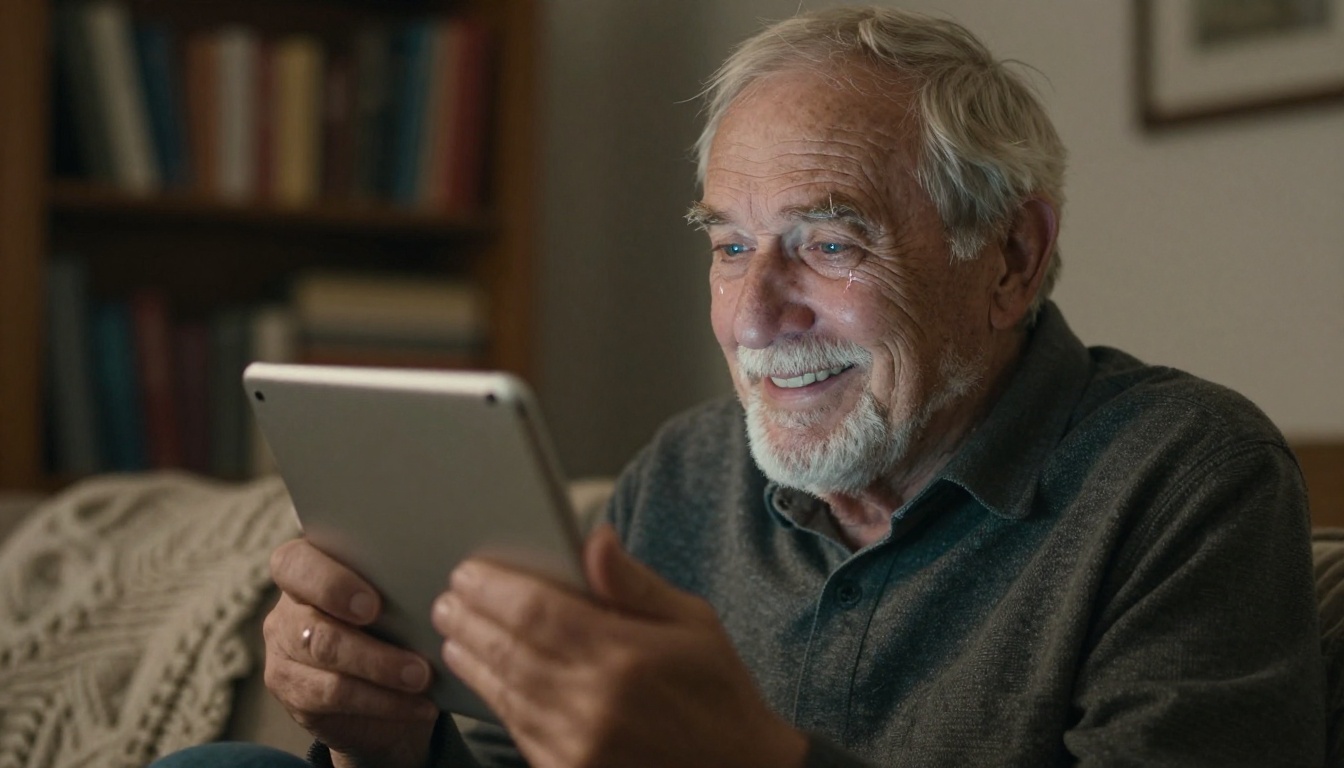
A still photo asks you to remember. A moving one lets you watch. When an old portrait of your father at twenty suddenly turns toward the lens and half smiles, your brain stops reading it as an object and starts reading it as a person. That shift is why animated family photos travel through group chats faster than almost anything else, and why people who try it once tend to work through the entire shoebox.
What the AI Actually Does
Image-to-video models treat your photo as the opening frame of a clip. From there, the model predicts what motion would plausibly follow: a head turn, a blink, hair lifting in a breeze, a hand relaxing. It does not know who the person is. It reads shapes, lighting, and posture, then invents a believable next five seconds.
That is why small motions win. A prompt asking for a gentle smile gives the model a narrow, safe target. A prompt asking a person to "dance and wave" forces it to invent a whole body that was never in the frame.
What It Cannot Do
An animation cannot bring back facts the photo never held. The back of a head, a hand hidden in a pocket, the true color of a dress in a black and white print: the model fills all of these with guesses. For a family archive, treat the clip as an interpretation of the photo, not a record of how the person really moved.
💡 Rule of thumb: If the face is clear and a reasonable size in the original, animation works well. If the face is a smudge of four pixels, no model will invent the person you remember.
Prep Your Photo First
Garbage in, wobble out. Ten minutes of preparation decides whether the face stays stable for all five seconds or melts around second three.
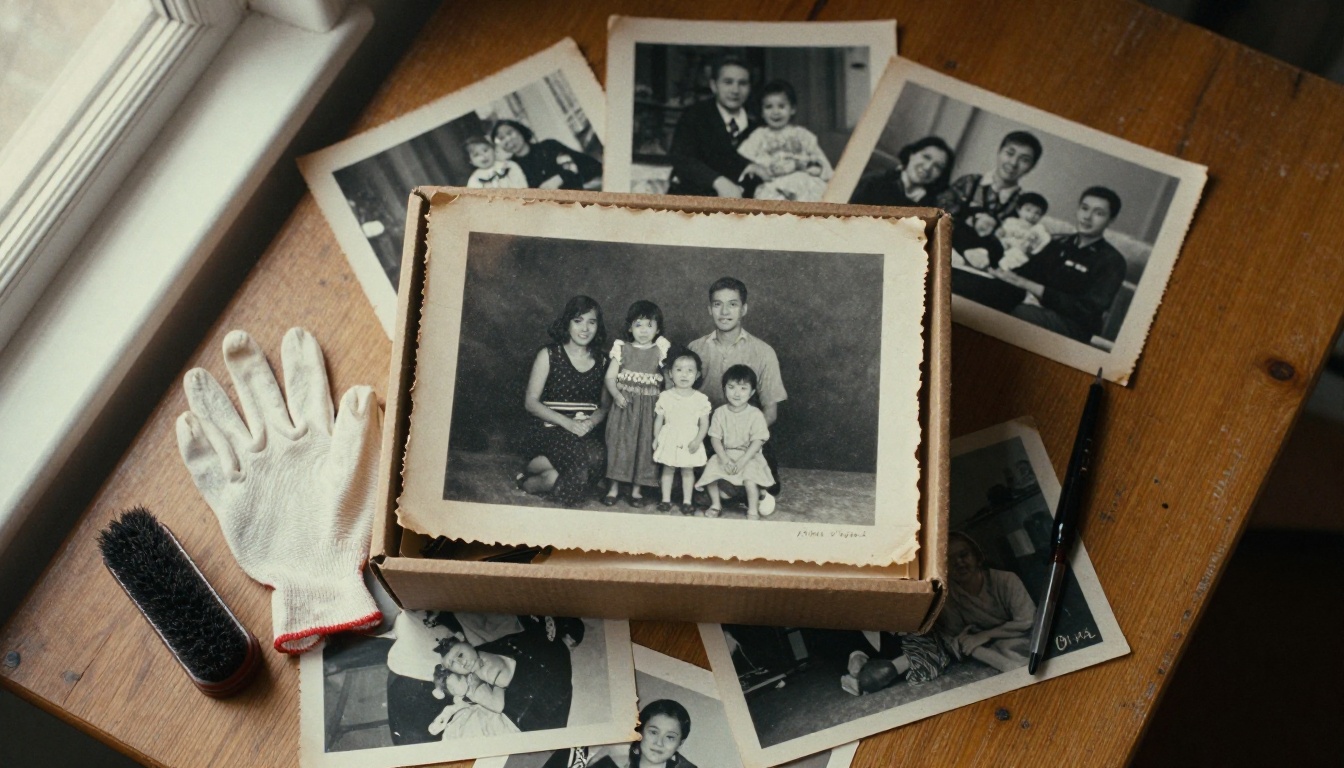
Start by choosing the right photo. The best candidates share four traits: a face that is large in the frame, eyes that are open and visible, even lighting without a harsh shadow across the nose, and a head that is turned no more than about forty-five degrees from the camera. Profiles and photos where the subject squints into the sun still work, but they take more attempts. When in doubt, pick the portrait where the person looks most like themselves.
Scan or Photograph It Right
You have two sensible options, and both beat a quick snap under a ceiling light.
| Method | Best for | Settings | Watch out for |
|---|
| Flatbed scanner | Loose prints, small photos | 600 dpi, color mode even for black and white, high quality JPG or PNG | Dust and fingerprints on the glass |
| Phone camera | Framed pictures, album pages, fragile prints | Daylight near a window, phone parallel to the print, flash off | Glare, tilted edges, shadows from your own arm |
Wipe the scanner glass with a dry microfiber cloth first. Specks you cannot see become dark spots that a video model may animate as if they belonged to the face. Place the print flush against the corner of the glass and close the lid gently.
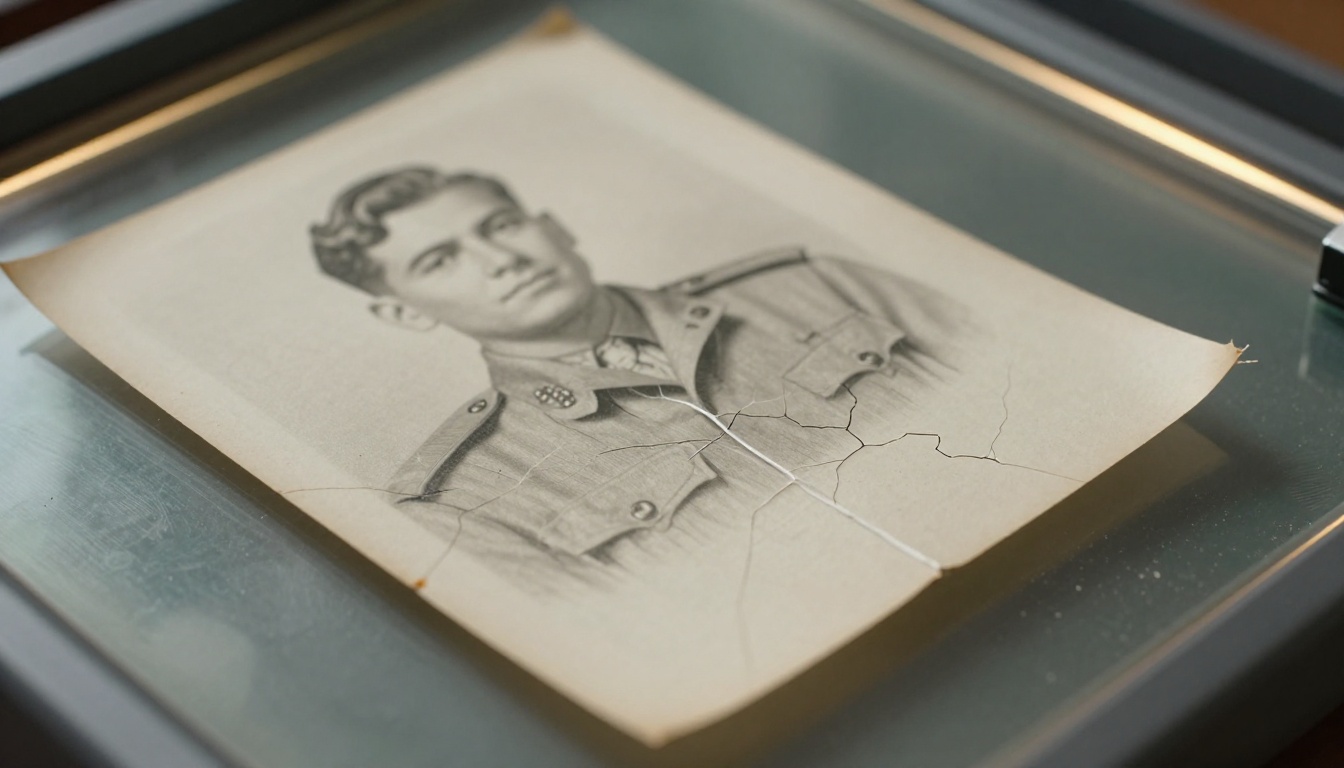
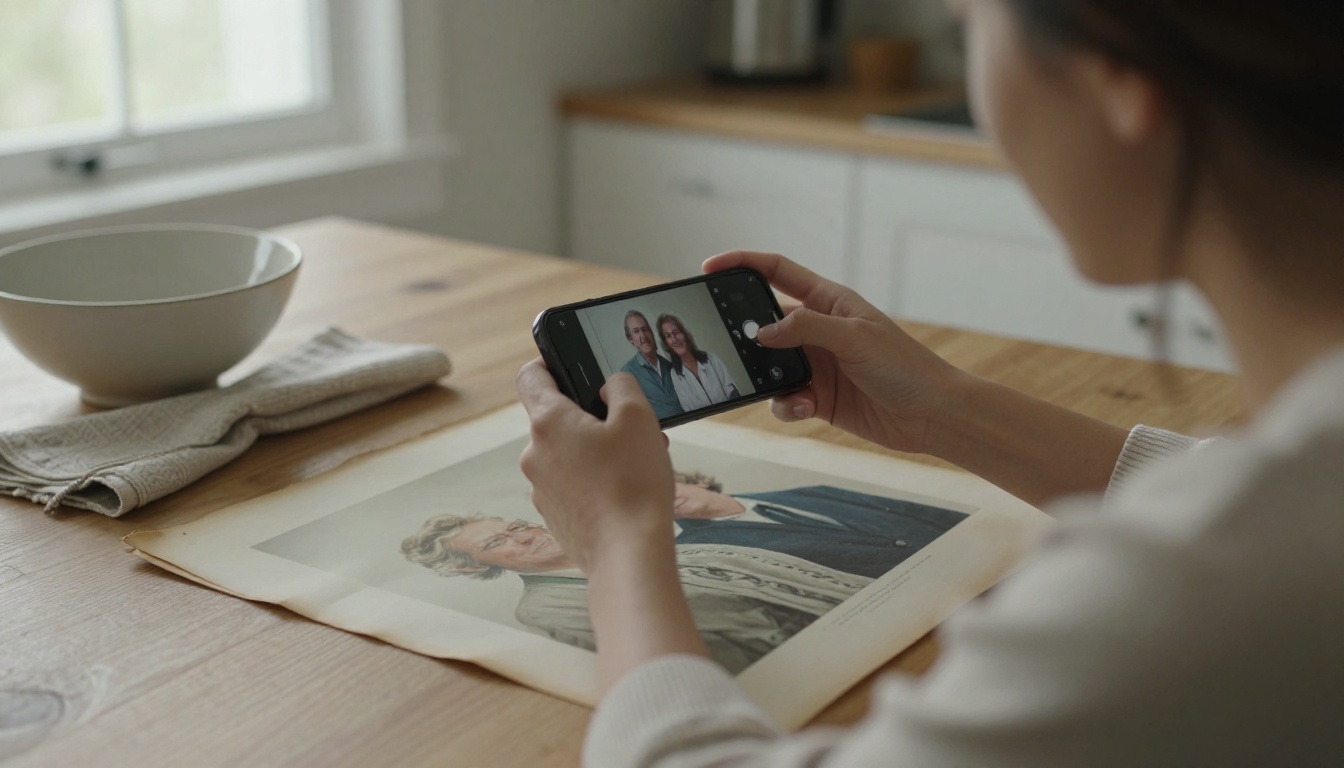
Prints stuck to album pages, or sitting behind glass in a frame, should stay where they are. Photograph them with your phone instead, and keep the camera perfectly parallel to the surface.
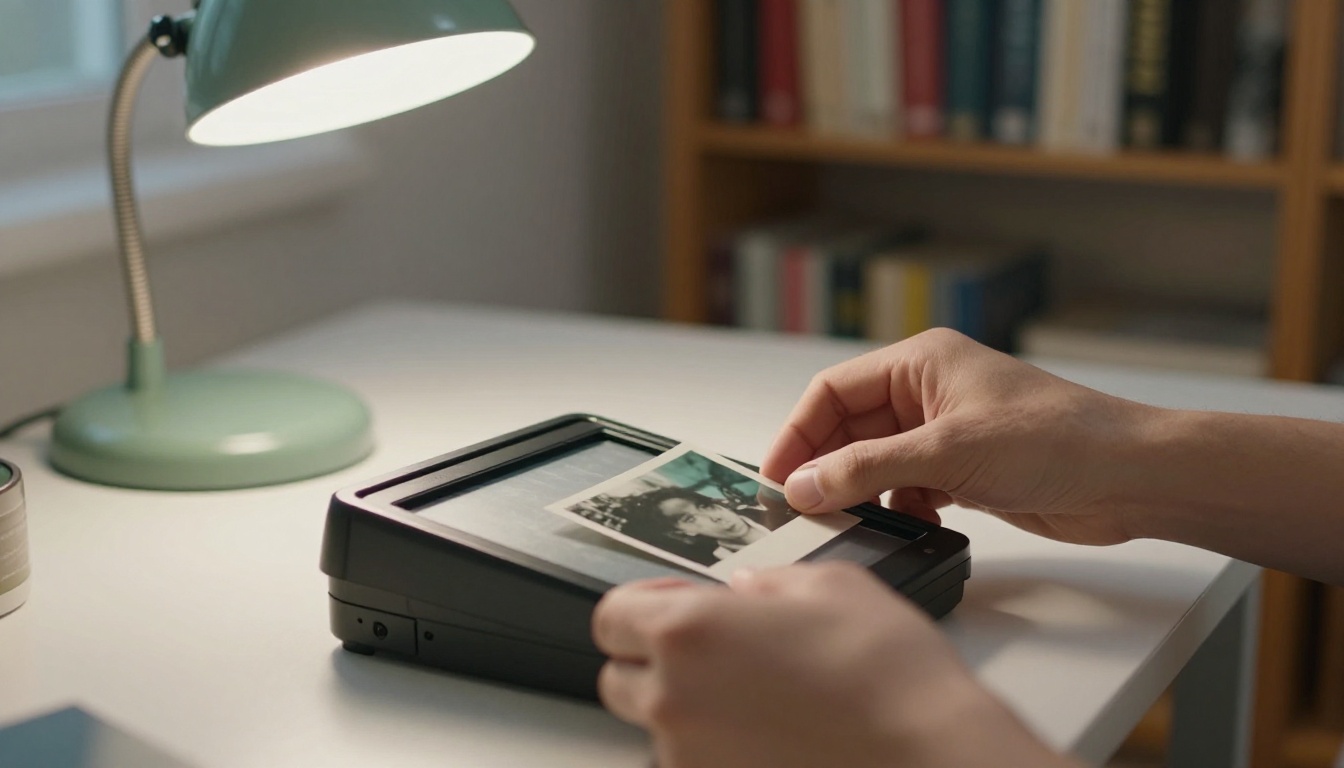
Stand beside a window, never in front of it, so your shadow stays off the print. Turn the flash off, because it bounces straight back as a white blob across glossy paper.
Fix Damage and Upscale First
Cracks, creases, and stains are the biggest source of flicker. The model treats a white fold line across a cheek as a real feature, and it may wiggle that line from frame to frame. Retouch the worst damage with the healing brush in any photo editor first. For portraits, an upscaler such as Crystal Upscaler, which its page describes as built for enlarging portraits up to 4x, also smooths out grain without erasing the face.
Small files need a second fix. Picasso IA Video renders at up to 720p, which is 1280 pixels wide. A scan narrower than that gives the model less detail than the output needs, so enlarge it first. Three upscalers on PicassoIA handle most family photos:
💡 Tip: Upscale once, never twice. Running the same photo through two upscalers stacks artifacts, and skin starts to look waxy.
PicassoIA hosts dozens of image-to-video models. For old family photos, three do most of the work, and each one has a different strength.
Picasso IA Video, Free and Unlimited
Picasso IA Video is the native model and the best place to start. Its model page describes it as free and unlimited. You give it an image and a prompt, and it returns a 5-second clip at 24 frames per second with synchronized audio. Resolution is 480p for fast drafts or 720p for sharper output. Your photo becomes the opening frame, and the clip inherits its aspect ratio.
Seedance 2.5 Lite for Longer Clips
Seedance 2.5 Lite is the lightweight edition of Seedance 2.5 and runs at 480p and 720p. Its big difference is duration: you can pick 5 or 10 seconds, so a slow smile has room to build. You can also set a closing frame to decide where the motion ends. Wonder members run it without limits, so check your plan on the model page before you count on it.
Wan 2.7 I2V for Sharper Output
Wan 2.7 I2V reaches 1080p and lets you pin both the first and the last frame. It also accepts an audio file and times the motion to it, which suits a recorded voice message from a relative. A negative prompt field lets you rule out motion you do not want, such as camera shake.
| Model | Max resolution | Clip length | Standout feature |
|---|
| Picasso IA Video | 720p | 5 seconds | Free and unlimited, audio on by default |
| Seedance 2.5 Lite | 720p | 5 or 10 seconds | Optional last frame, longer shots |
| Wan 2.7 I2V | 1080p | 5 seconds | First and last frame control, audio sync |
If one photo refuses to animate well, run the same image through Kling v2.1 or Hailuo 2.3 Fast. Different models read faces differently, and a second opinion costs one more render.
How to Use Picasso IA Video
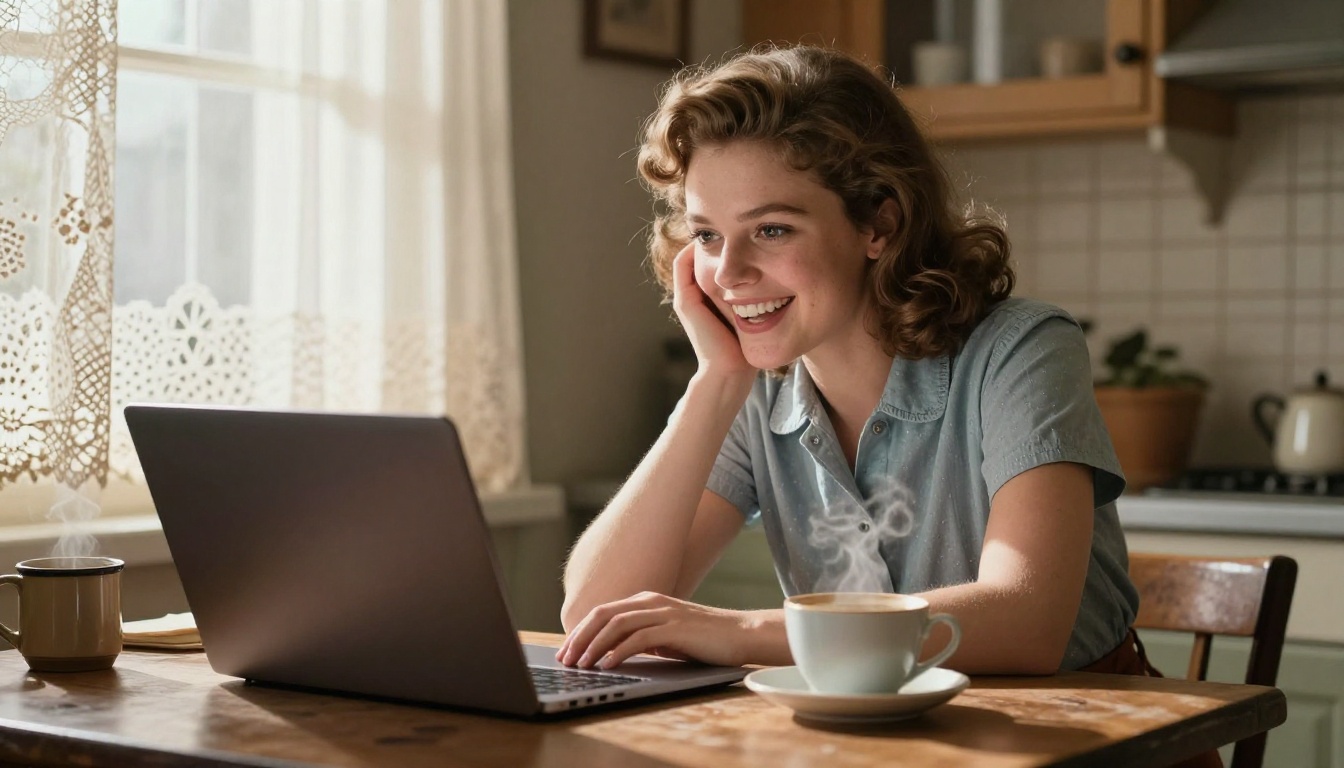
The whole workflow fits on one screen. Here is the order that gives the cleanest results.
- Open the Picasso IA Video page and sign in.
- Upload your prepared photo in the Input image field. Crop it first, because the clip matches the image's aspect ratio.
- Paste a short prompt describing one motion (examples below).
- Choose 720p for the final render, or 480p for quick drafts.
- Leave Save audio on for a first test. Turn it off later if you plan to add a real family recording.
- Press generate. One example render on the model page took about 40 seconds.
- Watch it twice. If the face holds steady, download it. If not, change one setting and run it again.
Settings that matter: most of the form can stay on its defaults. These four are worth a conscious choice.
| Setting | Recommended value | Why |
|---|
| Resolution | 720p | Sharper faces; 480p only for drafts |
| Aspect ratio | match input image | Ignored anyway when you upload a photo |
| Seed | Empty at first, then locked | Lock it once you like a take so you can reproduce it |
| Save audio | On for tests, off for final | Generated sound will not match the real voice of your relative |
💡 Tip: Change one thing per attempt. If you adjust the prompt and the seed at the same time, you will never know which change fixed the face.
Prompts That Work for Family Photos
One rule handles nearly every case: one subject action, one camera move, one lighting note. Anything beyond that invites the model to improvise, and improvisation is where faces drift.
Single Portraits
Portraits are the easiest win. Try: "The woman slowly turns her head to look at the camera, her hair gently swaying. She breaks into a warm, natural smile. Soft window light, shallow depth of field." That phrasing mirrors an example on the model page, and it works because it asks for a turn and a smile, nothing else.
Couples and Wedding Photos
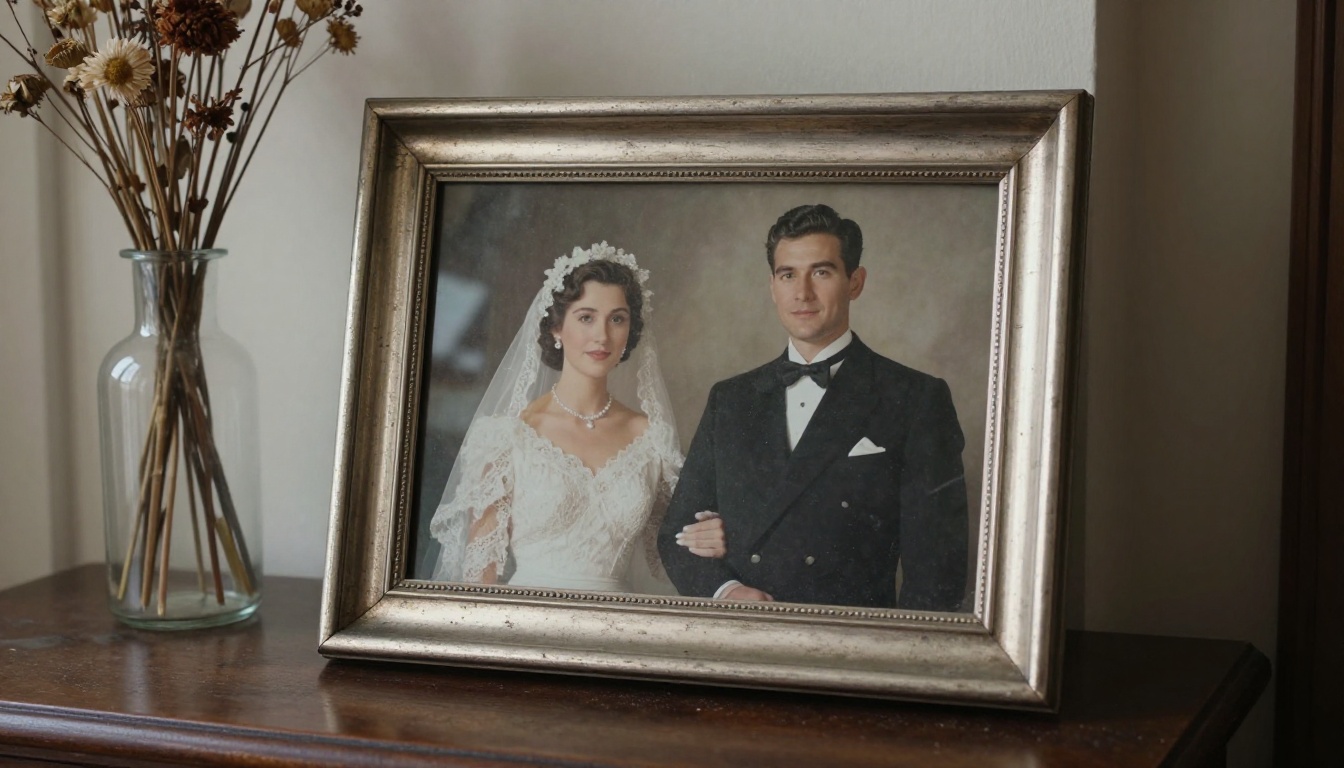
Two faces double the chances of drift, so keep the motion even smaller. Try: "The couple stands still while the bride glances up at the groom and smiles. A slight breeze moves her veil. The camera pushes in very slowly." Wedding portraits are often formal and stiff, which actually helps: the model has a calm baseline to work from.
Group Photos and Children
Groups are the hardest category. The more faces in the frame, the more likely one of them warps. Ask only for ambient life: "Everyone holds their pose while a few people blink and smile naturally. Leaves move in the background. Static camera." If one face still breaks, crop the photo to the two or three people who matter most and animate each crop separately.
Landscapes and Old Homes
Photos of a farmhouse, a street, or a garden need no faces at all. Try: "Clouds drift slowly over the roof, the curtains move in the breeze, and the light shifts softly. Static camera." These clips almost never fail, which makes them a good warm-up.
| Photo type | Motion to request | Motion to avoid |
|---|
| Single portrait | Head turn, blink, small smile | Walking, waving, talking |
| Couple | Glance, slight lean, veil or hair movement | Kissing, dancing |
| Group | Blinks, background movement | Anyone leaving the frame |
| Landscape or house | Clouds, curtains, light shift | Fast camera moves |
Fixing Common Problems
Faces Drift or Warp
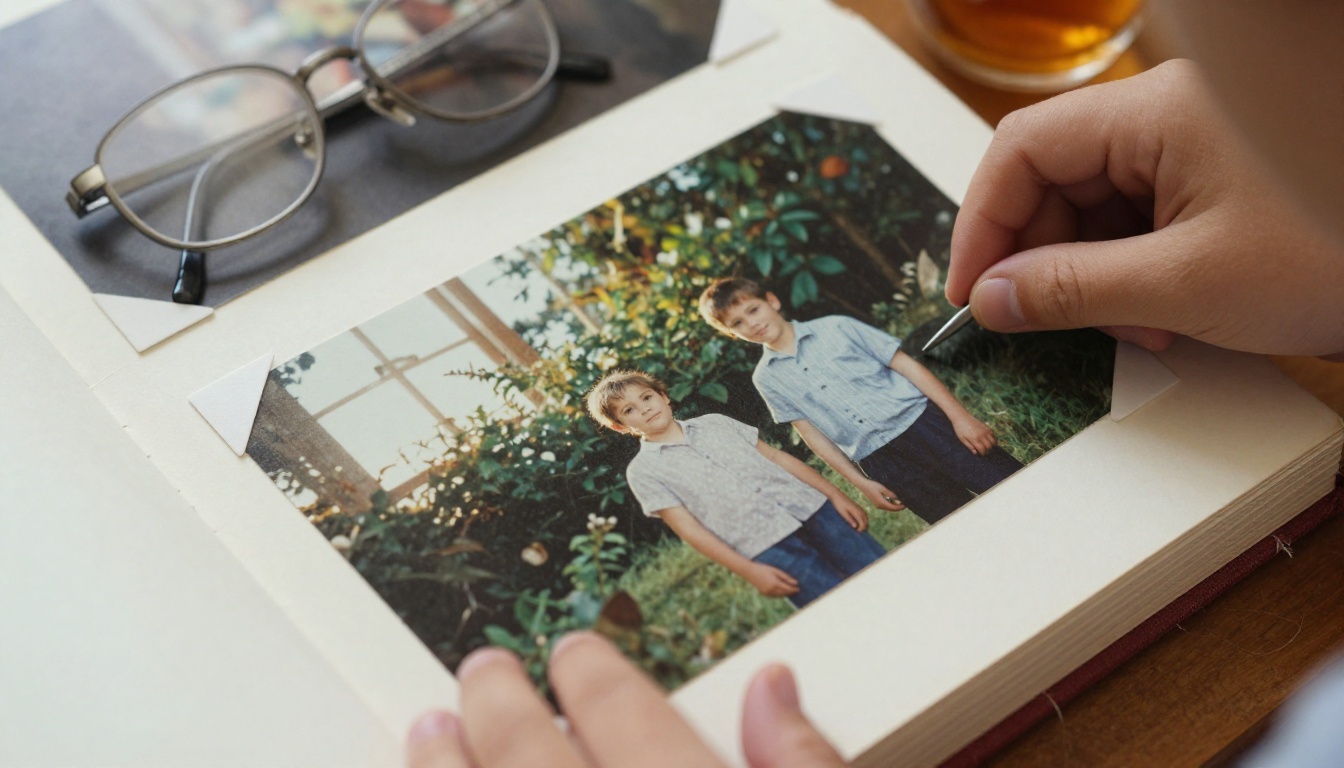
Most of the time the cause is a prompt that asks for too much, or a source photo with a tiny face. Shorten the prompt to a single action, enlarge the photo, and try again. If the face still melts, crop tighter so the face fills more of the frame.
Too Much Motion
If the clip looks restless, add the words "very slow", "subtle", and "static camera" to the prompt. Then lock the seed on the calmest take and vary only the wording from there.
Color, Grain, and Sound Issues
Black and white photos sometimes pick up a color tint during rendering. Add "black and white photograph, fine film grain" to the prompt to keep the original look. If you have old film footage rather than a still, Deoldify Video is built to colorize old videos, and it pairs well with the stills you just animated.
Sound is the other surprise. Generated audio is ambient and generic, and it will not carry your grandfather's real laugh. For a keepsake clip, turn Save audio off, then lay a real voice message or a favorite song under it in any video editor. Even a ten-second phone recording of a relative telling the story behind the photo turns a pretty clip into something the family keeps.
Handle Memories With Care
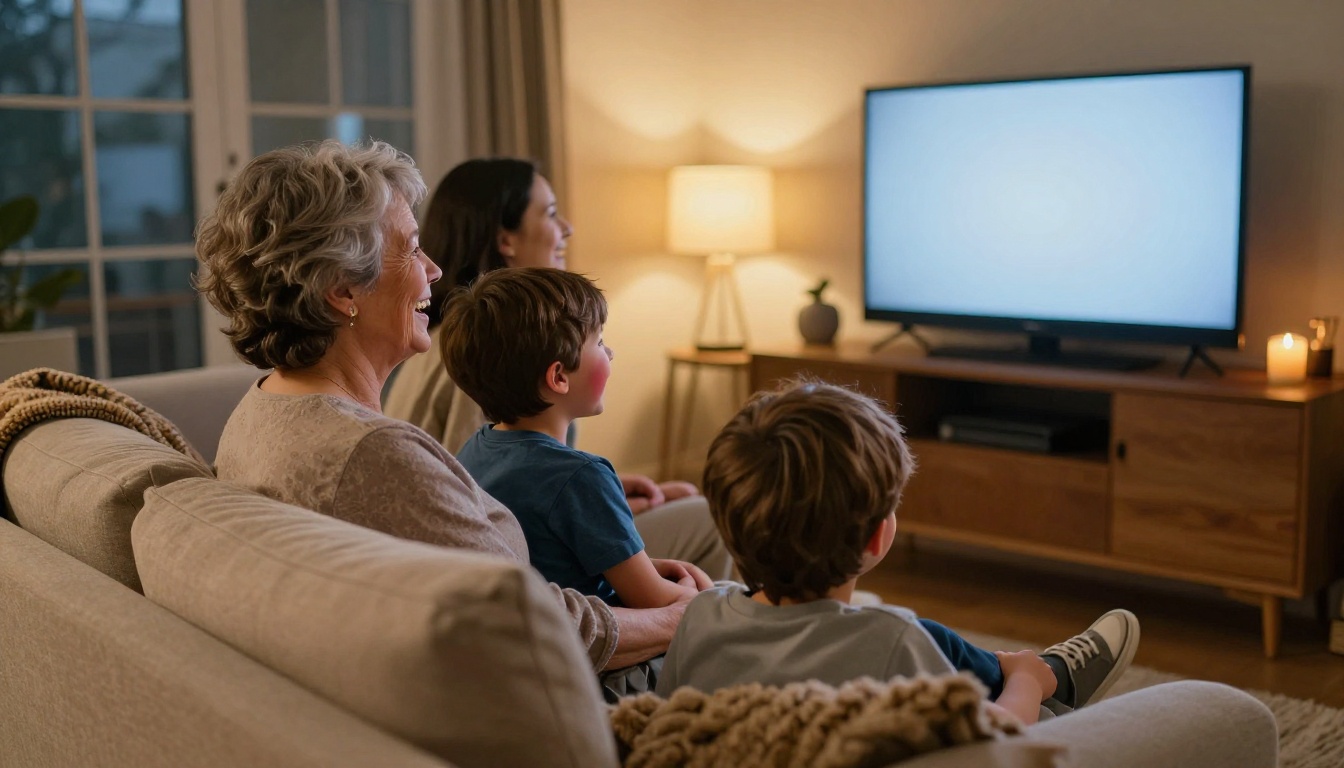
Animating a photo of someone who has passed is moving territory, and it deserves a little thought before you press share.
Ask Before You Share
Some relatives will be thrilled. Others will find a moving version of a lost parent unsettling, and both reactions are normal. Show the first clip privately to the person closest to the subject, and let them decide how widely it travels. If the photo shows someone who is still alive, ask them directly before you post anything.
Add a short note when you share it: "Animated with AI from a 1952 photograph." That label protects the family archive, because later generations will not mistake invented motion for real footage of the person. Keep the original scan untouched in its own folder, always, and name the animated version separately so the two never get mixed up.
Try It on Your Own Photos
You do not need a project plan. Pick one photo from the shoebox, the one with the clearest face, and run it through Picasso IA Video today. Use the portrait prompt above, render at 720p, and watch what happens in those five seconds.
Then try a second model on the same image. Seedance 2.5 Lite gives you a longer shot, and Wan 2.7 I2V gives you higher resolution. Every model is listed at picassoia.com/en/all-models, so you can keep experimenting until one of them gets the smile exactly right.
Picasso IA Video is listed as free and unlimited, so the first clip costs nothing to attempt and the fifth one costs nothing either. Save the best takes, write the year and the names on the file, and send one to the person who will cry happy tears. The photo in your drawer has waited long enough, so go and make it move.


