Sora is gone, and plenty of creators are still staring at folders full of half-finished prompts. OpenAI closed the Sora app and website on April 26, 2026, then switched off the Sora API on September 24, 2026. If your workflow leaned on either one, you now need a replacement that is free or close to it, renders fast, and will not vanish next quarter. The good news: text-to-video is a crowded field, and two strong free options are sitting on Picasso IA right now. This article sorts the real choices by what you actually need: free clips, longer clips, sharper clips, or clips with sound.
What Actually Shut Down
Before picking a replacement, it helps to know exactly what disappeared. The two shutdowns hit different people, and each one calls for a different fix.
The App and Website
OpenAI ended the consumer Sora experience on April 26, 2026. The website and the mobile apps stopped working for everyone, including people with a paid plan and a library of finished clips. OpenAI told users to back up their files before its deletion window closed, so anything that was never exported is lost for good.
The API Cutoff
Developers got a longer runway. OpenAI sent its notice on March 24, 2026, then discontinued the Videos API and the Sora 2 endpoints on September 24, 2026. Any script, automation, or product that still calls those endpoints now fails. If you run a content pipeline, this is the shutdown that matters most, because swapping the engine means rewriting the request, not just opening a different tab.
For teams with an automated pipeline, the migration is mostly mechanical. List every place a Sora request is made, note the fields you relied on, such as the prompt, the duration, the size, and an input image, and map each one to the closest setting on the new model. Most of them have a direct match: prompt, duration, resolution, aspect ratio, and a first frame. What you lose is the exact look, which is why a few test runs matter more than the migration itself.
| Date | What changed | Who it hit |
|---|
| March 24, 2026 | Shutdown notice sent to developers | API users |
| April 26, 2026 | App and website closed | Everyday creators |
| September 24, 2026 | Videos API and Sora 2 endpoints discontinued | Developers and studios |
💡 Keep the prompts, not just the clips. A saved prompt can be rerun on any other model in minutes. An orphaned MP4 cannot be edited, extended, or restyled.

If you still have exports, sort them now. Group the clips by project and paste each original prompt into a plain text note beside the file name. That small habit turns a dead account into a prompt library you can reuse with any model below.
What a Good Replacement Needs
Not every alternative suits every project. Three questions narrow the field quickly.
Free Should Mean Unlimited
Plenty of "free" video tools hand out a few credits and then ask for a card. For daily work, that is a trial, not a workflow. Video needs iteration: the second and third take usually beat the first, and a counter that punishes retries pushes you to accept mediocre results. Look for models where repeated runs cost nothing.
Sound and Length
Sora 2 clips arrived with synchronized audio, so a silent replacement feels like a step backward. Length matters too. A five-second clip is perfect for a social loop or a product teaser, while a trailer-style shot needs ten seconds or more. Decide which one you need before you compare models. Resolution is the third factor. A 480p draft is enough to judge motion, while 720p and 1080p belong to the version you publish.
Image Input
Image-to-video lets you set the first frame yourself. That gives you control over the subject, the lighting, and the composition before any motion begins, and it keeps a character or product consistent across several clips. Most models below accept a starting image, which makes them far more predictable than prompt-only generation.
Free Options Worth Using Now
Two models on Picasso IA are listed as free and unlimited, and both fit the Sora replacement job for short clips.

The Five-Second Workhorse
Picasso IA Video is the platform's own text-to-video model, and its page describes it as free and unlimited. You write a scene, or upload a photo as the opening frame, and it renders a finished clip with synchronized audio. Every clip runs 5 seconds at 24 frames per second, which keeps results predictable from one run to the next. You can pick 480p for the fastest render or 720p for sharper output, choose landscape, vertical, or square ratios, and lock a seed to repeat a result.
This is the model to reach for when you need volume: social clips, animated storyboards, product teasers, or background loops. The fixed format is a feature. You never wonder why one clip came out longer than the last.
Ten Seconds Without a Counter
Seedance 2.5 Lite is the lightweight edition of Seedance 2.5, built for people who generate video every day. Wonder members run it without limits, and each clip can last 5 or 10 seconds with synchronized audio on by default. It renders at 480p and 720p, which suits social feeds, ads, and web pages. It also accepts an optional first frame and an optional last frame, so you can tell the model where the shot starts and where it should end.
Ten seconds gives a shot room to breathe. A slow push toward a subject, a person crossing a room, or a landscape that changes light all fit comfortably, and they would feel cramped in five.

💡 Test cheap, finish sharp. Iterate at 480p, where renders arrive fastest, then rerun the winning prompt and seed at 720p for the final clip.
Stronger Models for Longer Clips
Free models handle most daily work. When a project needs higher resolution or longer takes, a few other models on the platform are worth testing. The specs below come from each model's listed page, so check that page for current limits before a big run.
A practical way to use this tier: write one prompt, run it on a free model first, and send it to a heavier model only if the motion is right but the sharpness is not. That order saves time, because motion problems show up at any resolution.
Sharp 1080p From Text
Wan 3 turns a prompt or a single image into a clip at 480p, 720p, or 1080p, with lengths up to 30 seconds. It also offers a negative prompt field, automatic prompt expansion for short prompts, and seed control. Its page says you can try it free online. Wan 3 Prime is the sibling listed for 1080p video from text, and it deserves a side-by-side run when Wan 3 gives you a look you almost like.
Longer Takes and Motion Control
Seedance 2.5 is the full version of the model behind the Lite option, and its page lists videos up to 30 seconds. Kling v3 Omni Video generates 1080p video from text. When you already have a character photo and a reference motion, Kling v3 Motion Control animates that character instead of inventing a new one.
Native Audio and HDR Looks
Veo 3.1 produces 1080p video from text, and Veo 3.1 Lite is listed with native audio. For a filmic, high dynamic range look, Ray 3.2 is listed for cinematic text-to-video with HDR. Gemini Omni 1.1 is another option when you want video and sound generated together.
💡 Free and unlimited applies to two models. Picasso IA Video and Seedance 2.5 Lite are the ones described that way. For every other model, check its page for current limits before you queue a batch.
Side by Side Comparison

| Model | Best for | Listed spec | Cost note |
|---|
| Picasso IA Video | Fast social clips and teasers | 5 seconds, 24 fps, 480p or 720p, audio | Free and unlimited |
| Seedance 2.5 Lite | Daily iteration and longer beats | 5 or 10 seconds, 480p or 720p, audio | Unlimited for Wonder members |
| Wan 3 | Sharp cinematic text-to-video | Up to 30 seconds, up to 1080p | Free to try online |
| Seedance 2.5 | Long single takes | Up to 30 seconds | Check the model page |
| Kling v3 Omni Video | Sharp text-to-video | 1080p | Check the model page |
| Veo 3.1 | Polished 1080p from text | 1080p | Check the model page |
| Ray 3.2 | Filmic HDR looks | Cinematic text-to-video with HDR | Check the model page |
Read the table as a starting order, not a ranking. Begin with the two free models, which cost nothing to test, then move up only when a specific project demands more length or resolution. If you are unsure where a project belongs, this matching helps:
How to Use Seedance 2.5 Lite
Seedance 2.5 Lite is the closest free match for the Sora habit of describing a shot and getting back a clip with sound. Here is the path from blank prompt to finished video on Picasso IA.
Open the Model Page
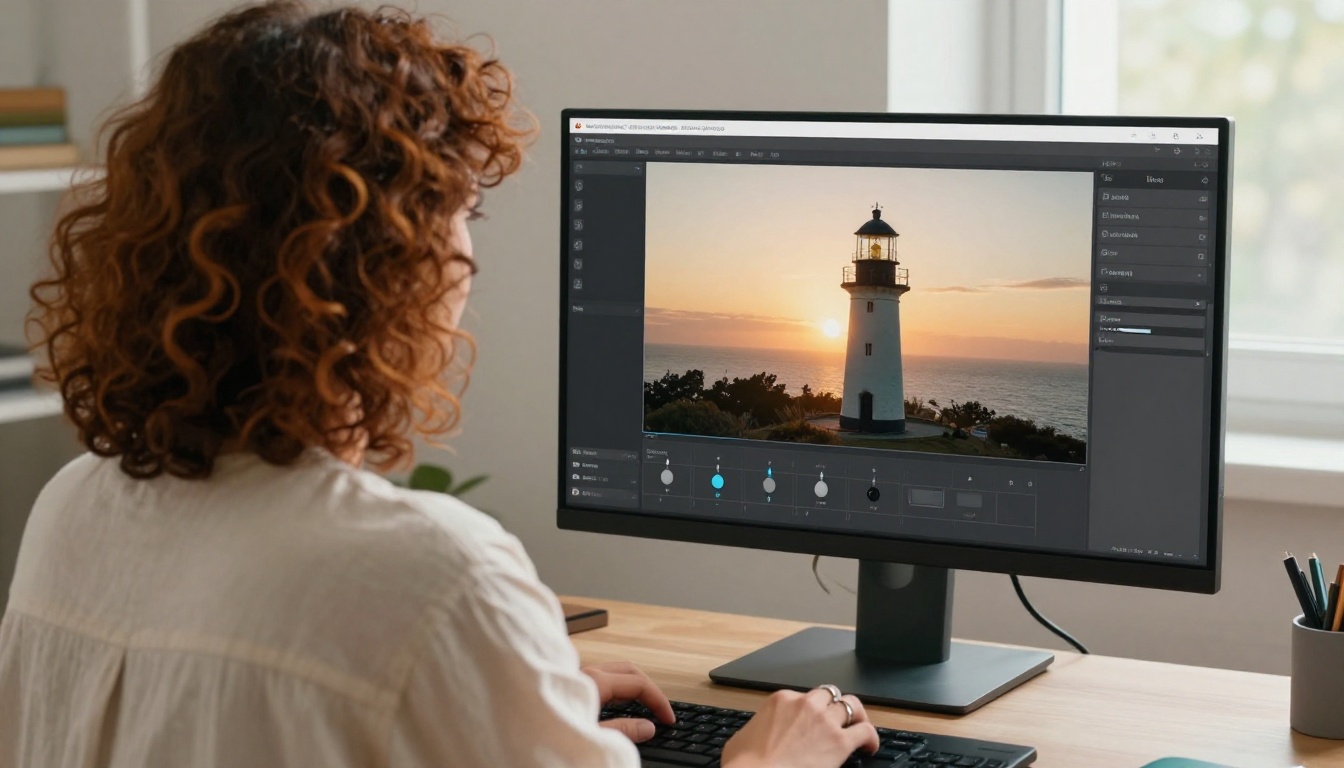
Go to the Seedance 2.5 Lite page and write a prompt. The prompt is the only required field. The page recommends cinematic, chronological descriptions, so write what happens first, then what happens next, then how the camera moves.
Choose Duration and Resolution
Set the duration to 5 seconds for a quick beat or 10 seconds for a full action. Resolution defaults to 720p, and 480p renders faster for drafts. Pick 16:9 for landscape, 9:16 for vertical, or 1:1 for square. Leave the aspect ratio on its default if you plan to use a first frame, because the clip then inherits the shape of your image. Keep the audio option on unless you need a silent clip.
Add a First Frame
Upload an image to use as the opening frame. For tight control, build that image first with a text-to-image model such as Seedream 4.5 or GPT Image 2, then animate it. If you also add a last frame, the clip travels from the first image to the second, which is handy for reveals and before-and-after shots.
Keep the two prompts separate in your head. The image prompt carries the look: a ceramic bowl on a wooden shelf, warm window light, 50mm lens, shallow depth of field, natural film grain. The video prompt then describes only movement, such as a pair of hands lifting the bowl and turning it slowly toward the camera. Because the image already holds the style, the video prompt can stay short.
Here is the routine that saves the most time:
- Write a chronological prompt with one scene and one camera move.
- Pick 5 seconds while you test.
- Render at 480p and watch for motion problems.
- Lock the seed of the take you like.
- Rerun the same prompt and seed at 720p, or at 10 seconds if the shot needs more room.
💡 Reuse seeds on purpose. A locked seed with a small prompt change is the fastest way to adjust one detail without losing the rest of the shot.
Prompts That Work Without Sora
Good news for anyone with a Sora prompt archive: the shot-by-shot style carries over well. The models on Picasso IA ask for the same thing, a scene told in order.
Write in Time Order
Use four parts, in this order: subject and starting pose, motion over time, camera movement, and light and atmosphere. Here is one example:
A potter lifts a wet clay bowl from a spinning wheel, turns it slowly in both hands, then sets it on a wooden shelf. Slow dolly-in from chest height, warm window light from the left, shallow depth of field, soft ambient workshop sound.
A few habits keep results clean:
- One scene per clip. Five or ten seconds is not enough for a story with three locations.
- One camera move. A dolly-in, a pan, or a handheld follow. Stacking three moves confuses the motion.
- Name the light. "Warm window light from the left" beats "nice lighting" every time.
- Mention sound. For models that generate audio, a short phrase like "distant rain on glass" gives the soundtrack a direction.
Mistakes When Switching Tools

Moving from one video model to another is easy to get wrong in small ways. These five mistakes cause most of the frustration:
- Expecting an identical look. Every model has its own color and motion habits. Treat an old prompt as a first draft and adjust the style words.
- Skipping the seed. Without a locked seed, a good result is hard to repeat or fine-tune.
- Starting at the highest resolution. Test cheap and fast, then finish at the final quality.
- Packing several scenes into one clip. Short clips reward a single clear action.
- Deleting the old prompts. They are the one asset the shutdown could not take from you.
Make Your First Clip Today
You do not need a new subscription or a perfect plan to get moving again. Pick one shot you had queued before the shutdown, open Picasso IA Video, and run the prompt. Then run the same prompt on Seedance 2.5 Lite at 10 seconds and compare the two takes side by side.
Want tighter control? Create a first frame as an image, animate it, and keep the seed that works. Every model mentioned here lives in the full Picasso IA model library, so you can swap engines without rebuilding your workflow. Start with one clip, keep the prompt, and let the results show you which model earns a permanent spot in your routine.


