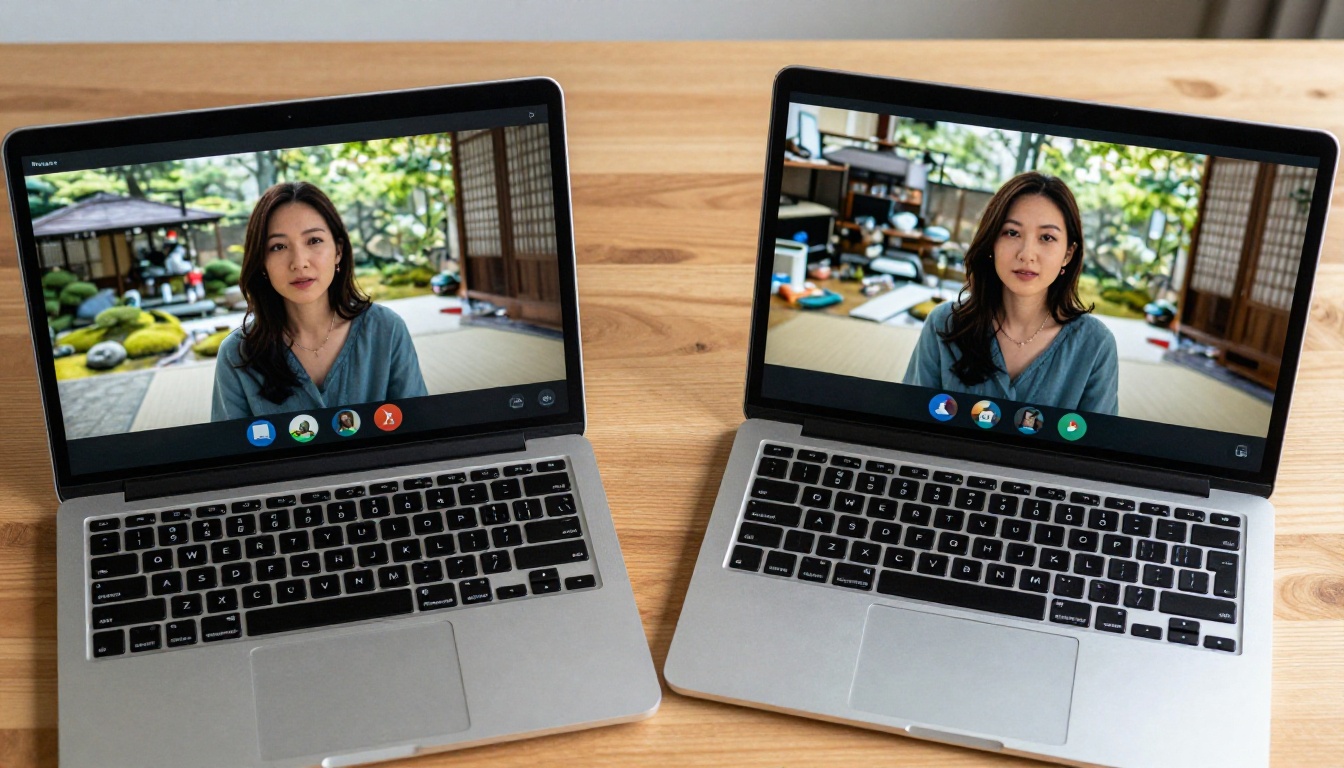
Your background is the first thing people judge on a video call, often before you even say a word. It frames your face, signals your professionalism, and shapes how others interpret what you say. Yet most people show up to important meetings in front of cluttered bookshelves, laundry piles, or worse, a chaotic bedroom door. AI changes that instantly. With modern AI background swapping, you can replace any environment in real time, no green screen, no fancy studio, no expensive lighting rig required.
Why Your Video Call Background Actually Matters
Saying "nobody notices the background" is wishful thinking. Research on visual communication consistently shows that context cues influence how we perceive a speaker's competence and credibility. On video calls, your background is the context.
The Psychology Behind First Impressions on Camera
Within seconds of joining a call, viewers form judgments based on what they see around you. A tidy, neutral background signals organization. A professional setting, whether real or AI-generated, implies you take the meeting seriously. Conversely, a distracting background pulls focus away from your message. The viewer's brain is wired to process the full visual scene, not just your face.
💡 Studies on Zoom fatigue found that visual noise in the background is one of the primary cognitive stressors during video calls. Removing it helps everyone concentrate.
What a Messy Background Says (It's Not Good)
This is not about judgment. Everyone has a real life, and real homes are lived in. But on a professional call, a visible pile of dishes or unmade bed signals a lack of preparation, even if your actual work product is excellent. A virtual background video call setup eliminates this entirely. Your environment becomes irrelevant because AI handles it for you.
How AI Background Swapping Works
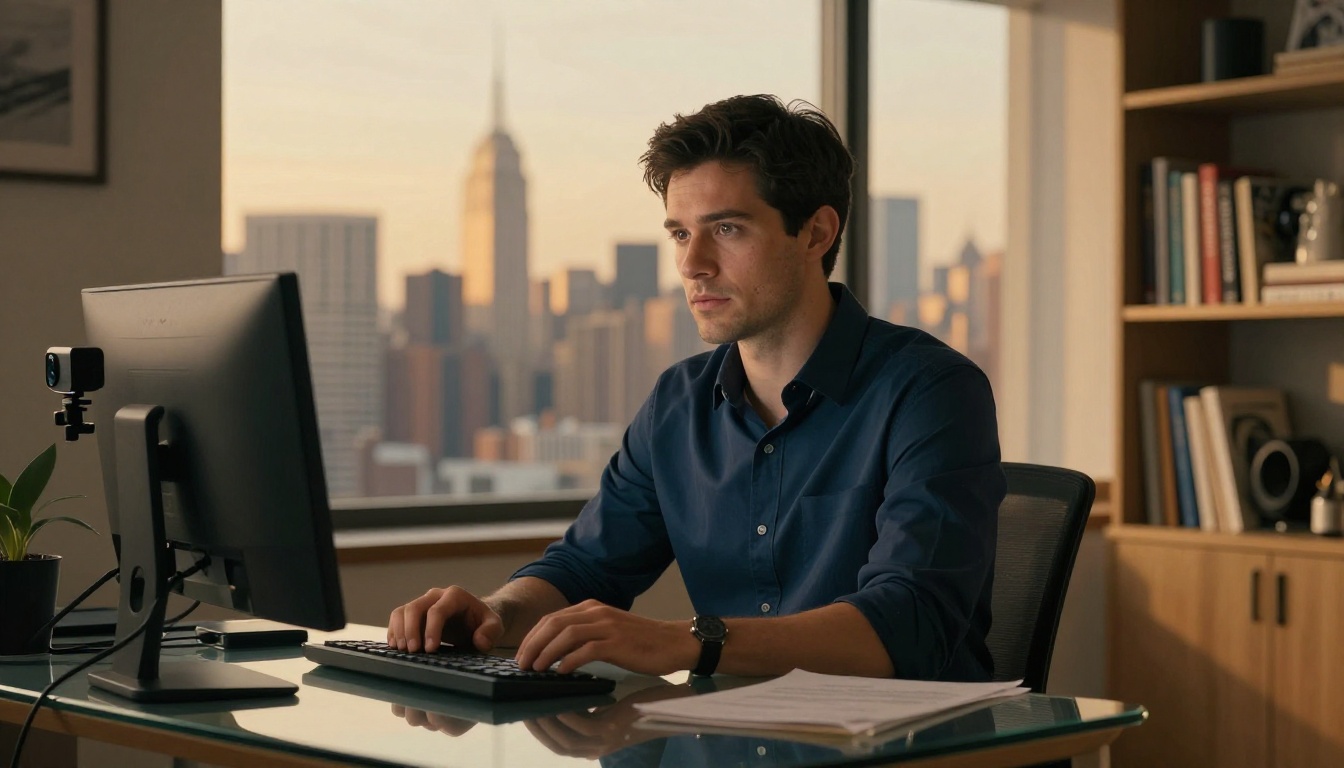
The technology behind AI background replacement has matured dramatically over the past few years. What once required professional chroma key setups now runs in a browser tab.
The Tech Driving Real-Time Background Removal
Modern AI background tools use semantic segmentation, a deep learning process that identifies and separates the foreground subject (you) from the background, pixel by pixel, in real time. The AI model is trained on millions of images to distinguish human silhouettes from any environment behind them. Once isolated, your background can be replaced with any image or color you choose.
The quality depends heavily on the underlying model. Consumer-grade tools (like built-in platform blurs) use simpler, faster models. Dedicated AI-powered background swap tools, especially those built on advanced segmentation architectures, produce far cleaner edges, especially around complex shapes like hair.
AI vs. Built-in Platform Blur: What's the Difference
| Feature | Built-in Platform Blur | Dedicated AI Tool |
|---|
| Hair edge accuracy | Moderate | High |
| Custom image backgrounds | Limited | Full control |
| Works without webcam | No | Yes (photo editing) |
| Offline capability | No | Often yes |
| Background variety | Platform presets | Unlimited |
The gap is most visible around hair. Zoom's blur does a decent job, but fine hair strands often bleed into the background. A purpose-built background segmentation AI model cuts precisely around individual strands.

Best Backgrounds to Use for Professional Calls
Swapping the background is only half the equation. The background you choose matters just as much as removing the real one.
Office Environments That Signal Authority
A clean, minimal office interior, bookshelves with organized books, a plant or two, neutral wall color. This is the gold standard for professional video conferencing backgrounds. It communicates structure without being sterile. You do not need to actually have this space. AI lets you appear in front of one regardless of your real location.
Neutral Backdrops That Never Distract
Plain colors work well. Soft grey, warm off-white, or muted sage green keep the focus entirely on your face. These are especially useful in client-facing calls where your words are the product. No design, no art, nothing that invites a question you did not plan for.
💡 Avoid pure white. It blows out the contrast around your face and can create a harsh, clinical feel. Go slightly warm or slightly grey for a more natural result.
Creative Backgrounds for Casual Contexts
For team standups, internal calls, or casual client check-ins, a well-chosen creative background shows personality without sacrificing professionalism. A mountain landscape, a city cafe window, or a cozy reading room all work well. The key: high resolution and realistic lighting. A low-quality or obviously fake background undermines credibility more than a messy real one.
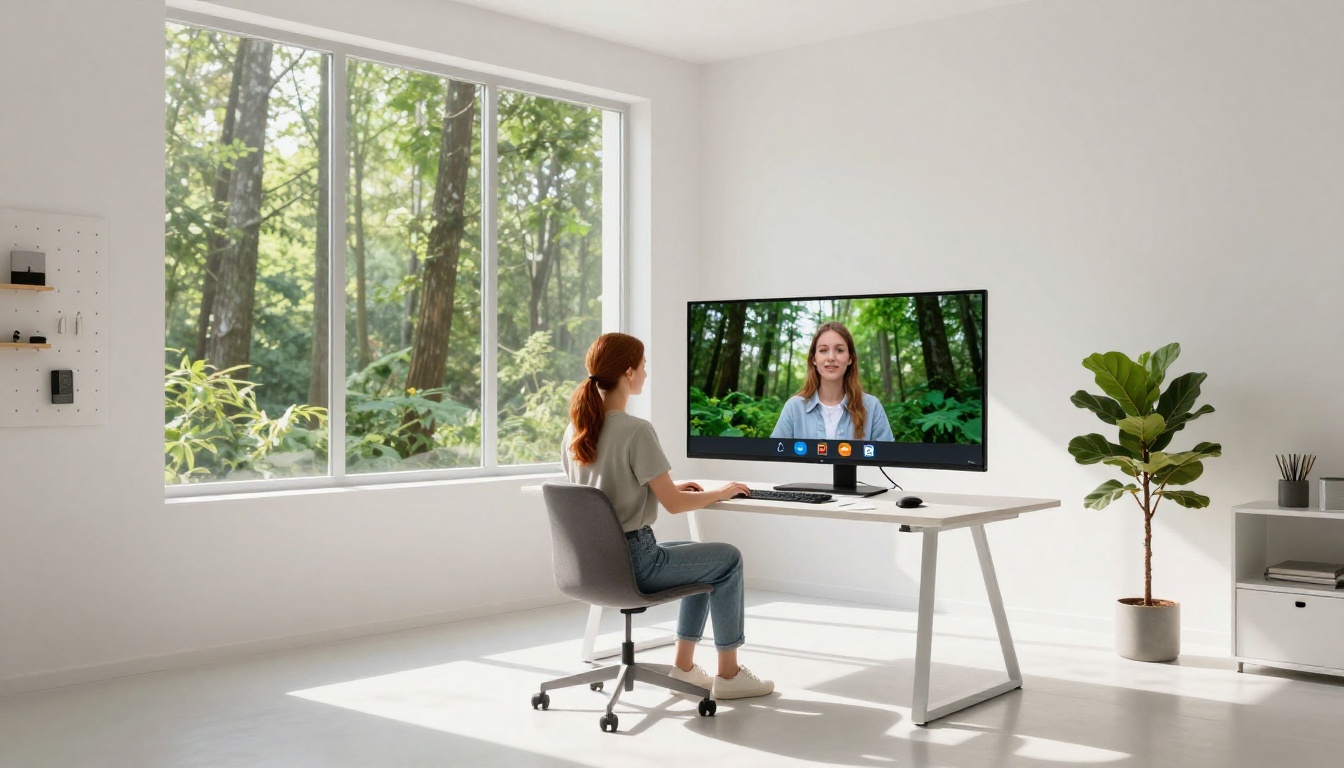
PicassoIA offers Remove Background by Bria, a dedicated AI tool that cleanly separates subjects from any background with high precision. While this is primarily used for static images (profile photos, product shots, content creation), it is extremely useful for preparing custom video call backgrounds and headshots that can then be layered over any environment.
Uploading Your Image or Webcam Frame
Start by capturing a clear screenshot or photo of yourself against your current background. Lighting matters here: face a window or a lamp. Avoid harsh overhead lighting that creates unflattering shadows. Upload this image directly to the Remove Background tool on PicassoIA.
Running the Remove Background Tool
Once your image is uploaded, the Bria Remove Background model processes it automatically. It uses advanced segmentation to detect your subject outline, handling complex edges including hair, glasses frames, and fine fabric textures. The result is a clean cutout of your subject on a transparent background.
The process takes seconds. No manual selection, no lasso tool, no erasing. The AI does the full segmentation in a single pass.
Exporting and Using Your Clean Cutout
After removal, download your PNG with transparent background. You can then:
- Layer it over any custom background in a design tool or video app
- Use it for professional profile photos on LinkedIn, email signatures, or company directories
- Create polished thumbnail assets for webinars or course content
- Combine with PicassoIA's image generation tools to create entirely synthetic backgrounds behind your real photo
💡 For recurring calls, create 3 to 5 pre-made background compositions (professional, creative, casual) and keep them ready. Swap based on the meeting type without any real-time processing.

Common Problems and How to Fix Them
Even the best AI tools hit edge cases. Here is what typically goes wrong and how to address it.
Hair and Edge Detection Issues
Fine, curly, or flyaway hair is the hardest challenge for background segmentation models. If you are seeing rough edges or missing strands:
- Improve lighting: Even, front-facing light creates cleaner contrast between your subject and background
- Use a contrasting background: A plain colored wall gives the AI clear separation to work with
- Try a different model: Some tools are optimized for portraits specifically; the Bria Remove Background model performs particularly well on hair
Background Bleeding Through
This happens when parts of your background color match your clothing or skin tone. The AI cannot distinguish between them. Solutions:
- Wear solid-colored clothing that contrasts with your background
- Move away from the wall to create natural depth (the AI uses depth cues)
- Choose a background image that does not share dominant colors with your outfit
Low Light and Poor Webcam Quality
No AI tool can fully compensate for a dark, noisy image. If your webcam background changer is producing messy results:
- Add a small desk lamp pointing at your face from slightly above and to the side
- Sit facing a window during daylight hours
- Clean your webcam lens (a surprising number of quality issues trace back to smudges)
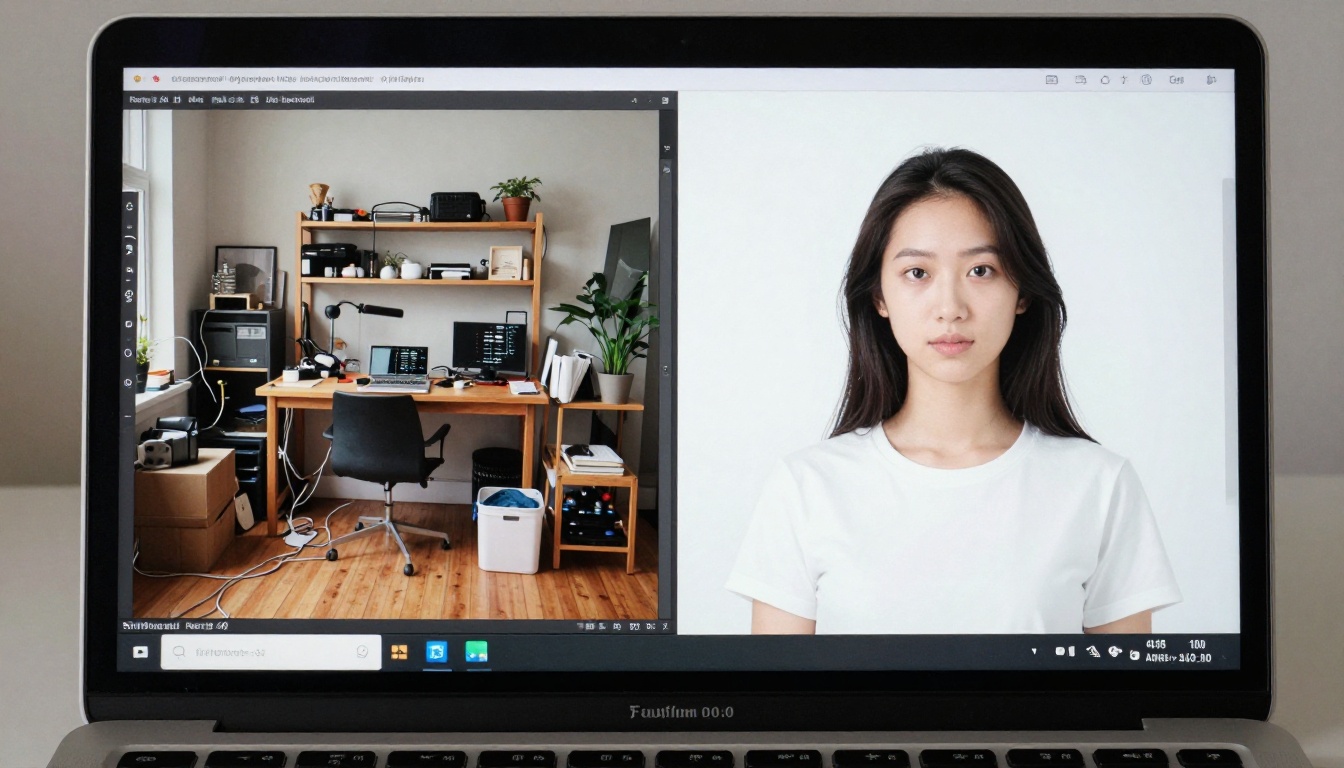
Each major platform handles virtual background video call settings differently. Here is the quick-access breakdown.
Zoom
Go to Settings (gear icon) then Background & Filters. You can upload any image as a custom background directly. For the cleanest result, Zoom recommends a physical green screen, but the AI segmentation works well in good lighting without one. Use a 1920x1080 JPEG or PNG for best resolution.
Google Meet
Click the three-dot menu (More options) at the bottom of any call, then Change background. You can blur, use preset backgrounds, or upload a custom image. Google Meet's segmentation has improved significantly and handles most scenarios reliably.
Microsoft Teams
Before joining a meeting, click Background effects in the pre-join screen. During a call, go to the three-dot menu and select Apply background effects. Teams supports custom image uploads and has a built-in blur. For enterprise environments, IT admins can pre-configure approved background options.
💡 All three platforms accept images up to around 20MB. Stick to 1920x1080 or 2560x1440 for sharp results without file size issues.

When AI Background Removal Goes Beyond Video Calls
The same technology that powers real-time background removal for calls has a much broader range of applications. Once you start using it, the use cases multiply quickly.
Profile Photos and Headshots
A clean professional headshot used to require a photography studio with a backdrop and controlled lighting. Now, take any well-lit photo, run it through the Remove Background tool, and place yourself on any background you want. The result is indistinguishable from a studio shoot when the source photo quality is good.
This is especially useful for:
- LinkedIn profile updates without booking a photographer
- Company directory photos with consistent, brand-aligned backgrounds
- Conference speaker bios where a professional headshot is expected
- Email signature photos that look polished without effort
Social Media and Content Creation
Content creators, coaches, course builders, and marketers use AI background removal constantly. Whether it is YouTube thumbnails, Instagram posts, webinar promotional graphics, or online ad creatives, the ability to isolate a subject and place them on any background opens up enormous production flexibility.
Combine the Bria Remove Background tool with PicassoIA's text-to-image generation and you can create entirely custom scenes: your real face, AI-generated backgrounds, professional results in minutes.

The Real Difference Between Good and Bad AI Cutouts
Not all background removal tools produce the same quality. The differences show up in three specific areas:
Edge sharpness: Does the tool preserve the fine outline of your subject, or does it create a soft, blurry edge that looks composited?
Hair detail: Can it detect and retain individual strands of hair, or does it treat the hair silhouette as a solid block?
Color fringing: After removal, is there any residual color from the original background visible around the edges? This is called "color fringe" and it immediately signals a poor-quality cutout.
Professional-grade models like Bria Remove Background score well on all three. Consumer-grade tools often fail on hair and show noticeable fringing on complex edges.
💡 To quickly test a background removal tool's quality, use a photo with curly or fine hair against a busy background. That is the hardest test case. If it handles that well, it will handle everything else easily.

Try It Yourself on PicassoIA
The fastest way to see what AI background swapping can do is to test it on your own photos. Take a photo, drop it into the Remove Background tool, and within seconds you have a clean subject ready to place anywhere.
From there, the possibilities open up. Swap yourself into a professional office. Build a custom background pack for different meeting types. Create polished headshots without a studio. Generate entirely new environments using PicassoIA's image tools and composite yourself into them.
Your video call presence is part of your professional brand. AI makes it effortless to control exactly what that brand looks like, regardless of where you are actually sitting. Head to PicassoIA and start building backgrounds that work for you.


