Somewhere in a closet there is a shoebox of tapes nobody has watched in twenty years, and the footage inside looks nothing like a modern phone video. The colors lean warm and a little smeared, the picture wobbles when the person holding the camera laughs, and a thin band of static crawls along the bottom edge whenever the tape gets tired. That look has a pull that crisp 4K cannot match. A VHS AI video generator workflow lets you produce it on demand, without owning a camcorder, a VCR, or a single cassette. This article breaks down what the look is made of, how to describe it so a model builds it from scratch, which models handle it best, and how to restyle footage you already shot.
Before you write a prompt, it helps to know what you are actually asking for. VHS is not one effect. It is a pile of small physical limits stacked on top of each other, and each limit leaves a fingerprint you can name in plain words.
The Soft Picture
A VHS tape stores roughly 240 lines of horizontal detail, a fraction of what a modern screen can show. Edges look soft, fine textures like hair and fabric smear into their neighbors, and bright highlights bloom into the shadows beside them. Color is stored at an even lower resolution than brightness, so reds bleed past the outlines of objects and skin tones drift toward a warm yellow or a slightly sickly green. The frame is almost always 4:3, close to square, and that proportion alone tells the viewer's eye they are looking at old footage.
Tracking Lines and Head Noise
Two defects do most of the work. Tracking errors show up as bands of horizontal static that roll up or down the picture when the tape heads drift off the recorded track. Head switching noise is a narrow strip of jitter and torn lines at the very bottom of the frame, caused by the spinning video heads handing off to each other. Neither one is pretty, and both are the first things a viewer notices when they are missing.
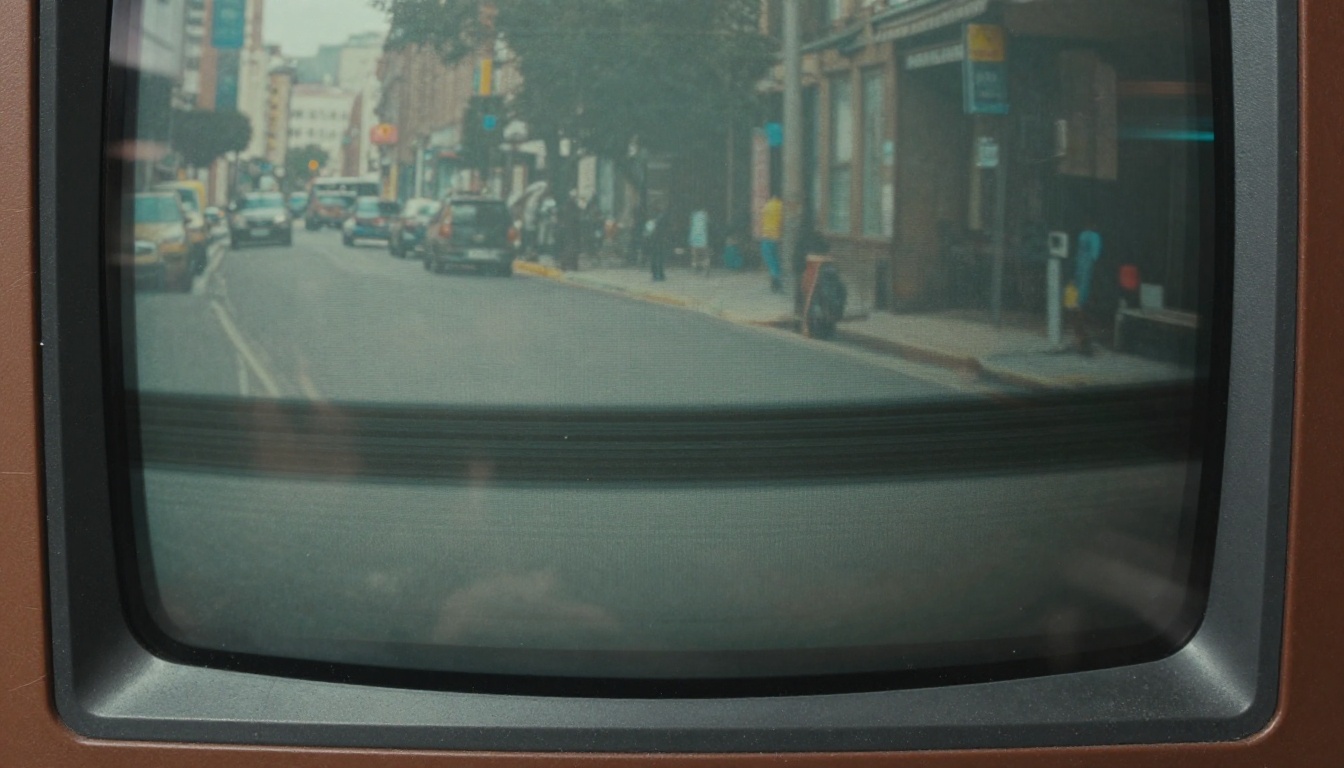
Here is a quick map from each flaw to the words that call it up in a prompt.
| VHS trait | What the viewer sees | How to word it |
|---|
| Low horizontal resolution | Soft edges, smeared fine detail | "soft focus, low resolution analog video" |
| Color bleed | Reds and blues smear past outlines | "chroma bleed, faded saturated colors" |
| Tracking error | Rolling static bands | "tracking distortion band rolling up the frame" |
| Head switching | Jitter at the bottom edge | "noisy distorted strip along the bottom edge" |
| Interlacing | Combing on fast motion | "interlaced video, slight combing on movement" |
| Tape wear | Dropouts and white flecks | "tape dropouts, white speckle noise" |
Camcorder Habits That Sell the Look
Texture is only half of it. The shooting behavior of a home camcorder matters as much as the damage. Autofocus hunts back and forth when something steps close to the lens. The picture jerks when the operator shifts their weight. Zooms are abrupt and overshoot the subject. White balance flips from orange to blue when someone walks from a lamp-lit room into daylight. The sound pumps up whenever people go quiet, because automatic gain keeps trying to catch every small noise. A tiny orange date stamp sits in a bottom corner.
Put three or four of these habits in a prompt and the clip stops looking like a filter and starts looking like a person with a camera.
Prompts That Build the Camcorder Look
Why Filters Fall Short
The quick route is to take a clean clip and run a VHS filter over it. That works for a music video intro, but it only fakes the surface. The motion underneath is still smooth gimbal movement, the lighting is still polished, and the framing is still tidy. A real home tape has a wobbling horizon, a thumb at the edge of the lens, and a subject who walks out of frame. A filter cannot invent those behaviors. A generator can, because you describe the whole shooting situation and not just the damage.
A Prompt Formula That Works
Treat the prompt like a shot list for someone holding a camcorder. Include these five parts, in this order:
- Who and where. A plain subject in an ordinary place: a kid on a driveway, a family at a picnic table.
- The camera. Name the gear: "handheld 1990s VHS-C camcorder footage, 4:3 frame".
- The movement. Shaky handheld, an abrupt zoom, autofocus drifting, the operator walking.
- The damage. Tracking line, color bleed, soft detail, tape noise.
- The sound. Muffled room tone, wind on the microphone, tape hiss, voices off camera.
Here is a full example that follows the formula:
A toddler in a yellow raincoat stomps through puddles on a suburban driveway, handheld 1990s VHS camcorder footage, 4:3 frame, shaky operator, abrupt zoom in, autofocus drifting, faded warm colors with chroma bleed, soft detail, a faint tracking line rolling up the bottom of the frame, muffled outdoor sound with wind noise on the microphone.
Words That Push the Look
Some words pull a model toward analog video, and others pull it away. Keep the first group and drop the second.
- Pull toward VHS: VHS-C, camcorder, analog, interlaced, tracking error, tape dropout, chroma bleed, date stamp, auto white balance shift, home video.
- Pull away from VHS: cinematic, 4K, ultra sharp, stabilized, bokeh, anamorphic, film look, HDR, studio lighting.
💡 Tip: Models read "cinematic" as a strong vote for polish. If a clip keeps coming back too clean, delete that word first, then add one more defect from the table above.
Date stamps deserve a warning. Video models still struggle with small, exact text, so a date that reads correctly in one clip may turn into a smear in the next. When the number matters, add the stamp afterward in any editing app.
Picking the Right Video Model
PicassoIA lists more than a hundred text to video models, and they do not all handle low fidelity footage equally well. Several were built to chase polish, which is the opposite of what you want here. Three things decide whether a model fits this job: whether it produces sound, whether it accepts a 4:3 frame, and whether it follows instructions about shaky movement instead of smoothing everything out.
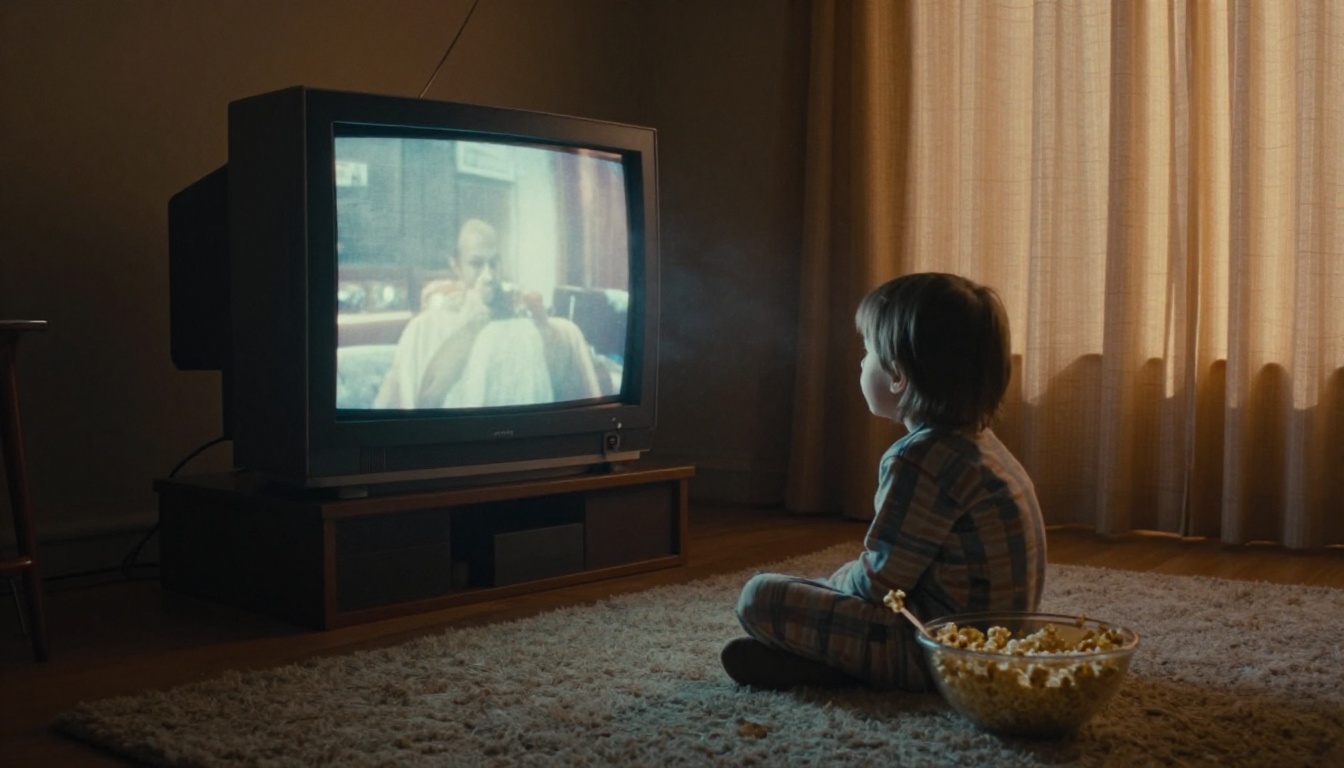
Seedance 2.0 for Sound and 4:3
Seedance 2.0 is the first model worth trying for this look. It generates dialogue, ambient sound, and effects in the same pass as the picture, so the muffled room tone of a home tape arrives without a second tool. Its aspect ratio list includes 4:3, which means the frame can match the proportions of a real tape. It also accepts a first frame image, so you can start from a still you already like, and it takes reference videos when you want to borrow the motion style of another clip.
Kling, Veo, and Wan Compared
Other models earn a place depending on the job.
| Model | Good for | Notes |
|---|
| Seedance 2.0 | Text prompts with built-in sound | Offers a 4:3 ratio and first frame input |
| Kling v3 Video | Smooth, longer scenes with strong motion | Spell out the shake and the damage in the prompt |
| Veo 3.1 | Realistic people and rooms | Built for high resolution, so push the analog wording harder |
| Wan 2.7 I2V | Animating a still photo | Pairs well with an old-photo style source frame |
| Picasso IA Video | Free, unlimited drafts | Good for testing wording before using a bigger model |
A sensible habit is to draft the wording on the free model, then run the final version on the model that sounds and moves best.
How to Use Seedance 2.0 on PicassoIA
The whole process runs in the browser. There is nothing to install and no code to write.
Step by Step
- Open the model page. Go to Seedance 2.0 on PicassoIA.
- Pick a starting point. Use a text prompt alone, or upload a still to the image field so the clip opens on that exact frame.
- Paste your prompt. Use the five-part formula from earlier: subject, camera, movement, damage, sound.
- Set the aspect ratio to 4:3. This single setting does more for the VHS feeling than any word in the prompt.
- Choose a duration. Home video moments are short, so 5 to 8 seconds is plenty.
- Leave audio on. The model produces ambient sound and voices together with the picture.
- Generate and review. Watch the clip twice: once for the picture, once with your eyes closed for the sound.
If you want a very specific face or place, make the first frame separately with Seedream 4.5, then upload it as the opening image. The still locks in the people and the room before any motion starts.
Settings Worth Changing
| Setting | Suggested value | Why |
|---|
| Aspect ratio | 4:3 | Matches the proportions of a real tape |
| Duration | 5 to 8 seconds | One believable home video moment |
| Resolution | 480p or 720p | Softer output suits the analog look |
| Generate audio | On | Room tone and voices come built in |
| Seed | A fixed number | Lets you change the wording and keep the same take |
💡 Tip: Change one thing per run. If you add tracking lines, color bleed, and a shaky zoom all at once and the clip goes wrong, you will not know which phrase caused it.

A still like the one above makes a strong opening frame. Add "handheld camcorder footage, 4:3, slight zoom drift, warm faded colors" and the sunlit boardwalk becomes a vacation tape.
Sometimes the clip already exists. A phone video from last weekend, a product demo, a wedding highlight: any of them can be pushed toward tape without a reshoot.
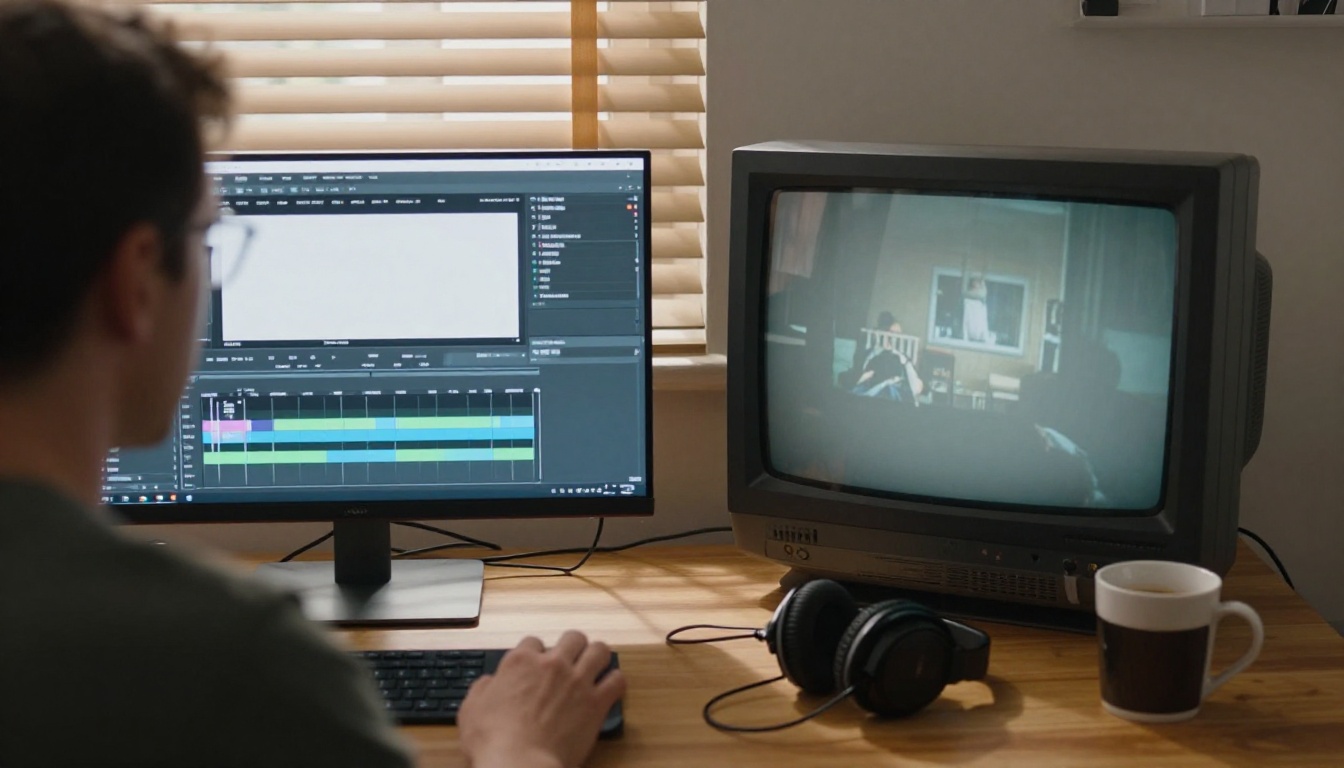
Pick the Right Mode
Luma Modify Video takes a clip up to 30 seconds long and 100 MB in size, plus a text prompt describing the new look. It has three families of settings that decide how far the result can wander from your original:
- Adhere stays very close to the source. Use it when the footage is already good and you only want faded color, soft detail, and grain.
- Flex allows more visible change while keeping the main elements of the shot recognizable. This is the usual pick for a convincing VHS pass.
- Reimagine follows the source loosely. It is too wild for this job, since faces and rooms can drift.
A prompt that works well: "make it look like 1994 VHS camcorder footage, faded warm colors, soft detail, chroma bleed, a faint tracking line rolling up the bottom." You can also upload a graded first frame to steer the starting look of the whole clip.
Two other editors are worth a test. Runway Aleph 2 lets you edit one frame and restyle the full video from it, and Lucy Edit 2 edits a video from a text instruction. Run the same clip through two of them and keep the one with the better wobble.
Sound Is Half the Tape
A clip with perfect picture damage and studio-clean audio feels wrong within two seconds. Tape audio has its own character: a soft hiss under everything, muffled voices from the next room, a thump when the operator's hand brushes the microphone, and a faint hum from a refrigerator or a television left on.
If your model creates sound, say so in the prompt. Phrases like "low tape hiss, distant television, a person laughing off camera, wind rustle on the microphone" work well. If your clip came out silent, add sound afterward. MMAudio generates sound that fits a video, and Video To SFX v1.5 adds sound effects synced to the action.
Keep the mix imperfect on purpose:
- Let voices sit slightly behind the room noise.
- Allow one moment where the volume jumps as the automatic gain catches up.
- Avoid music beds unless a radio is playing in the scene.
Scenes That Sell the Memory
Birthdays, Trips, and Holidays
The look is strongest on moments people already file under memory. A tape needs a subject that feels ordinary and a reason for someone to be filming it.
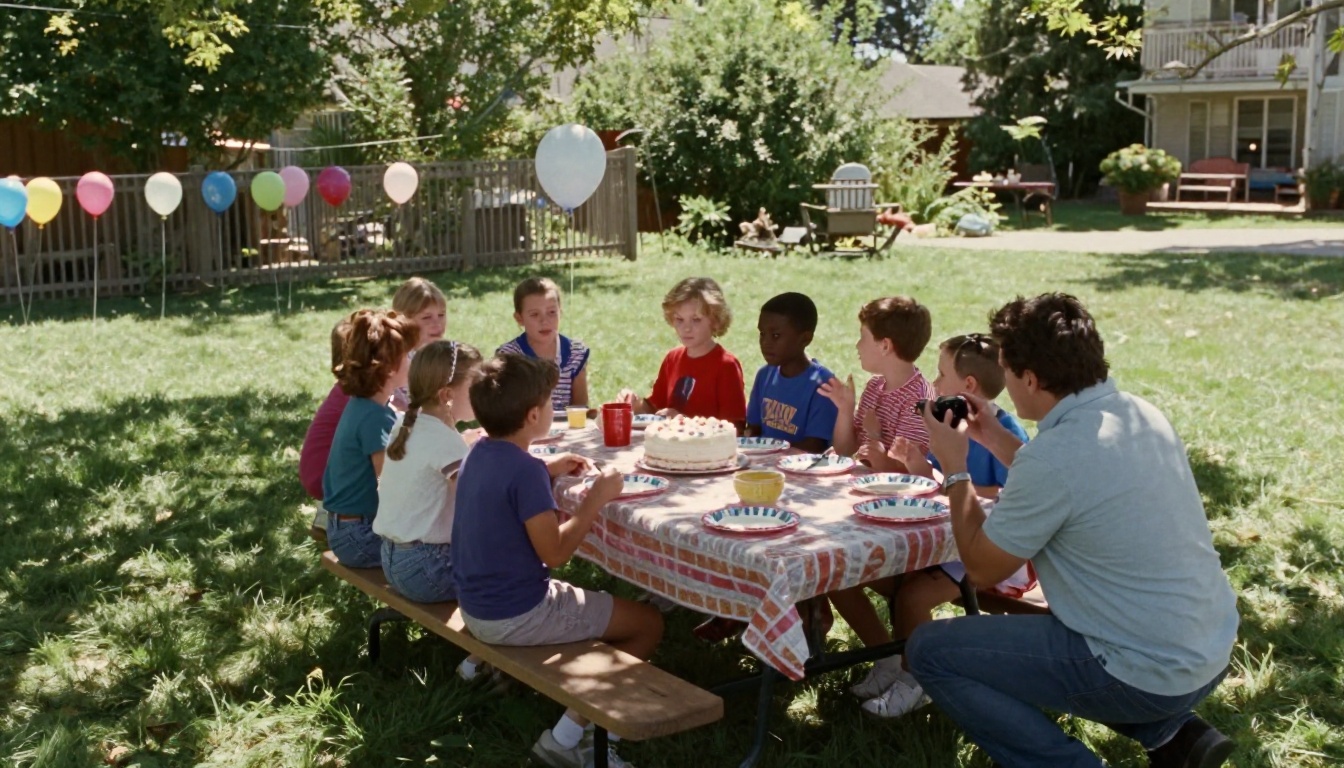
Scene ideas that work well:
- Birthday cake moment: kids leaning in, a missed first attempt at blowing out candles, the operator laughing off camera.
- Road trip stop: a gas station parking lot, a parent pointing at a map, a sibling pulling a face at the lens.
- Holiday morning: pajamas, wrapping paper on the carpet, a zoom toward a tree that overshoots.
- School play or recital: a distant stage, a zoom that cannot quite find the right kid.
- Pool or beach day: bright overexposed highlights, wet towels, a lens flare from the sun.
Overexposed daylight is a gift here. Home camcorders handled bright scenes badly, so a washed-out sky is a feature and not a flaw.
3 Common Mistakes
- Piling on every defect. Tracking lines, dropouts, heavy noise, and a color wash together turn a clip into mush. Pick two or three damage cues and let the rest stay quiet.
- Using camera moves a camcorder could not do. Drone shots, perfect orbits, and slow-motion dollies break the illusion at once. Stay with hand-held walking, panning, and clumsy zooms.
- Mixing eras. A 1994 birthday with a smartphone on the table gives the game away. Name the decade, the clothing, and the furniture in the prompt.
💡 Note: If you publish a generated tape, say that it is AI-made. A fake home video presented as a real archive can mislead viewers, and a short label in the caption costs you nothing.
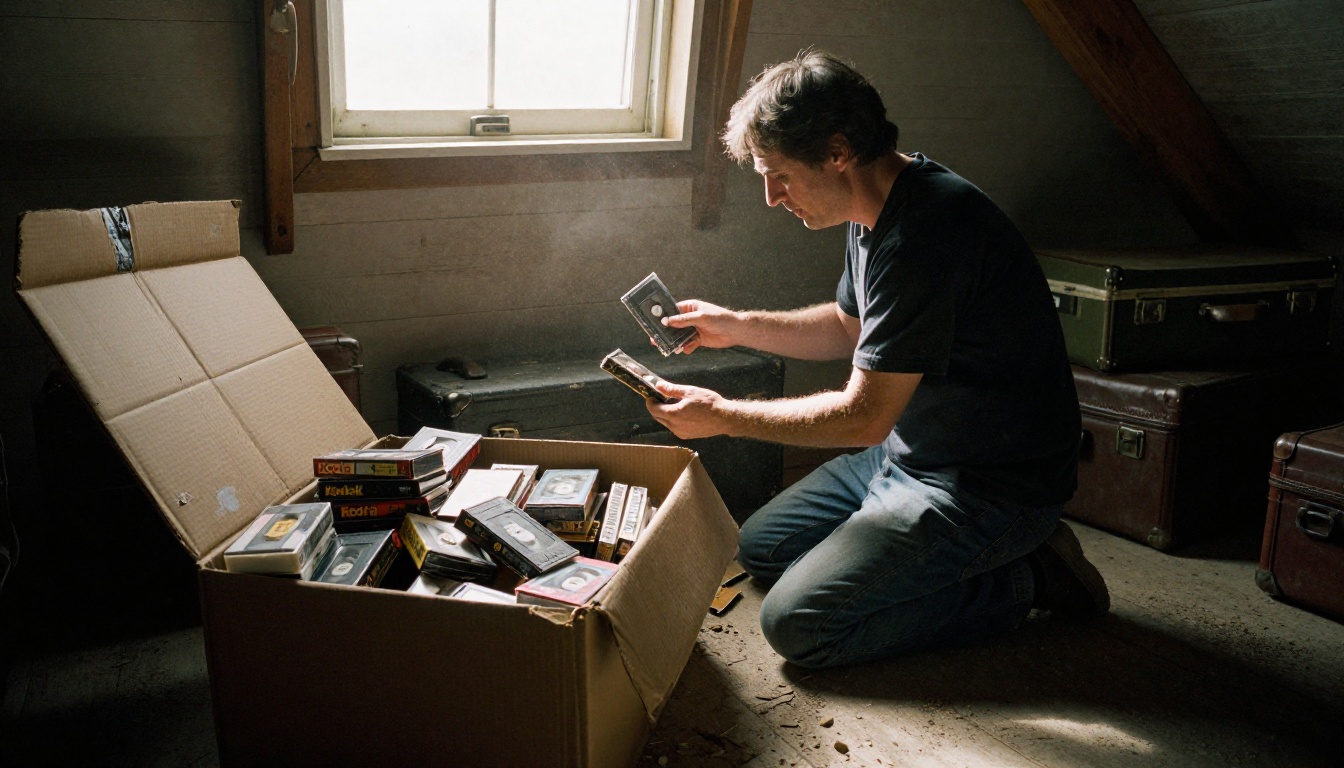
A good story gives the look a purpose. A short film about a box found in an attic, a music video built around a mother's birthday tape, or a brand spot that opens on an old family recording: each one gives the grain a reason to exist, and viewers forgive a lot more softness when the footage belongs to a story.
Make Your First Tape Today
You do not need old gear, a dusty VCR, or any editing skill to make your first clip. Pick one ordinary memory, write a short prompt with the five parts, set the frame to 4:3, and let the model do the shooting. Your first clip will probably be too clean. That is normal. Add one defect, run it again, and watch the footage slide from a sharp modern video toward something that feels like it spent twenty years in a shoebox.
Open Picasso IA and try it now. Start with Seedance 2.0 for a full clip with sound, restyle a phone video with Luma Modify Video, or draft your wording on the free Picasso IA Video model first. Browse every option at picassoia.com/en/all-models, pick a scene from your own childhood, and make the tape you wish somebody had filmed.


