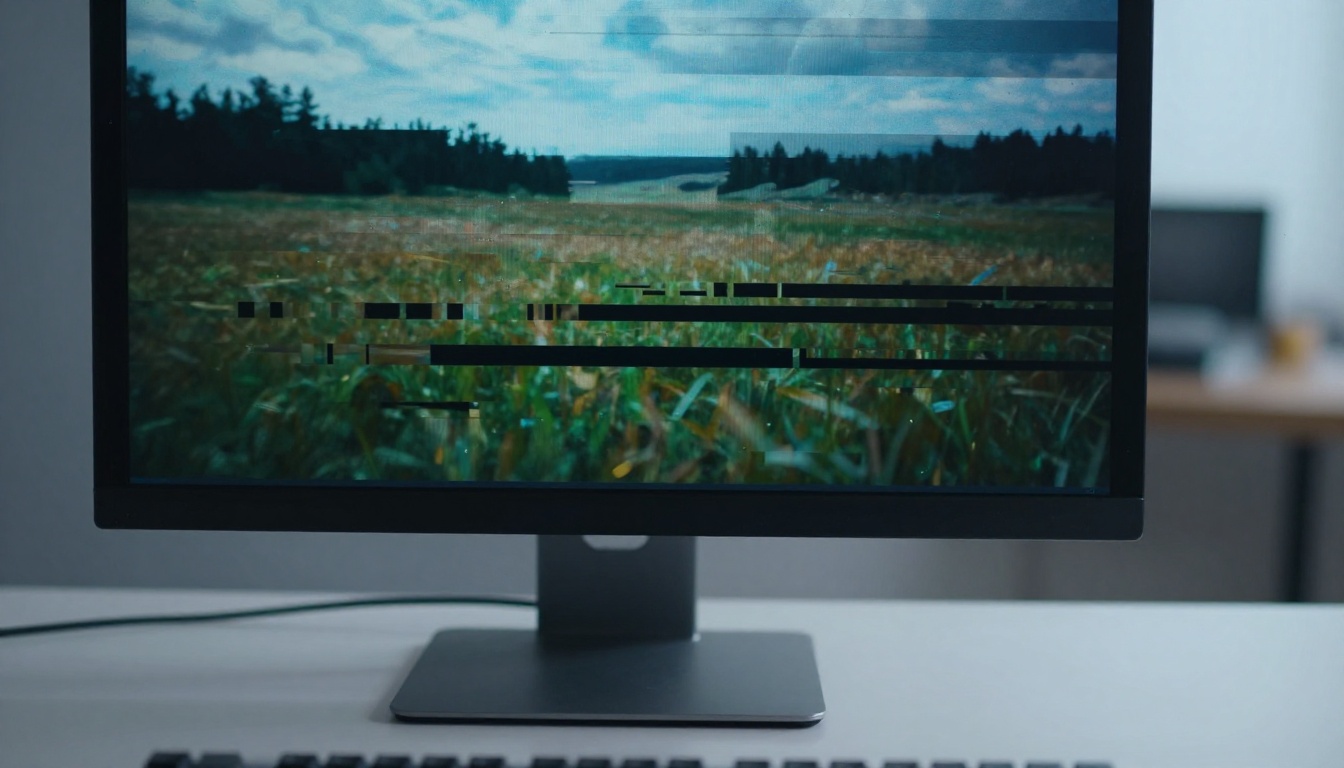
AI video glitches are not random bad luck. They follow patterns: temporal inconsistency between frames, compression artifacts from low-bitrate exports, prompt mismatch artifacts from AI generation models, and motion drift in scenes with fast movement. Once you know what you're dealing with, fixing it becomes a repeatable process rather than a guessing game.
This article breaks down 7 Ways to Fix AI Video Glitches Fast, from quick resolution-based repairs to full section re-renders using AI tools you can access directly from your browser. No heavy software installs, no expensive subscriptions. Just what works.
What Actually Causes AI Video Glitches
Before you fix anything, you need to know what broke. Most AI video glitches fall into three categories.
Temporal Inconsistency
AI video models generate frames probabilistically. Unless they have strong temporal coherence constraints, consecutive frames can drift visually, producing flicker, morphing faces, or objects that subtly change shape between frames. This is one of the most common issues in text-to-video outputs.
Compression and Export Artifacts
Exporting at a bitrate that's too low crushes fine detail into blocky macroblock artifacts. This is especially visible in scenes with fine textures, fast motion, or dark areas with subtle gradients. Many AI-generated videos get compressed twice: once by the AI platform and once when you re-export.
Prompt Mismatch Artifacts
When your generation prompt describes something that conflicts with the motion or scene physics, models produce visual compromises that look like glitches: floating limbs, melting backgrounds, objects appearing or disappearing mid-frame. The fix here is often re-rendering with a tighter prompt, not post-processing.
💡 Tip: Screenshot the exact frame where the glitch starts before fixing anything. Knowing the frame number saves serious time when you're targeting a specific corrupted section.
This sounds counterintuitive, but upscaling a glitchy video before other repairs often produces better results. AI upscaling models are trained to reconstruct detail, and in doing so they smooth out minor compression artifacts and low-frequency noise that would otherwise be amplified during color correction or stabilization.
Why Resolution Fixes More Than You Think
When you upscale from 480p or 720p to 4K, the model interpolates missing pixel data using pattern recognition across thousands of similar images. Blocky macroblocks get replaced with probabilistic reconstructions of what the detail should look like. For compression-heavy glitches, this alone can eliminate 60-70% of visible artifacts.
Recommended tools on PicassoIA:
| Tool | Best For | Max Resolution |
|---|
| Bria Video Increase Resolution | Compression artifacts | 8K |
| Topaz Labs Video Upscale | Motion clarity, fps boost | 4K / 120fps |
| Real ESRGAN Video | Texture reconstruction | 4x upscale |
| RunwayML Upscale v1 | AI-generated footage | 4K |
Fix 2: Re-render Corrupted Sections
Not every glitch needs a full re-generation. If the issue is localized to specific frames or a short segment, targeted re-rendering is faster and preserves the rest of your footage intact.
The Segment Re-render Approach
Identify the corrupted section by stepping through frames. Export just that segment, feed it into an AI re-render tool, then merge it back using video editing software. Most AI video editors on PicassoIA accept short clips as input, making this workflow very practical.
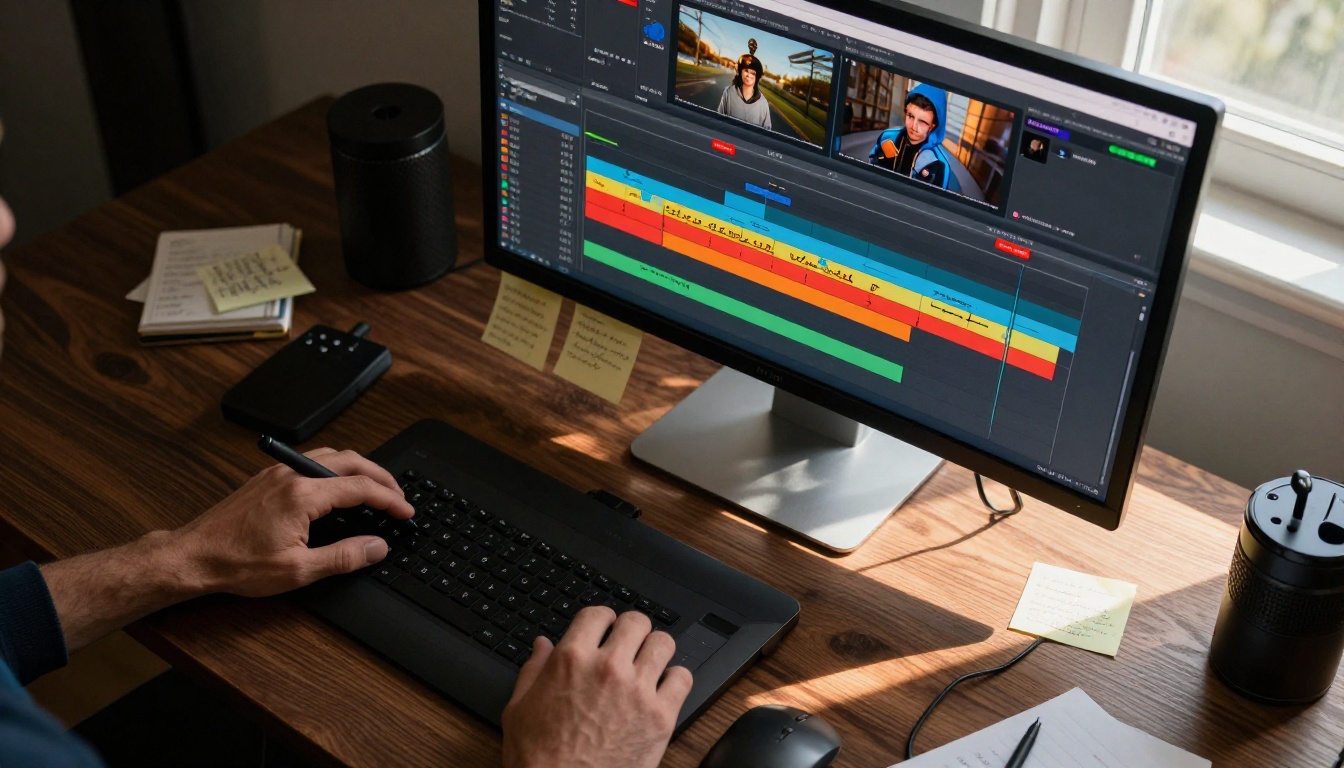
LTX 2 Retake by Lightricks is purpose-built for this. It lets you select any section of a video and re-render it with updated parameters while keeping the surrounding frames stable. This is ideal for glitched transitions, broken motion segments, or faces that drift between frames.
P Video Edit by PrunaAI gives you text-prompt control over specific sections, so you can describe what the frame should look like and let the model regenerate it accordingly.
💡 Tip: When re-rendering a segment, always generate 2-3 variations and pick the one with the best temporal consistency at the cut points. The first attempt is rarely perfect.
Fix 3: Edit with a Text Prompt
If you can describe what's wrong, AI can fix it. Text-prompt video editing has matured significantly, and several models now accept a corrupted video plus a natural language instruction and produce a corrected output.
When Words Fix What Scrubbing Can't
Glitches caused by visual style inconsistency, unintended background motion, or prompt mismatch artifacts respond well to prompt-based correction. Instead of frame-by-frame scrubbing, you describe the desired output: "stabilize background, remove flickering light, keep subject motion natural."
Top text-prompt video editors on PicassoIA:
Writing Effective Fix Prompts
Be surgical. Instead of "fix the video," write "remove flickering from the upper-left area, maintain natural skin tones on the subject, keep background static." Vague prompts produce vague corrections. Specific constraint language gets specific results.
| Glitch Type | Example Fix Prompt |
|---|
| Face flicker | "stabilize facial features, maintain consistent skin tone across all frames" |
| Background drift | "lock background static, apply only subject motion" |
| Color shift | "maintain consistent warm color grading throughout, remove cyan cast" |
| Motion blur artifact | "reduce motion blur on subject hands, preserve sharp edges" |
Fix 4: Remove Unwanted Objects and Artifacts
Some glitches manifest as visual intrusions: duplicate objects, floating limbs, ghost outlines, or artifacts that appear on specific frames. Patching these manually frame-by-frame is impractical. AI object removal handles it in seconds.
Erase It, Don't Patch It
Video Erase Object by Bria lets you select objects or regions to remove, then fills the area with temporally consistent background content. It's far cleaner than blur-patching or using static frame overlays.
This works especially well for:
- Ghost artifacts from AI generation (duplicate limbs, floating faces)
- Watermarks or logos accidentally included in source footage
- Static noise patches that appear at fixed screen positions
- Background intrusions from prompt-bleed (elements from the prompt appearing where they shouldn't)
💡 Tip: When erasing large artifacts, break the selection into smaller regions and process them separately. Large erase regions sometimes produce visible seams at the boundary.
Fix 5: Restyle When the Glitch Is Too Deep
Sometimes a glitch isn't localized. The entire visual style of a video is inconsistent, flickering between different color treatments or visual aesthetics frame-by-frame. This happens when AI generation models don't maintain style coherence across longer clips. The fix is a full restyle pass.
One Frame Changes Everything
Aleph 2 by RunwayML takes a single edited reference frame and propagates its visual treatment across the entire video. If you can get one frame looking exactly right, Aleph 2 applies that consistency everywhere else. This is particularly powerful for color-inconsistency glitches.
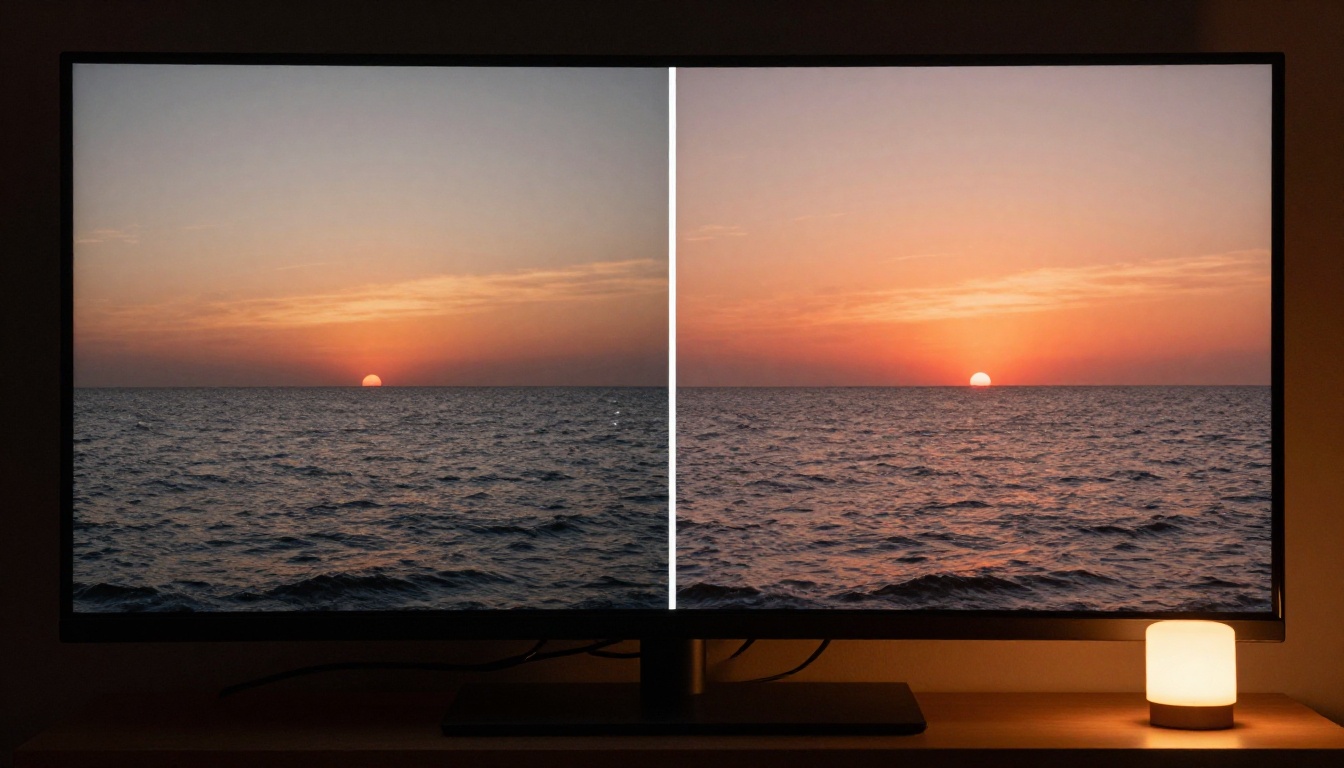
Luma's Modify Video and Gen 4 Aleph by RunwayML both accept the original video plus a style description and produce a restyled output with strong temporal consistency. Use these when:
- The source video has visible style flicker (tonal shifts between frames)
- Color grading is inconsistent across scenes
- The AI generation produced mixed visual aesthetics (partly realistic, partly illustrative)
- Motion artifacts have affected the whole clip, not just isolated sections
Fix 6: Stabilize Drifting or Shaky Frames
Motion inconsistency in AI video is a specific type of glitch: the camera appears to shake, drift, or jitter even when the source prompt didn't specify any camera movement. This is a temporal coherence failure from the generation model.
Motion Drift Is a Glitch
AI stabilization models work differently from traditional optical flow stabilizers. They don't just smooth the camera path; they reconstruct missing frame data to fill gaps left by the correction. This produces much cleaner results when the source motion is irregular rather than just shaky.
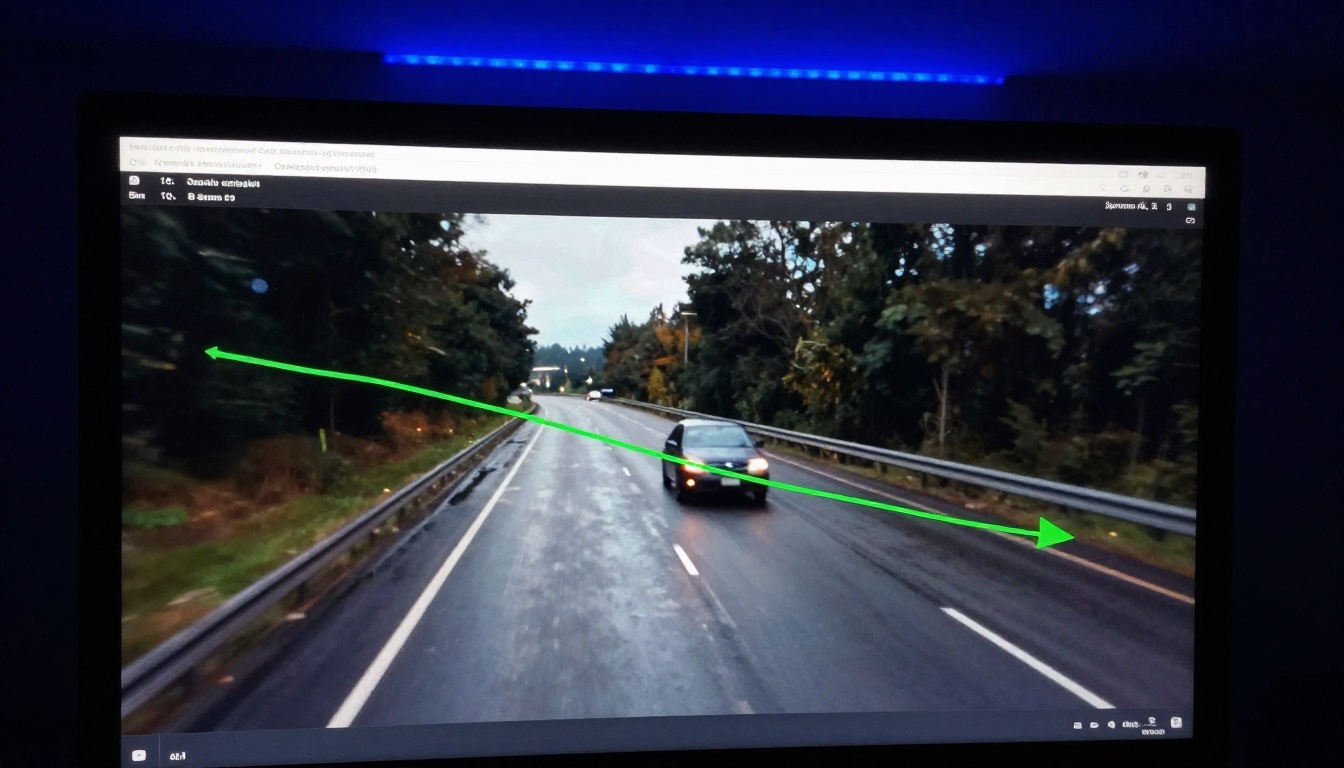
For severe motion glitches, combine stabilization with a segment re-render using LTX 2 Retake: stabilize the clip first, then re-render the most affected sections with corrected motion parameters.
Pro workflow:
- Run stabilization on the full clip
- Review the output for residual drift
- Use P Video Edit on remaining shaky segments with the prompt "smooth camera motion, static background perspective"
- Merge and export
Fix 7: Rebuild with Noise Reduction
AI video noise is different from film grain. It's irregular, temporally inconsistent, and often clustered in darker areas of the frame. High ISO-style noise in AI-generated footage usually comes from the generation model's sampling process. Standard noise reduction handles it poorly because the noise pattern doesn't follow natural image statistics.
AI Denoising vs. Standard Filters
Traditional noise reduction (bilateral filters, temporal averaging) produces mushy, low-detail output when applied to AI-generated video noise. AI denoising models understand image semantics, so they preserve edges and textures while removing non-semantic noise patterns. The result is dramatically cleaner without the soft-watercolor look of over-processed standard filters.
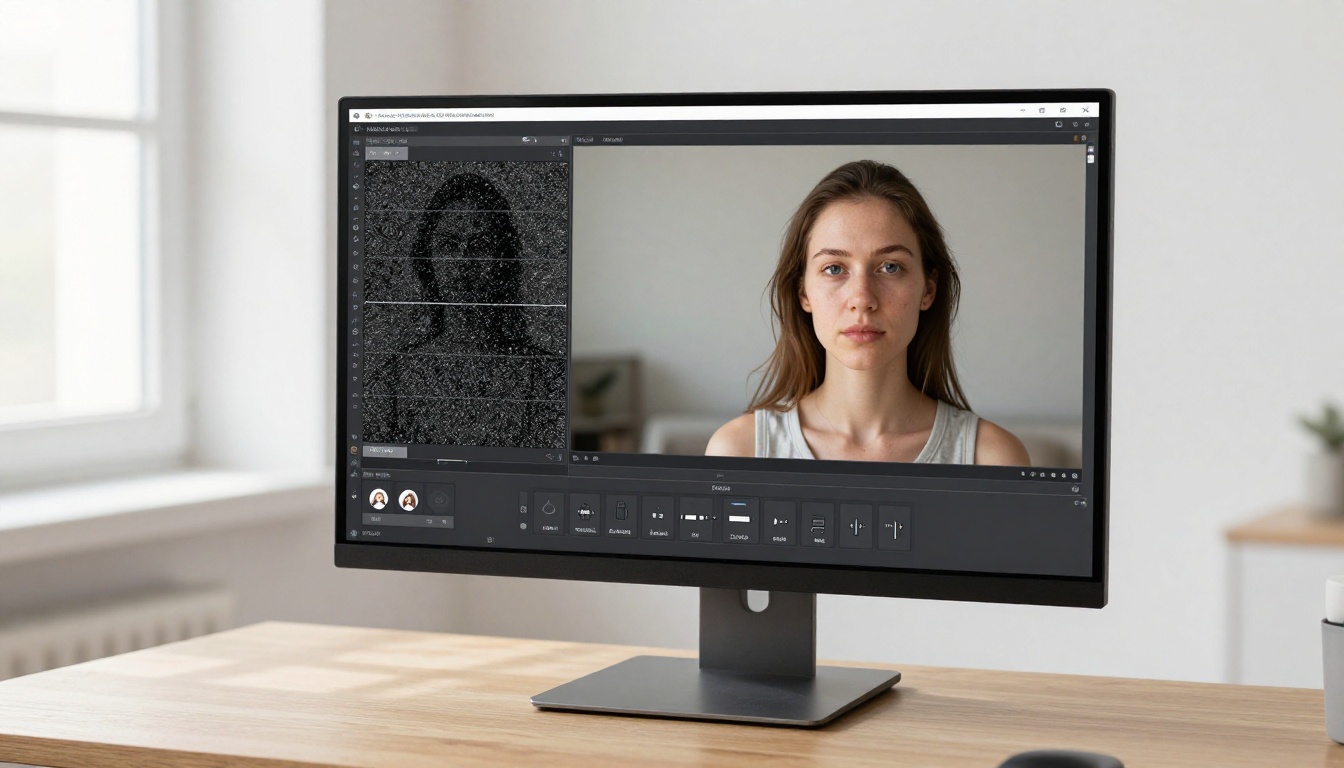
Use Video Upscale by Topaz Labs for combined upscaling and denoising in a single pass. Its DeNoise AI layer processes temporal noise patterns while the upscaling reconstructs fine detail. For footage shot in low-light conditions or generated with high variance settings, this combination is the fastest path to clean output.
💡 Tip: Run noise reduction before color grading, not after. Color grading amplifies noise in shadows. A clean source makes every subsequent step easier.
How to Fix AI Video Glitches on PicassoIA
PicassoIA gives you direct browser-based access to all the models referenced in this article, no downloads, no local GPU required. Here's how to work through a typical glitch-fix session.
Using P Video Edit for Text-Based Repairs
P Video Edit by PrunaAI is the fastest entry point for most glitch types.
- Upload your glitchy video via the model interface
- Write a correction prompt describing what needs to change (be specific about the problem areas)
- Set the strength parameter lower (0.4-0.6) for subtle corrections, higher (0.7-0.9) for major reconstruction
- Generate and review the output frame-by-frame at the problem sections
- Iterate with a refined prompt if the first pass misses specific issues
Using LTX 2 Retake for Section Repair
LTX 2 Retake by Lightricks works best when the glitch is confined to a specific time range.
- Identify the start and end frame of the corrupted section
- Export that segment as a separate clip
- Upload to LTX 2 Retake and specify which part of the segment to re-render
- Set temporal consistency weight high to keep the re-rendered section matching the surrounding footage
- Download and merge the corrected segment back into your original timeline
Quick Reference: Which Fix for Which Glitch
What Still Breaks (And What to Do About It)
Not every glitch is fixable in post. Some issues require going back to the source.
Re-generate from scratch when:
- The temporal inconsistency is present in more than 40% of frames
- The original prompt was too vague and produced mixed-aesthetic footage
- The generation model used was not designed for the output length (e.g., a model trained for 3s clips used to generate 10s output)
- The corruption is baked into the audio sync as well as the visuals
For complete re-generation, Wan 2.7 Videoedit and Kling o1 both accept the original as reference and produce corrected outputs with significantly improved temporal coherence over a blind re-generation.
💡 Tip: Keep all your source generations at the highest quality/bitrate the platform offers. Fixing a compressed file is always harder than fixing the original. Download the raw output before doing anything else.
Try It on PicassoIA
Every tool referenced in this article is available directly at picassoia.com. No installation, no local GPU, no waiting for software updates. Upload your glitchy footage, pick the fix that matches your problem type from the table above, and run it in your browser.
PicassoIA's video editing collection includes 28+ models covering everything from frame-level re-rendering to full video restyling. If one approach doesn't produce the result you want, you can iterate with a different model without switching platforms.
The fastest way to start: open P Video Edit by PrunaAI, upload your clip, and describe the problem in plain language. Most common AI video glitches respond to a single well-written correction prompt. For anything more complex, LTX 2 Retake and Aleph 2 give you surgical control over exactly which frames get rebuilt and how.
AI video generation gets better every month. But until every model ships with perfect temporal coherence out of the box, these 7 fixes will keep your footage clean and your timelines on schedule.


