Generate imagesLarge Language ModelsVisual Effects
AI Photo Editor Prompts for Gemini and ChatGPT: 30 Examples That Work
Thirty ready to paste prompts for Gemini and ChatGPT that retouch portraits, swap backgrounds, fix skies, polish product shots, and restore old family photos, plus a four part formula and the five mistakes that make edits look fake.
Type "make this photo look better" into Gemini or ChatGPT and you are flipping a coin. Sometimes the skin turns to plastic, the sky goes purple, and a friend's face quietly changes shape. The app did what you asked. You just did not ask for much.
The fix is not a smarter app. It is a sharper sentence. The best AI photo editor prompts for Gemini and ChatGPT name the change, protect everything else, and describe how the finished photo should feel. Below are 30 prompts you can paste today, grouped by job: portraits, backgrounds, skies, products, interiors, and old family prints. Each group comes with a short note on why the wording works.
Why Prompt Wording Changes Everything
Photo editing prompts fail for one reason: the model has to guess. Upload a portrait, write "fix it", and the model must decide what "fix" means. It might smooth the skin, brighten the whole frame, crop tighter, or swap the background. Every guess is a chance to lose the thing you liked about the photo.
A good prompt removes guesses. It does three jobs at once. It names the change, it lists what must stay untouched, and it sets a finish, such as "natural film look" or "soft window light".
💡 Tip: End every edit prompt with a lock line: "Keep the face, pose, clothing, and composition exactly the same." That single sentence prevents most identity drift, the slow change in a face that happens when a model redraws too much.
Gemini and ChatGPT Side by Side
Both apps accept an uploaded photo plus a written instruction, and both let you refine the result with follow up messages. Because outputs vary from run to run, the smartest habit is to send the same prompt to each and keep the version you like. This table shows how to match your prompt style to the job:
Situation
Best prompt style
Why it works
Small fix (blemish, stray object)
One sentence, one change
Less room to guess
Mood or color change
Describe the finish in photo terms
Camera words give a clear target
New background or scene
Describe the new scene in full, then lock the subject
The subject edge stays clean
Several edits
One edit per message
Easier to undo a bad step
The Four Part Prompt Formula
Every prompt below follows the same frame: Action + Target + Lock + Finish.
[Action] the [target]. Keep [lock list] exactly the same. Finish: [light, color, grain].
Filled in, it reads like this: "Replace the grey sky behind the man in the camel coat with soft sunrise clouds. Keep his face, coat, and pose exactly the same. Finish: warm light, natural film grain." Four parts, zero guessing.
Portrait Retouching Prompts
People notice a bad portrait edit faster than any other kind. Over smoothing is the usual crime. The prompts here ask for repair, never for perfection, and they say "keep texture" because real skin has pores.
Skin and Blemish Cleanup
Prompt 1: Blemish removal
Remove the small blemish on the chin and the redness beside the nose. Keep pores, freckles, and natural skin texture. Do not smooth the skin or change the face shape.
Prompt 2: Under eye tone
Even out the skin tone under the eyes without erasing expression lines. Keep it looking like real skin in daylight.
Prompt 3: Shine control
Reduce the shine on the forehead and nose only. Keep the natural highlights on the cheekbones.
Lighting and Mood Fixes
Prompt 4: Window light relight
Relight this portrait with soft window light coming from the left. Fill the shadow side gently. Keep the background and clothing exactly as they are.
Prompt 5: Flash repair
Fix the harsh flash look. Make the light softer and more directional, as if shot near a large window. Keep the expression and pose unchanged.
Prompt 6: Warm film tone
Warm the photo slightly, like Kodak Portra 400. Keep skin tones natural with no orange cast. Add very fine film grain.
If you want a dedicated relighting model, Qwen Image Edit Plus LoRA Relight on PicassoIA is built for changing the light in a scene.
Eyes, Hair, and Small Details
Prompt 7: Eye brightness
Brighten the whites of the eyes by a small amount and add a natural catchlight. Do not change the eye color or shape.
Prompt 8: Flyaway hair
Tame the flyaway hairs along the top of the head. Keep the hair color, parting, and volume.
Prompt 9: Stain removal
Remove the coffee stain on the shirt collar. Keep the fabric pattern and the fold lines.
Prompt 10: Headshot from a casual photo
Turn this snapshot into a clean professional headshot: neutral grey backdrop, soft front light, shoulders squared to the camera. Keep the face and hairstyle exactly the same.
A background swap is where most edits look fake, because the light on the person no longer matches the new scene. The fix is to describe the light in the new scene and ask for the subject to match it.
Background Swaps
Prompt 11: Golden hour street
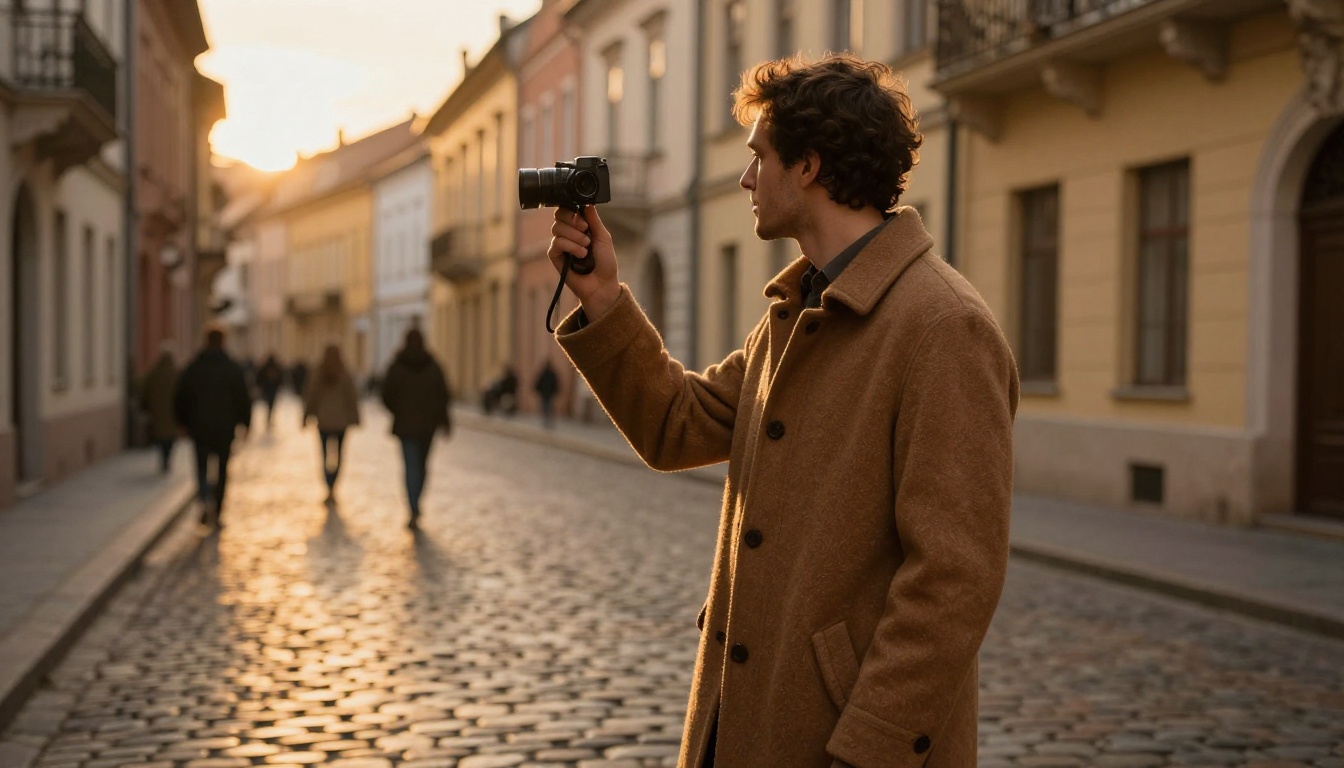
Replace the background with a quiet cobblestone street at golden hour, with softly blurred pastel buildings. Keep the person's outline, hair detail, and coat exactly the same. Match the light on the person to the warm light of the new scene.
Prompt 12: Studio backdrop
Change the background to a plain warm grey studio backdrop with a soft vignette. Keep a clean, natural edge around the hair.
Prompt 13: Cafe window
Place the person at a sunlit cafe window with a shallow depth of field. Keep the person, pose, and clothing unchanged.
Prompt 14: Background blur
Blur the background as if shot at 85mm f/1.8. Keep the subject sharp and keep the edges clean.
The Depth of Field model on PicassoIA handles this exact job if you want a one click result.
Object Removal
Prompt 15: Remove distractions
Remove the trash can and the two people in the far background. Fill the space with the matching wall and pavement. Keep the lighting and shadows consistent.
Prompt 16: Power lines
Remove the power lines across the sky. Keep the clouds exactly as they are.
Prompt 17: Text removal
Remove the writing on the shop sign and rebuild the wall texture behind it. Keep the rest of the photo unchanged.
Text Removal on PicassoIA is made for the last one.
Sky Replacement and Time of Day
Prompt 18: Sunrise sky
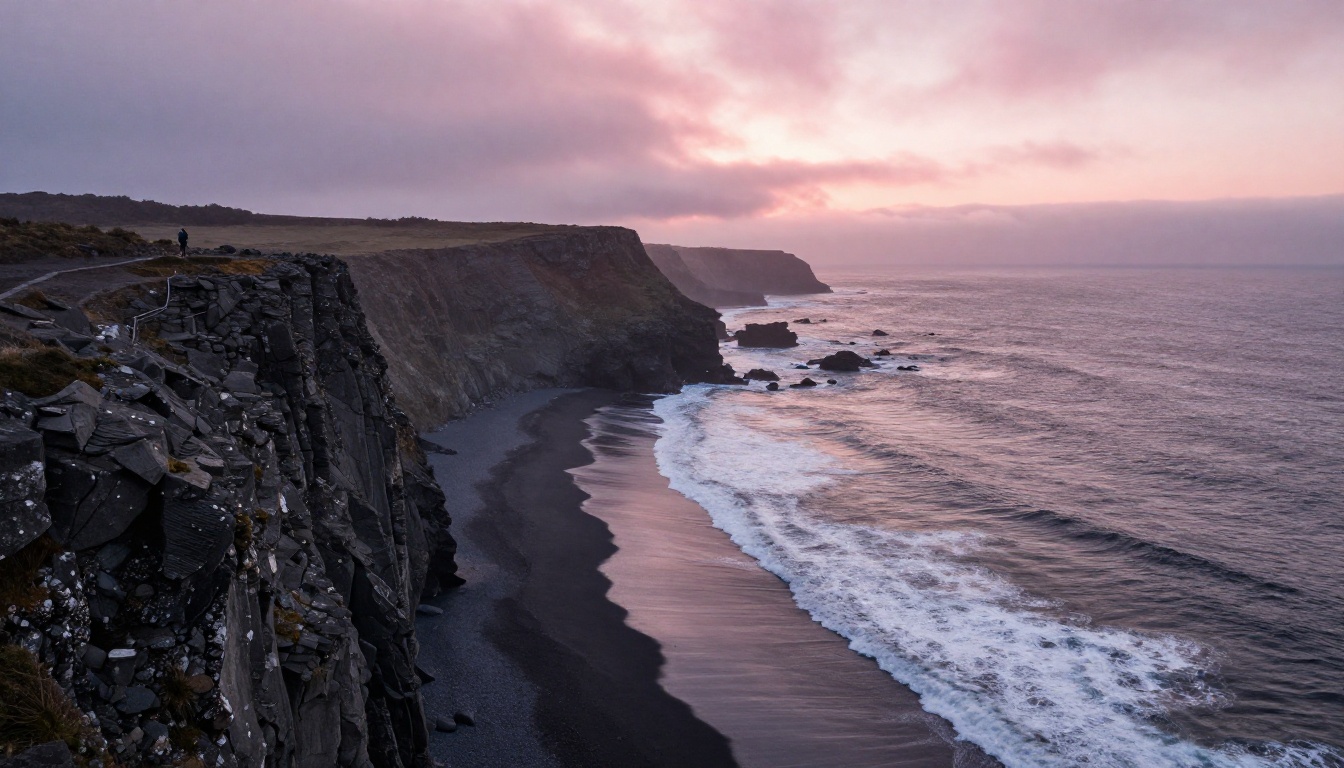
Replace the flat white sky with soft layered clouds at sunrise, pink and amber near the horizon. Adjust the light on the rocks and water to match. Keep the horizon line where it is.
Prompt 19: Valley haze
Keep the sky, but add gentle morning haze in the valleys and a hint of warm light on the cliff edges. Do not change the composition.
Prompt 20: Day to dusk
Turn this daytime scene into early dusk. Deepen the sky to blue and orange, switch on the warm window lights, and add soft reflections on wet surfaces. Keep the buildings unchanged.
💡 Tip: Always state the light direction ("from the left", "from behind"). Without it, the shadows in your photo and the new sky can disagree, and the eye catches that in half a second.
Product and Interior Prompts
Shop owners and agents edit more photos per week than anyone, and they need the object to stay the object. The lock line matters most here. A watch dial that changes by one tiny detail is a wrong product photo.
Product Photo Prompts
Prompt 21: Marble surface
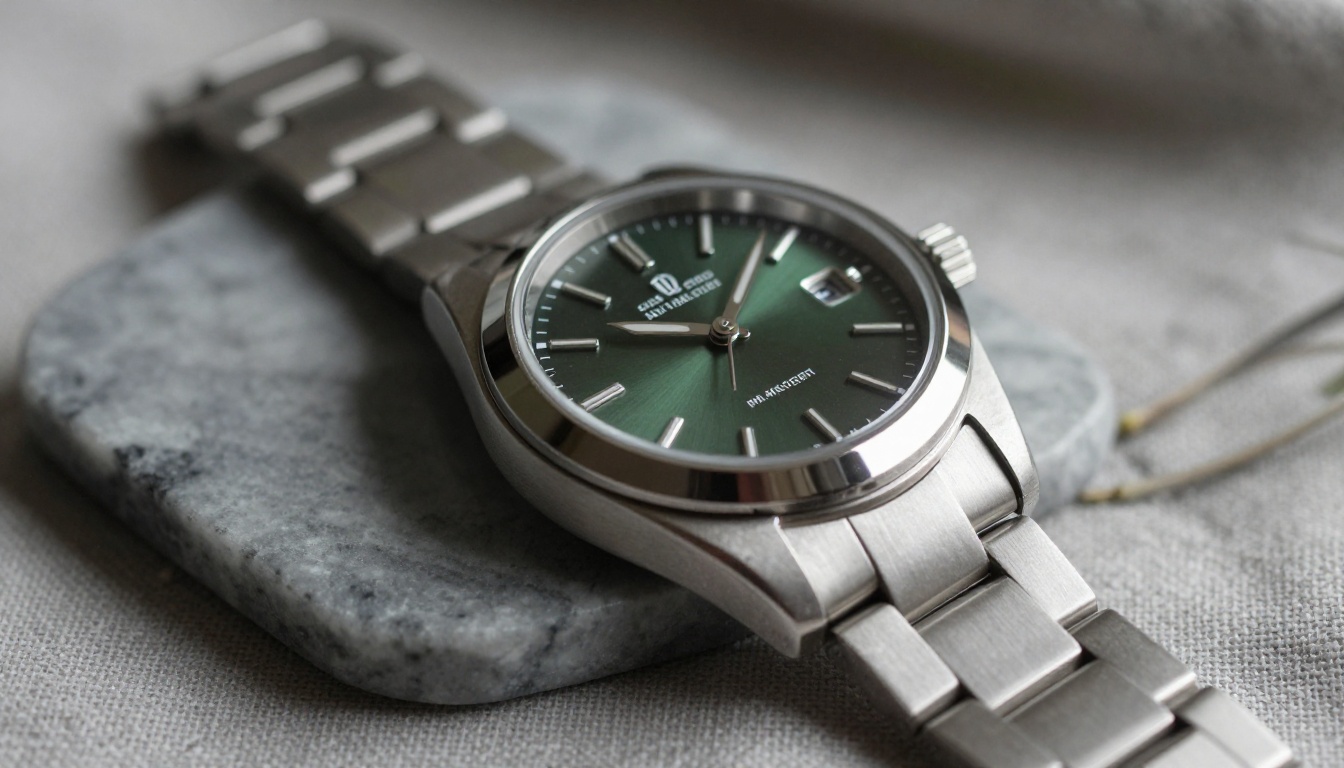
Place this watch on polished grey marble with a folded linen cloth beside it. Soft side light from the right. Keep the dial, hands, and strap exactly the same.
Prompt 22: Dust and fingerprints
Remove the dust and fingerprints from the glass and metal. Keep the reflections natural and the product shape unchanged.
Prompt 23: Catalog white
Make the background pure white with a soft shadow under the product, ready for a catalog listing. Keep the product colors accurate.
Prompt 24: Lifestyle scene
Put this product on a wooden table in a bright kitchen, with a blurred window behind it. Keep the product itself untouched and match the light to the room.
Interior and Real Estate Prompts
Prompt 25: Straight lines
Straighten the vertical lines and fix the lens distortion. Keep the room layout and furniture exactly the same.
Prompt 26: Daylight balance
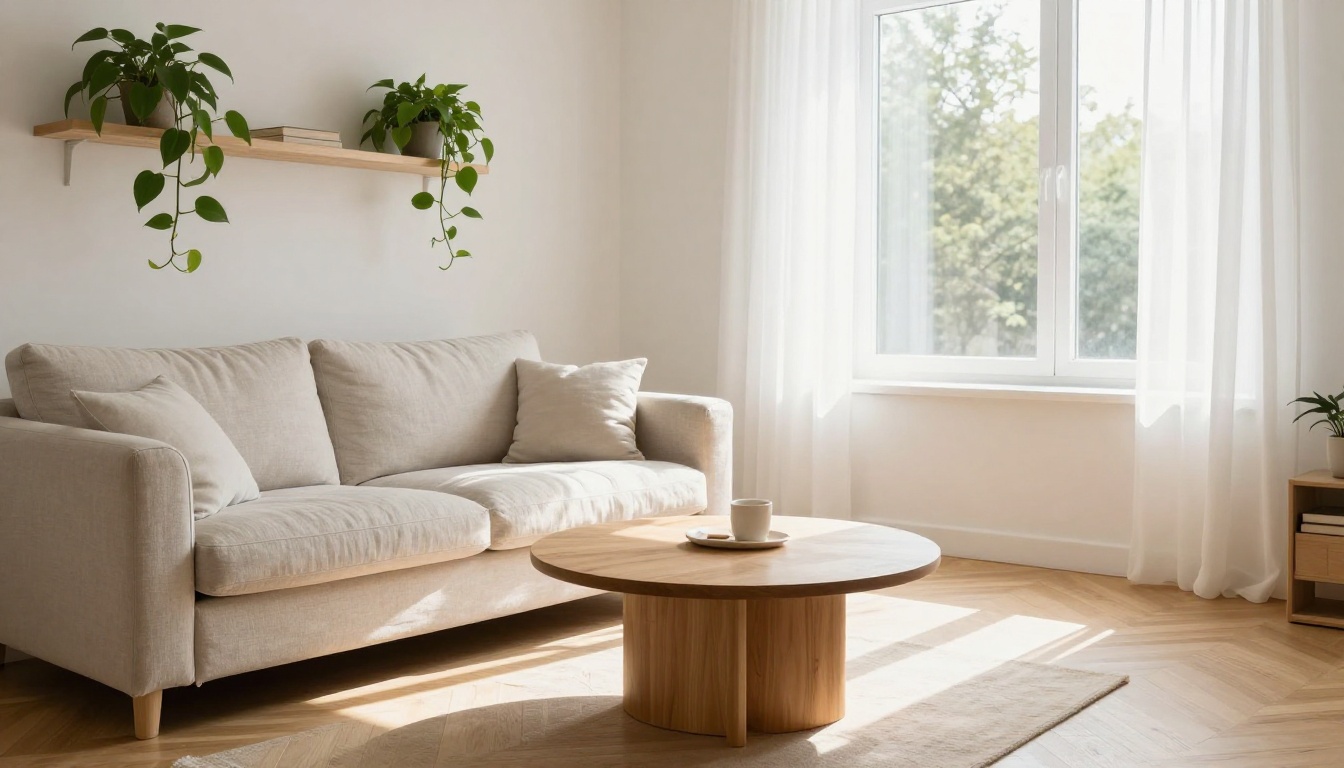
Brighten the room as if shot at noon with natural window light. Keep whites true white and wood tones warm.
Prompt 27: Clutter cleanup
Remove the clutter from the coffee table. Leave the plant and one closed book.
💡 Note on listings: Fix light and clutter, not facts. Adding a view or a room feature that does not exist can mislead buyers, and some platforms flag it.
Old Photo Restoration Prompts
Restoration is the one job where "do not invent" matters more than "make it pretty". A model that fills a damaged face with guesses gives you a stranger. These prompts say so out loud.
Prompt 28: Scratch and crease repair
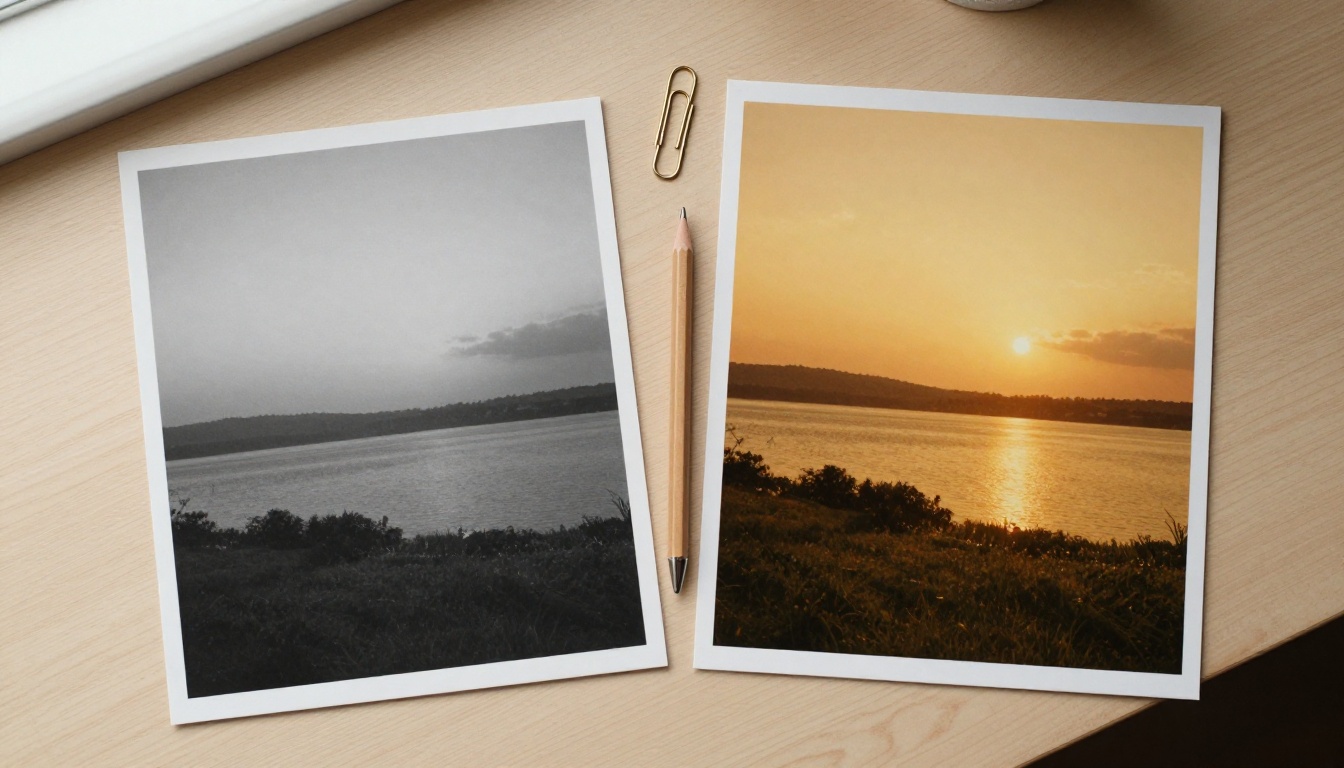
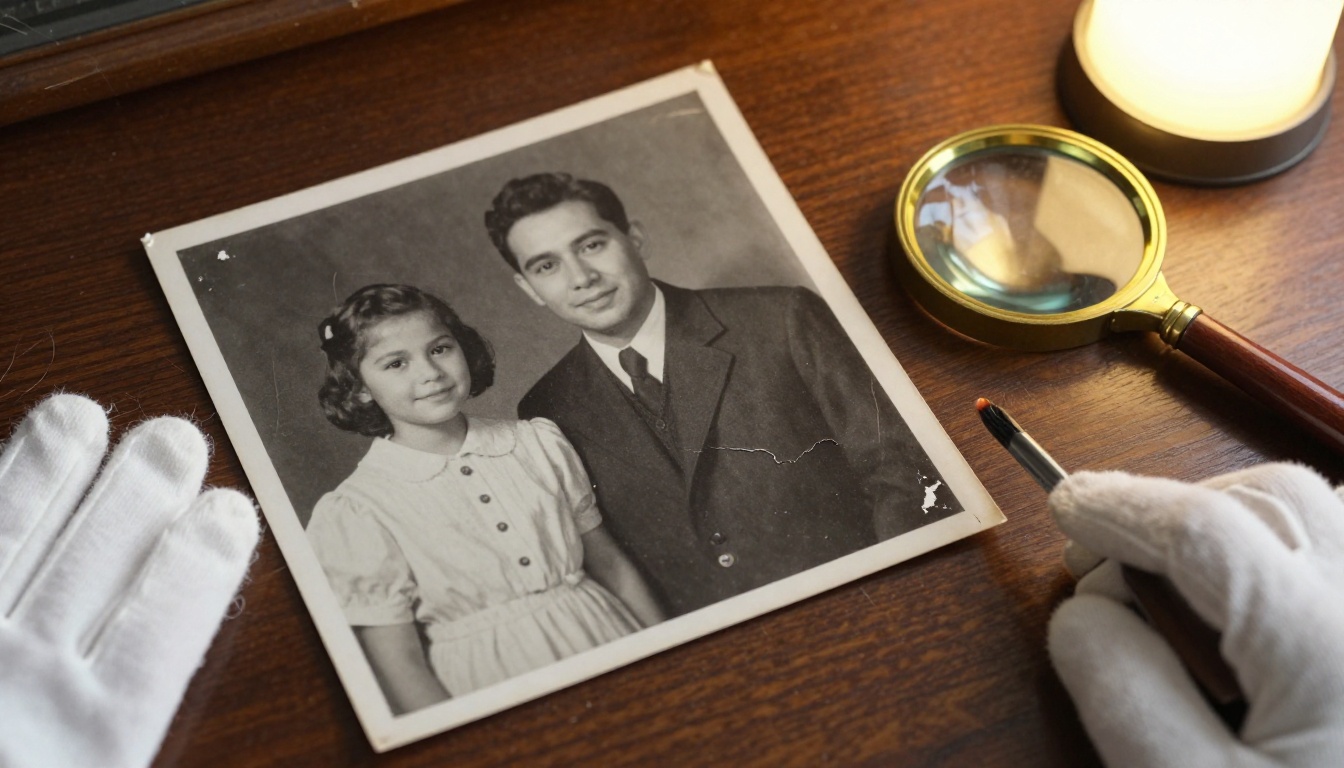
Restore this scanned black and white photo. Remove scratches, creases, and dust spots. Keep the faces and fine detail exactly as they are. Do not invent features.
Prompt 29: Gentle colorizing
Colorize this photo with realistic, muted colors that fit the era. Natural skin tones, no saturation boost, keep the film grain.
Prompt 30: Face sharpening
Sharpen the faces slightly. Do not add detail that is not already in the original photo.
PicassoIA also offers Restore Image, which fixes and colorizes old photos in one pass.
5 Mistakes That Ruin Edits
Stacking ten changes in one message. The model drops some and bends others. Send one edit, check it, then continue.
Skipping the lock line. Without it, faces drift and logos melt.
Using vague praise words. "Better", "professional", and "stunning" mean nothing. "Soft window light, natural skin texture" means something.
Asking for perfect skin. You get wax. Ask for "even tone, keep pores".
Accepting the first result. Run it twice. Zoom to 100 percent and check the output size before you print.
How to Use Nano Banana Pro
Gemini's image editing is often nicknamed Nano Banana, and you can run Nano Banana Pro directly on PicassoIA with every prompt in this article.
Open the model page and sign in to PicassoIA.
Upload your photo in the Image Input field. The model accepts up to 14 reference images, which helps when you want to borrow a style or a background from a second photo.
Paste a prompt from this article into the Prompt box. Swap the details for your own photo.
Set the aspect ratio. Leave it on match_input_image to keep your original framing, or pick 16:9, 4:5, or 9:16 for a new layout.
Choose the resolution. 2K is the default. Pick 4K for print and 1K for quick tests.
Pick JPG or PNG, then press generate and compare the result with your original.
💡 Tip: Keep the safety filter on its default setting, and change one word at a time between runs so you can see which word did the work.
Run the same prompt in two of them and compare. Each model has its own taste for skin, light, and color, so the second opinion costs you almost nothing and often settles the question of which one suits your photo.
Let a Language Model Draft the Prompt
If you can describe the photo but not the prompt, ask a chat model to write it. Paste your rough idea into Gemini 3.5 Flash or GPT 5.4 and ask: "Rewrite this as an image edit prompt with an action, a target, a lock line, and a finish." Then paste the result into your editor. It takes ten seconds and the prompts come out cleaner.
Try These Prompts on Your Own Photos
Pick one photo you already own and run three prompts on it: one repair, one light change, one background change. Compare each result with the original and keep the lock line you like best. That small test teaches you more about your favorite editor than any list of settings.
When you are ready to run them at full speed, head to Picasso IA. Open Nano Banana Pro or PicassoIA Image Editor Pro, paste any prompt from this page, and see what your own photo can become. Browse every model at picassoia.com/en/all-models and keep experimenting until the edit looks like something a camera could have captured.