Most people who search for an AI pixel art generator free to use hit the same wall within ten minutes. They type "knight sprite, 16 bit" into a general image model and get back a smooth, glossy picture that only pretends to be pixel art. Zoom in and the squares come in five different sizes, the palette holds thousands of shades, and the outline wobbles like wet paint. A game engine will not forgive that, and neither will anyone who grew up on a handheld console.
This article shows what works instead. You will see how a purpose-built pixel model differs from a normal one, which free options are worth opening, how to produce a clean sprite sheet, how to turn one prompt into a walk cycle, and how to build tilesets for a map. Every example uses the four Retro Diffusion models on PicassoIA: Rd Fast, Rd Plus, Rd Animation and Rd Tile. Each one is built for pixel art from the start, so you skip the cleanup that general models demand.
What an AI Pixel Art Generator Does
A pixel art generator takes a text prompt, and sometimes a reference image or a color palette, and returns a picture made from deliberately large, visible squares. The word deliberately matters. In real pixel art every square is a decision: one pixel can be the glint in an eye or the tip of a sword. A tool that fakes the look by shrinking a photo-style image gives you the blocky outline without any of the decisions.
Real Pixel Art vs Downscaled Images
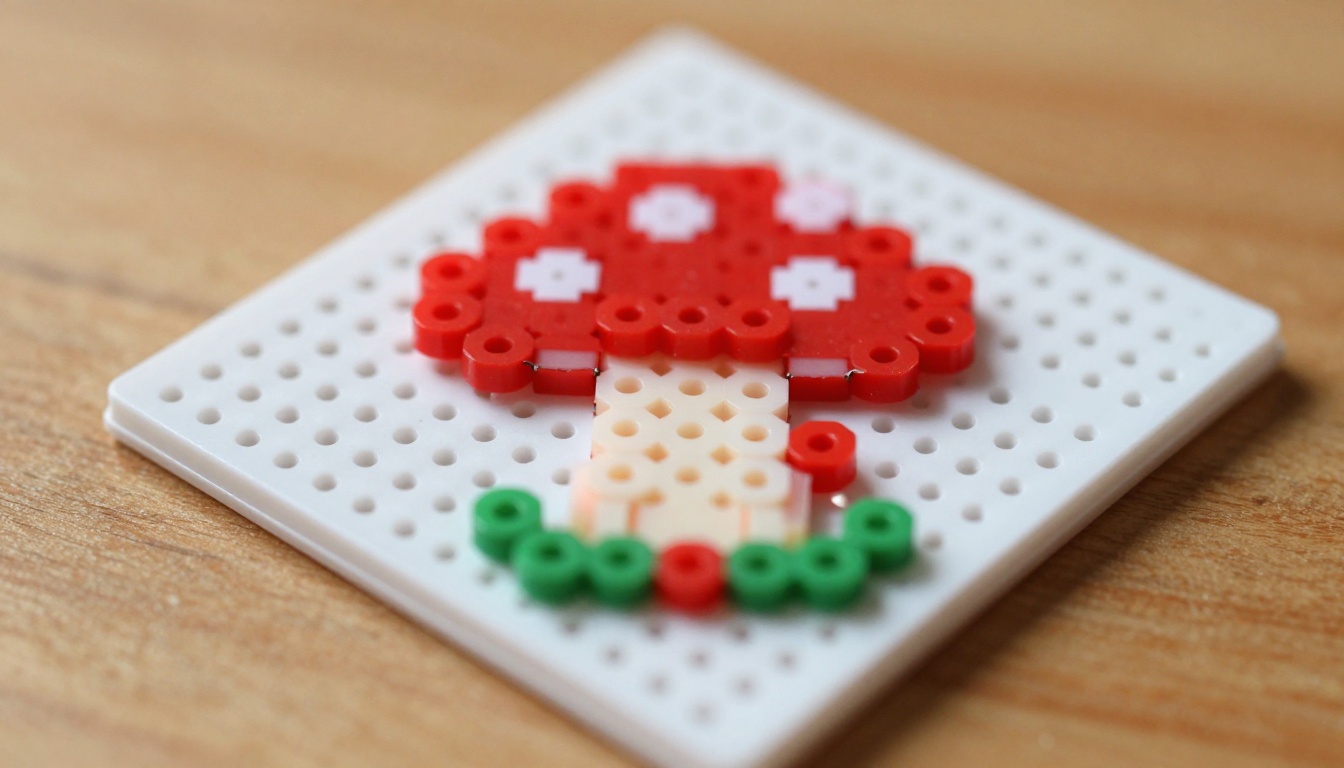
Run a quick test on any output. Real pixel art passes these checks, and a downscaled picture fails most of them:
- One pixel size. Every square on the canvas has the same width, with no half-size blocks or tilted edges.
- A small palette. Sixteen to thirty-two colors is normal. Hundreds of near-identical shades mean the image was smoothed.
- Clean outlines. Edges are one pixel wide, with no soft anti-aliased fringe.
- Hard shading. Shadows use flat steps of color, not gradients.
The default style in Rd Plus is described as clean pixel art with bold colors and outlines, which is exactly the profile above. Both Rd Plus and Rd Fast also accept a palette image, so you can hold a whole asset set to one color scheme.
Why Resolution Matters Most
Pixel art lives or dies on canvas size. A 16 by 16 sprite forces you to suggest a face with two dots, while a 64 by 64 sprite has room for a belt buckle. Pick the size before you write a single prompt, because every asset in a game has to share the same grid.
| Canvas | Typical use | Detail level |
|---|
| 16x16 | Map tiles, small items, icons | Shapes only |
| 32x32 | Small characters, enemies, pickups | Readable silhouettes |
| 48x48 | Hero characters with walk cycles | Faces and clothing |
| 64x64 and up | Portraits, bosses, large props | Texture and shading |
💡 Design around the model. The walking styles in Rd Animation default to 48x48, its small sprite style is fixed at 32x32, and its effects style accepts anything from 24 to 96 pixels wide. Choosing one of those sizes saves a resize later.
Free Pixel Art Generators Compared
"Free" usually means one of two things, and the difference decides whether a tool survives a real project. Hosted tools run in the browser and give you a daily or monthly allowance of generations. Self-hosted models have no cap and no fee, but they need a capable graphics card, a working install and patience for every update.
On PicassoIA, the Rd Animation page describes the model as free to use online with no coding required, and the Rd Fast page says you can try it without setup or an account. Limits can change, so check the plan details on each model page before you plan a large batch.
Browser Tools With No Install
The fastest route is a browser tool. Open a model page, type a description, pick a style preset and download the PNG. That is enough for a prototype, a game jam entry or a profile picture. A browser also makes comparison easy: run the same prompt in two styles and keep the better one.
The four Retro Diffusion models split the work like this:
| Model | Best for | Output | Standout setting |
|---|
| Rd Fast | Quick single sprites, icons, 1 bit art, Minecraft style items | PNG, transparent option | 14+ style presets |
| Rd Plus | Detailed characters, isometric and top down scenes, seamless textures | PNG, transparent option | 19 styles |
| Rd Animation | Walk cycles, idle loops, fire and lightning effects | GIF or spritesheet PNG | 4 animation styles |
| Rd Tile | Tilesets, single tiles, map props | PNG | 6 generation modes |
The example runs listed on the four model pages finished in roughly 12 to 52 seconds, with simple sprites at the quick end and large map scenes at the slow end.
Free Limits to Check
Before you build a game around any generator, check five things:
- Commercial use. If you plan to sell the game, read the usage terms before you commit to an asset set.
- Transparent export. A sprite with a white box around it is half a sprite. Rd Plus and Rd Fast both include a background removal switch.
- Palette control. A reference palette image keeps a batch of sprites in the same colors.
- Seeds. A fixed seed lets you regenerate the same sprite later with the same result.
- Batch size. Generating several images per run saves clicks when you are hunting for a good design.
Sprite Sheets Without Hand Drawing
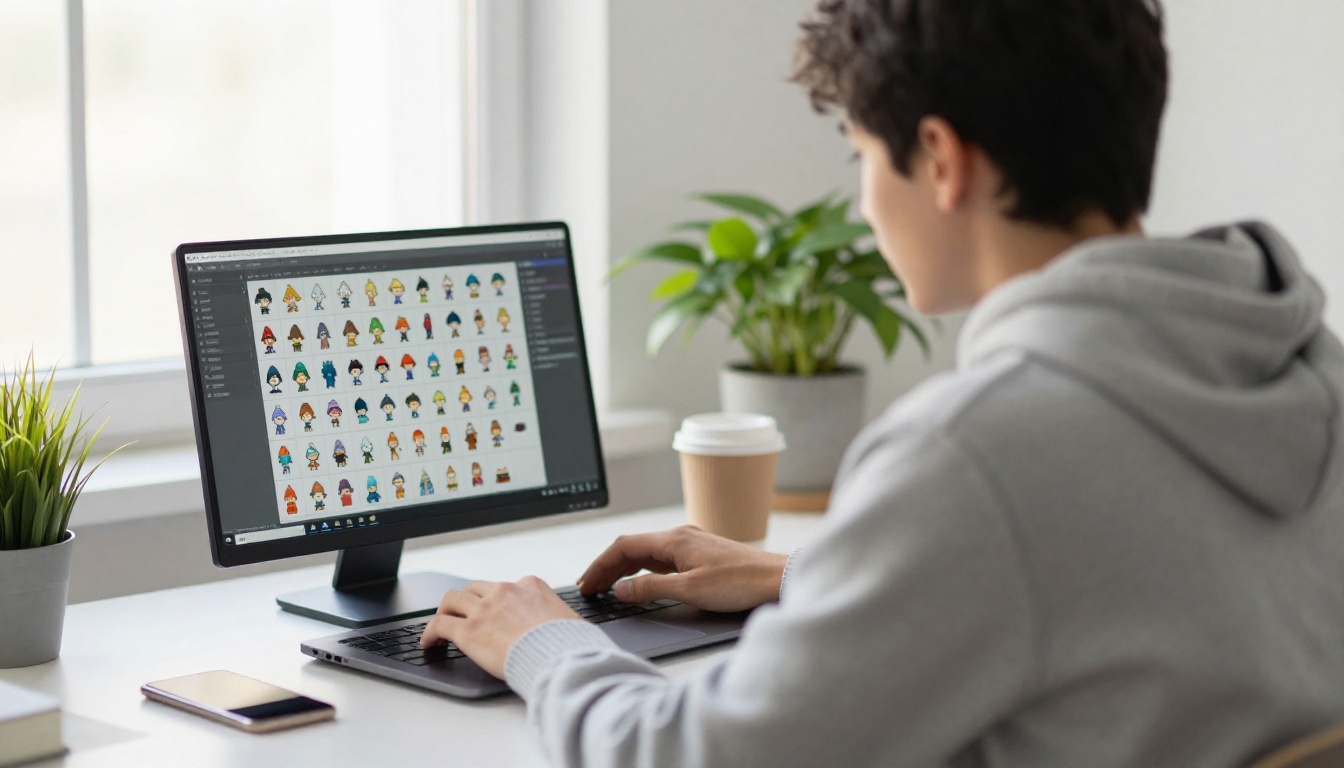
A sprite sheet is one image holding every pose or frame of a character in a grid, so a game engine can cut it into pieces and play them in order. Drawing one by hand means redrawing the same character twenty times while keeping the proportions identical. AI shortens that job in two ways: Rd Plus produces multi-angle character sheets from one prompt, and Rd Animation produces the frames directly.
Character Turnarounds for Sprite Sheets
The character_turnaround style in Rd Plus draws one character from different angles, front, back and side, which is the starting point for any directional sprite. The model page shows a gorilla warrior generated on a 240 by 240 canvas with background removal on and a prompt strength of 0.9. Use those settings as a baseline:
- Style: character_turnaround
- Size: 240 by 240
- Background removal: on, for a transparent PNG
- Prompt:
knight in blue plate armor, short red cape, sword on hip, standing pose
Prompts That Produce Clean Sprites
Short prompts beat long ones here. The models expand your prompt automatically unless you switch that off, so a plain description gives the expander room to add useful detail. Write in this order: subject, outfit, one or two colors, pose.
- Works:
fox thief, green hooded cloak, leather satchel, idle pose
- Weak:
epic ultra detailed 8k cinematic fox
Quality words borrowed from photo prompts do nothing for a pixel model. Choose the look with the style dropdown, not with adjectives in the prompt.
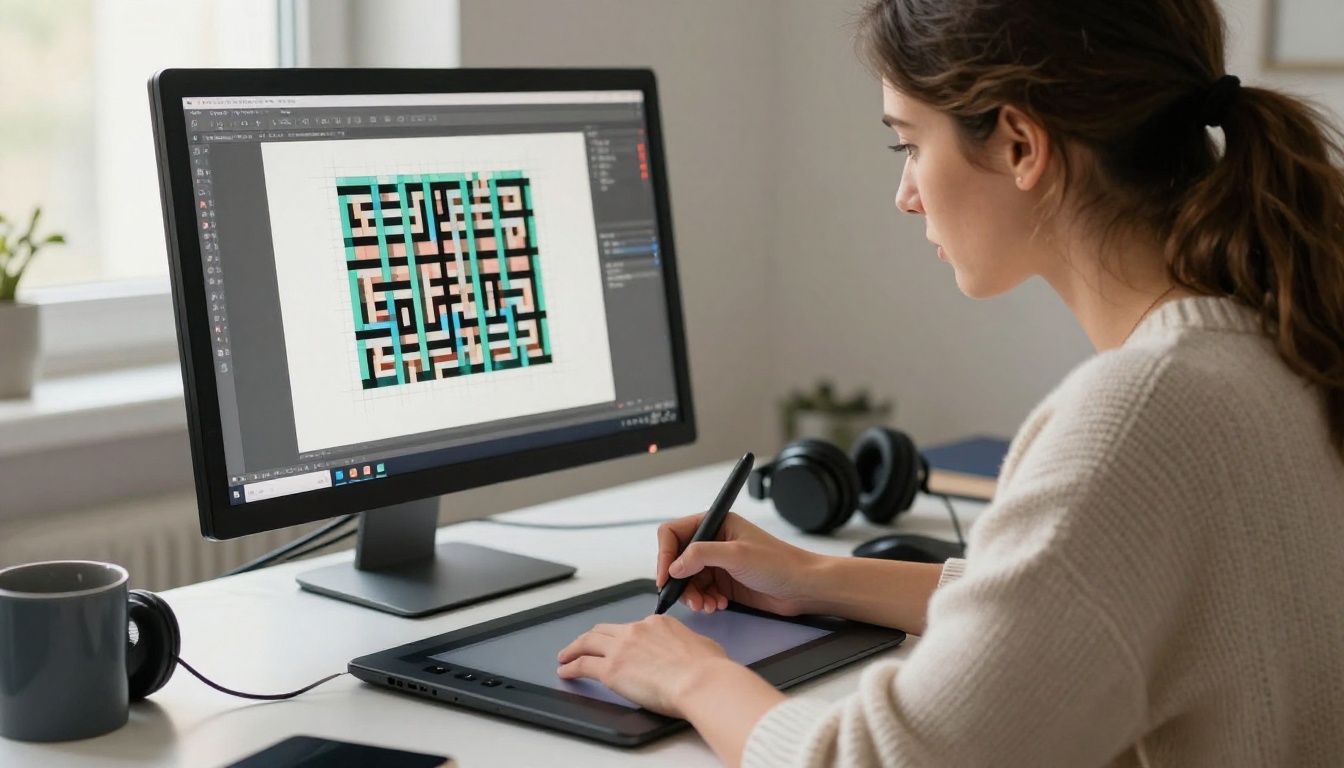
Even a good output benefits from a short pass in a pixel editor. Fix stray pixels, line up the feet across poses and lock the palette. Piskel, LibreSprite and Aseprite all handle this well.
Slicing Sheets in Your Engine
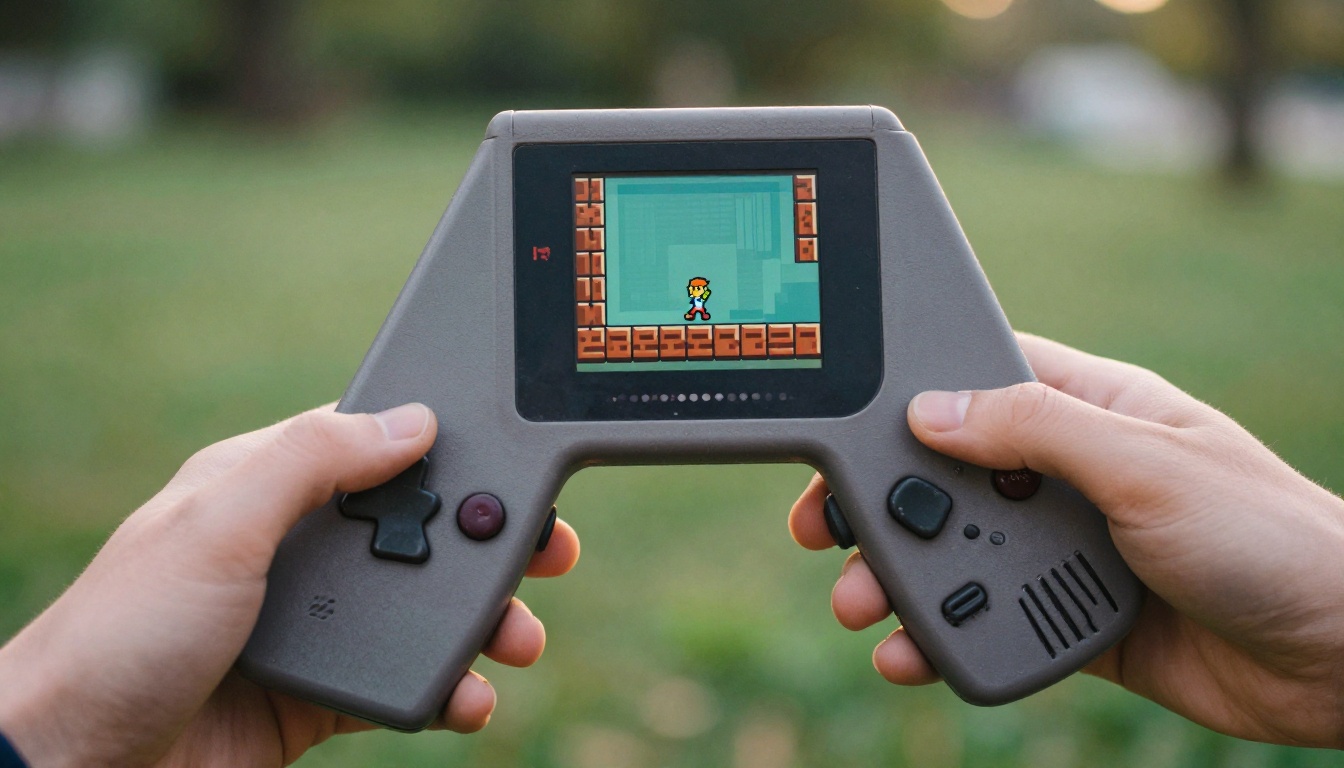
Once you have a PNG sheet, import it with filtering off, or the engine will blur every square:
- Godot: set the texture filter to Nearest, then use a Sprite2D with Hframes and Vframes, or build SpriteFrames from the sheet in an AnimatedSprite2D.
- Unity: set Sprite Mode to Multiple, Filter Mode to Point (no filter) and Compression to None, then slice by cell size in the Sprite Editor.
- Any engine: scale the final render by whole numbers only: 2x, 3x or 4x.
Animations From a Single Prompt
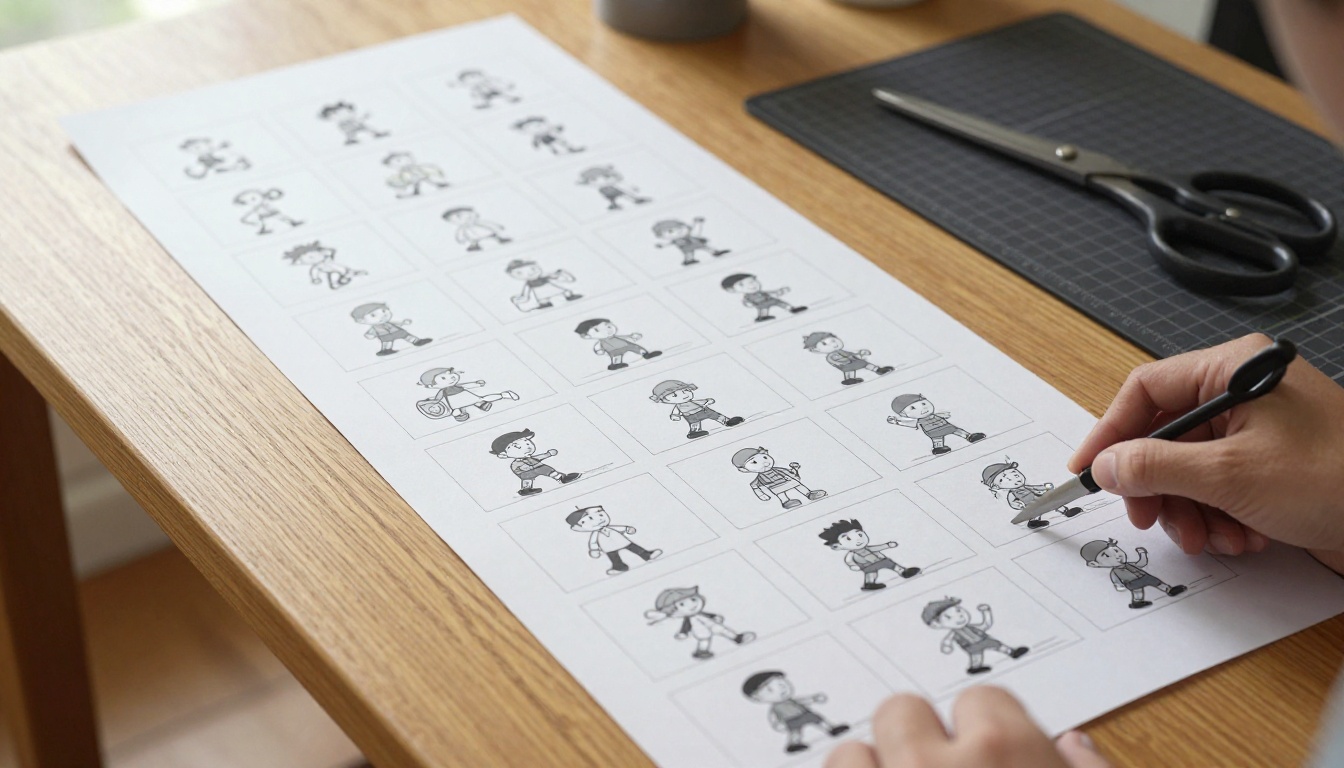
Animating by hand is where most solo developers quit. A four-direction walk cycle at four frames per direction is sixteen drawings for one character, before an idle loop, an attack and a hit reaction. Rd Animation generates the whole set from a text description, and every frame keeps the same proportions and palette.
Four Animation Styles
- four_angle_walking: four directions, four frames each, for humanoid characters.
- walking_and_idle: the same four-direction walk plus idle loops.
- small_sprites: 32x32 sprites with walking, arm raising or attacking, looking around, surprised and lying down animations.
- vfx: fire, explosions, lightning and other simple effects, from 24 to 96 pixels wide.
The examples on the model page show the range: a corgi in sunglasses as a walker, a swirling blue portal in the effects style, a wizard in a colorful robe at 96 by 96, and a cat knight animated from a reference image.
GIF or Spritesheet PNG?
By default the model returns an animated GIF. Switch on return_spritesheet and you get a flat PNG sheet instead. They serve different jobs:
| Output | Best for | Watch out for |
|---|
| GIF | Previews, social posts, quick motion checks | 256 colors and one transparent color, so edges can look rough |
| Spritesheet PNG | Game engines and animation editors | Check the frame layout before you write import code |
For a four-direction walker, expect sixteen frames in total: four directions times four frames each.
💡 Approve on the GIF, export the sheet. Judge the motion on the GIF, then rerun the same prompt with the same seed and return_spritesheet switched on. A fixed seed regenerates the same frames, so you export what you approved.
Tilesets for Maps and Levels
Characters get the attention, but a game screen is mostly ground, walls and water. Rd Tile handles that layer with six generation modes.
Wang Tilesets From One Prompt
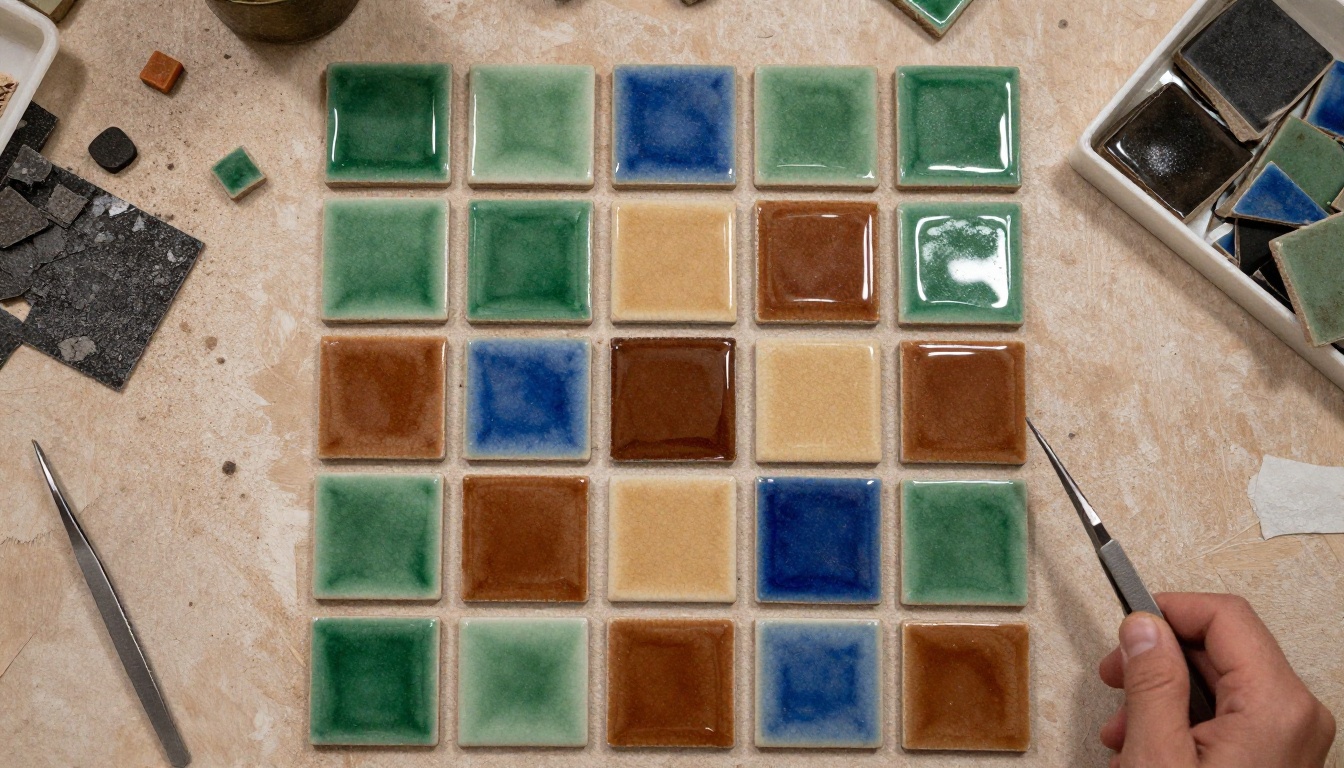
In tileset mode you describe an environment and get a full set of tiles that join without visible seams. The model page example is a volcanic beach with blue water and black sand, generated with 16 by 16 pixels per tile. A classic two-terrain wang set needs sixteen tiles to account for every corner combination, which is why drawing one by hand takes an afternoon.
Two details matter. First, the width and height you set describe each individual tile, not the final image. Second, the two-prompt tileset mode blends two textures or two prompts into a single set, such as grass meeting stone.
Props and Scene Objects
Four more modes handle everything else on the map:
- single_tile: one detailed texture you can build a set from.
- tile_variation: alternatives to an existing tile, which breaks up repetition on large flat areas.
- tile_object: small items such as barrels and crates.
- scene_object: large assets such as trees and ruins.
For seamless textures outside the tileset workflow, Rd Plus and Rd Fast offer tile X and tile Y switches that repeat a texture across the canvas edges.
This is the shortest route from a blank page to a game-ready walk cycle.
Step by Step
- Open the Rd Animation page on PicassoIA.
- Type a short prompt, for example
fox thief with green hooded cloak and leather satchel.
- Choose a style:
four_angle_walking for a top down RPG character, small_sprites for a 32x32 set, or vfx for effects.
- Leave width and height at their defaults on the first run: 48 for walkers, 32 for small sprites.
- Optional: upload a character sketch as the input image so the animation follows your design.
- Enter a seed number so you can reproduce the result.
- Run it and review the GIF. Then rerun with
return_spritesheet on to get the PNG sheet.
- Download the file and import it with filtering set to Nearest or Point.
The examples on the model page finished in roughly 14 to 27 seconds, so a handful of variations costs only a few minutes.
Settings Worth Changing
| Setting | What it does | Change it when |
|---|
| Style | Picks the animation type | Every run |
| Width and Height | Sets the canvas size | You use vfx, which accepts 24 to 96 |
| Input image | Gives the model a reference | You have a sketch or an existing sprite |
| Return spritesheet | Outputs a PNG sheet instead of a GIF | You are ready to import into an engine |
| Bypass prompt expansion | Turns off automatic prompt expansion | You need your exact wording followed |
| Seed | Makes a result reproducible | You like a result and want to keep it |
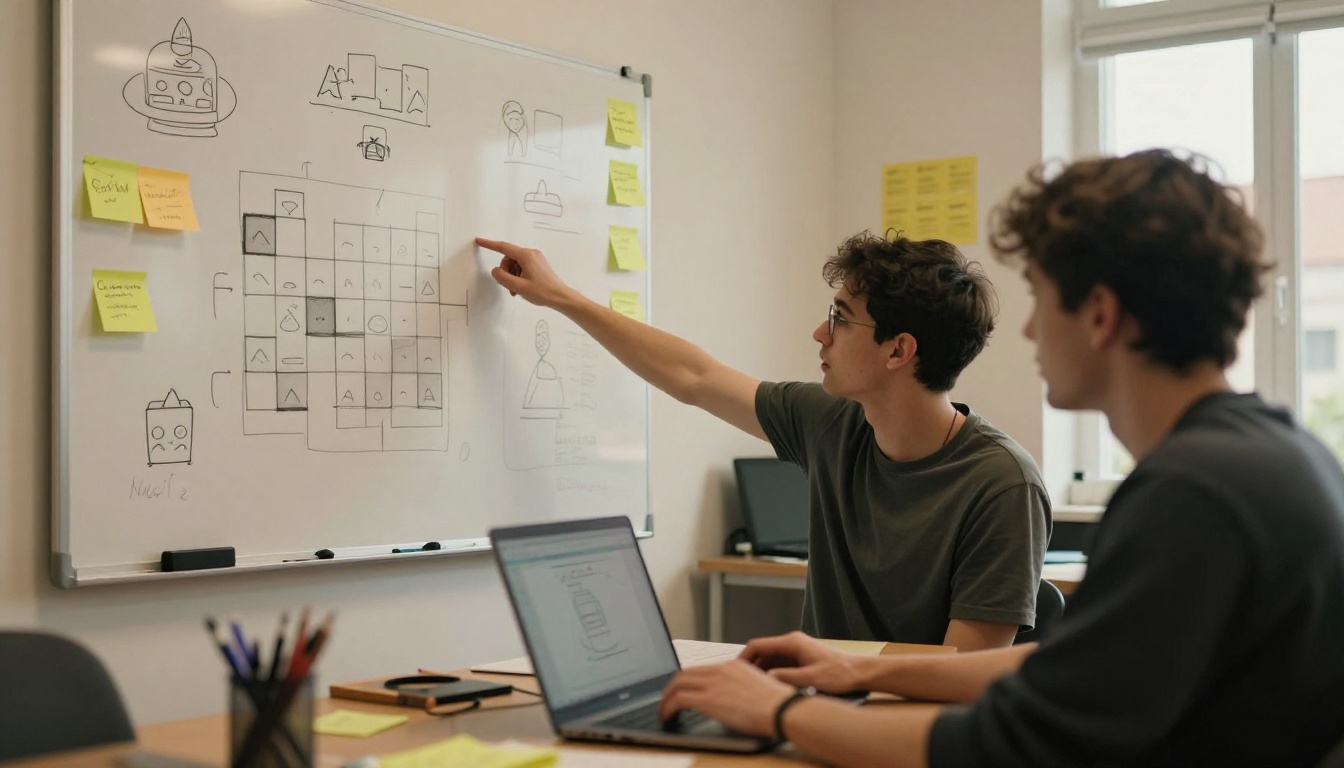
Work the way a game jam team does: run five variations with different seeds, keep the best two, and spend your editing time on those instead of polishing the first output.
Mistakes That Ruin Pixel Art
Smoothing Pixels With Upscalers
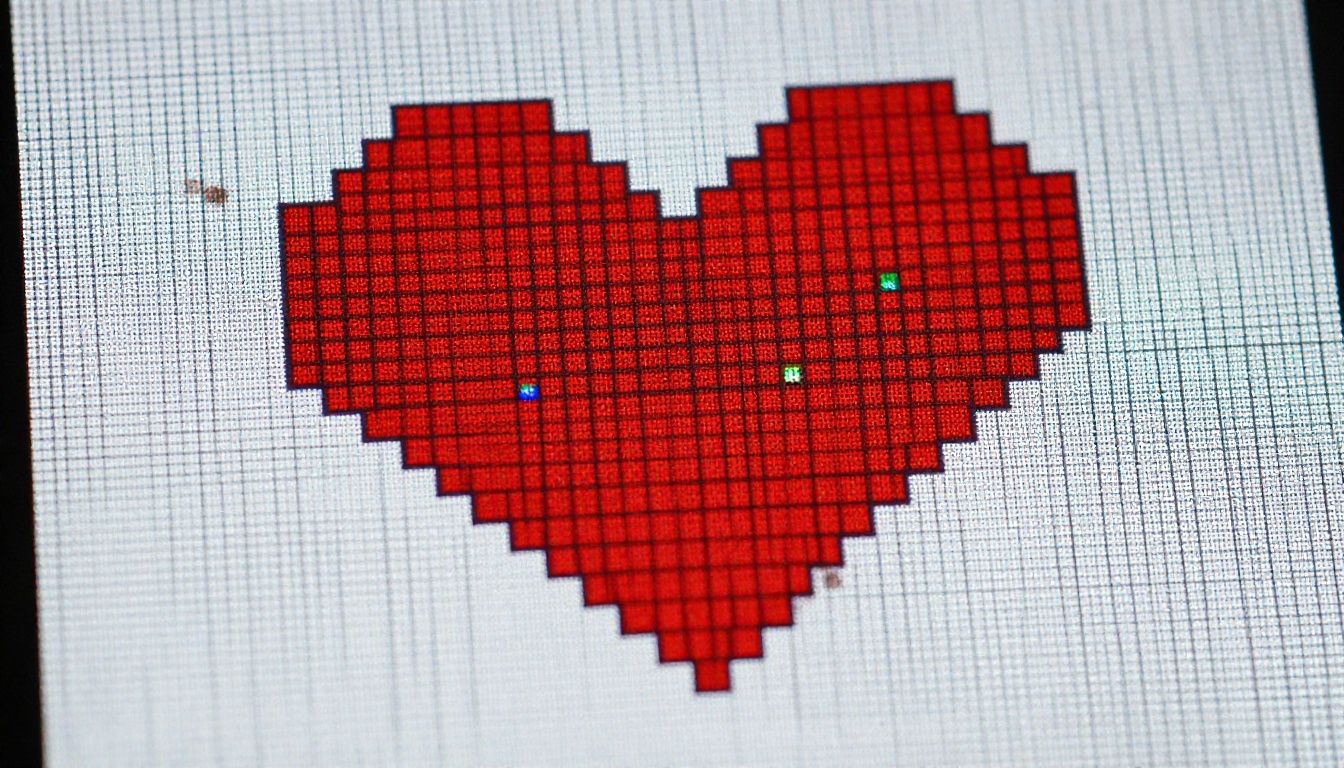
General AI upscalers invent detail between pixels, and for pixel art that invented detail is blur. Scale with nearest neighbor at whole-number factors instead. A 48x48 sprite shown at 3x becomes 144x144 and stays razor sharp.
Mixing Pixel Sizes in One Scene
A 16x16 tileset beside a 64x64 hero looks wrong because the squares do not match. The same happens when you resize a sprite by 1.5x. Choose the tile size first, then make characters two or three tiles tall, and keep every asset on that one grid.
Four quick fixes for the rest:
- Too many colors: upload a palette image to Rd Plus or Rd Fast and the batch stays in one scheme.
- Photo style prompts: drop words like "photorealistic" and pick a style preset instead.
- White boxes around sprites: switch on background removal before you run.
- Lost results: note the seed of every sprite you like.
Try It With Your Own Sprites
Pick one character you actually want in a game: a hero, a slime, a shopkeeper. Start with Rd Fast and test five looks in a couple of minutes. Build the winner's turnaround in Rd Plus, bring it to life with Rd Animation, and lay the ground it walks on with Rd Tile.
Open Picasso IA, paste your first prompt and see how far one afternoon takes you. Try a fox thief, a lava slime or a tiny space station, change the seed a few times, and keep whatever surprises you. Your next game jam entry may already be one prompt away.


