Pixel art used to mean hours of nudging single squares on a tiny grid, then more hours stitching frames into a loop. Now you can type one sentence, press generate, and watch a little knight cross a stone bridge in a five second clip that looks like it came off a 1994 cartridge. The catch is that most results look almost right. The pixels swim, the palette drifts, and the hero grows an extra arm halfway through. This article is about closing that gap: which kind of AI pixel art video generator to pick, where free tools are enough, and the exact prompt patterns that keep retro clips clean.
💡 Quick answer: The most reliable workflow is two steps. First build a sharp pixel art still with a pixel specific image model. Then animate that still with an image to video model. Going straight from text to video works for moods and backgrounds, but characters hold together far better when they start from a fixed first frame.
What an AI Pixel Art Video Really Is
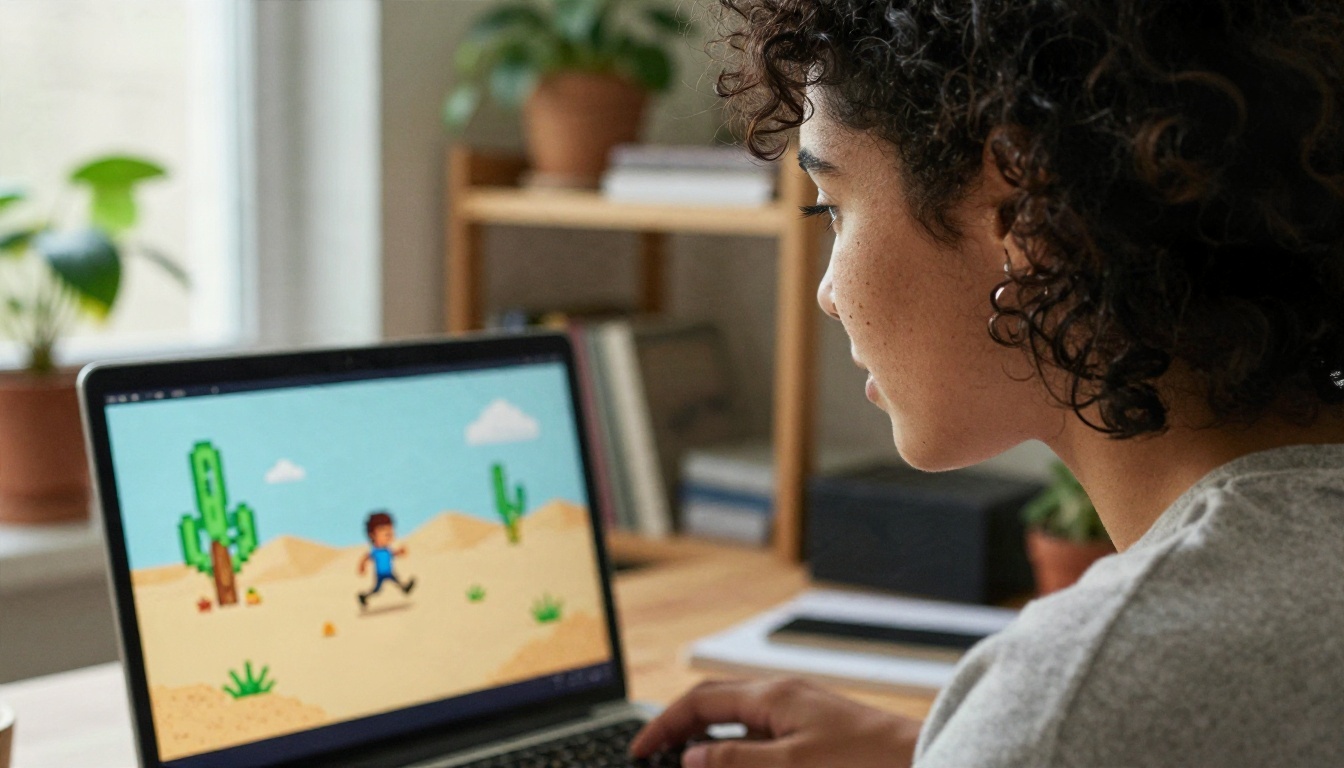
A pixel art video is a short clip where the picture is built from a visible low resolution grid, usually with a limited color palette, hard edges and no smooth gradients. Think side scrolling platformers, top down role playing games, and the title screens of old handheld consoles.
AI video models are not trained to think in grids. They learn smooth motion, soft light and film like depth. When you ask for pixel art, they approximate the look, and the approximation is where problems start. A real pixel sprite never blurs between frames. An AI clip often does.
Native pixels versus pixel filters
There are two very different things sold under the same name:
- Pixel filters take normal footage and downsample it into chunky blocks. The motion is real, the pixels are fake. It looks like a mosaic over a live scene.
- Generative pixel art video invents the whole clip in a pixel style. Sprites, tiles and backgrounds are drawn as pixel art from the first frame.
Both are useful. Filters are fast and predictable for turning a phone clip into a retro cutscene. Generative clips give you original worlds and characters, but they need more careful prompting.
Why consistency is the hard part
In hand drawn animation, the pixel grid stays fixed. In AI video, the model redraws every frame, so a grid that is 64 pixels wide in frame one can quietly become 90 pixels wide by frame forty. Your eye reads that as shimmering. Keeping the grid size, palette and outline weight stable across all frames is the whole game.
Where Retro Clips Actually Get Used
Nostalgia is a strong hook, but the practical uses are wider than most people expect.
Game trailers and prototypes
Indie developers use short pixel clips to test a mood before committing to a full art pipeline. A five second shot of a rainy village tells a publisher more than a paragraph of design notes. Even if the final game is hand drawn, the AI clip works as a living mood board.
Music visuals and looping backgrounds
Lo-fi playlists, chill streams and ambient channels live on looping scenes: a cat on a windowsill, a train crossing a bridge at dusk, a rainy cafe. Pixel art suits loops because the low detail hides small imperfections.
Social posts and intros
Short vertical clips with a retro look stand out in feeds full of glossy footage. A pixel intro for a podcast or a channel logo animated as a sprite takes minutes instead of days.
Teaching and storytelling
Teachers and writers use pixel scenes to illustrate stories, history lessons and game design classes. The style is friendly, readable on small screens and forgiving of simple compositions.
Searching for a free pixel video tool turns up a long list: browser generators from larger creative suites, small startup sites that turn an uploaded image into a pixel clip, and general video platforms that added a pixel style preset. Most of them advertise free access, but the free part usually means a daily credit allowance, a watermark, a shorter duration or a lower resolution. Check each provider's current limits before building a project around one, because those terms change often.
Here is how the main approaches compare in practice:
| Approach | Typical cost | Best for | Weak spot |
|---|
| Pixel filter on real footage | Free or very cheap | Turning phone clips into retro scenes | No original characters |
| Text to video with a pixel prompt | Low to medium | Moods, backgrounds, loops | Sprites drift and blur |
| Pixel still, then image to video | Low to medium | Characters that stay on model | Needs two steps |
| Video restyle with text editing | Medium | Changing an existing clip into pixel style | Depends on source quality |
What "free" should mean to you
A good free tier lets you test the same prompt several times. Pixel art needs retries, because the first generation is rarely the best one. If a tool gives you three tries a day, you will spend them all fixing one clip. Look for generous or unlimited allowances, and judge by how many attempts you can afford, not by the headline price.
On PicassoIA, Seedance 2.5 Lite is listed as a free and unlimited video generator that can produce clips up to ten seconds, which makes it a comfortable place to run the many retries pixel art requires. For the still image step, Rd Fast is built for quick pixel art generations.
The Two Step Workflow That Works
If you remember one thing from this article, make it this: fix the look first, then add motion. A still image gives the video model a locked palette, a locked character design and a locked grid size to start from.
Step one: build the sprite or scene
Use a pixel specific image model. PicassoIA lists three from the Retro Diffusion family:
- Rd Plus for authentic, detailed pixel art with controlled styles
- Rd Fast for quick drafts when you are still exploring a character
- Rd Tile for tilesets, which is handy when you want repeating floors, walls and water
Generate several variations, then pick the one with the cleanest outline and the most readable silhouette. A sprite that is hard to read as a still will be impossible to read in motion.
Step two: animate with image to video
Upload the chosen frame as the starting image and describe only the motion. Do not re-describe the whole character. Models tend to redraw whatever you describe, so a long character description invites changes.
Good image to video options on PicassoIA include Wan 2.5 I2V Fast for quick animation of a still, Hailuo 2.3 Fast for turning photos and images into short clips, and Kling v3 Video when you want more cinematic camera behavior.
Step three: clean up and add sound
A silent pixel clip feels unfinished. Retro games lived on beeps, chiptune loops and small sound effects. You can generate matching effects with Video To SFX v1.5, which adds synced sound to an existing clip. Some video models, such as Veo 3.1 Lite, generate native audio along with the picture.
💡 Tip: If the pixels look soft after generation, run the clip through a nearest neighbor style upscale in your editor, not a smoothing upscaler. Smoothing algorithms blur the hard edges that make pixel art look like pixel art.
How to Use Seedance 2.5 Lite on PicassoIA
Seedance 2.5 Lite is a good starting model for this style because you can afford to experiment. The steps below describe a typical session. Exact labels in the interface may differ slightly, so follow the fields you see on the page.
- Open the model page from the link above and choose whether you are starting from text only or from an image.
- Upload your pixel still if you are animating a sprite or scene you already made with Rd Plus or Rd Fast. This sets the palette and grid before anything moves.
- Write a motion focused prompt. Name the style, the one action, and the camera behavior. Keep it to two or three sentences.
- Pick a short duration first. Five seconds is enough to judge whether the style holds. Extend only after a short test looks right.
- Generate, review, then adjust one thing. If the sprite blurred, add a stronger style phrase. If the camera moved too much, say "static camera". Change a single variable per retry so you know what helped.
- Save the best take and, if you want sound, send it to a sound effects model.
Parameter tips that save retries
- Use short, concrete verbs: walks, jumps, flickers, drifts. Abstract verbs like "comes alive" produce random motion.
- Ask for a static camera unless you truly want a pan. Camera movement multiplies the chance of grid drift.
- Keep one subject per clip. Crowds of tiny sprites tend to merge.
- Mention limited palette and a number, such as "16 color palette", to discourage color drift.
Prompt Ideas You Can Copy
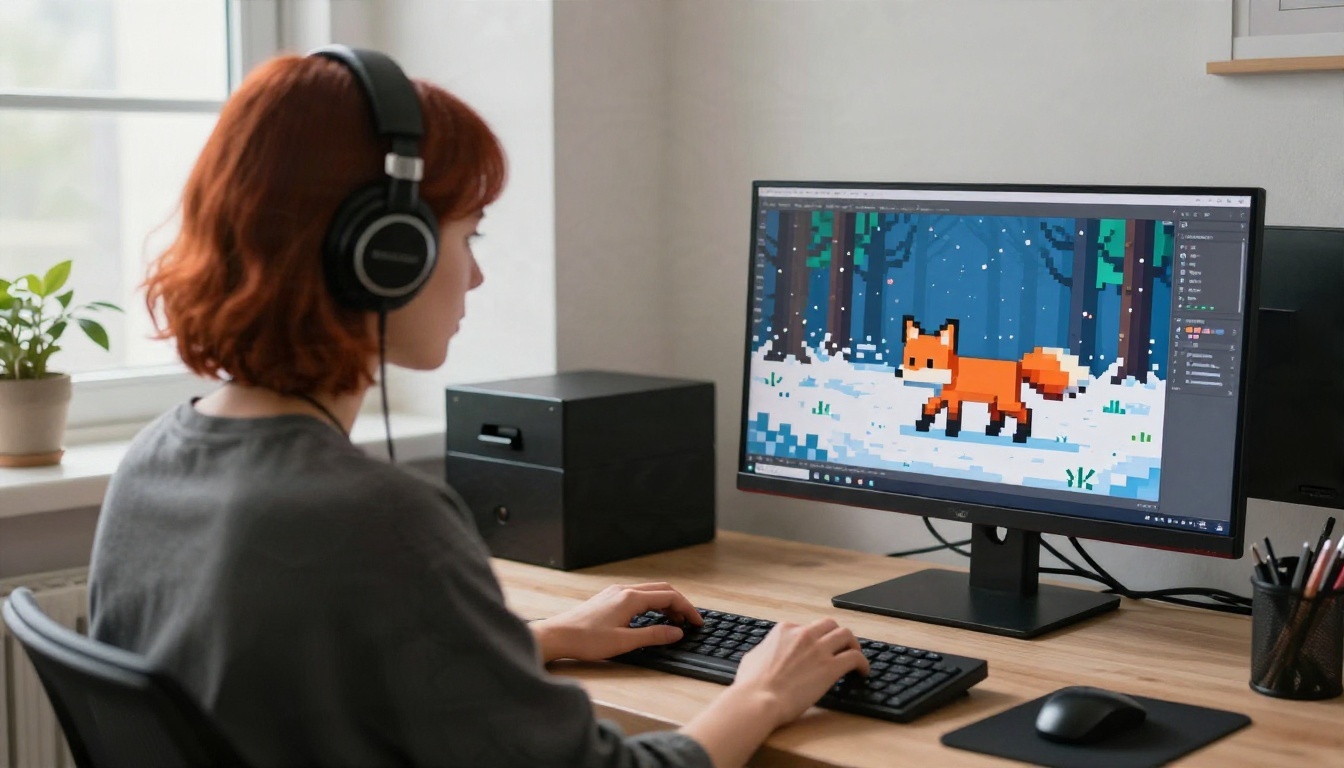
A strong pixel art video prompt has four parts: style, subject, motion, camera. Here is a template, followed by prompts sorted by scene type.
Template: "16-bit pixel art, [subject] [single action], [setting], limited color palette, hard pixel edges, no blur, static camera."
Fantasy and adventure
- 16-bit pixel art, a small knight walks across a stone bridge over a river, morning mist, limited 16 color palette, hard pixel edges, static camera.
- 8-bit pixel art, a wizard raises a staff and a small spark flickers at the tip, dark tower interior, side view, no camera movement.
- Pixel art, a dragon sleeps on a pile of coins and its chest slowly rises and falls, cave background, limited palette.
- Top down pixel art, a hero walks along a forest path as leaves fall, stable grid, gentle motion only.
Cozy loops
- Pixel art, a cat sleeps on a windowsill while rain streaks slowly run down the glass, warm room, seamless loop feel, static camera.
- 16-bit pixel art, a tiny cafe at night with steam rising from a cup, soft street lamp, limited warm palette.
- Pixel art train crossing a bridge at dusk, clouds drifting slowly, side view, minimal parallax.
- Pixel art, a lighthouse at sunset with waves rolling in below, birds crossing the sky, static camera.
Sci-fi and action
- 8-bit pixel art, a small spaceship flies across a starfield, scrolling background, side view, simple shapes.
- 16-bit pixel art, a robot walks through a ruined city street, dust drifting, side view, no zoom.
- Pixel art, a runner sprints through a desert canyon, parallax background scrolling at two speeds, limited palette.
- Pixel art, a pilot climbs into a cockpit and the canopy closes, three frames of clear motion, hard edges.
Nature and weather
- Pixel art, a fox runs through a snowy forest, snow falling, side view, 16 color palette.
- 16-bit pixel art, a river flowing past a wooden mill, wheel turning slowly, static camera.
- Pixel art, thunderstorm over a small town, one lightning flash and rain, dark limited palette.
- 8-bit pixel art, a field of sunflowers swaying in the wind under a bright sky.
Words that help and words that hurt
| Helps | Hurts |
|---|
| hard pixel edges | smooth shading |
| limited color palette | photorealistic |
| static camera | dramatic camera sweep |
| side view or top down | cinematic depth of field |
| single action | many characters at once |
| 16-bit or 8-bit | high detail 4K |
The right column is not wrong in general. It just pushes the model away from the flat, blocky look you want here.
Fixing the Most Common Problems
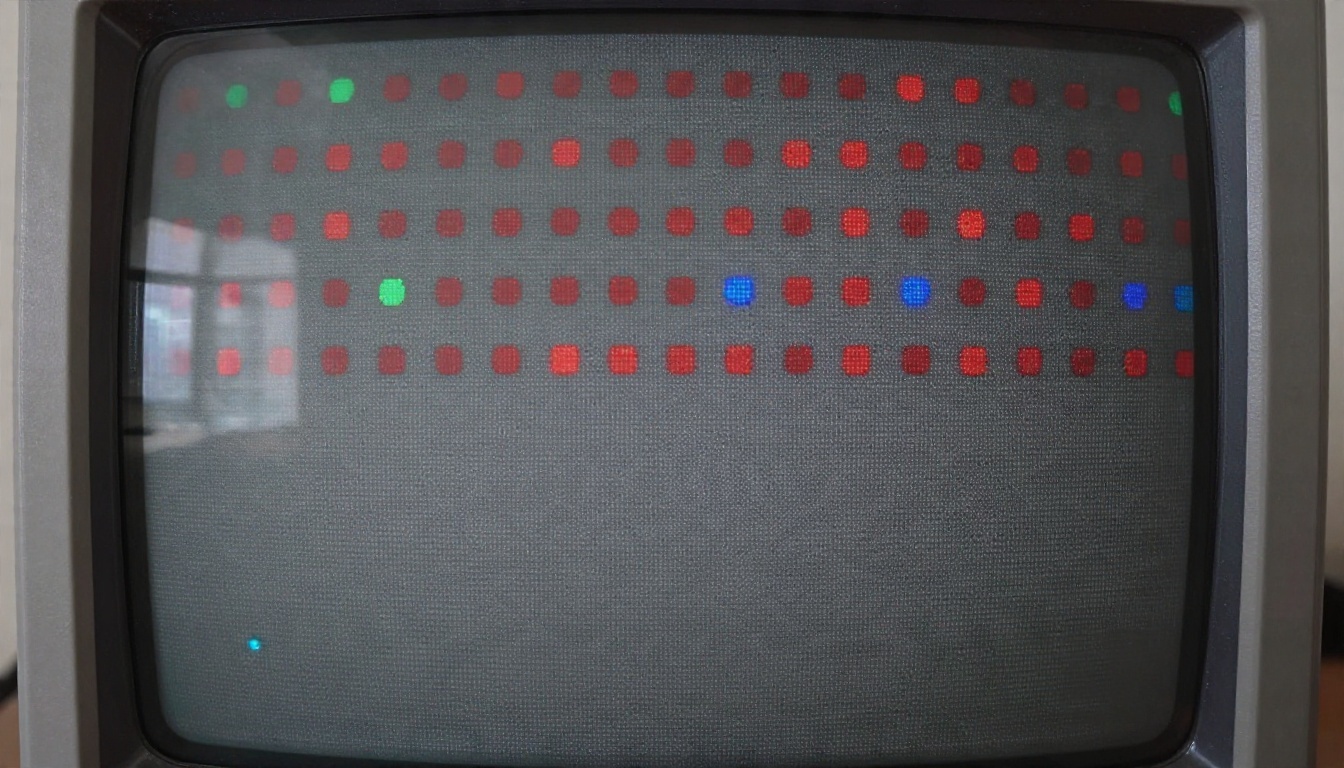
Even with a good setup, you will hit issues. These are the ones that come up most often and what usually fixes them.
Pixels shimmer or change size
This is grid drift. Shorten the clip, lock the camera, and begin from a pixel still instead of text alone. If you need a longer scene, generate two short clips and cut them together rather than asking for one long shot.
The character changes design mid clip
Reduce the number of actions. A character that only walks stays stable far longer than one that walks, turns, jumps and waves. Keep the character description out of the motion prompt when starting from an image.
Colors drift toward realistic tones
Name the palette in the prompt and avoid words that suggest realism. If drift continues, restyle the clip afterward with a text driven editor such as Lucy Edit 2, which changes an existing video based on a written instruction.
Backgrounds look too smooth
Tilesets help here. Build the background pieces with Rd Tile, compose them into a single scene image, and use that as the first frame. The model then inherits real tile texture instead of inventing a soft one.
The clip feels flat
Add a second layer of motion. Drifting clouds, falling leaves, a flickering lamp or scrolling hills give the eye something to follow. Keep each layer simple and describe them in one short phrase.
Picking the Right Model for Your Clip
No single model wins every scene. This table matches common goals with models available on PicassoIA.
| Goal | Model to try | Why |
|---|
| Free experiments and retries | Seedance 2.5 Lite | Free and unlimited, up to ten seconds |
| Fast animation of a pixel still | Wan 2.5 I2V Fast | Quick turnaround for image to video |
| Smooth, cinematic movement | Kling v3 Video | Strong camera and motion handling |
| Clips with built in audio | Veo 3.1 Lite | Native sound along with the picture |
| Stylized social clips | Pixverse v6 | Cinematic video with generated audio |
| Longer projects | Seedance 2.5 | Built for longer outputs |
| Quick drafts at high resolution | LTX 2.5 Fast | Fast generation for rapid testing |
Matching the model to the style
Smooth, physics heavy models can fight pixel art, because they want to make motion fluid. For a classic 8-bit feel, you may actually prefer a model that gives slightly stepped, simple motion. Test two models with the same pixel still and compare. The difference is often larger than any prompt tweak.
A note on resolution
Pixel art does not need high resolution, but it does need clean edges. A 720p clip with crisp pixels looks better than a 1080p clip with soft ones. Do not chase pixel count in the output. Chase edge sharpness.
Social Clips and Frame by Frame Polish
Most pixel clips end up on a phone screen, so design for it.
Make it vertical when needed
If the clip is for short video feeds, start from a vertical still. The video model will keep the frame shape of your starting image, so a vertical pixel scene produces a vertical clip without cropping.
Plan the loop
For looping content, write a prompt that ends where it begins: a flame that flickers, a cat that breathes, rain that falls. Motions with a natural cycle loop cleanly, while a character walking out of frame never will.
Final edit pass
Trim the first and last few frames, where models often settle awkwardly. Add a small chiptune track or a soft effect. Export at a size that keeps pixels crisp, and avoid platforms' automatic smoothing by uploading at a resolution that divides evenly by your pixel grid.
Sketch first if you can
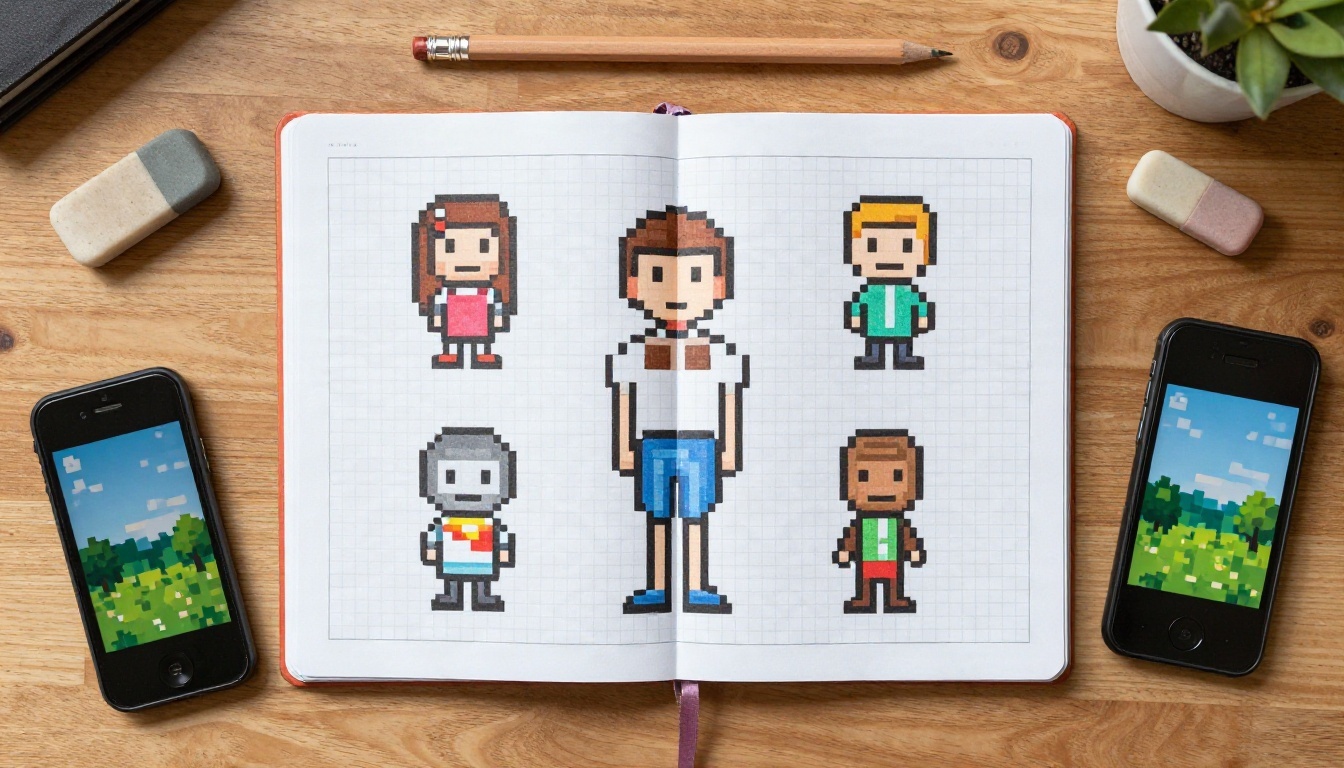
Even a rough pencil sketch on graph paper helps. Decide the sprite's height in pixels, pick four to eight colors, and note one action. Then your prompt can name those details, and the model has fewer chances to guess wrong.
Try Your Own Pixel Clip on Picasso IA
You do not need drawing skills, a game engine or a long afternoon. Pick one idea from the prompt list above, generate a still with Rd Plus, and animate it with Seedance 2.5 Lite or Wan 2.5 I2V Fast. Change one word at a time and watch what happens. Within a handful of tries you will have a retro loop worth posting.
Picasso IA puts pixel art image models, video generators, video editors and sound effect tools in one place, so you can move from a blank prompt box to a finished clip without switching sites. Browse every option at picassoia.com/en/all-models, pick a model that fits your clip, and start with the cat on the windowsill. It is the easiest scene to get right, and it will show you how the pixels behave before you try a dragon.


