Your first AI video should take minutes, not a weekend of tutorials. Most students and beginners hit the same wall: the tool looks great in a demo, then asks for a credit card, a timeline editor, or a prompt written like a film script. The best AI video generator for beginners and students is the one that lets you type a sentence, press a button, and get a clip you can actually use, without paying for every retry. This ranking is built around that idea. It weighs cost, speed, clip length and how forgiving each model is when your prompt is rough, then shows you how to make a first clip in under ten minutes.
💡 Short answer: Start with Picasso IA Video for free, unlimited 5-second clips. Move to Seedance 2.5 Lite when you need up to 10 seconds. Save the premium models for final renders.
What Beginners Actually Need
Forget the feature lists for a moment. A first-time user needs a short list of things that either work or do not:
- A low barrier to entry. One text box, one button, no timeline.
- Cheap or free retries. Your first five clips will be mediocre. That is normal, and it should not cost you anything.
- Predictable output. Clip length, resolution and aspect ratio should be clear before you press generate.
- Sound included. Silent clips feel unfinished, and adding audio later means opening a second tool.
- Room to grow. The same platform should let you animate a photo, change the aspect ratio, and move to stronger models when you are ready.
Every model below is scored against those five points, not against how good a hand-picked demo looks.
Zero Editing Skills Required
Older video tools assumed you could cut, color and mix. Modern text-to-video models skip all of that. You describe a shot in plain English, and the model returns a finished clip with motion, lighting and, on most current models, synchronized audio. A nursing student can make a 5-second opener for a slide deck without touching a video editor, and a film student can test a camera move before booking a location. Your job shifts from operating software to describing what you want, which is a skill you already have.
Free Runs Beat Free Trials
A free trial gives you a handful of generations, then a paywall. A free unlimited model gives you permission to waste attempts, and wasting attempts is how people get good. Students on a budget should look for models where retries cost nothing, because a clip that lands on the third try is far cheaper than one that lands on the thirtieth under a per-clip price.
💡 Budget rule: Draft on an unlimited model, then spend money only on the final shot that really needs extra resolution.
Check the Fine Print
Before you commit to any tool, check four things: the maximum clip length, the top resolution, whether exports carry a watermark, and what the license allows. A model that is perfect for a class slide may not be allowed in a paid freelance job. Spending two minutes on the model page saves you from re-making a clip the night before a deadline. Queue times matter too. A fast model that returns a draft in under a minute lets you test more ideas before your study session ends.

The Ranked Short List
Here is the ranking at a glance. Each model links to its page so you can open it and test it yourself.
The order favors beginners. A model can produce prettier footage and still rank lower here if it makes you pay for every attempt or demands expert prompting.
Pick by Budget
Your situation decides the order more than any score does.
- Zero budget: Stay on Picasso IA Video and Seedance 2.5 Lite. You can iterate as often as you like.
- A small budget: Draft on the unlimited models, then render one hero shot on Veo 3.1 Fast.
- A single big project: Test the idea on Picasso IA Video, then try Kling v3 Video when the camera move matters most.

Six Models Worth Your Time
All six are available on Picasso IA, so you can switch between them without opening a new account every time you want to compare results.
Picasso IA Video for Free Runs
Picasso IA Video is the native model of the platform and the easiest place to begin. It turns a text prompt into a finished 5-second clip at 24 frames per second with synchronized audio, and it also accepts an image as the opening frame. You choose 480p for the fastest render or 720p for sharper output, pick an aspect ratio such as 16:9 for slides or 9:16 for phones, and lock a seed when you want to reproduce a result.
The real draw is cost. The model is offered as free and unlimited, so you can run ten versions of the same idea and keep the best one. For a student building a presentation, that matters more than any benchmark.
Best for: first-time users, slide decks, quick social posts.
Watch out for: the fixed 5-second length. For longer shots, move to the next pick.

Seedance 2.5 Lite for Longer Clips
Seedance 2.5 Lite is the lightweight edition of Seedance 2.5 and the natural step up when five seconds feels short. It produces clips of 5 or 10 seconds, renders at 480p and 720p, generates synchronized audio by default, and lets you set a closing frame when you start from an image. Wonder members run it without limits, which makes it ideal for iteration: try ten prompt variations, change the seed, test a different camera direction.
When a project truly needs more length, the full Seedance 2.5 is built for clips up to 30 seconds.
Veo 3.1 Fast for Sharp Output
Veo 3.1 Fast is a good pick when a clip has to look clean on a projector or a large monitor. Its page describes text-to-video at 1080p. If you want a lighter option, Veo 3.1 Lite is described as creating videos with native audio.
Because these are premium models, treat them as your final render. Write a clear prompt, test the idea on an unlimited model first, then bring the polished version here.
Best for: final presentation clips, portfolio pieces.

Kling v3 for Cinematic Motion
Kling v3 Video is built for cinematic output, which suits film and media students who care about camera movement and mood. Beginners sometimes struggle with it because it rewards specific direction: say whether the camera pushes in, tracks sideways or stays locked. To animate a character from a reference, look at Kling v3 Motion Control.
Best for: film students, mood pieces, short scenes with deliberate camera work.
Wan 2.7 for Text Prompts
Wan 2.7 T2V turns text into 1080p video and is a solid choice when you like writing detailed prompts. Its sibling Wan 2.7 I2V animates a still image, which pairs nicely with a frame you generated in Picasso IA Image.
Best for: students who enjoy writing long, descriptive prompts.
LTX 2.3 Fast for Quick Drafts
LTX 2.3 Fast is named for speed, and its page describes text-to-video up to 4K. Use it when you want to test five different ideas quickly before choosing one to polish.
Best for: brainstorming sessions and fast comparisons.
How to Use Picasso IA Video
The whole process fits on one screen. Here is the path from blank page to finished clip on Picasso IA Video:
- Open the model page and decide between text-to-video or adding an image as the opening frame.
- Write the prompt in chronological order. Name the subject, what moves, and how the camera behaves. The model page recommends cinematic, chronological descriptions.
- Pick the resolution. 720p is the default and looks sharper. Choose 480p for the fastest render while you are still drafting.
- Choose an aspect ratio. Use 16:9 for slides and widescreen, 9:16 for phone clips, 1:1 for square feeds.
- Decide on audio. Leave Save audio on for synchronized sound, or switch it off if you plan to add your own music.
- Set a seed only if you want to reproduce a result. Leave it empty for a fresh take each run.
- Generate, watch, change one thing, run again.
| Setting | Default | When to change it |
|---|
| Resolution | 720p | 480p for faster drafts |
| Aspect ratio | Match input image | 9:16 for phones, 16:9 for slides |
| Seed | Empty | Set a number to repeat a result |
| Save audio | On | Off for a silent clip |
Animate a Photo in Three Steps
Image-to-video is the fastest way to get a consistent look. First, add your photo as the input image. Second, write a short prompt that describes only the motion, such as the curtains move in a light breeze and the camera drifts forward, since the picture already supplies the subject. Third, generate at 720p and check the opening frame. The clip inherits the image's aspect ratio, so crop the photo before adding it if you need a specific shape.
💡 Photo first, motion second: Generate a still in Picasso IA Image, which is unlimited and offers a 16:9 ratio, then feed it into Picasso IA Video as the opening frame. You control the look of the first shot, and the clip follows it. When you provide an image, the clip matches its aspect ratio.
Student Projects That Work
Beginners get the best results when the clip serves a specific job. These three come up again and again.
Class Presentations
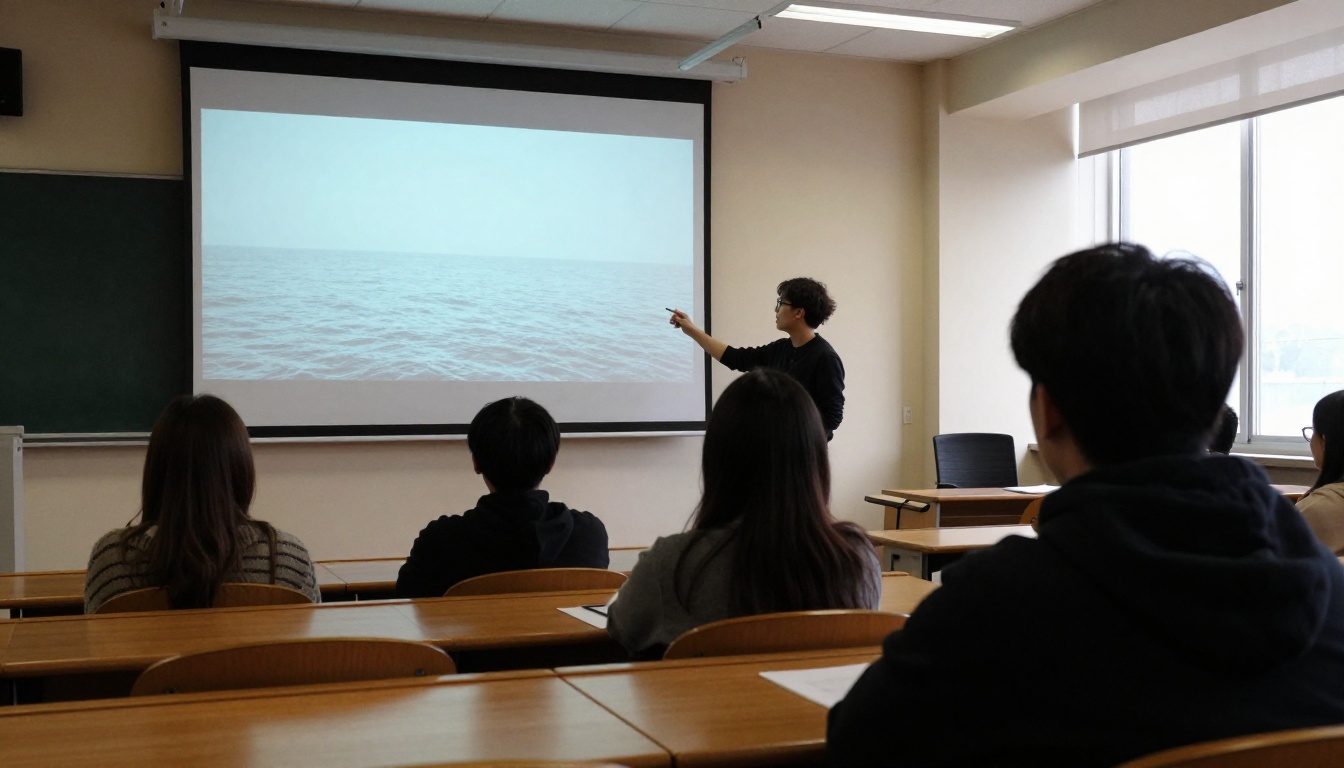
Opening a talk with a 5-second moving image grabs a room faster than a static title slide. Generate a calm establishing shot that fits your topic, such as ocean waves for a marine biology talk or a city street at dawn for an urban planning pitch, and place it behind your first slide. Use 16:9 so it fills the screen. Clips from Picasso IA Video arrive with audio, so mute them if you plan to speak over the top.
Study Explainers
Ideas with motion are easier to remember: tides, orbits, how a bridge flexes under load. Generate short illustrative clips instead of hunting for stock footage. Keep each clip to one idea and explain it in your own voice. Treat the video as a visual aid, not a source of facts, because generated motion does not guarantee scientific accuracy.
Social and Portfolio Clips
Film, design and marketing students need a reel. Short 9:16 clips make a respectable first portfolio piece when you pair a strong still from Picasso IA Image with motion from Hailuo 2.3 Fast, which is built to animate photos into video. Post a few, note which prompts earn attention, and refine from there. A short line in the caption about how the clip was made keeps things honest with instructors and clients.
Prompts That Work on Day One
Good prompts for beginners follow one formula: subject + action + camera + light. Sketching your idea on paper first helps, because a five-second clip only has room for one clear moment.
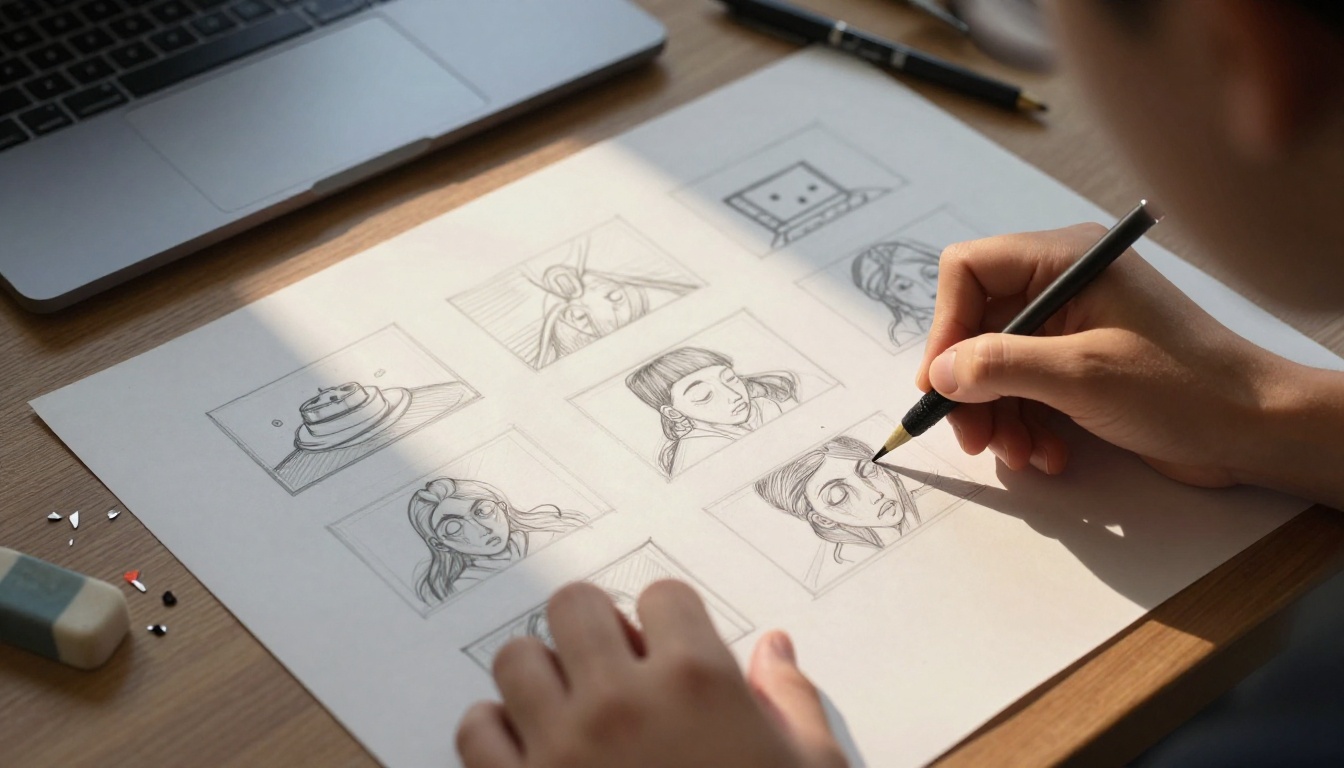
A few words do a lot of work. For camera, try slow push in, gentle pan left, locked camera or handheld. For light, try soft morning window light, golden hour or overcast daylight. For pace, try slowly, gently and steady. Avoid long lists of adjectives, because one clear camera instruction beats five vague style words.
Copy any of these into Picasso IA Video and edit the details:
- A student walks across a sunlit campus quad with a backpack, autumn leaves drifting down, the camera tracks slowly from the side, warm afternoon light.
- Hands turn the pages of a textbook on a library table, dust floating in a sunbeam, the camera pushes in slowly.
- Clouds move across a city skyline at dusk, locked camera, soft orange light on the buildings.
- A cup of coffee steams beside an open laptop, the camera drifts gently to the right, soft morning window light.
💡 One change at a time: If a clip misses, adjust a single element, such as the camera move or the light, and run it again. Changing everything at once hides what actually helped.
Beginner Mistakes to Skip
- Writing a script instead of a shot. A clip is five to ten seconds. Describe one moment, not a story.
- Stacking too many actions. Three things happening at once usually means none of them look right.
- Ignoring aspect ratio. Choose 16:9 or 9:16 before you generate, not after.
- Paying for drafts. Use an unlimited model for experiments and keep paid models for the final pass.
- Judging a model on one clip. Run the same prompt three times before you decide, because results vary from seed to seed.
- Chasing resolution too early. A 480p draft tells you whether the idea works. Sharpen only the winner.
- Forgetting the audio setting. If your presentation has narration, turn Save audio off.
- Skipping the rules. Ask your instructor whether AI-generated media is allowed and how to label it.
Make Your First Clip Today
You now have everything needed to go from idea to finished clip in one sitting. Open Picasso IA Video, paste the first prompt from the list above, and press generate. If you want a custom opening frame, build it in Picasso IA Image. If you want longer clips, switch to Seedance 2.5 Lite.
Run it five times, change one detail each round, and keep the best result. Then browse the full catalog at picassoia.com/en/all-models to find the model that fits your next project. Your first clip is one prompt away, so go make it.


