OpenAI shipped ChatGPT Images 2.5 on September 8, 2026, and the detail that caught most people off guard is the price of entry: nothing. The update reached every ChatGPT plan at once, free accounts included, on web, iOS and Android. If you have been paying for image credits elsewhere, or skipping AI images because you did not want another subscription, this release changes the math.
This article breaks down what is actually new, what the free tier really gives you, how the two API models differ, what they cost per image, and where the model still stumbles. You will also see how to run the same model family on PicassoIA when a chat window gives you less control than you need.
What ChatGPT Images 2.5 Actually Is
Images 2.5 is the successor to GPT Image 2, and it is built around three promises: faster output, tighter edits, and tools for people who hate writing long prompts. The headline is not a flashier art style. The headline is that the model does what you asked and leaves the rest of the picture alone.
Release and Rollout
The rollout began on September 8, 2026 and reached ChatGPT, ChatGPT Work and Codex across desktop, mobile and web. There is no waitlist and no separate app to install. If you open ChatGPT and ask for an image, you should already be talking to the new model.
💡 Tip: Image creation has its own usage limits, separate from text chat. Spending your image allowance does not lock you out of normal conversations.
Flare vs Sunburst
For developers, Images 2.5 ships as two API models: gpt-image-2.5-flare and gpt-image-2.5-sunburst. Both share identical per token rates, so the choice is about behavior, not the price list.
| Flare | Sunburst |
|---|
| Built for | Speed and volume | Editing precision and premium output |
| Latency | Up to 50% lower than Images 2.0 | Longer generation times |
| Best for | Drafts, batches, everyday images | Photo edits, label fixes, final art |
| Editing leaderboard score cited at launch | 1491 | 1520 |
For reference, GPT Image 2 sat at 1461 on that same editing board. The gap between the two new models is small on paper, but it shows where each one was tuned: Flare for throughput, Sunburst for the moment when a client says "change only the shirt."
The Features That Matter
Most launch posts list a dozen bullet points. Only a few of them change how you work day to day. These are the ones worth your time.
Sketch Turns Doodles Into Images
Type @Sketch inside ChatGPT and a drawing surface opens. You scribble a rough layout, such as a rectangle where the headline goes, a circle for the product, a horizon line for the landscape, and the model treats that drawing as a visual reference for composition.
Composition is the hardest thing to describe in words. "Product slightly left of center, empty space top right" is clumsy. Drawing two boxes takes four seconds. A few ways people are using it:
- Poster layouts: block out headline, image and footer zones before any prompt.
- Product photos: mark where the object sits and where the shadow falls.
- Storyboards: sketch five rough frames and ask for consistent scenes.
- Room and set design: draw furniture positions, then request a style.
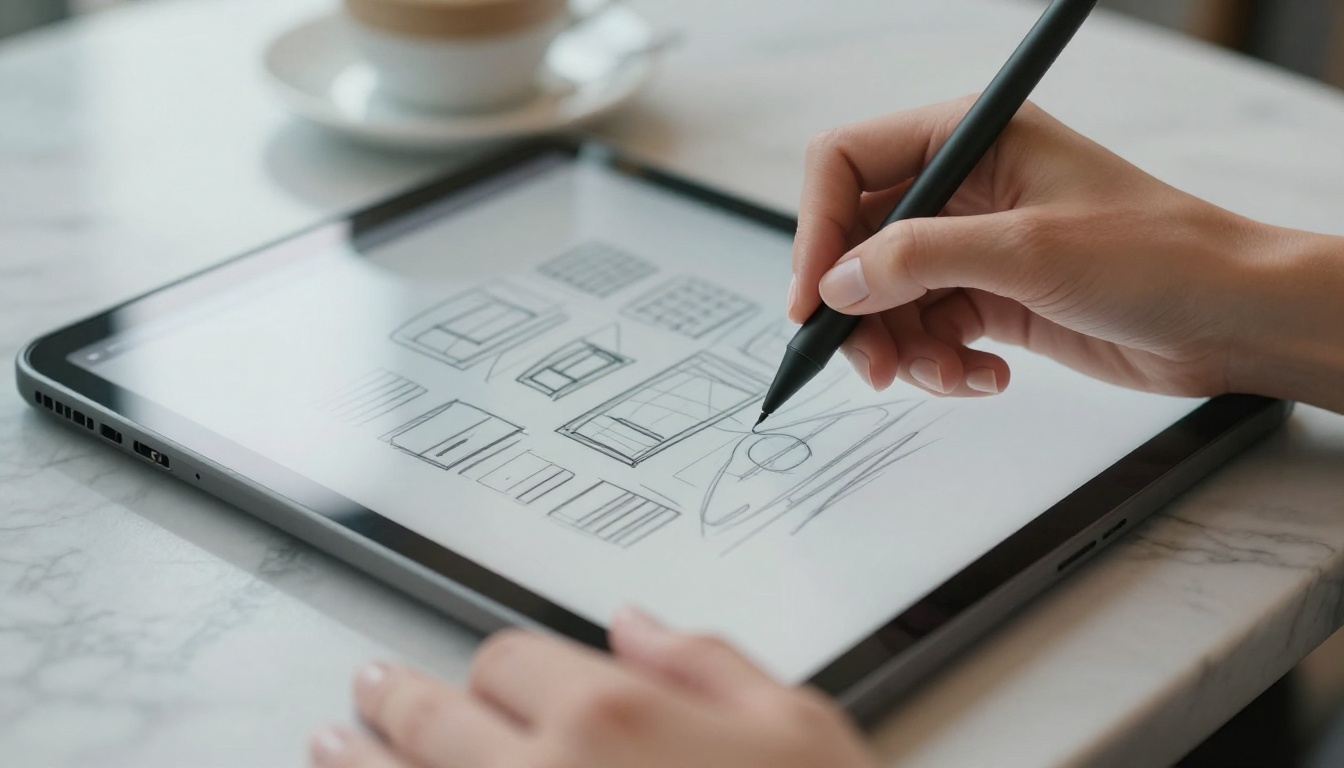
Templates and Direct Comments
Templates are starting points for common jobs: posters and merch, flyers, product photos. They cut down the prompt engineering you would otherwise do from scratch. Pick one, swap in your subject, and adjust.
Image comments may be the most underrated addition. Instead of rewriting a paragraph to explain "the lamp on the left, not the right," you place a note directly on the image and ask for a focused edit. The conversation moves from describing pixels to pointing at them.
Two smaller additions help teams. Shareable prompts carry the generation prompt along when you share an image, so a colleague can reproduce or adapt it. And multi turn editing is more consistent than before, meaning the third round of tweaks drifts less from the first.
Reference Images and Selection Edits
Upload a reference photo and the model preserves the subject with better fidelity to the original. Combine that with selection based editing, where you highlight a region and describe the change, and you get edits that touch only what you asked for.
Other tools in the same toolbox:
- Transparent backgrounds for cutouts and stickers.
- Multiple aspect ratios so one concept becomes a square post, a story and a banner.
- Images with thinking, a mode reserved for Plus, Pro and Business plans.
⚠️ Heads up: Selection edits can extend slightly beyond the area you highlighted. Always compare the before and after at full size.
Free Access: What You Really Get
Short answer: yes, you can use ChatGPT Images 2.5 without paying. Long answer: the allowance is real but vague, and it can change.
Free, Go, Plus and Pro
| Plan | Image creation | Extras |
|---|
| Free | Included on web, iOS and Android | Daily cap that OpenAI does not publish |
| Go | Included | Cap varies by plan, number not disclosed |
| Plus | Included | Images with thinking |
| Pro | Included | Images with thinking |
| Business and Enterprise | Included | Images with thinking on Business |
No plan charges a per image fee inside the ChatGPT app. What you pay for on higher tiers is headroom, not access.
Limits Nobody Publishes
OpenAI does not state a fixed daily number for free accounts. Some third party roundups mention two or three images a day, but treat that as an observation, not a promise. When you reach the current threshold, ChatGPT shows a notice with reset information.
The API is a different story. There is no guaranteed free API tier for either model. Developer access is billed per use.
Ways to stretch a small free allowance:
- Sketch first. One drawing plus one prompt beats five blind retries.
- Edit, do not regenerate. A selection edit uses the image you already like.
- Batch your ideas into one request. Ask for a single clear concept, then refine.
- Draft prompts elsewhere. A language model such as Claude Sonnet 5 can turn a rough idea into a tight prompt before you spend an image.
How to Use It in ChatGPT
The workflow is simple enough that most people will not need instructions, but a clean routine saves allowance.
Step by Step
- Open ChatGPT on web, iOS or Android and sign in. A free account works.
- Start a new chat and describe the image in one or two sentences, or type
@Sketch to draw a layout first.
- Choose a template if your job is a poster, flyer, merch design or product photo.
- Add reference images when you need a specific person, product or style preserved.
- Pick an aspect ratio that matches the final placement before generating.
- Review the result at full size, then place a comment on the image or highlight a region to change one thing.
- Download or share the image. Shared images can carry the prompt along.
Prompt Patterns That Work
Images 2.5 follows detailed instructions closely, so structure beats adjectives. These patterns hold up across subjects:
| Goal | Pattern | Example |
|---|
| New photo | Subject + setting + light + lens | "A baker dusting flour at a wooden counter, window light from the left, 50mm lens, shallow depth of field" |
| Precise edit | "Change only X, keep everything else" | "Change only the jacket to forest green, keep the face, pose and background" |
| Text in image | Quote the words, keep them short | "A chalkboard sign that says 'OPEN'" |
| Variations | One concept, several ratios | "Same scene as a square post and a vertical story" |
💡 Tip: Name what must not change. "Keep the lighting and the background identical" prevents more accidents than any adjective.
API Pricing and Real Costs
If you are building a product on top of the model, the numbers matter more than the feature list.
Per Token Rates
Both models bill at the same rates:
| Token type | Standard | Cached |
|---|
| Text input | $5.00 per 1M | $1.25 per 1M |
| Image input | $8.00 per 1M | $2.00 per 1M |
| Image output | $30.00 per 1M | Not applicable |
Batch processing cuts image output to roughly $15.00 per 1M tokens, about half the standard rate. That discount is the right move for catalog work, nightly jobs and anything that does not need an instant answer.
Estimated Cost Per Image
OpenAI has not published a per image calculator for 2.5, and it says the new model counts tokens differently from GPT Image 2. The figures below use GPT Image 2 as a proxy for a 1024 by 1024 square, so read them as planning estimates, not invoices.
| Quality | Estimated cost per square image |
|---|
| Low | About $0.006 |
| Medium | About $0.053 |
| High | About $0.211 |
Sunburst can cost more per finished image than Flare in practice, because people tend to run it at higher quality settings even though the token rates match. Standard output sizes are 1024x1024, 1024x1536 and 1536x1024.
Where It Still Struggles
Every launch deserves a reality check. Early testing points to a modest gain in plain text to image quality and a much larger gain in editing. The weak spots are specific.
Typography and Dense Layouts
Text rendering and dense typography remain the soft spot. A single word on a sign usually works. A full menu, a table of prices or a paragraph of small print can still come out garbled. Complex layout restructuring and moving several objects at once can also introduce artifacts.
Practical rules:
- Keep any in image text to one to three words.
- Add final typography in a design tool, not in the prompt.
- Do one edit per request when the scene is crowded.
⚠️ Heads up: Images carry C2PA metadata and an invisible watermark that identify them as AI generated. Plan for that if you publish commercially.
Models That Fill the Gaps
No single model wins every job. When Images 2.5 is not the right fit, these alternatives on PicassoIA are worth a side by side test:
Two follow up steps pair well with any still image. Topaz Image Upscale raises resolution beyond the standard output sizes, and video models such as Seedance 2.5 or Veo 3.1 can animate the result into a short clip.
Use GPT Image 2.5 on PicassoIA
Both Images 2.5 models are available on PicassoIA, which means you can run them without a ChatGPT account, set the exact size and quality, and request up to ten images in one pass.
Flare for Speed, Sunburst for Edits
Use GPT Image 2.5 Flare when you want fast drafts, social graphics and batches of variations. Use GPT Image 2.5 Sunburst when you need to change one detail in an existing photo, fix a label, or finish a hero image. On the model pages, an example Flare render at high quality took about 23 seconds, and a Sunburst render at high quality about 35 seconds.
- Open the model page for Flare or Sunburst on PicassoIA.
- Write your prompt in the Prompt field. Be specific about subject, light and lens.
- Add input images if you are editing or combining references.
- Set the aspect ratio. Options run from 1:1, 3:2, 16:9 and 9:16 up to 3840x2160, though anything above 2560x1440 is experimental.
- Choose a quality level and a background type (auto, transparent or opaque).
- Set the number of images from 1 to 10, then generate and compare.
Settings Worth Changing
| Setting | Options | When to change it |
|---|
| quality | low, medium, high, xhigh, max, auto | Start low for drafts, raise it for the final render |
| background | auto, transparent, opaque | Transparent for stickers, logos and cutouts |
| aspect_ratio | 1:1 up to 3840x2160 | Match the final placement from the start |
| number_of_images | 1 to 10 | Ask for several and pick the best |
| output_format | png, jpeg, webp | PNG for transparency, WebP for the web |
| output_compression | 0 to 100 | Lower it for smaller files |
💡 Tip: Flare defaults to auto quality while Sunburst defaults to low. If a Sunburst edit looks soft, raise the quality before you change the prompt.
Try It Yourself Today
ChatGPT Images 2.5 earns its attention for one reason: it makes precise, repeatable image work available to people who never wanted to pick up a design suite. Sketch a layout, add a reference photo, point at the thing you want changed, and you are most of the way there.
The best way to judge it is to run your own prompt. Take the same idea, a product shot, a poster, a portrait edit, and run it through GPT Image 2.5 Flare, then through Sunburst, then through one alternative from the list above. Compare the three at full size. You will know within ten minutes which one fits your work.
Open PicassoIA, pick a model, and create your first image now. Experiment with the quality slider, try a transparent background, and animate your favorite result with a video model. The more you test, the sharper your prompts get.


