You have raw footage. It might be good footage, just not quite right. The lighting was flat when you shot it, or the background was wrong, or the whole clip needs a warmer look to match the rest of your project. Traditionally, fixing that kind of problem means color grading, masking, compositing, or reshooting. Wan 2.7 VideoEdit collapses that entire workflow into a single text prompt.
This article covers what the model actually does, what makes footage work well with it, three specific edit types it handles consistently, and a step-by-step workflow you can follow right now on PicassoIA. If you have footage that needs fixing, restoring, or restyling, this is where to start.
What Wan 2.7 VideoEdit Does
It Takes Your Footage and Rewrites It
Wan 2.7 VideoEdit is a video-to-video model. You upload a clip, describe the change you want in plain text, and the model outputs a new version of that clip with your changes applied. It preserves the original motion, camera movement, and subject position while rewriting the visual style according to your prompt.
That last part matters. The model does not generate footage from scratch based on what you wrote. It uses your clip as a structural blueprint: the timing, the gestures, the camera path all stay intact. What changes is the appearance of the scene.
What you can change: Color grade, lighting mood, scene style, background environment, clothing texture, weather conditions, and overall visual atmosphere.
What stays the same: Subject position and movement, camera path, clip length, and basic spatial composition.
This distinction separates VideoEdit from generative tools. You are not describing a new video. You are applying a new visual language to one that already exists.
What the Model Is Actually Doing
At a technical level, Wan 2.7 VideoEdit processes the clip frame by frame while maintaining temporal consistency across all of those frames. The challenge with AI video editing is preventing the model from treating each frame independently, which produces flickering and inconsistent style changes across the duration of the clip. Wan 2.7 VideoEdit addresses this through attention mechanisms that keep the applied style stable from the first frame to the last.
The output length matches the input length exactly. You are not generating a new clip, you are editing the one you gave it.
Not the Same as Text-to-Video
There is a meaningful difference between generating video from a prompt and editing existing footage with a prompt. Models like Wan 2.7 T2V create footage from nothing. Wan 2.7 I2V animates a still image into a video clip. Wan 2.7 R2V takes a reference subject and animates it with new motion applied.
Wan 2.7 VideoEdit works differently: it takes motion as its primary input, not just an image. That means you are editing with actual footage, and the output preserves the physical reality of what was shot while transforming its aesthetic. It is a post-production tool, not a pre-production one.
Clip Length and Resolution
Wan 2.7 VideoEdit works best on short, focused clips, typically between 3 and 10 seconds. Longer clips introduce temporal consistency issues: the model may apply the style unevenly across frames, producing noticeable shifts in tone or texture partway through the clip.
For resolution, the model accepts standard HD footage at 720p and 1080p. If your raw footage is lower resolution, consider running it through an upscaler first, such as Real ESRGAN Video or Video Increase Resolution, before passing it to VideoEdit. A higher-quality input gives the model more structural information to preserve during the transformation.
The recommended approach for longer sequences is to cut your footage into shorter segments using Video Split, edit each segment individually, then reconnect them after with Video Merge. This gives you per-segment control and avoids the consistency issues that come with longer inputs.
Movement, Lighting, and Complexity
The model handles camera movement well. Pans, tilts, and slow dolly shots all come through cleanly in the output. What causes problems is fast-motion blur, heavily shaky handheld shots, or clips with extreme lighting changes happening mid-clip.
Footage characteristics that produce the best results:
- Steady or smoothly moving camera
- Consistent ambient lighting throughout the entire clip
- Single dominant subject or scene, not heavy multi-subject compositions
- Natural daylight or uniform indoor lighting (not flickering or strobing sources)
- Clean visual separation between foreground subject and background
Complex footage with many overlapping elements tends to produce muddier style transfers. The cleaner the input, the cleaner the output. If your clip has a lot going on visually, trim it first to the sharpest, most readable section before running it through VideoEdit.
3 Edit Types It Handles Well
Style and Mood Transfers
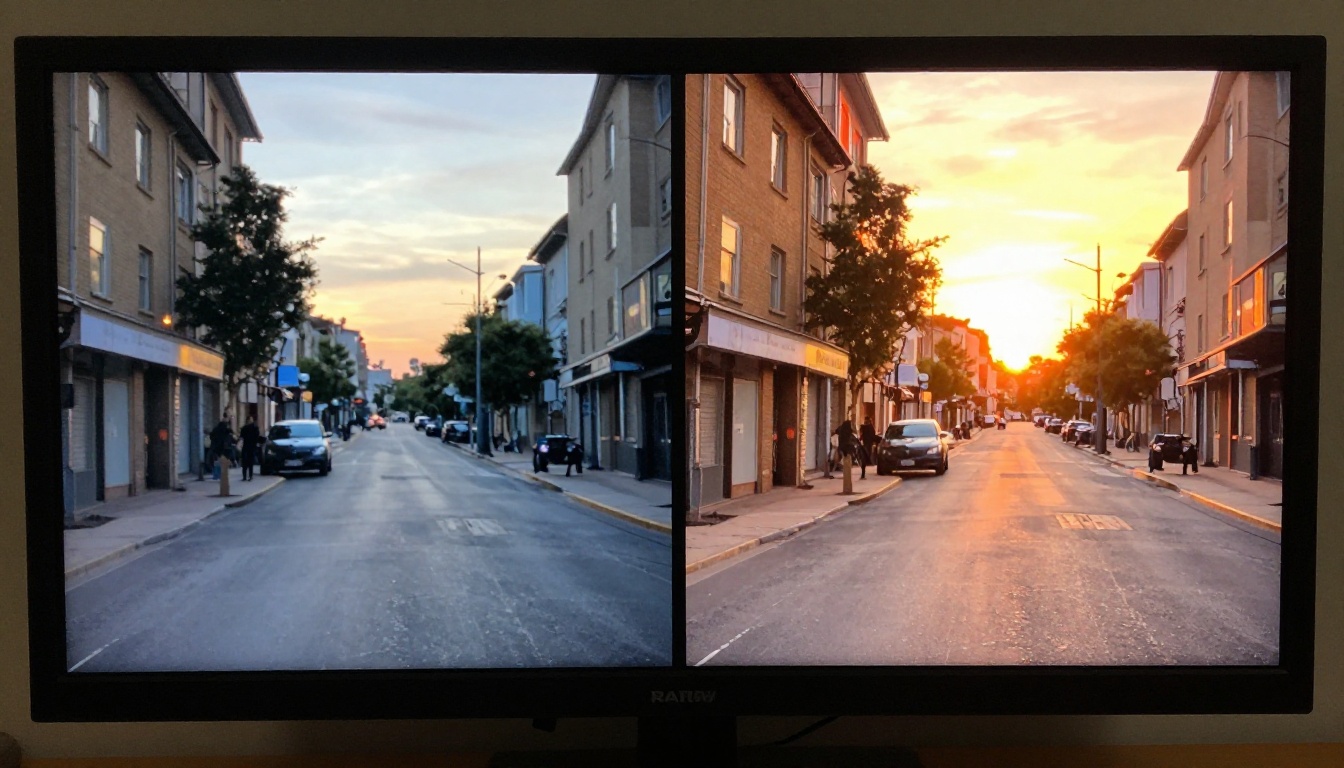
This is where Wan 2.7 VideoEdit performs most reliably. You can take a flat, gray overcast shot and push it to a warm golden-hour look. Take a bright daytime clip and shift it toward a moody, desaturated night aesthetic. Apply a specific cinematic visual language: film noir, vintage 1970s Super 8 grain, or a clean modern commercial look.
Example prompts that work consistently:
| Original Footage | Edit Prompt | Result |
|---|
| Flat, overcast street scene | "warm golden hour, sunset tones, cinematic" | Rich amber grade applied consistently |
| Neutral indoor talking head | "moody, dramatic shadows, film noir lighting" | High-contrast desaturated output |
| Bright outdoor running clip | "vintage 1970s, film grain, faded colors" | Aged aesthetic throughout the clip |
| Night city walk | "clean, vibrant, commercial look, sharp colors" | Bright saturated commercial grade |
The key with style transfers is to be specific about the lighting source and color palette in your prompt. Vague prompts like "make it look better" produce inconsistent outputs. Prompts like "warm orange tones, dusk lighting from the left, shallow depth of field" give the model concrete visual targets it can apply frame by frame.
Cinematic genre references also work well. If you describe a visual style that has a well-established aesthetic, such as golden-hour indie drama, 1990s VHS, or a clean Seoul streetwear video, the model understands the associated color, grain, and contrast characteristics without you having to list each one individually.
Background Replacement
The model can shift the perceived environment of a scene. If the clip was shot in front of a plain wall, a busy street, or an unwanted location, you can describe a replacement environment in your prompt and the model will apply it across all frames while preserving subject position.
This works most cleanly when the subject is well-separated from the background in the original footage: a person standing against a flat-colored wall, or a subject filmed with clear light separation from the background. When the foreground and background are visually tangled, the replacement is less precise.
Tip: Pair VideoEdit background changes with Video Remove Background for cleaner subject isolation before applying the environment change. Clean background removal before editing gives VideoEdit more structural clarity to work with.
Strong environments to prompt toward: open daylight exteriors, simple architectural interiors, natural environments such as forest, beach, or open field. These have lower visual complexity and respond predictably to the prompt.
Object Removal
For objects that appear in a limited portion of the frame and remain relatively static, Wan 2.7 VideoEdit can suppress or remove them with a well-written prompt. A watermark in a corner, a sign in the background, or a piece of furniture that shouldn't be there: these can often be described away within the prompt's language.
This approach is not as reliable as using a dedicated tool, so for critical clean-up work, use Video Erase Object specifically. But for quick passes where the object is peripheral and not the focal point of the shot, VideoEdit handles it adequately and saves an extra step in the pipeline.
How to Use Wan 2.7 VideoEdit on PicassoIA

Step 1: Upload Your Clip
Go to the Wan 2.7 VideoEdit model page on PicassoIA. Click the video upload field and select your clip. MP4 format works reliably across all browsers. Keep the clip under 10 seconds for the best temporal consistency in the output.
If you are working with a longer sequence, split it first using Video Split and process each segment separately. The model will display a preview thumbnail once the clip is uploaded and ready to process.
Step 2: Write Your Edit Prompt
The prompt field is where you describe the visual change you want. Write in present tense, as if describing what the finished video should look like. Focus entirely on appearance, not on action or motion. The motion comes from the source clip.
"Warm golden hour lighting, amber tones, soft shadows, shallow depth of field, cinematic film look"
"Overcast blue-gray tones, moody desaturated palette, film grain, flat diffused light"
"Clean white studio background, sharp and bright, commercial lighting, modern look"
Each of these tells the model what the scene should look like, not what it should do. That framing produces the most consistent outputs.
Step 3: Adjust Strength and Generate
Most VideoEdit implementations include a strength or creativity parameter that controls how aggressively the model applies your prompt relative to the original footage.
| Strength Range | Effect |
|---|
| 0.3 to 0.5 | Subtle color shift, original look mostly preserved |
| 0.5 to 0.7 | Noticeable restyle, spatial structure fully intact |
| 0.7 to 0.9 | Strong transformation, original footage feels distant |
For first runs, start at medium strength, around 0.5 to 0.6, and adjust from there. Push higher if the edit is too subtle. Pull lower if the model is losing subject detail or introducing artifacts.
Prompt Tips That Actually Work
Writing effective prompts for VideoEdit is different from writing prompts for still image generation. A few patterns that produce consistent results across different clip types:
- Lead with the lighting ("golden hour from the right", "overcast diffused light", "hard directional sun from above")
- Name the color palette explicitly ("desaturated blues and grays", "warm amber and rust tones", "deep teal and orange")
- Add a texture or atmosphere descriptor ("film grain", "sharp and clinical", "soft haze", "dusty afternoon light")
- Avoid verbs that describe what the model should do ("turn the sky blue" consistently fails. "Blue sky with volumetric clouds" consistently works)
- Reference a visual genre when it has a clear, established aesthetic ("1990s VHS home video", "Korean drama cinematography", "1970s Super 8 film grain")
Remember: Prompts that describe what the finished scene looks like always outperform prompts that describe what the model should do. Visual description beats instruction every time.
Comparing Wan 2.7 VideoEdit to Other Models
Not every video editing AI takes the same approach. Here is how Wan 2.7 VideoEdit compares to the most similar models currently available on PicassoIA:
| Model | Input | Edit Method | Best For |
|---|
| Wan 2.7 VideoEdit | Video clip | Text prompt | Style transfers, mood shifts |
| Lucy Edit 2 | Video clip | Text prompt | Full scene rewrites, object changes |
| Kling o1 | Video clip | Text prompt | Character-level rewrites |
| LTX 2 Retake | Video section | Text prompt | Targeted segment re-generation |
| Aleph 2 | Single frame + video | Frame-based edit | Full video restyle from one edited frame |
| Modify Video | Video clip | Text prompt | Stylistic visual transformations |
The main distinction between Wan 2.7 VideoEdit and Lucy Edit 2 is the depth of the rewrite. Lucy Edit 2 can change what objects appear in a scene and what actions occur within it. Wan 2.7 VideoEdit works at the level of visual atmosphere and style, changing how something looks rather than what something is.
Kling o1 and Gen 4 Aleph both allow more aggressive rewrites of character appearance and scene composition. If you need to change a person's clothing, swap a face, or significantly alter the spatial relationships in a shot, those models are better suited for that task.
LTX 2 Retake takes a different approach entirely: it isolates a specific section of your timeline and regenerates only that portion. This fits workflows where most of the clip is usable and only one particular segment needs replacement.
Modify Video from Luma is the closest in philosophy to Wan 2.7 VideoEdit. Both apply stylistic changes to existing footage via text. The difference is in model architecture and the type of transformations each handles most cleanly: Wan 2.7 excels at cinematic color and mood work, while Modify Video tends toward broader stylistic interpretations.
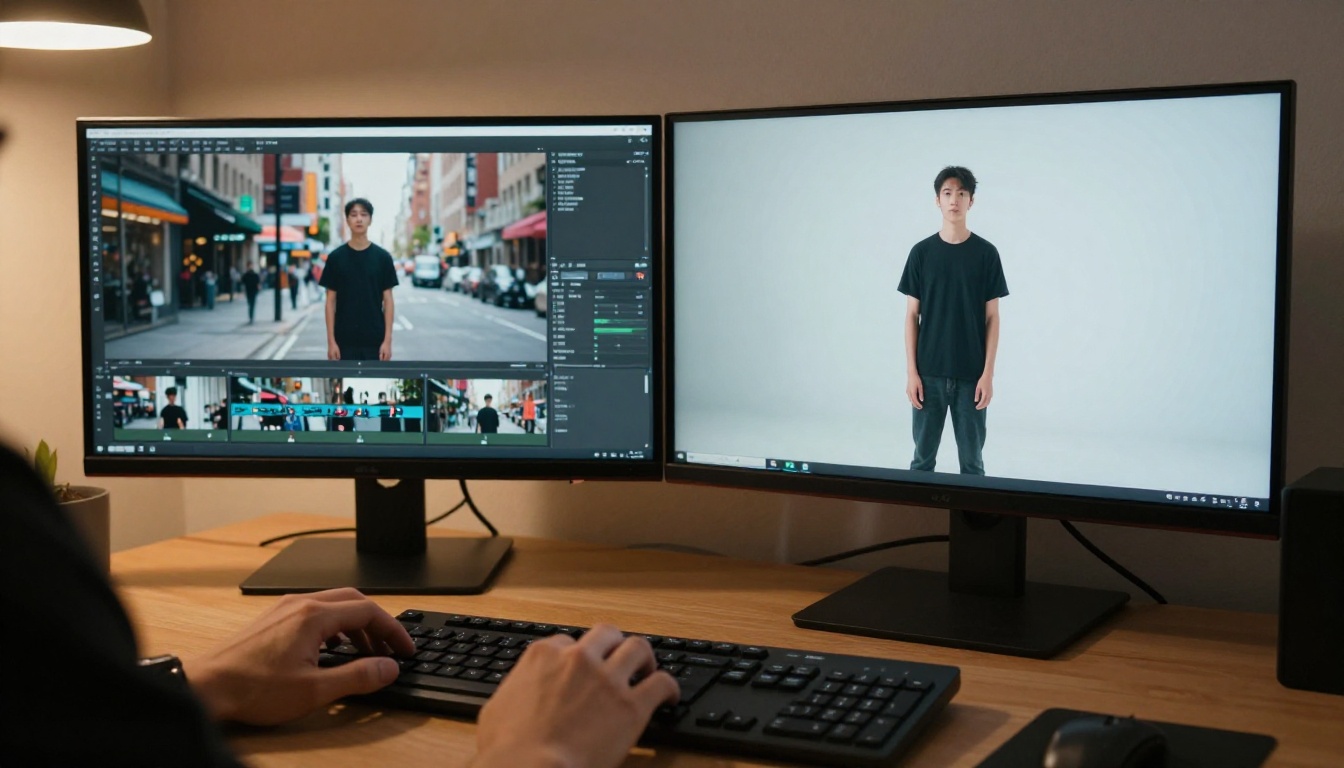
Wan 2.7 is a family of models, not a single tool. Depending on what you are building, the other variants can extend what VideoEdit started, either upstream as sources or downstream as recipients of your edited frames.
Wan 2.7 I2V for Animation
Once you have a clean, restyled frame from your VideoEdit output, you can take that frame as a still image and pass it into Wan 2.7 I2V to generate a new animated clip from it. This creates a workflow where you edit footage to achieve the right look, freeze the best frame from the output, then reanimate from that frame with specific motion described in a new prompt.
This is especially useful when the original footage had good composition but poor or unwanted motion, or when you want to extend a clip in a specific direction that differs from the original camera move.
Wan 2.7 R2V for Subject Animation
Wan 2.7 R2V animates a reference subject into a new visual context. If your edited footage has a clearly isolated subject, R2V can take that subject and place it into a different environment with new motion applied. This is a useful follow-up step when VideoEdit's background replacement is not producing the precise environment change you need.
Wan 2.7 T2V for Replacement Scenes
When a section of your footage is not salvageable through editing, Wan 2.7 T2V lets you generate a replacement scene from a text description that matches the visual style of what VideoEdit produced in the surrounding clips. The goal is visual consistency across all clips in the final cut, mixing edited footage with AI-generated footage so the transition is seamless.
Finishing the Clip After Editing
Upscaling to 4K
Wan 2.7 VideoEdit outputs at the same resolution as your input clip. If you started at 720p, your output is 720p. For final delivery, run the output through Video Increase Resolution to bring it up to 4K, or use Real ESRGAN Video for a sharper upscale with AI-driven detail enhancement applied on top. Both are available directly on PicassoIA and work well as a final step after the visual edit is complete.
The upscaling step also helps when the VideoEdit transformation has introduced minor softness or slight detail loss at the original resolution. The upscaler compensates and restores sharpness before the final export.
Adjusting Aspect Ratio and Format
After the edit, Reframe Video can adjust the crop or aspect ratio to fit different publishing platforms. Vertical reframes for short-form social, widescreen for film, or square for certain commercial placements: all handled without manual masking.
Adding Sound Effects
Silent edited video is rarely the final product. For audio, Thinksound and MMAudio both generate contextually appropriate ambient sound effects that match what is happening visually in the clip. Video to SFX v1.5 goes further, analyzing the video content itself and generating synced sound effects that correspond directly to the on-screen action. For replacing or adding a music track, Video Audio Merge handles mixing cleanly.
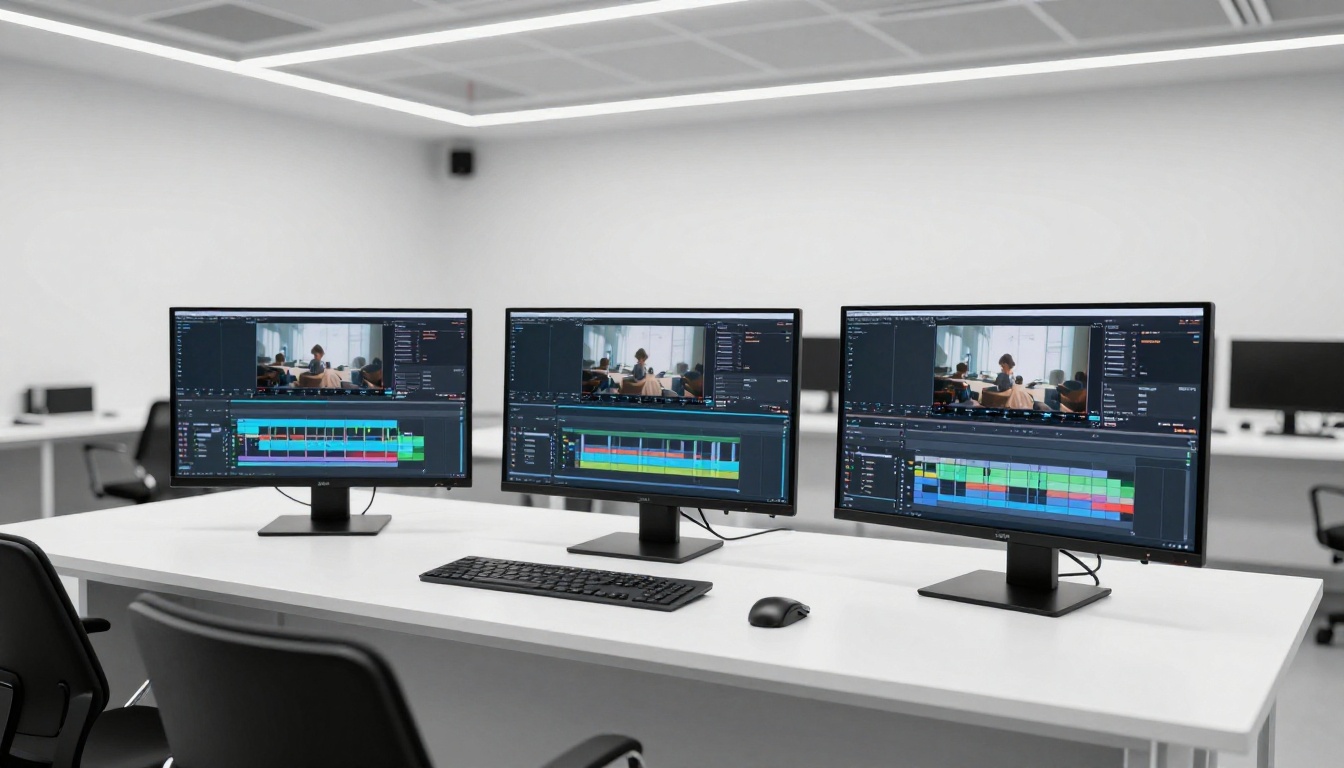
Wan 2.7 VideoEdit sits inside a broader set of 27 video editing models on PicassoIA, covering every major post-production task from structural editing to AI-generated audio.
Other Models Worth Trying
For structural editing:
- Trim Video: Cut clips to exact lengths without quality loss
- Video Split: Divide a longer clip into timed segments for per-segment editing
- Video Merge: Join multiple edited clips into a single output
- Split Screen Video: Create side-by-side comparison or dual-stream layouts
For quality and cleanup:
For audio:
The combination of a strong video editor like Wan 2.7 VideoEdit with these supporting tools gives you a full post-production pipeline inside a single browser interface, without needing to install software, move files between applications, or maintain local rendering hardware.
Put It to Work Now
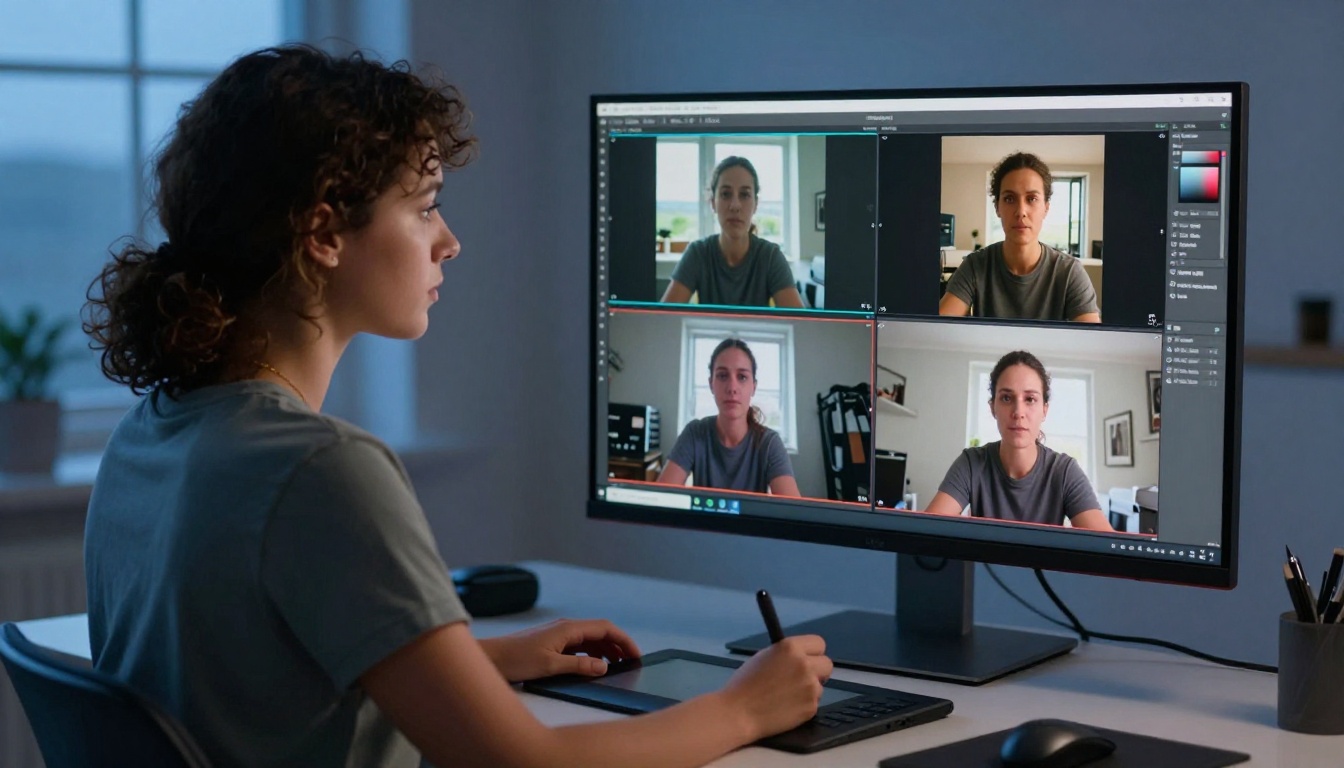
Editing existing video footage with Wan 2.7 is a different category of work from generating video from scratch. It is not about creating new content from nothing. It is about taking footage that already exists and making it work for the project you are building. That matters because most real production work involves material that has already been shot, and the gap between almost right and exactly right is what post-production has always had to close.
Wan 2.7 VideoEdit narrows that gap using a text prompt. The strength parameter controls how far you push the transformation. The prompt controls where it lands visually. The source clip controls what stays intact.
Start with a short clip, write a specific visual description as your prompt, and set strength to medium. Run a test output. Adjust the prompt based on what came back. Run it again. The iteration cycle is fast, and the range of visual changes you can apply to existing footage is wider than what traditional color grading tools offer.
The model is available now on PicassoIA, alongside a complete suite of video editing, upscaling, audio, and captioning tools that take your output from edited clip to finished product. Your footage already exists. Now it just needs the right version of itself.
Try Wan 2.7 VideoEdit on PicassoIA


