You have a selfie, a free evening and no costume. That is all a Halloween AI photo editor online free tool needs. Upload the photo, type "dress me as a vampire in a black velvet cape," and a few seconds later you are standing in a candlelit hallway wearing it. No face paint, no shopping trip, no waiting for a package to show up on the 31st.
This article walks through the whole process, from the first upload to the final share. You will see which PicassoIA models handle selfie edits, a step-by-step tutorial for the main one, twelve prompts you can paste today, and fixes for the problems everyone hits on the first try: the face drifts, the cape looks pasted on, the hands melt. It is written for people who want a good-looking result tonight, not a lecture on diffusion math.
What a Halloween Photo Editor Does
A text-driven photo editor takes your picture as a reference, reads your instruction, and repaints only what you asked to change. For costumes, that means clothing, makeup, props and background, while your face, pose and framing stay in place.
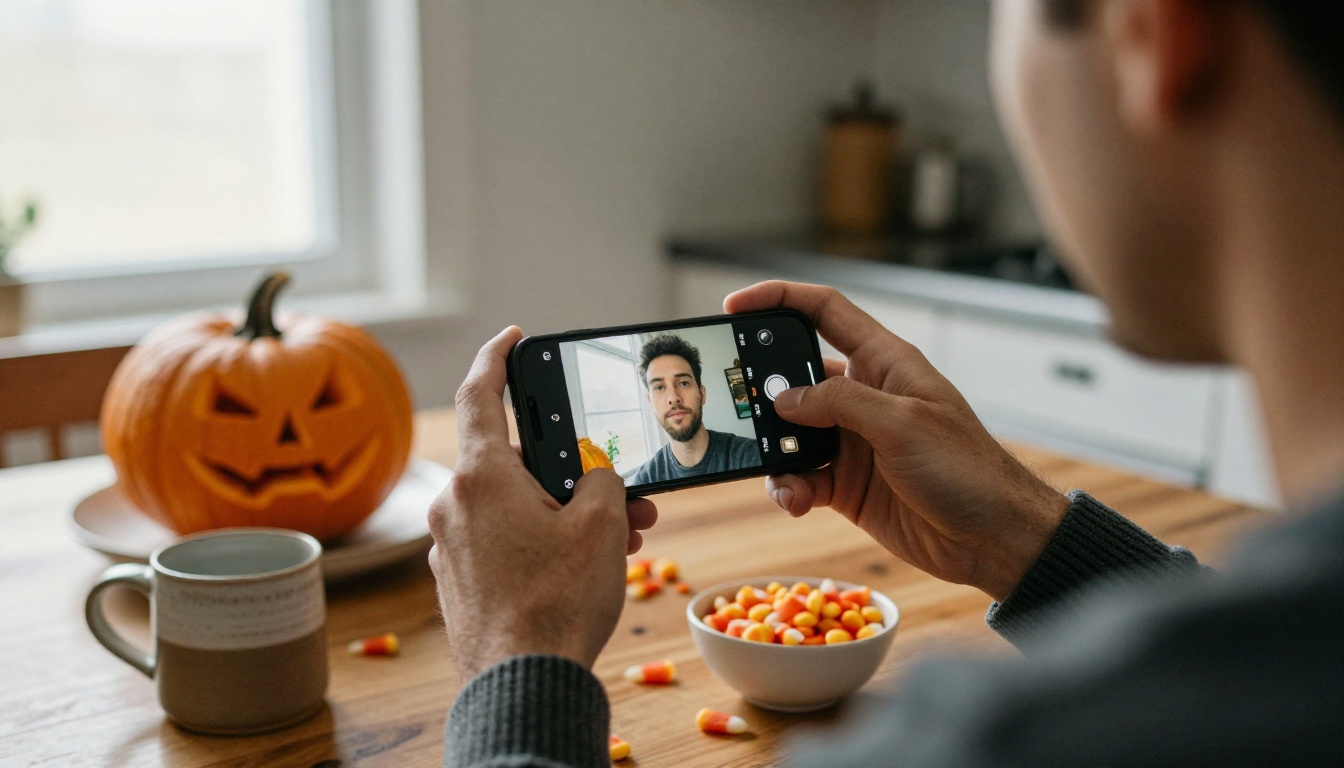
Selfie in, costume out
The workflow is three moves. You upload one selfie, you describe the costume in plain English, and you pick an output shape. The model returns a new photo of you in that costume. If the first result is close but not right, you change one word in the prompt and run it again. Most edits finish in a few seconds, so a dozen variations take less time than finding a wig.
Why Halloween suits AI edits
Costumes are one of the easiest edit types because they are visual, specific and forgiving. A vampire cape either reads as a vampire cape or it does not. Face paint, pointed hats, bandages and scarecrow straw are bold, common shapes, so the model has plenty to work with. Compare that with a subtle request like "make me look five years younger," where a tiny error feels wrong immediately. Costume edits hide small flaws behind fabric, shadow and atmosphere.
💡 Consent first: only edit photos of people who agree to it. Your own selfie, a friend who said yes, or a family member who is in on the joke are all fine. Skip anyone who has not opted in.
The word "free" hides a lot of differences. Some editors give you three tries and a watermark. Others cap you per day. What matters on October 31 is that you can run many attempts without counting them.
PicassoIA lists PicassoIA Image Editor Pro as unlimited: no per-edit cap and no daily quota. Check your own plan on the site for the details, but this is the model to start with when you expect to iterate.
| Model | Best for | Inputs | Worth knowing |
|---|
| PicassoIA Image Editor Pro | Full costume swaps from a selfie | Up to 3 reference images | Unlimited edits, 1 or 2 outputs per run |
| Qwen Image Edit Plus | Multi-photo scenes and pose control | One or more images | ControlNet support and a fast mode |
| P Image Try On | Putting real garment photos on a person | Person photo plus garments | Keeps face, pose and body shape |
| Seedream 4.5 | Haunted backdrops from text | Text prompt | 4K scenes you can combine with a selfie |
| Nano Banana Pro | Text to image at 4K | Text prompt | Useful for poster-style scenes |
Editing models vs. generating models
An editing model starts from your photo. A text-to-image model starts from nothing. If you want the result to look like you, use an editor. Use the text-to-image models only for scenery that you will combine with your selfie later.
Picking by goal
- One costume, fast: Image Editor Pro with a single selfie.
- You and a friend in one frame: Image Editor Pro or Qwen Image Edit Plus with two references.
- An outfit you already own or found online: P Image Try On with the garment photos.
- A custom haunted-house backdrop: Seedream 4.5 for the scene, then place yourself in it.
Take a Selfie the Editor Can Use
The edit is only as good as the input. Thirty seconds of setup saves ten retries.
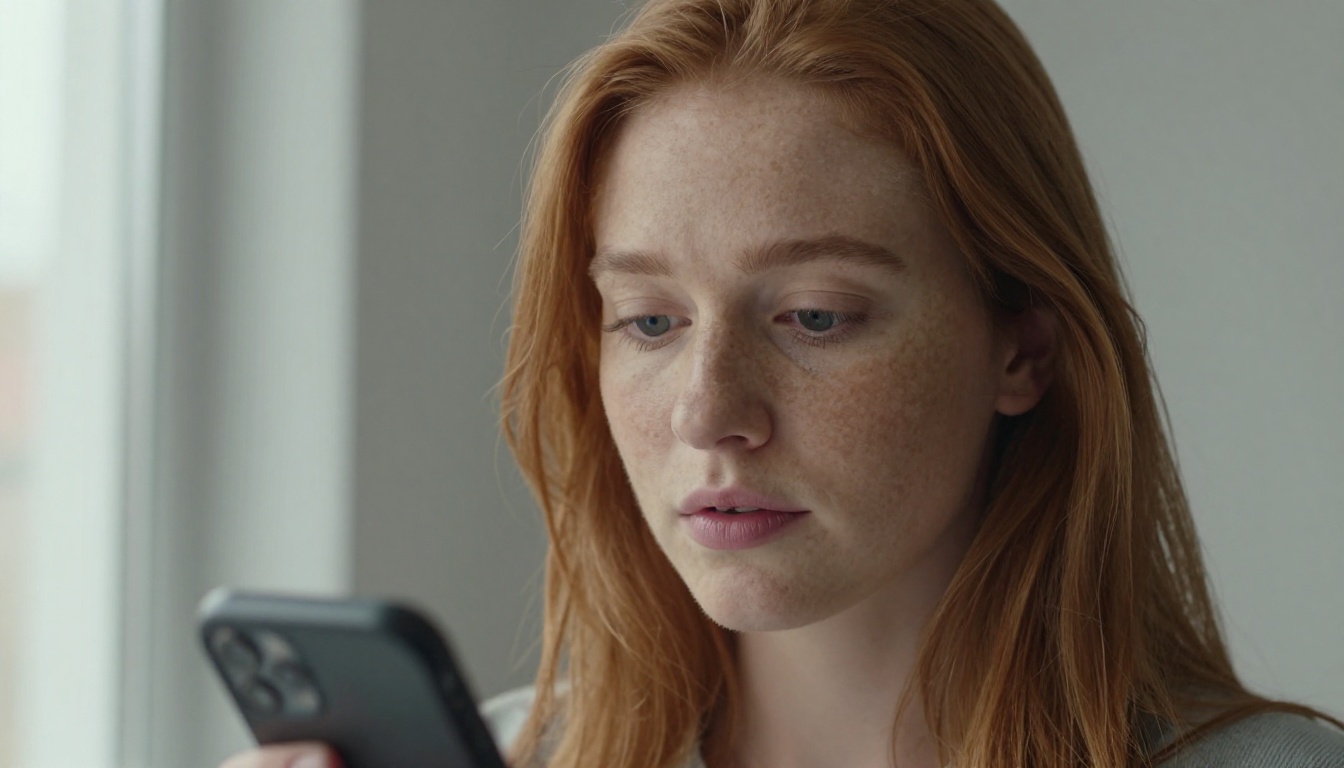
Light and angle
Stand facing a window so soft daylight lands on your face from the front. Avoid harsh overhead lamps: they carve dark eye sockets that the model may read as makeup and then exaggerate. Hold the phone at eye level, not below the chin. Leave your shoulders and upper chest in the frame, because the model needs somewhere to put a cape, a collar or a scarf.
Face, hair and glasses
Keep the whole face visible and sharp. Pull long hair back if you plan to add a hat, since hair that crosses the forehead tends to merge with brims. Glasses are fine, but strong lens reflections can confuse the edit, so tilt your head slightly to kill the glare. A relaxed smile with a closed mouth works better than a wide grin when you want fangs or face paint.
A quick checklist before you upload:
- Face sits in the upper two thirds of the frame
- Even light with no hard shadow across the nose
- A plain background if you can manage it
- One person per selfie for the first attempt
- The original file from your camera, without heavy filters
How to Use Image Editor Pro on PicassoIA
Here is the exact flow with PicassoIA Image Editor Pro, the unlimited editor from the table above.

Step 1: Upload your selfie
Open the model page and add your selfie in the Images field. The first image is treated as the primary reference. You can add up to three images in total, which is handy for a second person, a prop or an outfit photo.
Step 2: Write the prompt
Refer to your uploads by number: "image 1," "image 2." Name the costume, the materials, the setting, and one rule about what must not change. A reliable starter:
💡 Starter prompt: Dress the person in image 1 as a classic vampire with a black velvet cape lined in burgundy satin and a white ruffled shirt. Keep the face, hairstyle and skin tone unchanged. Dim candlelit hallway background, natural photographic look.
Step 3: Choose the settings
| Setting | What to pick | Why |
|---|
| Aspect ratio | match_input_image | Keeps your original framing. Use 1:1 for a grid post or 9:16 for stories |
| Number of outputs | 2 | Gives you two takes of the same edit to compare |
| Output format | PNG for the best result, WebP or JPG for smaller files | PNG avoids extra compression |
| Output quality | 95 | The default is already high |
| Seed | Leave blank at first | Lock it later to reproduce a result you like |
Step 4: Run, compare, refine
Run it. If the face drifted, add "keep the face exactly as in image 1" and run again. Change one thing per attempt so you can tell which edit caused which result. When you land on a version you like, write down the seed and lock it. Re-running with the same seed and prompt returns the same image, so you can then tweak only the background or the props.
12 Costume Prompts That Work
Every prompt below follows the same formula: costume + materials + a rule for what stays the same + setting. Paste them with your selfie as image 1.
Classic monsters
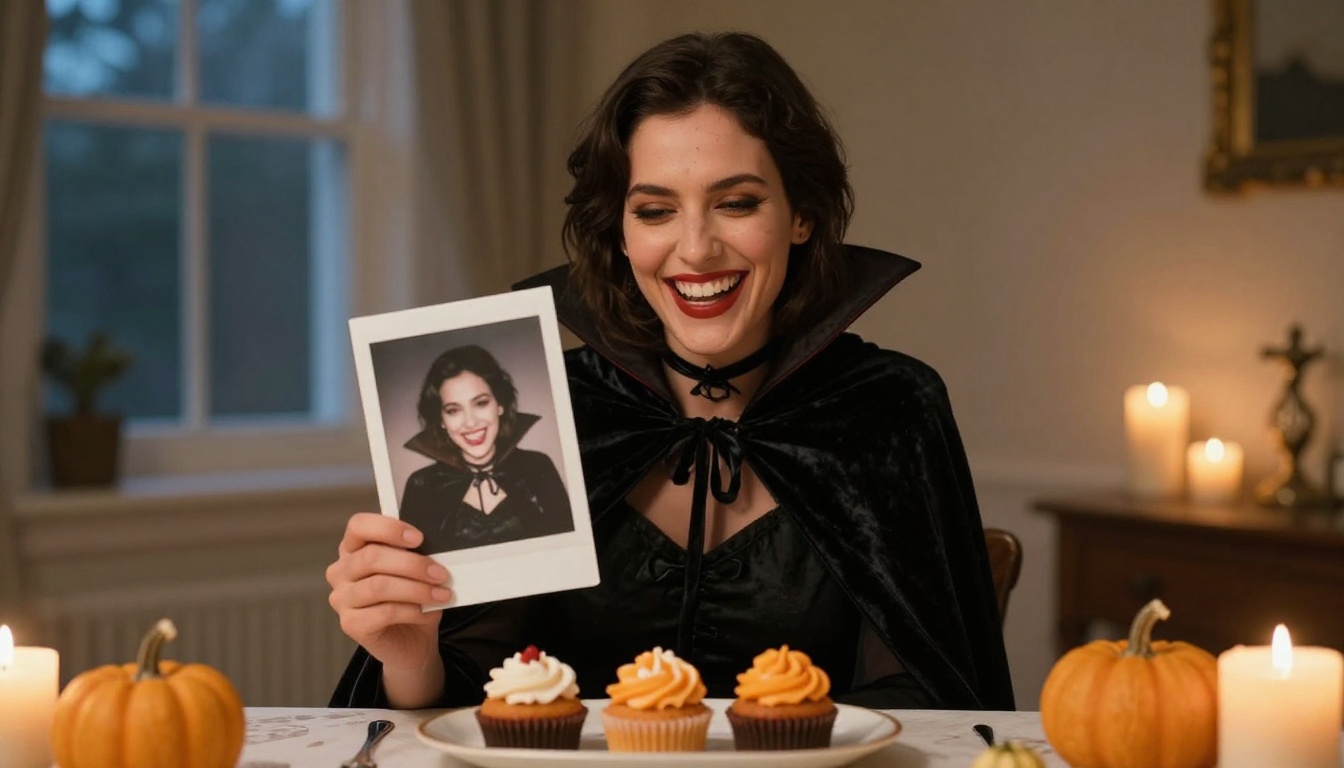
- Vampire: Dress the person in image 1 as a classic vampire: black velvet high-collared cape with burgundy satin lining, white ruffled shirt, pale makeup, subtle fangs. Keep the face, hair and skin tone unchanged. Dim candlelit hallway, natural photo look.
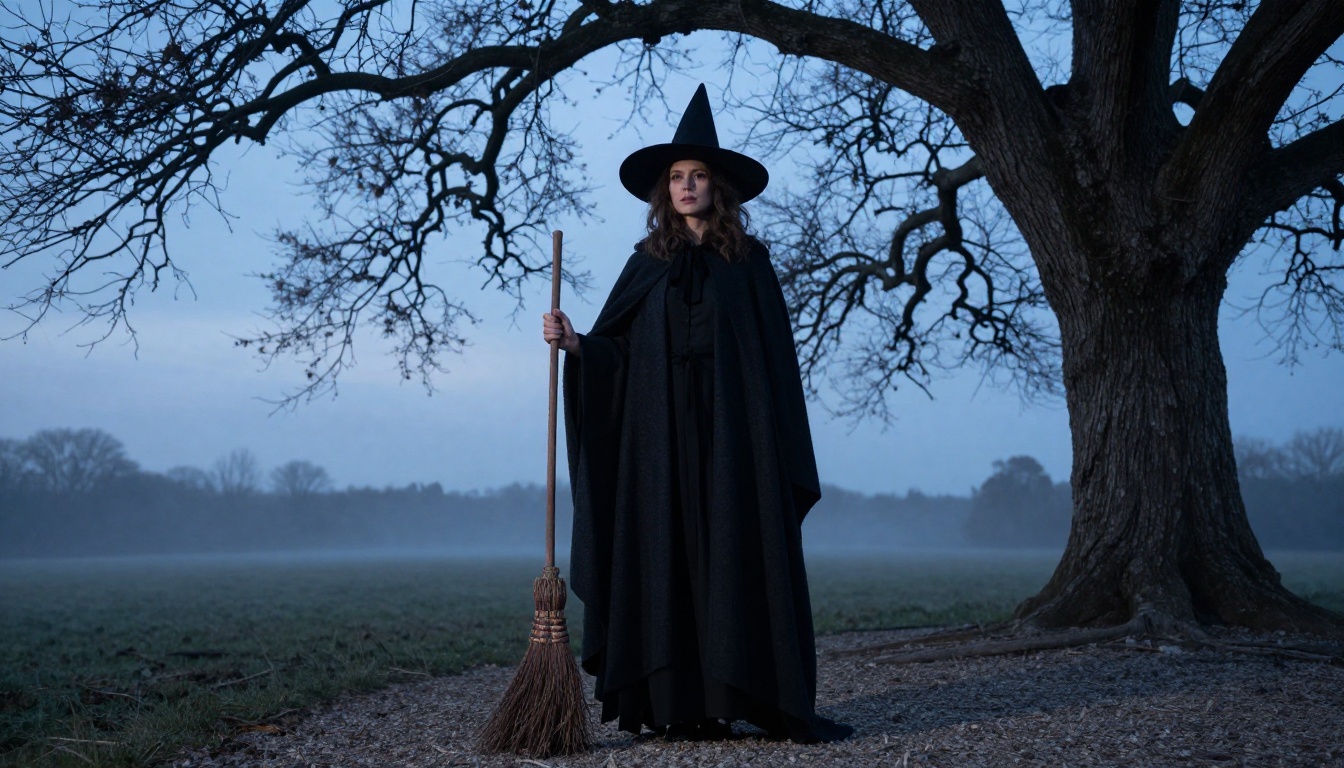
- Witch: Dress the person in image 1 as a witch: wide-brimmed black felt hat, long wool cloak, a wooden broom in one hand. Keep the face unchanged. Gravel path under a bare oak tree at dusk, soft mist.
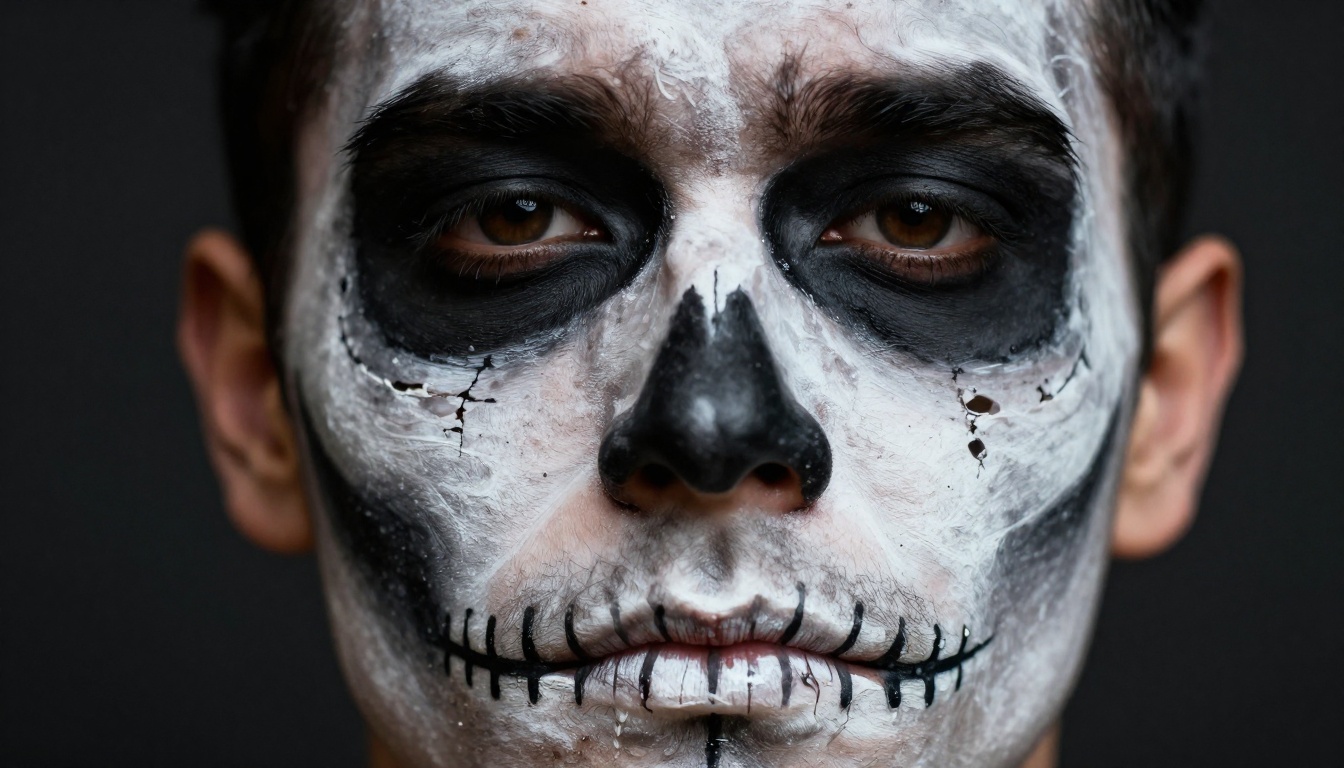
- Skeleton: Add matte black and white skeleton face paint to the person in image 1, with hollow eye sockets and stitched teeth lines across the lips. Keep the face shape, expression and hair exactly the same. Plain charcoal background.
- Zombie: Dress the person in image 1 as a zombie extra: torn grey flannel shirt, dirt smudges, pale greenish skin tone, dark circles under the eyes. Keep the facial structure recognizable. Abandoned gas station at dusk.
- Werewolf: Give the person in image 1 a werewolf costume: fur-trimmed hood and gloves, grey sideburns, a subtle prosthetic nose. Keep the eyes and expression unchanged. Edge of a forest under cold blue evening light.
Character and period looks
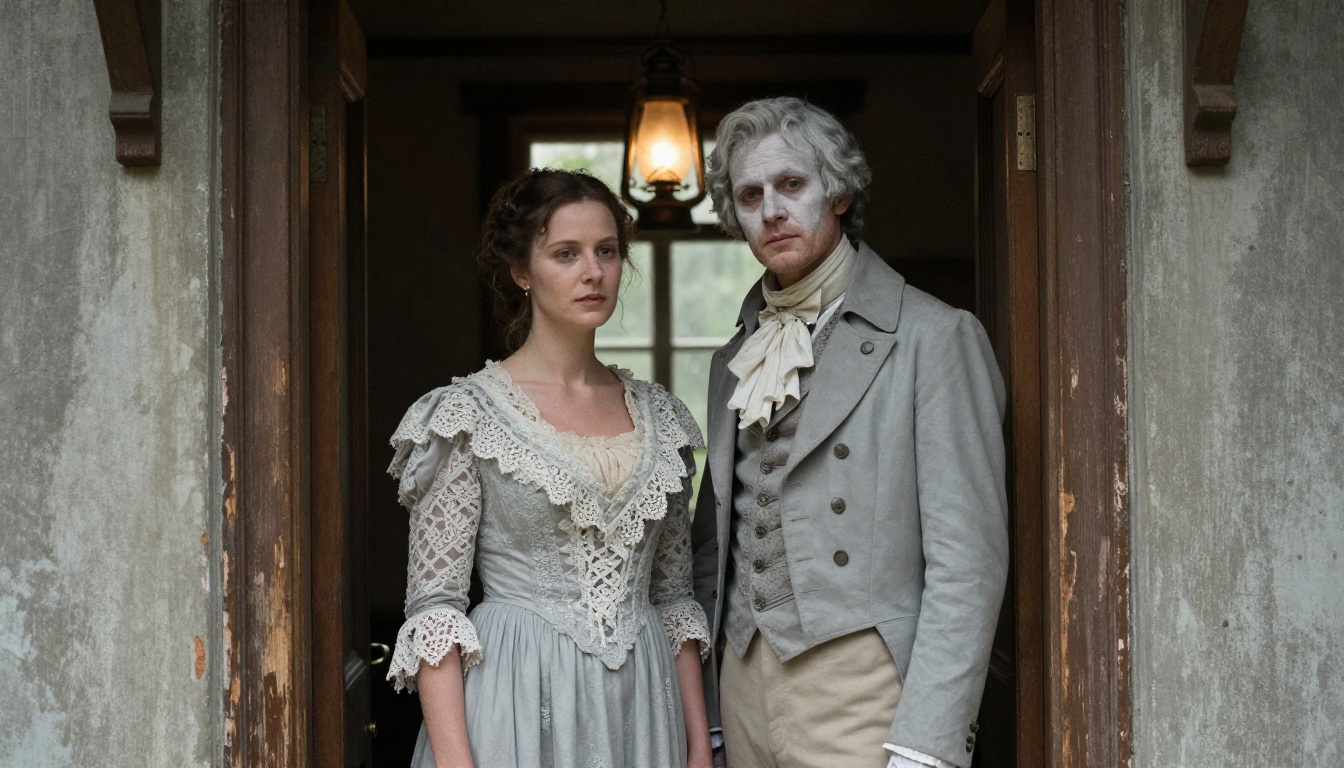
- Victorian ghost: Dress the person in image 1 in a pale grey Victorian mourning outfit with lace sleeves and a powdered face. Keep the face unchanged. Old wooden doorway lit by a single oil lantern.
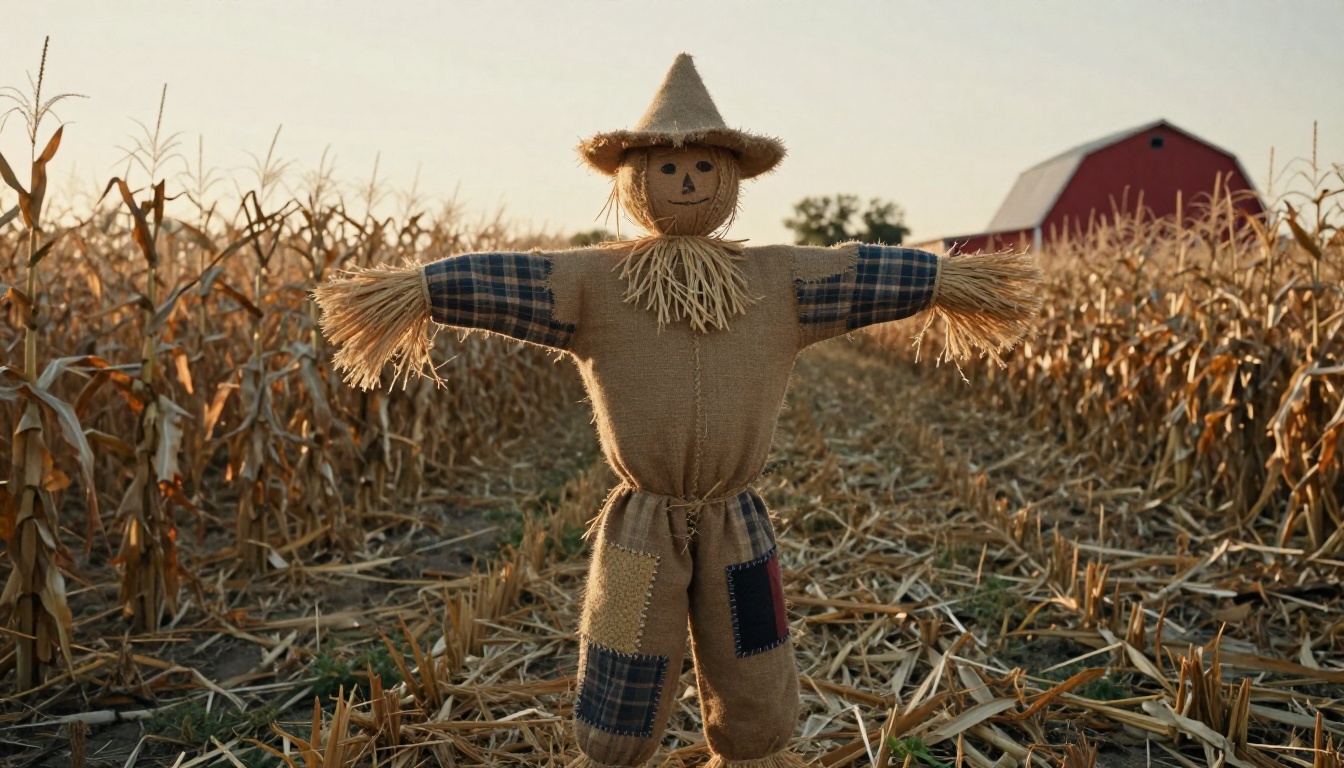
- Scarecrow: Dress the person in image 1 as a scarecrow: burlap sack hat, straw poking from frayed flannel sleeves, patchwork trousers. Keep the face unchanged. Harvested cornfield at golden hour.
- Pirate captain: Dress the person in image 1 as a pirate captain: tricorn hat, red sash, white linen shirt with an open collar, navy coat with brass buttons. Keep the face unchanged. Wooden ship deck at sunrise with light sea haze.
- Mummy: Wrap the person in image 1 in aged cream gauze bandages, leaving the eyes and mouth visible. Keep the eyes exactly as they are. Dusty stone corridor with warm torch light.
- Fortune teller: Dress the person in image 1 as a fortune teller: patterned headscarf, gold coin jewelry, deep purple velvet shawl. Keep the face unchanged. Candlelit tent interior with a small crystal ball on a table.
Couples and groups
- Matching pair: Put the person in image 1 and the person in image 2 side by side as Victorian ghosts in matching pale lace outfits. Keep both faces unchanged. Hallway lit by soft window light.
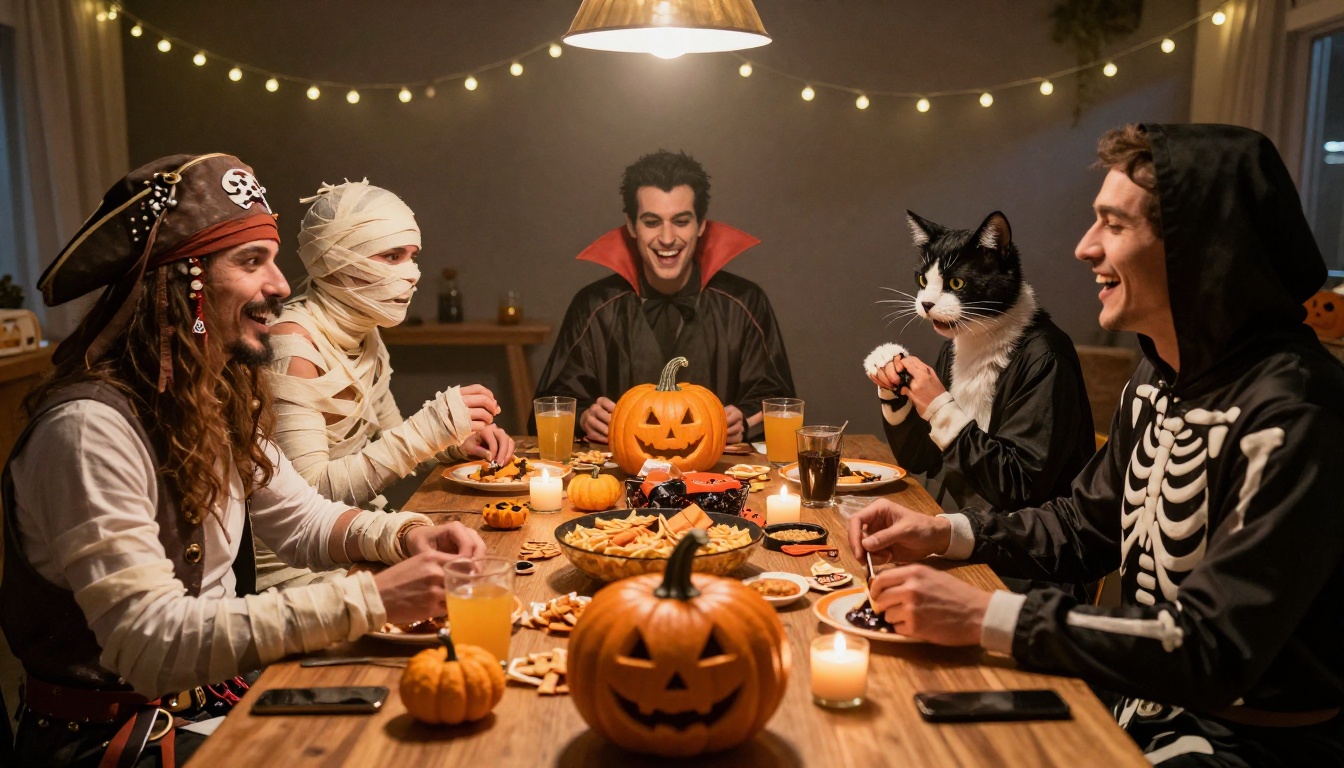
- Friend group: Place the people from images 1, 2 and 3 together at a Halloween party: image 1 as a pirate, image 2 as a vampire, image 3 as a mummy. Keep every face the same. Candlelit table with small pumpkins.
💡 Group tip: the three-image limit in Image Editor Pro means one selfie per person, and a group of three is the practical maximum for a single run. For bigger crowds, edit each person alone, then place them together with a second pass.
Fix the Usual Problems
Every first batch has a few misses. These are the common ones and the quickest repairs.
The face changes too much
This is the most frequent complaint. The prompt gives the model too much freedom, so it repaints the face along with the costume. Add an explicit rule such as "keep the face, eyes and expression exactly as in image 1" and shorten the costume description. Fewer adjectives about the face, more about the clothing.
The costume looks pasted on
A flat, sticker-like cape usually means the prompt described the garment but not the light. Add one sentence about the setting and where the light comes from, such as "candlelight from the right, soft shadow on the left cheek." Lighting that matches your selfie is what makes fabric sit on the body.
Hands, fingers and props
Hands holding brooms, lanterns and goblets are the hardest part. If a hand comes out wrong, run again with two outputs and keep the better take. If neither works, drop the prop from the prompt and keep your hands out of frame in the selfie.
Text and logos
Avoid asking for words on shirts or signs. If you need a name tag or a banner, add it afterward in a regular photo app.
| Problem | Likely cause | Quick fix |
|---|
| Face looks like someone else | Prompt lacks a "keep unchanged" rule | Add it and shorten the costume text |
| Costume looks flat | No lighting description | Name the light direction and mood |
| Extra fingers or odd hands | Complex prop in hand | Remove the prop or pick the better of two outputs |
| Background overpowers you | Scene description is longer than the costume | Shorten the scene to one sentence |
| Skin tone shifts | Dark or colored lighting in the prompt | Say "keep skin tone unchanged" |
Go Past a Single Photo
One costume portrait is a good start. The same tools stretch further.
Try on a real costume
Already own a cape, or found a costume in an online shop? P Image Try On takes a photo of you plus up to six garment images and dresses you in them while keeping your face, pose and body shape. It is a smart way to preview an outfit before you order it, and the result also doubles as a ready-made post.
Build the backdrop
Want a graveyard, a candlelit mansion or a foggy pumpkin patch behind you? Generate the scene with Seedream 4.5 or Nano Banana Pro, then bring it in as image 2 in Image Editor Pro and ask for your costumed self placed inside it. Qwen Image Edit Plus is another good option for this kind of multi-photo blend, and it adds pose control through ControlNet.
Add motion
A still costume portrait can become a short clip. PicassoIA's video collection includes image-to-video models that animate a photo into a few seconds of movement: a cape that sways, candle light that flickers, a slow push toward your face. Browse the video options on the all models page and use your favorite edit as the first frame.
Make Your Own Costume Photo Tonight
You do not need a closet full of props or an hour at a mirror. You need one decent selfie, a clear sentence about the costume and a few minutes of patience. Start with the vampire prompt, then swap in the witch or the scarecrow when you want something different. Run two outputs at a time, lock the seed on a winner, and send it to the group chat before anyone else shows up with a store-bought mask.
Open PicassoIA Image Editor Pro on Picasso IA, upload a selfie and paste one of the twelve prompts above. Try the same face as a vampire, a pirate and a ghost, and keep the version that makes you laugh. Print it, post it, or use it as your invitation. Halloween only comes around once a year, but the edits are unlimited.


