Still photos tell one story. But when Kling 3.5 gets hold of them, that story starts moving. Hair shifts in a breeze. Eyes blink. A sunset sky pulls streaks of gold across the frame. What used to require a full production team now takes a text prompt and 30 seconds on an AI platform. If you have a photo and an idea of how it should move, Kling 3.5 can do the rest.
What Kling 3.5 Actually Does
Kling 3.5 is the latest iteration of Kwai's image-to-video AI engine. It analyzes a static input image, infers the 3D depth and spatial relationships within it, and synthesizes realistic motion frame by frame. The result is a short clip that looks like the photographer kept filming after the shutter snapped.
Photos Become Moving Scenes
The jump from still to moving is not a filter. Kling 3.5 builds a motion trajectory based on scene understanding. It knows that clouds move laterally, water ripples outward, and a person walking has body mechanics. When you feed it a photo of a mountain lake at dawn, it does not simply zoom in and out. It animates the mist rolling across the water and the light slowly warming the peaks. That specificity is what separates Kling 3.5 from earlier AI animation tools that just pan or zoom a static image and call it video.
The Motion Engine Behind It
The core of Kling's technology is a diffusion-based video generation architecture trained on billions of real video frames. Where older models generated jerky, unconvincing clips, Kling 3.5 maintains temporal coherence across all 24 frames per second. Objects do not flicker or morph unintentionally. Faces stay recognizable. The physics of cloth, water, and light hold up across the whole clip, not just the first second and a half.

Why Kling 3.5 Stands Out in 2027
There are a lot of image-to-video models competing for attention right now. Kling 3.5 has carved out a specific reputation for three things: motion realism, face fidelity, and usable output resolution.
Speed vs. Quality Tradeoffs
Most AI video tools force a choice: fast but blocky, or sharp but slow. Kling 3.5 hits a usable middle ground. At standard quality settings, you get a 5-second clip at 720p in under two minutes. At pro settings, 1080p output takes longer but the detail is noticeably sharper. For social content, the standard output is already more than good enough. For film work or high-end marketing, you bump it to pro and accept the wait. The difference in quality between the two tiers is real and visible at full screen.
3 Things Competitors Still Get Wrong
- Face drift: Many models warp facial features mid-clip, especially on close-up portraits. Kling 3.5 holds facial geometry through the entire duration. A portrait stays the same person from frame one to frame 120.
- Background collapse: Cheaper models let the background destabilize while animating the foreground. Kling 3.5 keeps both stable and moving in proportion, so the environment feels like a real space rather than a collapsing texture.
- Clip length limits: Several competing tools cap free tiers at 2-3 seconds. Kling 3.5 generates full 5-second clips with fluid motion throughout, not just in the opening frames.

How to Use Kling v3 on PicassoIA
PicassoIA gives you direct access to the full Kling v3 model family without needing API tokens, local setup, or technical knowledge. The interface is built for fast iteration, so you can go from uploading a photo to watching the animated result in a single browser tab.
Step 1: Pick Your Source Photo
Your input image is everything. Kling 3.5 can only animate what is already there. Sharp images with clear subjects and readable backgrounds produce far better output than blurry, low-res, or heavily compressed JPEGs. Ideal resolution is 1024px or wider. If you need to restore or sharpen a photo before animating it, run it through Video Upscale first to clean up the source before feeding it to Kling.
Step 2: Write the Motion Prompt
The motion prompt is where most people underperform. Do not describe the image content. Describe what moves and how. The model already sees the image. What it needs from you is the motion instructions.
Weak prompt: "A woman standing in a field at sunset"
Strong prompt: "Her hair lifts slowly in the breeze from the left, the golden wheat stalks sway gently in waves, camera drifts forward at a steady slow pace"
The difference is specificity about motion direction, speed, and camera behavior. The strong version gives the model a script. The weak version gives it nothing it does not already know.
Step 3: Choose Your Kling Model
PicassoIA offers the full Kling v3 lineup. Here is which one to pick based on your use case:
- Kling v3 Video: Best all-around image-to-video. Handles portraits, landscapes, and objects with equal competence. Start here.
- Kling v3 Motion Control: When you need precise camera path control. Use this for dolly shots, orbit movements, or specific pan directions.
- Kling v3 Omni Video: Accepts both text and image input together. Best for complex scene setups where the image alone does not fully describe the intended output.
Step 4: Set Resolution and Generate
For most use cases, 720p is the right call. It generates faster, is perfectly sharp for web and social, and costs fewer credits. If you need 1080p for a client deliverable, switch to pro mode. After generation, download the MP4 directly or use PicassoIA's built-in storage to access it later.

Kling 3.5 Model Breakdown on PicassoIA
Beyond the v3 generation, PicassoIA also carries earlier Kling versions. They are worth knowing because they serve different budgets and use cases, and the version gap is smaller than you might expect on standard motion tasks.
Kling v3 Video vs. Kling v3 Omni
Kling v3 Video takes an image and a prompt, then outputs a clip. That is the entire workflow. Kling v3 Omni Video adds multimodal input handling, which means it can interpret a more complex setup where you feed both a detailed scene description and a reference image together. The output quality is comparable, but Omni gives more control when the source image is ambiguous or when you want to override how the model reads the scene.
When to Use Motion Control
Kling v3 Motion Control and Kling v2.6 Motion Control both expose camera trajectory options that the standard models do not. If your final output requires a specific dolly-in, push-out, or arc around the subject, these are the right tools. For straightforward animations where the camera does not need to move on a prescribed path, the standard Kling v3 Video is simpler and equally effective.
💡 Tip: For product photography animations, Kling v3 Motion Control gives you the ability to orbit around the object, which creates premium commercial-grade video from a single product photo.

Best Photo Types for Kling 3.5
Not every photo animates equally well. The structure of the scene, the depth within the image, and the subject complexity all affect what Kling 3.5 can do with it.
Portraits and Faces
Close-up and medium portraits are where Kling 3.5 is arguably its strongest. Face fidelity is high, meaning the person in your photo stays recognizable through the entire clip. You can animate a blink, a subtle head turn, hair movement, or breath in the chest. Headshots, editorial portraits, and fashion close-ups all perform extremely well.
💡 Tip: Avoid photos where the face is partially occluded, tilted more than 45 degrees sideways, or heavily shadowed. The model needs clear facial geometry to maintain fidelity across the full clip duration.
Landscapes and Outdoor Scenes
Wide landscape shots benefit enormously from Kling 3.5's sky and water simulation. Clouds drift, mist rolls, trees sway, and water ripples with physically plausible behavior. A single wide-angle landscape photo can become a sweeping cinematic establishing shot in under two minutes. Low-angle shots looking across terrain are particularly effective because the foreground provides depth that the model uses to create parallax motion, giving the clip a genuinely three-dimensional feel.
Product and Fashion Shots
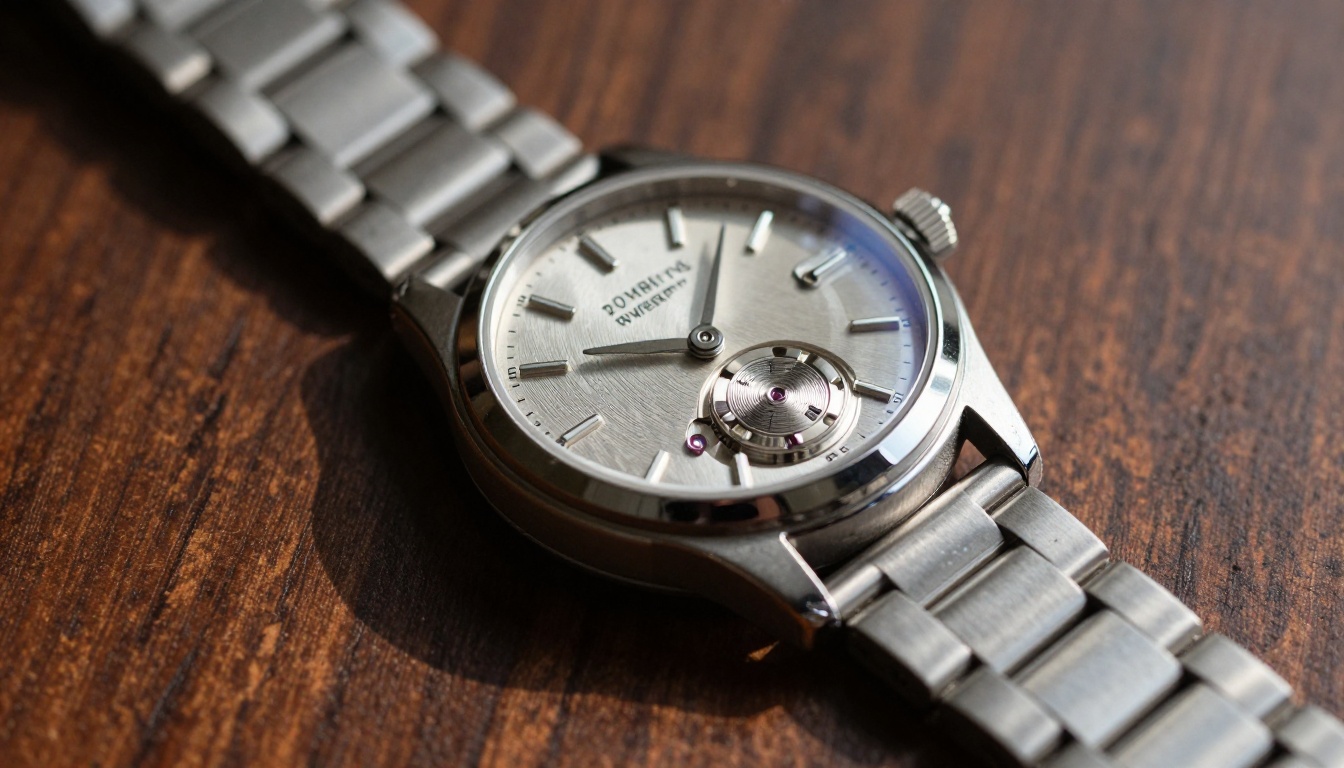
Still product photography is an expensive problem to solve in commercial production. Kling 3.5 gives you a practical shortcut. A single flat-lay watch photo becomes a slow orbit reveal. A fashion portrait becomes a lookbook clip with natural wind and movement. P Video Animate is also worth testing alongside Kling for product work since it specializes in photo animation specifically and handles object close-ups with strong surface detail preservation.

Motion Prompt Writing That Works
Your prompt is the difference between an impressive clip and a confused one. Kling 3.5 follows motion instructions closely when they are clear and specific. Vague prompts produce generic output that rarely matches your intent.
The "What Moves + How" Formula
Every strong Kling prompt has two core components:
- What moves: Name the specific elements. "The water surface," "her hair," "the flag in the background," "the smoke rising from the chimney."
- How it moves: Describe direction, speed, and character. "Ripples slowly outward in concentric rings," "lifts from the right in a gentle gust," "unfurls toward camera at medium speed."
Then add the camera instruction as the third layer:
- Camera behavior: "Slow dolly forward," "gentle arc from left to right," "locked off with no camera movement," or "subtle handheld drift."
A complete prompt example: "Water surface ripples slowly in expanding circles from the center, reeds on the left bank bend gently to the right in a light wind, camera locked off with no movement, golden afternoon light stays constant throughout."
Common Mistakes to Fix
- Describing the scene instead of the motion: The model already sees the image. "A lake in the mountains at sunset" tells it nothing it does not already know.
- Stacking too many movements: Three or four simultaneous complex motions create conflict. Pick the one or two most important movements and let the model fill in the rest.
- Ignoring the camera: Not specifying camera movement often leads to random drift or zoom. A locked-off instruction is a valid and useful choice, especially for portrait work.
- Asking for physically impossible motion: Water flowing upward, smoke moving inward, or light coming from multiple contradictory directions at once confuses the physics simulation embedded in the model.
Comparing Kling Versions for Photo Animation
PicassoIA gives you access to every major Kling generation. Here is how they stack up for image-to-video work specifically:
For new users, start with Kling v3 Video. Move to Motion Control when you need camera precision. Kling v2.1 and Kling v1.5 Standard are useful for testing prompts before committing credits to a pro-tier generation.
Other Image-to-Video Options Worth Knowing
Kling 3.5 is the focus here, but PicassoIA also carries several models worth knowing for specific animation scenarios where a different tool may outperform Kling.
Wan 2.7 I2V is strong on landscape and environmental animations. If you are animating scenic outdoor photography and want richer atmospheric motion, it is a useful alternative with its own distinct visual style. Grok Imagine Video 1.5 generates video with built-in audio from photos, which is useful when you want ambient sound baked into the output without a separate audio step. Wan 2.1 I2V 720p is a free option on PicassoIA for animating photos at solid 720p resolution when you want to iterate quickly without spending credits.
None of them have Kling's portrait fidelity. But for landscapes, products, and atmospheric scenes, testing a secondary model often produces unexpected results worth keeping.
💡 Tip: Run the same source photo through two different models with an identical motion prompt. The differences in how each model interprets those motion instructions will teach you more about their respective strengths than any written comparison.
After the Clip: What to Do Next
Generating the clip is the beginning, not the end. Here are four things worth doing with the raw MP4 before you publish or deliver it.
Upscale if Needed
If you generated at 720p for speed, run the output through Video Upscale to get 4K output with sharpened detail. Topaz Video Upscale handles motion-compensated upscaling, which means it does not just resize pixels. It infers missing resolution data across frames. For commercial deliverables, this step is often non-negotiable when clients expect 4K delivery.
Iterate on the Prompt First
Before you accept a clip that is 80% of what you wanted, try one prompt adjustment. Change the camera description, add a speed qualifier ("gently" instead of no qualifier), or reduce the number of moving elements. Kling 3.5 is responsive to these changes and a second generation will often close the gap significantly. Resist the urge to switch models before exhausting your prompt options.
Chain into Longer Sequences
Kling generates 5-second clips. For longer content, generate multiple clips from sequential photos in a series, or use the last frame of one clip as the source image for the next. This creates a coherent visual sequence that extends the runtime beyond a single generation without visible cuts or inconsistency in lighting style.
Use the Still as Thumbnail Art
The source photo doubles as your thumbnail or article header image. A sharp, well-composed still that becomes a moving clip when the viewer presses play is one of the more effective content formats for social platforms right now. The two assets come from the same source file, which means no extra production work.

Start Animating on PicassoIA
Every photo you have taken has a version of itself that moves. That is not a gimmick. It is a genuine shift in what static images can do. Portrait sessions, product photography, landscape archives, real estate walkthroughs, travel memories, all of it can be repurposed into short cinematic clips without a camera crew or a timeline full of keyframes.
PicassoIA brings Kling v3 Video, Kling v3 Motion Control, Kling v3 Omni Video, and the full Kling family into a single interface with no technical setup required. Pick a photo, write a motion prompt, choose your model, and generate. See what the model does with it. Then adjust. The iteration cycle is fast enough that you will get something genuinely useful within a few attempts.
You can browse all available video generation models at picassoia.com/en/all-models to find the right tool for every photo type you work with.


