If you've ever generated AI video and then felt that sinking frustration when the final output looks soft, smeared, or stripped of the fine detail your source material had, you're not alone. Upscaling AI video without losing detail is one of the most searched problems in the AI creative space right now. The good news: it's entirely solvable with the right tools and the right settings.
Why AI Video Looks Soft After Generation
Most AI video models output at 480p or 720p by default. That's not a bug, it's a resource constraint. Generating video at 1080p or 4K requires exponentially more compute, so models prioritize speed and cost over raw resolution. The result is footage that looks fine in a small preview window but falls apart the moment you try to display it on a larger screen or export it for professional use.
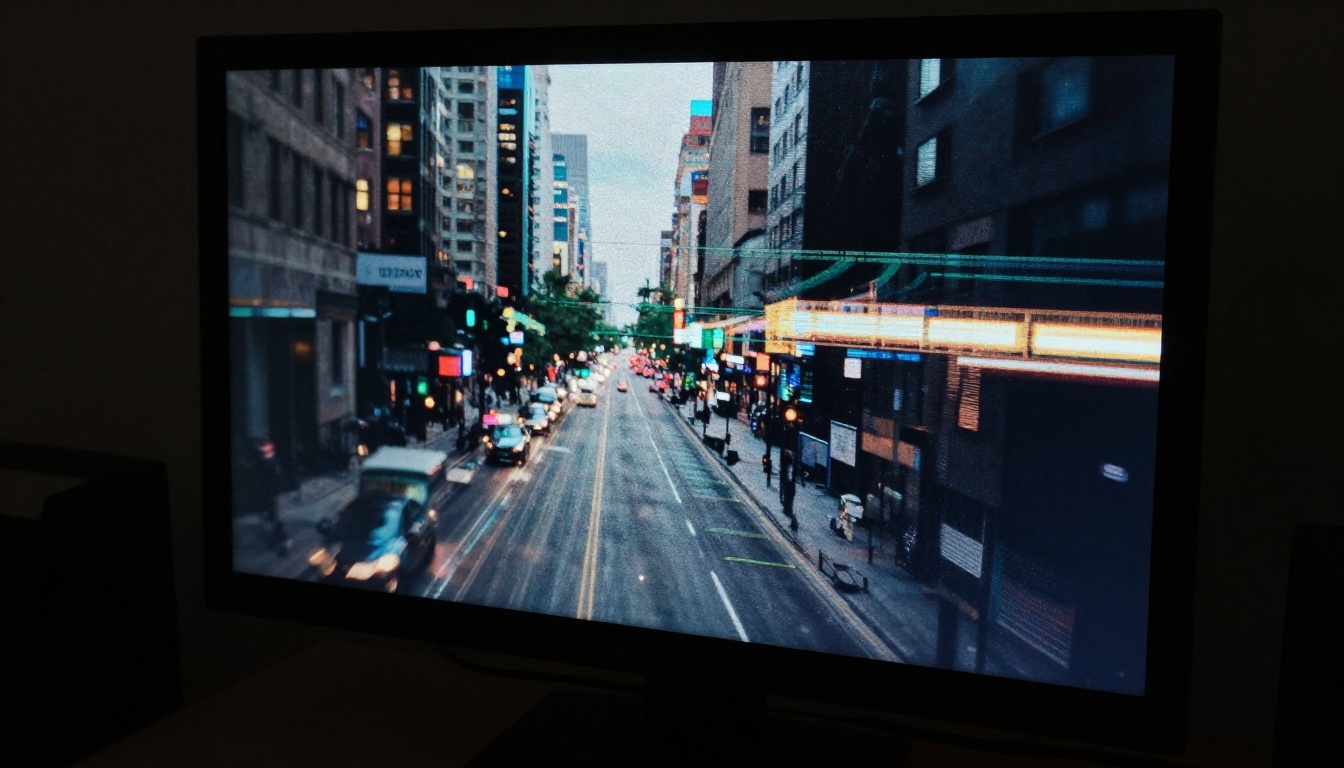
The bigger problem is detail degradation during upscaling. Traditional upscaling methods like bicubic or lanczos just stretch pixels. They can't invent texture, reconstruct edges, or remove the compression artifacts baked into low-resolution video frames. You end up with footage that's technically larger but actually looks worse. Softer. Noisier. More artificial.
AI-powered upscaling is a different approach entirely.
How AI Video Upscaling Actually Works
AI video upscalers don't just enlarge frames. They analyze each frame using a neural network trained on millions of high-resolution images and videos, then reconstruct missing detail based on learned patterns. This process is called super resolution, and modern models can convincingly add skin pores, fabric texture, hair strands, and architectural detail that was never in the original footage.
The best AI upscalers also handle:
- Temporal consistency: making sure the added detail doesn't flicker or shift between frames
- Motion deblur: sharpening footage that was blurry due to camera or subject movement
- Noise reduction: removing compression artifacts and sensor noise without flattening the image
- Frame interpolation: smoothing motion by generating in-between frames (useful for raising 24fps to 60fps)
💡 Pro tip: AI upscaling works best when the source footage has some recoverable detail. If your AI-generated video is completely uniform or heavily compressed, the model has less to work with. Always export your AI video at the highest quality setting available before upscaling.
Video Upscaling vs. Image Upscaling: What's Different
This distinction matters. Image upscaling works on a single static frame. Video upscaling has to work across hundreds or thousands of frames while keeping the results temporally coherent, meaning what changes between frames should only be what was actually moving, not AI-hallucinated texture that shifts around.
A model that produces stunning results on individual frames can produce nightmarish "texture swimming" when applied to video without temporal awareness. This is why dedicated video upscalers are a separate category from image upscalers.
| Feature | Image Upscaler | Video Upscaler |
|---|
| Processes single frames | Yes | Frame-by-frame + temporal |
| Handles motion blur | No | Yes |
| Prevents texture flickering | Not applicable | Critical feature |
| Frame interpolation | No | Available in some models |
| Best for | Photos, stills | Footage, animations |
Best AI Models for Video Upscaling Right Now
Not all AI upscalers are built the same. Here are the ones worth your time, available directly on PicassoIA:
Topaz Video Upscale
Topaz Video Upscale is the industry standard for a reason. The model supports up to 4K resolution and 120fps, and its temporal consistency engine is among the best available. It handles AI-generated footage particularly well because it's trained to recover detail in footage that was computationally generated, not just shot on camera.
What sets it apart: the model applies different processing passes for different types of content. Still backgrounds get one treatment. Moving subjects get another. Fast motion gets deblur applied. The result is footage that looks like it was shot at high resolution from the start.
Runway Upscale v1
Runway Upscale v1 takes a slightly different approach, focusing on perceptual quality rather than pure mathematical sharpness. This means it produces results that look more natural and less "over-processed" than some competing models, which can introduce an artificial crispness that reads as fake.
For AI-generated video, this natural approach often works better. AI footage already has a slightly synthetic quality. Adding aggressive algorithmic sharpening on top can make that worse. Runway's model tends to preserve the original aesthetic while meaningfully improving resolution.
💡 When to use which: Use Topaz for footage where you need maximum resolution gain, doubling or quadrupling the output size. Use Runway when you want better output quality without the "over-sharpened" look.

How to Use Topaz Video Upscale on PicassoIA
PicassoIA gives you browser-based access to both Topaz and Runway's upscaling models without any local installation, GPU requirements, or subscriptions to individual software suites. Here's the exact workflow:
Step 1: Export your source video at maximum quality
Before you upscale anything, export or download your AI-generated video at the highest quality setting available. If you generated it at 480p, make sure you're exporting the original file, not a compressed preview. Upscaling a compressed version of already-compressed footage stacks quality loss.
Step 2: Open the Video Upscale tool
Go to Topaz Video Upscale on PicassoIA. You'll see the upload interface immediately. Drag and drop your video file or click to browse.
Step 3: Set your target resolution
Choose your output resolution based on your source:
- 480p source: upscale to 1080p (2x) for web, or 4K for professional delivery
- 720p source: upscale to 4K directly
- 1080p source: upscale to 4K for maximum output quality
Step 4: Configure your processing passes
When processing options are available, enable these settings:
- Noise reduction: set to medium unless your footage is very grainy
- Motion deblur: enable for footage with fast movement or camera shake
- Temporal coherence: always leave this on
Step 5: Process and download
Click process. Depending on video length and target resolution, processing takes between 30 seconds and a few minutes. Download the result and compare it directly against your source to evaluate the quality gain.
Common Mistakes That Kill Video Quality
Even with the best AI upscaler, these mistakes will consistently undermine your results:
Upscaling compressed footage
If you downloaded your AI video as an MP4 with heavy compression, visible as blocky artifacts or color banding, the upscaler is working with corrupted data. The artifacts get enlarged too. Always work from the highest-quality source file available.
Setting sharpness too high
Most AI upscaling tools include a sharpness or detail recovery slider. Setting it too high creates an artificial "clarity effect" that makes footage look processed rather than genuinely high-resolution. Start at 50-60% and adjust based on the content type.
Disabling temporal settings
Some users turn off temporal coherence to speed up processing. This causes texture swimming, where fine details like hair, fabric, or foliage shift and flicker between frames. Keep temporal consistency enabled, always.
Upscaling without denoising first
If your source footage has significant noise or grain, consider running a denoising pass before the upscale. Upscaling noise makes it larger and more visible. Some tools combine both steps automatically, but if yours doesn't, denoise first.
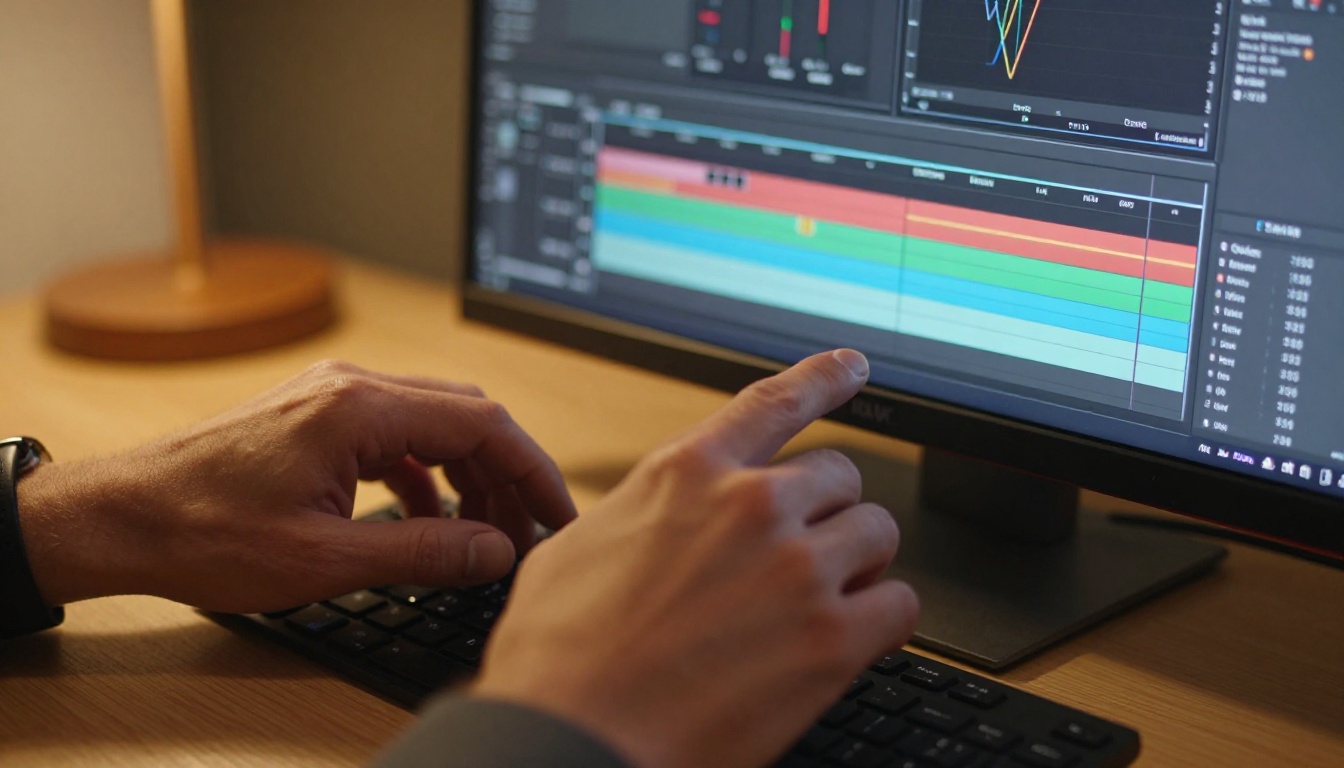
💡 Pro workflow: If your footage has both noise and motion blur, run denoising first, then deblur, then upscale. Each step builds on a cleaner input for better final results.
When Image Upscaling Makes More Sense
Not every situation calls for a dedicated video upscaler. If you're working with a single hero frame, a thumbnail, or a still extracted from video, image upscalers are faster, cheaper, and often produce better results on static content.
PicassoIA has several strong image upscalers worth knowing:
- Clarity Pro Upscaler: exceptional for photorealistic images, reconstructs fine texture with high accuracy
- P Image Upscale: fast and reliable, solid for quick quality improvements
- Google Upscaler: strong at 4x enlargement without losing structural detail
- Real ESRGAN: widely used open-source model, excellent for animated and stylized content
- Topaz Image Upscale: the same Topaz quality applied to individual frames, supporting up to 6x enlargement
For video thumbnails, cover frames, or still previews extracted from your AI footage, any of these will outperform a video upscaler on that individual frame because they're optimized for static content with no temporal overhead.
Resolution vs. Detail: Not the Same Thing
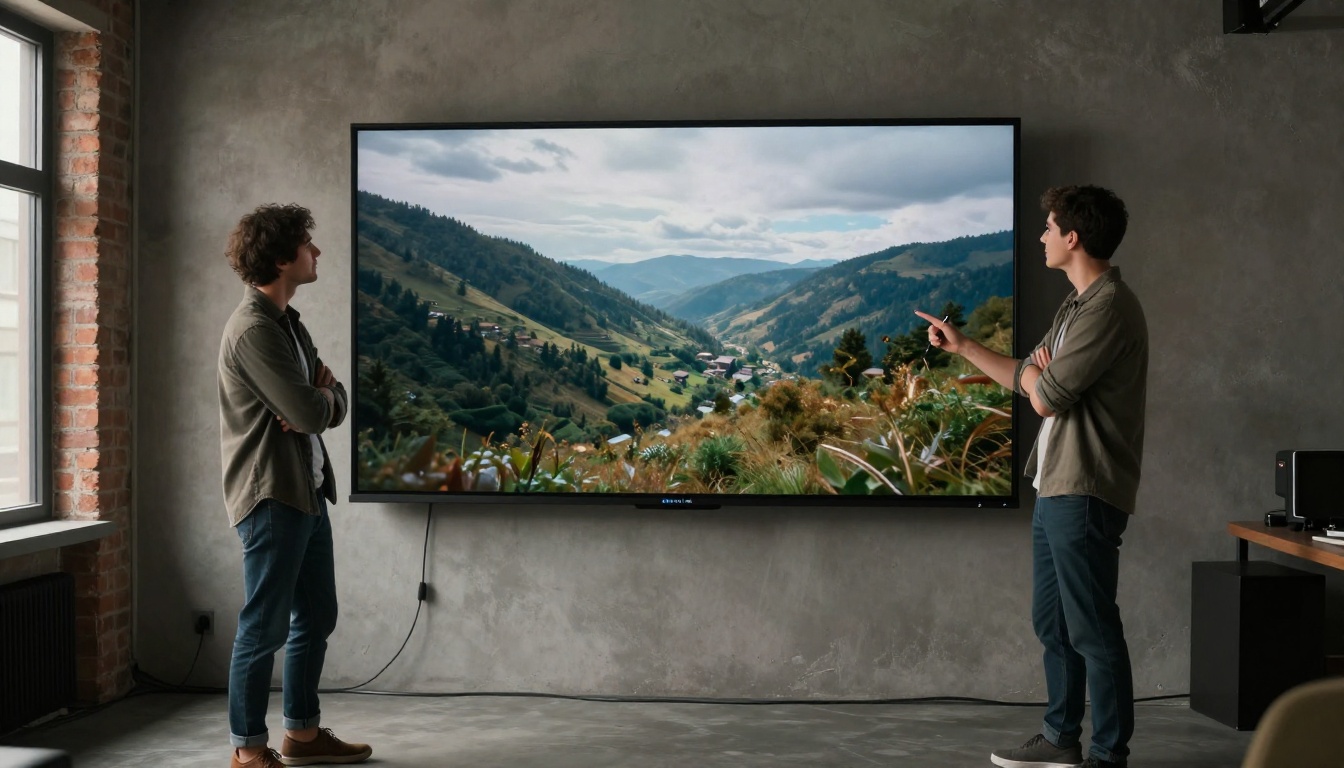
This is the most misunderstood point in the entire conversation around video upscaling. Resolution is the number of pixels. Detail is the information encoded in those pixels. You can have a 4K video that looks soft because it was upscaled from 480p with a poor algorithm. You can have a sharp, detailed 720p video that looks better than that 4K version.
What you actually want is both: high pixel count with high information density per pixel. That's what AI upscalers achieve when used correctly. They don't just resize. They reconstruct. The model infers what the missing detail probably should look like and fills it in with statistical confidence derived from its training data.
The practical implication: don't judge upscaling quality just by zooming in to 100% pixel view. Watch the footage at the intended viewing distance and size. What matters is whether it looks real, sharp, and natural at the scale you're actually presenting it.
Frame Rate Changes Everything
Resolution gets all the attention, but frame rate affects perceived quality just as much. AI video generated at 24fps can feel choppy on modern high-refresh displays, particularly when there's fast movement or camera motion involved. Frame interpolation, available in some AI upscalers, generates synthetic in-between frames to raise the effective frame rate without re-shooting.
Topaz Video Upscale supports frame interpolation alongside upscaling in the same processing pass. You can convert 24fps footage to 60fps while simultaneously upscaling to 4K. The temporal AI engine handles both operations together, which generally produces cleaner results than running them separately.
💡 Caution with interpolation: Some content looks better without it. Film-style footage with deliberate 24fps motion cadence can lose its cinematic feel when smoothed to 60fps. Use interpolation for product demos, tutorials, and realistic footage. Skip it for content where the film aesthetic is intentional.
How to Compare Output Quality Objectively
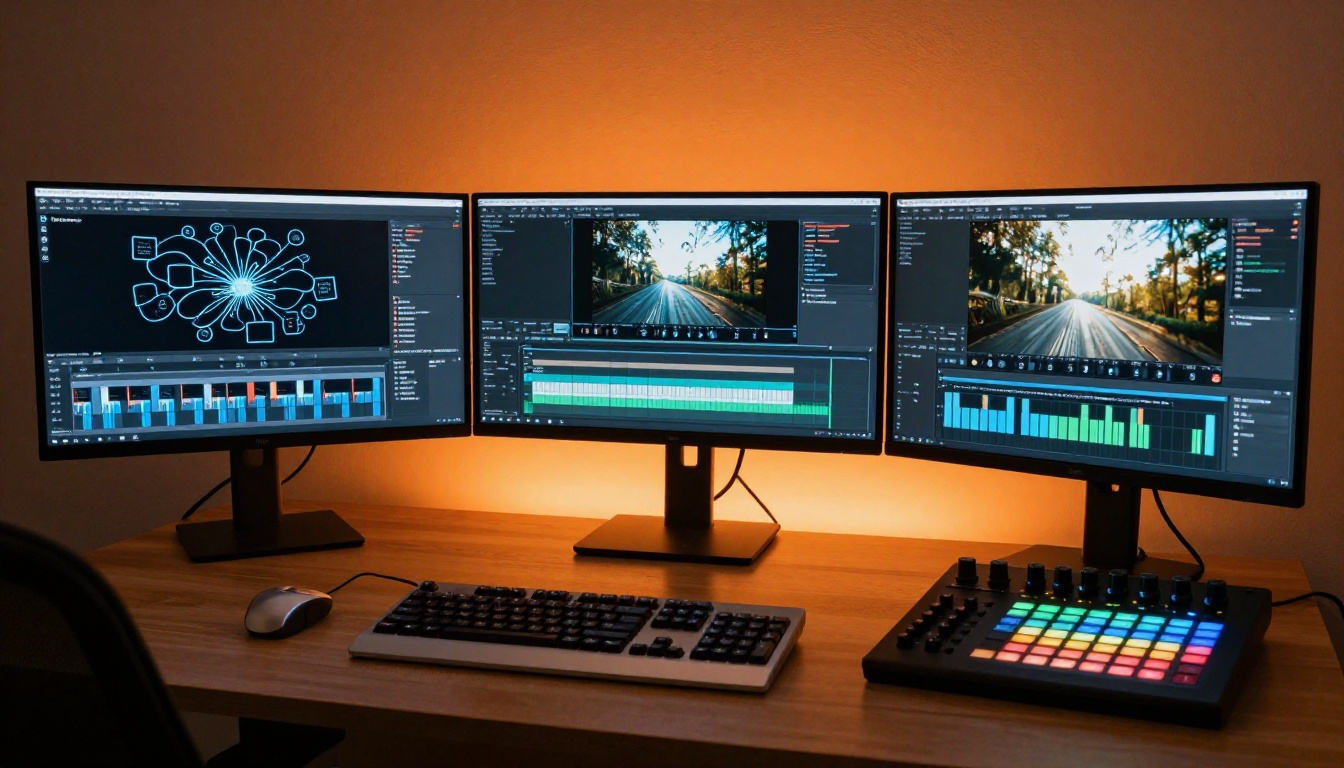
When evaluating upscaling results, stop relying entirely on gut feeling. Use a structured comparison process:
Step 1: Export both source and upscaled versions at the same display resolution for direct side-by-side review.
Step 2: Look at these specific areas in detail:
- Edges: are straight lines clean or haloed with fringing artifacts?
- Textures: does fabric, skin, and surface material look genuinely detailed or plasticky?
- Motion areas: does moving content show artifacts or temporal inconsistency?
- Dark areas: is shadow detail preserved or crushed into flat black?
Step 3: Do a full-speed playback review. Frame-by-frame analysis often reveals artifacts that disappear in motion playback. What matters is how the footage looks playing back at normal speed.
Step 4: Check the output file size. Properly upscaled 4K footage should be significantly larger than the source. If your 4K output is barely larger than the 720p input, something in the export pipeline compressed the detail back out.
Try It on PicassoIA Today
The best way to internalize what AI upscaling actually does is to run it yourself on a piece of footage. PicassoIA gives you direct access to Topaz Video Upscale and Runway Upscale v1 without requiring any local installation or accounts with multiple separate platforms. Upload a video, set your target resolution, and see the difference for yourself.
If you're also working on still images, the full suite of image upscalers is available at picassoia.com/en/all-models. The same AI reconstruction principles apply, and for cover frames or thumbnails extracted from your video, a dedicated image upscaler will consistently outperform video upscaling on individual frames.
Sharper AI video isn't about having a bigger GPU or more expensive software. It's about choosing the right model for your source material and applying it correctly. With the tools available on PicassoIA today, 4K quality output from 480p AI footage is a workflow, not a wish.