Midjourney quietly changed how reference images work, and plenty of prompt writers noticed only when their --oref prompts stopped doing anything. On August 27, 2026, the company opened the V8.2 Edit Model to a wide test. The trade is blunt: Omni Reference is gone on the V8 family, and a single editing workflow that accepts up to four image references takes its place. Instruction edits, inpainting, outpainting and Personalization arrive in the same package. This article breaks down what the Edit Model does, what happened to Omni Reference, how to open it on the website and Discord, where it still stumbles, and which editing models on PicassoIA handle similar jobs when you want a second option.
What the Edit Model Actually Does
Think of the Edit Model as one door into every image-changing task Midjourney used to spread across separate tools. You hand it one or more pictures, describe the change in plain language, and it returns new versions. The basic case needs no parameters at all, which is a real shift for anyone used to stacking flags at the end of a prompt.
Release Timeline
The order of events matters, because the Edit Model only runs on the newest versions.
| Date | What happened |
|---|
| July 24, 2026 | V8.2 becomes the default model, tuned for aesthetics, image quality and Personalization |
| August 27, 2026 | The Edit Model opens as a broad test on the website, the alpha site and Discord |
| Ongoing | Midjourney collects failure reports and promises fast-follow updates |
V8.2 itself aims for a more creative, bold and sophisticated look, with low-quality generations sharply reduced. Existing V7 Personalization profiles keep working, so your taste settings carry over. The Edit Model is compatible with V8.1 and V8.2 only, so a job running on an older version will not accept it.
Four Jobs in One Tool
Midjourney describes four functions that run together:
- Instruction edits. Write "change the jacket to dark green" and the model rewrites the existing image instead of starting from scratch.
- Multi image generation. Up to four pictures feed a single result.
- Inpainting and outpainting. Change one region, or push the canvas outward.
- Personalization, moodboards and srefs. Your profile and style references still apply.
Personalization deserves a short note. V8.2 profiles draw on a much larger and improved pool of images, and a Global V7 Profile works in both V8.1 and V8.2. In practice, your Edit Model results can pick up your taste without extra wording in every prompt.
💡 Tip: Because the four functions share one workflow, a single session can start from an uploaded image, add references, change a region and extend the frame without leaving the tool.
What Happened to Omni Reference
The short version: on V8.1 and V8.2, the Edit Model took over the job Omni Reference used to do. Midjourney's announcement says the new workflow supports up to four images at once and replaces omni-reference, and the version compatibility chart now lists --oref and --ow as unsupported on the V8 family.
How Omni Reference Worked
Omni Reference arrived with V7. You attached an image, added --oref with its address, and tuned how strongly it shaped the result with --ow. It was built to keep a character, object or creature consistent from one scene to the next. One current prompt resource notes that it generally worked best with a single strong reference image, and that single image habit is exactly where many projects hit a wall.
Why One Reference Fell Short
Real briefs rarely hinge on one photo. A fashion shoot needs the face from one picture, the garment from another and the setting from a third. Before the Edit Model, people stitched those pieces together in a photo editor first, then fed a flattened composite to Omni Reference, losing detail at every step. Character Reference (--cref) and the standalone Retexture tool added even more separate stops. The Edit Model folds all of that into one place.
| Older tool | How you called it | Where it went |
|---|
| Omni Reference | --oref and --ow | Up to four references in the Edit Model |
| Character Reference | --cref | Image references in the Edit Model |
| Retexture | Separate tool | Edit Model instructions |
| Inpainting and outpainting | Editor flows | Same Edit Model |
💡 Tip: If you have saved V7 prompts that depend on --oref, expect them to need a rewrite on V8.2. Rebuild them as image references plus a sentence that says what each image contributes.
Four References at Once
This is the headline feature. Midjourney says the model accepts up to four image references at the same time, and each one can supply a different ingredient. Instead of squeezing a face, an outfit and a location into one overloaded photo, you give each its own picture.
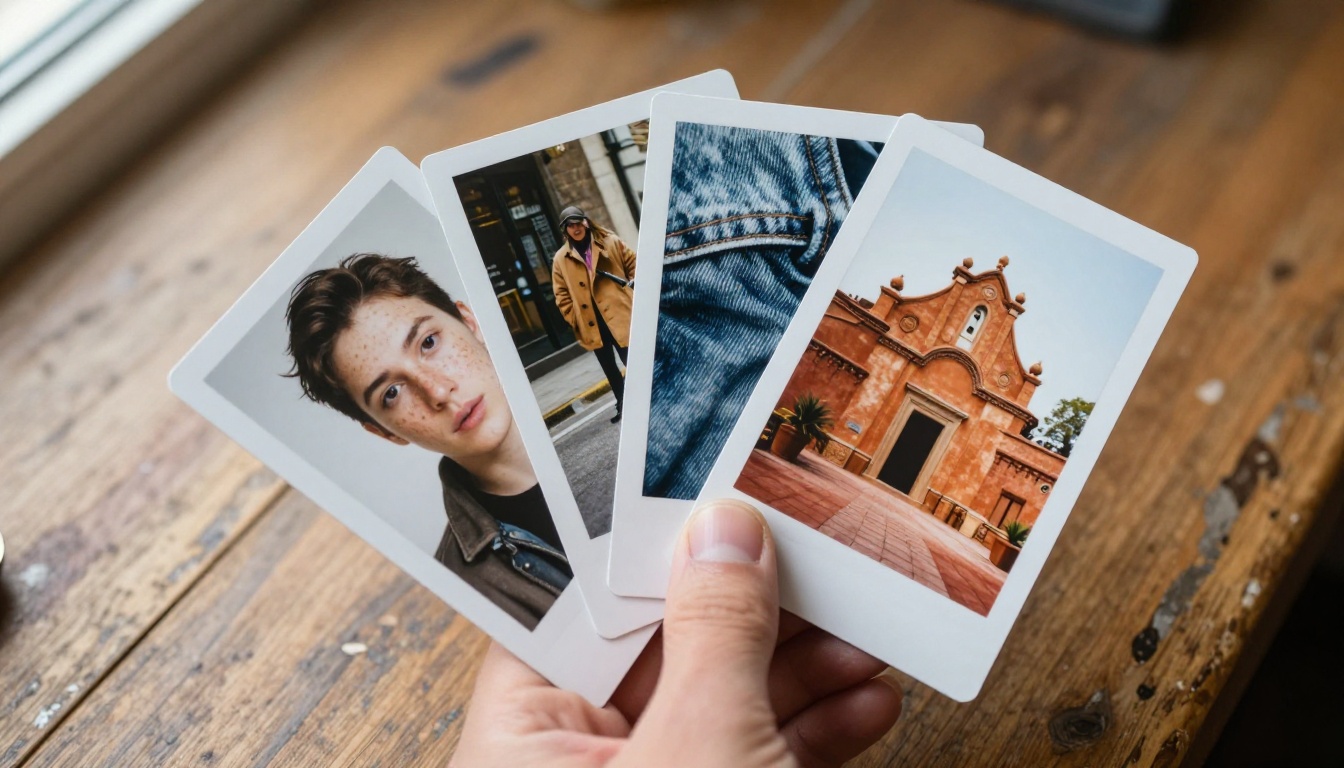
Face, Pose, Outfit, Place
A clean way to split the four slots is by role:
| Reference | Contributes | Example image |
|---|
| 1 | The face | A clear portrait of the subject |
| 2 | The pose | A street photo of someone mid-stride |
| 3 | The outfit | A product photo of a wool coat |
| 4 | The environment | A sunlit courtyard |
The roles come from your wording, so state which image supplies what instead of hoping the model guesses. A vague prompt tends to blend all four into an average of everything.
Writing Prompts for Multiple Images
Natural language beats comma separated word lists here. A prompt in the right spirit looks like this:
Use the woman from the first image, the walking pose from the second, the camel coat from the third and the courtyard from the fourth. Late afternoon light, 85mm portrait framing, warm film tones.
A few habits make the results more predictable:
- Name each source. Say "first image," "second image," and so on.
- Lead with the subject. Then add details, setting, light and lens, the way you would brief a photographer.
- Give each reference one job. A portrait that also shows a busy background muddies both roles.
- Choose sharp references. Blur and heavy compression show up in the result.
- Change one reference per round. You will see what each picture contributes.
Prepare the files before you upload them. Crop each reference so the subject fills most of the frame, export at a decent resolution, and drop anything with watermarks or heavy filters. The model can only borrow what it can clearly see.
Here is a worked example for a catalog shot. Reference one is a clean portrait of a model, reference two is a flat product photo of a yellow rain jacket, and reference three is a wet city street at dusk. The prompt reads: "Show the woman from the first image wearing the rain jacket from the second image, standing on the street from the third image, looking slightly left, soft overcast light, 50mm lens." If the jacket color drifts, add "keep the exact yellow of the jacket" and run it again. Then fix the collar with an inpainting pass instead of regenerating the whole frame. That split, references first and local fixes second, saves the most time.
💡 Tip: Midjourney warns that moodboards and srefs may work best with extra prompt direction in this version. If a style reference seems ignored, describe the look in words as well.
Inpainting, Outpainting and Retexture
The Edit Model also absorbs the editing jobs that used to live in separate windows. All three work on an image you already have, which makes them the safest place to start before you try four references.
Inpainting Changes One Area
Select a region and tell the model what belongs there. Typical uses are swapping a sofa, fixing a hand, removing a distracting object or replacing a sky.
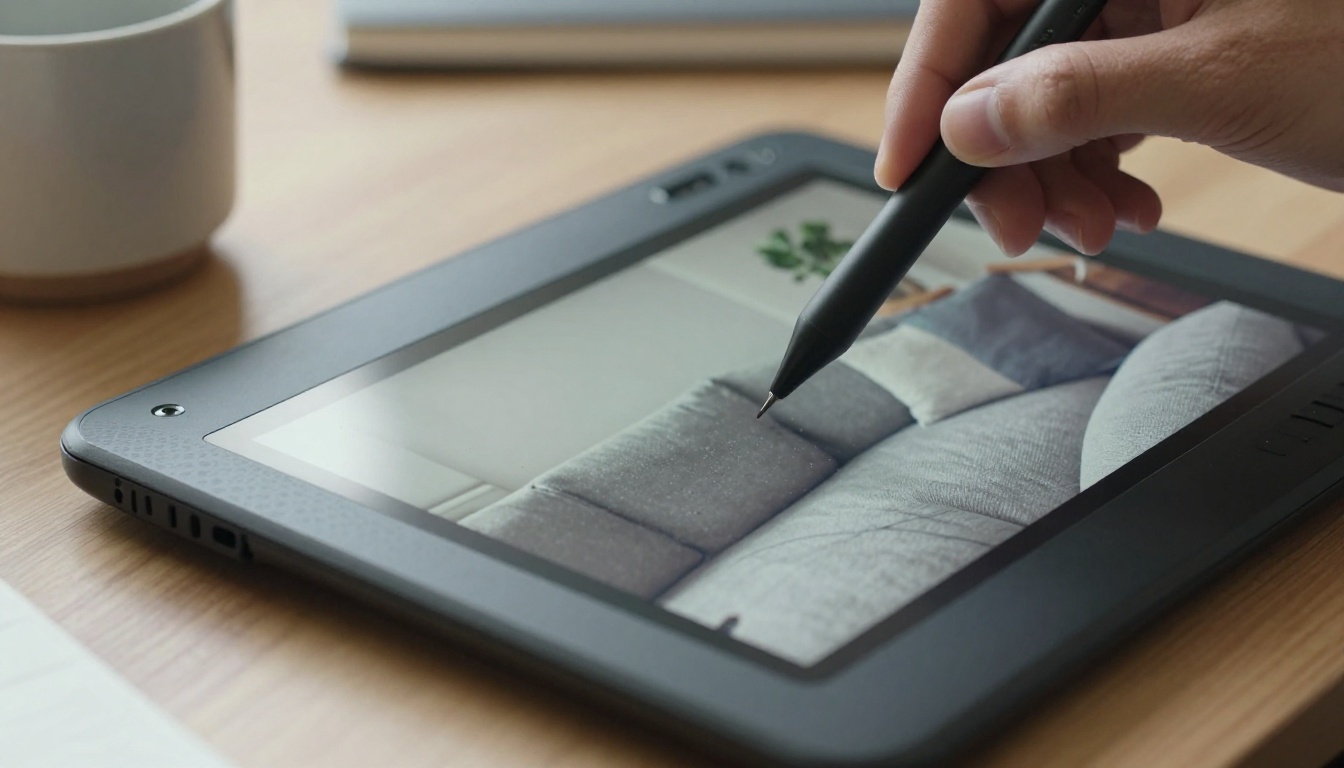
- Keep selections tight. A small region gives the model less room to wander.
- Describe the fill, not the old content. "A green velvet armchair" usually works better than "not a sofa."
- Match the light. Mention the direction and warmth of the light already in the scene.
Outpainting Extends the Frame
Outpainting grows the canvas past its original borders. It suits turning a square into a wide banner, adding headroom to a portrait, or revealing more of a room.
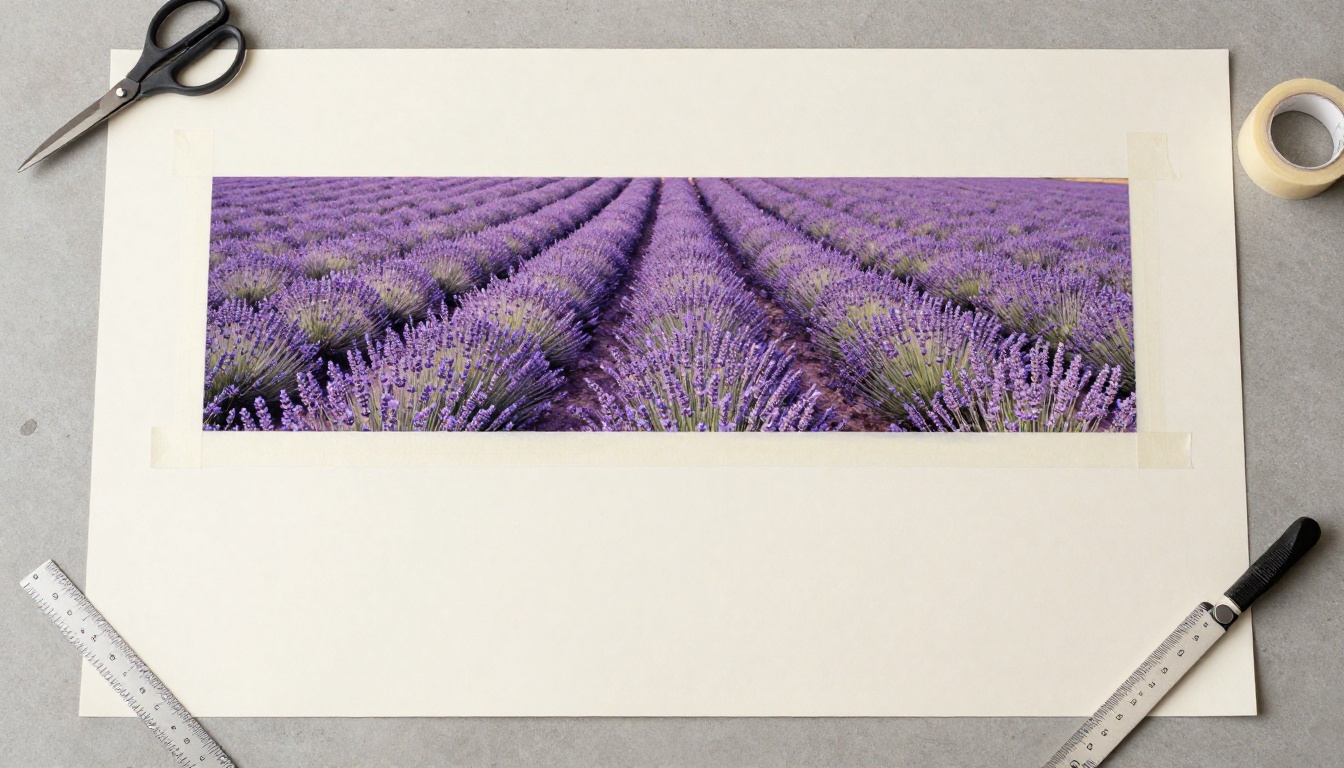
- Extend in steps. Two moderate expansions usually hold together better than one huge jump.
- Repeat the setting in words. Something like "more lavender rows toward the horizon" keeps the new area consistent.
- Check the seam. Zoom in on the join and rerun if the horizon line or shadows drift.
Retexture Swaps Materials
The standalone Retexture tool is folded into the Edit Model. Material changes are the typical request: leather to suede, a plain wall to brick, matte paint to glossy lacquer.
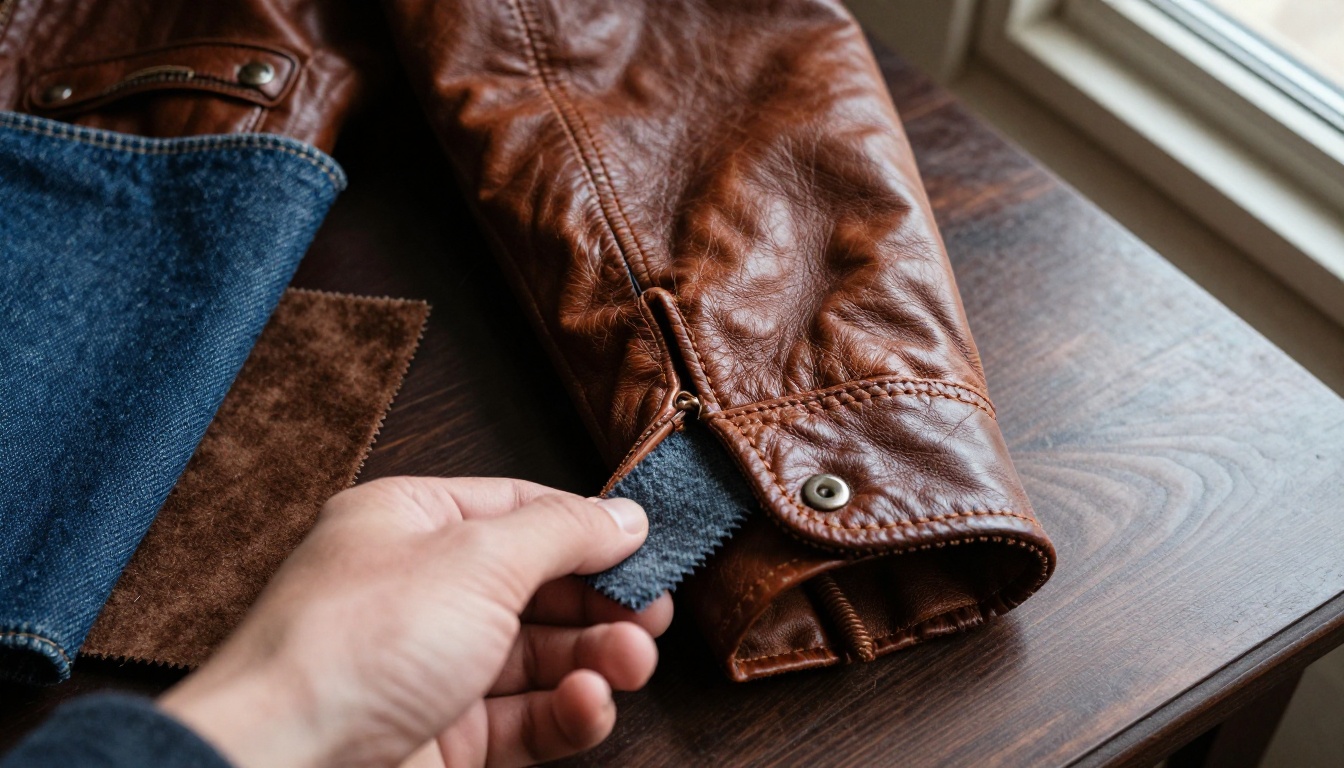
Name the material and the finish together, such as "dark suede with a soft nap," and keep the instruction short. Long lists of adjectives give the model more chances to change things you wanted left alone.
How to Open the Edit Model
There are four doors in, three on the website and one on Discord. Both midjourney.com and alpha.midjourney.com received interface updates, and the alpha site is the place Midjourney uses for faster experiments, so new behavior often shows up there first.
From the Website
Pick whichever route fits your habit:
- Drag images into the prompt bar. Drop one to four pictures and type your instruction.
- Click Edit in the lightbox. Open any existing image and start from it.
- Upload through the Edit tab. Bring in files from your computer.
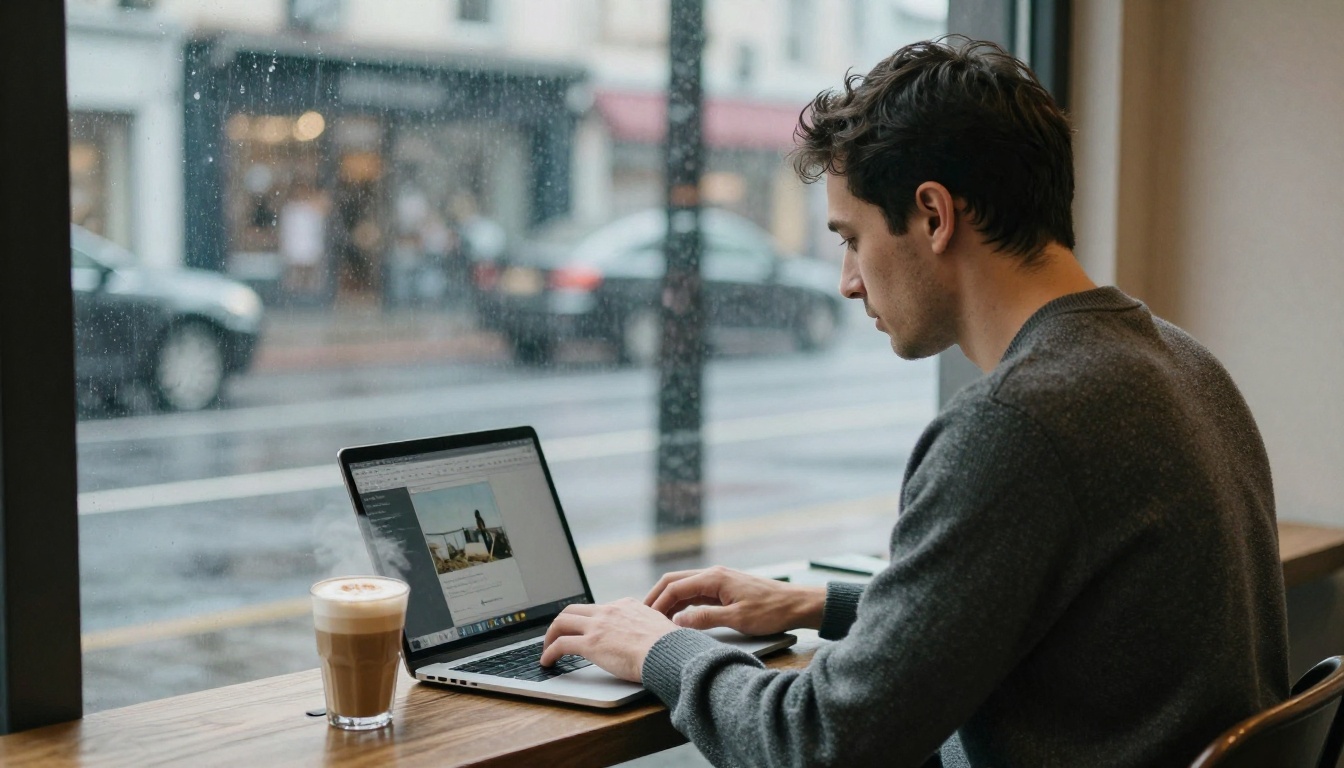
Then write the change you want in plain sentences. Name what stays the same as well as what changes, for example "keep the face and the pose, change the coat to charcoal wool."
From Discord
Discord uses the --edit command followed by image addresses, in the pattern Midjourney lists as --edit url.... Add your instruction text alongside it. Because the test is still moving, check the latest announcement for exact syntax before you build a habit around it.
Limits to Check First
An open test means rough edges. None of the following should stop you from trying the Edit Model, but each one can save you an evening of confusion.
Known Edge Cases
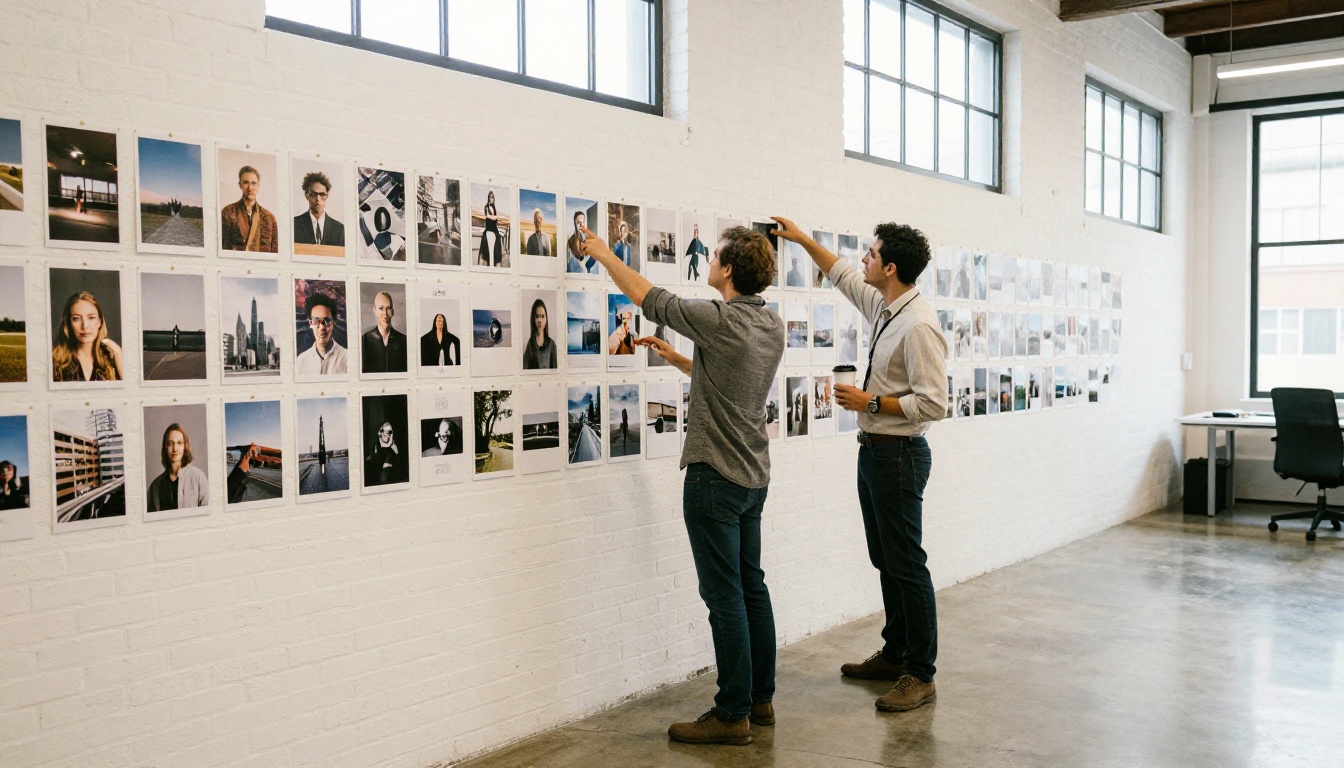
Midjourney itself acknowledges "a lot of edge cases" and asks testers to report problem outputs, either with the sad face control in the lightbox or by sharing job IDs. The interface and behavior are not final, and the team has said fast-follow updates are planned. Expect small changes week to week.
What Is Not Supported
--tile. One third-party reference reports the Edit Model does not work with it.- Remix. The same source says Edit Model outputs cannot be remixed.
--oref and --ow. Unsupported on the V8 family.- Older versions. Only V8.1 and V8.2 accept the Edit Model.
- Dedicated pricing. The same source says Midjourney has not published a separate tier for Edit Model generations, so treat them as ordinary subscription usage until that changes.
An open test is also the wrong foundation for some work. If you need a strict brand color match or a repeatable batch of two hundred product shots, a tool with acknowledged edge cases is a risky base. Use it for ideation and hero images, and keep a second editor ready for production runs.
💡 Tip: Keep a short log of job IDs for outputs that go wrong. Midjourney asks for them, and they let you rerun the same setup after an update to see whether it improved.
Editing Models Worth Trying on PicassoIA
Midjourney is not on PicassoIA, and no model there is a one to one copy of the Edit Model. Several editing and reference models do handle the same jobs, though, and you can compare them side by side in one browser tab.
Multi Image Editors
These suit work that starts from more than one picture:
- Multi Image Kontext Pro blends two photos into a single result, the closest match for combining a subject with a new setting.
- Nano Banana Pro generates 4K images and is a strong pick for final renders.
- Flux 2 Pro generates images from text or from photos.
Single Image Editors
These suit edits on one picture at a time, in the spirit of instruction edits and inpainting:
Here is how the jobs line up:
Try Multi Reference Editing Yourself
The fastest way to judge the Edit Model is to run one real project through it. Pick a portrait, a pose photo, an outfit and a location, name the role of each image in a single sentence, and compare the first result with what you pictured. Then run the same brief through one of the editing models above and see which one handles your subject better.
Picasso IA puts dozens of image editors, generators and upscalers in one place, so you can test a reference idea in minutes and keep whatever gives you the cleanest result. Open the full catalog at picassoia.com/en/all-models, upload your own reference photos, and start experimenting with your own images today.


