Large Language ModelsGenerate imagesGenerate videos
Photoshop MCP Server: Edit Photos From Claude and ChatGPT
A Photoshop MCP server lets Claude or ChatGPT edit your photos from a chat window. This article shows how the Adobe connectors work, how community servers drive the desktop app, which edits succeed, where they fail, and how to set everything up.
You describe the edit, and the photo changes. That is the promise behind a Photoshop MCP server: a small program that lets an AI assistant like Claude or ChatGPT press the buttons inside Photoshop for you. Instead of hunting through menus for a selection tool, you type "soften the background and warm up the skin tones" and watch the result appear. It sounds simple, but the phrase hides two very different products: hosted connectors that Adobe runs on its own servers, and open-source servers that drive the Photoshop app installed on your computer. This article separates them, shows how each one is set up, and is blunt about the edits that still go wrong. You also get ready-to-paste prompts and a backup editor for the moments when chat editing runs out of steam.
What a Photoshop MCP Server Does
The Model Context Protocol, or MCP, is an open standard introduced by Anthropic so AI assistants can call outside tools in a predictable way. A server publishes a list of actions, such as "blur background" or "straighten horizon". The assistant reads your sentence, decides which actions apply, calls them in order, and reports back in the chat. Because MCP is an open standard, one server can often work with several clients, which is why a single Photoshop server may show up in Claude Desktop, Cursor and other tools.
Three parts are always involved:
The client: Claude or ChatGPT, where you type your request.
The server: the MCP program that exposes Photoshop actions as tools.
Photoshop: running either on Adobe's servers or on your own machine.
Two Meanings of the Same Phrase
Feature
Hosted by Adobe
Local open-source server
Where Photoshop runs
Adobe's servers
Your desktop app
Photoshop install needed
No
Yes
Works with
ChatGPT and Claude
Claude Desktop, Cursor, other MCP clients
Setup effort
Connect and sign in
Plugin, proxy and config file
Best for
Quick edits on one photo
Layers, PSD files, repeated jobs
Which route fits you? Pick the hosted connectors if you edit single photos now and then and don't want to install anything. Pick a local server if you work with layered PSD files, run the same steps on dozens of images, or need results saved back into your own folders. Start hosted, and move to a local server only when you hit a wall that chat can't get past.
Why Chat Beats Menus for Routine Edits
Most photo edits are repetitive: straighten, crop, balance the light, blur a distracting background. Those are exactly the jobs a chat assistant handles well, because the instruction fits in one sentence and you can judge the result by eye. Fine work, like painting a precise mask around curly hair, still belongs inside the app.
💡 Tip: Treat the assistant like a fast junior retoucher. Hand it the routine work, then open the file yourself for the final touches.
How Adobe's Connector Works in Claude
On April 28, 2026, Anthropic released nine creative connectors, and one of them comes from Adobe: Adobe for creativity. Reports on the launch describe more than 50 tools spread across Photoshop, Premiere, Lightroom, Illustrator, InDesign, Express, Firefly and Adobe Stock. Claude reads your prompt, picks the functions that apply, and calls them in the right order, so you can describe an outcome without naming an app.
Setup in Claude, Step by Step
Open Claude on the web or in the desktop app.
Click the plus icon and choose Connectors.
Search for Adobe for creativity and click Install.
Sign in with your Adobe ID if you want all six skills. A guest mode exists with fewer features.
Switch on Always allow if you don't want a permission prompt on every tool call.
According to a hands-on write-up on We and the Color, the connector doesn't need a paid Claude plan, and a Creative Cloud subscription only matters for Creative Cloud libraries or heavy Firefly generation. The same write-up warns that neither company has published a clear chart of usage limits per plan, so you find your ceiling by hitting it.
What You Can Ask For
Portrait retouching is the clearest use case: lighting balance, background blur, auto-straighten and crop. Ask for a result, not a tool name:
"Balance the lighting on these portraits and crop them to a clean headshot."
"Straighten the horizon and blur the crowd behind the couple."
"Make this product photo brighter and crop it square."
Photoshop in ChatGPT, Step by Step
Adobe launched its Photoshop app inside ChatGPT on December 10, 2025, and its announcement shows the flow. Adobe's documentation says it works on any ChatGPT plan, including the free one, with no Photoshop subscription needed. Plans change, so check the current terms before you rely on that.
Open ChatGPT and go to Settings > Apps & Connectors.
Find Adobe Photoshop and click Connect.
Confirm the connection in the pop-up window.
In the prompt bar, click +, choose More, and pick the Adobe app. Or just type @Photoshop.
Upload your image together with your first prompt.
Adjusting Edits on Screen
After your first prompt, ChatGPT offers suggested edits. Open the full-screen view to fine-tune live adjustment controls, then keep prompting for effects or local edits. Adobe's own example flow starts with "Make the people pop in my vacation photo", adds a retro effect to the sky only, then finishes with a film grain across the whole image. Adobe's help page lists the edit types: adding, removing or replacing elements, replacing backgrounds, editing specific objects or people, and adjusting lighting and color.
Local Servers That Drive Desktop Photoshop
Beyond the hosted route, community projects let an assistant control the Photoshop app on your own computer. Because they talk to your installed copy, they can reach open documents and layers. Two names come up most:
adb-mcp by Mike Chambers is a proof-of-concept that lets Claude Desktop or the OpenAI Agent SDK control Photoshop, Premiere Pro, InDesign, After Effects and Illustrator. It needs Python 3 for the MCP server, Node for the proxy, the Adobe UXP Developer Tool, and Photoshop 26.0 or later.
@alisaitteke/photoshop-mcp advertises more than 50 tools and runs through npx. A standalone chat window starts with npx -p @alisaitteke/photoshop-mcp photoshop-mcp-ui, which helps if your client has no MCP support.
Windows-based servers that rely on COM automation also exist, so check which operating system a project targets before you install it.
The Proxy and Plugin Chain
An MCP server can't reach into Photoshop directly. Projects like adb-mcp place a small Node proxy in the middle, and a plugin inside Photoshop carries out the commands:
AI client -> MCP server -> command proxy -> Photoshop plugin -> Photoshop
Every link in that chain is a place where things can break, which is why the first setup often takes a few tries.
What a Config Entry Looks Like
Claude Desktop reads servers from its config file. One Python-based Photoshop server documents an entry shaped like this:
The command, arguments and script name differ per project, so copy the exact entry from the README of the server you pick.
Risks of Running Local Servers
Files get changed. A server that controls Photoshop can open, edit and save documents. Work on copies of your PSDs.
Approvals matter. Read the tool list before switching on automatic approval.
Versions drift. Many of these are proof-of-concept projects, and a Photoshop update can break a plugin.
Edits That Work and Edits That Fail
This table is a rule of thumb for how generative editing tools tend to behave, not a benchmark. Your results will vary with the photo.
Task
What to expect
Note
Background blur
Reliable
One short sentence is enough
Crop and straighten
Reliable
Name the ratio you want
Warmer or cooler color
Reliable
Say "slightly" or "strongly"
Remove a small object
Good
Describe where it sits
Replace a background
Mixed
Hair edges can look soft
Fine skin retouching
Mixed
Over-smoothing is common
Exact text or logo changes
Weak
Do these by hand
Portraits and Skin
Portraits are where chat editing looks best and fails most visibly. Lighting balance and gentle color work come out natural. Heavy retouching tends to erase pores and make faces look waxy. Ask for "natural skin texture, keep pores and freckles" and stop after one pass.
Product Shots and Backgrounds
Product photos reward clear prompts. A cut-crystal bottle on a cream backdrop is easy to brighten, square-crop and place on a new surface. Reflections are the weak spot: when you swap the background, the reflections in glass and chrome may no longer match the new scene.
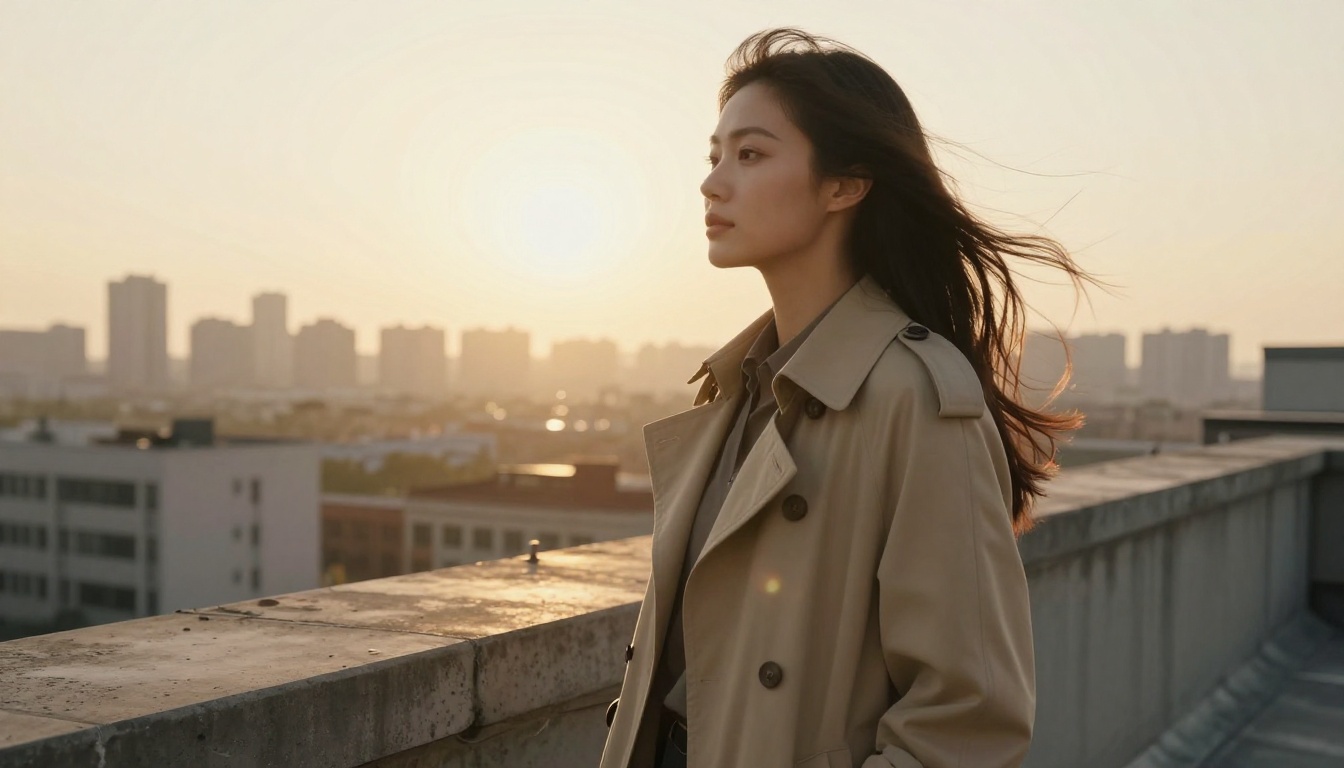
Outdoor portraits are similar. Replacing a skyline is quick, but hair, windblown fabric and rim light are hard to cut out cleanly, so check the edges at 100 percent zoom.
Where Chat Editing Stalls
Vague requests. "Make it better" gives the assistant nothing to aim at.
Invented detail. Generative fills add pixels that were never in the photo, which matters for journalism, evidence and product accuracy.
Usage limits. Hosted connectors have caps, and the exact numbers aren't published per plan.
Precise layout. Pixel-exact alignment and text edits are still faster with a mouse.
Privacy. A hosted connector sends your photo to a third-party service. Check the terms before you upload client work or private pictures.
Prompts That Get Clean Results
A good edit prompt has four parts: what to change, where it sits, how much, and what must stay the same.
Weak prompt
Better prompt
"Fix the lighting"
"Brighten the shadows on the left half by one stop and keep the sky as it is"
"Remove the guy"
"Remove the man in the red jacket on the right edge and fill with the cobblestones"
"Make it warm"
"Add a slight golden tone to the whole photo, keep skin tones natural"
"New background"
"Replace the background with a plain light gray wall, keep the hair edges sharp"
A Five-Minute Edit, Start to Finish
Take a street portrait with a cluttered background. Prompt one: "Blur the background behind the woman and keep her sharp." Check the hair edges. Prompt two: "Warm the whole image slightly and keep skin tones natural." Prompt three: "Crop to 4:5 portrait with her face in the upper third." That is three prompts, three checks, and a file ready for a social post. If one step goes wrong, you roll back a single instruction instead of redoing everything.
💡 Tip: Edit in small steps. Three short prompts with a look in between beat one giant paragraph, because you can undo a single step.
How to Use Image Editor Pro
Hosted connectors depend on someone else's plan limits. When you want an editor without a per-edit cap, PicassoIA Image Editor Pro is the native editing model on Picasso IA. You upload up to three reference images, describe the change in plain language, and get a result in seconds. Its model page describes it as unlimited, with no per-edit cap and no daily quota.
Upload your main photo. The first image is the primary one, and you can add up to two more.
Write the edit. Refer to the uploads as "image 1", "image 2" and "image 3".
Pick an aspect ratio. match_input_image keeps the original dimensions.
Choose the output format and quality, then run it.
Compare the result, change one detail in the prompt, and run again.
A prompt taken from the model's own examples shows the right level of detail: "Change the car color from glossy red to deep metallic midnight blue with subtle reflections. Keep all other elements of the image unchanged: same angle, same road, same mountains, same lighting."
Prompt writing: ask Claude Sonnet 5 or GPT 5.4 to turn a loose idea into a precise edit prompt.
Picasso IA also exposes its image and video models through an MCP connection of its own, so the same chat-driven workflow described above can run against its editor.
Try Your Own Edits Today
You don't need a Photoshop subscription or a plugin chain to see what prompt-based editing can do. Pick a photo you already own, such as a portrait with a messy background or a product shot that needs better light, and try three small edits on Picasso IA: a background change, a color shift, and a lighting fix. Start with PicassoIA Image Editor Pro, compare the results with what you get from Claude or ChatGPT, and keep whichever one respects the details you care about.
Keep a note of the prompts that worked. A short list of five prompts you trust saves more time than any plugin. Open the editor, upload one photo, and write your first prompt. The fastest way to find out is to run one edit.