Generate imagesLarge Language ModelsVisual Effects
WordPress AI Image Generator Plugin: Featured Images Automatically
A WordPress AI image generator plugin can write the prompt, generate a photorealistic picture, and set it as the featured image the moment a post publishes. See how the pipeline works, which plugin type fits your site, and how to write prompts that look like real photographs.
Every post you publish needs a featured image, and nobody enjoys choosing one at 11 p.m. with the draft finally done. A WordPress AI image generator plugin takes that chore off your plate: it reads the post, writes an image prompt, generates a photorealistic picture, saves it to the media library, and sets it as the featured image before you press Publish. Below you'll find how that pipeline works, what to check before installing a plugin, how to write prompts that produce believable photographs instead of plastic stock, and how to wire a generator like PicassoIA into your site so featured images happen automatically.
Why Featured Images Slow You Down
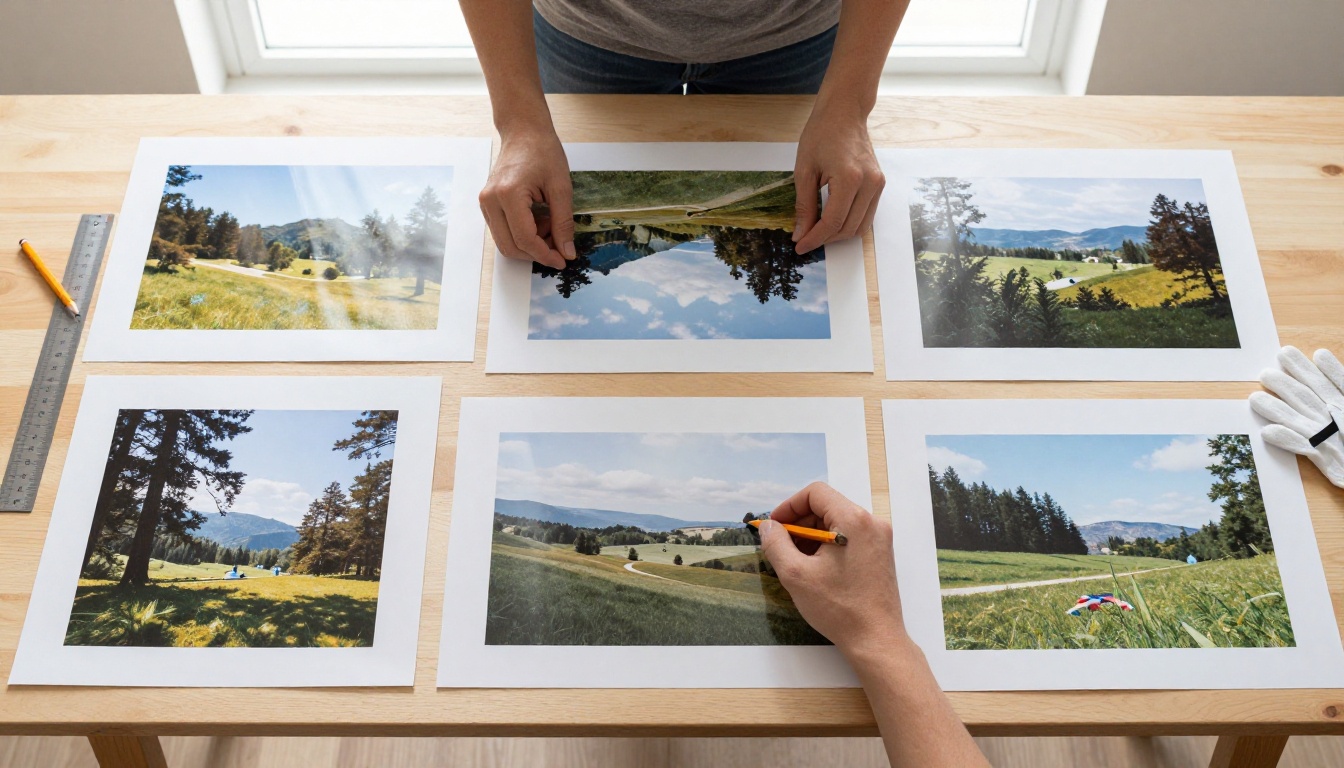
A featured image is the picture WordPress attaches to a post through its post thumbnail field. Your theme shows it at the top of the article, in archive grids, in related post blocks, and in the link preview that social networks build from the Open Graph image tag. One field, four or five places where a reader judges the post before reading a single word.
The Stock Photo Trap
Free stock libraries feel generous until your fortieth post. You scroll past the same handshake, the same laptop on a white desk, the same person laughing at a salad. Worse, the same photo appears on competing blogs, so your post looks like everyone else's in a shared feed. One search easily eats fifteen minutes, and that adds up fast against a weekly publishing calendar.
What a Weak Image Costs
A rushed image hurts in three quiet ways:
Recognition. A generic thumbnail blends into the feed. A distinctive photographic style makes your posts recognizable at a glance.
Consistency. Ten posts with ten unrelated visual styles make a site feel unplanned.
Page weight. Oversized originals dropped in from a camera roll or a stock site slow the page, and the featured image is usually the largest element above the fold.
💡 Tip: Treat the featured image as part of the headline. If the title promises a specific result, the image should show the setting where that result happens.
How Automatic Featured Images Work
Whatever plugin you pick, the pipeline has the same four steps:
Trigger. A post is published, saved as a draft, or selected in a bulk action.
Prompt. The plugin turns the title and excerpt into an image prompt.
Generation. A text to image model returns a picture, usually within seconds.
Attachment. The file lands in the media library, gets alt text, and is set as the post thumbnail.
From Title to Prompt
Plugins build prompts in one of two ways. A template fills in a fixed recipe such as "photorealistic photo of {topic}, natural window light, 35mm lens", which is predictable and cheap. A language model reads the post and writes a scene description for it, which adapts better to unusual topics. Fast models such as Gemini 3.5 Flash or Claude 4.5 Haiku suit this small writing job, since the output is only a paragraph.
Beyond prompts, a language model can write the alt text, suggest a caption, and flag posts whose topic is too abstract for a literal photo. For abstract topics, tell it to pick a physical scene that stands for the idea: a tidy workbench for "productivity", an open road for "growth".
From Image to Featured Slot
Under the hood, WordPress gives plugins two core functions for this: media_handle_sideload() moves a file into the uploads folder and creates the attachment, and set_post_thumbnail() assigns it to the post. A minimal trigger looks like this:
add_action( 'transition_post_status', function ( $new, $old, $post ) {
    if ( 'publish' !== $new || 'publish' === $old ) {
        return;
    }
    if ( has_post_thumbnail( $post->ID ) ) {
        return; // never overwrite a human choice
    }
    wp_schedule_single_event( time() + 5, 'queue_featured_image', array( $post->ID ) );
}, 10, 3 );
The queued job then builds the prompt, requests the image, sideloads it, and calls set_post_thumbnail(). Queuing matters because generation takes a few seconds and should never freeze the Publish button. Add a post type check too, so pages and products don't receive images you didn't plan for.
Choosing a Plugin That Fits
Three Plugin Types
Plugins that promise automatic featured images fall into three groups. None wins in every case, so pick by how much control you need.
Type
Best for
Trade-off
All-in-one AI writing suite with an image add-on
Sites already generating text with AI
Image settings are usually shallow and tied to one model
Dedicated featured image generator
Blogs that want one job done well
Fewer extras, so check how often it is updated
Custom workflow (webhook, automation tool, or a small plugin of your own)
Teams that need exact control over models and style
Setup time, and someone has to maintain it
A Checklist Before Installing
Before you install anything, run through these questions:
Model choice. Can you pick the model, or are you locked to one?
Prompt control. Can you edit the prompt template per category?
Safe behavior. Does it skip posts that already have a featured image?
Media library. Are results saved as normal attachments with alt text, not hotlinked from another server?
Background jobs. Does generation run in the background rather than during save?
Review queue. Can you approve images before they go live?
Upkeep. Is it tested with your current WordPress version, and does support answer questions?
Then test on a staging copy before touching the live site. Publish three dummy posts on different topics, say a recipe, a tutorial, and an opinion piece, and compare the images. If all three look alike, the prompt template is too rigid. If one looks wrong, the plugin struggles with abstract topics and you'll need a language model in the loop.
Write Prompts Like a Photographer
A generator reads a prompt the way a photographer reads a brief. A vague brief produces a vague photo, and a vague photo is exactly what you were trying to escape.
A Five Part Prompt
Use this order every time:
Subject and action. Who or what is in the frame, and what they are doing.
Setting. The place, with two or three physical details.
Light. Direction and quality, such as "soft window light from the left".
Lens and distance. "35mm lens at eye level" or "85mm, close up".
Texture. The tactile details that make a picture feel real: linen creases, wood grain, steam, film grain.
Here is one in action, for a post about weekly meal prep:
A woman packing glass lunch containers on a sunlit kitchen counter, wooden cutting board with chopped peppers, herbs in a jar, soft window light from the left, 35mm lens at eye level, shallow depth of field, visible steam and fine film grain, photorealistic.
💡 Tip: Keep words out of the image. Generated lettering is the first thing that looks fake. Put the post title in your theme or a CSS overlay instead. If you truly need text inside a picture, a model built for typography such as Ideogram v3 Balanced is the safer choice, and one or two short English words is the sensible limit.
Prompts That Fail
Weak prompt
Why it fails
Stronger version
"Blog image about coffee"
No light, no lens, no scene
"Hands wrapped around a ceramic mug on an oak table, morning light from the left, 50mm lens, shallow depth of field"
"Glowing robot typing a blog post"
A cliche that reads as cartoon, not photo
"Writer at a wooden desk, laptop open, handwritten notes beside it, natural window light"
"Stunning, epic, ultra detailed 8K"
Adjectives carry no information
Swap each one for a concrete thing the camera can see
Sizes, Formats, and Page Speed
Pick the Right Ratio
One generated image has to serve several slots, so generate wide and let the theme crop.
Where it appears
Typical ratio
Pixel target
Post header
16:9
1600 x 900
Social link preview (Open Graph)
1.91:1
1200 x 630
Archive grid card
3:2 or 4:3
Check your theme
Square social post
1:1
1080 x 1080
Generate at 16:9 and keep the subject inside the middle 60 percent of the frame, so the narrower 1.91:1 and square crops don't slice it off. Then open Settings, Media, and look at the image sizes your theme registers.
WebP, AVIF, and File Weight
WordPress has accepted WebP uploads since version 5.8 and AVIF since 6.5, so there is no reason to ship a 3 MB PNG as a header. Export at roughly quality 80 in WebP or JPEG and most photographic scenes at header size land at a few hundred kilobytes or less.
When a generated file comes out smaller than your theme needs, upscale it rather than regenerating. Real ESRGAN and P Image Upscale both sit in the super resolution category.
Many readers meet the featured image on a phone first, so open a real post on mobile before you trust any setting.
Alt Text That Earns Its Place
Alt text describes the picture for screen readers and for search engines that can't see it. Write one plain sentence about what is actually visible: "Woman packing glass lunch containers on a sunlit kitchen counter". Don't stuff your focus phrase into every image. Because you already wrote a prompt describing the scene, a language model can condense it into alt text in one step, so build that into the workflow.
Before you automate anything, tune the look by hand. Flux 2 Pro on PicassoIA is a good place to do it. It generates from text alone, accepts up to 8 reference images, outputs up to 4 MP, and exports WebP, JPEG, or PNG. The reference images are the useful part for a blog: feed it two or three of your best existing photos and new featured images keep the same look.
Step by Step
Open the model page and paste your five part prompt.
Set the aspect ratio to 16:9.
Choose a resolution. The default is 1 MP, roughly 1333 x 750 at 16:9. The model notes recommend staying at 2 MP or below, which is roughly 1885 x 1060.
Pick the output format. WebP or JPG, with quality around 80 for a good balance between size and sharpness.
Add references (optional). Up to eight images that set the style, color, or subject.
Note the seed. Reusing a seed recreates the same result, handy when a client asks for "that one, but with a different background".
Generate, review, download. Upload it to the media library, or keep the prompt for your automation.
💡 Tip: Save the winning prompt, model, and seed in a custom field on the post. Six months later you can reproduce the style for a sequel article.
Models Worth Testing
Run the same prompt through several models, pick the winner, and lock that model into your plugin settings.
PicassoIA is where you test and tune. To automate, a plugin or a short script calls the generator whenever a post publishes. PicassoIA offers an API at https://api.picassoia.com/v1 with Bearer token authentication. Jobs are asynchronous: you create a prediction, poll until it finishes, then download the output. At the time of writing, an account can run 5 predictions at once and prompts can reach 4,000 characters, but plans and access rules change, so check the API page before you build on it.
Using the REST API
Once the image file is on your server, two WordPress REST calls finish the job. Authenticate with an Application Password, available since WordPress 5.6. First upload the file:
The response includes the new media ID. Then attach it to the post:
curl -X POST https://example.com/wp-json/wp/v2/posts/123 \
  -u "editor:APPLICATION_PASSWORD" \
  -d "featured_media=456"
Add the alt text with a third call to the media endpoint, using the same ID.
Backfilling Old Posts
Hundreds of old posts with no featured image are the best case for automation. List posts where featured_media is 0, queue them, and keep at most 5 jobs running in parallel to stay under the concurrency limit. Add these safety rails before you press go:
Never overwrite a featured image a human chose.
Log the prompt, model, and seed for every image, so any result can be reproduced.
Send results to a review queue first. A human glance takes two seconds per image and catches the odd extra finger or garbled sign.
Skip sensitive topics. Posts about real people, news events, or medical claims need a human choice.
Disclose where required. Check your site's policy and local rules on labeling AI generated imagery.
Cap the batch size. Run fifty posts, inspect the results, then run the next fifty. A bad prompt template is cheap to fix after fifty images and painful after five hundred.
Try It on Your Next Post
Pick one post that still has no featured image. Write a five part prompt, run it through two or three models on Picasso IA, and put the best result next to what you would normally pull from a stock library. That comparison takes ten minutes and tells you whether automation is worth setting up on your site.
If it is, start small: one category, a review queue, and a prompt template you trust. Once the results hold up, widen it to the whole blog. Browse the full list of image models at picassoia.com/en/all-models, generate your first featured image today, and see how much faster a post goes from finished draft to published page.