You have a script in one window and an empty timeline in the other, and the gap between them is where most video projects stall. A storyboard closes that gap. It turns written scenes into a row of frames you can judge in ten seconds, before anyone books a location or opens an editing app. An AI storyboard generator free to use sounded like a contradiction not long ago. Now it is an ordinary workflow: write each shot as a prompt, generate one frame per shot, then animate the frames that matter into short clips. This article follows that path from the first script line to a finished video, with real settings, direct model links, and the mistakes that waste the most time.
What an AI Storyboard Generator Does
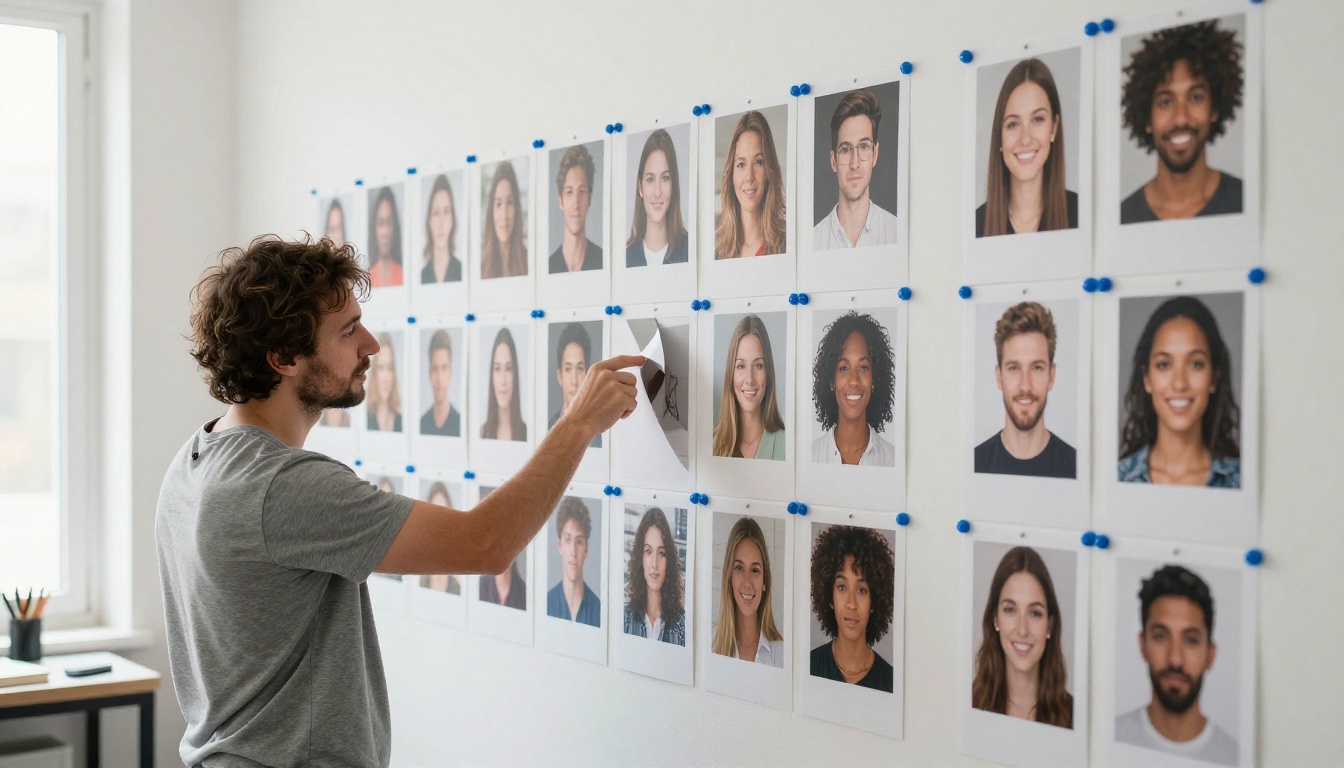
A storyboard is a visual plan. It is a sequence of frames, each one showing a single shot, usually with a note about camera position, action, and sound. An AI storyboard generator makes those frames from text. You describe the shot, the model returns an image, and you repeat that for every beat in the scene.
Some tools wrap the process in a template with panel boxes and caption fields. Others hand you the raw image generator and leave the layout to you. The second route is more flexible, because the frames are just images. You can drop them into a slide deck, a shared folder, or straight into a video model.
From Script Lines to Frames
Every action line in a script is a candidate for a frame. Take this line: "Mara slides into the corner booth and checks her phone." A generator cannot read minds, so you add what the script leaves out:
- Who: a woman in her thirties, short dark hair, red jacket
- Where: a quiet diner, late evening, rain on the window
- Camera: medium shot, slightly above eye level
- Light: warm practical lamps, soft shadows
As a working rule, a one-minute video needs somewhere between 8 and 12 frames. Fewer and you skip important transitions. More and you are drawing a comic book, not planning a shoot.
Why Free Matters Here
Storyboards are disposable by design. You might generate thirty frames to keep twelve. If every attempt costs credits, you stop experimenting after the third try and settle for a mediocre angle. When the generator has no per-image cap, like Picasso IA Image, behavior changes: you test a wide shot, dislike it, and regenerate without checking a balance.
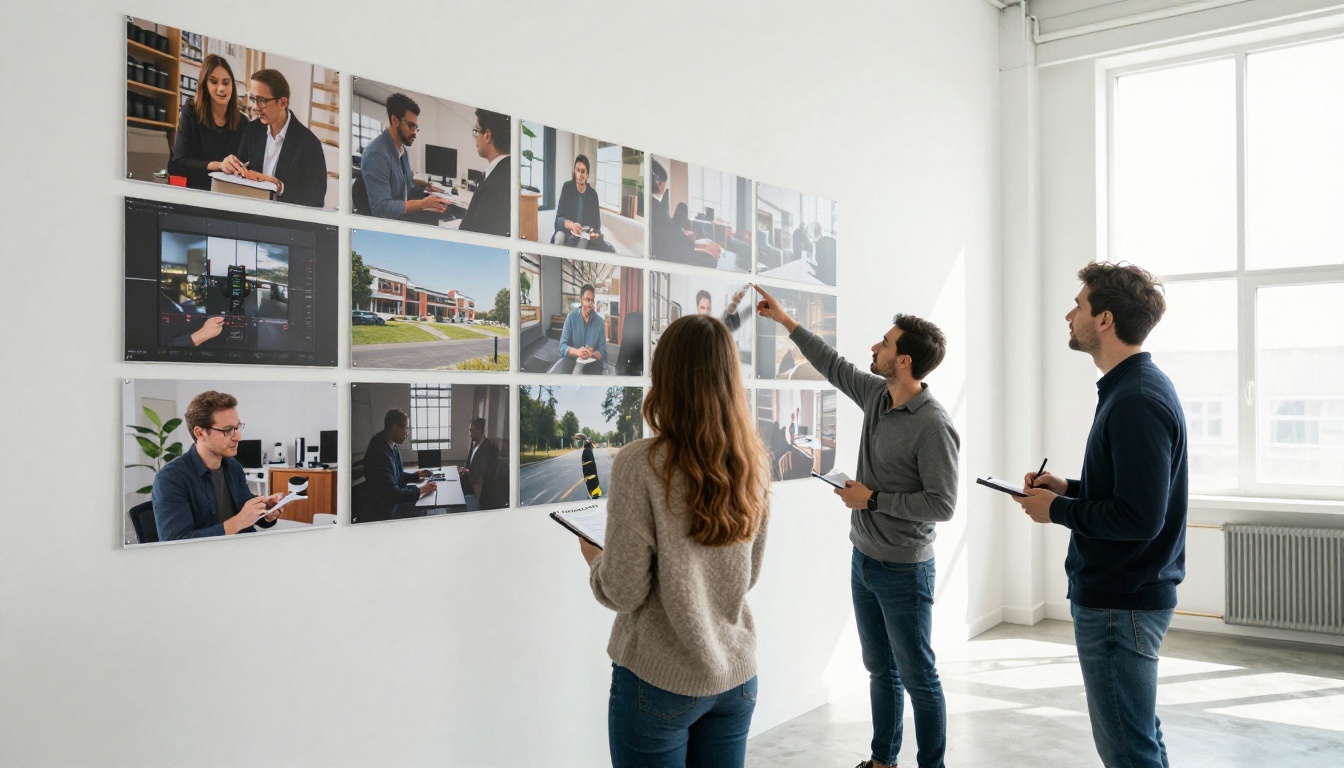
That freedom is also what makes storyboards useful in client meetings. Instead of describing a concept, you put twelve frames on a screen and let people react. Changes take minutes, not days.
Free Options and Their Limits
What Free Usually Means
"Free" means very different things from one tool to the next. Some tools give a handful of credits a day, some add a watermark, some slow the queue until you pay. Before you commit to a workflow, check four things: how many frames you can generate per day, whether exports carry a watermark, whether commercial use is allowed, and whether the tool can also produce video.
| Approach | Cost | Speed | Look | Best for |
|---|
| Pencil thumbnails | Free, costs your time | Slow | Depends on drawing skill | Fast private sketches |
| Template apps with stock art | Free tier, paid exports | Medium | Generic | Simple explainers |
| Text-to-image generator | Free or unlimited on some models | Seconds per frame | Photographic | Pitch decks and previews |
| Image-to-video on top of frames | Free or unlimited on some models | Under two minutes per clip | Moving footage | Animatics and ad drafts |
💡 Tip: A storyboard does not need final quality. It needs speed and enough realism to judge framing, so pick the tool that lets you iterate the most, not the one with the prettiest sample gallery.
Where Picasso IA Fits
Picasso IA puts the whole chain in one place, so you do not carry files between five different sites. These are the models this workflow uses:
Turn Your Script Into Shots
Split Scenes Into Beats
A beat is a change in action or emotion. Print the script, grab a highlighter, and mark every place where something changes. A 30-second courier ad might break down like this:
- The courier sprints through the rain with a parcel
- She reaches the door and rings the bell
- The customer opens the door and reaches out
- A relieved smile, the parcel changes hands
Four beats, four frames minimum. Number them directly on the page, because those numbers become your file names later.
Pick a Shot Size for Each Beat
The shot size tells the viewer how to feel about what they see. Assign one to every beat before you write a single prompt.
| Shot | What it frames | Use it for |
|---|
| Wide | The whole location | Opening a scene, showing geography |
| Medium | Waist up | Dialogue and everyday action |
| Close-up | A face or a small object | Emotion and a detail that matters |
| Low angle | Camera below the subject | Power, scale, tension |
| Over-the-shoulder | Behind one character | Conversations |
| Overhead | Straight down | Maps, tabletop action, patterns |
Vary them. Five medium shots in a row feel flat on screen, and you will see it immediately in the storyboard, which is exactly why you build one.
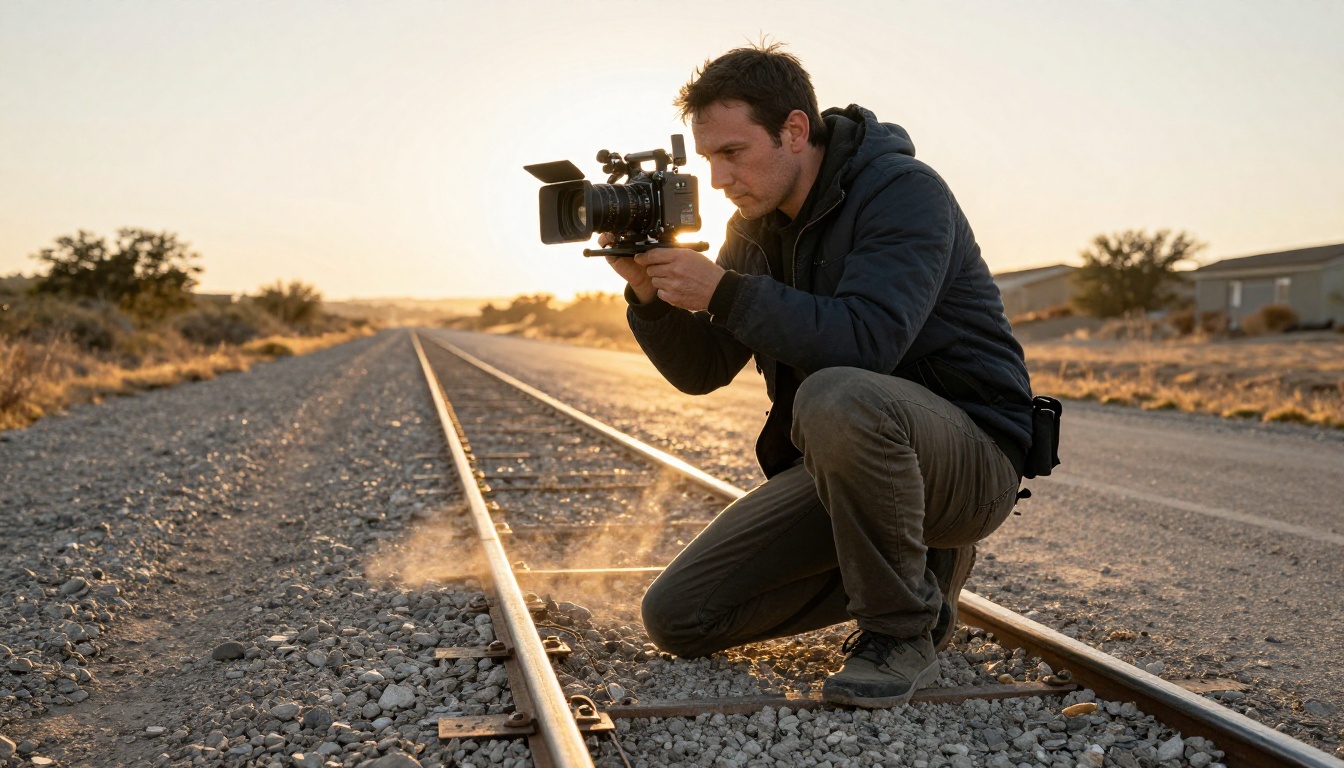
Write the Frame Prompt
Use one formula for every frame: subject + action + setting + light + camera. Here is the courier's first frame:
A woman in a yellow rain jacket sprinting down a wet city street with a cardboard parcel under her arm, apartment buildings on both sides, overcast morning light, wide shot from a low angle, 35mm lens, natural film grain.
Three habits keep the results usable:
- One action per frame. If the sentence needs the word "then", it is two frames.
- Reuse a style line. Paste the same ending, such as "natural light, 35mm film grain, muted warm palette", at the end of every prompt.
- Name the lens. Phrases like "24mm wide" or "85mm portrait" change the framing more reliably than adjectives do.
Build Frames with Picasso IA Image
Picasso IA Image is the fastest way to draft a whole board, because it has no per-image cap and returns a picture in seconds. Here is the process from the first prompt to the last frame.
Step-by-Step Settings
- Open the Picasso IA Image page and paste the prompt for frame 1.
- Set the aspect ratio to 16:9 so the frames match the video you will make later. The model also offers 1:1, 9:16, 4:3, 3:4, 3:2, and 2:3.
- Choose the output format. JPG is fine for drafts, PNG keeps more detail for frames you plan to animate.
- Set number of outputs to 2 to compare two takes of the same shot side by side.
- Leave the seed empty while you experiment. When a frame is right, note its seed so you can recreate it.
- Generate, pick the best take, and save it with the beat number in the file name, such as
03-door-opens.jpg.
| Setting | Recommended value | Why |
|---|
| Aspect ratio | 16:9 | Matches the final video |
| Outputs | 2 | Compare takes without extra runs |
| Quality | 80 to 95 | Sharp enough to animate |
| Seed | Empty, then locked | Experiment first, repeat later |
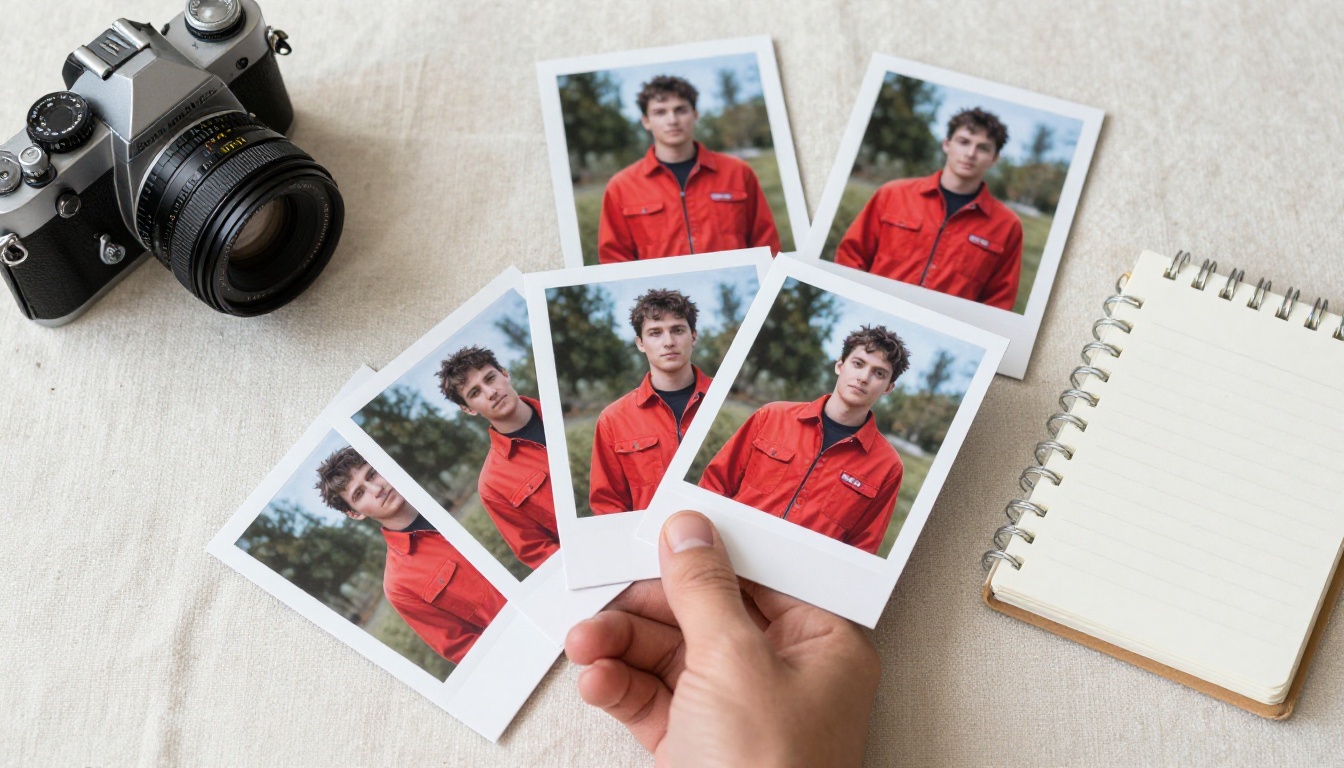
Keep Characters Consistent
Every generation starts fresh, so the courier can change faces between frames. Four fixes work well, and you can combine them:
- Copy the description word for word. Same age, hair, clothing colors, and accessories in every prompt.
- Continue from a hero frame. Upload your best image to Qwen Image Edit Plus LoRA Next Scene and start the prompt with
Next Scene: followed by the new camera move, framing, and light. The model keeps the subject's face and clothing while changing the shot.
- Generate a set in one run. Seedream 4.5 can produce up to 15 related images from one prompt in its sequential mode, and it accepts 1 to 14 reference images.
- Patch the details. If one frame has the wrong jacket color, Picasso IA Image Editor Pro fixes it with a text instruction and keeps the rest of the picture.
Animate the Frames into Video
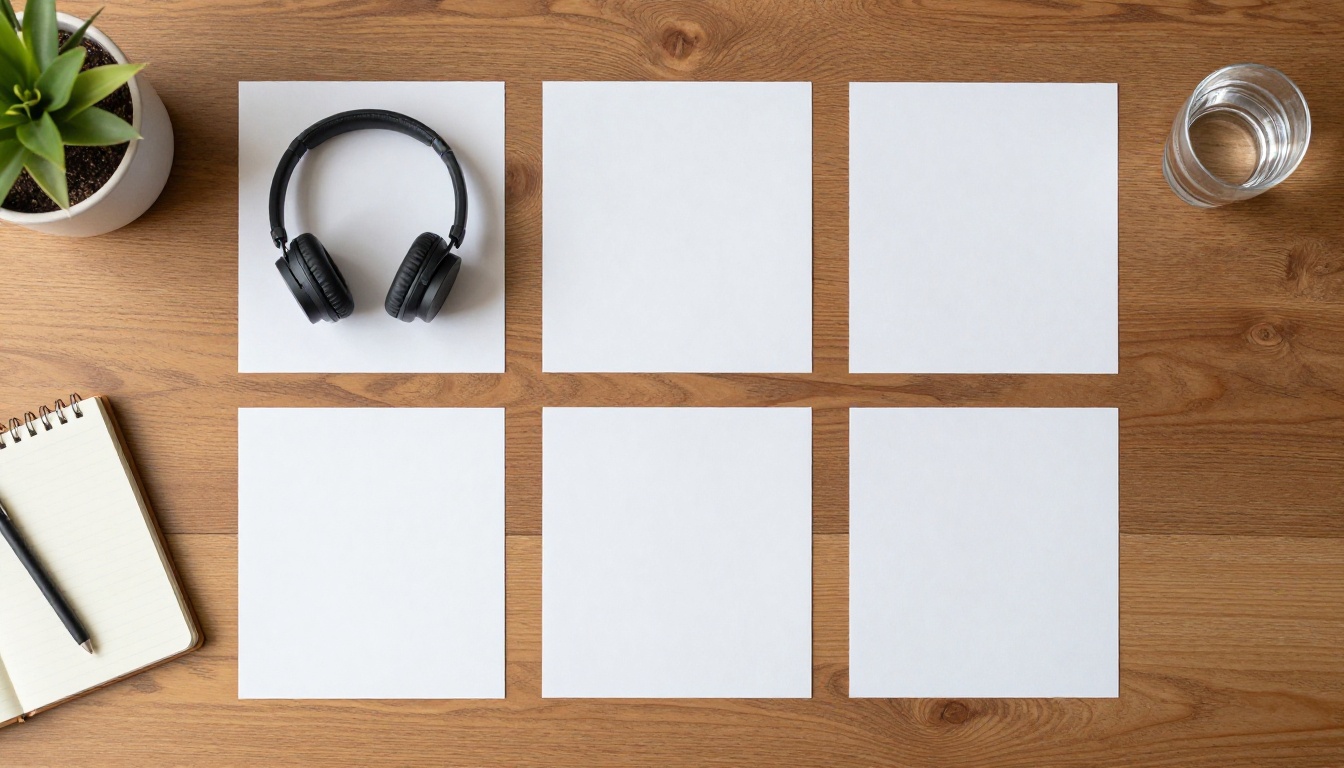
Before animating anything, lay your frames out in a grid, on a desk or on screen. Read them left to right as if they were already a film. Swap any frame that breaks the rhythm. Animating a bad sequence only gives you a moving bad sequence.
Image to Video in Five Seconds
Picasso IA Video is free and unlimited, and it accepts an image as the opening frame. The clip inherits that image's aspect ratio, runs 5 seconds at 24 fps, and includes synchronized audio unless you switch it off. Example renders on the model page took roughly 30 to 80 seconds.
- Open the model and upload the frame as the input image.
- Write a motion prompt in chronological order: what moves first, what the camera does, how the light behaves.
- Choose 720p for a sharper result, or 480p for the fastest draft.
- Keep save audio on if you want ambient sound, off for a silent clip.
- Generate, check the first and last second, and rename the file with its beat number.
A motion prompt for the courier frame might read: "She sprints toward the camera, rain streaking past, the parcel bouncing under her arm. The camera backs away on a slow dolly. Overcast light, wet pavement reflecting the buildings."
💡 Tip: Keep the action small. A five-second clip handles one gesture or one camera move well. It does not handle a full chase, so cut long actions into two frames.
Picking a Video Model
The free model handles most storyboard needs. When a shot deserves more polish, switch models and reuse the same frame.
| Model | Good at | Pick it when |
|---|
| Picasso IA Video | Free, unlimited 5-second clips with audio | You are drafting the whole animatic |
| Seedance 2.5 Lite | Free and unlimited, up to 10 seconds | A shot needs more screen time |
| Seedance 2.0 | Text to video with built-in audio | You want a stronger final render |
| Veo 3.1 Fast | 1080p video from text | The shot will be seen at full size |
| Kling v3 Video | Cinematic video generation | The camera movement is the point |
| Wan 2.7 I2V | Animating any still image | You already have a polished frame |
Assemble, Edit and Add Sound
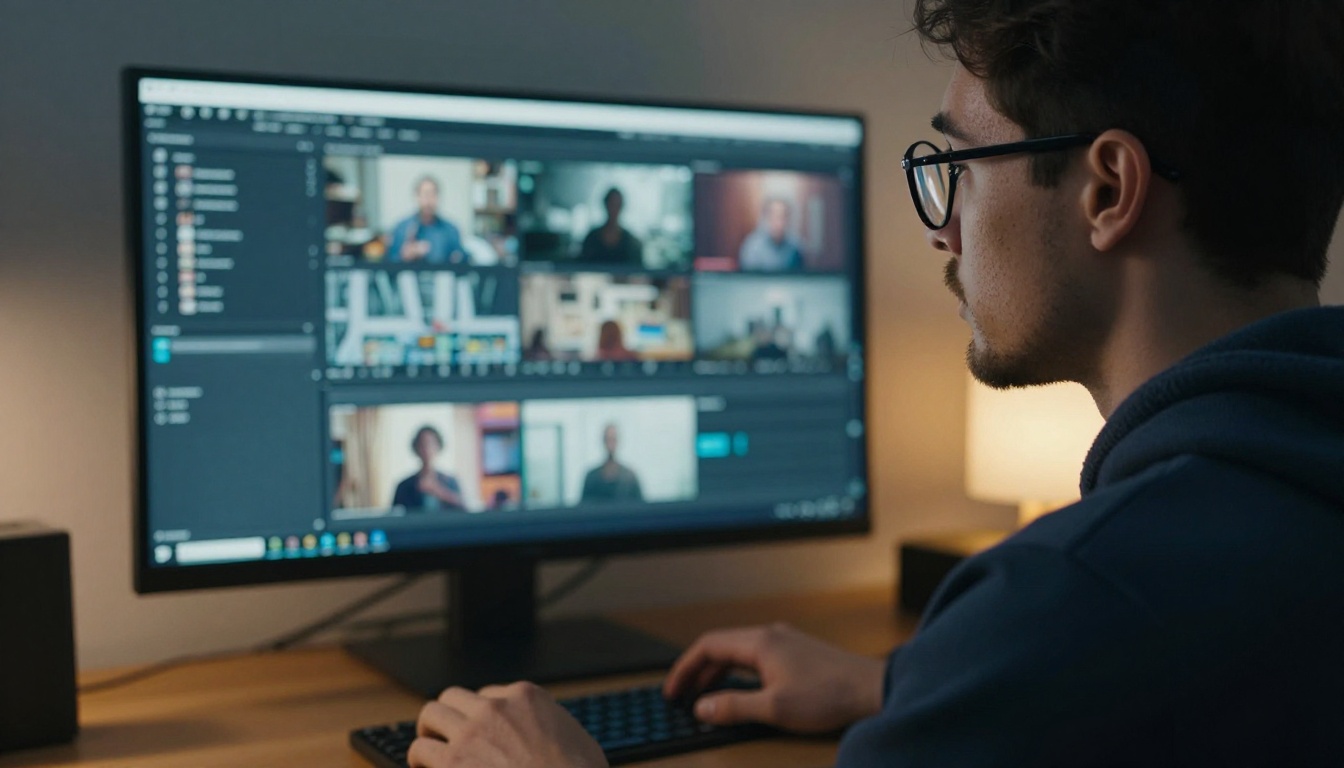
Twelve clips of five seconds each add up to a one-minute video. What remains is joining them, balancing the sound, and fixing the weak spots.
Merge Clips and Add Audio
Follow this order and you will rarely need to redo work:
- Merge in shot order. Video Merge joins clips into a single file. Set one width, height, and frame rate so every clip matches, and toggle audio on or off. It is unlimited, so re-run it freely when you reorder shots.
- Mix or replace the soundtrack. Video Audio Merge swaps or blends a music track under the footage.
- Fill silent gaps. MMAudio adds AI-generated sound to a clip that came out quiet.
- Fix one weak shot. P Video Edit changes a video with a text prompt, which is faster than regenerating the whole sequence.
Watch the merged cut once without stopping. Note every moment where you look away, then rework only those shots.
Common Mistakes to Avoid
Frames That Don't Match
The most common failure is a sequence where lighting, color, and wardrobe drift from frame to frame. The fix is the style line from earlier plus a locked character description. If a frame still looks off, correct it with Image Editor Pro before animating, because motion makes small inconsistencies much more visible.
Overloaded Prompts
A prompt with five actions, three characters, and a weather report produces mush. Keep each frame to one subject, one action, and one camera setup. If the shot truly needs more, it is two shots. Short, specific prompts beat long, vague ones almost every time.
Skipping the Shot List
Jumping straight to generation feels productive and wastes hours. Without a numbered list of beats and shot sizes, you end up with a pile of pretty images that do not cut together. Spend fifteen minutes on the list. It saves the afternoon.
Make Your Own Storyboard Today

Pick one scene from your script, the shortest one you have. Break it into four beats, assign a shot size to each, and write the four prompts using the subject, action, setting, light, and camera formula. Open Picasso IA Image, generate your first frame at 16:9, and then send the best one to Picasso IA Video to watch it move.
Experiment freely. Try a low angle, then a wide one, swap the lens, change the light. Every variation costs seconds, not budget. When the four frames feel right, merge the clips, add sound, and you have a first cut that you can show to a client or a teammate the same day. Browse the full catalog at picassoia.com/en/all-models to find the model that fits your next scene.


