Large Language ModelsGenerate imagesGenerate videos
Can Claude Edit Images Like ChatGPT? How to Edit Photos in Claude
Claude is great at reading photos, writing edit instructions and running crop, resize and color scripts, but it does not paint new pixels the way ChatGPT's image editor does. Here is what works today, what does not, and which tools fill the gap.
You upload a photo to Claude and type, "Remove the person on the left and brighten the sky." A few seconds later you get a thoughtful reply about your photo, a short list of fixes and maybe a block of code. What you do not get is a new picture. If you have used ChatGPT's image editor, that gap feels strange, and it is exactly why so many people ask whether Claude can edit images like ChatGPT.
The honest answer has two halves. Claude is excellent at looking at an image, judging it and telling you precisely what to change. With code execution switched on, it can also write and run scripts that crop, resize and correct a file. What it does not do, as of October 2026, is paint new pixels from a text instruction the way a dedicated image model does. This article shows where that line sits, how ChatGPT handles the same job, and the fastest route to real AI photo edits when Claude alone will not get you there.
The Short Answer
Claude reads images. ChatGPT reads them and rewrites them. Claude's vision is strong, so it can describe a photo, spot flaws and draft editing instructions that a person or another tool can follow. ChatGPT sits on top of an image model, GPT Image 2, released in April 2026, which returns a brand new edited version of your picture right inside the chat.
That difference decides everything else in this article. One tool gives you opinions and instructions. The other gives you a finished file. Neither is better in every case, and the best results usually come from using both for what they do well.
What Claude Does Well
Reading photos: it describes subjects, light direction, color cast, composition and mood in plain language.
Writing edit instructions: it turns a vague "make it better" into a precise, ordered list of changes.
Running code: with code execution on, it crops, resizes, converts and adjusts contrast through scripts.
Drawing vector graphics: it can produce SVG shapes, simple diagrams and charts you can open in a browser.
Checking results: paste the original and the edit, and it points out what changed and what drifted.
What Claude Cannot Do Natively
Generate a photograph from a text prompt.
Remove an object and fill the gap with believable background.
Swap a sky, change a jacket color or relight a face.
Repair a torn print by inventing the missing detail.
💡 Claude can call an outside image model through a connector, but in that case the outside model does the painting. Claude is only the one writing the request and judging the answer.
How Claude Reads Your Photos
Vision is where Claude earns its place in a photo workflow. Upload a JPG or PNG and ask a direct question, and you get a specific answer instead of generic praise. It notices the green cast from fluorescent lighting, the tilted horizon and the bright window that pulled the exposure down. It can also read the small text in a screenshot or a sign, which helps when you need to know what a photo actually says before you edit it.
Describing and Critiquing Images
Ask Claude to act like a picture editor at a magazine. A prompt like this works well:
"Describe this photo in five sentences. Then list the three changes that would improve it most, in order of impact."
You get a ranked to-do list, which is far more useful than a vague "it looks nice." You can repeat the exercise with a cropped version of the same photo to compare two framing options side by side.
Spotting Problems Before You Edit
Run through this checklist with Claude before you touch any editing tool:
Exposure: are highlights blown out or shadows crushed?
Color cast: does skin look green, orange or blue?
Horizon and lines: is the frame tilted?
Distractions: are there bright objects or people near the edges?
Sharpness: is the subject soft because of motion or focus?
Each answer maps to a specific fix, and that makes the editing step faster and cheaper. Instead of ten blind attempts, you run one or two targeted ones.
How ChatGPT Edits Photos
ChatGPT handles the same job in one step. You attach a photo and write something like "remove the trash can behind her and warm up the light." Moments later the chat shows a new image. There is no code, no export and no second app.
Native Image Editing in Chat
GPT Image 2 became the default image engine in ChatGPT in April 2026, replacing earlier models. It is known for readable text inside images, stronger preservation of detail in image-to-image edits and the ability to keep refining the same picture over several turns. The practical effect is simple: you describe a change in plain English and get a file back, with no extra software.
That is the capability people mean when they ask about editing "like ChatGPT." It is not a smarter chatbot. It is an image model wired into the chat window.
Where ChatGPT Still Slips
Native editing is not magic. Even strong image models re-render the whole frame, so small changes can creep into areas you never mentioned. Watch for these:
Face drift: eyes, teeth or skin texture can shift slightly after several rounds.
Background changes: a fence post moves or a tree loses a branch.
Resolution limits: the output size may not match your original high-resolution file.
Cumulative softness: repeated edits can slowly lose crispness.
If you edit portraits of real people, check the face against the original every time. A small shift is easy to miss and hard to forgive.
Edit Photos in Claude with Code
When Claude has code execution or file creation available, it can edit a photo the old-fashioned way: by running a script on your file. This is deterministic editing. The code does exactly what it says, nothing more, and your original stays safe because the result is saved as a new file.
Crop, Resize, and Convert
Ask in plain language, "Crop this to 16:9, resize it to 1600 pixels wide and save it as WebP." Claude writes something close to this:
It runs in seconds. If the crop cuts off a head, tell Claude to shift the box up by 100 pixels and run it again.
Color and Exposure Fixes
Scripts can also correct the basics:
Auto contrast to stretch a flat histogram.
Brightness and saturation adjustments by a set percentage.
Sharpening with a mild filter for soft shots.
Black and white conversion with a tuned contrast curve.
Captions and borders drawn directly onto the image.
Batch processing to apply the same fix to 200 files at once.
Batch work is where this approach beats any chat-based image editor. One instruction, hundreds of consistent results, and no drift between frames.
Where Code Editing Breaks Down
Code can only rearrange or adjust pixels that already exist. It cannot invent new ones. That rules out removing a lamppost, swapping a cloudy sky for a sunset or fixing a face that blinked. It also struggles with fine selections, like cutting out flyaway hair, because a script has no idea where a person ends and the background begins. For anything that needs new pixels, you need an image model.
Claude Versus ChatGPT Side by Side
Here is how the two compare on common photo jobs.
Task
Claude
ChatGPT
Describe and critique a photo
Excellent
Excellent
Write precise edit instructions
Excellent
Good
Crop, resize, convert formats
Yes, through code
Yes
Fix brightness and contrast
Yes, through code
Yes
Batch edit many files
Strong, through code
Limited
Remove an object
No
Yes
Swap a background or sky
No
Yes
Add readable text to an image
No
Yes
Generate a new photo
No
Yes
Repair a damaged print
No
Yes, with limits
Which One Fits Your Task
Pick Claude when you need an honest critique, a clear edit plan or a script that processes a whole folder of images.
Pick ChatGPT when you want a quick one-off edit inside a chat window and can accept some drift.
Pick a dedicated editor when you want repeatable results, more control over inputs and no cap on attempts.
Portraits, product shots and family photo restoration all fall in that third group. They are the jobs where you will iterate five or ten times, and where consistency matters more than convenience.
Use Claude as Your Edit Director
The smartest setup is not Claude versus ChatGPT. It is Claude plus a real image editor. Claude is a great art director, and image models are great painters. Let each do what it does best.
Write the Editing Prompt Together
Show Claude your photo and ask:
"I want to remove the power lines, warm the light slightly and keep everything else unchanged. Write an editing prompt for an AI image editor, under 60 words."
Claude responds with a tight prompt that names what to change and what to protect. Phrases like "keep the original background and composition unchanged" matter, because image editors follow explicit boundaries much better than vague wishes. Every good edit prompt has the same three parts:
The change: what should be different.
The protection: what must stay exactly the same.
The look: lighting, mood or color you want in the result.
Check the Result Against the Original
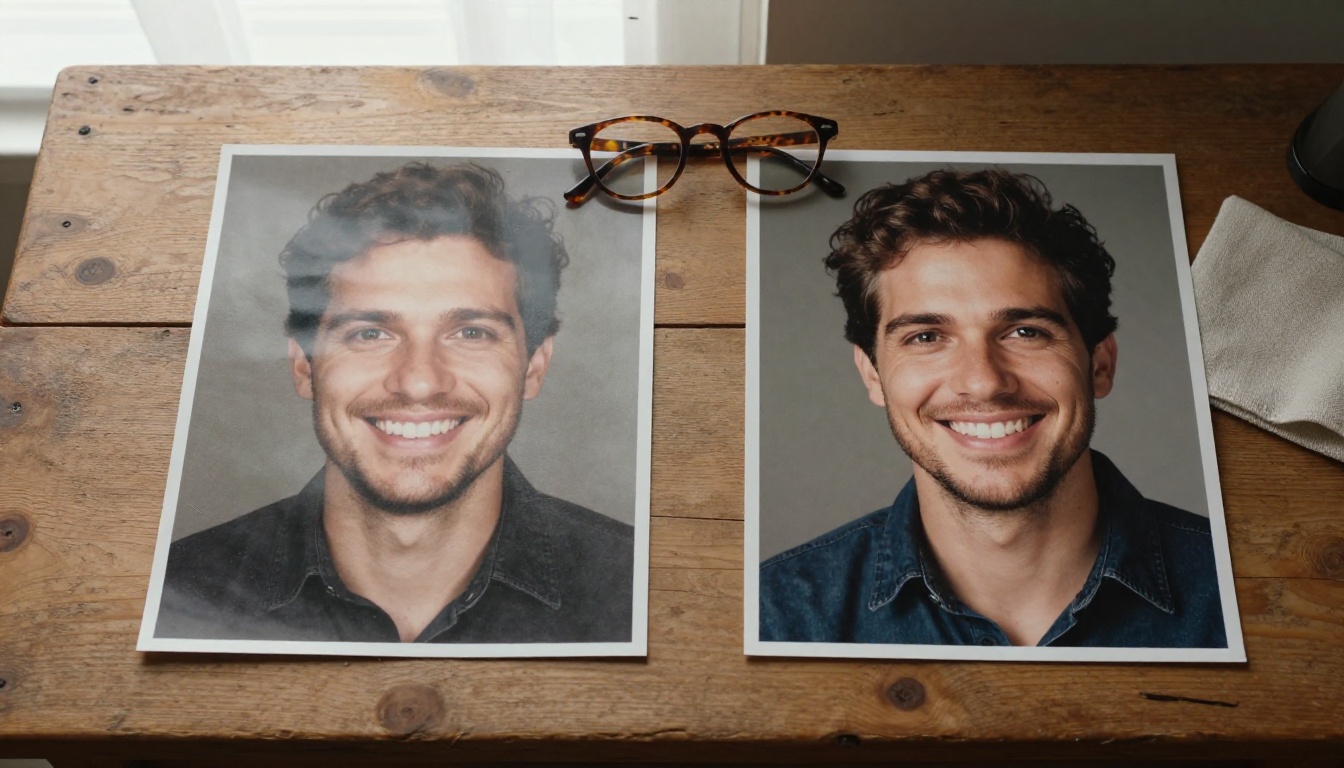
After the edit, upload the original and the new version together and ask Claude: "What changed? What drifted that I did not ask for?" It is a fast way to catch altered faces, shifted objects or color shifts before you publish. Claude is a patient reviewer, and it will compare the two images in a way most people rush past.
Edit Photos with Image Editor Pro
PicassoIA Image Editor Pro does what Claude cannot: you upload a photo, describe a change in plain language and get an edited image back in seconds. It accepts up to three reference images, lets you refer to them as "image 1," "image 2" and "image 3" in your prompt, and has no per-edit cap, so you can iterate as many times as you like. You can also chat with Claude Sonnet 5 on PicassoIA to draft and tighten your edit prompts before you run them.
Upload your photo as the first image. Add a second or third reference if you want to borrow clothing, a background or a style.
Write your prompt. Name the change, then name what must stay the same.
Leave the aspect ratio on match_input_image to keep your original dimensions.
Set Number of outputs to 2 to compare two variations in one run.
Choose WebP, JPG or PNG, run the edit and download the result.
💡 Lock a seed once you like a result. Re-running with the same seed and prompt reproduces the edit, which helps when you tweak only one phrase.
Try Other Models for Special Jobs
If your edit involves readable text, such as a poster headline or a product label, try GPT Image 2 on PicassoIA. It renders legible words inside images, supports transparent backgrounds, accepts input images and lets you choose low, medium or high quality. For other jobs, these models are worth a test:
"Remove the creases and fading from this old family photo. Keep the faces exactly as they are and use natural color."
Swap a background
"Place the person in image 1 on a quiet beach at sunset. Keep their pose, clothing and face unchanged."
Change one detail
"Change the car color from red to deep midnight blue. Keep the road, mountains and lighting identical."
Each prompt follows the same formula: the change first, then the protected details. That one habit does more for your results than any model setting.
Make Your Own Edits Today
So, can Claude edit images like ChatGPT? Not natively. Claude is the sharpest critic and planner in your photo workflow, and code lets it crop, resize and correct files with total precision. ChatGPT paints new pixels inside the chat, with the drift that comes with it. For the best of both, let Claude write the plan and let a dedicated editor do the painting.
Pick one photo you have been meaning to fix. Ask Claude what is wrong with it, ask for an edit prompt, then run that prompt through PicassoIA Image Editor Pro on Picasso IA. Try three variations, compare them and keep your favorite. When you want to try a different model, browse the full lineup at picassoia.com/en/all-models and see which one gives your photo the look you had in mind. Your next edit is one upload and one sentence away.