Two Google video models now sit in the same toolbox, and they solve different problems. Gemini Omni Flash is built to direct and edit footage, while Veo 3.1 is built to render a polished, finished shot from a prompt. Pick the wrong one and you burn credits fixing things the other model handles in a single pass. This comparison of Gemini Omni Flash vs Veo 3.1 sticks to what each model lets you control, what the output looks like, and which one fits the job in front of you. On PicassoIA the Omni model is listed as Gemini Omni 1.1, and Veo 3.1 sits right beside it in the text-to-video collection, so you can run the same idea through both in one afternoon.
Quick Verdict First
The short version: Gemini Omni Flash edits, Veo 3.1 renders. If your project starts with a rough clip, a reference photo, or a change request from a client, Omni Flash is the faster path. If it starts with a blank prompt and ends with a clean 8-second shot, Veo 3.1 gives you more dials to turn.
Pick Omni Flash When
- You already have footage and need one detail changed, like the weather, the background, or the time of day.
- You want to animate a still photo or build a transition between a start image and an end image.
- You need a 4K render, or a fast 360p draft to test an idea before you commit.
- You are holding a character or product steady across several clips with reference images.
Pick Veo 3.1 When
- You want a clean 4, 6, or 8 second clip from text alone, with no source footage.
- You need control inputs such as a negative prompt, a seed, or an on/off switch for audio.
- You plan many cheap attempts. Veo 3.1 Fast and Veo 3.1 Lite are separate listings in the same family.
- You want predictable 1080p output without touching extra settings.
💡 Tip: This is not a winner-takes-all vote. A practical workflow is to draft and fix shots in one model, then render your hero shot in the other.
What Gemini Omni Flash Actually Does
Gemini Omni 1.1 takes a text description, a still photo, or an existing video clip and returns a new video with its own soundtrack already built in. You describe the action, the mood, and the audio you want, and the visuals and sound arrive matched from the first frame. That removes the old routine of generating a silent clip and then hunting for music in a separate editor.
The output options are generous. Resolution runs across 360p, 720p, 1080p, and 4K, with 720p as the default, and you can pick a 16:9 widescreen frame or a 9:16 vertical one. The 360p setting works as a draft mode, which is the cheapest way to check a scene before you spend time on a sharp render.
Text, Image, and Video Inputs
Omni Flash accepts three kinds of starting material, and each one changes what the model does:
| Input you provide | What you get |
|---|
| Prompt only | A new video built from scratch |
| Start image | The photo animated into a moving clip |
| Start image + end image | A smooth transition between the two frames |
| Existing video + instruction | The same footage with one detail changed |
| Reference images | A character or object kept consistent in the new clip |
That table is the real selling point. One model handles generation, animation, interpolation, and editing, so you rarely need to move files between tools.
Editing Without Starting Over
The editing mode is what separates this model from nearly every other text-to-video option. You upload a finished clip and write an instruction such as "make the sky stormy, keep everything else the same." The model applies that change and leaves the rest of the footage alone.
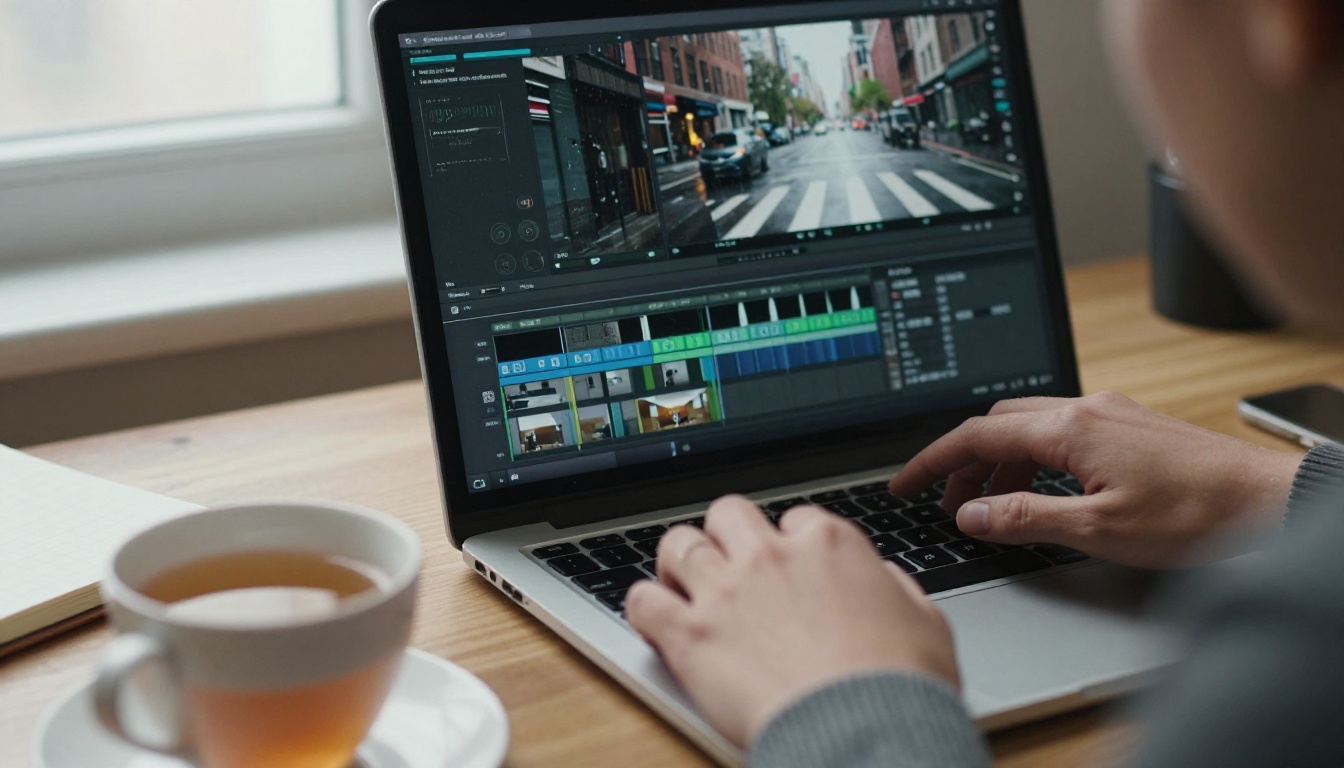
Published comparisons describe the model holding scene context, characters, and lighting across follow-up instructions, so a second or third tweak stays consistent with the first. The PicassoIA form takes one video and one instruction per run. To chain edits, feed each result back in as the next input and change one thing at a time.
💡 Tip: Name what must stay untouched. "Change the sky to sunset, keep the people, the car, and the audio the same" gives cleaner results than "make it sunset."
What Veo 3.1 Does Best
Veo 3.1 turns a written prompt into a 1080p clip with context-aware audio. Resolution can be set to 720p or 1080p, and the default is 1080p. Duration is your choice of 4, 6, or 8 seconds, with 8 as the default, and the frame can be 16:9 or 9:16.
It also accepts a starting image, a last frame for interpolation, and reference images. Where Omni Flash feels like a conversation with an editor, Veo 3.1 feels like handing a cinematographer a shot list.
Eight Seconds of Polished Footage
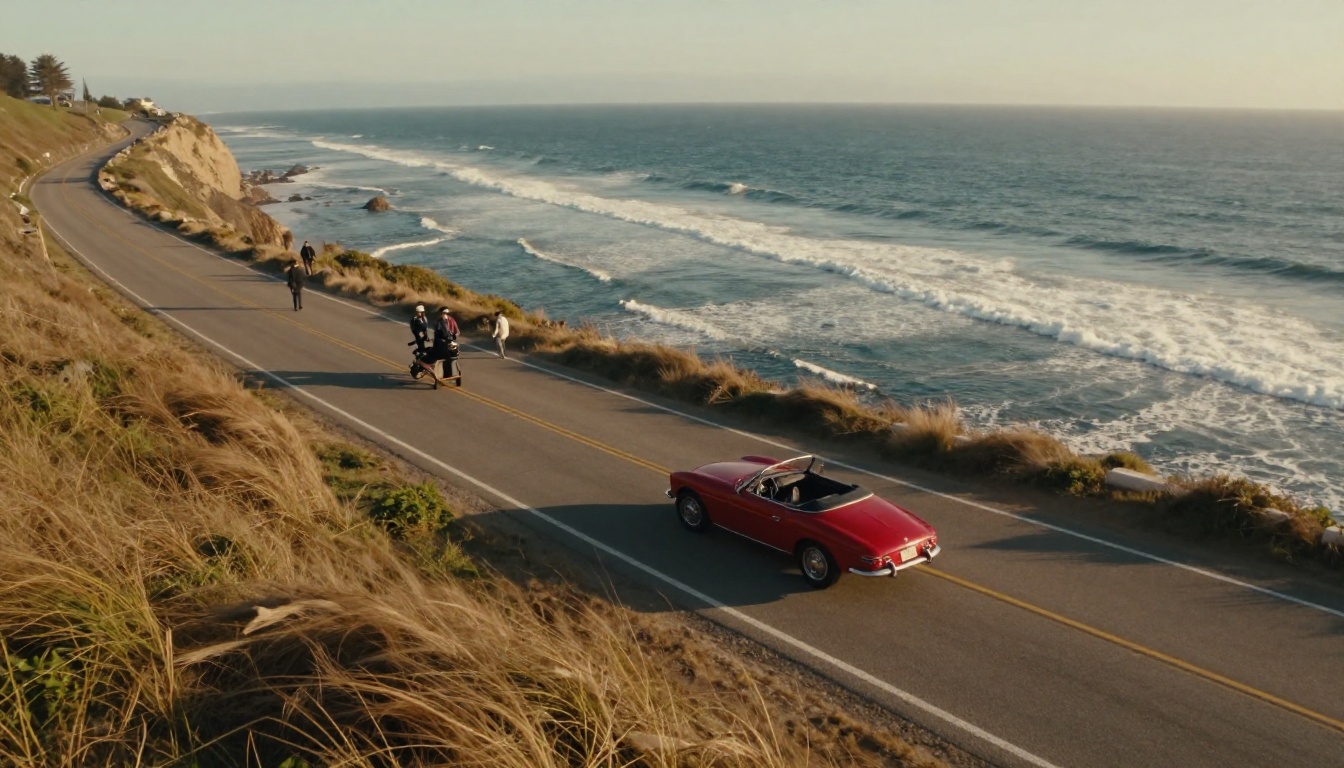
Veo 3.1 shines when one strong shot is the entire goal: a car on a coastal road at golden hour, a slow dolly toward a street vendor, a product turning on a pedestal. The audio follows the scene, so wind, footsteps, and room tone come along without extra prompting.
Reference images deserve a careful read. You can upload 1 to 3 of them to keep a subject consistent, but they only work with the 16:9 ratio and the 8-second duration, and the last frame is ignored when references are present. Plan your shot around those limits before you start.
Controls Omni Flash Doesn't Offer
Veo 3.1 gives you a few dials that the Omni form on PicassoIA does not show:
- Negative prompt: describe what to exclude, such as text overlays, extra people, or camera shake.
- Seed: reuse a number to reproduce a result, or leave it empty for a fresh roll.
- Duration: pick 4, 6, or 8 seconds instead of accepting whatever length comes back.
- Audio switch: leave sound on or turn it off when you will add your own track.
With Omni Flash you steer through the prompt itself. If you want no speech, you write "no dialogue" in the text. That works, but it is less precise than a dedicated field.
Side by Side Spec Table
Here is how the two models line up on the settings that actually affect your result. Omni values come from the Gemini Omni 1.1 listing and Veo values from the Veo 3.1 listing.
| Feature | Gemini Omni Flash | Veo 3.1 |
|---|
| Best at | Editing, animating, consistent subjects | Clean finished shots from text |
| Resolution | 360p, 720p, 1080p, 4K (default 720p) | 720p, 1080p (default 1080p) |
| Clip length | Short clips, about 10 seconds in published comparisons | 4, 6, or 8 seconds (default 8) |
| Aspect ratio | 16:9 or 9:16 | 16:9 or 9:16 |
| Audio | Built in | Context-aware, on by default, can be turned off |
| Edit an existing video | Yes | No |
| Start and end frames | Yes | Yes |
| Reference images | Yes | 1 to 3, only at 16:9 and 8 seconds |
| Negative prompt and seed | Write exclusions in the prompt | Dedicated fields |
| Example render time on PicassoIA | About 48 seconds (one 720p example) | About 73 to 114 seconds (four examples) |
Resolution and Clip Length
Omni Flash is the only one of the two that offers a 4K setting. Veo 3.1 stops at 1080p. For feeds, ads, and web pages, 1080p is more than enough, so 4K matters mostly when you plan to crop into the frame or deliver to a large screen.
Clip length is where Veo 3.1 is easier to plan around. You choose 4, 6, or 8 seconds and know what you will get. The PicassoIA form for Omni Flash does not show a duration field, and published comparisons give slightly different ranges for it, so check the length of each output before you build an edit around it. Several comparisons also credit Veo 3.1 with an Extend feature for chaining clips, but the PicassoIA form does not show one. Assume you will stitch separate 8-second shots instead.
Audio Quality and Sound
Both models generate synchronized audio in the same file as the picture, so neither forces a separate sound pass. The difference is control. Veo 3.1 has an audio switch, which helps when you plan to score the clip yourself. Omni Flash expects you to describe the sound in the prompt, including what to leave out.
Whichever you choose, write the audio into the prompt. "Rain on a tin roof, distant thunder, no dialogue" beats leaving sound to chance. The model has no way to know whether you want a crowd or silence unless you say so.
Speed per Attempt
The example renders published on each PicassoIA model page give a rough feel. The Omni example, a 720p drone shot over misty mountains, finished in about 48 seconds. The four Veo 3.1 examples, at 720p and 1080p with 8-second clips, took between roughly 73 and 114 seconds. That is a small sample, not a benchmark, and queue times change, but it fits the draft-first habit: Omni Flash at its 360p draft setting should be the quickest way to test an idea.
Higher resolution costs more time on both models. A good habit is to draft small and render large only once the motion, framing, and sound all look right.
Real Workflows, Real Winners
Specs only matter in context. Here is how the choice plays out in three common jobs.
Social Clips and Vertical Video
Both models support 9:16, so vertical posts are possible on either. The catch is consistency. If you need the same character across several vertical clips, Omni Flash is the better fit, because Veo 3.1 reference images only work at 16:9. For a single punchy vertical hero shot with no character to match, Veo 3.1 is a fine choice.
Product Ads and Consistency
Imagine one sneaker and five ad variants: a gym, a street, a beach, a studio, a rooftop. Omni Flash handles that well. Feed it reference images of the product, then change the setting in each prompt, or edit one finished clip so only the background shifts. Veo 3.1 can hold a product too, with up to three reference images, but only in 16:9 at 8 seconds.
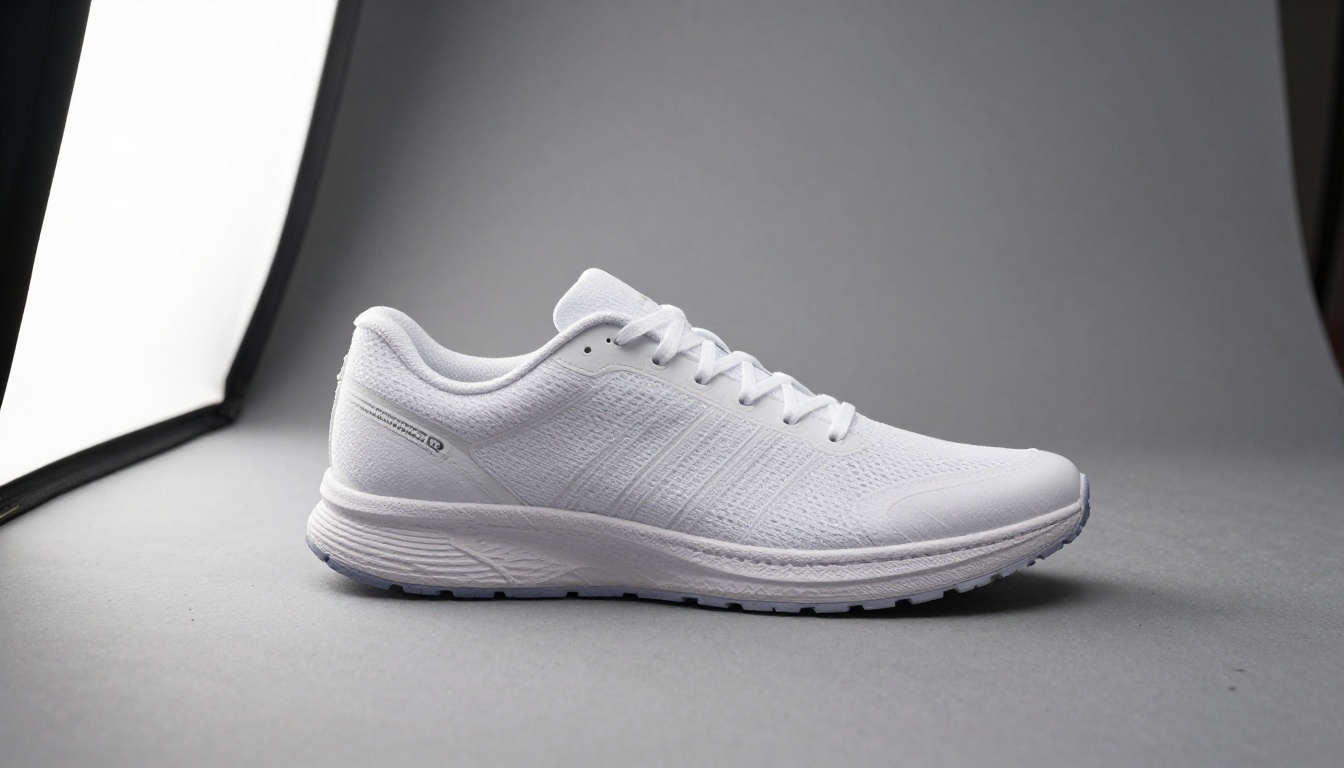
For the hero shot of that same sneaker, a slow, polished 1080p turn with matching ambient sound, Veo 3.1 is a strong pick. A sensible split is Veo for the one showpiece clip and Omni for the family of variations around it.
Fixing a Shot After the Fact
A client sends feedback: "Great, but make it dusk." With Omni Flash you upload the clip, write one instruction, and keep everything else. With Veo 3.1 there is no video input, so you change the prompt and generate again. Reusing the seed can help you stay close to the original, but the new clip is still a fresh render, and small details will drift.
That one difference decides a lot of real projects. If revisions are likely, start in Omni Flash. If the shot must be right the first time and revisions are unlikely, Veo 3.1 is the cleaner path.
How to Use Both on PicassoIA
Both models live in the text-to-video collection, so the process feels almost identical. Use a good first-frame still if you want control. You can generate one with a text-to-image model such as Nano Banana Pro and feed it to either video model.
Run Gemini Omni Flash Step by Step
- Open Gemini Omni 1.1 on PicassoIA.
- Write a prompt with the scene, camera movement, lighting, mood, and audio.
- Set the resolution. Start at 360p for a draft, then move to 720p, 1080p, or 4K.
- Choose 16:9 or 9:16. The ratio is ignored when you edit an existing video.
- Optionally add a start image, an end image, reference images, or a video to edit.
- Generate, review, and change one variable at a time.
Run Veo 3.1 Step by Step
- Open Veo 3.1 on PicassoIA.
- Write a prompt that describes the subject, the motion, the camera, and the sound.
- Pick a duration of 4, 6, or 8 seconds and a resolution of 720p or 1080p.
- Add a start image, an end image, or up to three reference images. Remember that references need 16:9 and 8 seconds.
- Fill in the negative prompt and, if you want repeatable results, a seed.
- Leave audio on, or switch it off if you will add your own track, then generate.
A Prompt Template That Works
Both models respond best to a chronological description. Use this structure: subject and starting pose, then the action over time, then the camera move, then lighting, then sound.
A barista pours steamed milk into a ceramic cup in a sunlit corner café, the pattern forming as the cup tilts. Slow push-in on the cup, soft window light from the left, warm wood tones. The hiss of the steamer and quiet jazz in the background. No dialogue.
Run that exact prompt through both models. The side-by-side result tells you more about their personalities than any spec sheet.
Mistakes That Waste Credits
A few habits drain budgets fast. Watch for these four.
- Rendering at 4K too early. Draft at 360p on Omni Flash first. A bad idea looks bad at any resolution.
- Asking Veo 3.1 to edit footage. It has no video input. Re-prompting creates a different shot, not a fixed one.
- Leaving audio to chance. Name the sounds you want and the ones you don't, on both models.
- Mixing references with vertical on Veo 3.1. Reference images need 16:9 and 8 seconds, so a 9:16 request with references will not behave the way you expect.
💡 Tip: Change one variable per run. If you alter the prompt, the resolution, and the reference image at once, you will never know which one fixed or broke the result.
Make Your Own Clips Today
The fastest way to settle the debate is to test it on your own idea. Pick one scene, write one prompt, and run it through Gemini Omni 1.1 and Veo 3.1 back to back. Compare motion, sound, and how much work each result needs. Then try an edit on the Omni clip and see how it feels to change just one thing.
Picasso IA puts both models, along with image generators and editing tools, in one place, so you can move from a still frame to a finished clip without leaving the platform. Open the collection at picassoia.com/en/all-models, pick a model, and start experimenting with your own images and videos today.


