Large Language ModelsGenerate imagesGenerate videos
GPT Image 2 MCP Server: Use GPT Image 2 in Claude Without Leaving the Chat
Wire GPT Image 2 into Claude through MCP. Compare three routes: a hosted connector, your own TypeScript server, and the web app. Paste working config for Claude Desktop and Claude Code, tune quality and size settings, and fix the errors that stop image tools from loading.
Typing a prompt into a web page, downloading the result, and dragging it into your project gets old fast. A GPT Image 2 MCP server removes those steps: Claude calls the image model as a tool, receives the file, and keeps working in the same chat. This article lays out three ways to wire that up, includes a server you can paste into a project, and ends with the settings and prompt habits that decide whether your pictures look sharp or generic.
💡 Short answer: MCP lets Claude call tools. A small server that forwards prompts to GPT Image 2 gives Claude an image tool. PicassoIA also runs a hosted connector, though it serves PicassoIA's own models rather than GPT Image 2.
What the Server Actually Does
The Model Context Protocol, or MCP, is an open standard that lets an AI client call outside tools through one fixed interface. Claude Desktop, Claude Code and claude.ai all support it. An MCP server is a small program that advertises tools and answers calls. Each tool has a name, a plain-language description and an input schema.
MCP in Plain Terms
Here is what happens when you ask Claude for a picture:
The client starts the server, or connects to it over HTTP, and asks which tools it offers.
Claude reads the tool descriptions and decides whether your request needs one.
Claude sends the arguments, such as the prompt and the size.
The server calls the image model and returns the result as image content.
Claude shows the picture and can react to it in the next message.
For an image server, one tool is usually enough: generate_image, with a prompt, a size and a quality setting.
Where GPT Image 2 Fits
GPT Image 2 follows long, multi-part prompts closely, renders readable text inside images, supports transparent backgrounds, and returns up to 10 variations in one run. Claude is the other half of the pair. It writes and refines the prompt, and the image model draws it. You describe the goal once and the two models handle the back and forth.
PicassoIA runs an MCP connector that claude.ai can use. Its tools generate images, edit images, generate video, and check on a job. Generation is asynchronous: the generate tool returns a prediction id right away, and Claude polls get_generation until the status reads succeeded or failed.
To use it, add the PicassoIA connector from the connectors area of Claude's settings and sign in to your PicassoIA account. Then ask for a picture in plain language. Claude calls the generate tool, receives the prediction id, waits the number of seconds the response suggests, and polls again until the image URL appears. Two helper tools are worth remembering: list_models shows what your account can use, and get_account reports your plan and parallel limits.
💡 PicassoIA describes these models as free on its Infinite and Wonder plans. Check the pricing page for your plan before you build a workflow around that.
Your Own Server
If you want GPT Image 2 specifically, you run a thin server that calls an image API with the gpt-image-2 model and hands the picture back to Claude. You supply the API token and pay the provider's per-image price. Prices differ between providers and between resolutions, so read the current price page of whichever provider you use before a large batch.
The Web Route
GPT Image 2 on PicassoIA runs in the browser. Claude cannot call it directly, but it is the cheapest place to test wording and settings. Once a prompt style works, copy those settings into your server defaults.
Build Your Own Server
The server below is about 40 lines of TypeScript. It uses the official MCP SDK, calls the images endpoint with plain fetch, and returns the result as MCP image content so Claude can display it.
import { McpServer } from "@modelcontextprotocol/sdk/server/mcp.js";
import { StdioServerTransport } from "@modelcontextprotocol/sdk/server/stdio.js";
import { z } from "zod";

const token = process.env.IMAGE_API_TOKEN;
if (!token) {
  console.error("Set IMAGE_API_TOKEN before starting the server.");
  process.exit(1);
}

const server = new McpServer({ name: "gpt-image-2", version: "1.0.0" });

server.tool(
  "generate_image",
  "Generate an image with GPT Image 2 and return it.",
  {
    prompt: z.string().min(10),
    size: z.enum(["1024x1024", "1536x1024", "1024x1536"]).default("1536x1024"),
    quality: z.enum(["low", "medium", "high", "auto"]).default("auto"),
  },
  async ({ prompt, size, quality }) => {
    const res = await fetch("https://api.openai.com/v1/images/generations", {
      method: "POST",
      headers: {
        "Content-Type": "application/json",
        Authorization: `Bearer ${token}`,
      },
      body: JSON.stringify({ model: "gpt-image-2", prompt, size, quality, n: 1 }),
    });
    if (!res.ok) {
      const detail = await res.text();
      return { isError: true, content: [{ type: "text", text: `Image API error ${res.status}: ${detail}` }] };
    }
    const json = await res.json();
    return { content: [{ type: "image", data: json.data[0].b64_json, mimeType: "image/png" }] };
  }
);

await server.connect(new StdioServerTransport());
💡 The request shape matches earlier GPT Image models. Confirm the model id and the sizes it accepts in your provider's docs before you ship, because model lists change often.
Stdio Rules That Break Servers
Never print to stdout. It is the protocol channel. Send logs to console.error.
Return errors as content. Use isError: true so Claude can read the failure and retry.
Expect slow calls. PicassoIA's own example for GPT Image 2 took about 41 seconds, so a slow response is normal, not a hang.
Watch payload size. A base64 PNG can run to megabytes. For batches, write files to disk and return the path.
Connect It to Claude
The server is ready. Now tell the client where it lives.
Claude Desktop Config
Open claude_desktop_config.json. On macOS it sits in ~/Library/Application Support/Claude/, and on Windows in %APPDATA%\Claude\. Add a block under mcpServers:
Restart Claude Desktop fully, not just the window. The generate_image tool should appear in the tools menu of a new chat.
Claude Code One Liner
claude mcp add gpt-image-2 -e IMAGE_API_TOKEN=paste-your-token-here -- npx tsx /path/to/gpt-image-mcp/server.ts
claude mcp list
The second command confirms the server connected. For a hosted HTTP connector, use claude mcp add --transport http followed by a name and the URL your account shows on its MCP page.
Use GPT Image 2 on PicassoIA
How to use GPT Image 2 on PicassoIA: find your settings by hand before you encode them in a server. GPT Image 2 on PicassoIA exposes every option in one form, and the steps below take about five minutes.
Write the prompt: subject, setting, light, camera, and any exact words in quotes.
Choose an aspect_ratio. Options include 1:1, 3:2, 2:3, 16:9 and 9:16.
Set quality to low for drafts or high for finals.
Raise number_of_images to compare up to 10 variations.
Run it, pick the winner, and note the settings that produced it.
The model page shows a sample worth copying: a photo of a computer screen showing a playlist titled "GPT-image-2", rendered with a reference image and finished in about 41 seconds. It proves the text rendering holds up when the wording is quoted.
Settings Worth Changing
Setting
Options
Use it when
quality
low, medium, high, auto
Low for drafts, high for final art
background
auto, transparent, opaque
Transparent for cutouts
aspect_ratio
1:1, 3:2, 2:3, 16:9, 9:16, auto, or fixed sizes up to 3840x2160
The server gives Claude a tool. Your prompting decides what comes out of it.
Let Claude Write the Prompt
Give Claude the goal, not the final wording. For example:
Create a 3:2 photo of a ceramic mug on a walnut desk with morning window
light from the left and a 50mm lens look. Put the words "OPEN EARLY" in
white on the mug. Generate two variations and tell me which has cleaner text.
Claude expands that into a detailed prompt, calls generate_image, and judges the result. You can also draft longer briefs with Claude Sonnet 5 or Claude Opus 4.7 on PicassoIA and paste the final prompt into the image model.
Text and Transparent Backgrounds
Two features separate GPT Image 2 from many generators. Quote any text you want drawn and keep it to a few words. For cutouts, ask for a transparent background in the prompt and set background to transparent, then save as PNG or WebP. JPEG cannot hold transparency.
Weak prompt
Strong prompt
A nice product photo
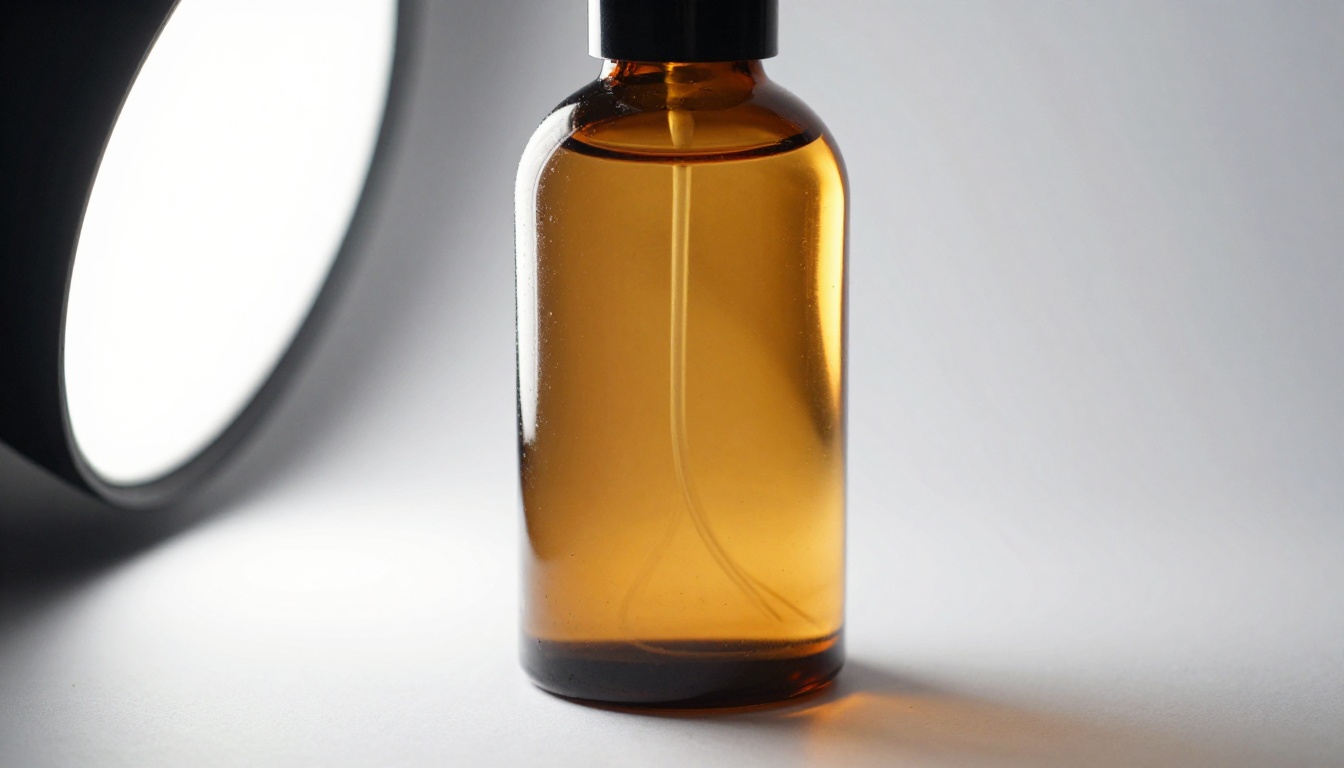
Amber glass bottle on seamless white paper, softbox from the left, 100mm macro, soft contact shadow
Poster with text
2:3 poster, the words "OPEN EARLY" centered in cream serif letters on forest green
Make it better
Keep the layout, warm the light, and sharpen the label text
One Session from Brief to Final
Here is a realistic exchange for a bakery's blog header:
You: "I need a 3:2 header photo for a post about sourdough. Warm, daylight, no people."
Claude: drafts a 60-word prompt, calls generate_image at low quality, and returns a draft.
You: "Closer. Move the loaf to the left third and add flour dust on the board."
Claude: changes only those two details, calls the tool again, and returns a second draft.
You: "Perfect. Render it at high quality as a PNG."
Claude: runs the final call and returns the file.
The pattern is cheap drafts first, one change per round, and a single expensive render at the end. That habit keeps both the bill and the number of rounds low.
Fixes for Common Failures
Most failures come from a short list of causes.
Symptom
Likely cause
Fix
Tool never appears
Invalid JSON or no full restart
Validate the config, then quit and reopen Claude
spawn npx ENOENT on Windows
Claude cannot find Node on its path
Use the full path to npx, or wrap the call with cmd /c
Server connects, then drops
Something printed to stdout
Move all logs to console.error
Error 401
Wrong or expired token
Generate a new token and update env
Error 429
Rate limit
Slow the calls and retry with a pause
Timeout on large sizes
Big images take longer
Draft at 1536x1024 and render finals once
Garbled text in the image
Too many words
Quote two or three words and use high quality
Keep costs predictable:
Default to quality: low for drafts and let Claude raise it only for the final render.
Keep n at 1 in your server. Ask for variations on purpose, not by accident.
Add a counter to the server that refuses more than a set number of calls per session.
Check the provider's usage page after your first day of testing, not after the first month.
💡 If you call PicassoIA's developer API from your own code, the base URL is https://api.picassoia.com/v1, requests use a Bearer token that starts with pia_sk_, and jobs follow a create, poll, fetch flow. Limits to plan around: 5 concurrent predictions per account, shared across tokens and MCP connections, prompts up to 4,000 characters, and request bodies up to 10 MB.
Make Your First Image Today
You do not need the whole setup to start. Open GPT Image 2 on Picasso IA, paste one of the prompts above, and generate three variations. If speed matters more than detail, try GPT Image 2.5 Flare. When a picture is close but not right, send it through PicassoIA Image Editor Pro for a targeted fix. Then bring the winning settings back to Claude and let your server repeat them on demand.
Want motion too? Feed your best still into Seedance 2.5 Lite and turn it into a short clip with audio. Browse every model at picassoia.com/en/all-models, pick one that fits your next project, and make something this week.