Large Language ModelsUpscale imagesGenerate images
Magnific API MCP: Upscale Images From Claude
Magnific runs a hosted MCP server that lets Claude upscale your photos 2x, 4x, 8x or 16x without leaving the chat. See how to connect it in two minutes, which prompts work, how Creative and Precision V2 differ, what each upscale costs, and which Picasso IA upscalers to compare.
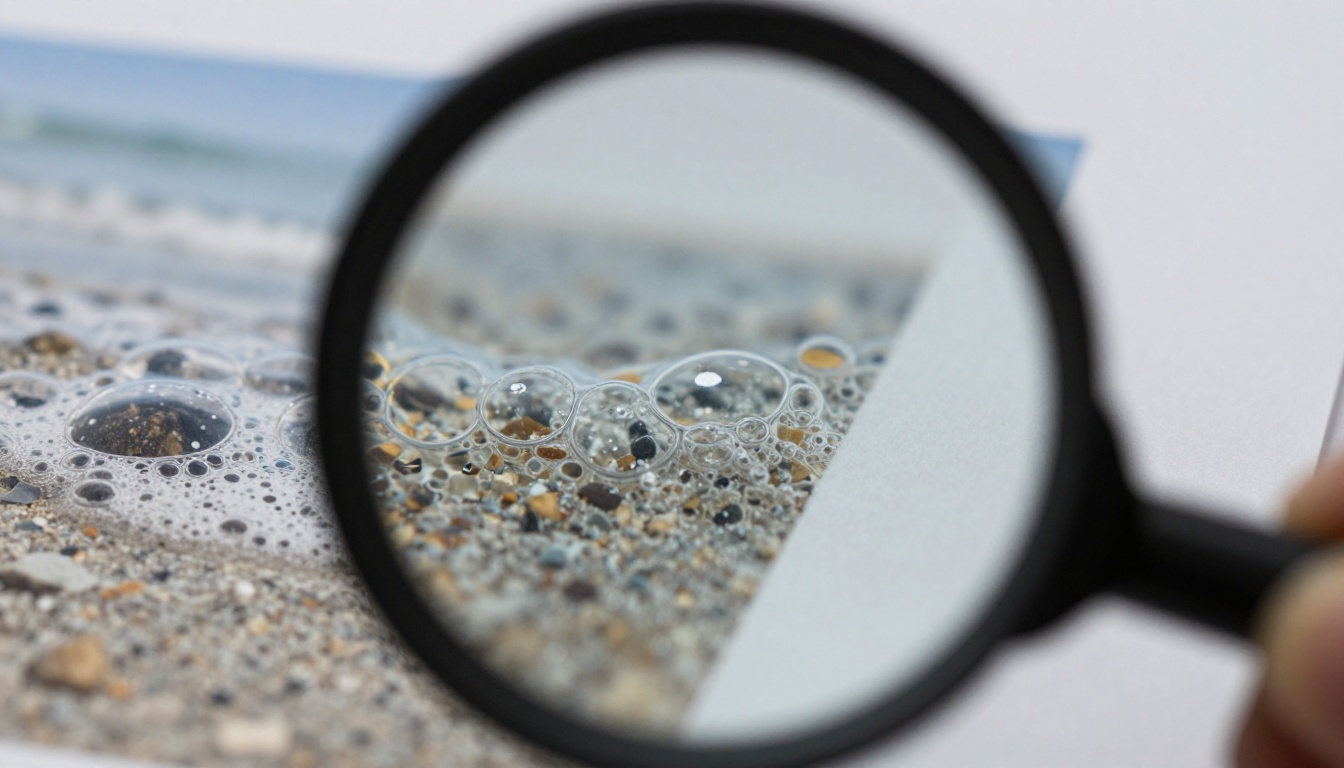
You have a 900 pixel photo that looks fine on a phone and falls apart the moment someone zooms in. The usual routine means exporting the file, opening an upscaler in a browser tab, uploading it, waiting, and downloading the result. With the Magnific MCP server, Claude runs that step for you inside the chat. You connect once, ask for a 4x upscale in plain English, and the sharper file comes back in the same conversation. This article shows how the connection works, what to type, what it costs, when the REST API is the better tool, and which browser-based upscalers on Picasso IA are worth comparing against it.
What the Magnific MCP Actually Is
MCP stands for Model Context Protocol, an open standard that lets an AI assistant call outside tools. Magnific runs its server remotely, so there is nothing to compile, no Docker container and no local process to keep alive. Claude talks to it over the internet, and the upscaler becomes one more thing Claude can do on request.
A Hosted Server, No Install
Here is what the setup looks like from your side:
Endpoint:https://mcp.magnific.com
Transport: streamable HTTP
Sign-in: OAuth 2.0 in your browser, with no API credential to copy or paste
Billing: the same credit balance as the rest of your Magnific account
The client keeps the session after the first sign-in, so you do not repeat the login every time you open a new chat.
What Claude Can Reach
Upscaling is only one slice. The server exposes a wider toolbox, and Claude picks the right tool from your request.
Folders, Spaces, search and retrieval of past creations
💡 Because everything lives in one chat, you can chain steps: generate an image, upscale it 4x, crop it to a banner ratio and remove the background, all without leaving the conversation.
Connect It to Claude in Two Minutes
The connection is a one-time job. Pick the route that matches how you use Claude.
Claude on the Web
Open your profile menu and choose Customize.
Go to Connectors and click Add connector.
Pick Add custom connector.
Enter the name Magnific and the URL https://mcp.magnific.com.
Finish the OAuth sign-in to Magnific when Claude opens it.
Once the connector shows as active, ask Claude to check your Magnific balance. A correct number back means the whole chain works.
Claude Code From the Terminal
One command registers the server:
claude mcp add --transport http magnific https://mcp.magnific.com
Open /mcp inside a session to finish the browser sign-in. Cursor, Windsurf and VS Code follow the same pattern: add a remote HTTP server, paste the URL, authorize in the browser. ChatGPT works too, through its developer mode apps screen.
Why OAuth beats a pasted credential: nothing secret sits in a config file, nothing lands in your shell history, and you can cut access from your account page without hunting through every machine where you saved a token.
Run Your First Upscale From Chat
With the connector active, the request is a normal sentence. Attach a photo and write something like this:
Upscale this photo 4x with Magnific. Keep it faithful, do not invent new details, and tell me the credit cost before you run it.
Prompts That Work
Product shots: "Upscale this product photo 4x and keep the label sharp and unchanged."
Batches: "Check my Magnific balance, then upscale the three images I just generated by 2x."
Options first: "List the settings the upscaler tool accepts before you run anything."
Safe testing: "Upscale 2x first. If the skin looks plastic, rerun with a lower creative setting if the tool has one."
💡 The exact settings Claude can pass depend on the tool schema in your session. Ask Claude to list them. If it cannot read an attached file, paste an HTTPS link to the image instead, since Magnific's own API accepts an image URL or a base64 string.
Picking 2x, 4x, 8x or 16x
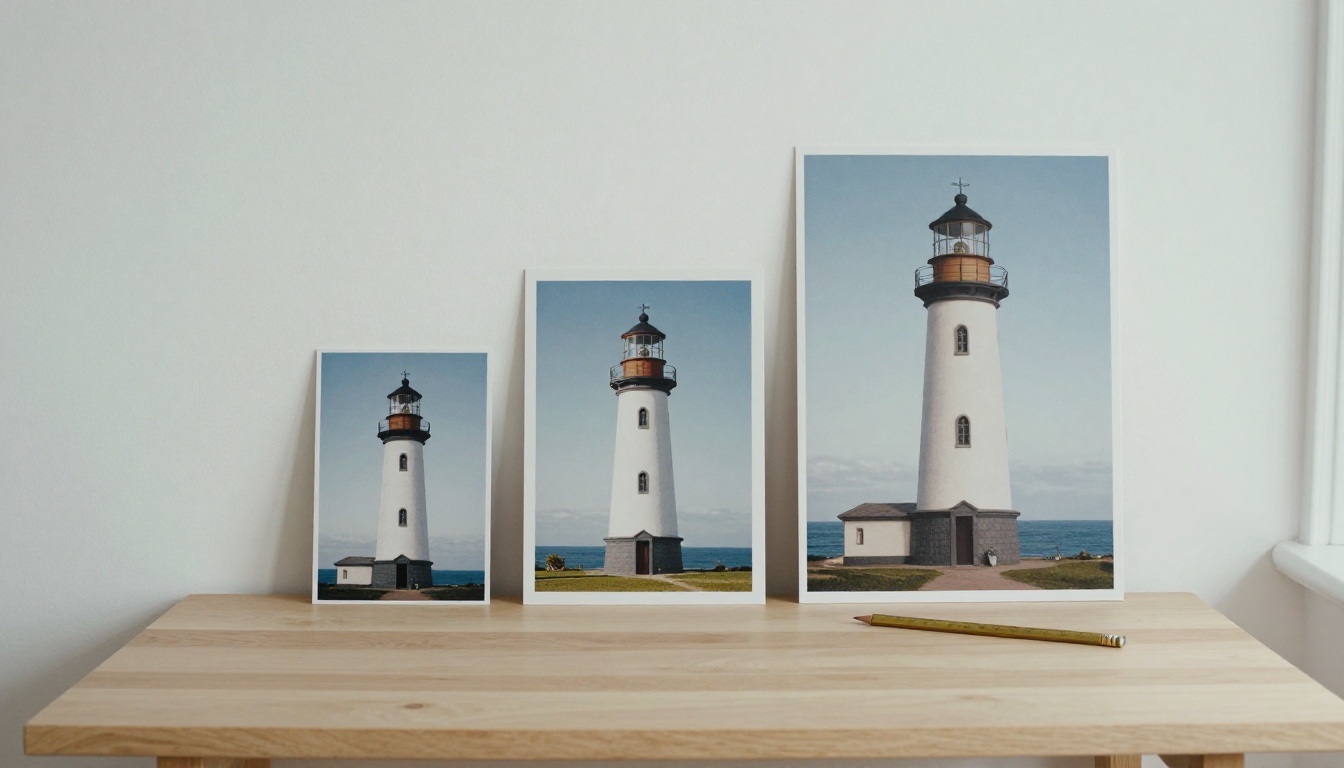
The creative upscaler offers 2x, 4x, 8x and 16x. The right factor depends on where the image ends up. A 1280×720 source at 4x becomes 5120×2880, which prints at roughly 17 by 9.6 inches at 300 dots per inch. The same source at 2x gives 2560×1440, enough for a sharp full screen display but only about 8.5 by 4.8 inches in print.
Input size
Factor
Output size
Magnific's published example price
640×480
2x
1280×960
€0.10
640×480
4x
2560×1920
€0.20
640×480
8x
5120×3840
€0.50
1280×720
2x
2560×1440
€0.10
1280×720
4x
5120×2880
€0.40
1920×1080
2x
3840×2160
€0.20
These figures come from the examples on the creative upscaler's documentation page. Prices can change, so confirm with the pricing page or ask Claude for a quote before a big run.
Modes and the REST API
Magnific's API exposes two upscaler families, and the choice matters more than the scale factor. Which of them the MCP tool named "Magnific upscaler" uses for a given request is not spelled out in the docs, so test a sample image before you trust a whole batch.
Creative Mode Adds Detail
The Creative upscaler adds or infers new detail, steered by an optional text prompt. It is built for stylized, higher impact results. Its controls include:
Scale factor: 2x, 4x, 8x or 16x
Optimized for: standard, soft portraits, hard portraits, art and illustration, videogame assets, nature and landscapes, films and photography, 3D renders, science fiction and horror
Creativity, HDR, resemblance and fractality: each on a scale from -10 to 10
Resemblance pulls the result back toward your original, while creativity pushes it away. If a face drifts, raise one and lower the other.
Precision V2 Stays Faithful
Precision V2 is the faithful option. It adds three dials the first Precision release did not have.
Setting
Range
Default
What it does
Sharpen
0 to 100
7
Edge definition
Smart grain
0 to 100
7
Keeps natural texture
Ultra detail
0 to 100
30
Micro-detail
Flavor
3 options
none
sublime, photo or photo_denoiser
Scale factor
2 to 16
none
Output multiplier
💡 For product photos, packaging, interface screenshots and anything where accuracy matters, start with Precision. Save Creative for tiny, soft or low quality sources where invented detail is a feature.
When to Skip the MCP
The REST API makes sense once upscaling becomes a pipeline instead of a chat. The creative endpoint is POST /v1/ai/image-upscaler and Precision V2 is POST /v1/ai/image-upscaler-precision-v2. Jobs are asynchronous: you create a task, then fetch it by ID or pass a webhook_url and let Magnific notify you when the output is ready.
Question
MCP in Claude
REST API
Sign-in
OAuth in the browser
API credential in a request header
Best for
One-off jobs, small batches, mixed tasks
Scheduled jobs, apps, large queues
Control
Whatever the tool schema exposes
The full parameter list
Waiting
Claude handles it
You poll or use a webhook
Billing
Your Magnific credit balance
Credit-based, priced by output pixels
Choose the MCP for anything you would do by hand twice a week. Choose the API when a script, an app or a nightly job needs the result without a person in the loop.
What It Costs in Credits
Both routes bill through Magnific credits. Costs vary by model and resolution, and the docs do not publish a cap on MCP usage.
Pricing Follows Output Pixels
The price depends on the area of the finished image, which comes from the input size and the scale factor together. It does not rise in a straight line. In the published examples, a 640×480 file costs €0.10 at 2x and €0.50 at 8x: sixteen times the pixels for five times the price. A 1280×720 file goes from €0.10 at 2x to €0.40 at 4x.
Here is a worked example. A shop owner has a 1280×720 product photo and needs a zoomable image for a store page. A 2x run produces 2560×1440 for about €0.10 at the published rate, which is plenty for a zoom viewer. The same owner also wants a poster of the hero shot, so only that single image gets the 4x run at about €0.40. Splitting the job by purpose keeps the bill close to the minimum.
Habits That Save Credits
Crop first. Upscale only the region you plan to use.
Test small. Run 2x on a crop and judge it at 100% zoom before committing to 8x on the full frame.
Check the balance. Ask Claude for your balance before a batch, and again after.
Skip double passes. Two 2x runs usually look worse than one 4x run and cost more.
Browser Alternatives on Picasso IA
Magnific is not the only option, and a second opinion on the same file is cheap. Picasso IA lists a full super-resolution category, so you can run one image through several upscalers and keep the winner. It also hosts large language models, including Claude Sonnet 5 and Claude Fable 5, which are handy for turning rough notes about a photo into a short prompt for a creative upscale.
Upscalers work best on a clean source. If you are starting from nothing, generate the base image first with Picasso IA Image, Seedream 5 Pro or GPT Image 2. Fix flaws before you enlarge them, because an upscaler magnifies every smudge. Picasso IA Image Editor Pro handles that cleanup step.
How to Upscale on Picasso IA
Open a model page from the table above, for example Topaz Labs Image Upscale.
Upload a JPG or PNG as the source image.
Choose the scale factor or target size if the model offers one.
Run it, then open the result at 100% zoom.
Send the same file through a second model and compare skin, edges and any small text.
Download the version that looks most natural.
💡 Always compare the same crop from each result. A full-frame view hides the differences that matter, such as waxy skin, smeared foliage and warped lettering.
Fixes for Common Problems
Claude Can't See the Tools
Check that the connector is switched on for the current chat in Claude's tools menu. If it is, remove the connector and add it again to force a fresh OAuth sign-in. In Claude Code, run claude mcp list to confirm the server shows as connected, then /mcp to reauthorize. An expired session is the most common cause.
Plastic Skin and Warped Text
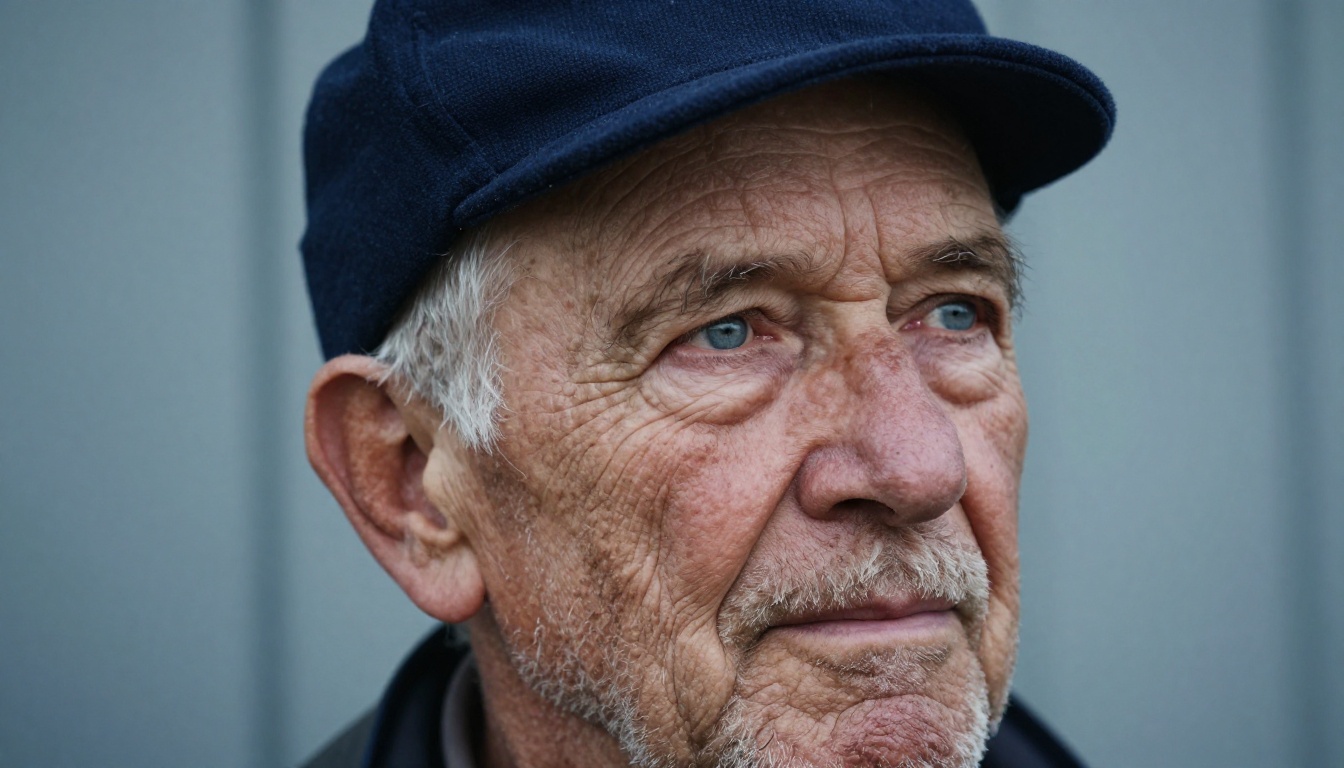
Both come from too much creative freedom. Pores and fine wrinkles, like those in the portrait above, are exactly what an over-eager upscaler smooths away. Try these in order:
Drop the factor. A clean 2x beats a plastic 8x.
Lower creativity and HDR, or raise resemblance, if you are using Creative.
Switch to Precision V2 with a light sharpen and a little extra smart grain.
For logos and small lettering, upscale the photo and paste the original artwork back on top.
If credits run out halfway through a batch, ask Claude for the balance first and split the job into smaller runs so a failure costs you one image, not fifty.
Upscale Your First Photo Today
Pick one image you have always wanted bigger: a family portrait, a product shot, a landscape that never printed well. Connect the Magnific MCP, run a 2x test, then send the same file through Topaz Labs Image Upscale on Picasso IA and put both results side by side at 100% zoom. Two minutes of comparing will tell you more than any spec sheet.
Need a fresh image to enlarge? Generate it with Seedream 5 Pro, polish it in Picasso IA Image Editor Pro, and upscale it with whichever tool gives you the cleanest edges. Every model mentioned here, plus hundreds more, is waiting at picassoia.com/en/all-models. Open it, upload your photo, and see how much detail a small file can really hold.