Every creator eventually hits the same wall: you spend an hour filming a great video, then spend three more hours turning it into content for every platform. That ratio is broken, and AI fixes it for good.
The idea behind content multiplication is simple. One well-recorded video contains dozens of standalone moments, each strong enough to live as its own post. A 20-minute podcast clip holds a punchy opening, three quotable lines, one contrarian opinion, and a surprising reveal. That is already five TikToks. Add a behind-the-scenes moment, a listicle segment, a how-to section, and a call-to-action close, and you are at ten without breaking a sweat.
What changed recently is that AI tools have made the splitting, trimming, captioning, and reformatting so fast that the entire process from one source file to ten publish-ready clips now fits inside thirty minutes. Here is exactly how to do it.
Why One Recording Is Worth Ten Posts
The numbers behind content multiplication
Short-form platforms reward frequency as much as quality. Algorithms on TikTok, Instagram Reels, and YouTube Shorts are built around a steady stream of content, not polished weekly uploads. Research consistently shows that creators posting five or more short clips weekly outperform those posting one or two, even when the individual quality is lower.
The arithmetic is in your favor. A single 30-minute interview or tutorial contains roughly:
| Source Segment | Clip Type | Ideal Length |
|---|
| Cold open / hook | Standalone teaser | 7-15 seconds |
| Main argument #1 | Opinion clip | 30-60 seconds |
| Main argument #2 | Opinion clip | 30-60 seconds |
| How-to section | Mini tutorial | 45-90 seconds |
| Surprising stat or fact | "Did you know" clip | 15-30 seconds |
| Strongest quote | Talking head clip | 20-45 seconds |
| Behind-the-scenes B-roll | Lifestyle filler | 15-30 seconds |
| Bloopers or outtakes | Personality clip | 15-45 seconds |
| Story arc or journey | Narrative clip | 60-90 seconds |
| Call to action | CTA clip | 15-30 seconds |
That is ten clip types from a single recording session. None of them require new footage.
Platforms that reward clip frequency
Different platforms have different optimal clip lengths and aspect ratios. Before you post, knowing where each clip lives matters:
- TikTok: 9:16 vertical, 15 seconds to 3 minutes, captions essential
- Instagram Reels: 9:16 vertical, up to 90 seconds for best reach
- YouTube Shorts: 9:16 vertical, under 60 seconds
- LinkedIn Video: 16:9 horizontal, 30 seconds to 2 minutes
- X (Twitter): 16:9 horizontal, under 2 minutes 20 seconds
A clip recorded in 16:9 landscape needs reframing before it goes to TikTok or Reels. AI handles that instantly, which is covered below.

The AI Clip Workflow, Step by Step
Step 1: Split the source video
The first thing you need is a reliable way to cut a long video into segments without manually scrubbing through the timeline. Video Split on Picasso IA does exactly this: you upload your source file, set interval points or let the tool detect natural scene breaks, and it outputs every segment as its own file.
Tip: For interviews or podcasts, aim for splits at every topic change or at every strong statement. If the speaker pauses for more than two seconds and shifts subjects, that is a natural cut point.
The tool processes everything on the server, so there is no need to download heavy editing software. Upload once, get your segments back in minutes.
Step 2: Trim each clip to its best moment
Raw segments always have a second or two of dead air at the start or a trailing pause at the end. Trim Video lets you set precise in and out points with frame-level accuracy. It is faster than any desktop editor for simple cuts because there is no render queue and no export dialog.
For short-form content, the first 1.5 seconds carry everything. The clip either hooks the viewer in that window or it loses them. Trim aggressively. Cut the sentence the speaker was about to say right before the most interesting thing they actually said.
Step 3: Add captions automatically
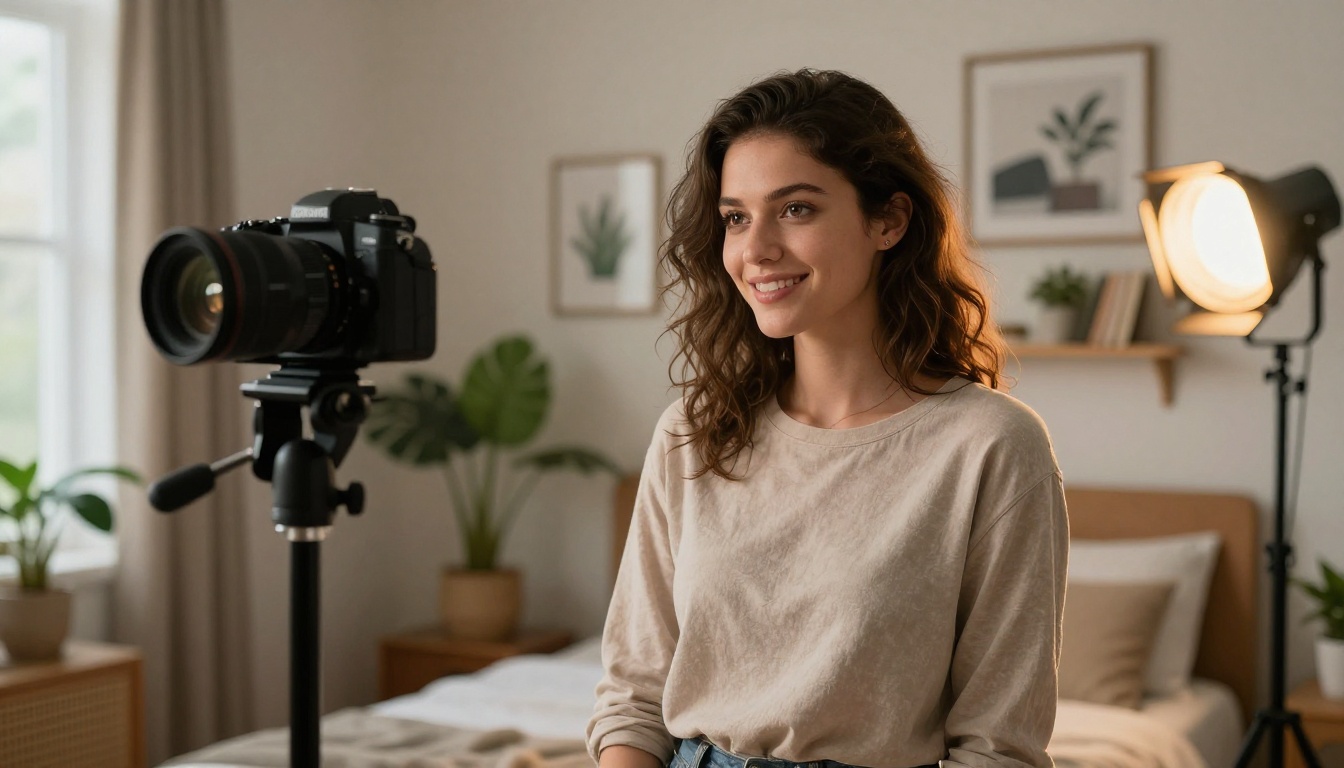
Captions are no longer optional. On TikTok and Reels, over 80% of viewers watch without sound in public settings. Without captions, you lose most of your audience before they decide to unmute.
Autocaption generates word-level captions with timestamps, syncs them to the audio, and burns them into the video. The accuracy is high enough that light reviewing is all you need. It works in multiple languages and outputs styled text that matches current short-form trends.
Step 4: Reframe for each platform
A 16:9 horizontal recording needs to become a 9:16 vertical clip for TikTok and Reels. Simply cropping introduces a zoomed-in, claustrophobic feel if the subject is centered. Smart reframing tracks the speaker and keeps them in the vertical frame naturally.
Reframe Video by Luma detects the main subject and automatically crops the frame to any target aspect ratio, tracking movement throughout the clip. You get proper 9:16 vertical clips from horizontal footage without manually setting keyframes for every second.
Video Split: the fastest way
Video Split stands out for raw speed. There is no complex interface, nothing to figure out. You paste your source file, choose the number of clips or the split intervals, and the outputs are ready. For creators doing high-volume repurposing across multiple source videos per week, this is the tool that removes the bottleneck.
It pairs well with Video Merge if you need to stitch together non-consecutive segments from the same source into a single coherent clip.
Trim Video: precision control
Trim Video is the scalpel. Where Video Split handles bulk operations, Trim Video lets you dial in exact timestamps. It is the right tool when a segment is almost perfect but has a two-second intro you need gone or a trailing sentence that undercuts the impact of the clip's ending.

Text-based editing with Lucy Edit 2
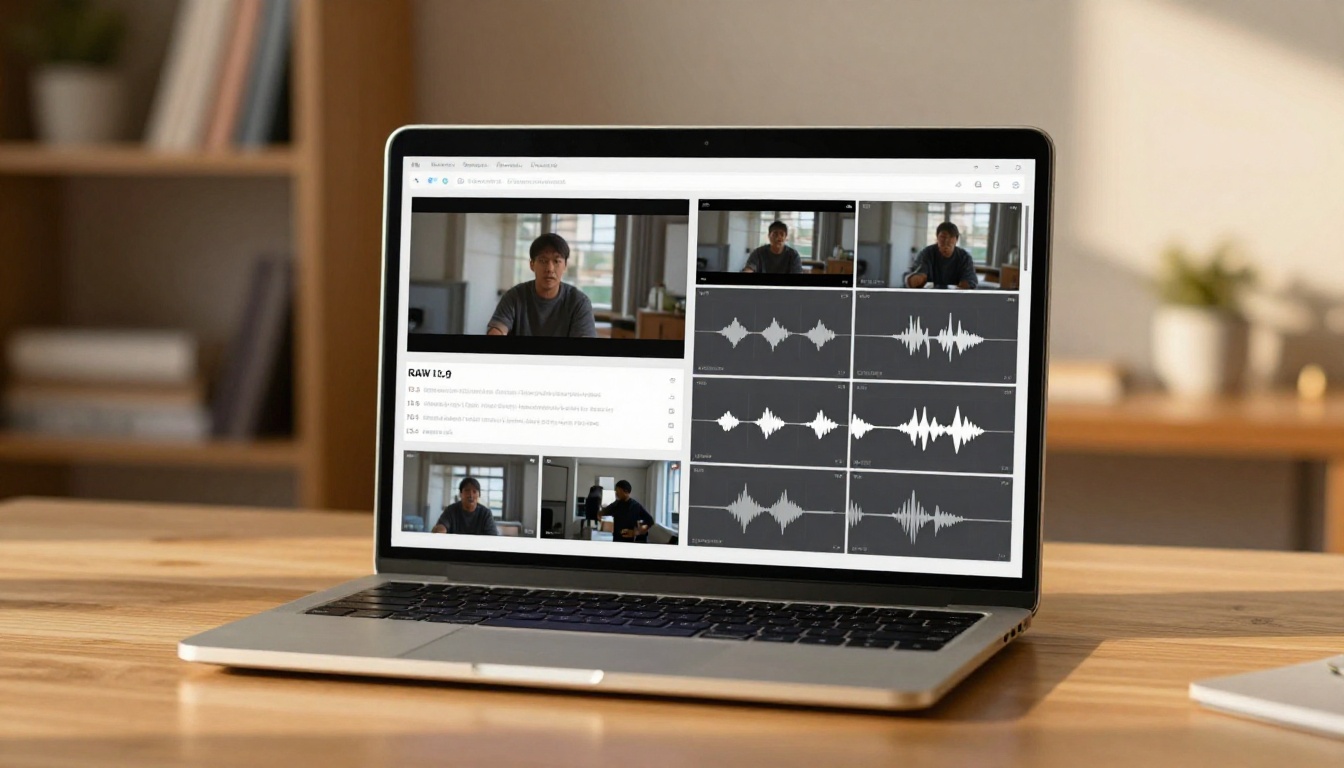
Text-based video editing is one of the most practical AI innovations for content repurposing. Lucy Edit 2 lets you edit video by editing its transcript. Delete a sentence from the text, and the corresponding footage is removed. This means you can repurpose by simply copying the transcript sections you want and letting the AI rebuild the video clip from those segments.
For a 20-minute interview, this workflow looks like:
- Upload to Lucy Edit 2
- Read the auto-generated transcript
- Select the 10 strongest segments by highlighting transcript text
- Export each as a standalone clip
The whole process takes under 20 minutes for source material you have already watched once.
Kling o1 and Wan 2.7 Videoedit go further: they accept text instructions and can rewrite or restyle the content itself. If a clip's background is distracting or the speaker's energy is flat, you can direct the AI to fix it with a prompt rather than re-recording.
Make Each Clip Stand Out
Remove distracting backgrounds
A messy room, a dull office wall, or an inconsistent background across your ten clips breaks the visual coherence of your content series. Video Remove Background strips the background from any video with no green screen required. You can replace it with a clean solid color, a blurred version of itself, or a custom image.
This is particularly useful when your ten clips come from different recording sessions with different environments, but you want them to look like a unified series.
Add sound effects in one click
Silence gaps, inconsistent room tone, and weak audio are the fastest ways to lose a viewer on short-form platforms. Video To SFX v1.5 analyzes what is happening in the video and generates contextually appropriate sound effects automatically. If the clip shows someone typing at a laptop, it generates typing sounds. If someone walks into frame, footsteps are added.
For background music, Video Audio Merge lets you layer a music track under your video audio, control the volume mix, and export a clean final file. This rounds out the audio polish without needing a separate audio editor.
Tip: Keep background music under 20% volume on talking-head clips. Viewers focus on speech first, and competing audio kills comprehension for anyone watching with sound on.

Upscale for sharper results
If the original recording was in 1080p or below, upscaling before publishing improves the visual quality of every clip in the batch. Crystal Video Upscaler processes video to 4K with detail enhancement that sharpens edges, recovers fine texture, and reduces compression artifacts.
Video Upscale by Topaz Labs goes further with support for up to 4K output at 120fps, which makes motion-heavy footage look significantly smoother. For content featuring fast movement, cooking demonstrations, or sports activity, the 120fps processing alone is worth it.
Real ESRGAN Video is a solid free alternative for 4K upscaling when budget is a factor.
Before uploading to each platform, run your clips through Featured Vid for web-optimized compression. This reduces file size without visible quality loss, which speeds up upload times and improves load performance for viewers on slower connections.
When You Need More Than One Source Video
Generate new clips with AI models
Sometimes a topic needs more variety than a single recording can provide. Visually rich social content often benefits from different scenes, different settings, or illustrative footage that was not in the original recording. This is where AI text-to-video models close the gap.
Kling v3 Video generates cinematic 1080p clips from text prompts, making it possible to create illustrative B-roll for any subject without a camera crew. If your original video is a talking-head tutorial on personal finance, you can generate B-roll clips of people handling cards, checking budgets, or walking through a market to cut between your speaking segments.
Seedance 2.0 adds built-in audio generation to the video output, which means background sounds are included automatically alongside the visual. For lifestyle content or ambient scenes, this saves a separate audio production step.
Veo 3 from Google produces native audio-synced video from text, making it one of the most versatile models available for generating standalone short clips that fit naturally into a broader content series.
Restyle existing footage
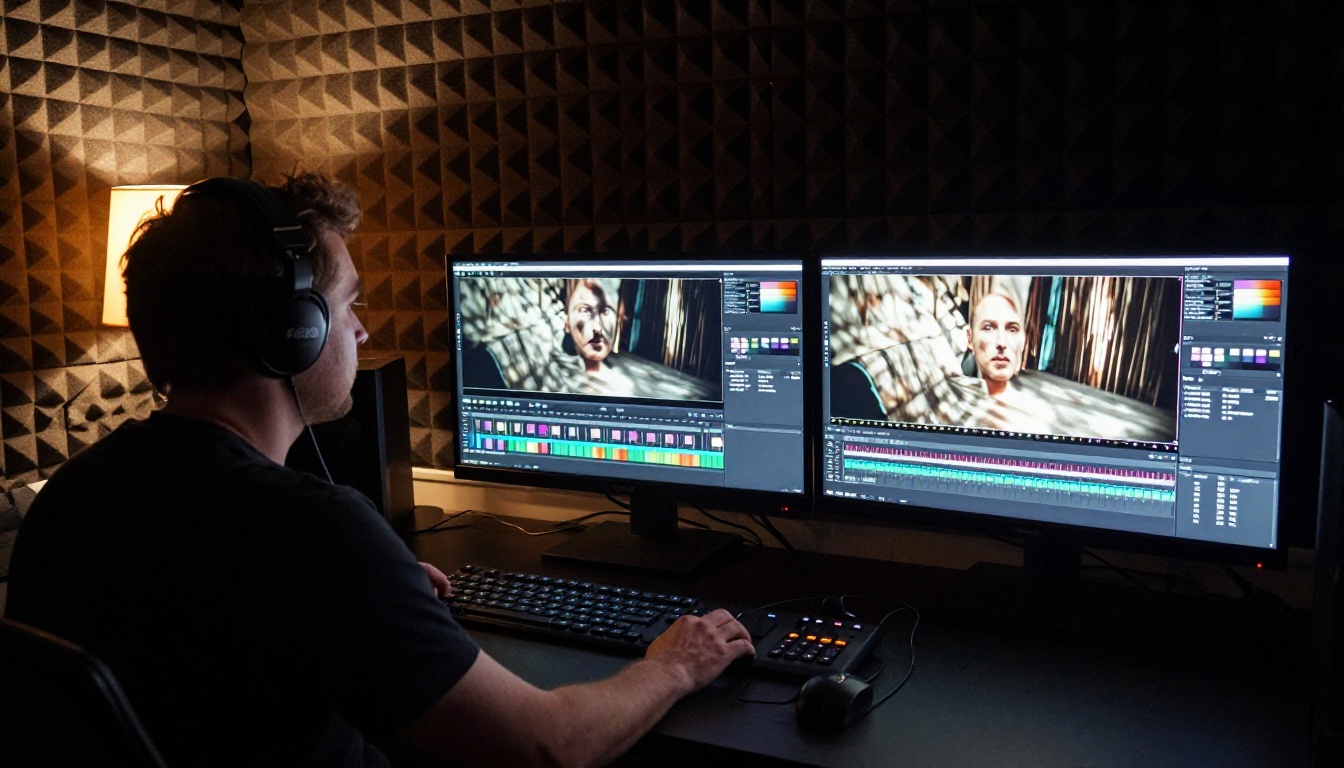
Not all ten clips need to look identical to the source material. Gen 4 Aleph by Runway can recut and restyle footage based on a reference image or a style description. If your original video has a flat, overexposed look, Gen 4 Aleph can apply a cinematic color grade, adjust the visual style, and output a stylistically distinct version without touching a color panel.
This is especially useful for creating a highlight reel clip where the overall aesthetic should feel more premium than the raw recording.
Hooks and cold opens
The first clip from any long video should be its strongest single line or most surprising moment. On TikTok and Reels, the hook clip does double duty: it stands alone as content, and it also acts as a teaser that drives viewers to find the full version.
A strong hook clip has three elements: an unexpected opening line, a visual setup that creates curiosity, and an abrupt cut at the moment of highest tension. No resolution, no answer. Just the question hanging.
Tips, lists, and micro-tutorials
"Here are three things I wish I knew before..." is a format that performs consistently across every short-form platform and every content niche. If your source video is a tutorial, extract each individual tip or step as its own clip. Viewers who get value from one tip clip are highly likely to follow for more.
Use Split Screen Video to present before/after comparisons or two perspectives side-by-side within a single clip, adding visual variety to what might otherwise be a static talking-head format.
Behind-the-scenes moments
The clips that feel least like "content" often perform best. Raw, unpolished moments showing the process behind the finished work carry authenticity that audiences reward. A clip of you setting up the shot, debugging a problem, or reacting honestly to a result breaks the fourth wall in a way that builds real connection.
Frame Extractor lets you pull clean still frames from any point in your video, which you can use as thumbnails or teaser images for each clip across platforms. Instead of manually screenshotting, the tool outputs high-quality stills from any timestamp.
Your First Ten Clips, Starting Now
The barrier to turning one recording into ten polished clips is no longer technical skill or editing time. It is a decision. Decide to record once per week with the intention of repurposing, and AI handles the rest.
The workflow is straightforward. Split with Video Split, trim precisely with Trim Video, caption every clip with Autocaption, reframe for each platform with Reframe Video, polish audio with Video Audio Merge, and upscale with Crystal Video Upscaler. All of these tools live in one place on Picasso IA.
What used to take an afternoon now takes thirty minutes. The content calendar that felt impossible to keep full suddenly has ten new posts from a single recording session. That is the real shift: from content scarcity to content abundance, without filming more.
If you have not yet tried splitting a video into clips using AI, start with one source video today. Upload it, set five cut points, and watch what comes back. The results tend to be surprising in the best way.